Banks
This guide explains how bank reconciliation works in MyCloudBook, how to read the Banks tab, and how to add a bank account or a credit card.
Overview
Bank reconciliation compares the bank statement with the books of the company. It shows that every movement of the bank is in the books, and that every movement of the books reached the bank. MyCloudBook holds this work in the Banking page.
A bank in MyCloudBook connects one account of the chart of accounts with a real bank account or credit card. This guide explains the Banks tab and how to add a bank. The whole work has five steps:
| Step | What you do |
|---|---|
| 1. Connect the bank | Add a bank in the Banks tab. See the Banks guide. |
| 2. Import the statement | Upload the statement file of the bank. See the Bank Statements guide. |
| 3. Start a period | Enter the end date and the ending balance of the statement. See the Reconciliation Periods guide. |
| 4. Reconcile the lines | Match each statement line with a document of the books, or create the document. See the Bank Transactions and Reconcile guide. |
| 5. Complete the period | When the Difference is 0.00, mark the period as completed. Its transactions are then locked. |
The Banks tab
- In the left navigation, click Banking. The Banks tab lists the banks of the company.
When no company is selected, MyCloudBook asks you to select or create a company first.
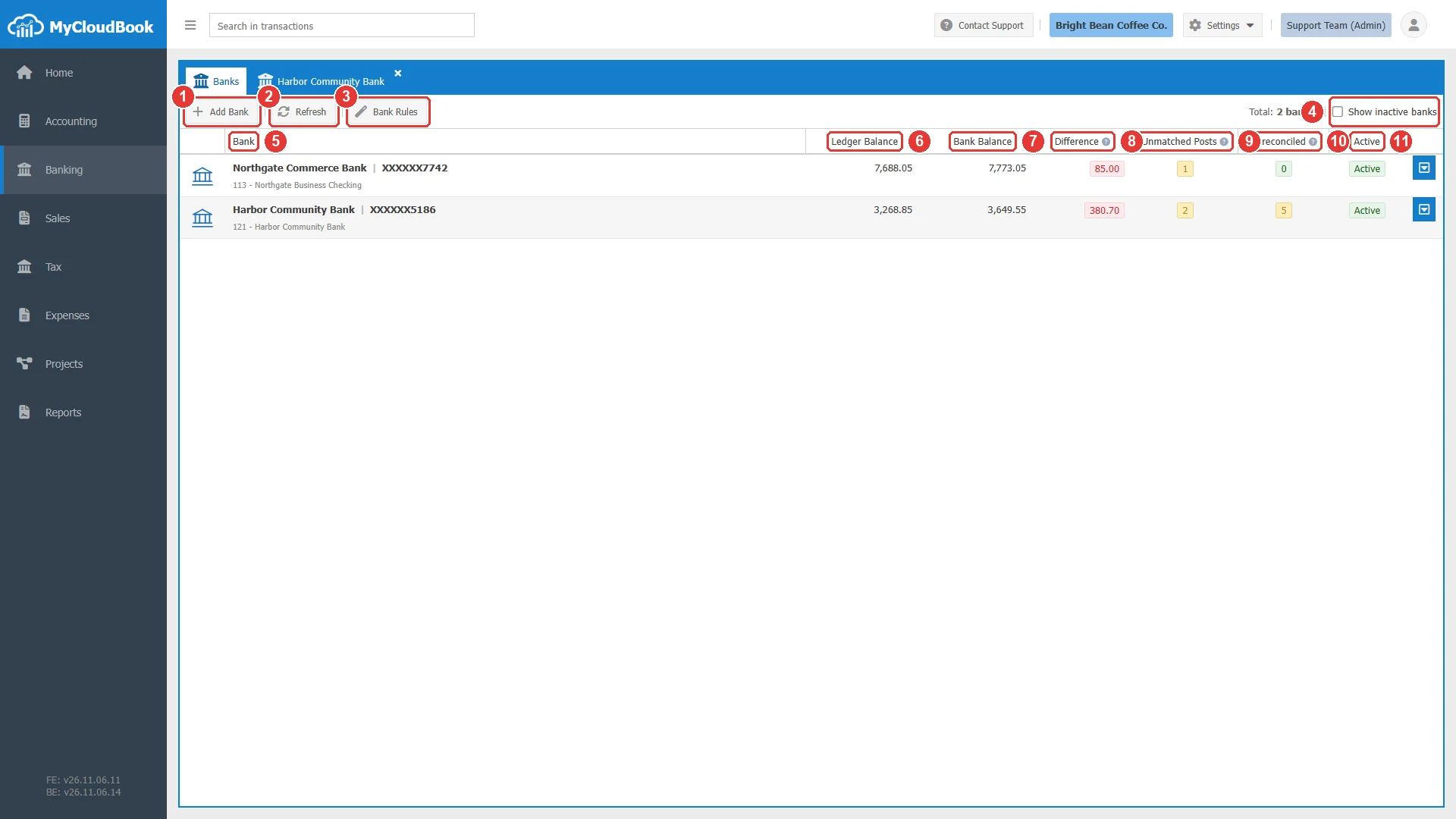
- 1Add Bank. Opens the New Bank window.
- 2Refresh. Loads the list again.
- 3Bank Rules. Opens the Bank Rules tab.
- 4Show inactive banks. Adds the inactive banks to the list.
- 5Bank. The bank name and the bank account number, and under them the account of the books.
- 6Ledger Balance. The balance of the account in the books.
- 7Bank Balance. The balance of the bank from the transactions in MyCloudBook.
- 8Difference. The bank balance less the ledger balance. Green at zero, and red otherwise.
- 9Unmatched Posts. The journal posts of the account that have no bank transaction yet.
- 10Unreconciled. The bank transactions that are not reconciled yet.
- 11Active. The status of the bank.
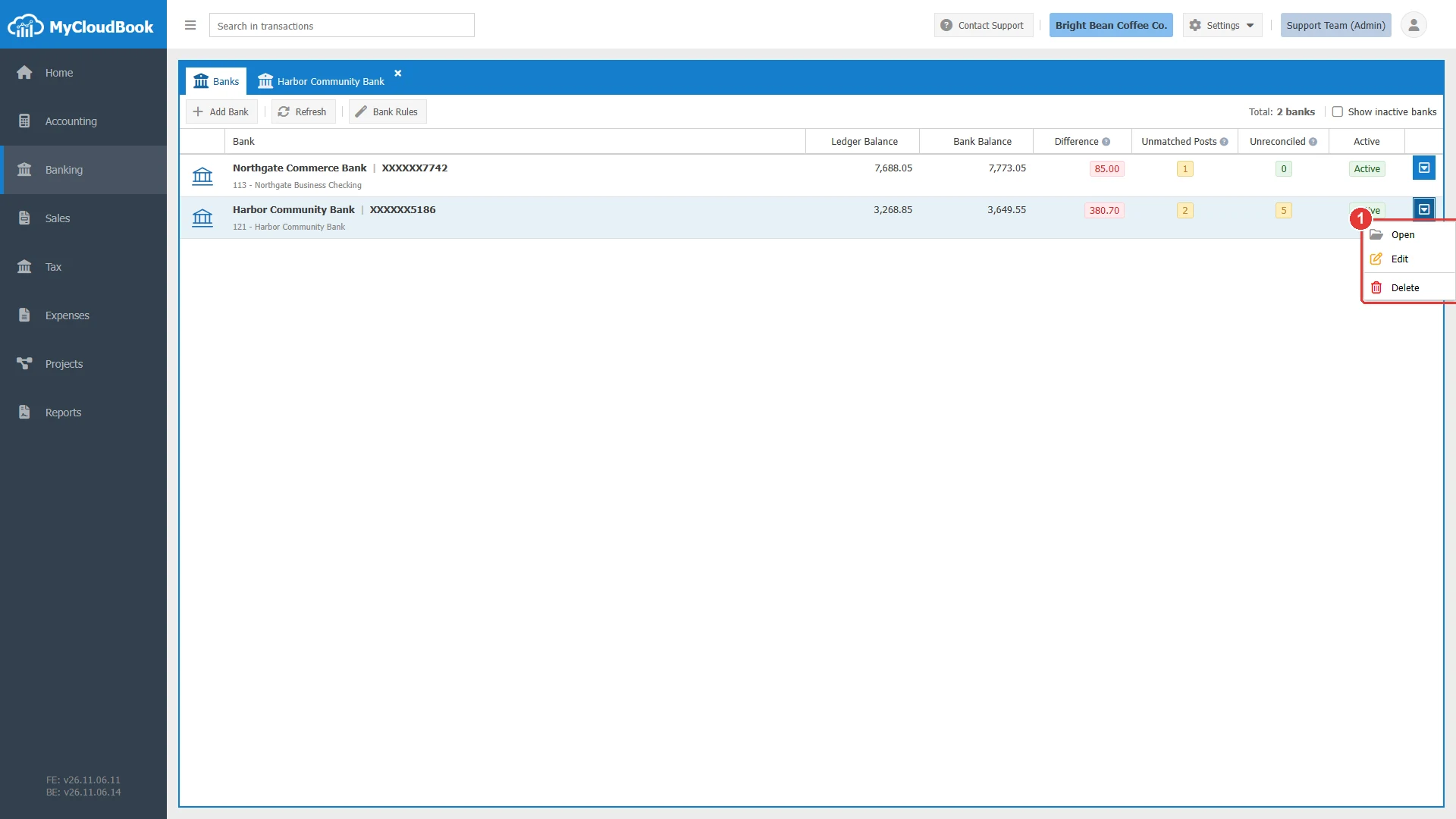
- 1The menu of the row: Open, Edit, and Delete.
A double click on a row opens the bank profile. The Bank Profile guide explains it.
Adding a bank
- Click Add Bank. The New Bank window opens.
- Click the card of the type: Bank Account or Credit Card.
- Select the Account, or click the + button to add a new account.
- Type the Bank Name and the Bank Account No.
- For an account that is already in use, select the Reconciliation Start Date and check the Opening Balance.
- Click Save. The new bank appears in the list.
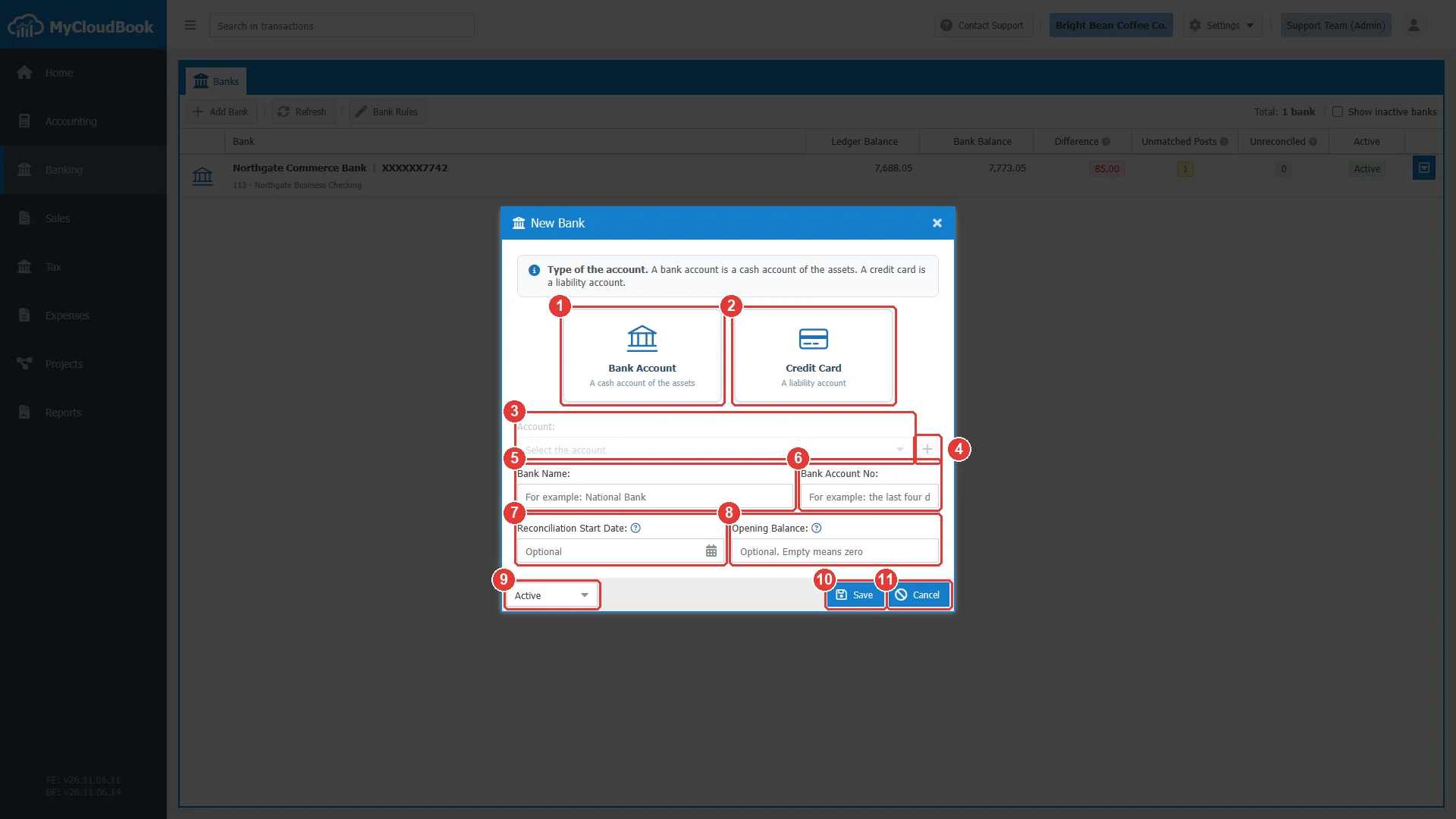
- 1Bank Account. A cash account of the assets.
- 2Credit Card. A liability account.
- 3Account. The account of the books. The list opens after you click a type.
- 4The + button. Adds a new account for the bank.
- 5Bank Name.
- 6Bank Account No.
- 7Reconciliation Start Date. Optional.
- 8Opening Balance. Optional.
- 9The status: Active or Inactive.
- 10Save.
- 11Cancel.
In the example, the coffee shop opens a new business account at Harbor Community Bank, so it adds a new account with the same name. The Add Account window already holds the right type, and the option Is Cash is selected.
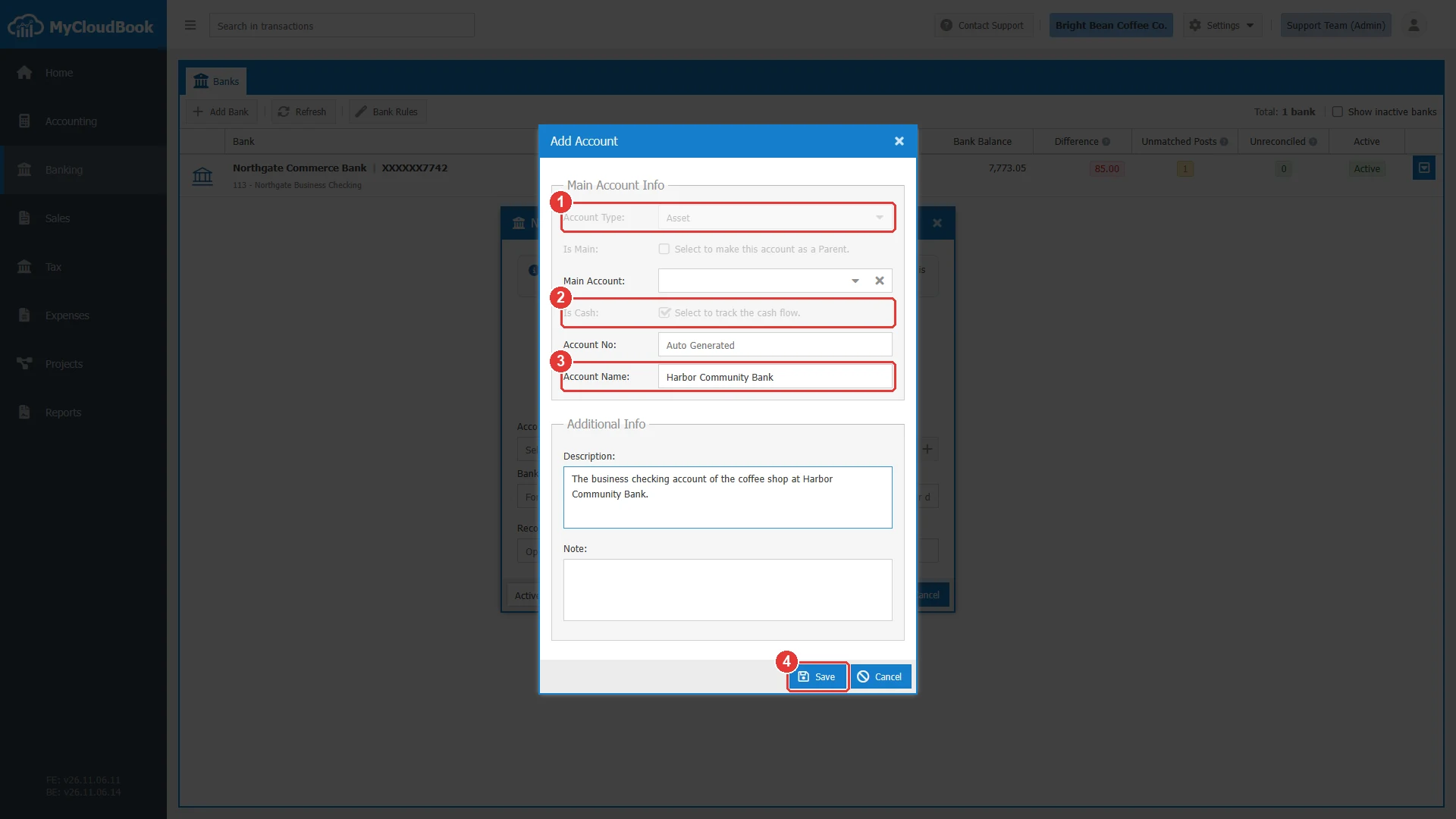
- 1Account Type. It follows the card that you selected.
- 2Is Cash. Selected for a bank account.
- 3Account Name. Use the name of the bank, so the account is easy to find.
- 4Save. The new account is selected in the New Bank window.
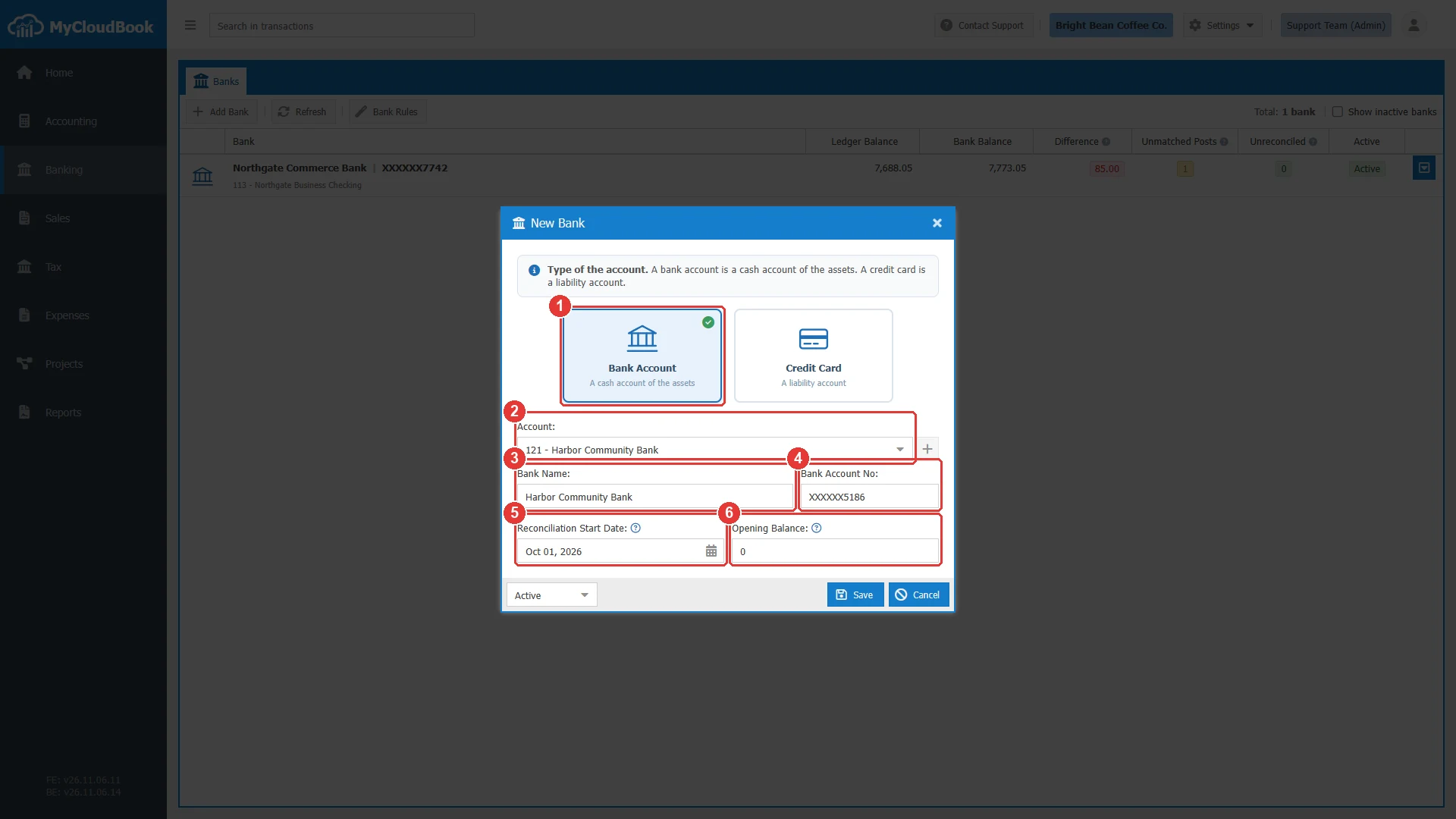
- 1The selected type, Bank Account.
- 2Account: 121 - Harbor Community Bank.
- 3Bank Name.
- 4Bank Account No. Many companies type only the last digits.
- 5Reconciliation Start Date: Oct 01, 2026.
- 6Opening Balance: 0, because the account is new.
The fields
| Field | Required | Purpose and rules |
|---|---|---|
| Type | Required | Bank Account uses a cash account of the assets. Credit Card uses a liability account. The type stays after the first save. |
| Account | Required | The account of the books. It must be a sub account that you created, and it can hold one bank only. The list shows the free accounts of the selected type. The account stays after the first save. |
| Bank Name | Required | Up to 100 characters, for example National Bank. |
| Bank Account No | Required | Up to 50 characters, for example the last four digits. |
| Reconciliation Start Date | Optional | Leave it empty for a new account. For an account that is already in use, choose the first day of the first statement that you will import. |
| Opening Balance | Optional | Empty means zero. With a start date, it is the balance printed on the statement at the end of the day before the start date. The window fills it with the ledger balance of that day. Change it when the statement shows another balance. |
| Status | Required | Active or Inactive. |
The start date and the opening balance
The start date tells MyCloudBook where the reconciliation begins:
- Journal posts before the start date count as reconciled.
- Statement lines before the start date are skipped at the import.
- A reconciliation period cannot end before the start date.
Select the account and the start date first, and then type the balance of the statement. The window fills the balance again when the date or the account changes.
Changing, deactivating, and deleting a bank
To change a bank, click Edit in its row menu. The account and the type are shown, but they are locked. After a reconciliation period is completed, the start date and the opening balance are locked too. Reopen the period to change them.
To stop using a bank, set its status to Inactive. An inactive bank keeps its history, it leaves the list, and it takes no new statements or periods. Show inactive banks shows it again.
Delete removes a bank that has no statements, transactions, or reconciliation periods. The account stays in the chart of accounts.
Messages and their meaning
Questions and answers
What is bank reconciliation in MyCloudBook?
It compares the bank statement with the books. You import the statement, match each line with a document of the books, and complete the period when the difference is zero.
Which account can a bank use?
A bank account uses a cash account of the assets, and a credit card uses a liability account. One account holds one bank.
Do I need a start date?
Not for a new bank account. For an account that is already in use, choose the first day of the first statement that you will import.
What is the opening balance?
The balance on the statement at the end of the day before the start date. Empty means zero, which is right for a new account.
How do I stop using a bank?
Set its status to Inactive. The bank keeps its history, and Show inactive banks shows it again.