Document Templates
This guide explains the document templates of MyCloudBook: how the PDF documents get their design, how to add a template from the gallery or from a file, and how to choose the default template of a document type.
Overview
MyCloudBook creates the printed documents, such as invoices and receipts, as Portable Document Format (PDF) files. Each PDF is built from a template: a page in HyperText Markup Language (HTML) with the design of the document and placeholders for the data. MyCloudBook offers a gallery of ready templates. A company can add templates to its own list, from the gallery or from its own HTML file. It can also choose a default template for each document type.
When MyCloudBook prints a document, it uses the first template of this order:
- the template that is chosen in the Template field of the document;
- the default template of the company for the document type;
- the standard template of MyCloudBook for the document type, which is marked DEFAULT in the gallery.
A company without templates of its own prints every document with the standard templates.
How to open the window
- In the top bar, click Settings. The button is between the name of the company and the name of the user.
- In the menu, click Document Templates.
The Settings menu is shown to the users with the Admin role. The other users do not see the menu.
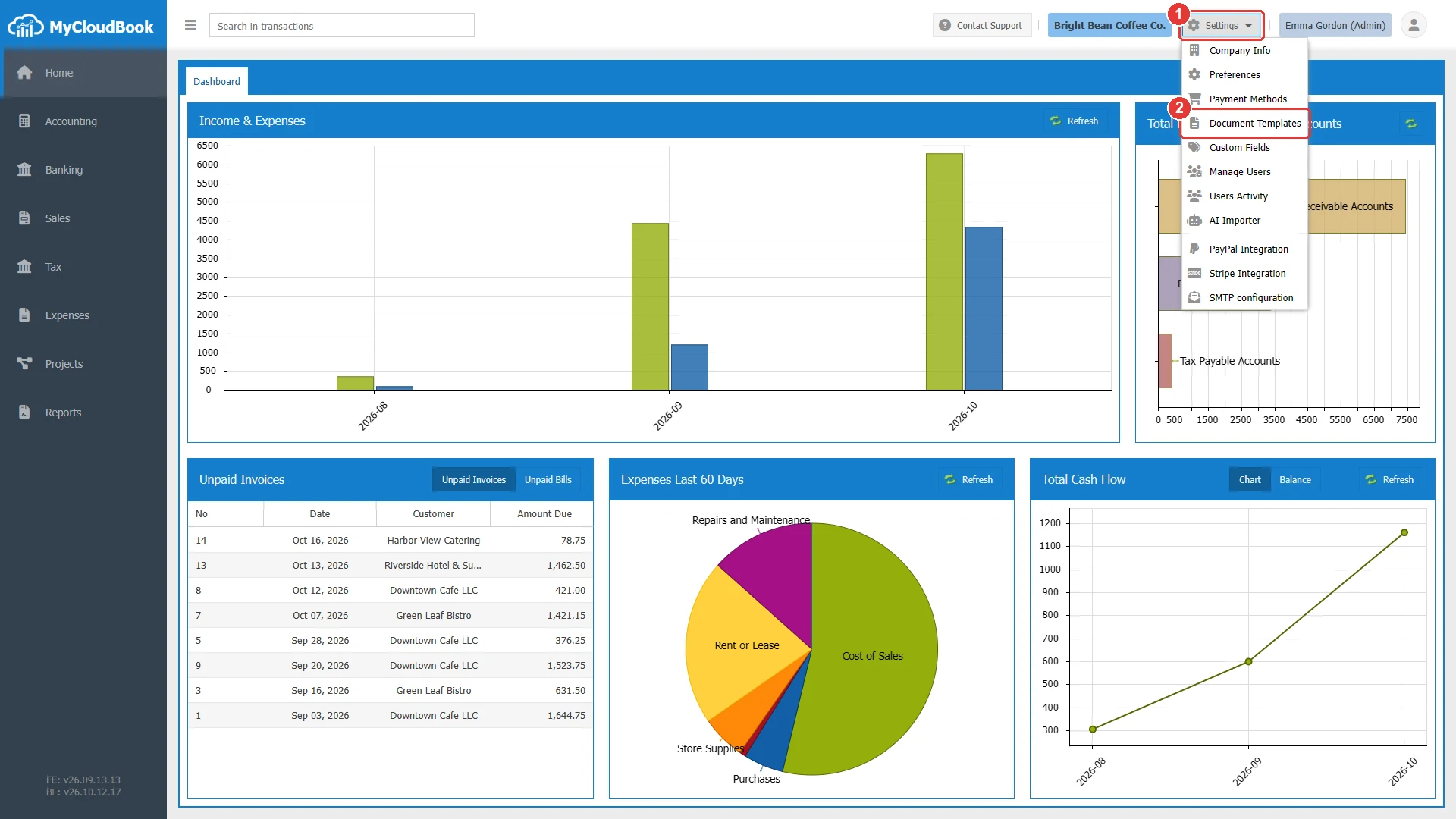
- 1Settings. Opens the menu of the company settings.
- 2Document Templates.
The Document Templates window
The window shows the templates of the company for one document type. The type Sales Invoice is selected when the window opens. The example company has no template of its own yet.
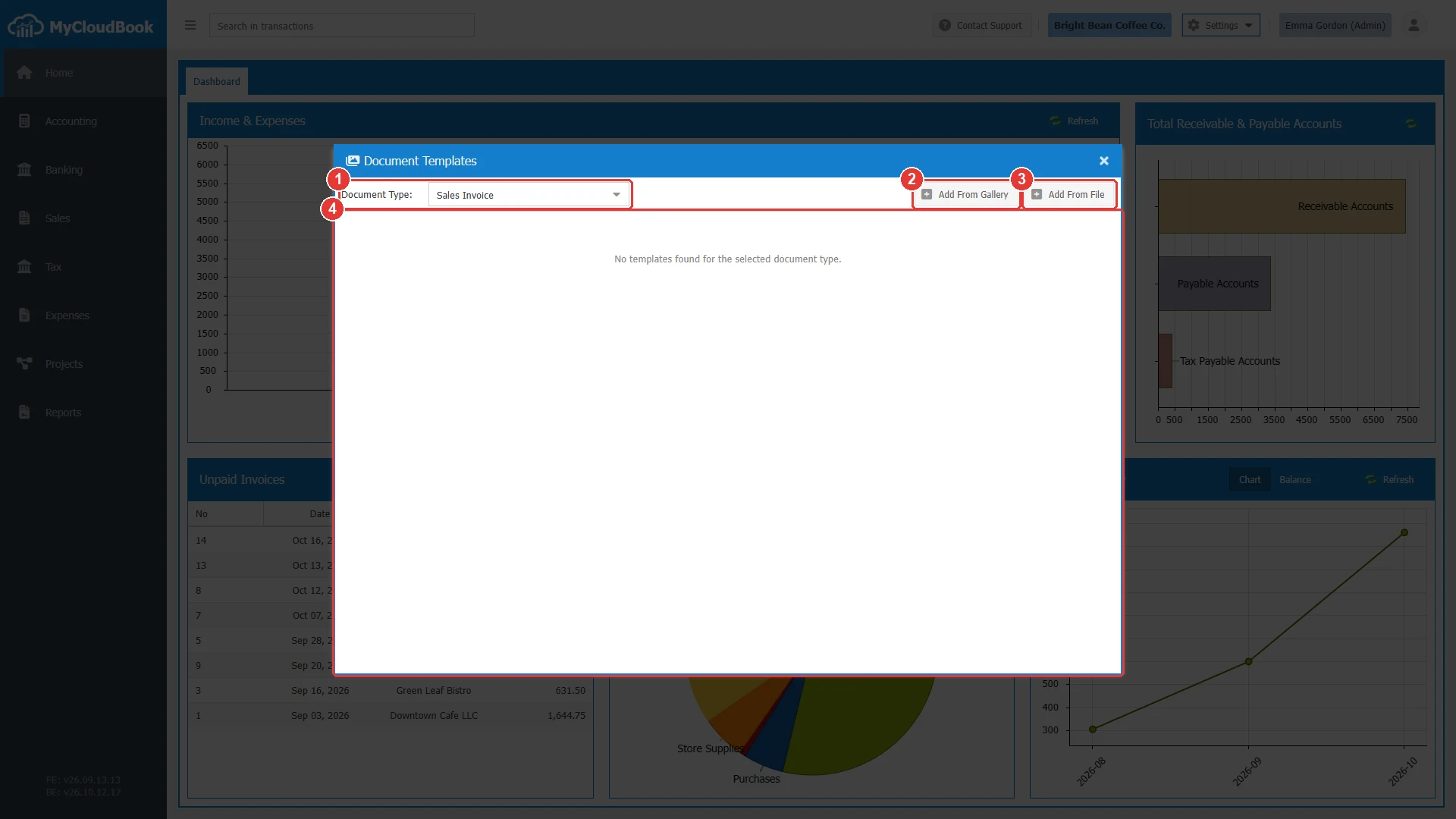
- 1Document Type. The type of the templates in the list.
- 2Add From Gallery. Adds templates of the gallery for the selected type.
- 3Add From File. Adds a template from an HTML file for the selected type.
- 4The templates of the company for the type. The list is empty in the example.
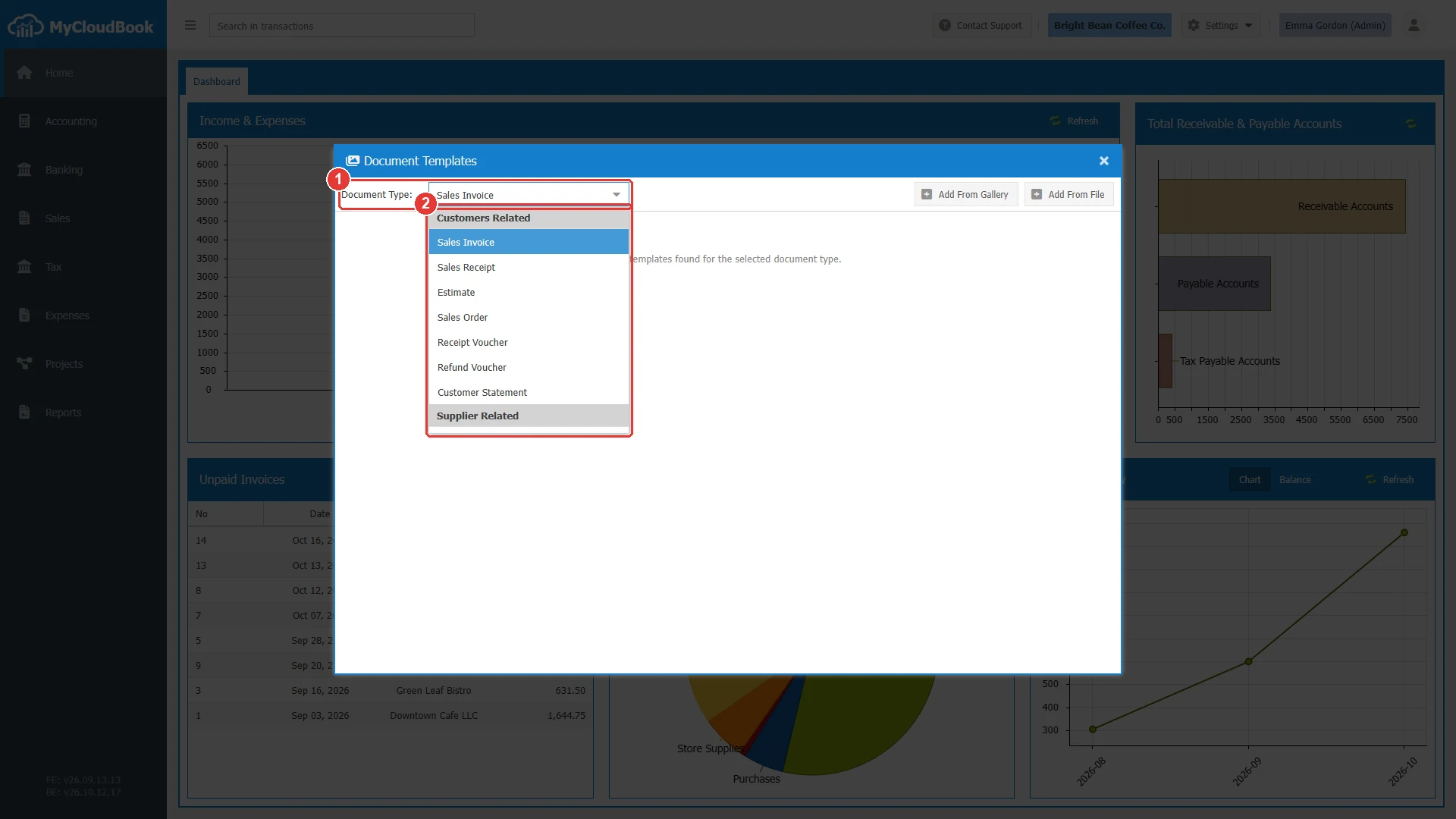
- 1Document Type.
- 2The document types in three groups.
| Group | Document types |
|---|---|
| Customers Related | Sales Invoice, Sales Receipt, Estimate, Sales Order, Receipt Voucher, Refund Voucher, and Customer Statement. |
| Supplier Related | Bill, Expense, and Purchase Order. |
| Reports | Sales Tax Liability (Report). |
Adding a template from the gallery
- Select the Document Type, for example Sales Invoice.
- Click Add From Gallery. The gallery of the type opens.
- Click one or more templates. A green check marks each selected template.
- Click Add to My Templates.
The gallery groups the templates by their layout, for example Classic, Modern, or POS. The POS group holds narrow templates for the printers of a point of sale. The menu of a template offers a preview with sample data and the download of the HTML file.
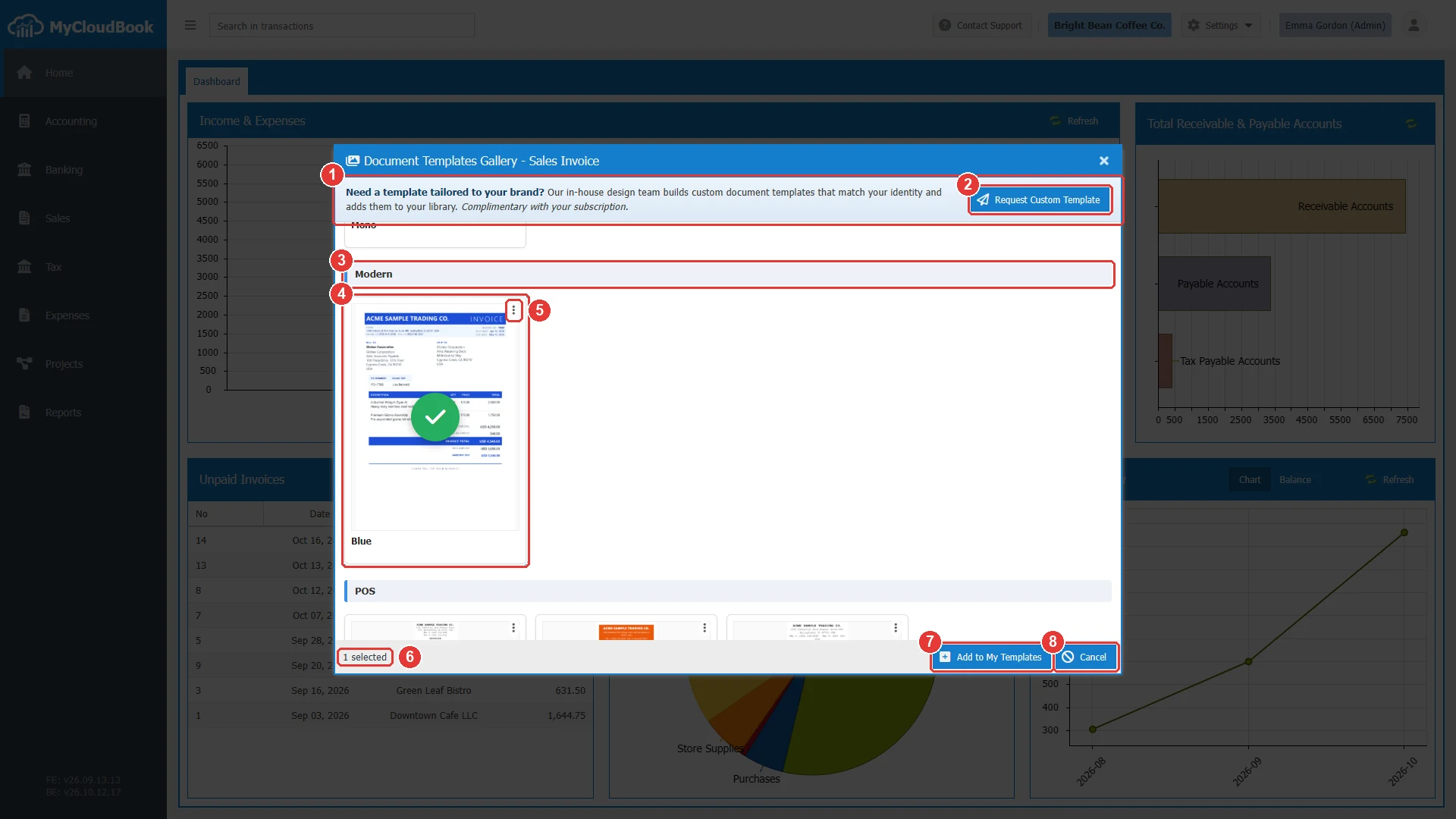
- 1The offer of a template that is made for the company.
- 2Request Custom Template. Opens the window of the support with the topic Custom Document Template Design.
- 3A group of the gallery, here Modern.
- 4A selected template, with a green check.
- 5The actions of a template: PDF Preview and Download.
- 6The number of selected templates.
- 7Add to My Templates. Adds the selected templates to the list of the company.
- 8Cancel. Closes the gallery.
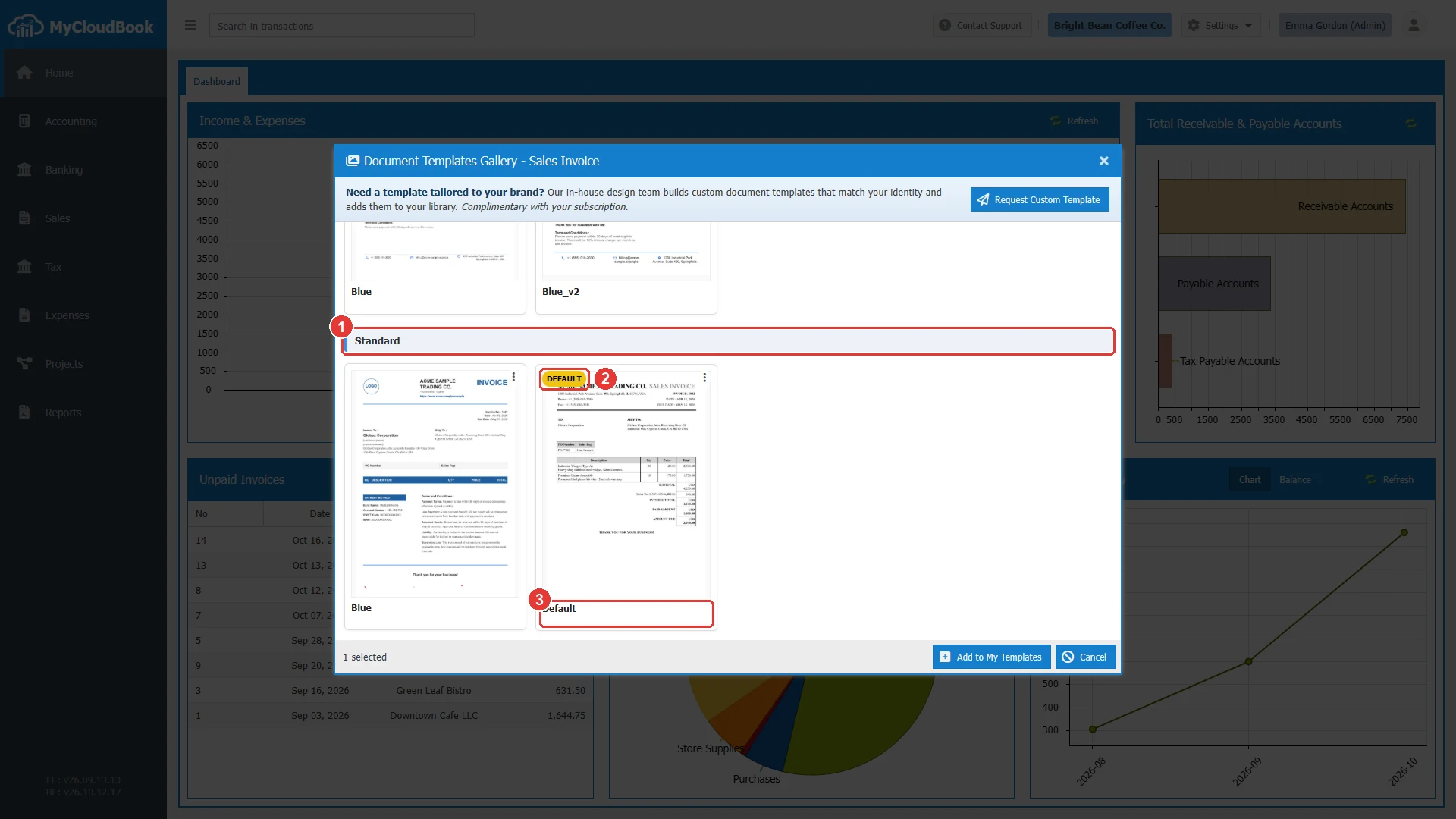
- 1The group Standard.
- 2DEFAULT. The standard template that MyCloudBook uses when the company has no template for the type.
- 3The name of the template in the gallery.
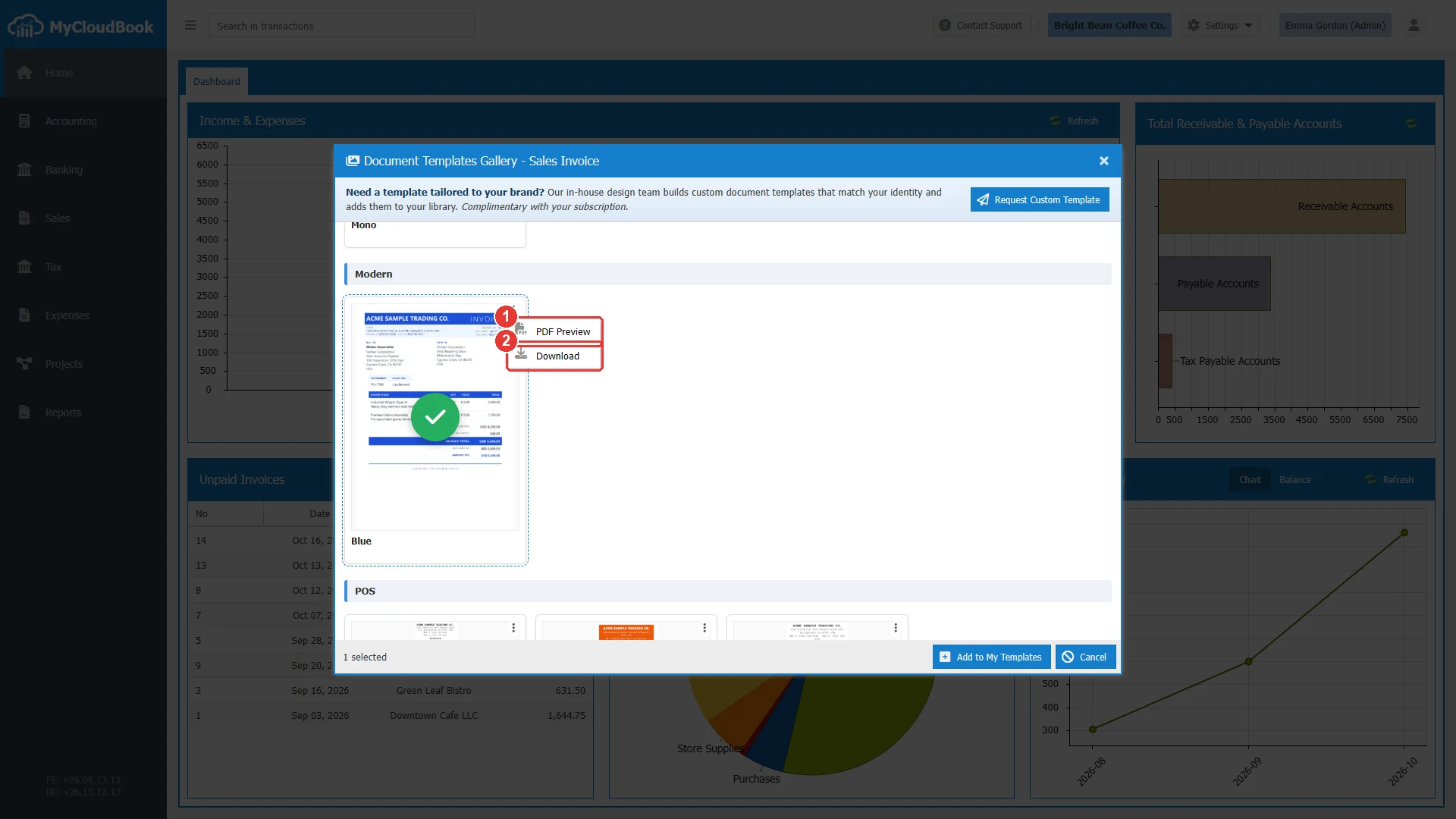
- 1PDF Preview. Shows the template as a PDF with sample data.
- 2Download. Downloads the HTML file of the template.
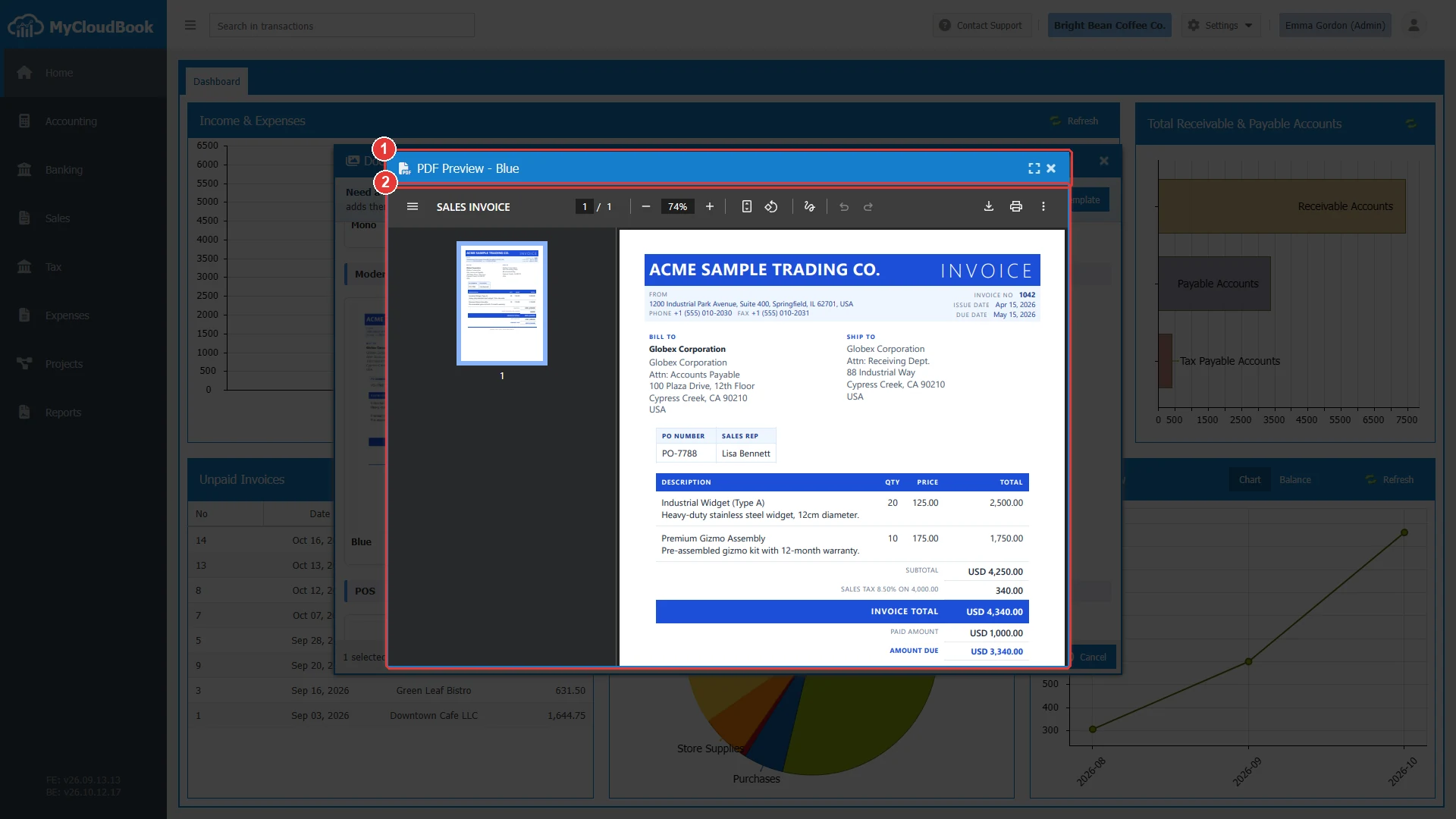
- 1The name of the template.
- 2The template with sample data. The sample data is the same for every company.
The added template keeps the full name of the gallery file, for example Invoice-Modern-Blue. When the company has a template with that name already, MyCloudBook adds a number, for example Invoice-Modern-Blue-1.
The templates of the company
The window lists the templates of the company for the selected type. Each card shows a picture of the first page and the name. The default template of the type has the label DEFAULT.
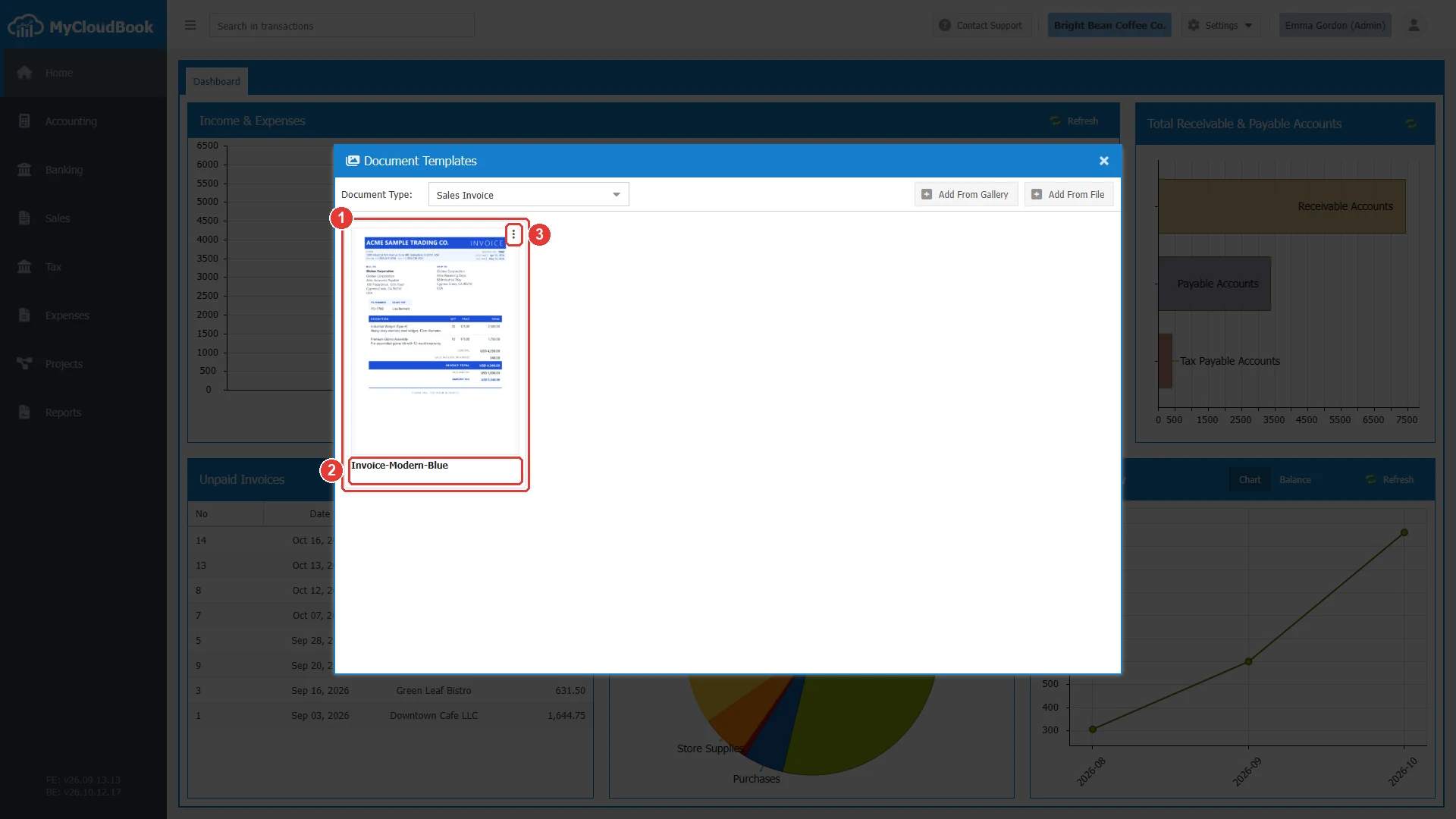
- 1The template, with a picture of the first page.
- 2The name of the template.
- 3The actions of the template.
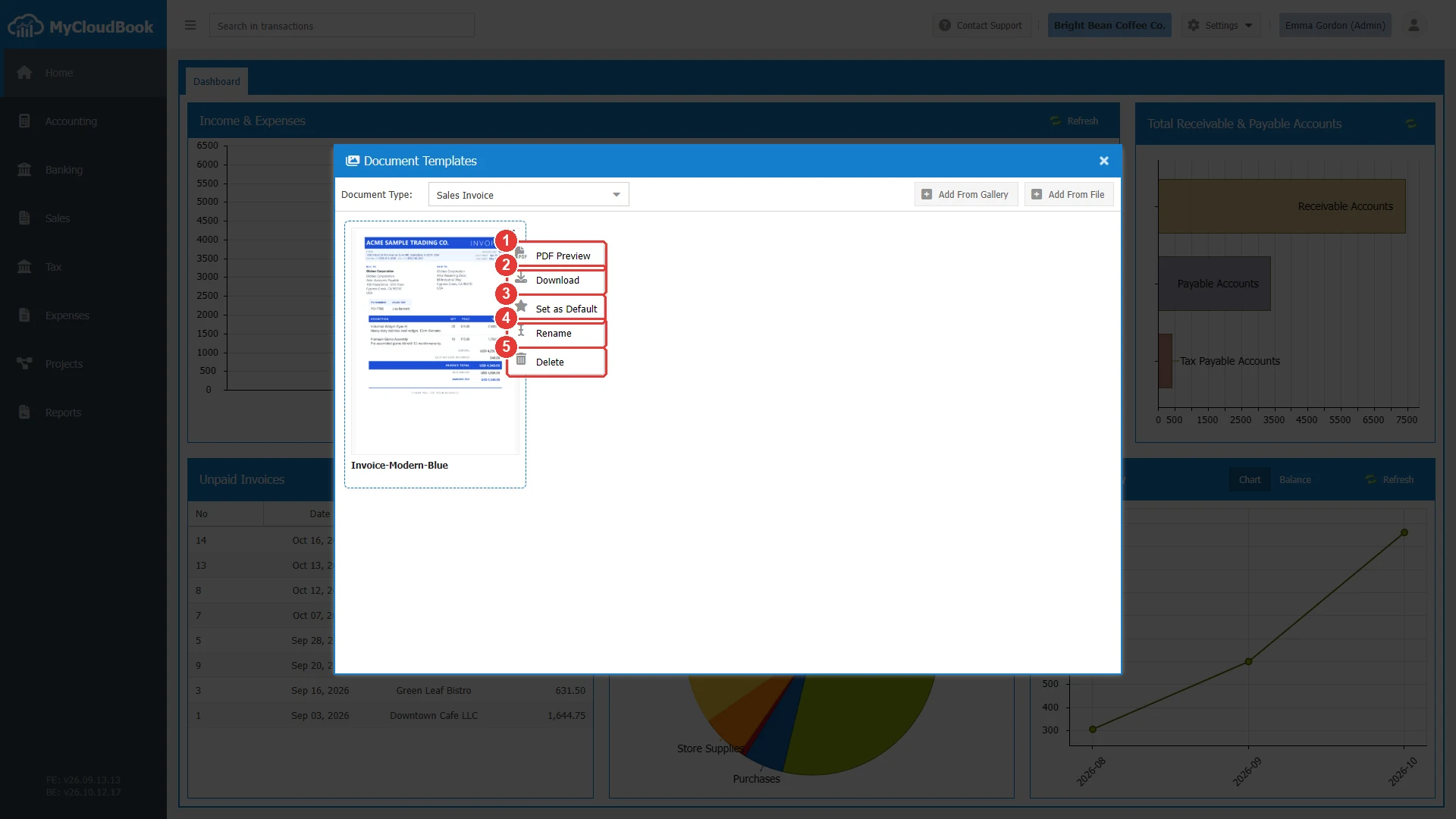
- 1PDF Preview. Shows the template as a PDF with sample data.
- 2Download. Downloads the HTML file. The file name starts with the document type, for example Invoice-Invoice-Modern-Blue.html.
- 3Set as Default. Makes the template the default of its type. Disabled for the default template.
- 4Rename. Changes the name of the template.
- 5Delete. Deletes the template after a question.
| Action | Effect |
|---|---|
| Set as Default | The template prints every document of its type that has no template of its own. The previous default template of the type loses its label. |
| Rename | The new name must differ from the names of the other templates of the same type. The design of the template does not change. |
| Delete | The template leaves the list. When the default template is deleted, the documents of the type use the standard template of MyCloudBook. |
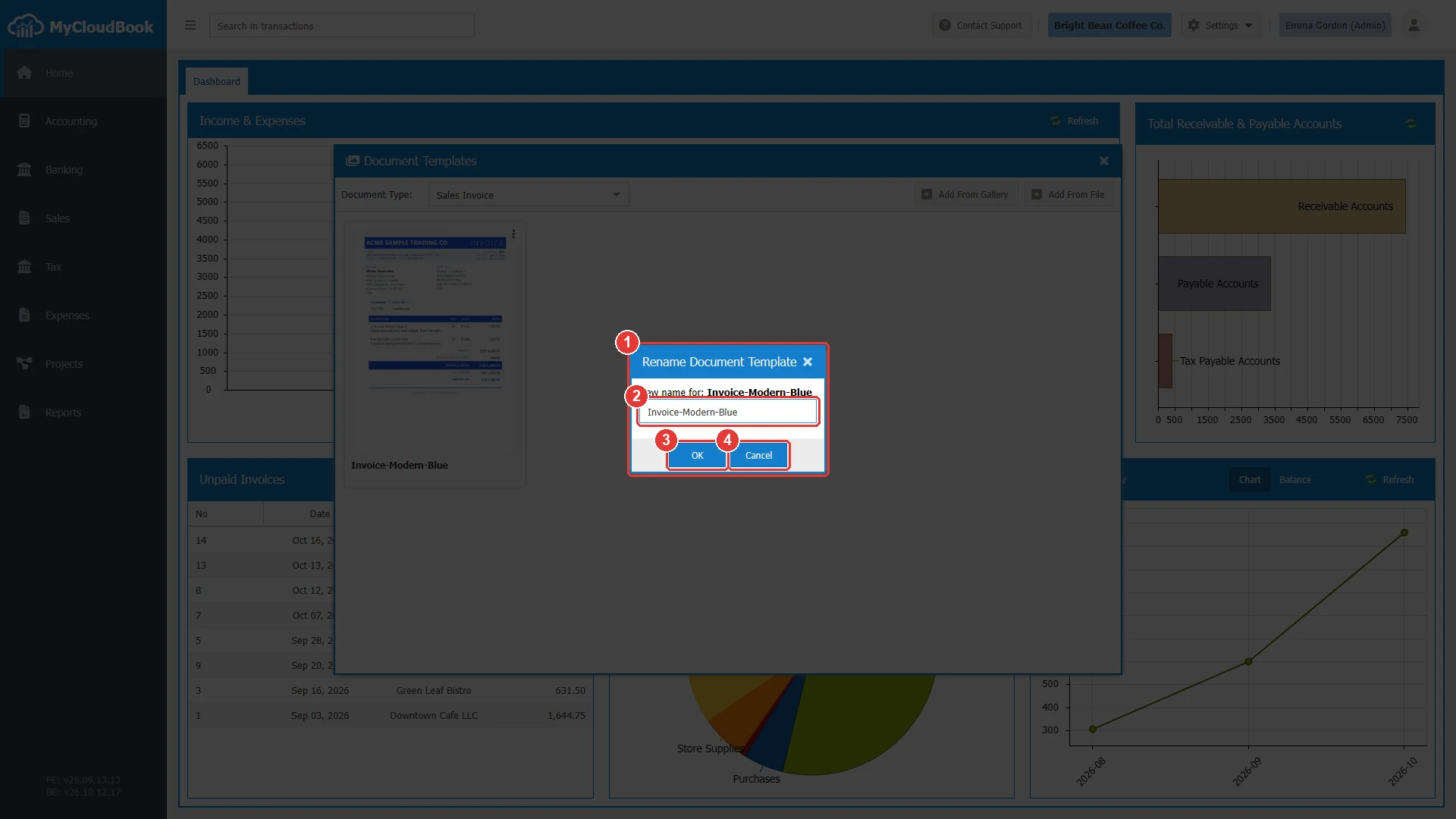
- 1The question with the current name.
- 2The new name. It starts with the current name.
- 3OK. Saves the new name.
- 4Cancel. Keeps the current name.
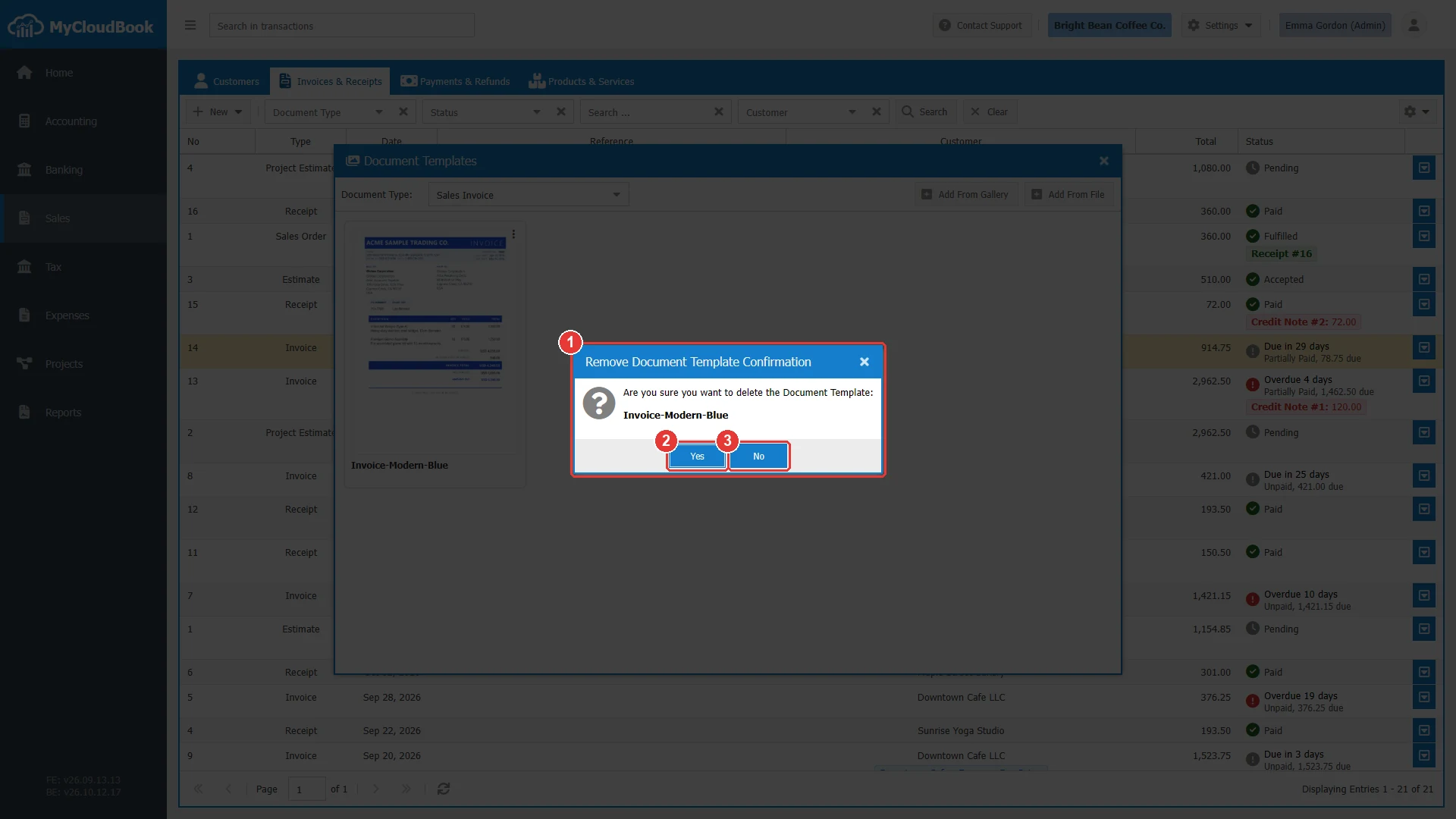
- 1The question with the name of the template.
- 2Yes. Deletes the template.
- 3No. Keeps the template.
Adding a template from a file
A company can also upload its own design as an HTML file. The simplest way is to download a template of the gallery and to change its design in an HTML editor. Keep its placeholders in braces, for example {company-name} or {document-no}. MyCloudBook replaces the placeholders with the data of the document.
- Select the Document Type of the template.
- Click Add From File.
- Click the button of Template File (*.html) and choose the file. When the name field is empty, MyCloudBook fills it from the file name.
- Check the Template Name and click Upload.
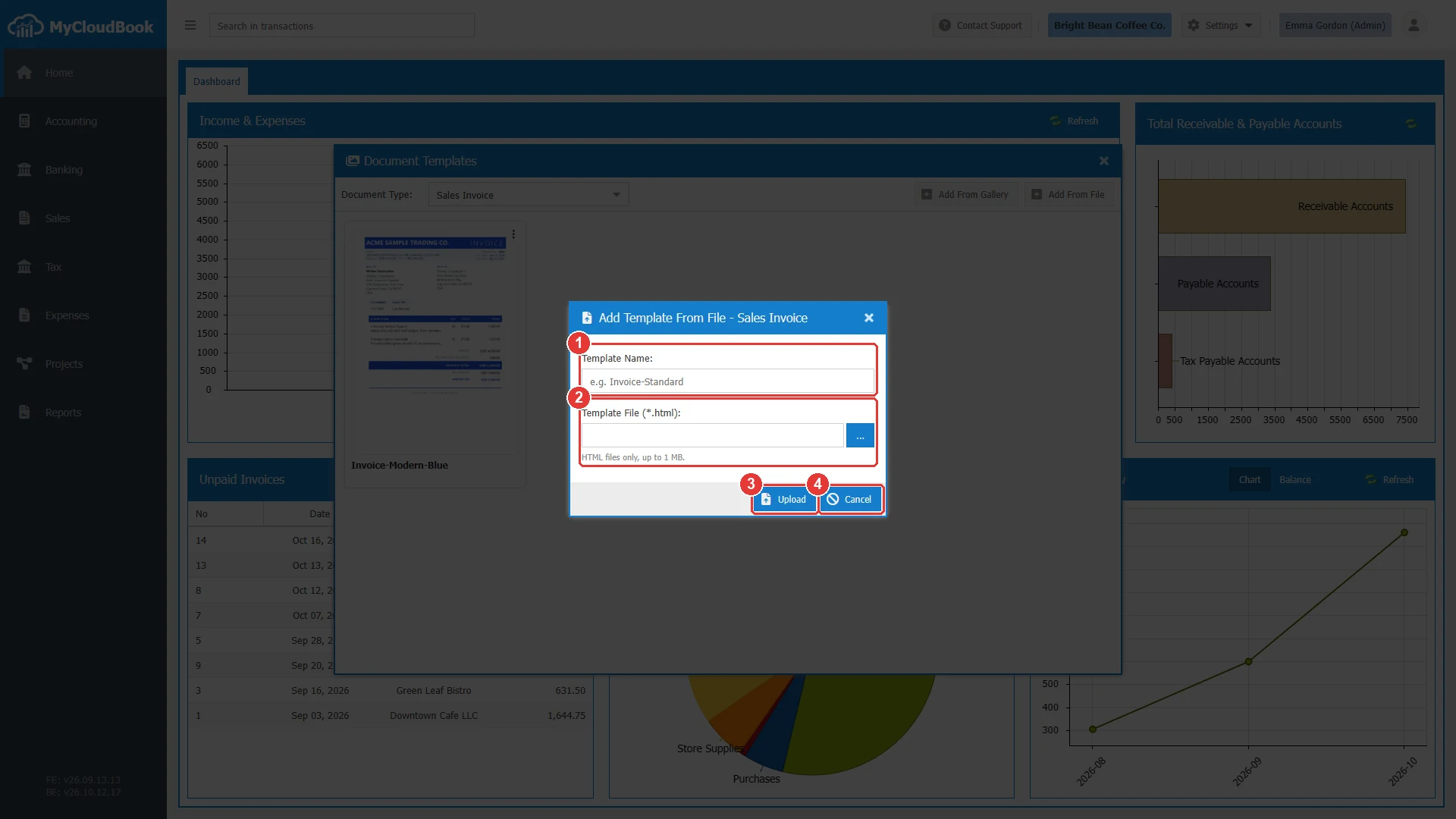
- 1Template Name. Required.
- 2Template File (*.html). Required. HTML files only, up to 1 MB.
- 3Upload. Adds the template for the selected type.
- 4Cancel.
| Field | Required | Purpose and rules |
|---|---|---|
| Template Name | Required | Up to 50 characters. The name must differ from the names of the other templates of the same document type. |
| Template File (*.html) | Required | A file with the extension .html or .htm, up to 1 MB. |
The template of a document
The documents of the sales and the expenses have a Template field next to Print Preview. The list holds the templates of the company for the type of the document. When the field is empty, MyCloudBook uses the default template. See Invoices and Receipts.
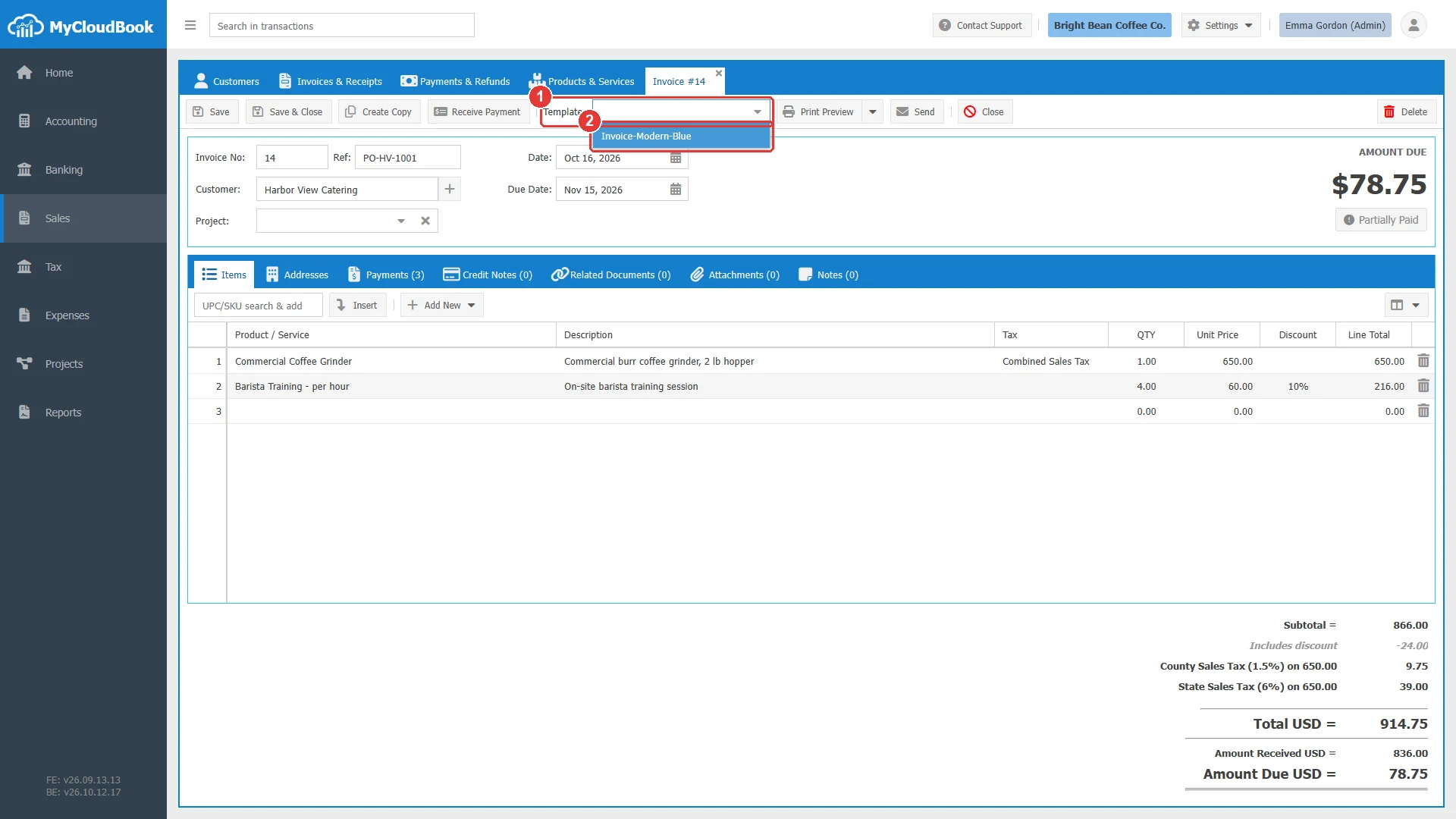
- 1Template.
- 2The invoice templates of the company.
Messages and their meaning
Questions and answers
Which template does MyCloudBook use to print a document?
The template that is chosen on the document. When none is chosen, the default template of the company for the type. When the company has no default, the standard template of MyCloudBook.
How do I change the design of my invoices?
Open Settings, Document Templates, select Sales Invoice, click Add From Gallery, select a template, and add it. Then open its menu and click Set as Default.
Can I use my own design?
Yes. Download a template of the gallery, change it in an HTML editor, keep the placeholders in braces, and upload it with Add From File. The file can be up to 1 MB.
Which data does the preview of a template show?
The preview uses the same sample data for every company. A printed document shows the data of the company and of the document.
Can MyCloudBook design a template for my company?
Yes. Click Request Custom Template in the gallery and describe the design in the support window.