Scan Receipt to Expense
This guide explains how to turn a picture or a PDF of a receipt into a draft bill or a draft expense with Autofill with AI, and how to complete and convert the draft.
Overview
Autofill with AI creates a draft bill or a draft expense from a picture or a PDF of a receipt or a supplier's bill. You upload the file, an artificial intelligence (AI) service reads the supplier, the date, the number, the currency, and the total, and MyCloudBook saves a draft with these values. You then check the draft, choose the account, and convert it into a bill or an expense.
The process has four steps:
- Upload. You upload one or more files in the AI Document Processing tab.
- Reading. A background process on the MyCloudBook server sends each file to an AI service outside MyCloudBook and reads the answer. The screen says to allow 2 to 3 minutes.
- Draft. MyCloudBook saves a Draft Bill or a Draft Expense and attaches the original file to it.
- Review. You open the draft, complete it, and click Convert to Bill or Convert to Expense.
Your file leaves MyCloudBook. The uploaded file is sent to an outside AI service to read its data. Only the file is sent. Your suppliers, accounts, and company data are not sent. Do not upload documents that must not leave your company.
How to open the screen
- In the left navigation, click Expenses, then the Bills & Expenses tab.
- Click New, then Autofill with AI. The tab AI Document Processing opens. When the tab is open already, it gets the focus.
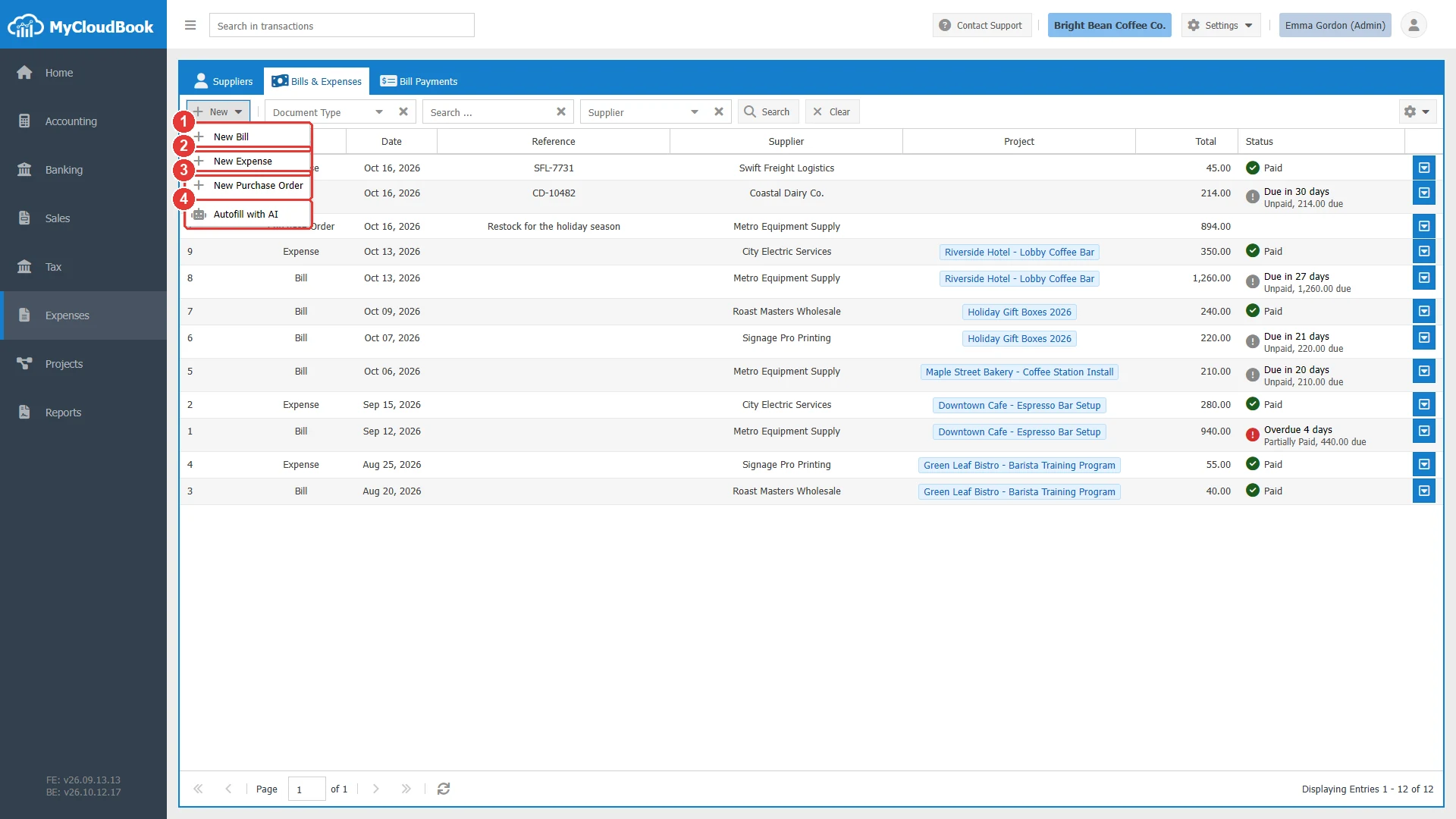
- 1New Bill.
- 2New Expense.
- 3New Purchase Order.
- 4Autofill with AI. Opens the AI Document Processing tab.
The AI Document Processing tab
The tab lists the files of the company that were uploaded in the last 30 days, the newest first.
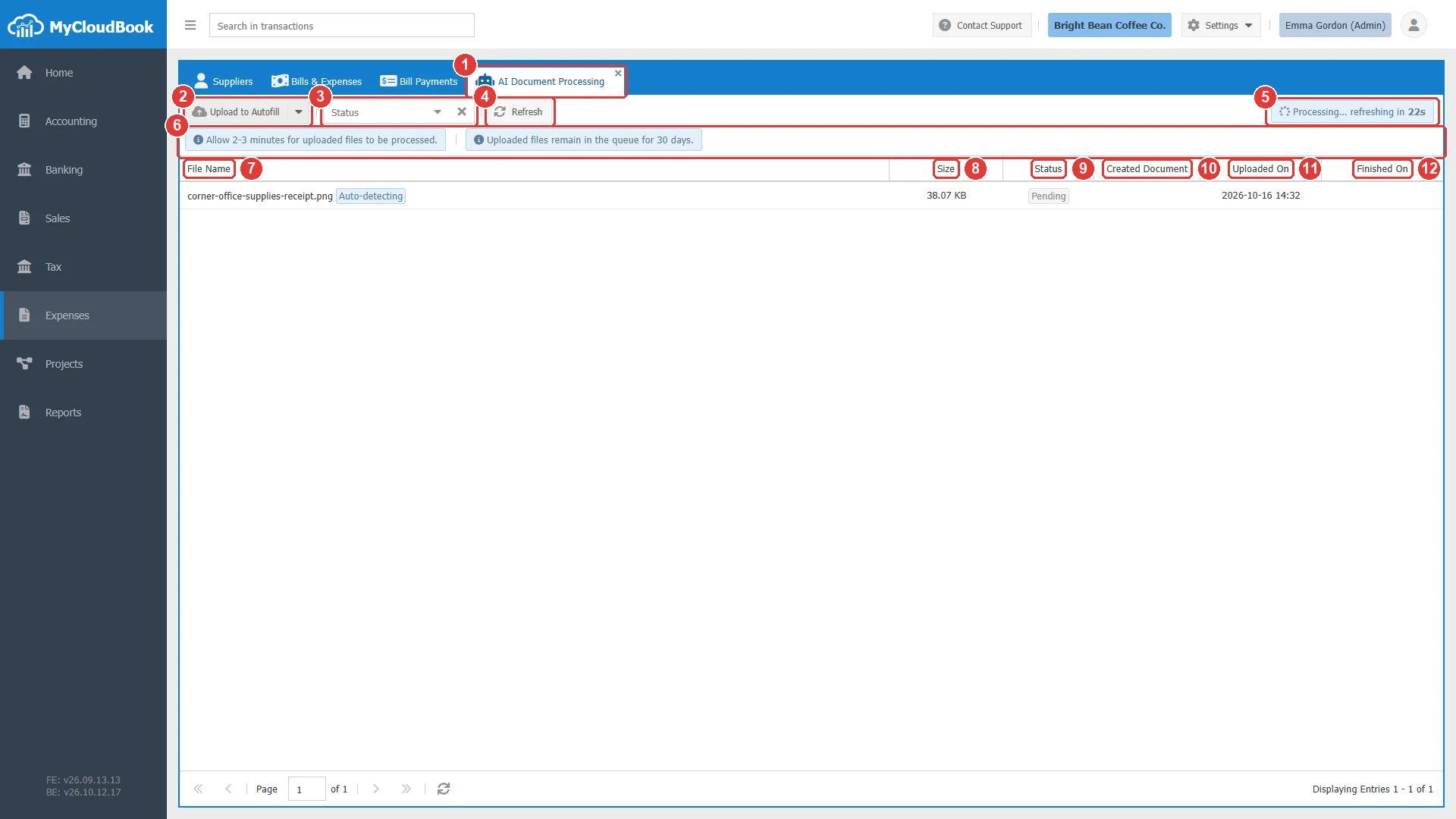
- 1The tab AI Document Processing. You can close it.
- 2Upload to Autofill. Opens the file dialog. The AI decides whether the file is a bill or an expense. The menu of the button chooses the type yourself.
- 3Status. Shows the files of one status only.
- 4Refresh. Loads the list again.
- 5The automatic refresh. While a file waits, the list reloads every 30 seconds, and the counter shows the seconds.
- 6Two information texts: the files need 2 to 3 minutes, and they stay in the list for 30 days.
- 7File Name. The name of the file, with a badge for the chosen type or Auto-detecting. The messages of the AI reading are shown under the name.
- 8Size.
- 9Status. See the table below.
- 10Created Document. A link to the draft after it was created. A click opens the draft.
- 11Uploaded On. The time of the upload, in Coordinated Universal Time (UTC).
- 12Finished On. The time when the AI answered, in UTC.
| Status | Meaning |
|---|---|
| Pending | The file waits for the AI. |
| Processing | The AI reads the file. |
| Data Extraction Finished | The AI answered. MyCloudBook creates the draft. |
| Completed | The draft exists, and the file is attached to it. The Created Document column has the link. |
| Failed File Not Found | MyCloudBook could not read the stored file. Upload the file again. |
When the created document was deleted, the Created Document column shows Not Exist.
Uploading receipts
- Click Upload to Autofill, or open its menu and click Upload to Autofill as Draft Bill or Upload to Autofill as Draft Expense.
- Select one or more files. Each file must be a JPEG, PNG, GIF, or WEBP picture or a PDF file of 2 MB or less.
- For each accepted file, the message File '...' uploaded successfully and queued for processing. appears, and the file is added to the list as Pending.
- Wait until the status is Completed. The list reloads by itself.
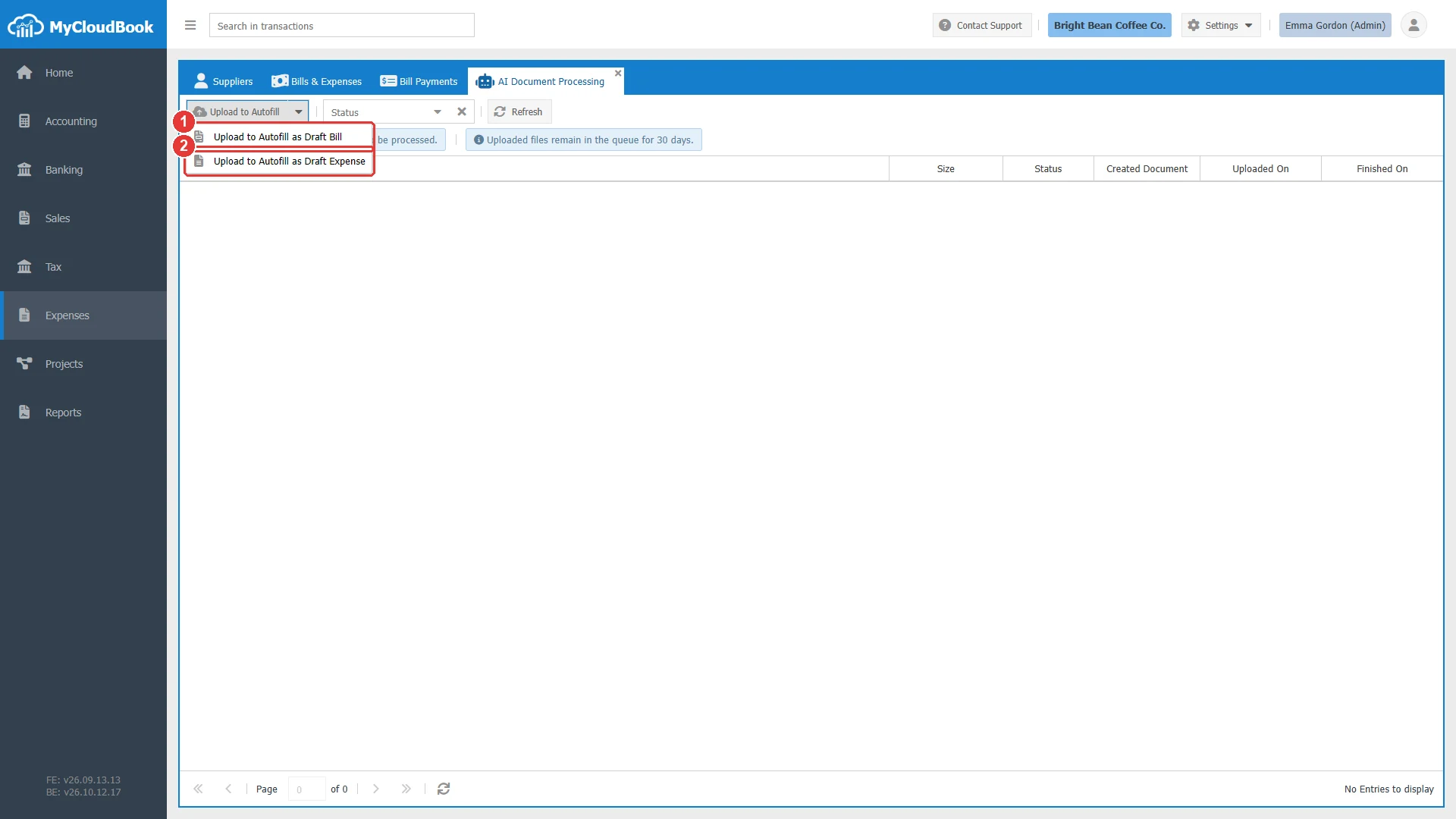
- 1Upload to Autofill as Draft Bill. The draft is always a bill. Use it for a supplier's bill that you pay later.
- 2Upload to Autofill as Draft Expense. The draft is always an expense. Use it for a receipt that you paid already.
With Upload to Autofill, the AI decides: when it reads a bill, MyCloudBook creates a draft bill. Every other answer gives a draft expense.
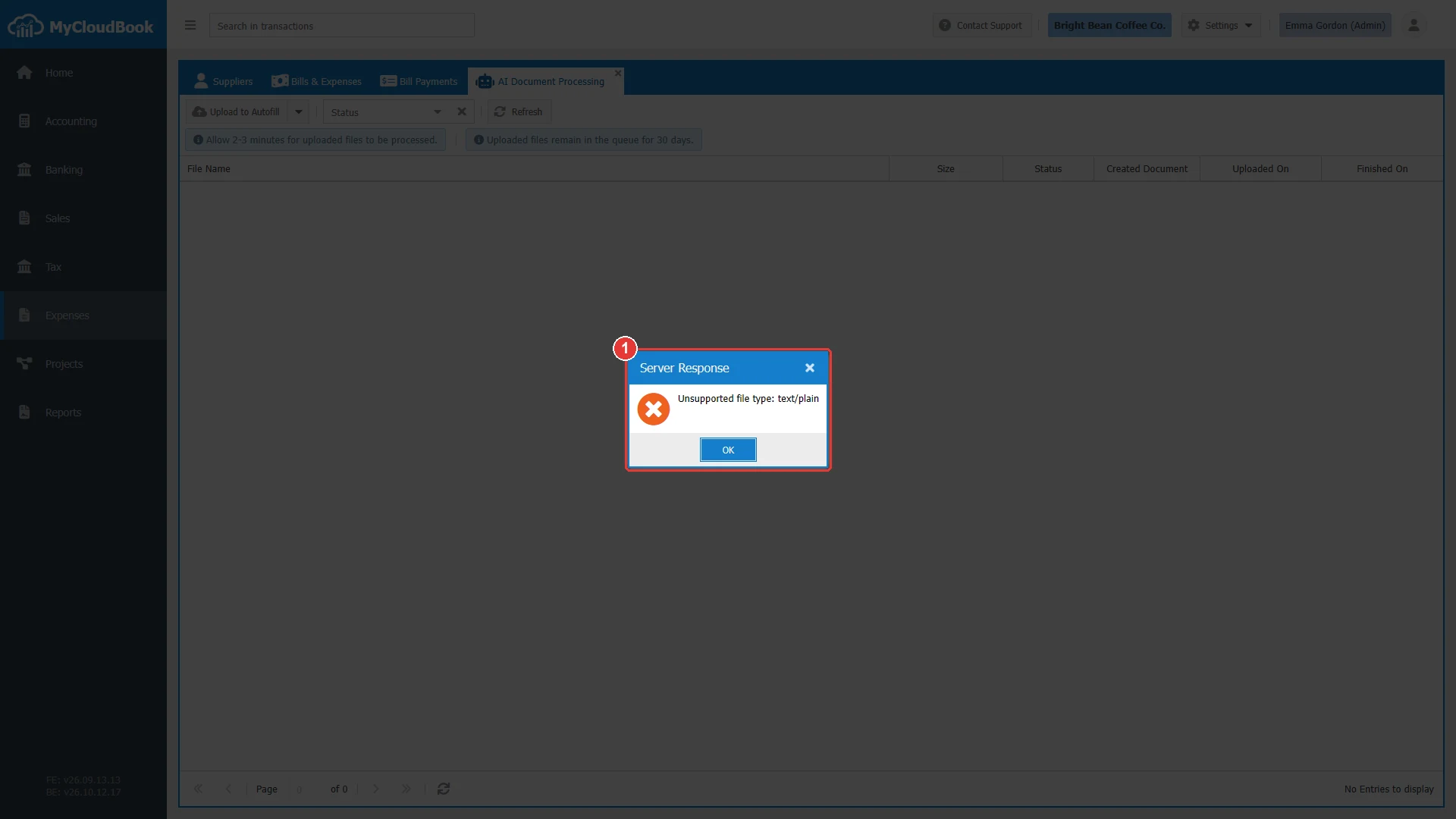
- 1The message Unsupported file type: text/plain.
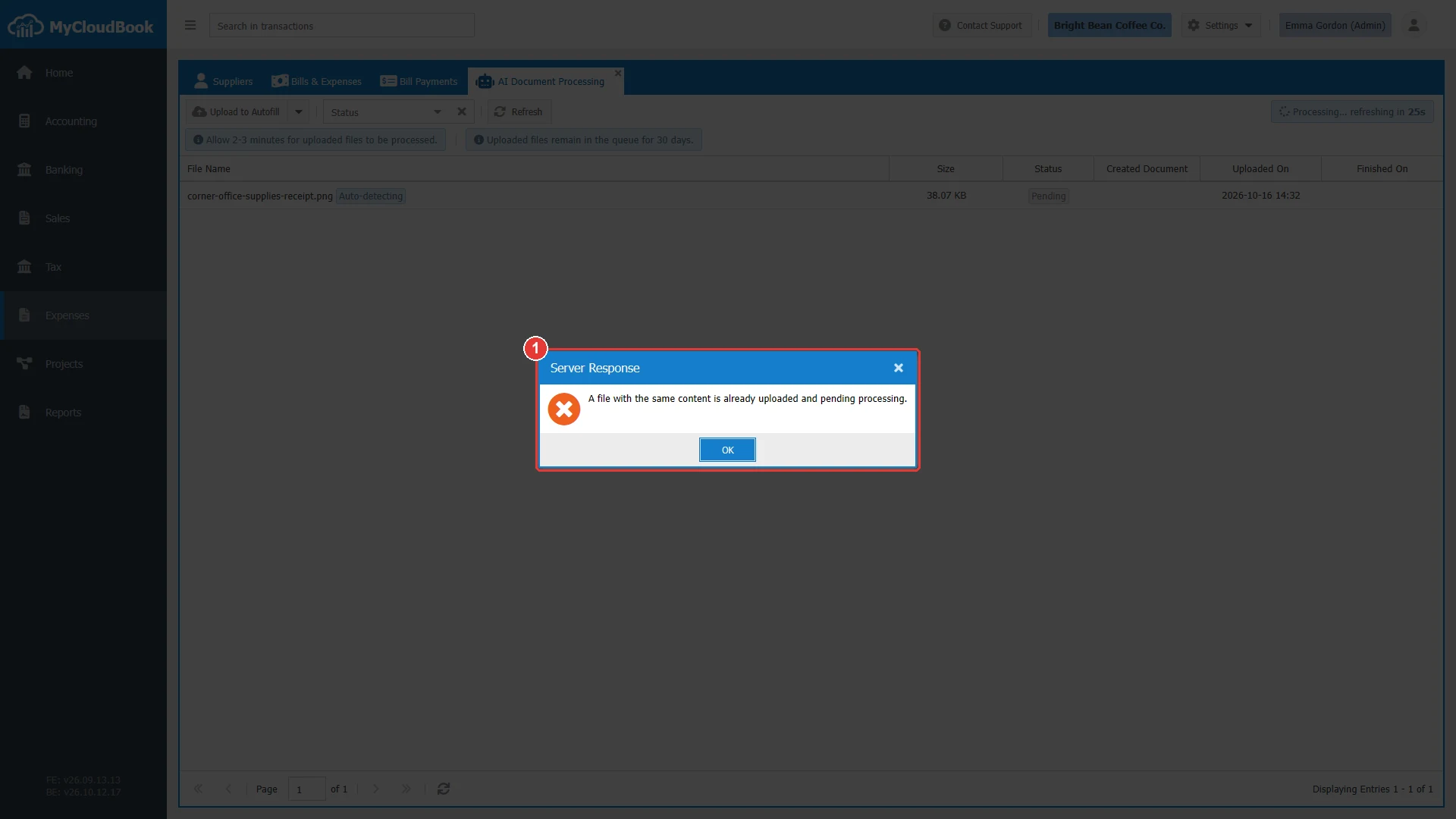
- 1The message A file with the same content is already uploaded and pending processing.
- MyCloudBook refuses other file types. A text file, for example, is refused with Unsupported file type: text/plain.
- The same content cannot be uploaded again while the first file is still Pending.
- Each company has a daily and a monthly number of uploads.
What the AI fills in
In the examples, the coffee shop uploaded two documents. The first is a bill of Metro Equipment Supply for espresso machine parts: number MES-55188, dated Oct 14, 2026, due Nov 13, 2026, total 126.00. Its picture was uploaded twice: copy A with Upload to Autofill as Draft Bill, and copy B with Upload to Autofill. The second is a cash receipt of Corner Office Supplies for paper cups, napkins, and receipt paper: number 48213, dated Oct 15, 2026, total 45.50, uploaded with Upload to Autofill.
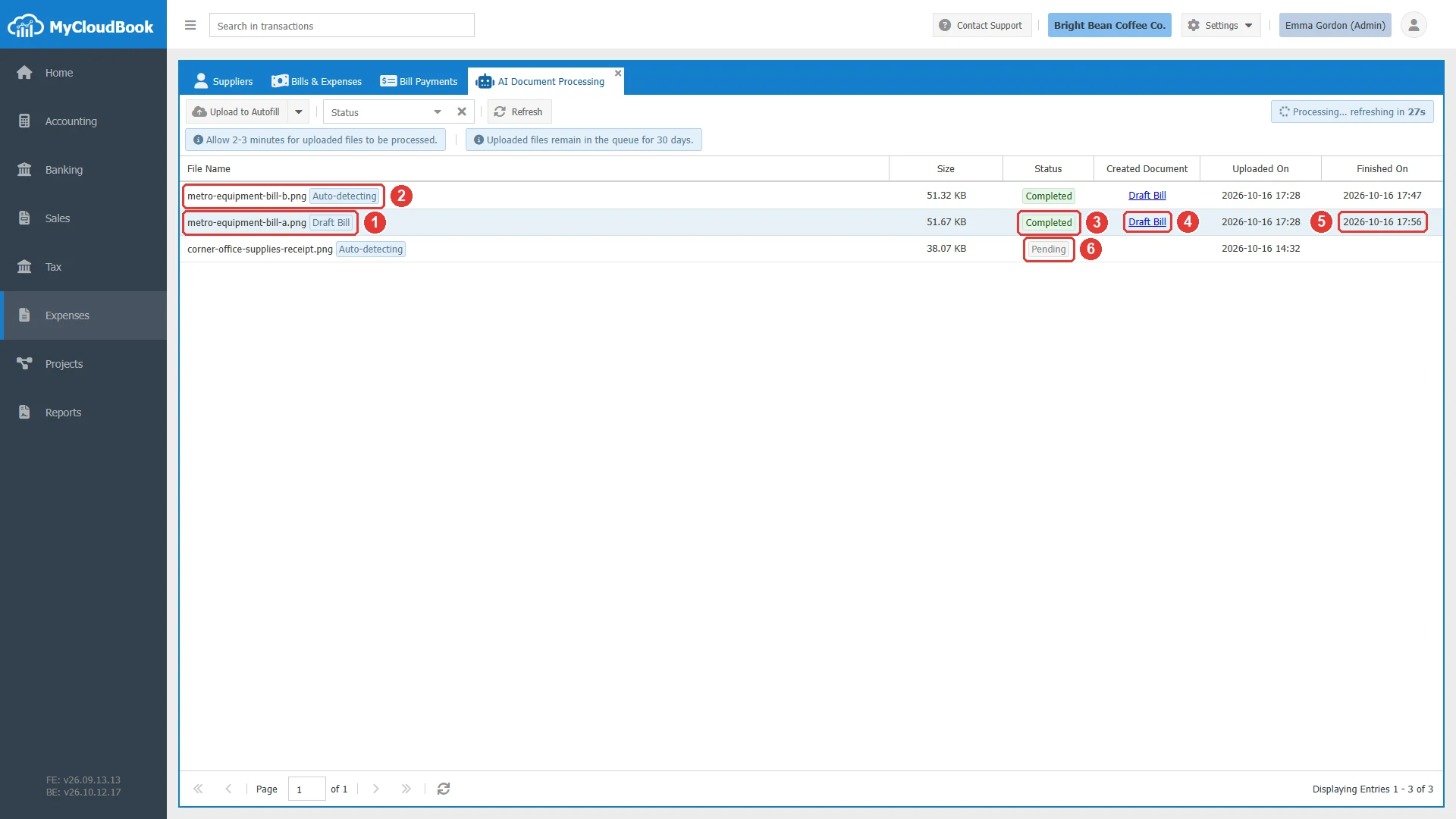
- 1Copy A. The badge Draft Bill shows the type that was chosen at the upload.
- 2Copy B. The badge Auto-detecting shows that the AI chose the type.
- 3Status: Completed. The draft exists, and the file is attached to it.
- 4Created Document: the link Draft Bill. A draft has the number 0, so the link shows the type only.
- 5Finished On: the time of the AI answer, in UTC.
- 6The receipt is still Pending. It waits for the next run of the reading.
When the AI has read the file, MyCloudBook saves the draft with these values:
| Value of the document | What the draft gets |
|---|---|
| Supplier | MyCloudBook looks for an existing supplier with the name that the AI read. When no supplier matches, the draft has no supplier, and a yellow message says so. For the bill, the existing supplier Metro Equipment Supply was found. For the receipt, no supplier is named Corner Office Supplies, so its draft has no supplier. |
| Date | The date of the document. When the AI finds no date, or the date cannot be read, the draft gets the current date, and a red message asks you to check it. |
| Ref | The number of the document, here MES-55188. |
| Currency | The currency of the document, when the company has this currency. Otherwise the main currency, with a yellow message. The amount is not converted. |
| Line | One line with a short description that the AI writes, and the total of the document. The line has no account and no product. |
| Attachment | The original file, in the Attachments tab of the draft. |
| You complete | The account of the line, the Pay From account of an expense, and the payment method. |
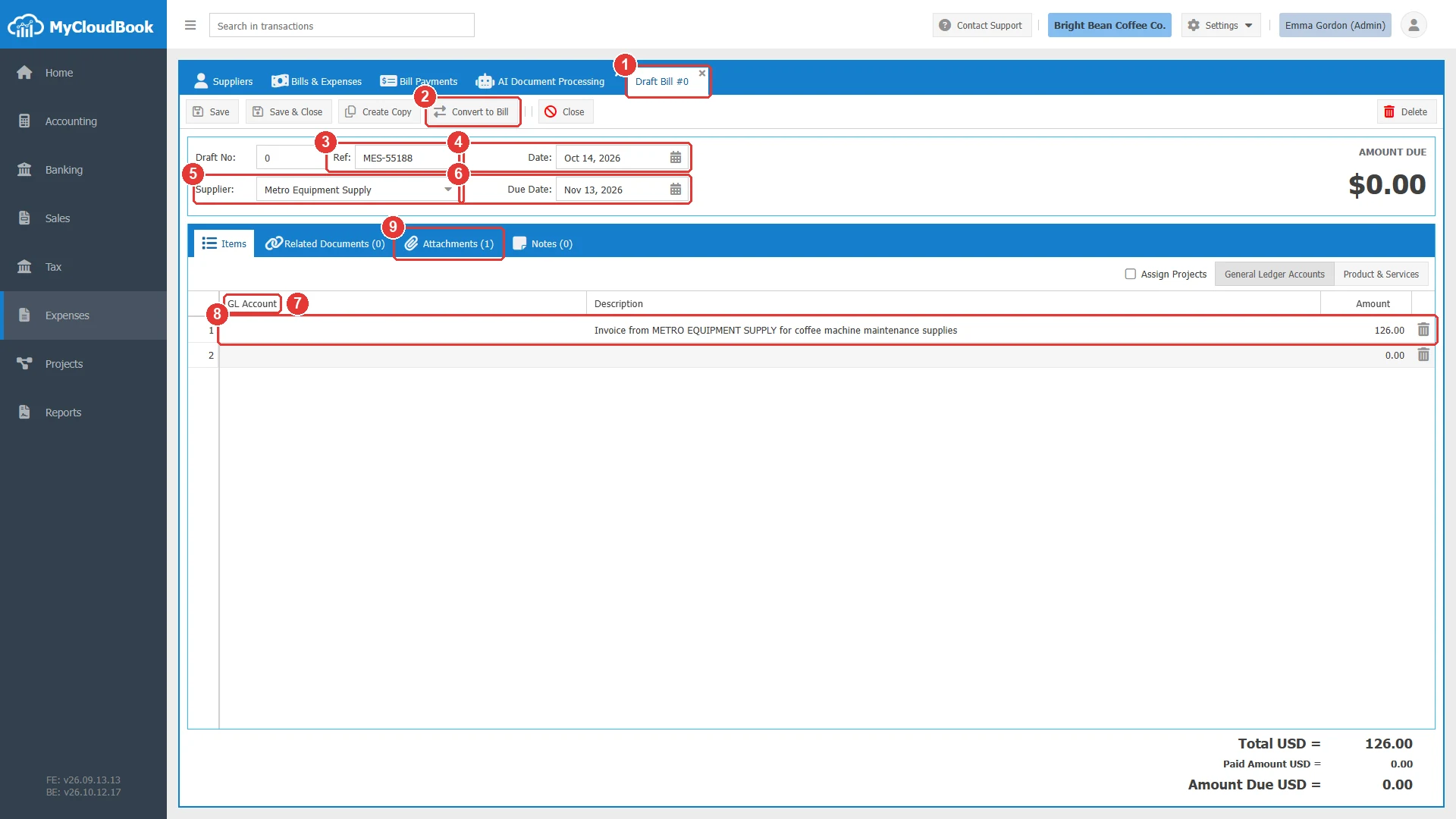
- 1The tab title Draft Bill #0.
- 2Convert to Bill. Converts the draft after your check.
- 3Ref: MES-55188, the number of the supplier's bill.
- 4Date: Oct 14, 2026, the date of the bill.
- 5Supplier: the existing supplier Metro Equipment Supply.
- 6Due Date: Nov 13, 2026, the due date of the bill.
- 7GL Account. Empty: select the account yourself.
- 8The one line: a description written by the AI and the total, 126.00.
- 9Attachments (1). The uploaded picture.
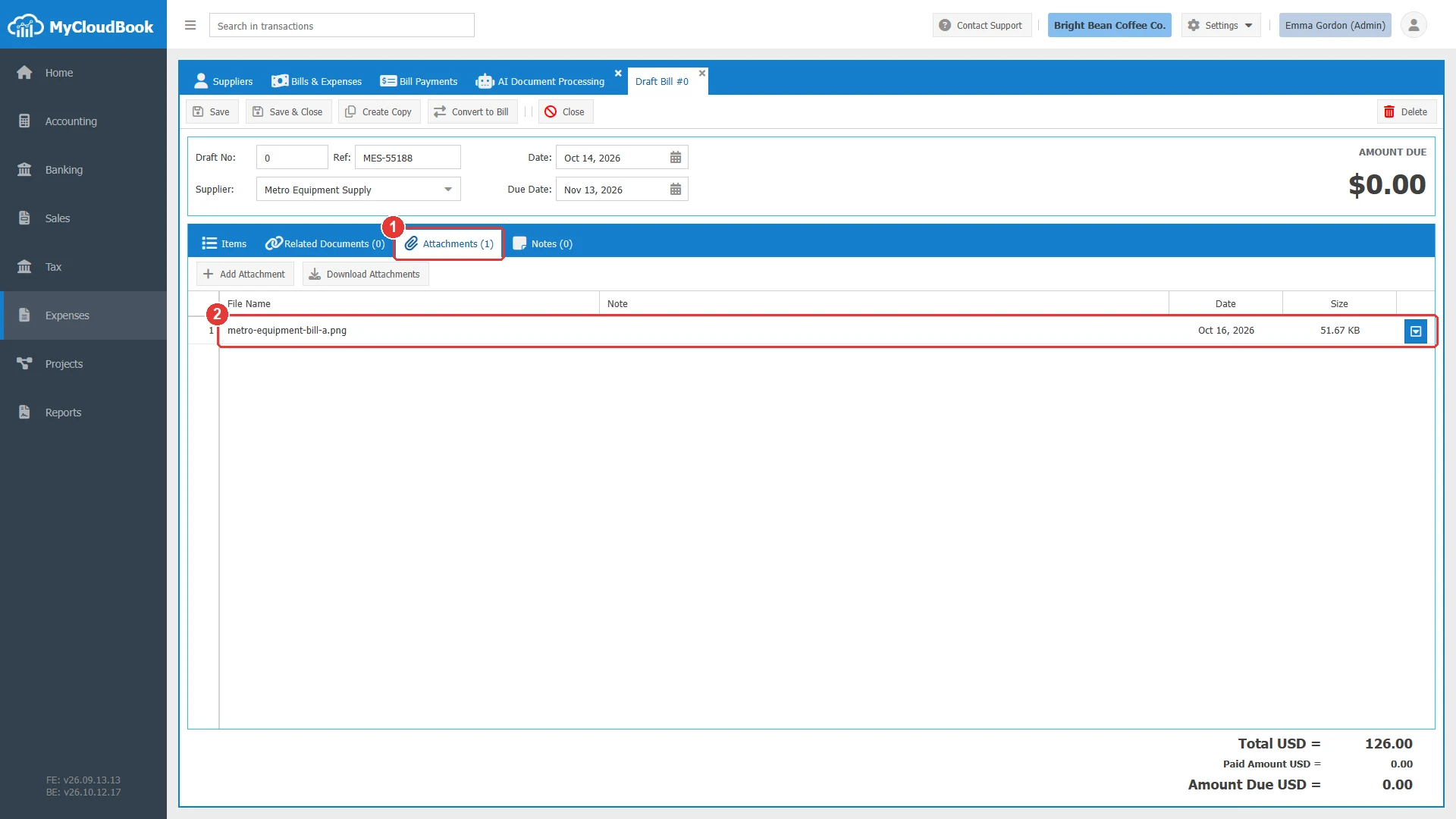
- 1Attachments (1).
- 2The uploaded file. Its menu has Download, so you can compare the draft with the original.
The messages of the reading are shown under the file name in the list: red for the date, and yellow for the supplier and the currency. For the bill, everything was found, so no message is shown. The AI writes the description of the line itself.
For the receipt, the AI chose an expense, so MyCloudBook created a draft expense. No supplier has the name Corner Office Supplies, so the draft has no supplier, and the list shows a yellow message under the file name.
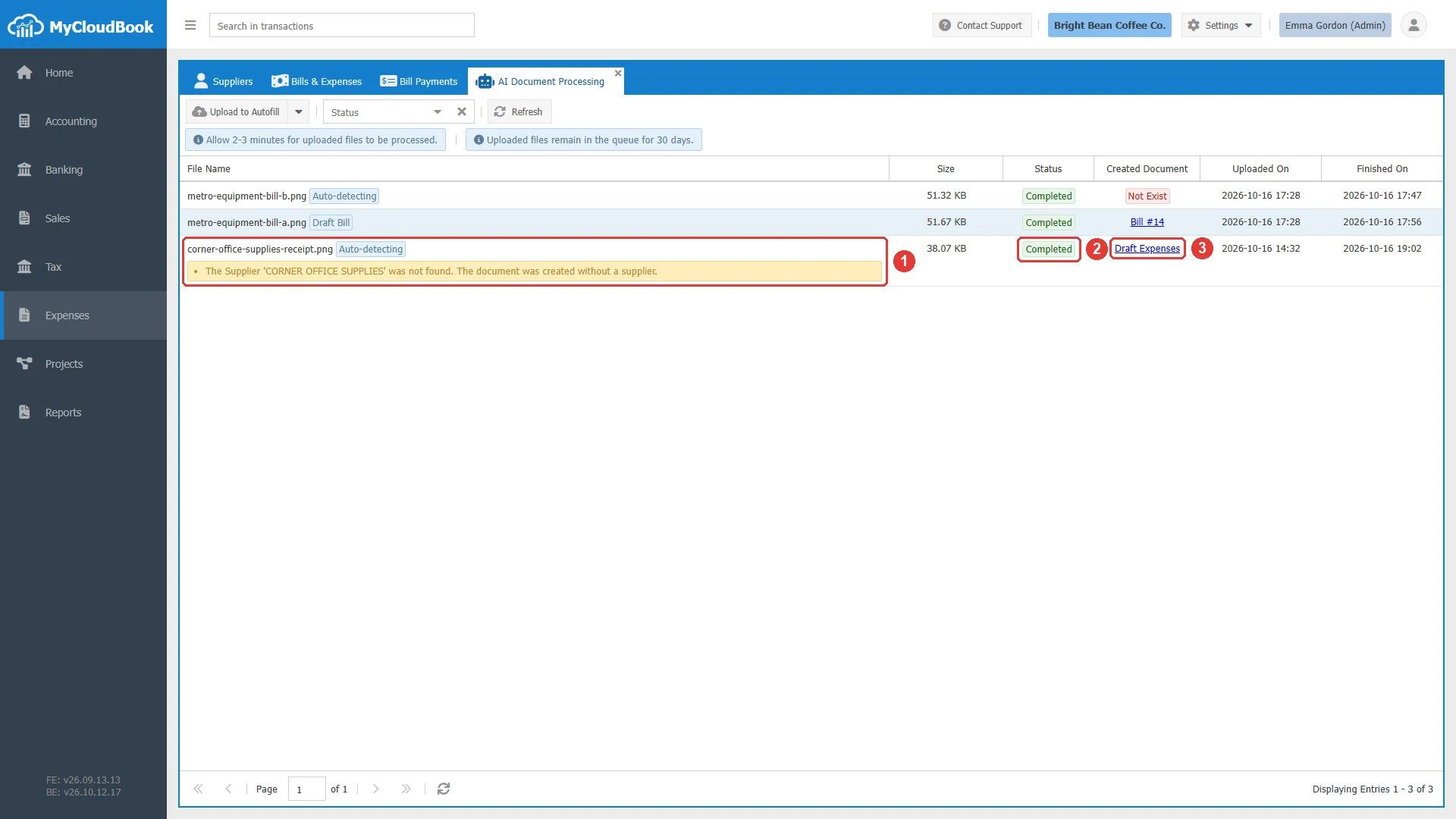
- 1The file name with the badge Auto-detecting, and under it the yellow message The Supplier 'CORNER OFFICE SUPPLIES' was not found. The document was created without a supplier.
- 2Status: Completed.
- 3Created Document: the link to the draft expense.
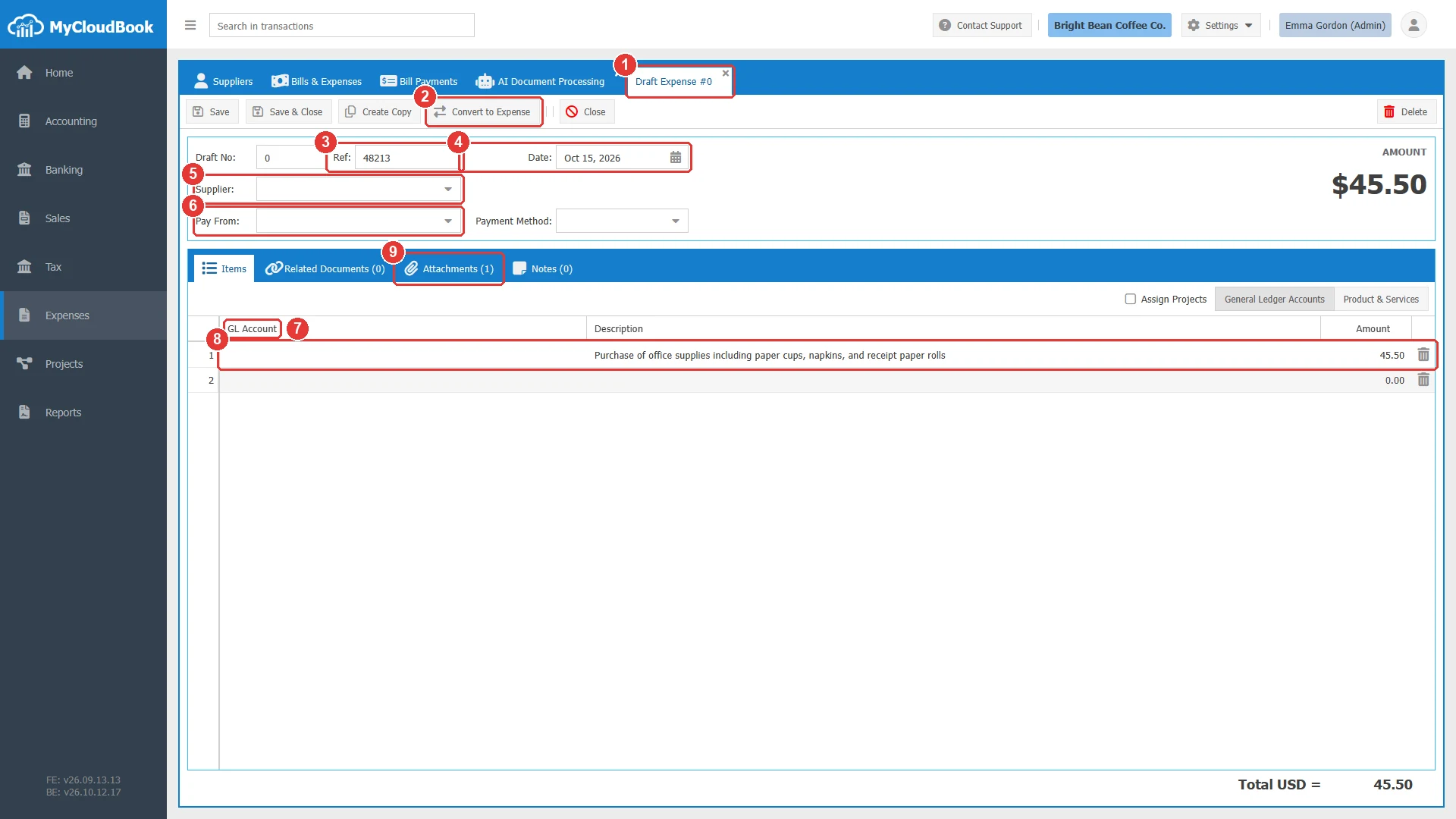
- 1The tab title Draft Expense #0.
- 2Convert to Expense.
- 3Ref: 48213, the number of the receipt.
- 4Date: Oct 15, 2026, the date of the receipt.
- 5Supplier: empty, because no supplier has the name that the AI read.
- 6Pay From: empty. Select the account that paid before you save or convert the draft.
- 7GL Account: empty.
- 8The one line: a description written by the AI and the total, 45.50.
- 9Attachments (1): the receipt picture.
Reviewing and converting the draft
- Click the link in the Created Document column. The draft opens, for example Draft Bill #0. The draft is also in the Bills & Expenses list.
- Check the Supplier, the Date, the Ref, the description, and the amount against the attached file.
- Select the GL Account of the line. For a draft bill, check the Supplier and the Due Date. For a draft expense, select the Pay From account.
- Click Convert to Bill or Convert to Expense. MyCloudBook checks the rules of a bill or an expense, gives the next number, and creates the journal entry.
In the example, the line of copy A received the account 509 - Repairs and Maintenance, and Convert to Bill turned the draft into Bill #14.
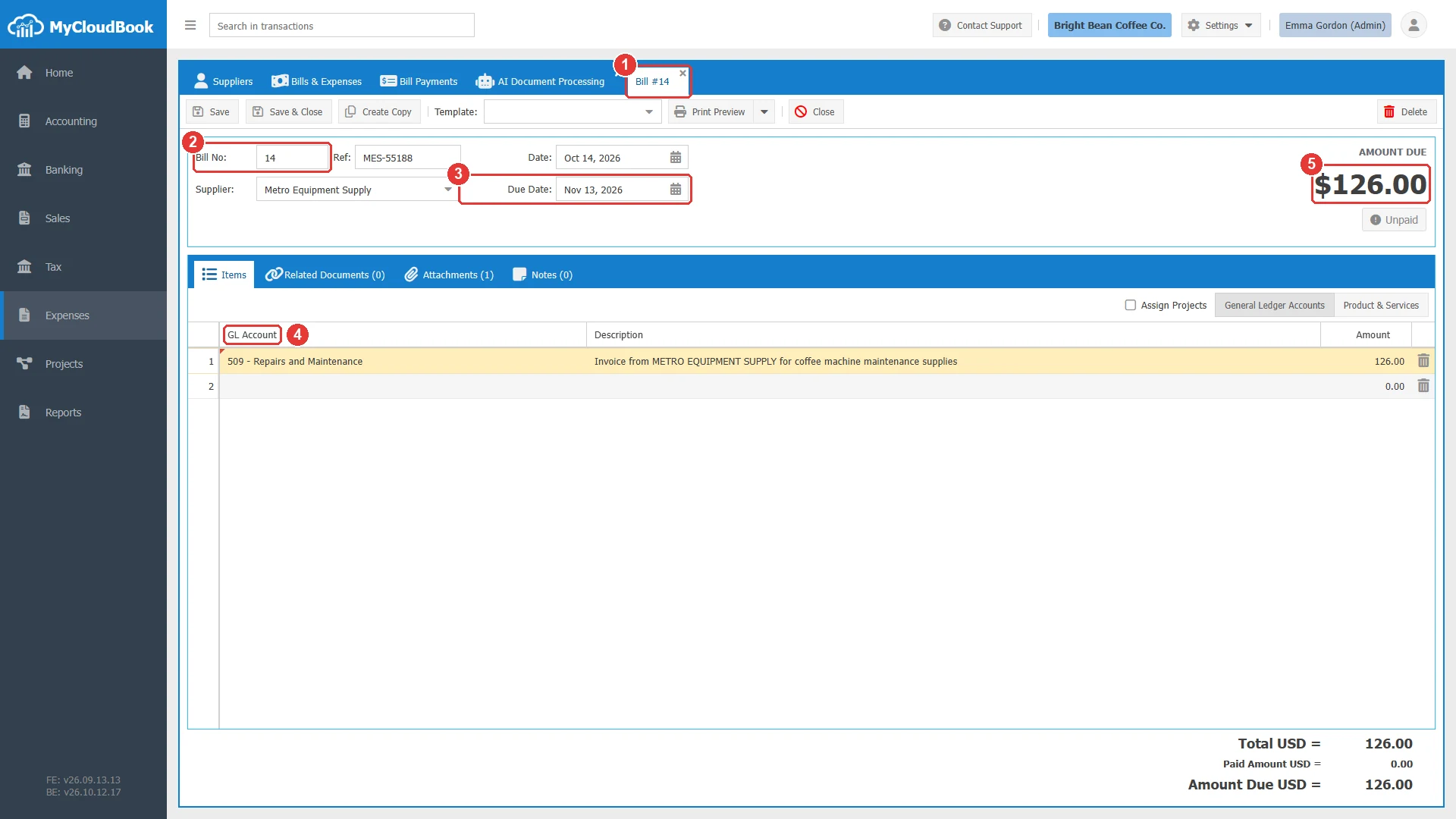
- 1The tab title Bill #14.
- 2Bill No: 14, the next number of the bills and expenses.
- 3Due Date: Nov 13, 2026.
- 4GL Account: 509 - Repairs and Maintenance.
- 5AMOUNT DUE: 126.00, and the status Unpaid.
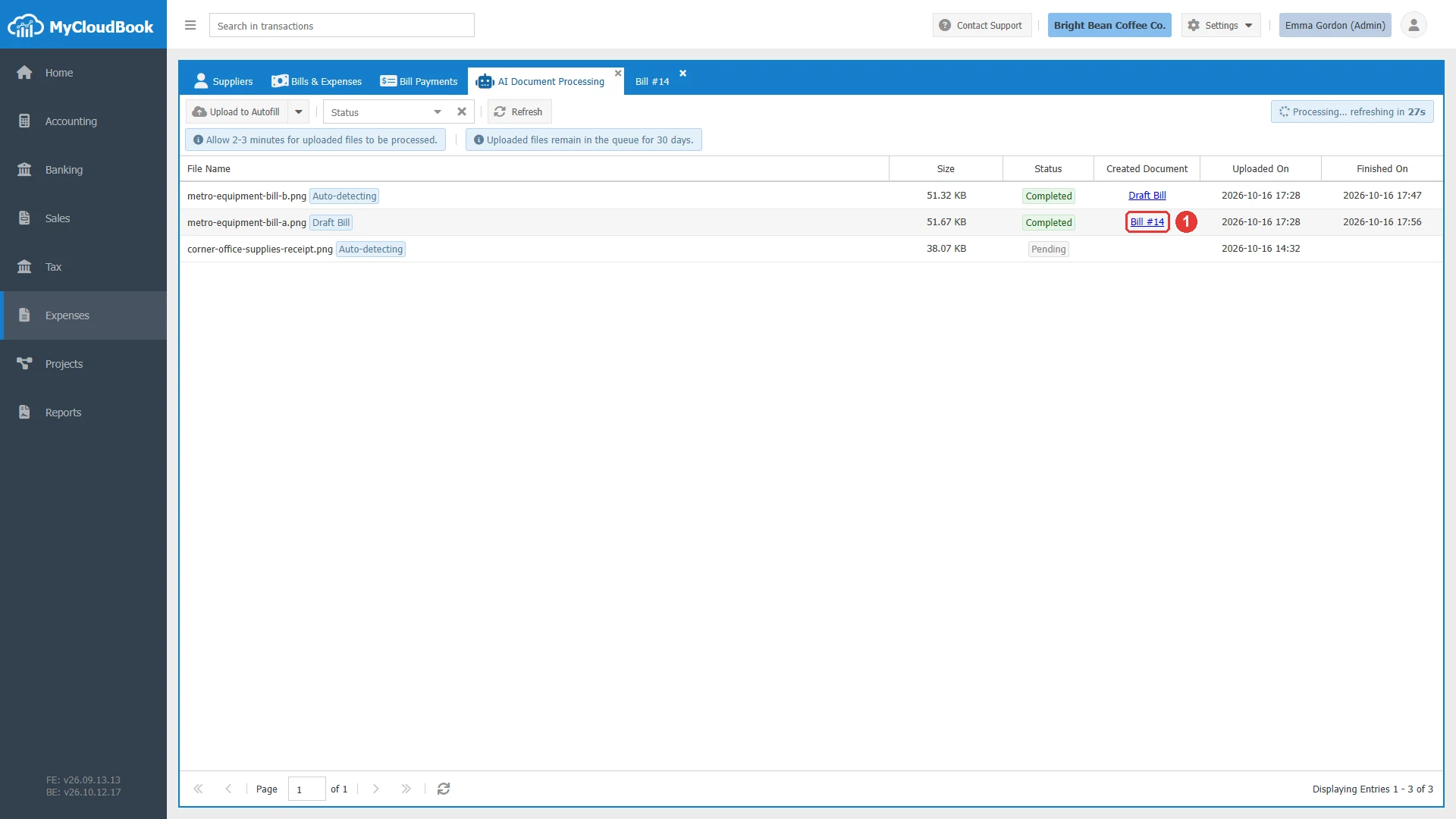
- 1Created Document: Bill #14. The link follows the document after the conversion.
For the receipt, the line received the account 507 - Store Supplies, and the draft received the Pay From account 103 - Petty Cash and the payment method Cash. Convert to Expense turned the draft into Expense #15, with the status Paid.
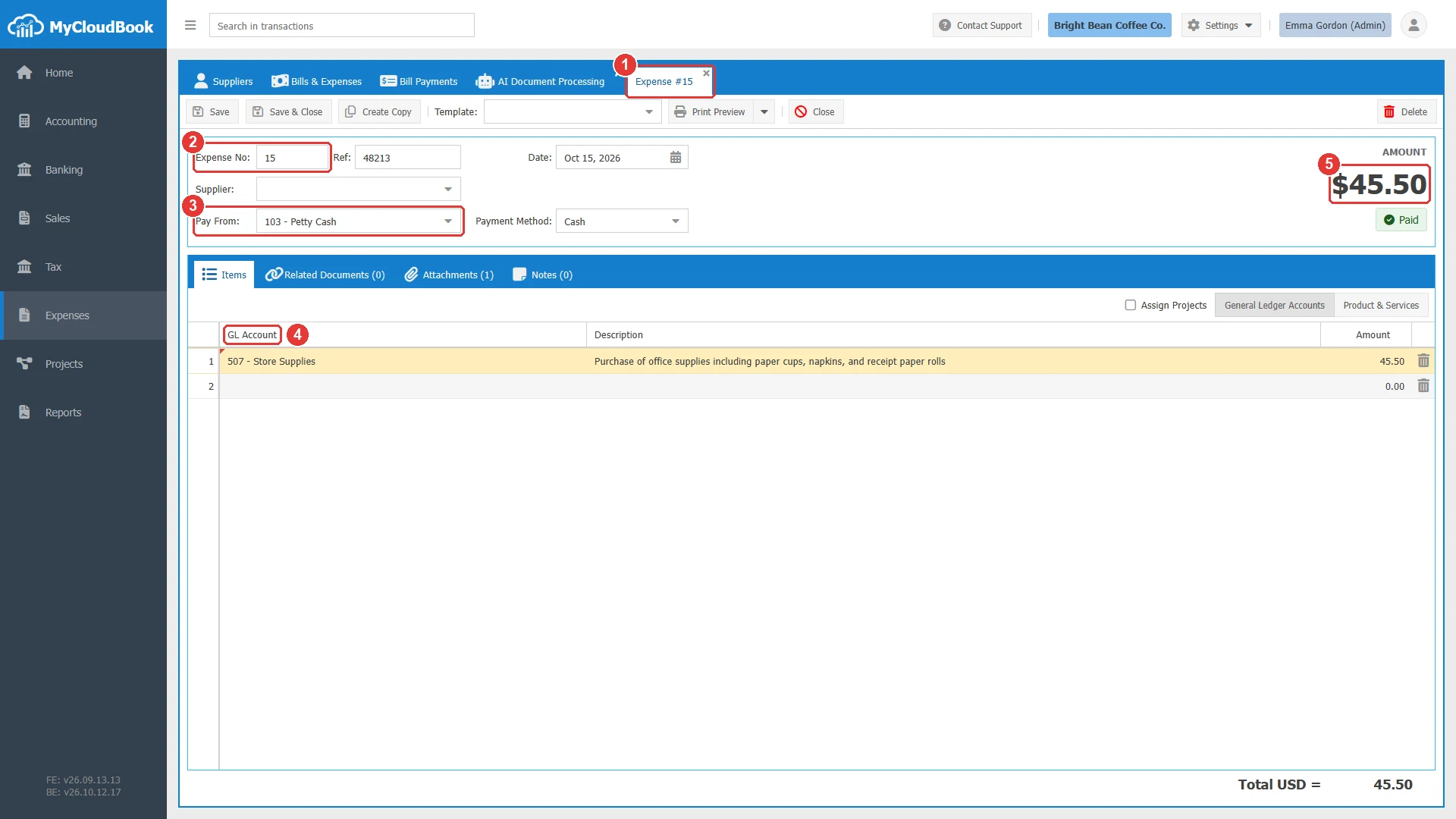
- 1The tab title Expense #15.
- 2Expense No: 15.
- 3Pay From: 103 - Petty Cash.
- 4GL Account: 507 - Store Supplies.
- 5AMOUNT: 45.50, and the status Paid.
- The attached file stays with the bill or the expense after the conversion.
- When a created document is deleted, the Created Document column shows Not Exist.
The Bills and Expenses guide explains the drafts and their conversion in detail.
Messages and their meaning
Questions and answers
Which files can I upload to Autofill with AI?
JPEG, PNG, GIF, and WEBP pictures and PDF files of 2 MB or less. Several files can be selected at once.
How long does the reading of a receipt take?
The screen says 2 to 3 minutes. The list reloads every 30 seconds while a file is waiting.
Who chooses the expense account?
You do. The draft has one line with the description and the total. You select the account before the conversion.
How does Autofill find the supplier?
It links the draft to the existing supplier with a matching name. When no supplier matches, you choose the supplier in the draft.
Is the receipt kept with the expense?
Yes. The original file is attached to the draft, and it stays with the bill or the expense after the conversion.
Is my file sent outside MyCloudBook?
Yes. The file is sent to an outside AI service to read its data. Only the file is sent.