Tax Settings
This guide explains the tax settings of MyCloudBook: how to add a sales tax and its agency, how to change a rate from a date, how to combine taxes in a tax group, and how to manage the agencies.
Overview
The tax settings define the sales taxes that the company charges on its invoices and receipts. The settings have three kinds of records:
- a tax (type Normal): one sales tax with its rate, for example the State Sales Tax of 6%;
- a tax group (type Group): two or more taxes that are charged together on one line, for example the Combined Sales Tax of 7.5%, which is the State Sales Tax plus the County Sales Tax;
- a tax agency: the government office that collects a tax, for example the State Department of Revenue. Each tax belongs to one agency. An agency has only a name.
A tax keeps a history of its rates. Each rate has an effective date, so a rate change applies only to the documents dated on or after that date. When a document is saved, the tax of each tax is recorded in the Tax Payable account, and the Sales Tax Center shows what the company owes to each agency.
How to open the screen
- In the left navigation, click Tax.
- In the Sales Tax Center tab, click Tax Settings on the right of the toolbar. The Tax Setting window opens.
The Tax Settings button of the Sales Tax Center is the only way to open this window.
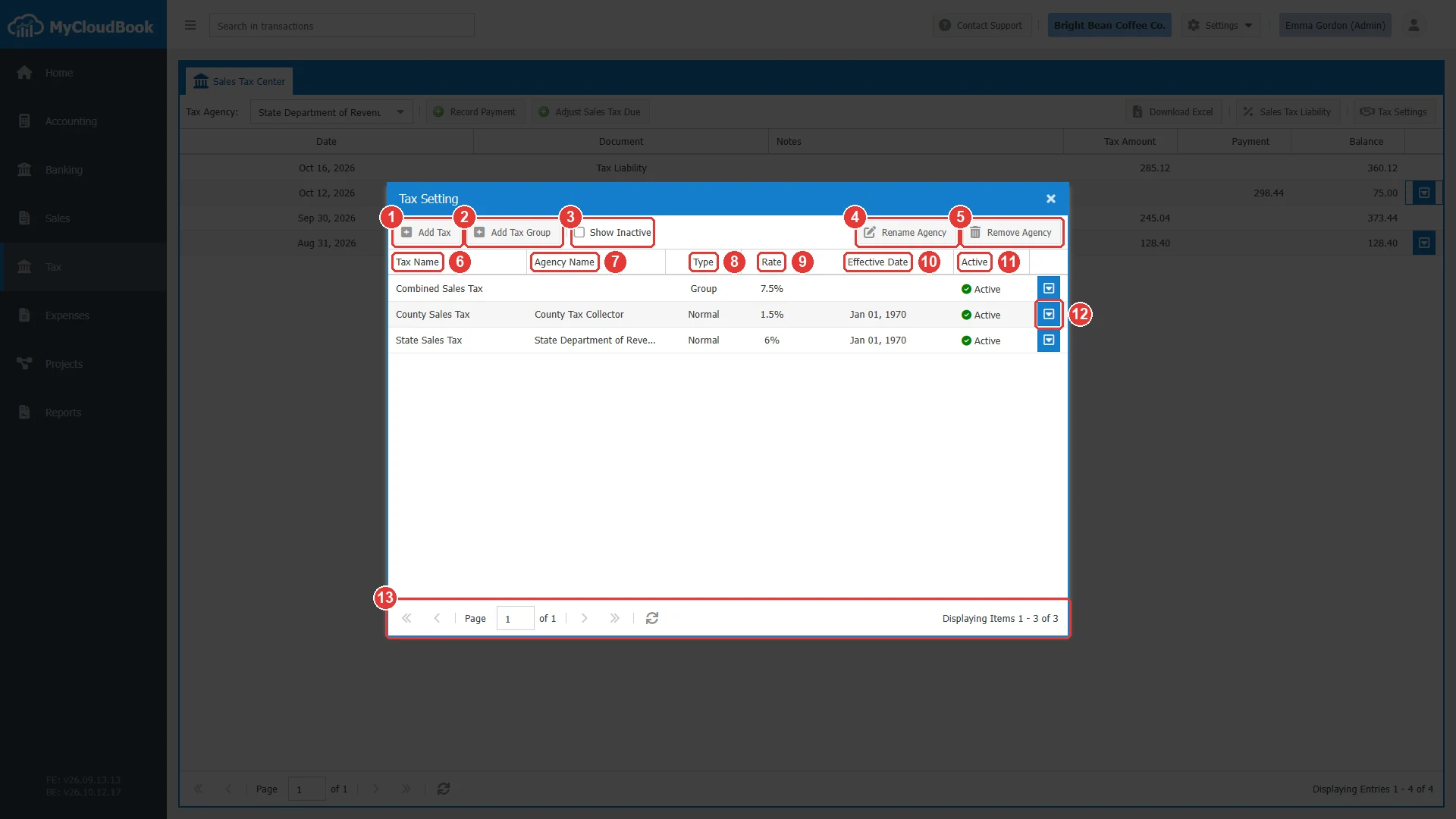
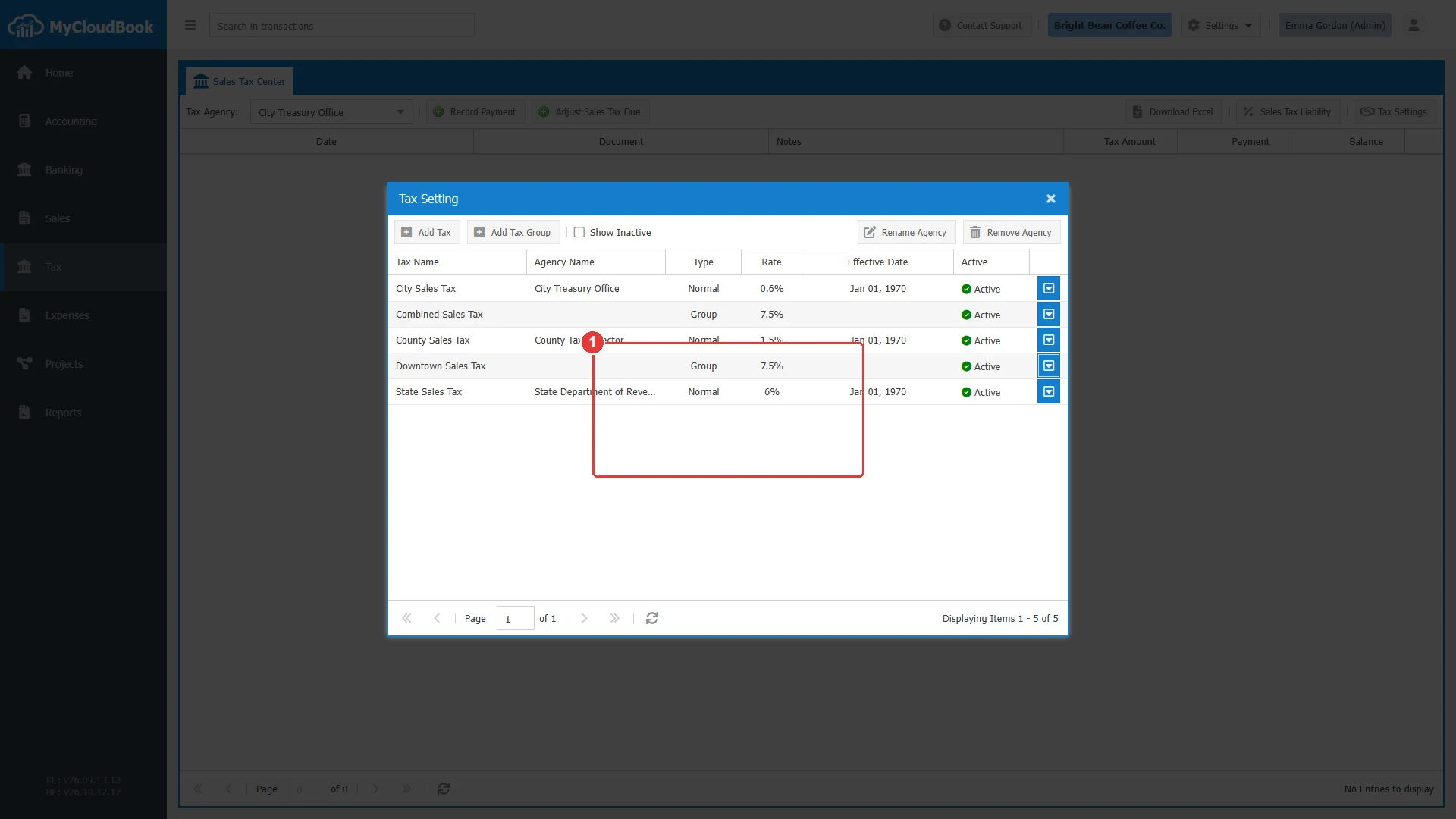
- 1Add Tax. Adds a tax.
- 2Add Tax Group. Adds a tax group.
- 3Show Inactive. Also lists the inactive taxes and groups.
- 4Rename Agency.
- 5Remove Agency.
- 6Tax Name. The list is sorted by name. The taxes and the groups are mixed.
- 7Agency Name. Empty for a group, because a group has no agency.
- 8Type: Normal for a tax, Group for a tax group.
- 9Rate. The rate that applies today. For a group, the sum of the rates of its members.
- 10Effective Date. The date of the rate that applies today. Empty for a group.
- 11Active: Active or Inactive.
- 12The row actions button, with Edit and Delete. A double click on a row opens it too.
- 13The paging bar.
Adding a tax
- In the Tax Setting window, click Add Tax.
- Type the Tax Name and, if you wish, a Description.
- Type the Rate (%). Keep the Effective Date of January 1, 1970, so that the rate applies to all document dates.
- In Tax Agency, choose New Agency : and type the name of the agency, or choose Existing Agency : and select it.
- Keep the status Active, and click Save.
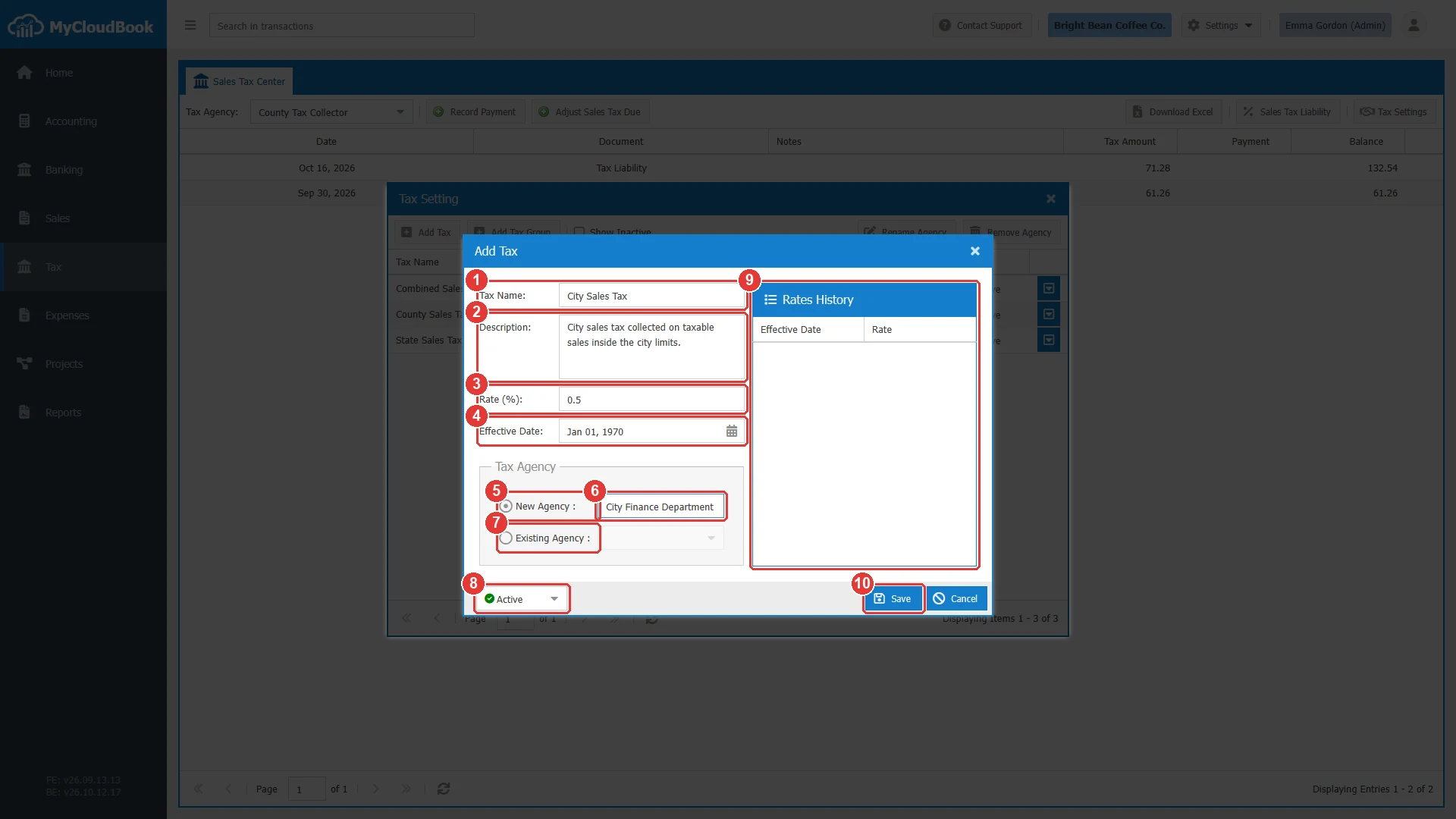
- 1Tax Name. Required.
- 2Description. Optional.
- 3Rate (%). Required, from 0 to 100.
- 4Effective Date. The first day of the rate. The default is Jan 01, 1970.
- 5New Agency :. Creates the agency with the name that is typed next to it.
- 6The name of the new agency.
- 7Existing Agency :. Uses an agency from the list.
- 8The status: Active or Inactive.
- 9Rates History. Empty for a new tax.
- 10Save.
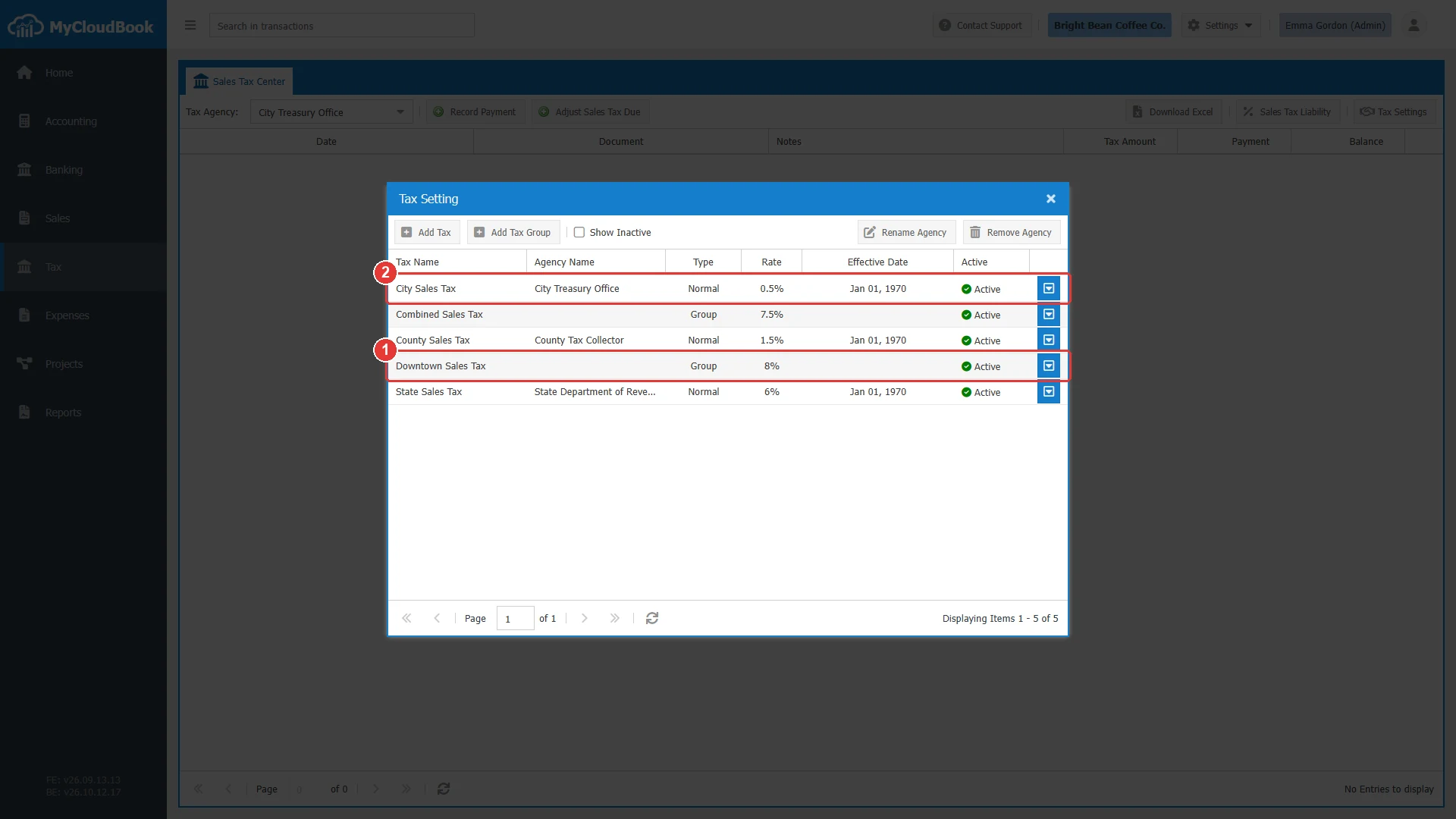
- 1The tax group Downtown Sales Tax: the State, the County, and the City taxes, 8% in total.
- 2The new City Sales Tax with its agency.
The fields
| Field | Required | Purpose and rules |
|---|---|---|
| Tax Name | Required | Up to 50 characters. The name must be different from the names of the other active taxes and groups. |
| Description | Optional | Up to 1000 characters. |
| Rate (%) | Required | From 0 to 100, with two decimals. |
| Effective Date | Required | The first date of the rate. The default is Jan 01, 1970. |
| New Agency : Existing Agency : | Required | One option is always selected. New Agency creates an agency with the typed name. Existing Agency uses an agency from the list. |
| Status | Required | Active or Inactive. See Active and inactive taxes. |
Changing a rate
The rate of a tax can change, for example when the county raises its tax on January 1. MyCloudBook keeps every rate with its effective date, so the old documents keep the old rate.
- In the Tax Setting window, open the tax with Edit. The Update Tax window shows the last rate and its date.
- Type the new Rate (%), and set the Effective Date to the first day of the new rate.
- Click Save. A new row is added to the Rates History.
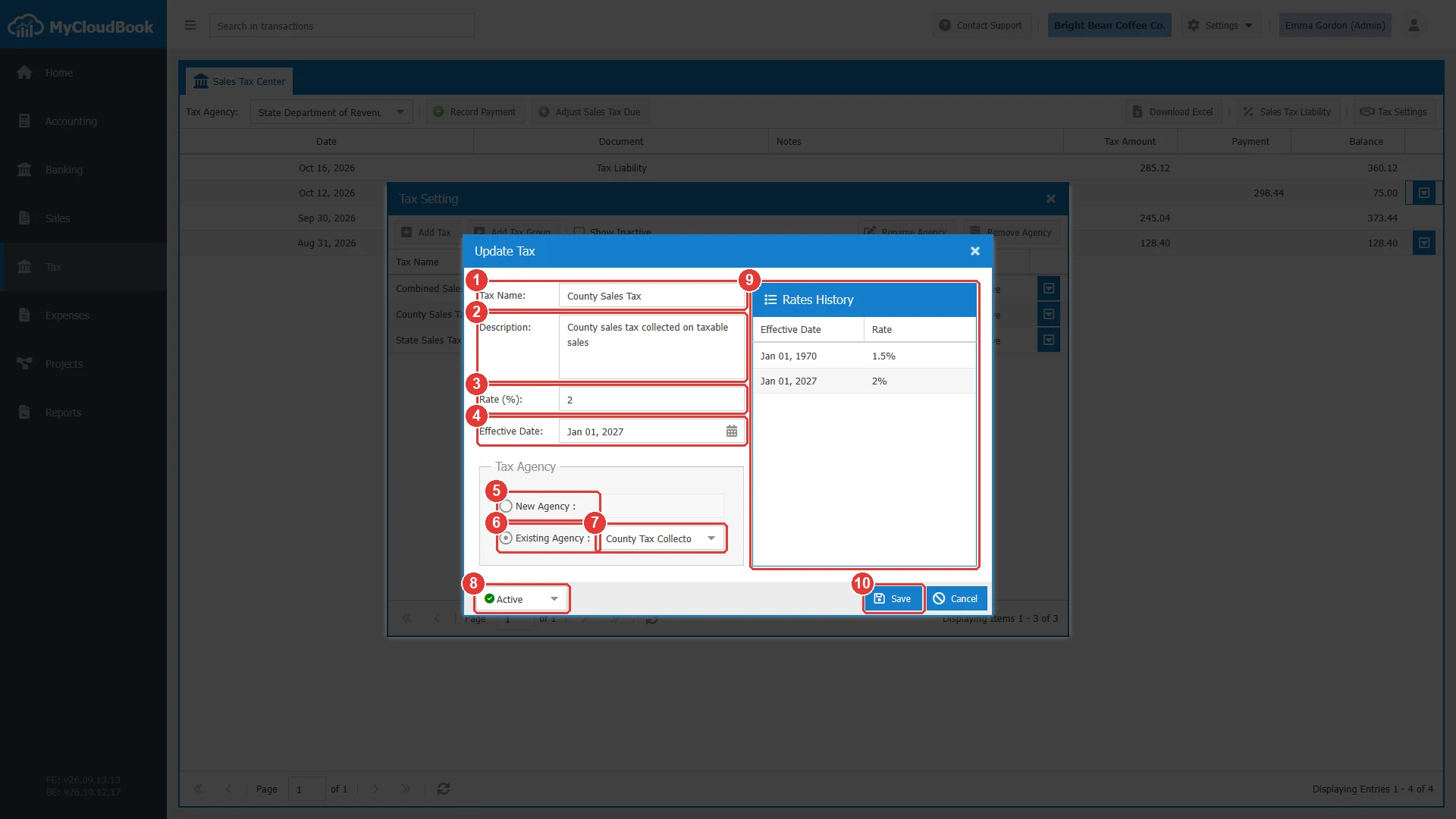
- 1Tax Name.
- 2Description.
- 3Rate (%). The rate of the last row of the history, here the future rate of 2%.
- 4Effective Date. The date of that rate.
- 5New Agency :.
- 6Existing Agency :.
- 7The agency of the tax.
- 8The status.
- 9Rates History: every rate with its effective date, oldest first. The rows cannot be changed or deleted.
- 10Save.
A document uses the rate whose effective date is the latest one on or before the date of the document. In the example, an invoice of December 2026 uses 1.5%, and an invoice of January 2027 uses 2%. The invoice, receipt, and credit note windows load the rates again when their date changes. The Tax Setting list shows the rate of today, so the County Sales Tax is listed with 1.5% until the end of 2026. A tax can have up to 100 rates.
Tax groups
A tax group charges several taxes on one line. The invoice line shows the group, and MyCloudBook records the tax of each member separately, for the agency of each member.
- In the Tax Setting window, click Add Tax Group.
- Type the Tax Name of the group.
- Check the taxes of the group. Total Rate (%) shows the sum of their rates.
- Click Save.
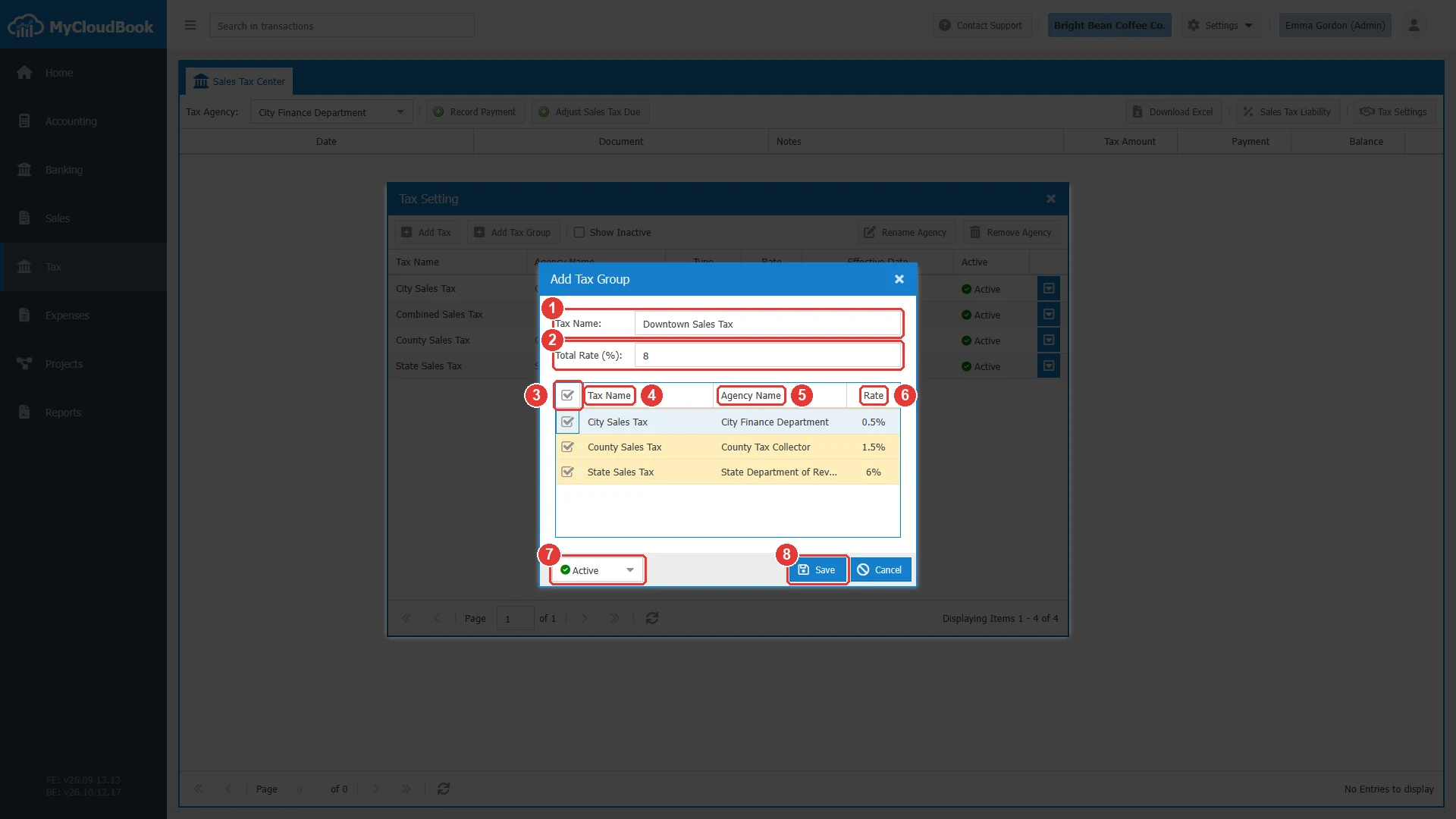
- 1Tax Name. Required.
- 2Total Rate (%). The sum of the rates of the checked taxes. It is read-only and it is not saved.
- 3The check boxes. Check at least one tax.
- 4Tax Name of each tax. Only the active taxes are listed.
- 5Agency Name.
- 6Rate. The rate of today.
- 7The status: Active or Inactive.
- 8Save.
- A group has no rate of its own. On a document, its rate is the sum of the rates of its members on the date of the document.
- When a document uses the group, the members cannot change any more. The member list of the Update Tax Group window is then disabled.
- The group window lists only active taxes.
Tax agencies
An agency is created with the option New Agency : of the tax window. The Tax Setting window has two buttons for the agencies.
Rename Agency. Select the agency, type the new name, and click Rename. The new name must be different from the names of the other agencies.
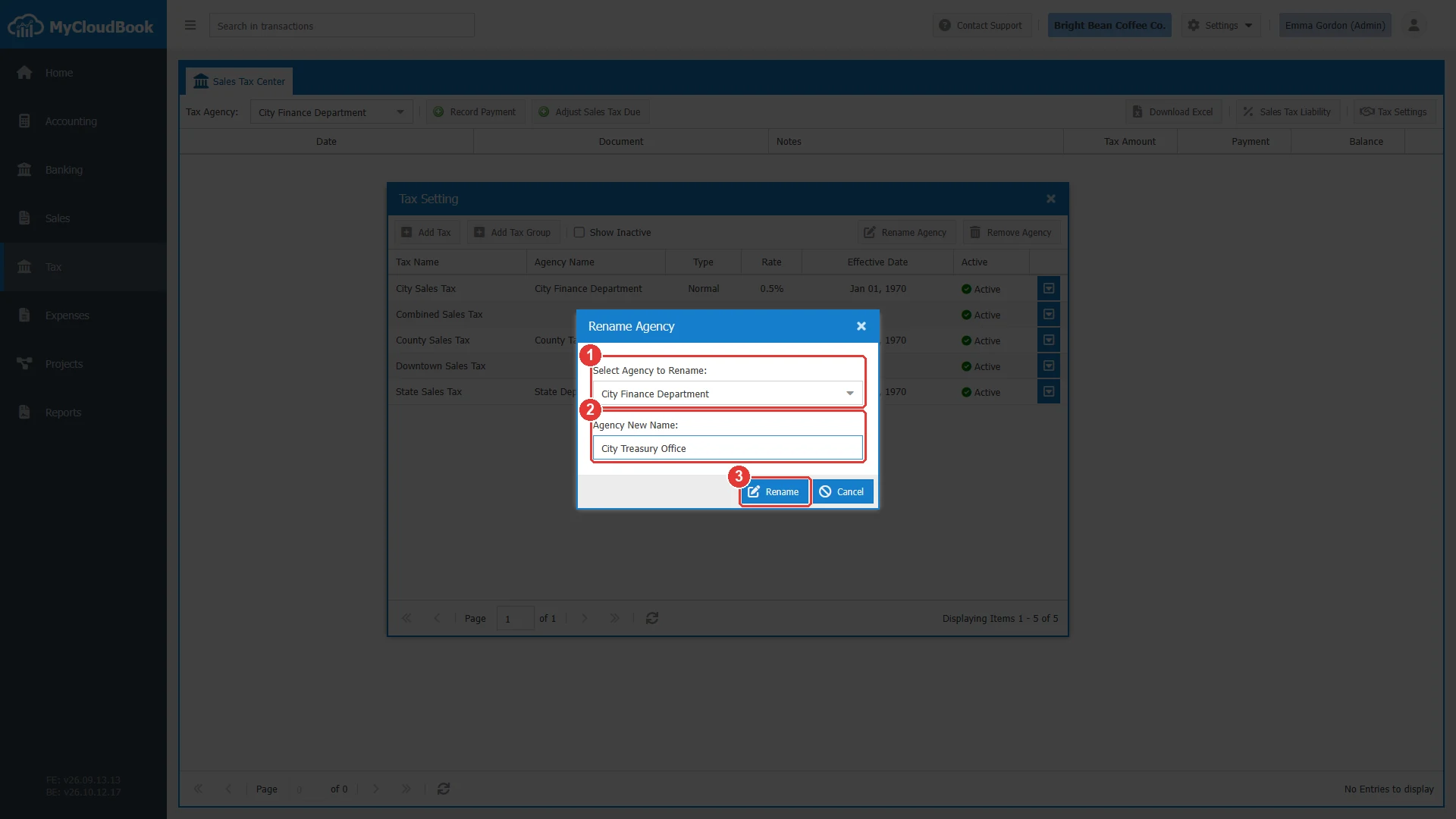
- 1Select Agency to Rename.
- 2Agency New Name.
- 3Rename.
Remove Agency. Select the agency and click Remove.
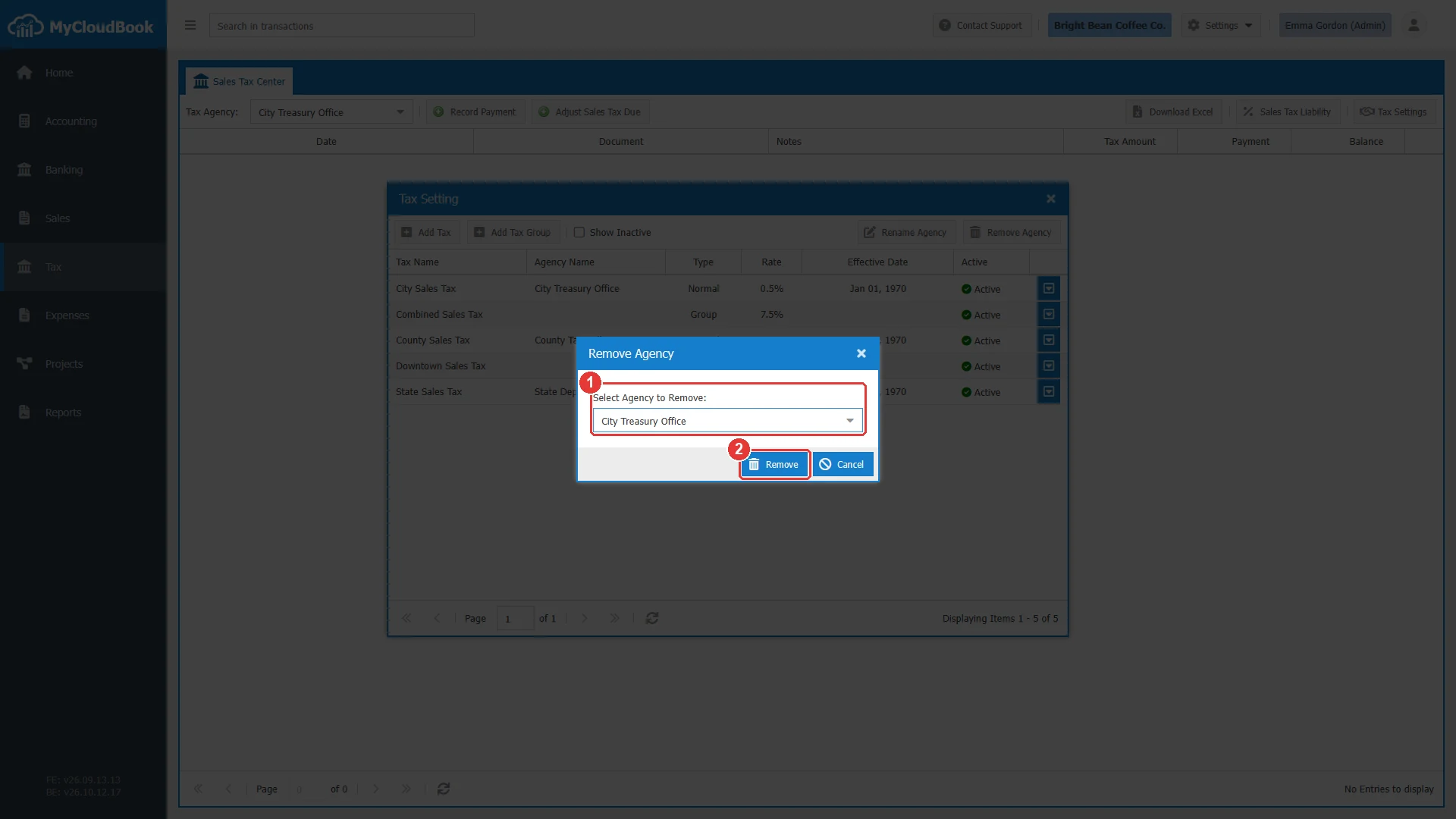
- 1Select Agency to Remove.
- 2Remove. Removes the selected agency.
An agency that has taxes cannot be removed. Delete the taxes of the agency first, then remove the agency.
Active and inactive taxes
Every tax and every group has the status Active or Inactive. Change it in the bottom left corner of the tax window, then click Save. Use the status for a tax that the company does not charge any more.
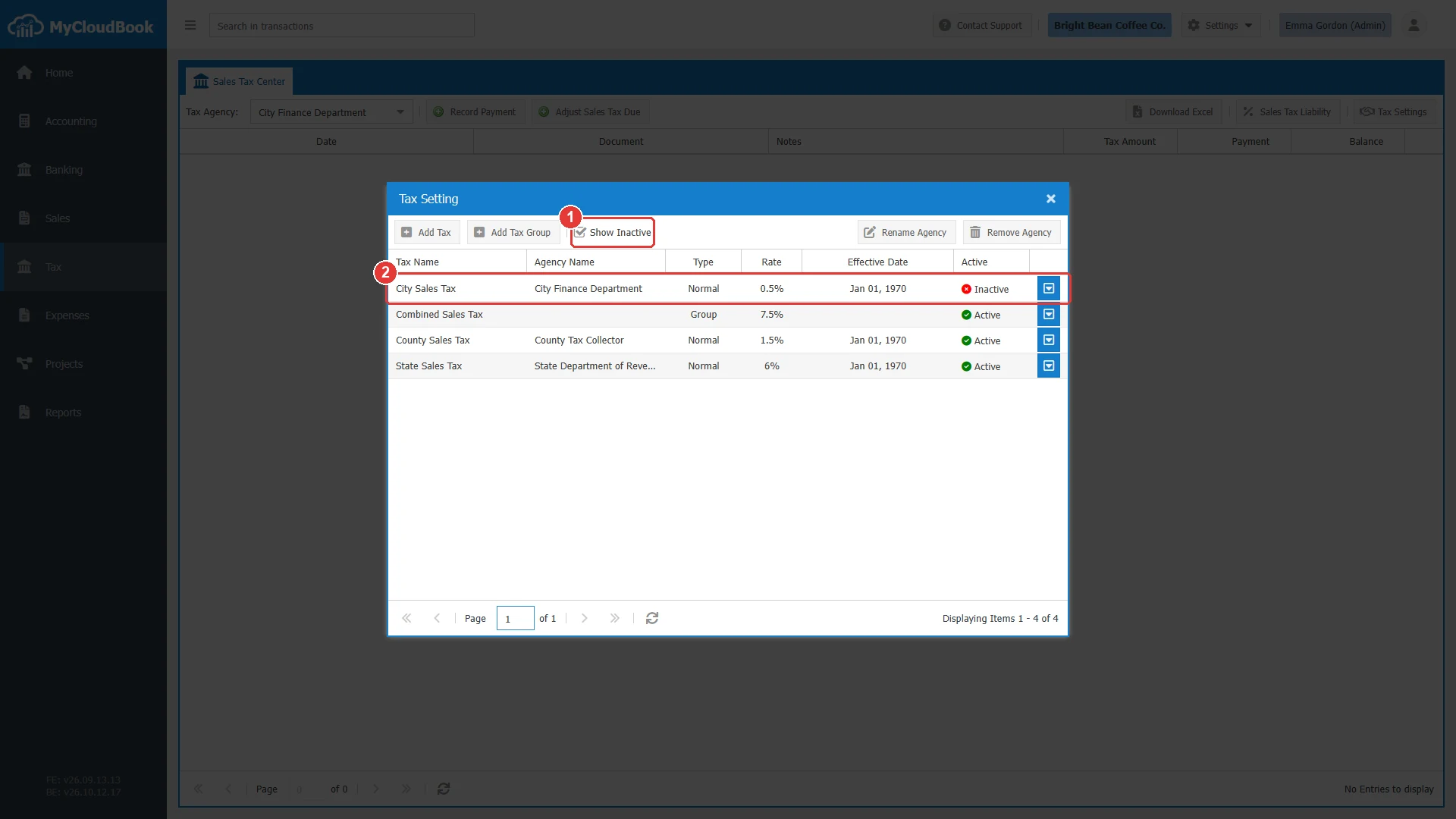
- 1Show Inactive is checked.
- 2The inactive tax, with a red icon.
| Where | Effect of the Inactive status |
|---|---|
| Tax Setting list | The tax is hidden unless Show Inactive is checked. |
| New documents | The tax is not offered on the lines. |
| Tax groups | The group window does not list the tax. |
| Saved invoices and receipts | They keep working. |
Deleting a tax
Delete in the row actions menu deletes a tax or a group after the confirmation Are you sure you want to delete the Tax Name. MyCloudBook refuses the delete when the tax is used:
- 1The confirmation with the name of the tax or the group.
| The tax is used by | Result |
|---|---|
| An invoice, a receipt, an estimate, a sales order, or a draft | Refused: You can't Delete the Tax item [name] because it is in use by one or more Transactions. |
| A product or a service, as its sales tax | Refused: ... because it's assigned to one or more Product and/or Service. |
| A tax group, as a member | Refused: ... because it is added to one or more Tax Group. Remove the tax from the group first. |
MyCloudBook keeps a tax that documents use, so the documents keep their tax. Set the tax to Inactive when the company stops charging it.
Messages and their meaning
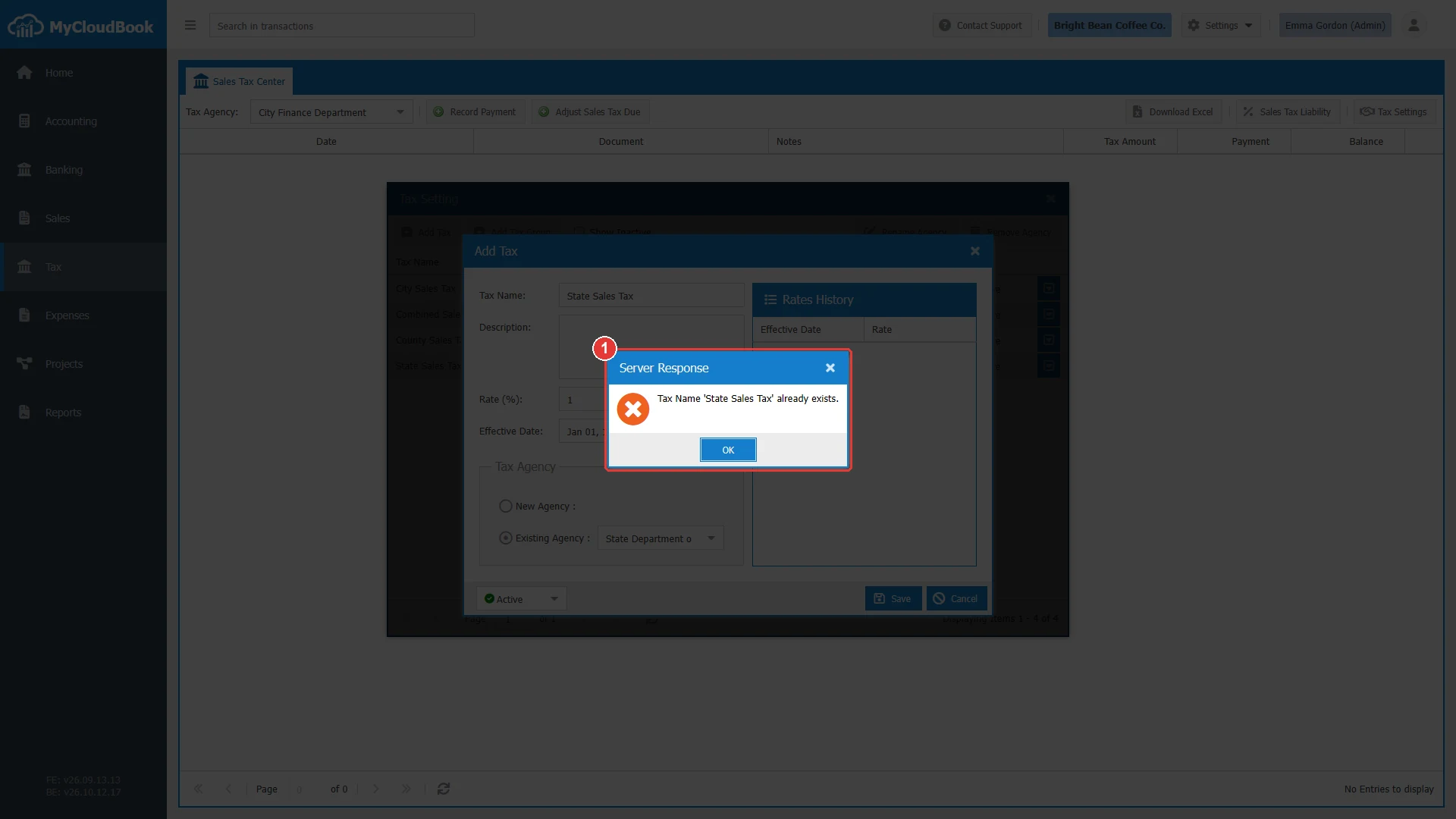
- 1The message of the server.
Questions and answers
How do I add a sales tax in MyCloudBook?
Open Tax, click Tax Settings, then Add Tax. Type the name and the rate, choose the agency, and save. The first rate applies from Jan 01, 1970, so it is used on all document dates.
How do I change a tax rate from a future date?
Open the tax with Edit, type the new rate, set the Effective Date to the first day of the new rate, and save. Documents dated before that day keep the old rate.
What is a tax group?
A group charges several taxes on one line, for example a state tax and a county tax. Its rate is the sum of the rates of its members, and the tax of each member is recorded for its own agency.
What happens to a tax that documents use?
MyCloudBook keeps it, so the documents keep their tax. Set it to Inactive when the company stops charging it. An inactive tax is not offered on new documents.
How do I remove a tax agency?
Delete the taxes of the agency first. Then click Remove Agency, select the agency, and click Remove.