A/P Aging Details
This guide explains the A/P Aging Details report of MyCloudBook: how to open it, how the open bills are grouped by their age, how to read the columns, and how to print the report or download it as an Excel file.
Overview
The A/P Aging Details report lists the open bills of the suppliers one by one, grouped by their age. A/P stands for Accounts Payable: the money that the company owes for the bills of its suppliers. For each bill, the report shows the date, the number, the supplier, the due date, the days past due, the amount, and the open balance.
The first group, Current, holds the bills that are not past their due date. The next groups hold the bills that are 1 to 30, 31 to 60, or 61 to 90 days past due, and the last group holds the bills that are 91 or more days past due. Each group ends with its total.
The A/P Aging Summary shows the same bills as one row for each supplier.
How to open the report
- In the left navigation, click Reports. The Reports tab lists the reports in four groups.
- In the group Aging Reports, double click A/P Aging Details.
- The report opens in its own tab and is created at once with the default settings. When the tab is open already, it becomes the active tab and keeps its settings.
A report tab can be closed with its x. The next double click opens the report again with the default settings.
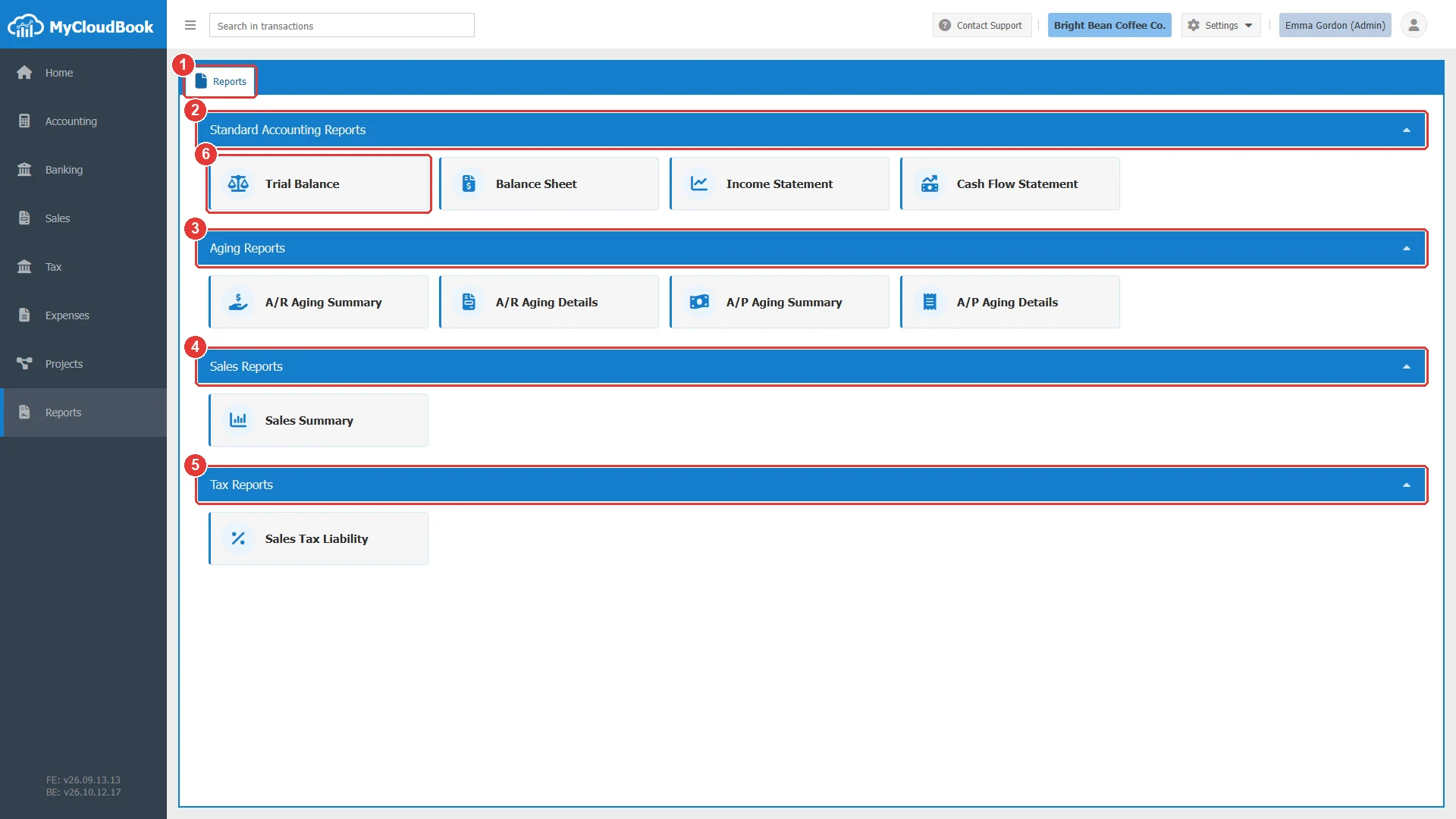
- 1The Reports tab. It is always the first tab of the Reports page.
- 2Standard Accounting Reports: Trial Balance, Balance Sheet, Income Statement, and Cash Flow Statement. A click on the title of a group hides or shows its reports.
- 3Aging Reports: A/R Aging Summary, A/R Aging Details, A/P Aging Summary, and A/P Aging Details.
- 4Sales Reports: Sales Summary.
- 5Tax Reports: Sales Tax Liability.
- 6A report, here Trial Balance. A double click opens it.
The report screen
The report screen has two parts. The center shows the report as a Portable Document Format (PDF) document in the PDF viewer of the browser. The Report Setting panel at the right holds the settings of the report. After a change of the settings, click Reload to create the report again. The arrow in the header of the panel hides the panel, so the report gets more room.
The example shows the bills of the supplier Metro Equipment Supply of the example company Bright Bean Coffee Co. The As Of date is Oct 16, 2026, the periods are the default periods, and the supplier was selected in Supplier before Reload was clicked.
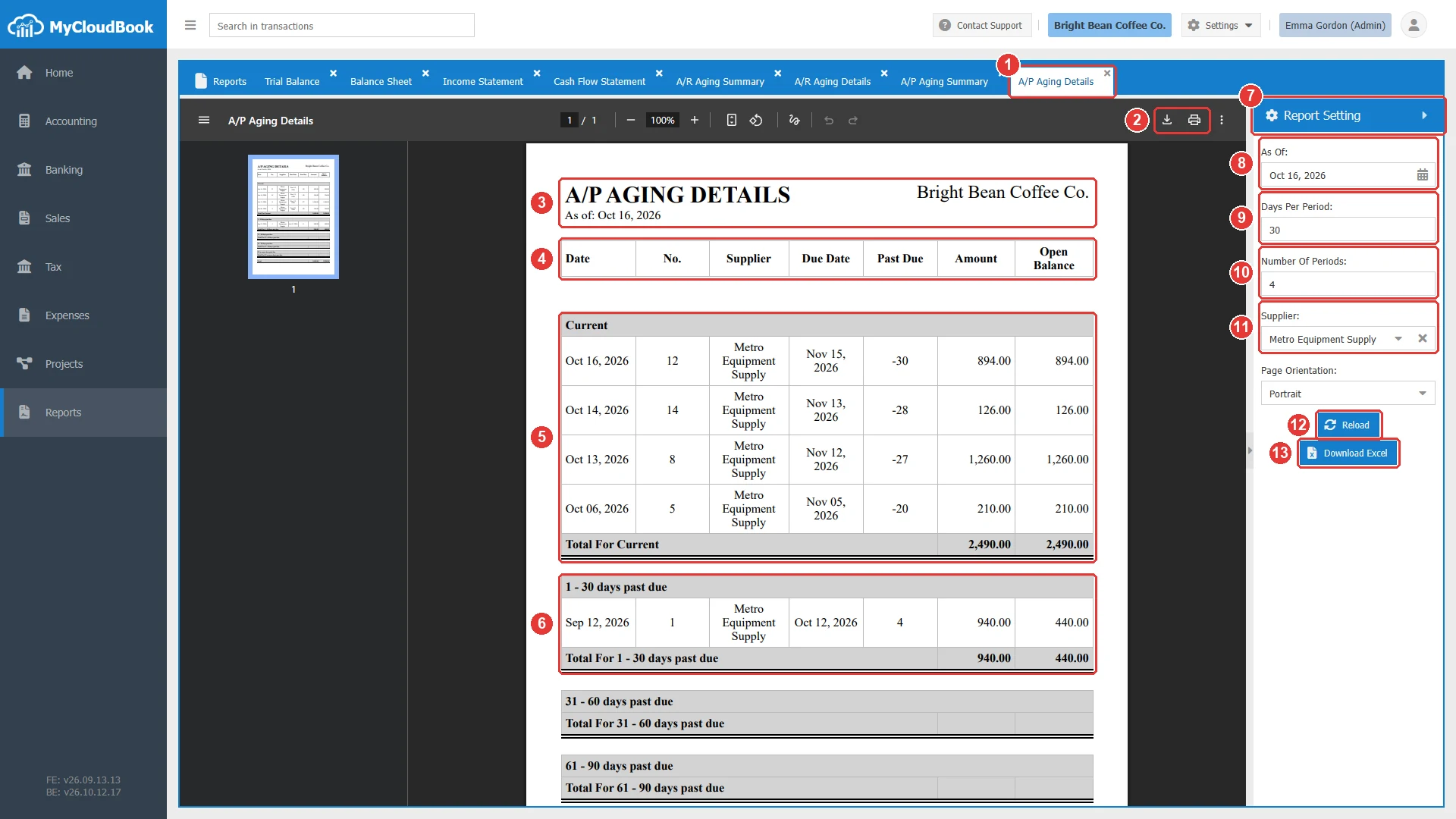
- 1The A/P Aging Details tab. The x closes it.
- 2The download and print buttons of the PDF viewer of the browser.
- 3The title of the report, A/P AGING DETAILS, the As Of date, and the name of the company.
- 4The columns Date, No., Supplier, Due Date, Past Due, Amount, and Open Balance.
- 5The group Current: the bills that are not past their due date, and the row Total For Current.
- 6The group 1 - 30 days past due, with its total. The groups of the older periods follow. A group without bills shows only its name and its total row.
- 7Report Setting. The panel with the settings of the report.
- 8As Of. The day of the report. It starts with today.
- 9Days Per Period. The length of each past-due period in days. It starts with 30.
- 10Number Of Periods. The number of past-due periods. It starts with 4.
- 11Supplier. Here Metro Equipment Supply. Empty shows every supplier. The x empties the field.
- 12Reload. Creates the report again with the settings of the panel.
- 13Download Excel. Downloads the report as the Excel file A_P Aging Details.xlsx.
The settings
| Field | Required | Purpose and rules |
|---|---|---|
| As Of | Required | The day of the report. The report lists the open bills that are dated on or before this day, and it computes the age of each bill on this day. |
| Days Per Period | Required | The number of days of each past-due period, for example 30. |
| Number Of Periods | Required | The number of past-due periods, for example 4. The last past-due period has no end. The period Current is added to these periods. |
| Supplier | Optional | One supplier, or empty for every supplier. The list shows the active suppliers with their balance. Type a part of the name to filter the list, and click a supplier to select it. The x empties the field. |
How to read the report
The report lists the bills that are not fully paid and are dated on or before the As Of date. An expense is paid at once, so it is never in the report. Draft bills, draft expenses, and purchase orders are not counted. In each group, the newest bill comes first.
| Column | Meaning |
|---|---|
| Date | The date of the bill. |
| No. | The number of the bill. |
| Supplier | The supplier of the bill. |
| Due Date | The due date of the bill. |
| Past Due | The days from the due date to the As Of date. 0 means that the bill is due on the As Of date. A negative number shows the days until the due date, so the bill is not past due yet. |
| Amount | The total of the bill. |
| Open Balance | The part of the total that is not paid yet: the total minus the bill payments that are applied to the bill. |
| Total For ... | The sums of Amount and Open Balance of the bills of the group. |
| Total | The last row. The sums of all groups. |
In the example, bill 12 is dated Oct 16, 2026 and is due on Nov 15, 2026. Its Past Due is -30, because the due date is 30 days after the As Of date. Bill 1 was due on Oct 12, 2026, so on Oct 16, 2026 it is 4 days past due. Its amount is 940.00 and its open balance is 440.00, because the company has paid 500.00 of it.
To see the bills of every supplier, click the x of Supplier and click Reload.
The periods
The age of a bill is counted from its due date. On the As Of date, a bill that is due on that day or later is in the period Current. A bill that is past its due date is in one of the past-due periods. Days Per Period sets the length of each past-due period, and Number Of Periods sets the number of past-due periods. The last past-due period has no end.
| Days Per Period and Number Of Periods | Periods of the report |
|---|---|
| 30 and 4 (the default) | Current, 1 - 30, 31 - 60, 61 - 90, 91 and over |
| 15 and 2 | Current, 1 - 15, 16 and over |
| 7 and 4 | Current, 1 - 7, 8 - 14, 15 - 21, 22 and over |
| 30 and 1 | Current, 1 and over |
In the summary reports, the periods are columns, for example 1 - 30 and 91 and over. In the details reports, the periods are groups of rows, for example 1 - 30 days past due and 91 or more days past due. Change the settings and click Reload to see the new periods.
A later As Of date shows how the open bills will age if they stay unpaid. For example, with the last day of the month, the report shows which bills will be past due at the end of the month.
Printing and Excel
- To print the report, click the print button of the PDF viewer. To keep it as a PDF file, click the download button of the PDF viewer.
- To work with the figures in a spreadsheet, click Download Excel. MyCloudBook creates the report with the settings of the panel and downloads it as A_P Aging Details.xlsx. The Excel file has the same rows, a header that stays visible, and a print setup with page numbers.
- The report shows the posted data at the moment of the Reload. After new documents are saved, click Reload again.
Messages and their meaning
Questions and answers
What does a negative number in Past Due mean?
The bill is not past due yet. The number shows the days until the due date. For example, -30 means that the bill is due in 30 days.
What is the difference between Amount and Open Balance?
Amount is the total of the bill. Open Balance is the part of the total that the company has not paid yet.
In which order are the bills listed?
The bills are grouped by their age. In each group, the newest bill comes first.
How do I see the bills of one supplier?
Select the supplier in Supplier and click Reload. To see all suppliers again, click the x of the field and click Reload.
Can I open the A/P Aging Details in Excel?
Yes. Click Download Excel. MyCloudBook downloads the report with the same settings as A_P Aging Details.xlsx.