Project Estimates
This guide explains project estimates in MyCloudBook: how to price the work of a project with your costs and your markup, how the offer feeds the estimated figures of the project, and how to invoice the work.
Overview
A project estimate is a price offer to the customer of a project, with an internal cost side. On each line, the company records what the work costs it (Your rate) and the markup it adds (Markup%). MyCloudBook computes the price for the customer (Customer rate). The customer sees only the customer prices.
A project estimate always belongs to one project. Its customer total becomes the estimated income of the project, and its internal costs become the estimated costs. The project information screen compares these estimated values with the actual income and costs.
Like an estimate, a project estimate has no accounting effect: it creates no journal entry and no inventory movement. It uses the same screen, the same statuses, and the same customer page as an estimate. The Estimates guide describes the shared parts.
How to open the screen
A new project estimate is created from its project:
- In the left navigation, click Projects, and double click the project in the projects list.
- On the project information screen, click the arrow of the Edit button.
- Click New Project Estimate. The tab New Project Estimate opens next to the project tab.
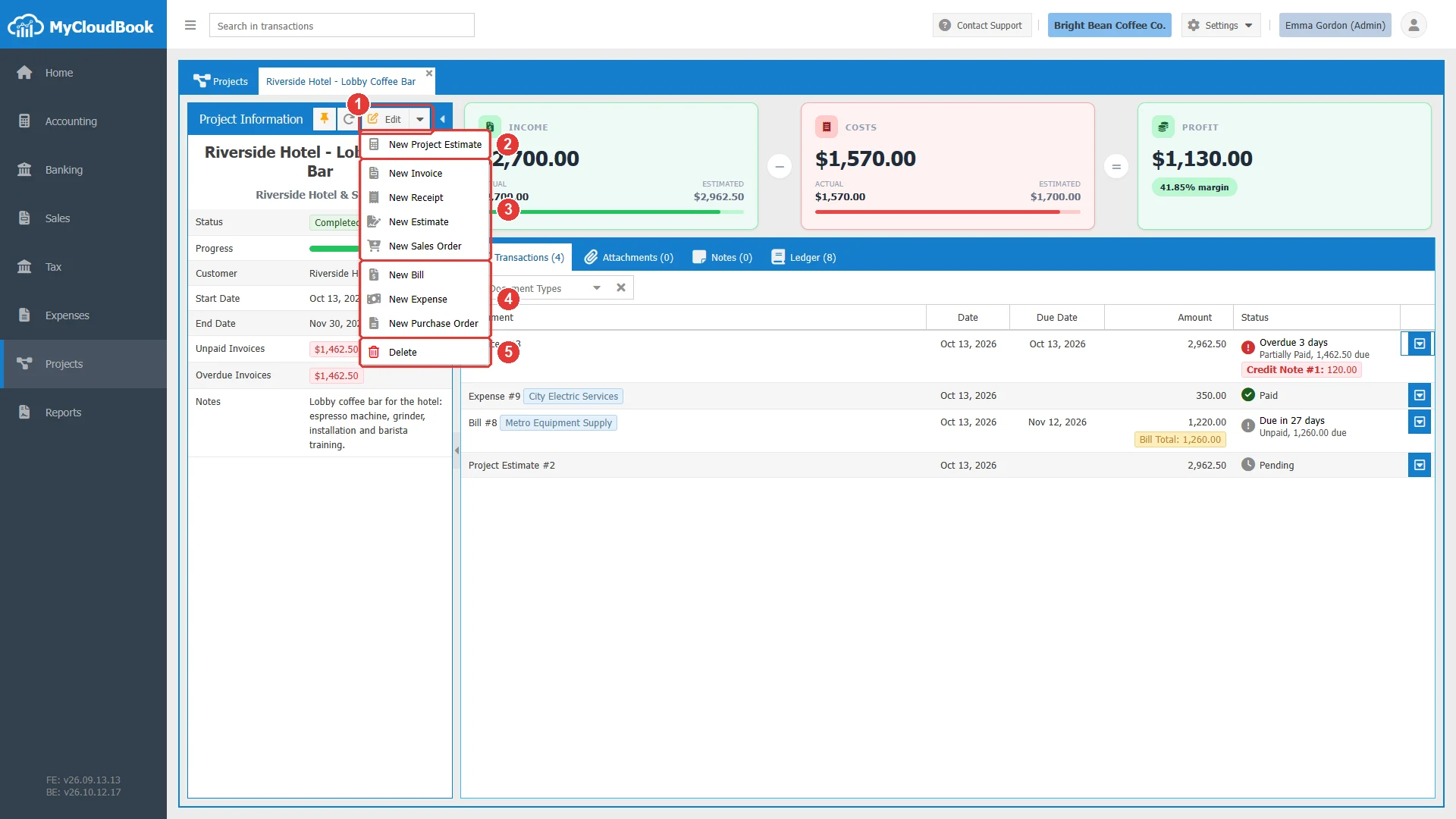
- 1Edit. The arrow opens the menu.
- 2New Project Estimate.
- 3The sales documents of the project.
- 4The purchase documents of the project.
- 5Delete. Deletes the project.
A saved project estimate opens with a double click in the Transactions tab of its project. It is also listed in the Invoices & Receipts tab of the Sales page, with the name of the project under the name of the customer.
Creating a project estimate
The example prepares the offer for the project Harbor View - Wedding Coffee Bar: twelve hours of barista service and four hours of installation for a wedding reception.
- Open New Project Estimate from the project. The Customer and the Project are filled in.
- Select the Expire Date, the last day of the offer, and type a Ref if needed.
- On each line, select the Product / Service and type the QTY. The rates of the product are filled in.
- Change Your rate, Markup%, or Customer rate when needed. The next section explains the calculation.
- Click Save. The project estimate receives its number and the status Pending.
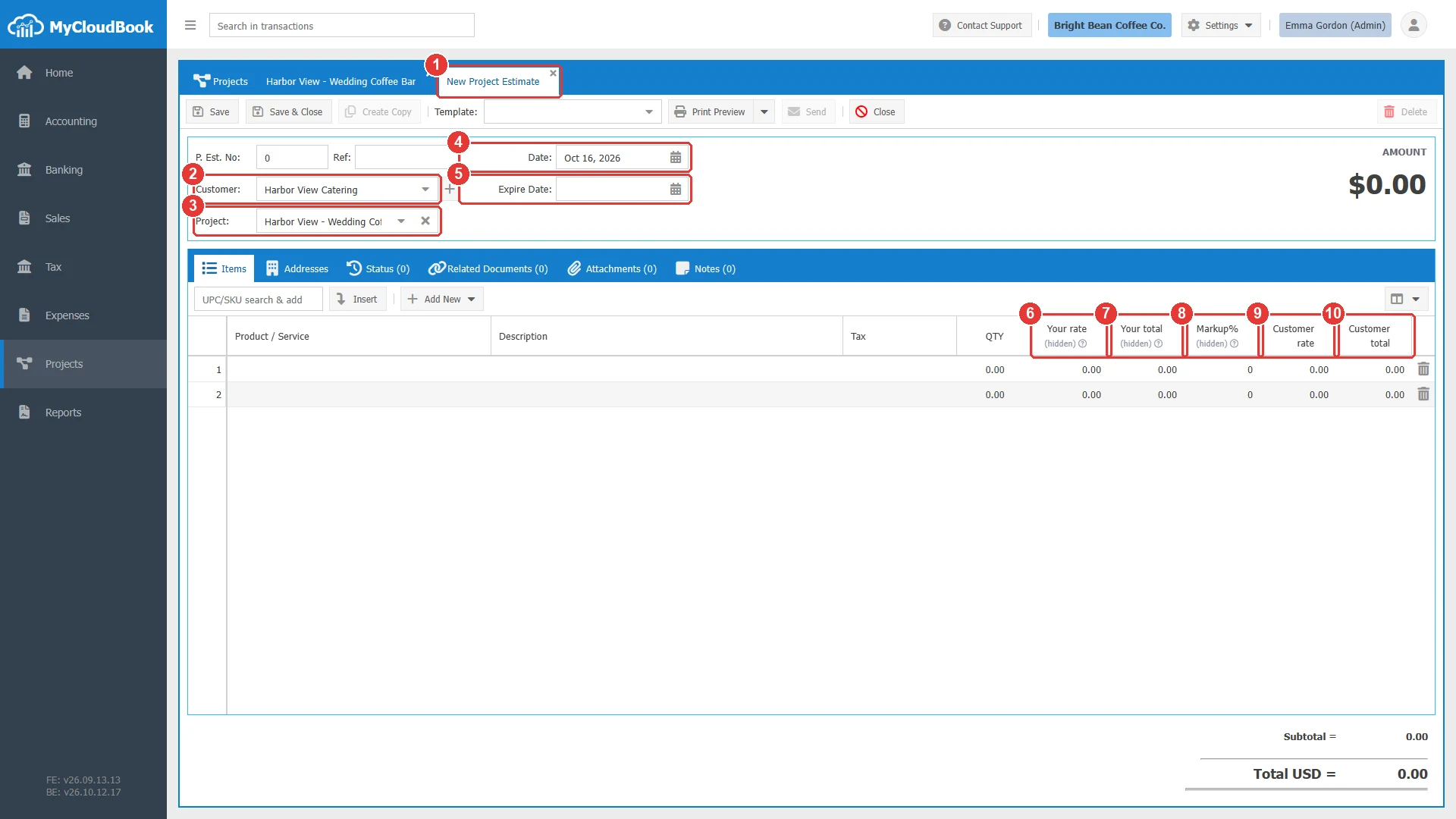
- 1The tab New Project Estimate.
- 2Customer. The customer of the project.
- 3Project. The project. Required.
- 4Date. The date of the offer.
- 5Expire Date. The last day of the offer.
- 6Your rate. The cost of one unit for the company. The word (hidden) means that the customer does not see the column.
- 7Your total. Your rate times QTY.
- 8Markup%. The percentage that the company adds to its cost.
- 9Customer rate. The price of one unit for the customer.
- 10Customer total. The price of the line for the customer.
The fields
| Field | Required | Purpose and rules |
|---|---|---|
| P. Est. No | Required | Keep 0 for the next number. Estimates and project estimates share one number sequence. |
| Ref | Optional | A free reference, for example the subject of the offer. |
| Date | Required | The date of the project estimate. It starts with today. |
| Customer | Required | The customer who receives the offer. It is filled in from the project. |
| Expire Date | Optional | The last day on which the customer can accept or decline the offer on the customer page. |
| Project | Required | The project of the offer. It is filled in from the project. |
| Lines | Required | At least one line. Each line has the product or service, the description, the tax, the quantity, the two rates, and the Markup%. |
Your costs and the customer prices
When a product is selected on a line, MyCloudBook fills in its sales price as the Customer rate and its purchase price as Your rate. Then the columns follow these rules:
| Column | Rule |
|---|---|
| Your rate | The cost of one unit for the company. It starts with the purchase price of the product. |
| Your total | Your rate times QTY. |
| Markup% | The percentage that the company adds to Your rate. When you type the Customer rate, the markup is calculated from the two rates. |
| Customer rate | Your rate times (1 + Markup% / 100). When you type Your rate or Markup%, the customer rate is calculated again. |
| Customer total | Customer rate times QTY, less the discount of the line. |
In the example, the service Coffee Bar Installation - per hour has the purchase price 45.00 and the sales price 85.00, so the markup starts at 88.89%. The markup 100 is typed. The customer rate becomes 45.00 × 2 = 90.00, and the four hours cost the customer 360.00. The barista hours have the rates 30.00 and 60.00, so the offer totals 1,080.00 for the customer and 540.00 of costs for the company.
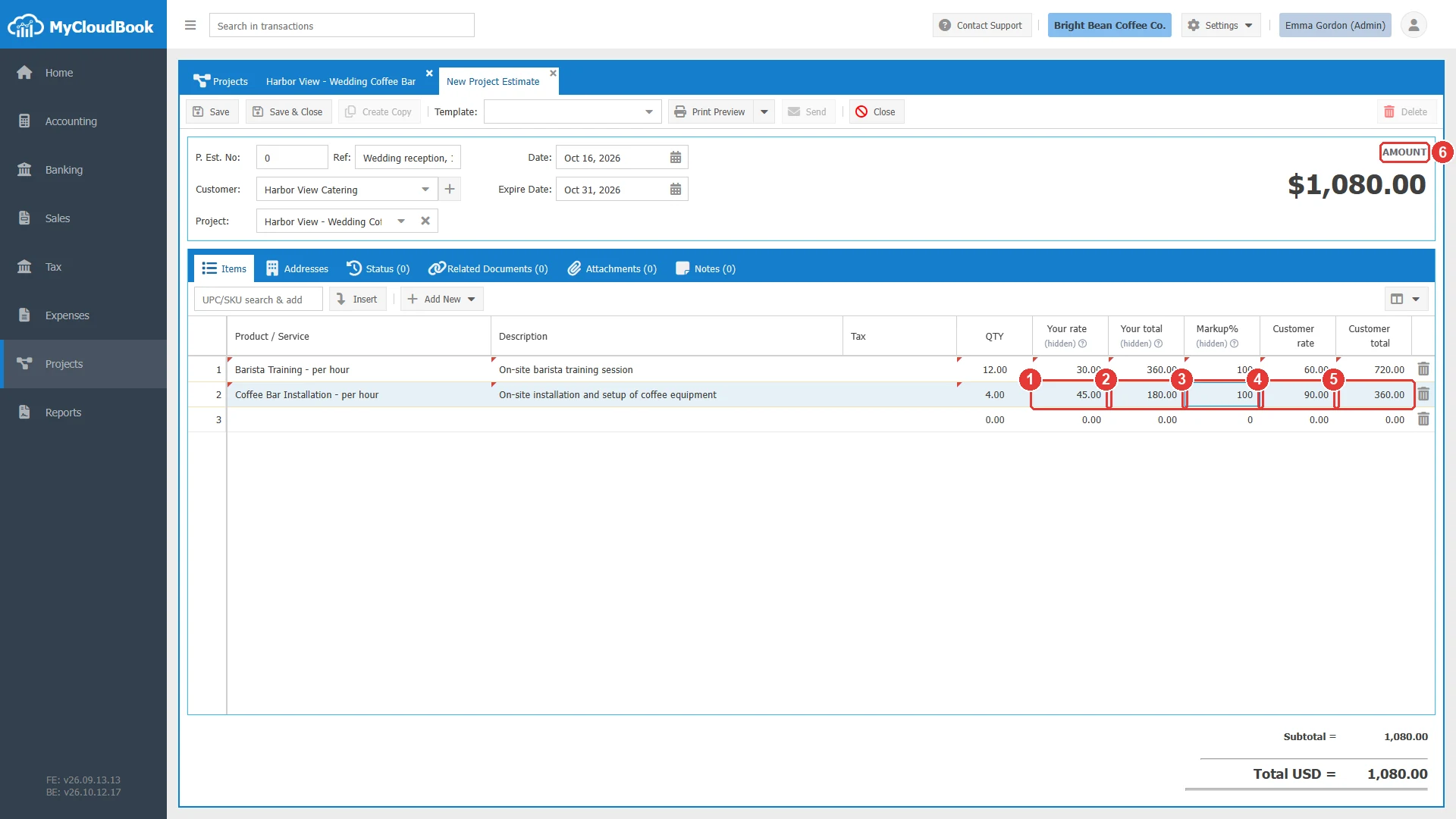
- 1Your rate. 45.00 per hour.
- 2Your total. 4 × 45.00 = 180.00.
- 3Markup%. 100.
- 4Customer rate. 45.00 × 2 = 90.00.
- 5Customer total. 4 × 90.00 = 360.00.
- 6The amount of the offer for the customer.
The columns Your rate, Your total, and Markup% are for the company only. The printed and the emailed project estimate shows the description, the quantity, the customer rate, and the customer total of each line.
Saving and the status
After the save, the tab shows the number, for example Project Estimate #4, and the status Pending appears under the amount. The Status tab keeps the history of the status.
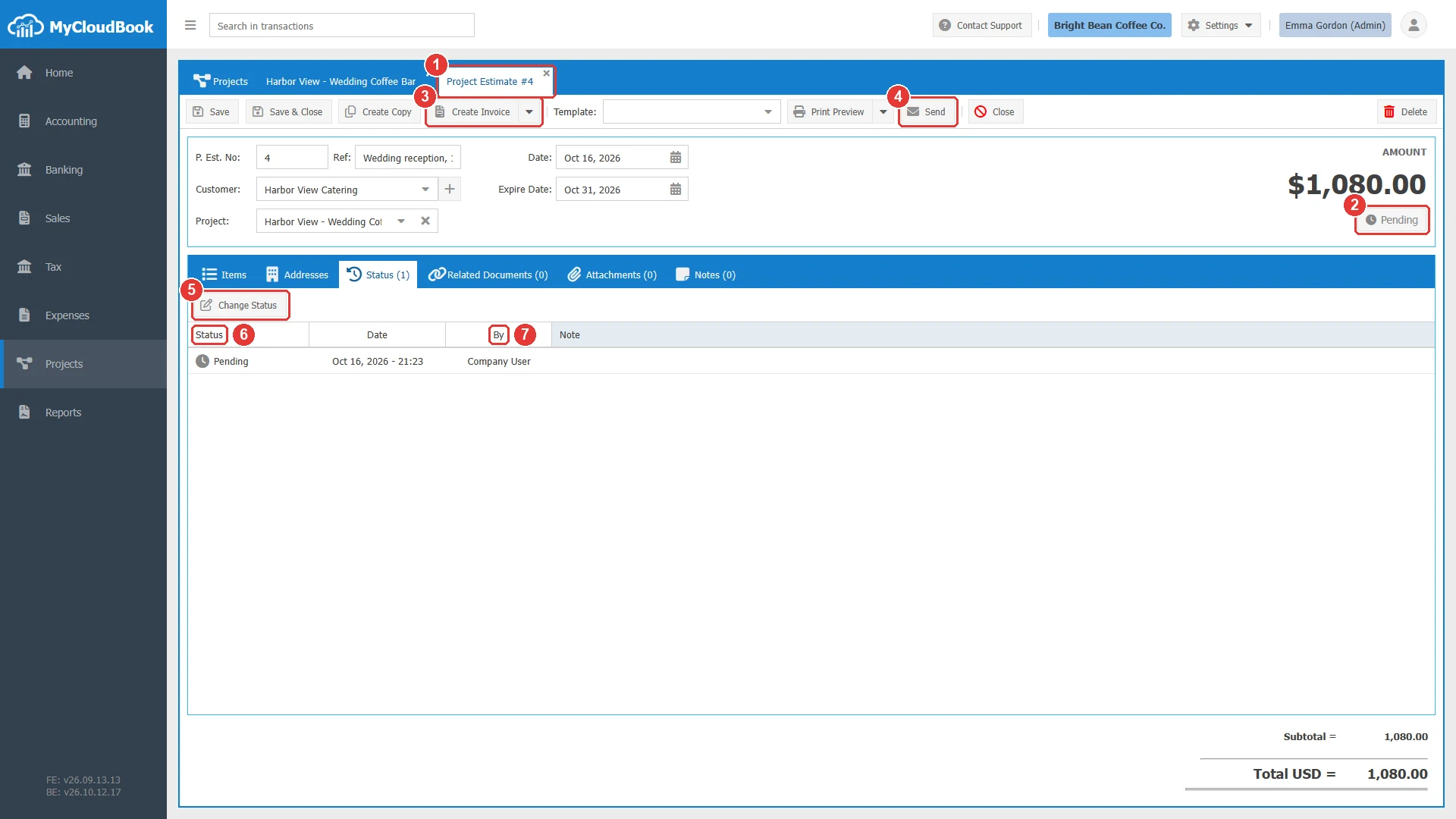
- 1The tab shows the number of the project estimate.
- 2The status Pending.
- 3Create Invoice, with Create Receipt in its menu.
- 4Send. Emails the offer with the link of the customer page.
- 5Change Status. Records the answer of the customer or cancels the offer.
- 6Status. The statuses of the history.
- 7By. Company User for a change by a user, Customer for an answer on the customer page.
| Status | Meaning and what it allows |
|---|---|
| Pending | The first status after the save, and the only status in which the project estimate can be changed. |
| Accepted | The customer agreed, on the customer page or by another way that the company records. |
| Declined | The customer refused the offer. |
| Canceled | The company withdrew the offer. |
A project estimate that is not Pending cannot be saved. To change it, use Change Status to set Pending again. The Estimates guide shows the customer page with Accept Estimate and Decline Estimate, and the Change Estimate Status window.
The estimated figures of the project
The project information screen uses the project estimates of the project:
- the ESTIMATED value of the INCOME card is the total of the estimates and the project estimates of the project;
- the ESTIMATED value of the COSTS card is the sum of Your total of the project estimates.
The bar of each card compares the actual value with the estimated value. When the invoices and the bills of the project are posted, the bars show how much of the offer is invoiced and how much of the planned cost is spent.
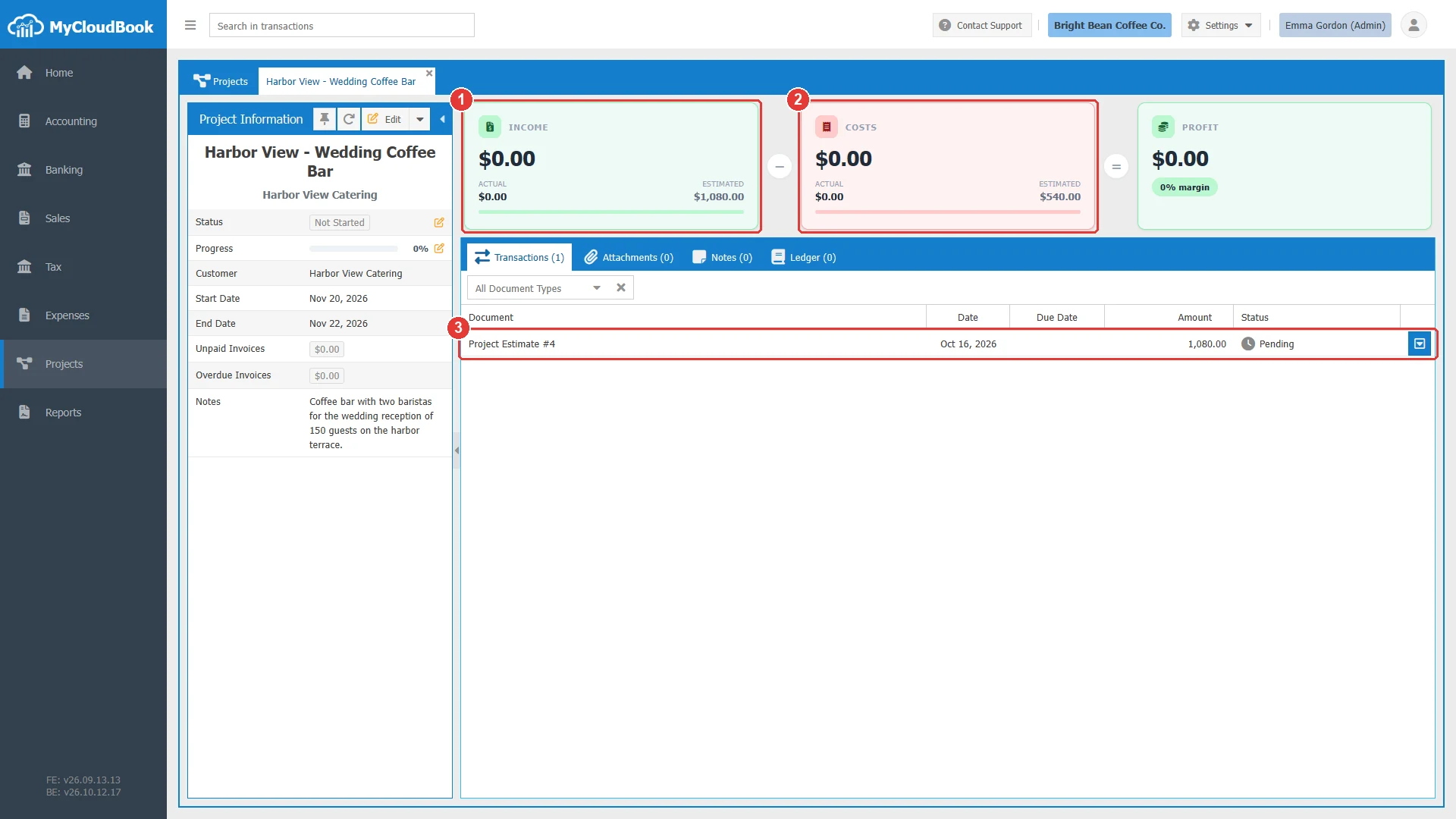
- 1INCOME. The estimated income, 1,080.00.
- 2COSTS. The estimated costs, 540.00.
- 3The project estimate in the documents of the project.
Creating an invoice or a receipt
Create Invoice opens a new invoice filled from the saved project estimate: the customer, the project, the reference, and the lines with the customer rates. The arrow of the button offers Create Receipt for a sale that is paid at once. The cost columns are not part of an invoice.
- Open the project estimate and click Create Invoice.
- Check the new invoice. Its due date starts with today, so set the real due date.
- Click Save. The income of the project grows by the lines of the invoice, without tax.
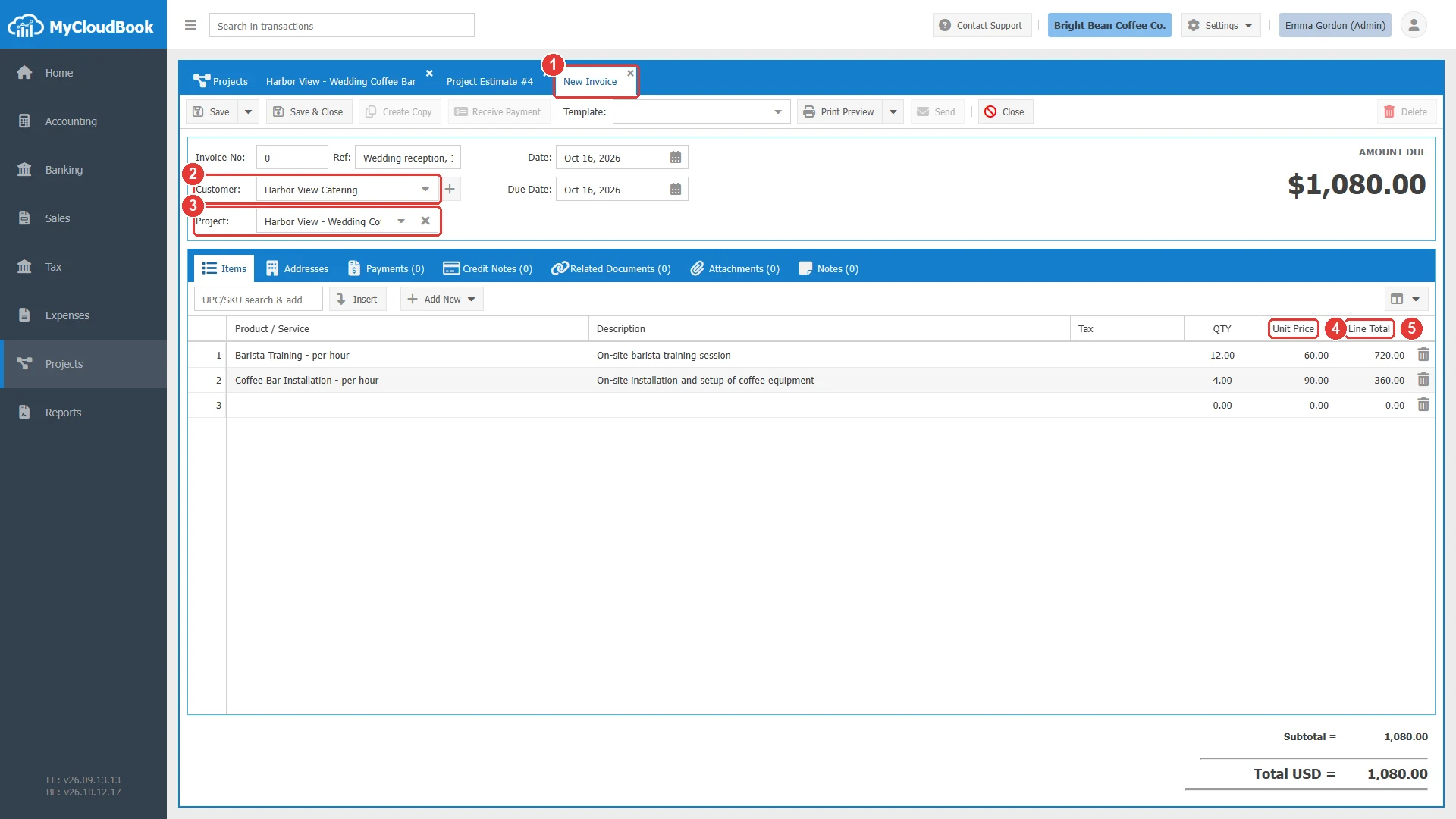
- 1The new invoice, in the Projects page.
- 2Customer. The customer of the project estimate.
- 3Project. The project of the project estimate.
- 4Unit Price. The customer rates of the offer.
- 5Line Total. The customer totals of the offer.
The project estimate keeps its status. Use Change Status to record that the customer accepted the offer.
Printing, sending, and deleting
Print Preview shows the offer as a PDF document with the title ESTIMATE, and Send emails it with the link of the customer page, as for an estimate. Both show the customer prices only.
Delete removes the project estimate after the question Are you sure you want to delete the Project Estimate No#:N. Its estimated values then leave the cards of the project. A project estimate of a completed project cannot be deleted.
Messages and their meaning
Questions and answers
What is the difference between an estimate and a project estimate?
A project estimate always belongs to a project and has three internal columns: Your rate, Your total, and Markup%. Its internal costs become the estimated costs of the project. An estimate has customer prices only, and its project is optional.
Does the customer see my costs and my markup?
No. The printed and the emailed project estimate shows the description, the quantity, the customer rate, and the customer total of each line.
How is the customer rate calculated?
Your rate times (1 + Markup% / 100). For example, a cost of 45.00 with a markup of 100% gives a customer rate of 90.00. When you type the customer rate, the markup is calculated from the two rates.
Does a project estimate change the accounts?
No. It creates no journal entry and no inventory movement. It changes only the estimated values on the project information screen.
How do I invoice the work of a project estimate?
Open the project estimate and click Create Invoice, or Create Receipt in its menu. Set the due date of the new invoice and save it.