Chart of Accounts
This guide explains the Chart of Accounts screen of MyCloudBook. It describes the purpose of the chart, every field and button on the screen, and every rule that the system applies when an account is created, changed, or deleted. Every screen is shown in a screenshot with numbered markers.
Overview
The chart of accounts is the list of all the accounts that a company uses to record its financial transactions. Every document in MyCloudBook, such as an invoice, a bill, a receipt voucher, a journal entry, or a transfer, is posted to the general ledger through the accounts of this chart. The reports, such as the Balance Sheet and the Income Statement, read the ledger. The chart of accounts is therefore the foundation of the accounting of the company.
MyCloudBook creates a complete chart of accounts when a company is created. The chart holds the accounts that a small business needs, together with the system accounts that the application uses on its own. You can add, rename, and delete accounts at any time, within the rules that this guide describes.
The Chart of Accounts screen lets you:
- see every account of the company, grouped by account type, with its number and its balance;
- add an account, a main account, a sub account, a cash account, or a foreign currency account;
- change the name, the number, the main account, the description, and the note of an account;
- delete an account that is not in use;
- search the accounts by name or by number;
- export the whole chart to a CSV file;
- open the ledger of an account, which lists every transaction posted to the account.
How to open the screen
- Sign in to MyCloudBook and open the company.
- In the left navigation, click Accounting.
- The Accounting page opens with three tabs: Chart of Accounts, Journal, and Transfers. The Chart of Accounts tab is the first tab and is active.
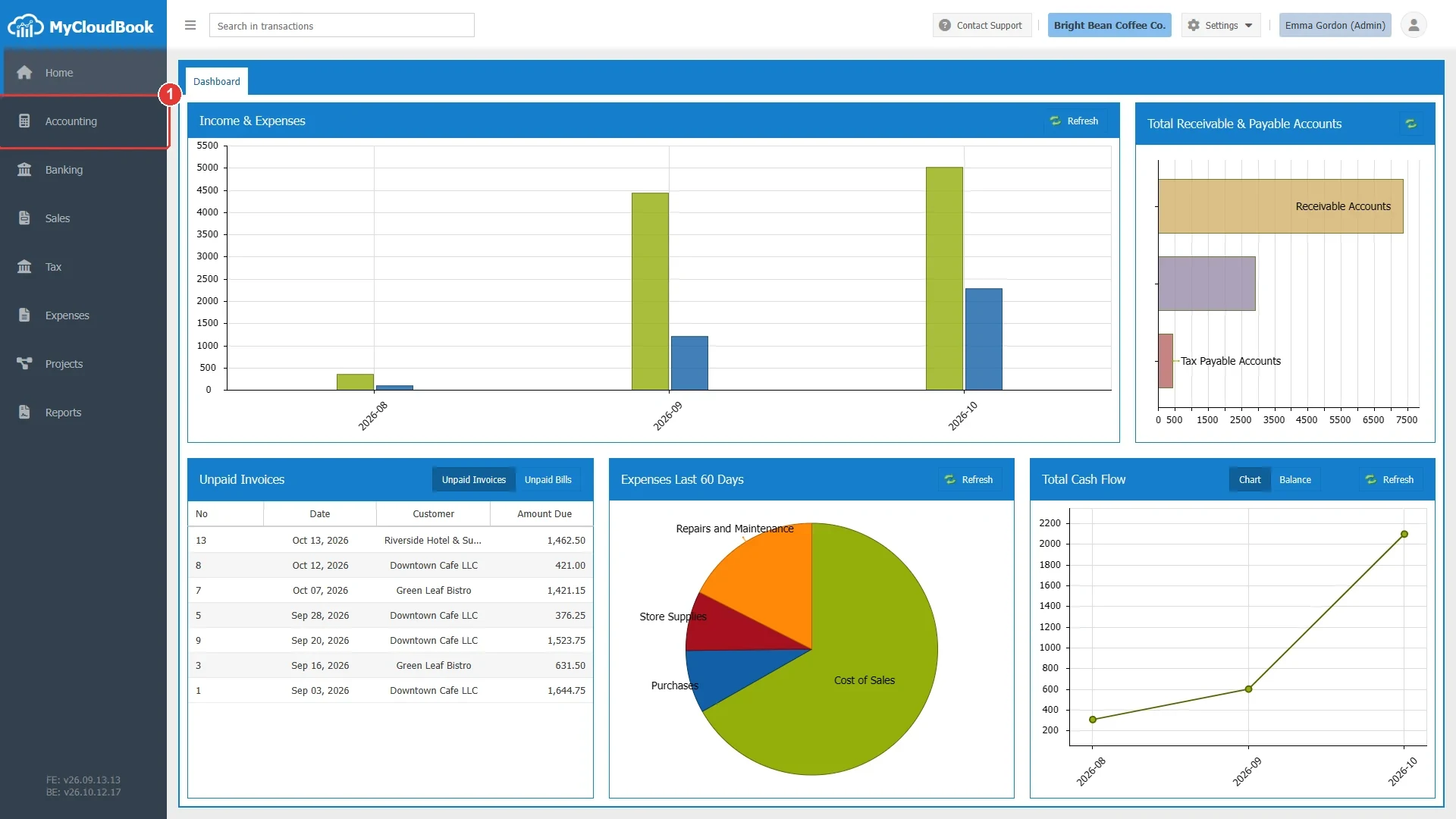
- 1The Accounting group in the left navigation. A click opens the Accounting page with the Chart of Accounts tab active.
A click on a screenshot opens it at its full size in a window on the same page. The cross or the Escape key closes the window.
The screen
The screen shows the accounts as a tree. The five account types are the top rows of the tree. Under each type, the accounts of that type are listed in the order of their numbers. A main account is shown as a folder, and its sub accounts are listed under it. Figure 2 shows the screen with every part marked.
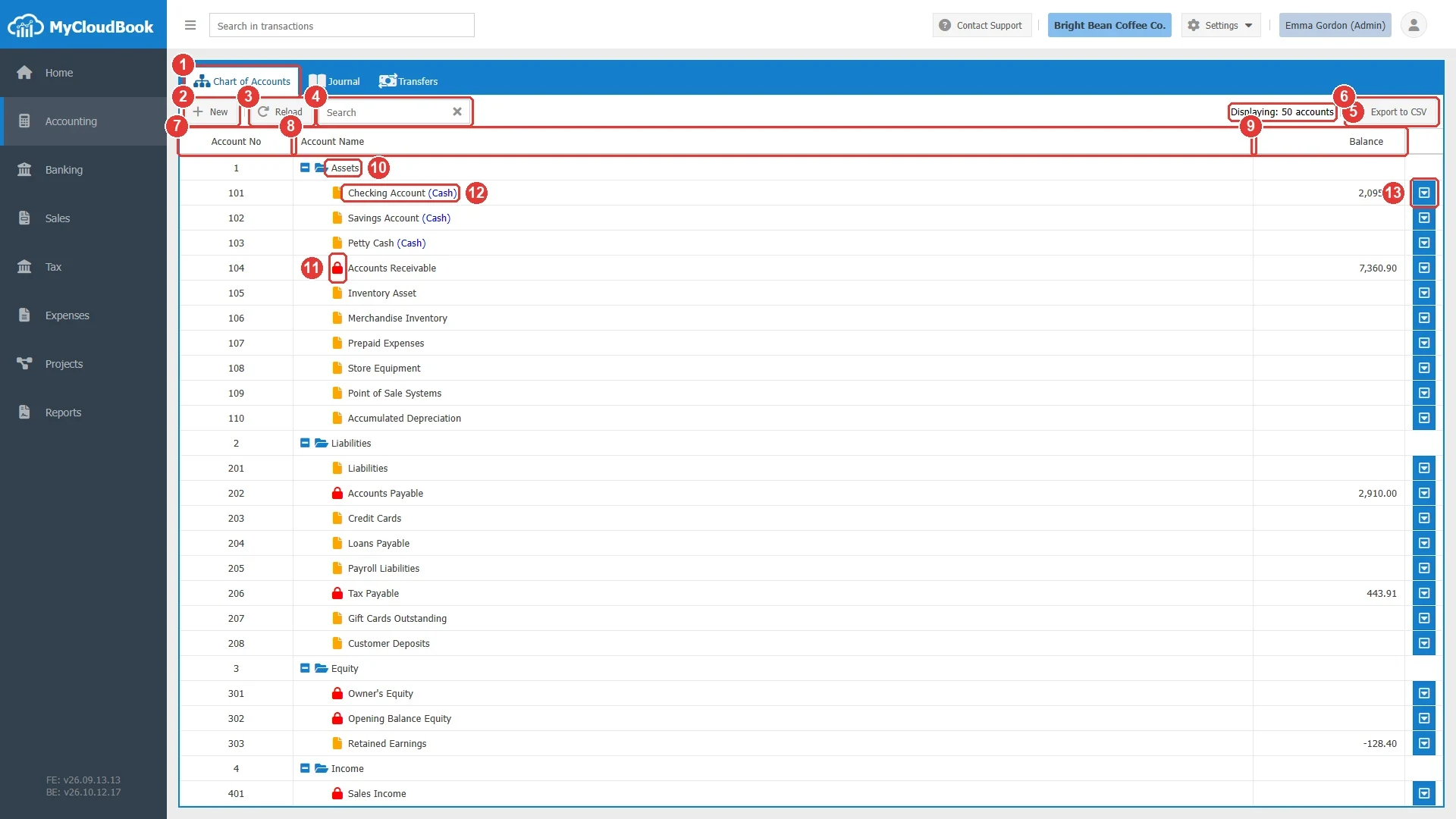
- 1Chart of Accounts tab. The Accounting page also holds the Journal tab and the Transfers tab.
- 2New button. Opens the Add Account window.
- 3Reload button. Reads the chart again from the server, for example after another user changed an account.
- 4Search box. Filters the tree while you type. The search looks at the account name and the account number.
- 5The number of rows shown. The number includes the five account type rows.
- 6Export to CSV button. Downloads the whole chart as a CSV file.
- 7Account No column. The number of the account. The type rows show the type number, from 1 to 5.
- 8Account Name column. The name of the account, with the icon that shows its kind.
- 9Balance column. The balance of the account in the currency of the account. The column is filled for Assets, Liabilities, and Equity accounts.
- 10An account type row. The five type rows are Assets, Liabilities, Equity, Income, and Expenses. A click on the small box before the name collapses or expands the type.
- 11The red lock icon marks a system account. The yellow file icon marks an account that a user created. A folder icon marks a main account.
- 12The word (Cash) after the name marks a cash account.
- 13The row actions button. It opens a menu with View Ledger, Edit, and Delete. The type rows have no actions button.
The icons and marks of a row
| Mark | Meaning |
|---|---|
| Open folder icon | An account type row, or a main account that groups sub accounts. A main account cannot receive transactions. |
| Yellow file icon | An account that a user of the company created. It can be edited and, when it is not in use, deleted. |
| Red lock icon | A system account. MyCloudBook posts to it on its own. It cannot be deleted, and some of its fields are locked. |
| (Cash) | A cash account. The account holds cash or bank money. See A cash account. |
The Balance column
The Balance column shows the balance of every Assets, Liabilities, and Equity account. The balance is the total of all the transactions that were posted to the account, from the first day of the company until today, in the currency of the account. The balance of a main account is the total of the balances of its sub accounts. The column is empty for Income and Expenses accounts and for the type rows. The balance of an Income or Expenses account for a period is shown in the Income Statement and in the ledger of the account.
The Currency column
When multi-currency is enabled in Settings, Preferences, the screen shows a Currency column between the Account Name column and the Balance column. The column shows the currency code of every account. The balance of an account is always shown in the currency of the account.
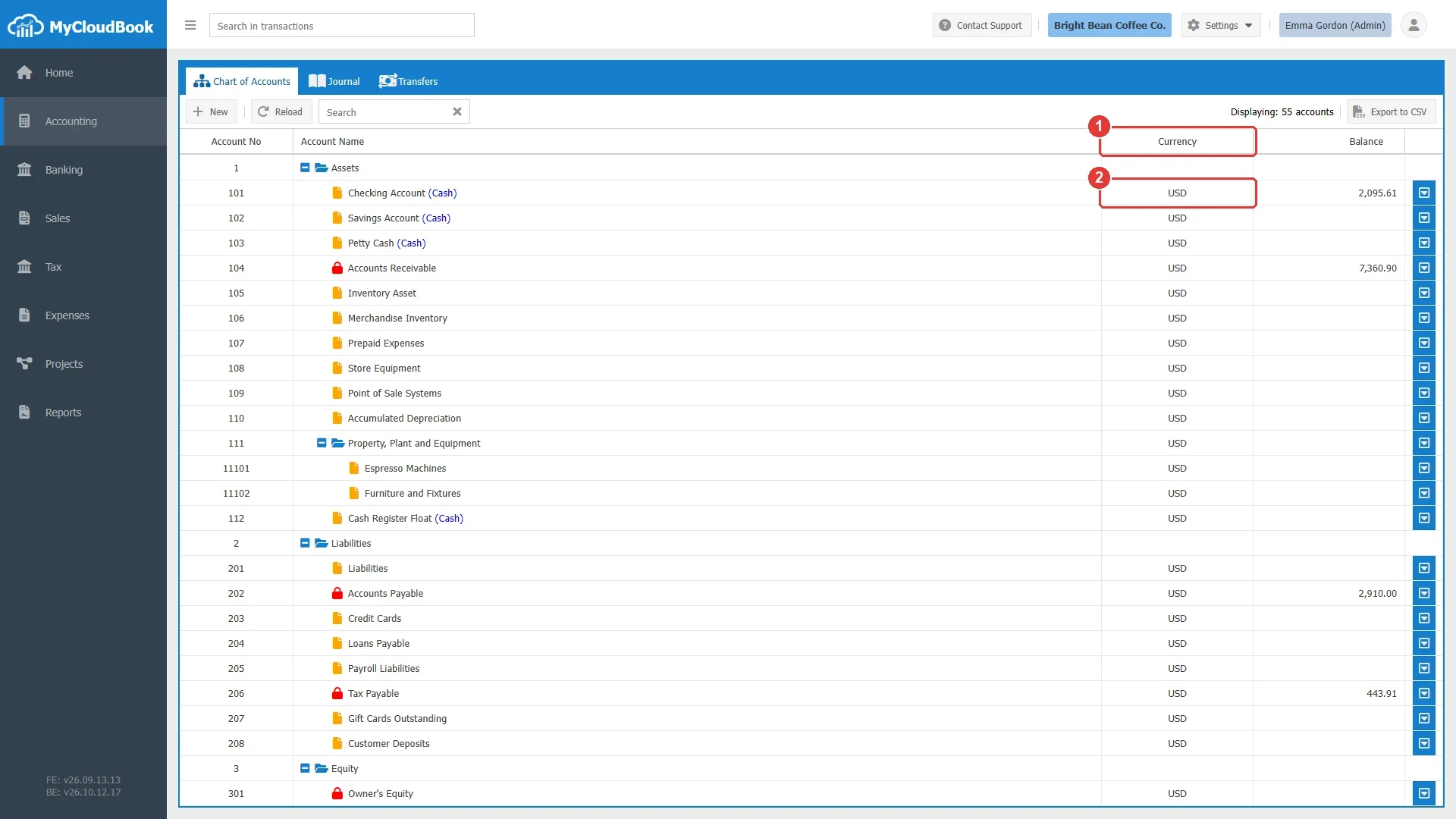
- 1Currency column. It is shown only when multi-currency is enabled.
- 2The currency code of the account. Every account of this company uses the main currency, US dollars.
Account types and numbers
Every account belongs to one of five account types. The type decides the first digit of the account number, the side on which the account normally has its balance, and the report in which the account appears.
| Number | Type | Normal balance | Report | Examples |
|---|---|---|---|---|
| 1 | Assets | Debit. The balance is the total of the debits minus the total of the credits. | Balance Sheet | Checking Account, Accounts Receivable, Inventory Asset, Store Equipment |
| 2 | Liabilities | Credit. The balance is the total of the credits minus the total of the debits. | Balance Sheet | Accounts Payable, Tax Payable, Credit Cards, Loans Payable |
| 3 | Equity | Credit. | Balance Sheet | Owner's Equity, Opening Balance Equity, Retained Earnings |
| 4 | Income | Credit. | Income Statement | Sales, Service Revenue, Discounts Given |
| 5 | Expenses | Debit. | Income Statement | Cost of Sales, Rent or Lease, Utilities, Payroll Expenses |
The Add Account window names the types in the singular form: Asset, Liability, Equity, Income, and Expenses. The tree of the Chart of Accounts names them in the plural form: Assets, Liabilities, Equity, Income, and Expenses. Both forms name the same five types.
The account number
Every account has a number that is unique in the company. The number follows a simple rule: it starts with the number of the type, and a sub account starts with the number of its main account. The system can generate the number for you, or you can type it.
- The number contains digits only, from 0 to 9. Letters, spaces, and punctuation are not accepted.
- An account without a main account starts with the number of its type: 1 for Assets, 2 for Liabilities, 3 for Equity, 4 for Income, and 5 for Expenses. At least one more digit must follow. For example,
101is a valid number for an Assets account, and1alone is not. - A sub account starts with the full number of its main account, followed by at least one more digit. For example, the sub accounts of the main account
111are11101,11102, and so on. - The number can hold up to 50 digits.
- Two accounts cannot have the same number.
When the Account No field is left empty, MyCloudBook generates the next number. It takes the
last number among the accounts that have the same type and the same main account. It removes
the prefix of the type or of the main account, adds one to the rest, and puts the prefix back.
The first account of a type receives the prefix followed by 01, for example
101. The first sub account of the main account 111 receives
11101. The generated part keeps its number of digits.
When the number of a main account is changed, MyCloudBook rewrites the numbers of all its sub accounts, so that they keep the number of the main account as their prefix. See Editing an account.
System accounts
A system account is an account that MyCloudBook posts to on its own. For example, every invoice posts the amount that the customer owes to the Accounts Receivable account, and every bill posts the amount that the company owes to the Accounts Payable account. The system accounts are created together with the company. They show a red lock icon in the chart.
| System account | Type | Used by |
|---|---|---|
| Accounts Receivable | Assets | Invoices, receipt vouchers, credit notes, and refund vouchers. The balance is the total that the customers owe to the company. |
| Accounts Payable | Liabilities | Bills and bill payments. The balance is the total that the company owes to its suppliers. |
| Tax Payable | Liabilities | The sales tax of invoices, receipts, and credit notes, and the tax payments, refunds, and adjustments of the Sales Tax Center. Bills and expenses cannot use this account. |
| Owner's Equity | Equity | The capital of the owner of the company. |
| Opening Balance Equity | Equity | The other side of the opening balances that are entered when the company starts to use MyCloudBook. |
| Sales | Income | The default income account of the sales documents. The Retail Business template names it Sales Income. |
| Exchange Gain or Loss | Expenses | The difference that appears when a document in a foreign currency is settled at another exchange rate. |
The following rules apply to a system account:
- It cannot be deleted. The message System Account can not be deleted. is shown.
- Its account type, its main account, its currency, and its Is Cash option are locked in the Update Account window.
- Its name, its number, its description, and its note can be changed. For example, you can rename Sales to Sales Revenue.
- When a currency is added to a multi-currency company, MyCloudBook creates two more system accounts for that currency: Accounts Receivable - CODE and Accounts Payable - CODE, where CODE is the code of the currency, for example EUR.
Main accounts and sub accounts
A main account is a parent account. It groups the sub accounts that are placed under it, and it shows the total of their balances. A main account cannot be used in a transaction. When a main account is selected in a document, MyCloudBook rejects the document with the message You cannot use main accounts in the transaction.
A sub account is an account that is placed under a main account. It receives transactions in the usual way. A sub account can itself be a main account, so the chart can have more than two levels, for example Property, Plant and Equipment, then Vehicles, then Delivery Vans.
The following rules connect a main account and its sub accounts:
- A main account and its sub accounts have the same account type. The Main Account list of the Add Account window shows only the main accounts of the selected type.
- The number of a sub account starts with the number of its main account.
- An Assets or Liabilities sub account has the same currency as its main account.
- A main account cannot be a cash account. The Is Cash option is disabled when Is Main is selected.
- A main account cannot be deleted while it has sub accounts.
- The Is Main option is set when the account is created. It cannot be changed later.
Adding an account
- Open the Chart of Accounts.
- Click New. The Add Account window opens.
- Select the Account Type. The other fields become available according to the type.
- Fill in the fields that the table below describes. The Account Name is the only field that you must type.
- Click Save. The window closes, a confirmation message is shown at the top of the page, and the new account appears in the tree.
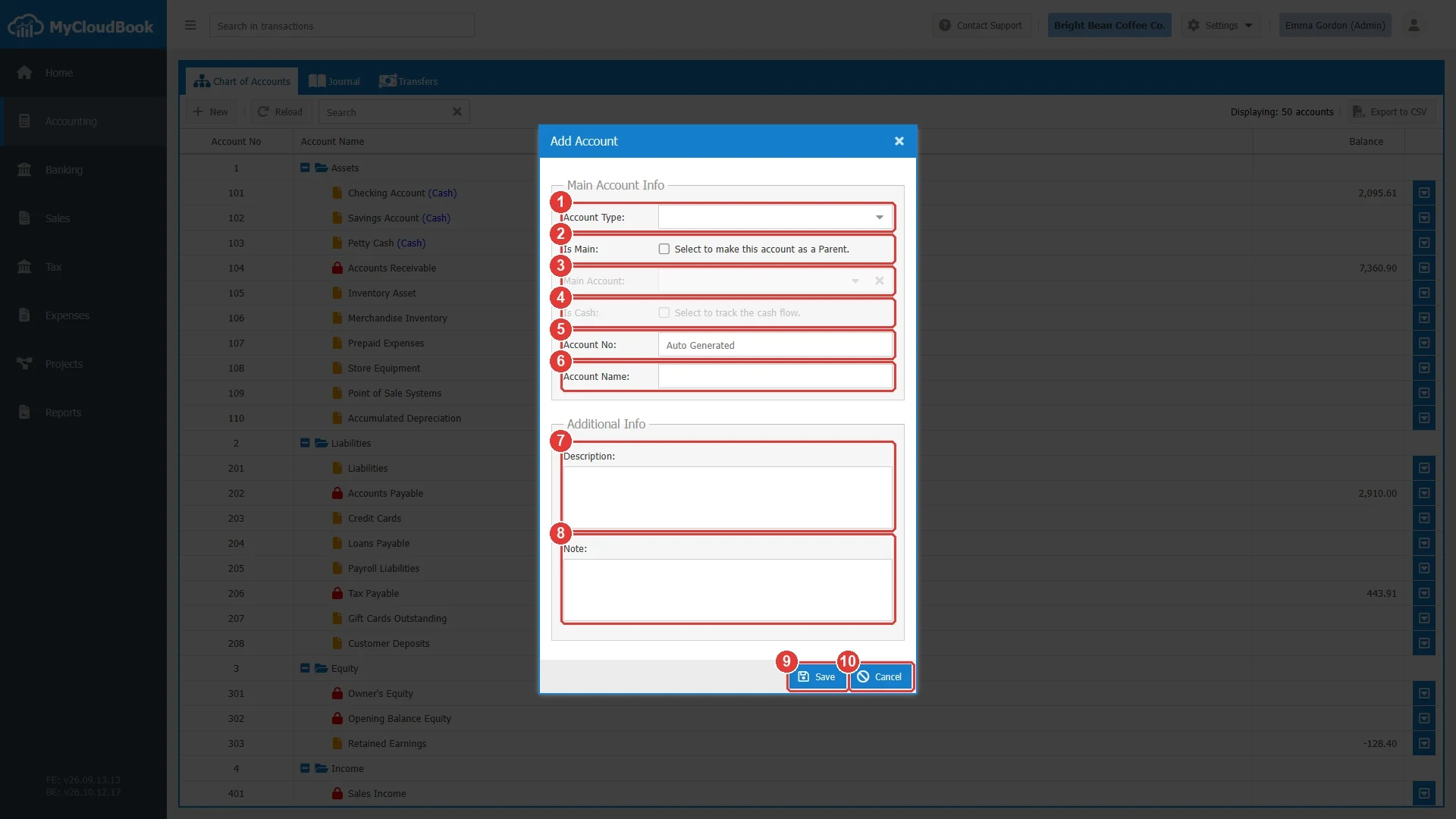
- 1Account Type. Required.
- 2Is Main. Makes the account a main account.
- 3Main Account. The parent of the new account. The list is available after the type is selected.
- 4Is Cash. Available for Asset accounts that are not main accounts.
- 5Account No. Optional. Leave it empty for an automatic number.
- 6Account Name. Required.
- 7Description. Optional.
- 8Note. Optional.
- 9Save. Checks the values and saves the account.
- 10Cancel. Closes the window without saving.
The fields of the Add Account window
| Field | Required | Purpose and rules |
|---|---|---|
| Account Type | Required | The type of the account: Asset, Liability, Equity, Income, or Expenses. Select it first. The type decides the first digit of the account number, the normal balance of the account, and the report in which the account appears. It also decides which fields are available: Is Cash is available for Asset accounts only, and the Currency field is available for Asset and Liability accounts only. The type cannot be changed after the account is saved. To change the type of an account that is not in use, delete the account and create it again. |
| Is Main | Optional | Select it to make the account a main account. A main account groups sub accounts and shows the total of their balances. It cannot be used in a transaction. When Is Main is selected, the Is Cash option is disabled. The option cannot be changed after the account is saved. |
| Main Account | Optional | The parent account under which the new account is placed. The list opens after the Account Type is selected and shows only the main accounts of that type, as a tree. A click on an account in the list selects it and closes the list. The cross button at the end of the field clears the selection. The number of the new account must start with the number of the main account. For Asset and Liability accounts, the currency of the new account must be the currency of the main account. Leave the field empty to place the account directly under its type. |
| Is Cash | Optional | Marks the account as cash or bank money. Select it for a bank account, a cash register, a petty cash box, or a savings account. A cash account shows the word (Cash) in the chart, the Banking module can link a bank to it, and the Cash Flow Statement treats its movements as cash. The option is available for Asset accounts only, and not for main accounts. For the other types, the system saves the option as not selected. |
| Account No | Optional | The number of the account. Leave the field empty and MyCloudBook generates the next free number, as described in The account number. A typed number must contain digits only, must start with the number of the type or with the number of the main account, must have at least one more digit, and must not be used by another account. The number can hold up to 50 digits. |
| Account Name | Required | The name of the account, up to 100 characters. The name must be unique in the company. The comparison ignores the difference between capital and small letters, so Utilities and utilities count as the same name. Spaces at the start and at the end are removed. |
| Currency | Optional | The currency of the account. The field is shown only when multi-currency is enabled in Settings, Preferences. It is available for Asset and Liability accounts, and it starts with the main currency of the company. For Equity, Income, and Expenses accounts it is locked to the main currency. A sub account must have the currency of its main account. The currency cannot be changed after the account is saved. |
| Description | Optional | A text of up to 1000 characters that explains what the account is used for. The description is included in the CSV export. |
| Note | Optional | A text of up to 1000 characters for internal remarks, for example the bank branch of a bank account. The note is included in the CSV export. |
The Account Type list holds the five types. Figure 5 shows the open list.
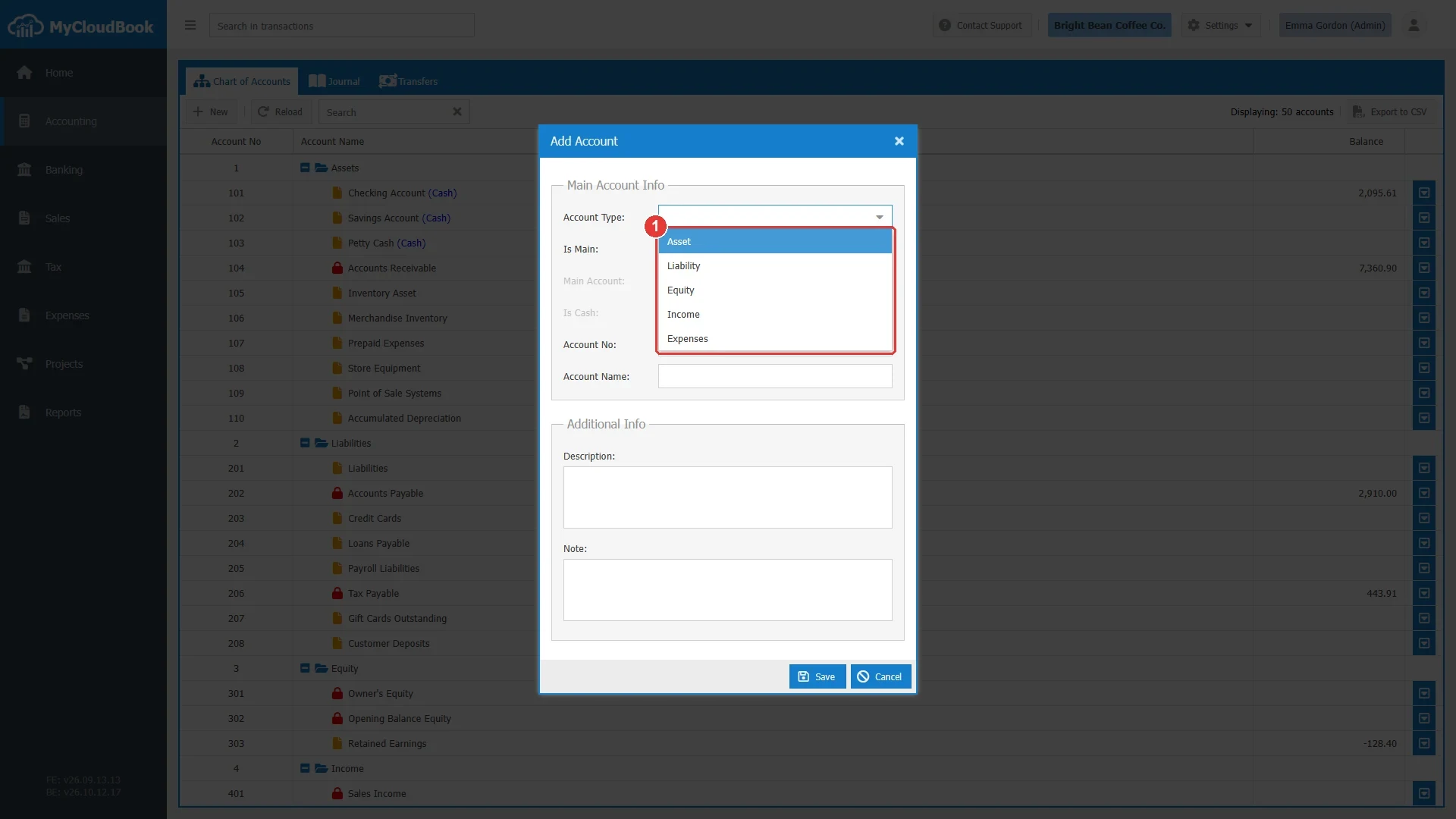
- 1The five account types. The selected type decides which of the other fields are available.
Example: a main account
The example creates the main account Property, Plant and Equipment under the Assets type. The sub accounts for the machines and the furniture are created in the next example.
- Click New.
- Select Asset as the Account Type.
- Select Is Main. The Is Cash option becomes disabled, because a main account cannot be a cash account.
- Leave Account No empty. The system generates the next number of the Assets type, in this example
111. - Type the Account Name: Property, Plant and Equipment.
- Type a Description if you want one, and click Save.
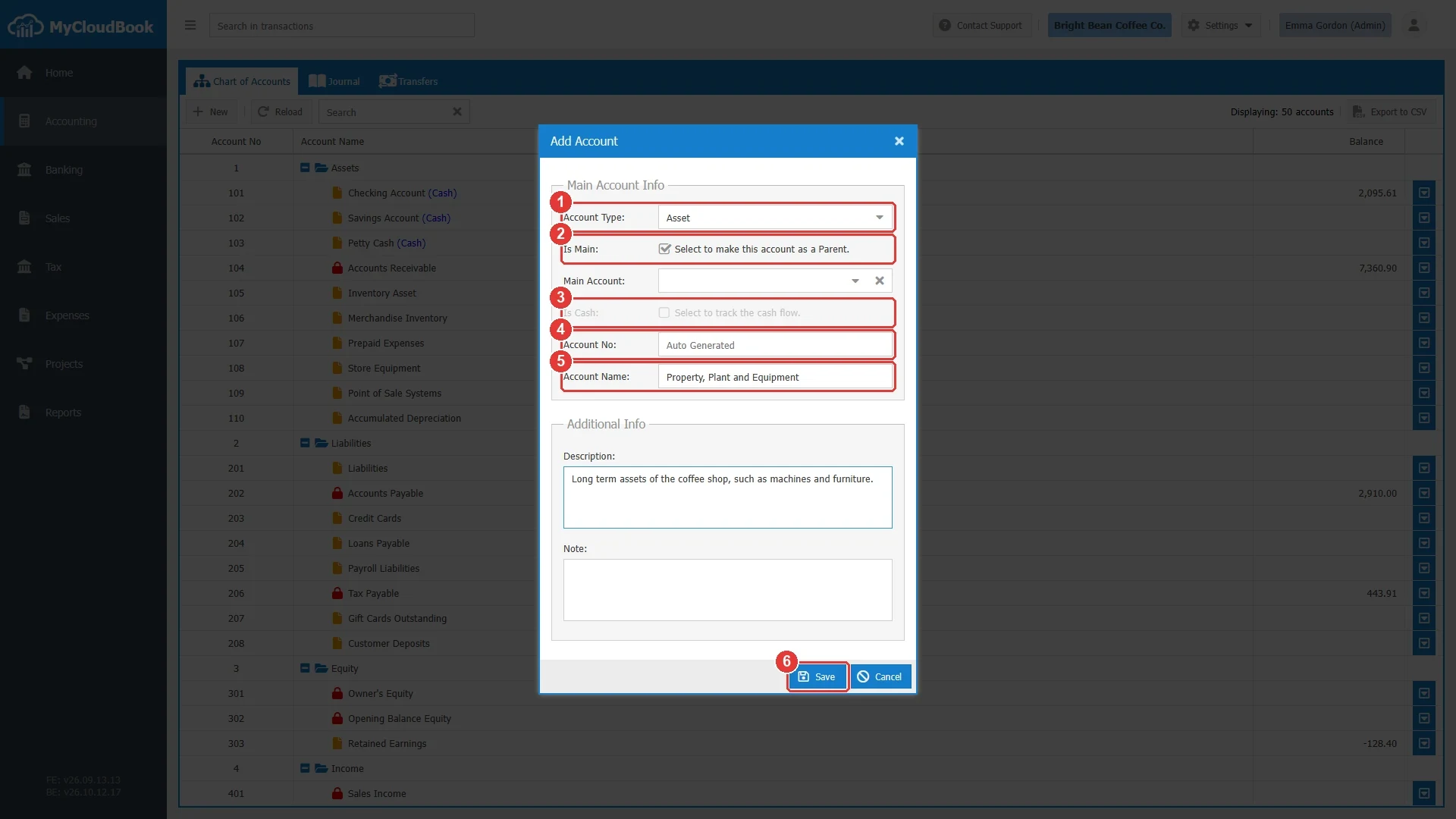
- 1Account Type set to Asset.
- 2Is Main selected.
- 3Is Cash is disabled, because a main account cannot be a cash account.
- 4Account No left empty. The system generates the number.
- 5Account Name.
- 6Save.
After the save, the window closes, the message Document Saved Successfully is shown at
the top of the page for a few seconds, and the tree is read again. The new main account appears
under the Assets type with a folder icon and the number 111.
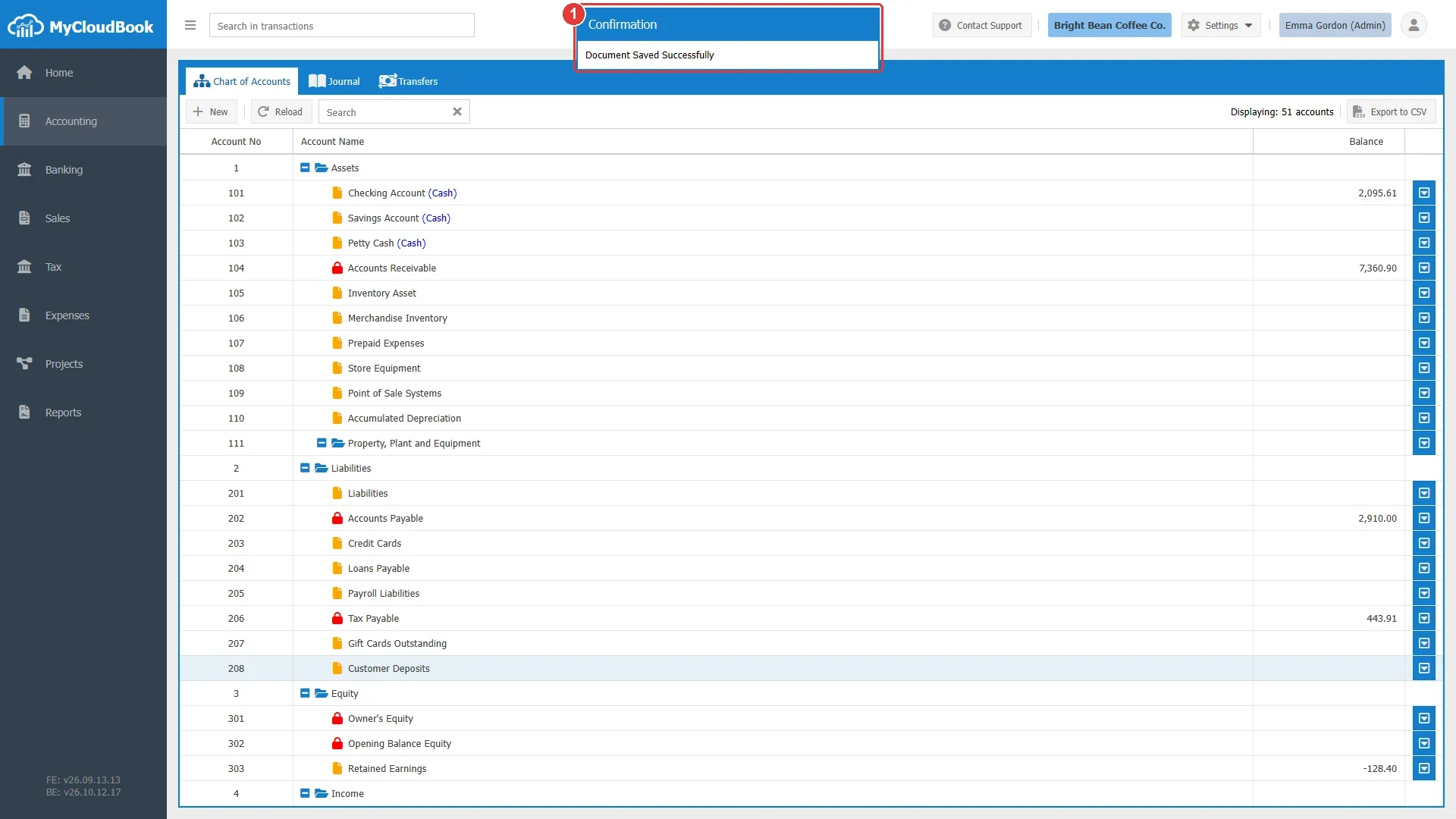
- 1The confirmation message. It disappears on its own after a few seconds.
Example: a sub account
The example creates the sub account Espresso Machines under the main account Property, Plant and Equipment.
- Click New.
- Select Asset as the Account Type. The Main Account field becomes available and loads the main accounts of the Assets type.
- Click the arrow of the Main Account field. The list of the main accounts opens as a tree. Click Property, Plant and Equipment. The list closes and the field shows the selected account.
- Leave Account No empty. The system generates the number from the number of the main account, in this example
11101. - Type the Account Name: Espresso Machines.
- Click Save.
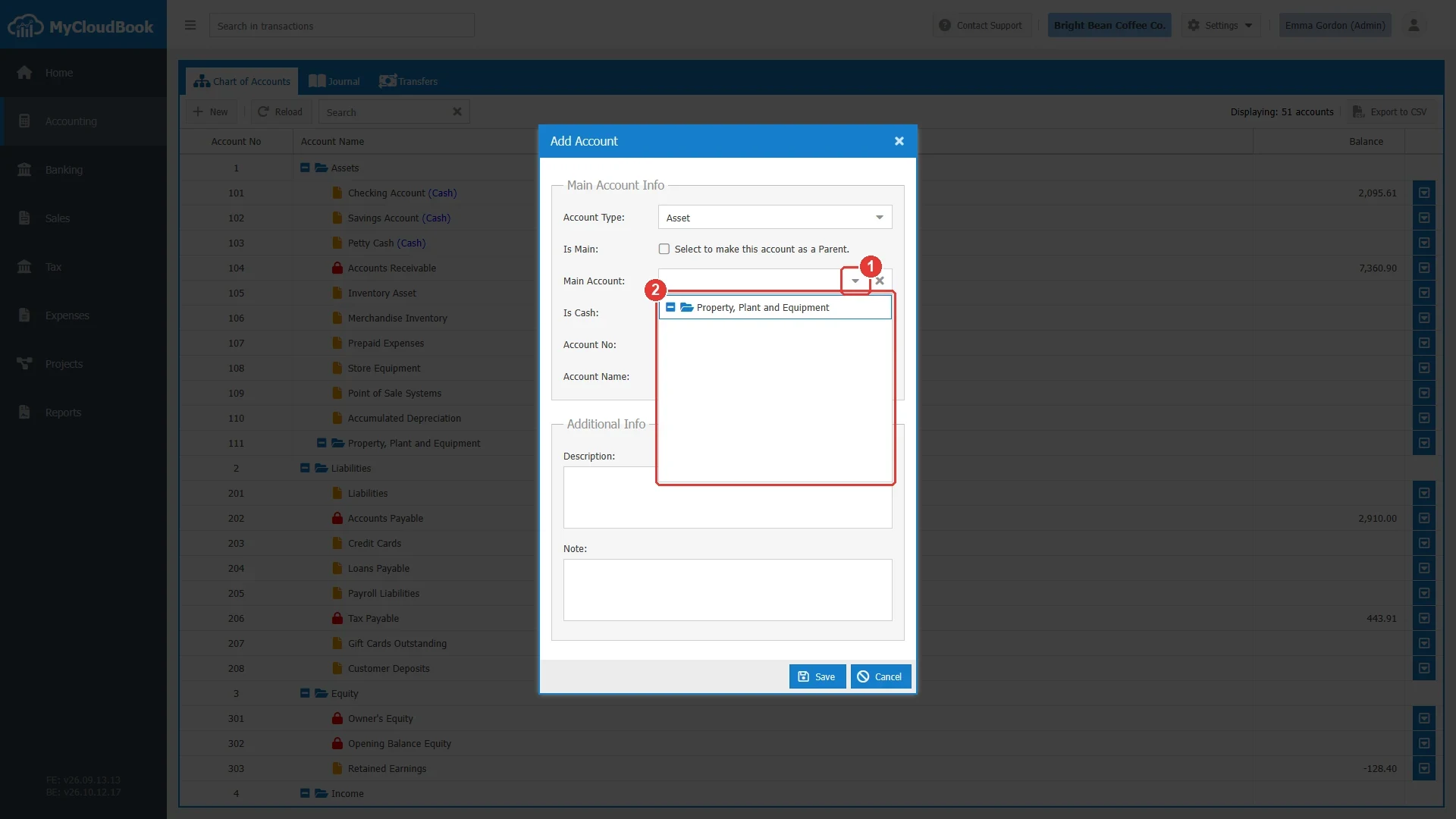
- 1The arrow that opens the list. The cross next to it clears the selected main account.
- 2The main accounts of the Assets type. A click on an account selects it and closes the list.
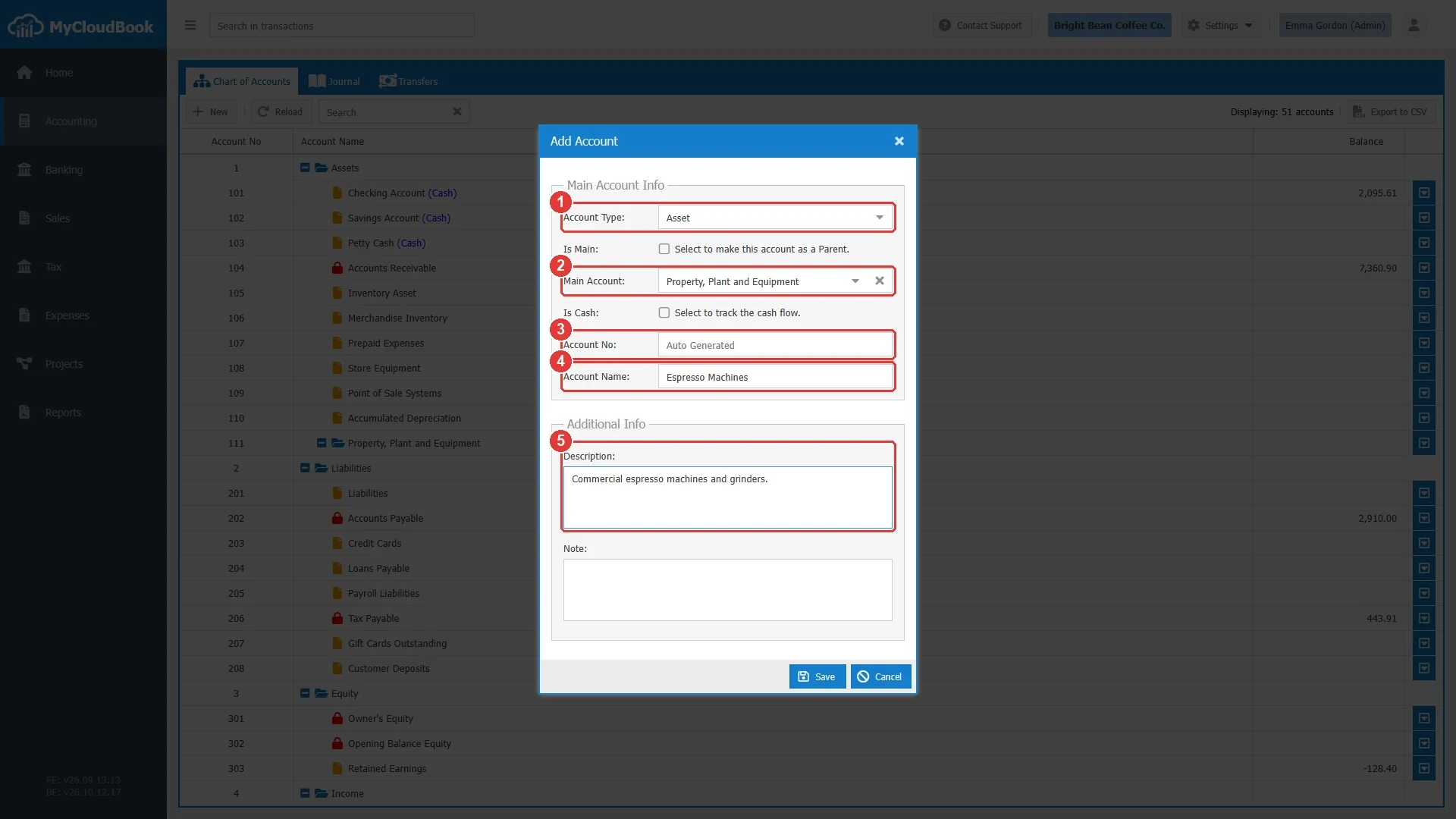
- 1Account Type set to Asset, the type of the main account.
- 2Main Account set to Property, Plant and Equipment.
- 3Account No left empty. The generated number starts with the number of the main account.
- 4Account Name.
- 5Description.
Figure 10 shows the tree after a second sub account, Furniture and Fixtures, was
added in the same way. The two sub accounts are listed under the main account, with the
numbers 11101 and 11102.
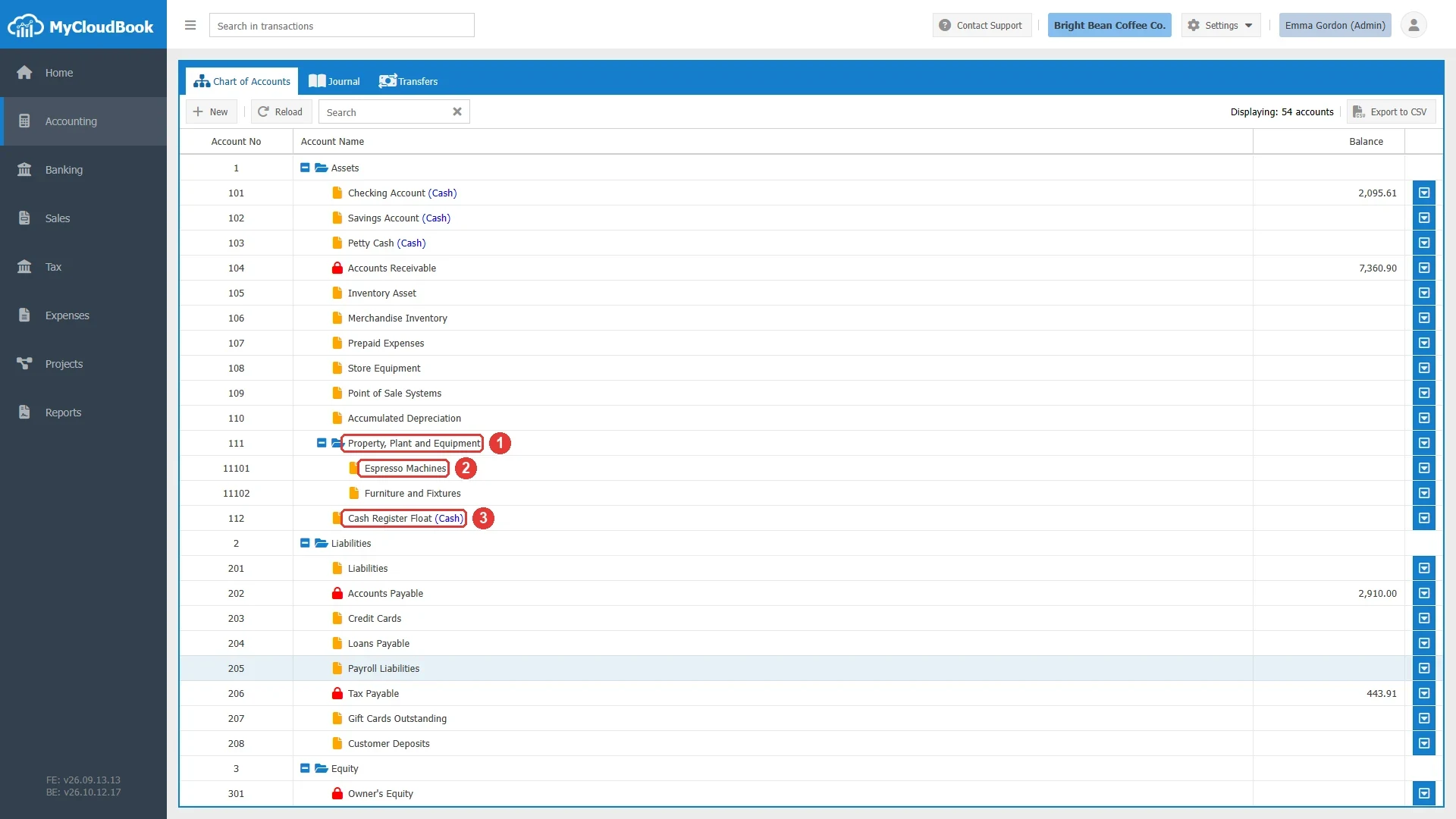
- 1The main account, shown with a folder icon. Its balance is the total of its sub accounts.
- 2A sub account. Its number starts with the number of the main account.
- 3A cash account, marked with the word (Cash). It is created in the next example.
Example: a cash account
The example creates the cash account Cash Register Float, which holds the coins and the small notes that are kept in the cash register for change.
- Click New.
- Select Asset as the Account Type. The Is Cash option becomes available.
- Select Is Cash.
- Type the Account Name: Cash Register Float.
- Click Save.
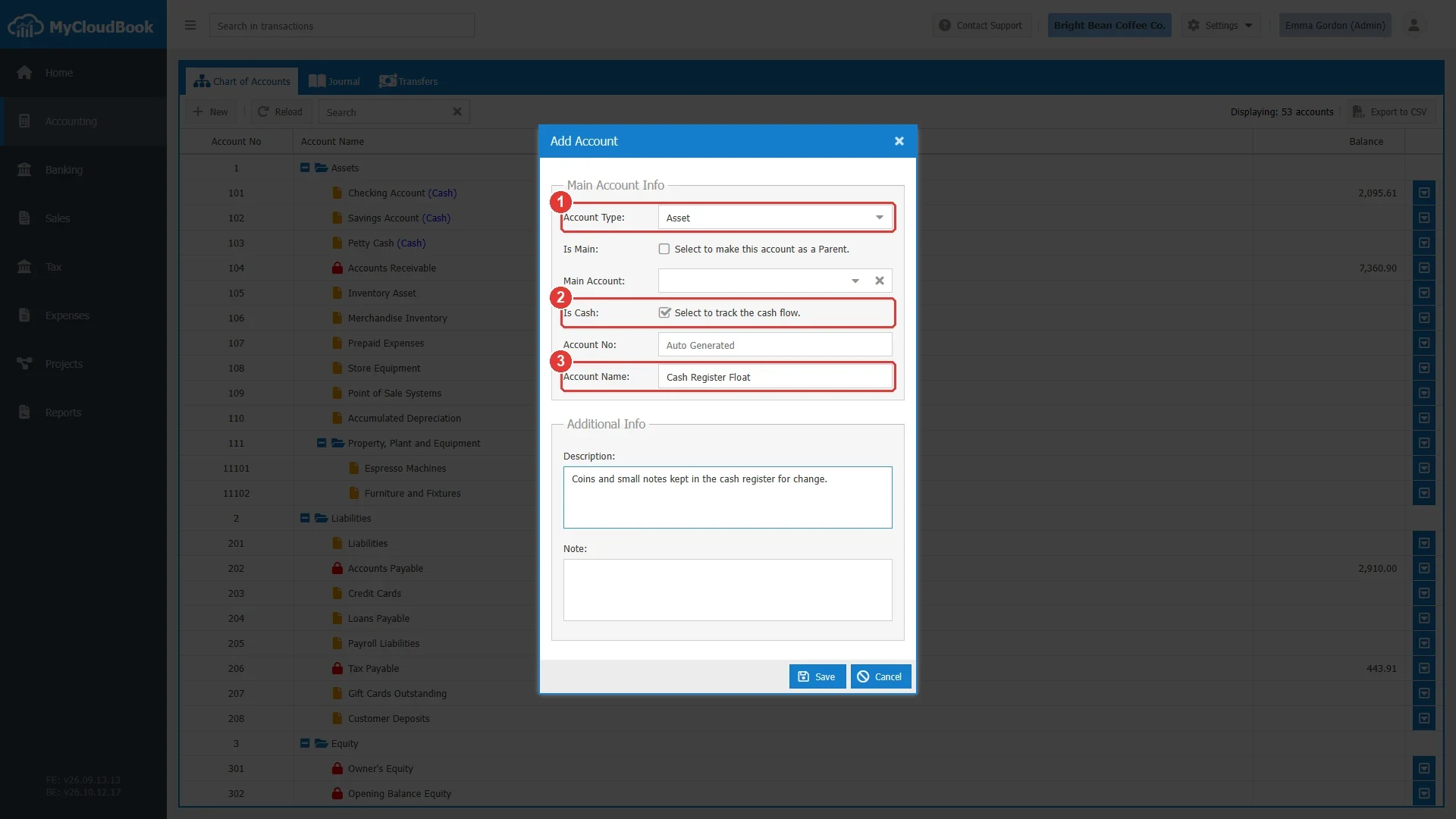
- 1Account Type set to Asset. The Is Cash option is available for this type only.
- 2Is Cash selected.
- 3Account Name.
When to select Is Cash. Select it for every account that holds money that the company can spend: bank accounts, cash registers, petty cash boxes, and savings accounts. Do not select it for accounts that hold other assets, such as inventory, equipment, or the amounts that customers owe. The Banking module links a bank only to a cash account or to a Liability account, and the Cash Flow Statement reads the cash accounts to compute the cash movements of the period.
Example: a foreign currency account
When multi-currency is enabled in Settings, Preferences, the Add Account window shows the Currency field. The field is available for Asset and Liability accounts, for example a bank account in euros or a loan in British pounds. For the other types, the field is locked to the main currency of the company.
- Click New.
- Select Asset or Liability as the Account Type.
- Select the currency in the Currency field. The list holds the currencies that were added to the company in Settings, Currencies.
- Fill in the other fields and click Save.
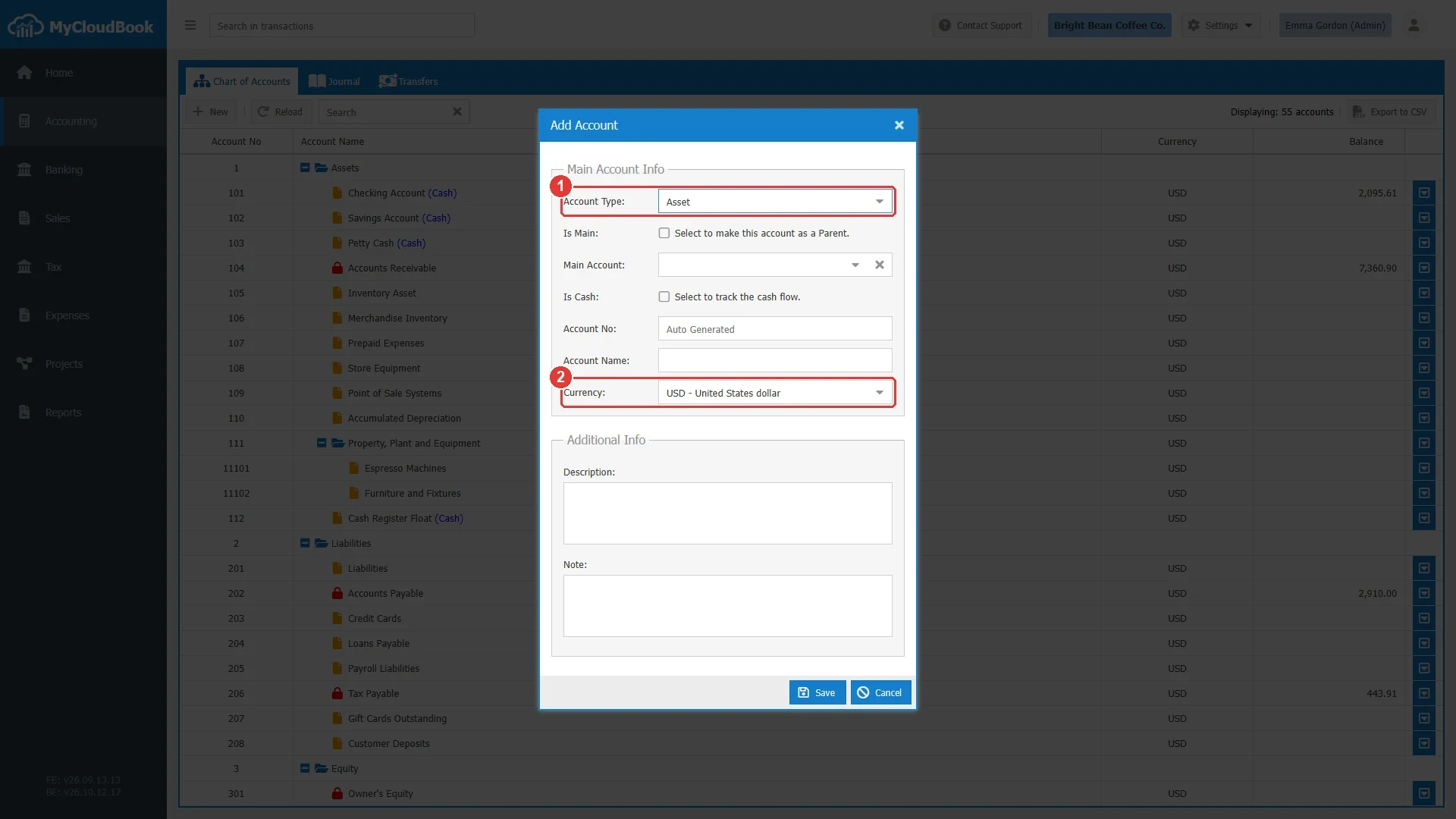
- 1Account Type set to Asset.
- 2Currency. The field is shown only when multi-currency is enabled. It starts with the main currency of the company.
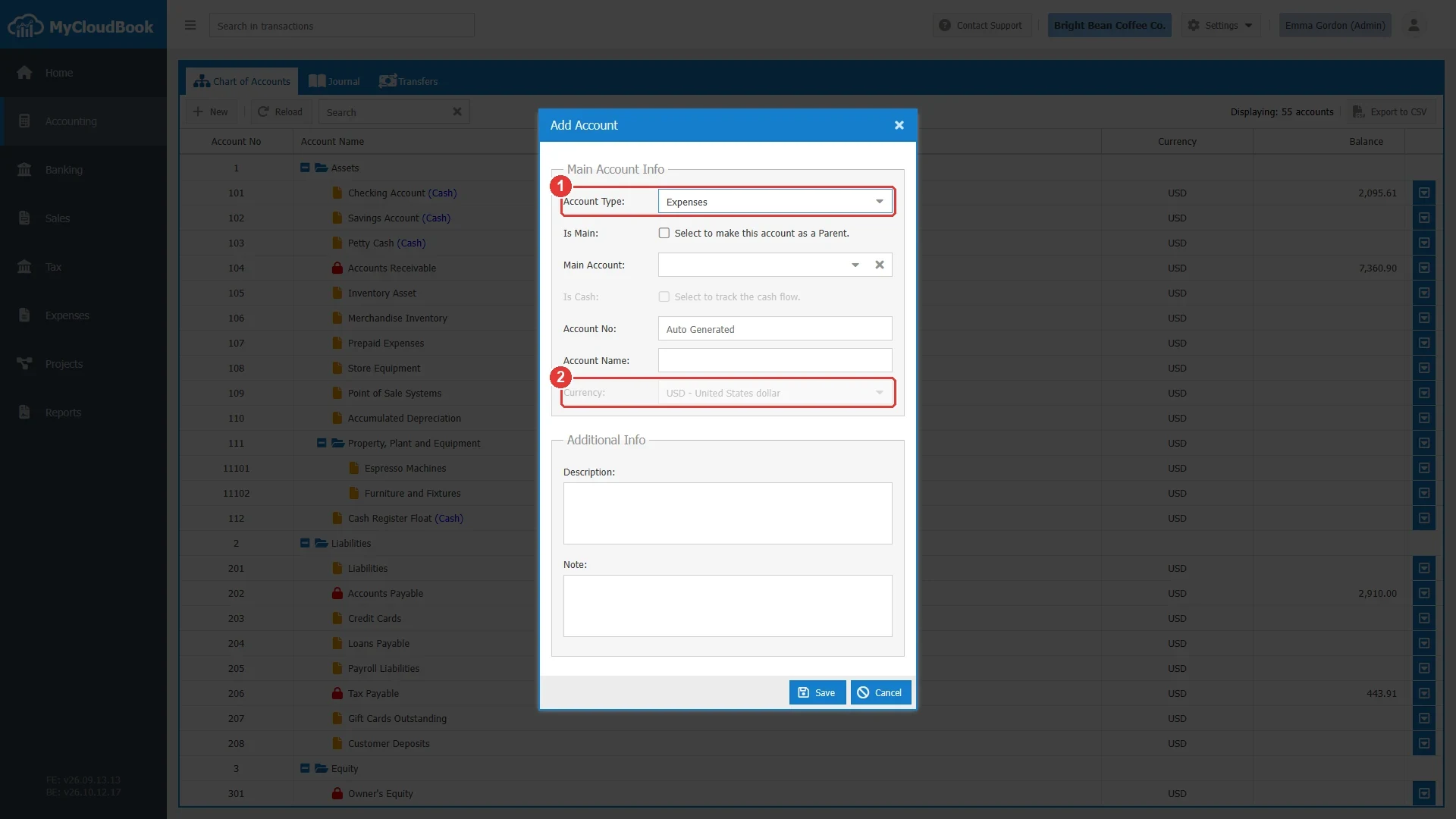
- 1Account Type set to Expenses.
- 2Currency is locked to the main currency.
The following rules apply to the currency of an account:
- The currency is set when the account is created. It cannot be changed later.
- A sub account must have the currency of its main account. Otherwise the message Requested Account Currency & Main Account Currency must be the same. is shown.
- The balance of the account is shown in the currency of the account. The ledger of the account shows every transaction in the currency of the account and in the main currency, with the exchange rate.
Editing an account
- In the tree, click the row actions button at the end of the row of the account. The actions menu opens.
- Click Edit. The Update Account window opens with the values of the account.
- Change the values and click Save.
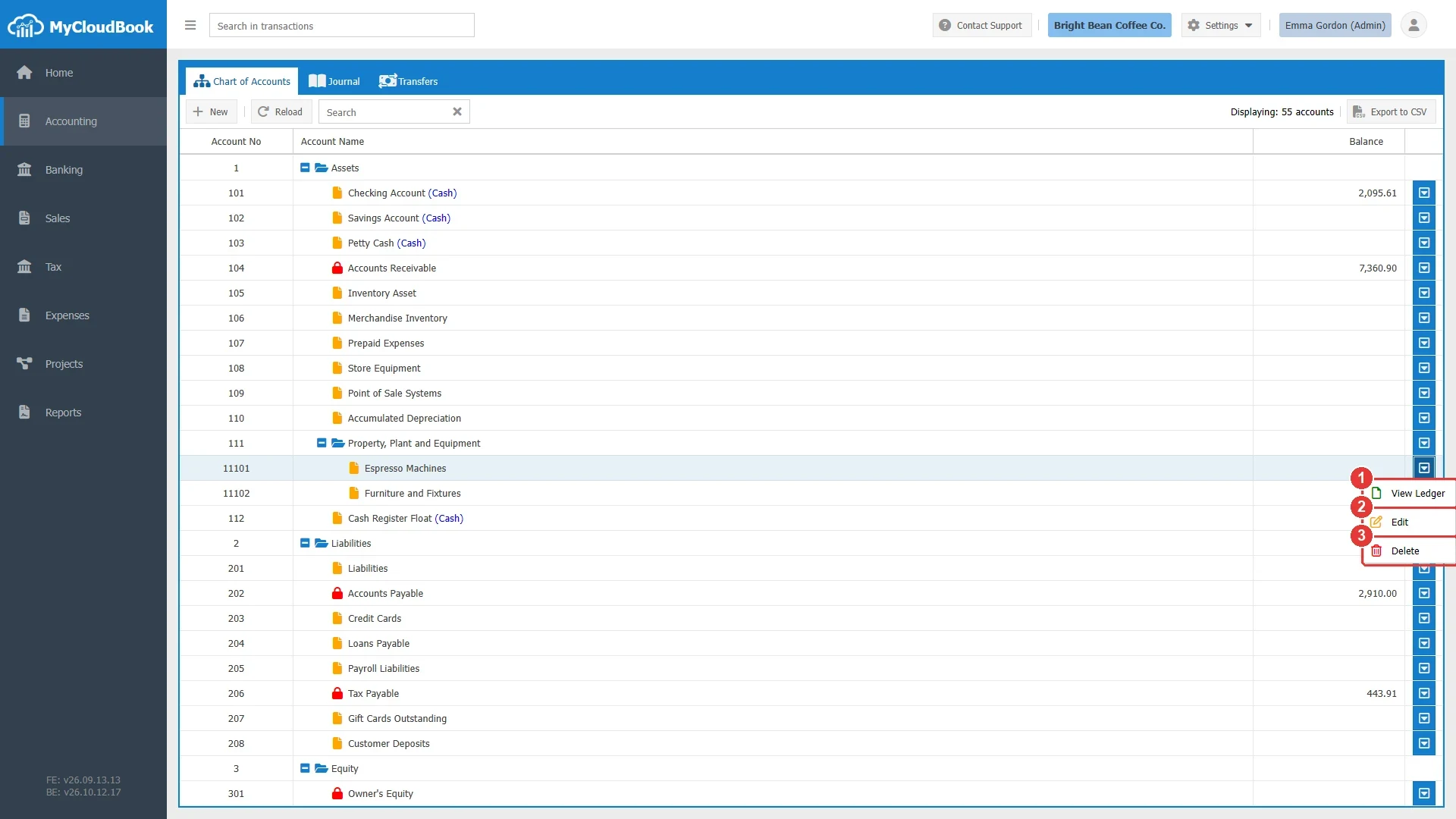
- 1View Ledger. Opens the ledger of the account in a new tab. A double click on the row does the same.
- 2Edit. Opens the Update Account window.
- 3Delete. Asks for a confirmation and then deletes the account.
The Update Account window holds the same fields as the Add Account window. Some fields are locked, because a change would break the transactions that were posted to the account.
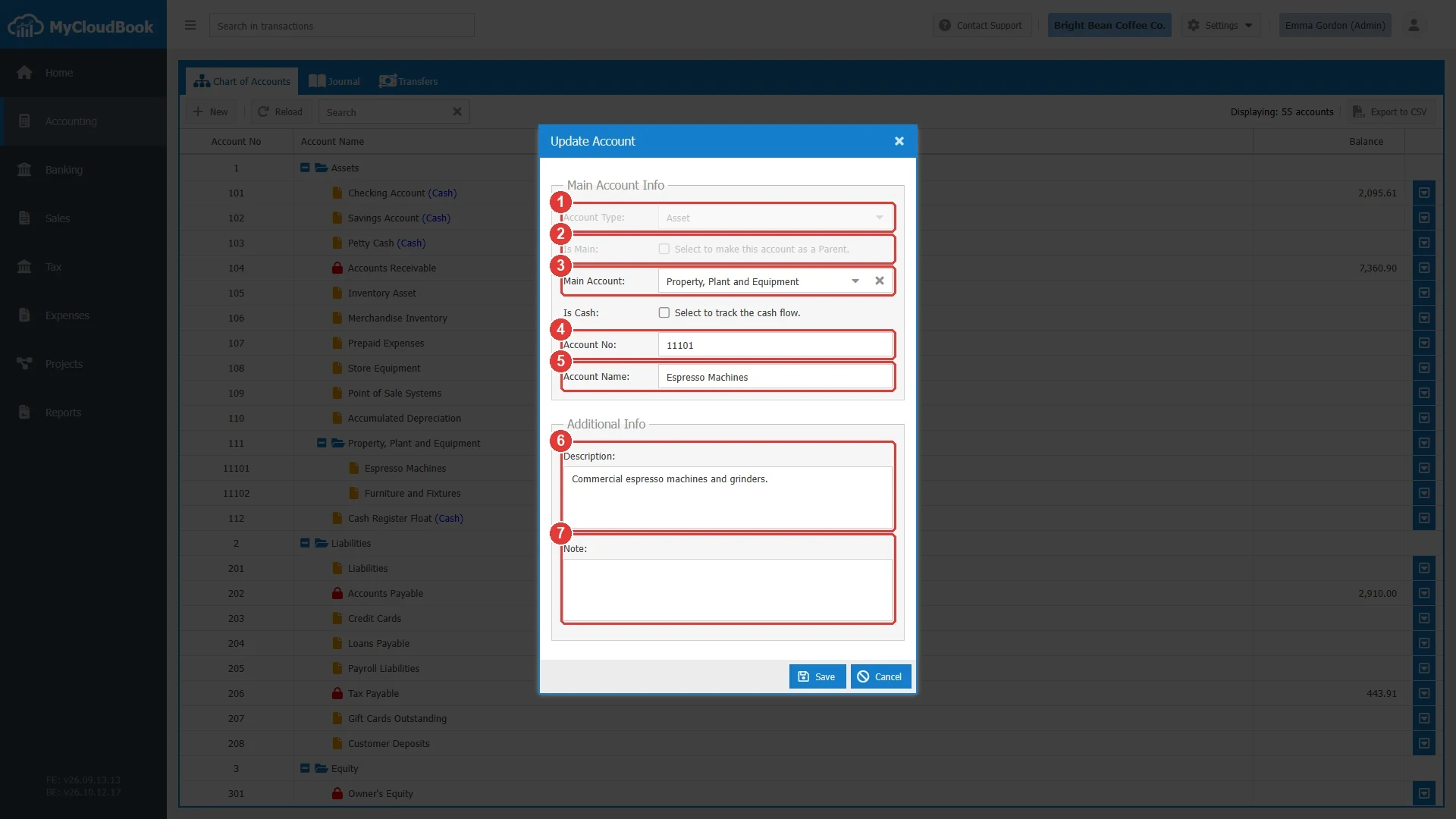
- 1Account Type is locked.
- 2Is Main is locked.
- 3Main Account can change. See the note about the account number below.
- 4Account No can change.
- 5Account Name can change.
- 6Description can change.
- 7Note can change.
| Field | Account created by a user | System account |
|---|---|---|
| Account Type | Locked | Locked |
| Is Main | Locked | Locked |
| Main Account | Can change | Locked |
| Is Cash | Can change, for Asset accounts that are not main accounts | Locked |
| Account No | Can change | Can change |
| Account Name | Can change | Can change |
| Currency | Locked | Locked |
| Description, Note | Can change | Can change |
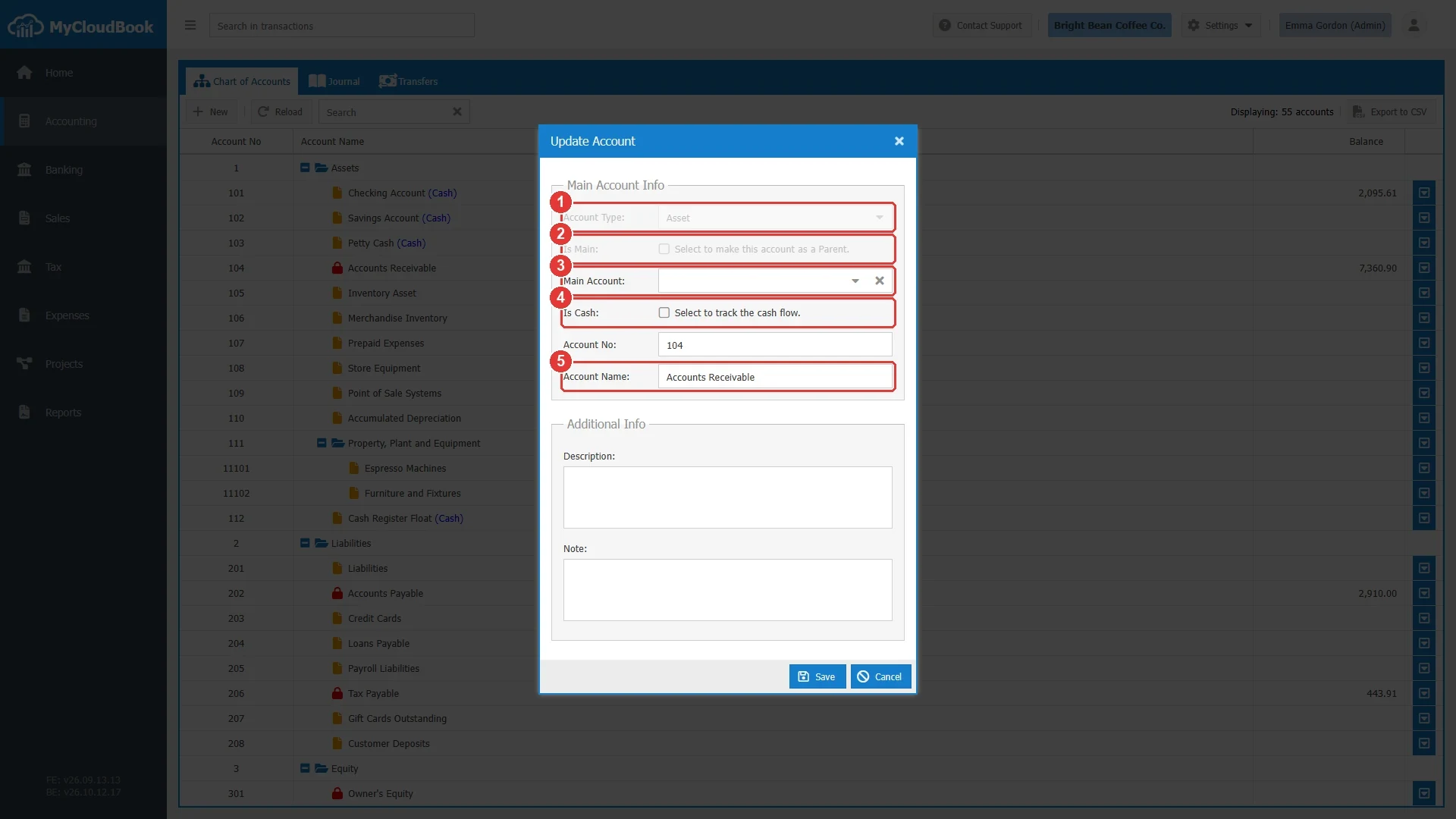
- 1Account Type is locked.
- 2Is Main is locked.
- 3Main Account is locked.
- 4Is Cash is locked.
- 5Account Name can change.
Moving an account under a main account
To place an existing account under a main account, open the Update Account window and select the main account in the Main Account field. The number of the account must start with the number of the new main account. Clear the Account No field, and the system generates a number that fits, or type a number that starts with the number of the main account. When the number is kept as it is, the message Account number must start with 'X' is shown, where X is the number of the main account.
Changing the number of a main account
When the number of a main account is changed, MyCloudBook rewrites the numbers of all the sub
accounts under it, at every level. Each sub account keeps the part of its number that follows
the old number of the main account, and receives the new number of the main account as its
prefix. For example, when the main account 111 becomes 150, its sub
account 11101 becomes 15001.
Deleting an account
- In the tree, click the row actions button at the end of the row of the account.
- Click Delete. A confirmation window shows the name of the account.
- Click Yes to delete the account, or No to keep it.
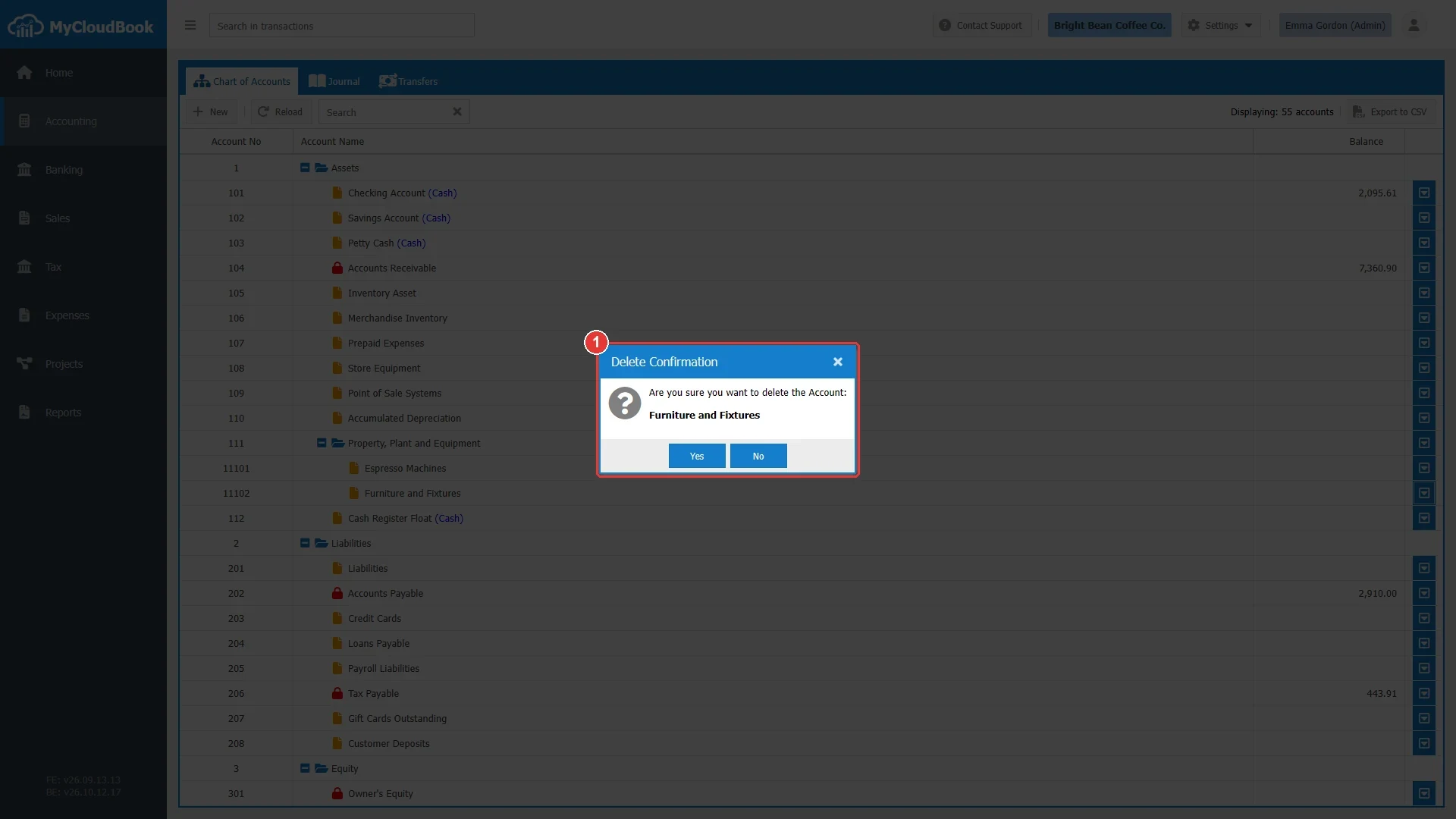
- 1The confirmation window. Yes deletes the account. No keeps it.
The deletion is permanent. MyCloudBook therefore checks, before the account is deleted, that nothing in the company depends on it. When one of the following conditions is true, the account is kept and a message names the reason.
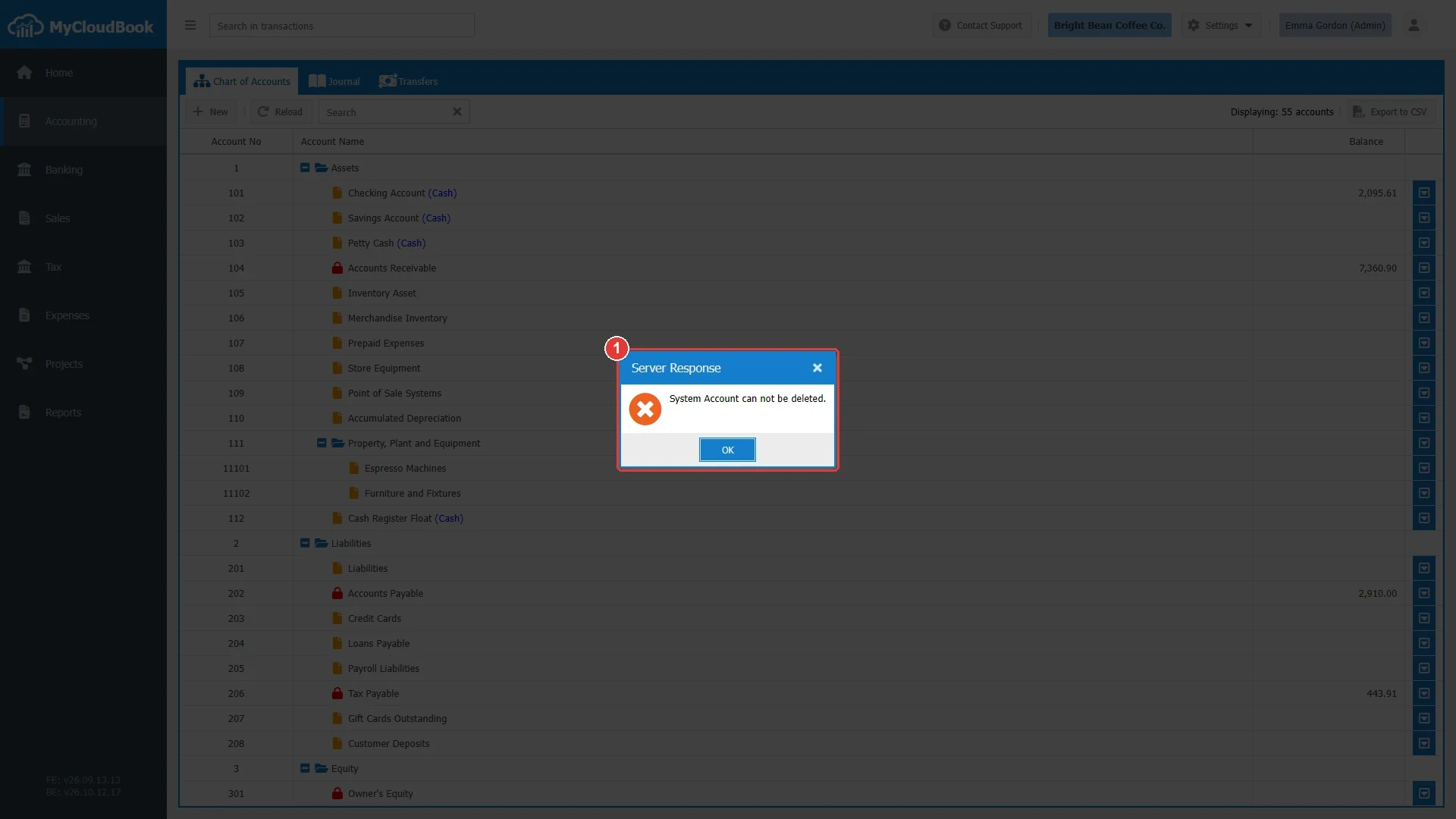
- 1The message that names the reason.
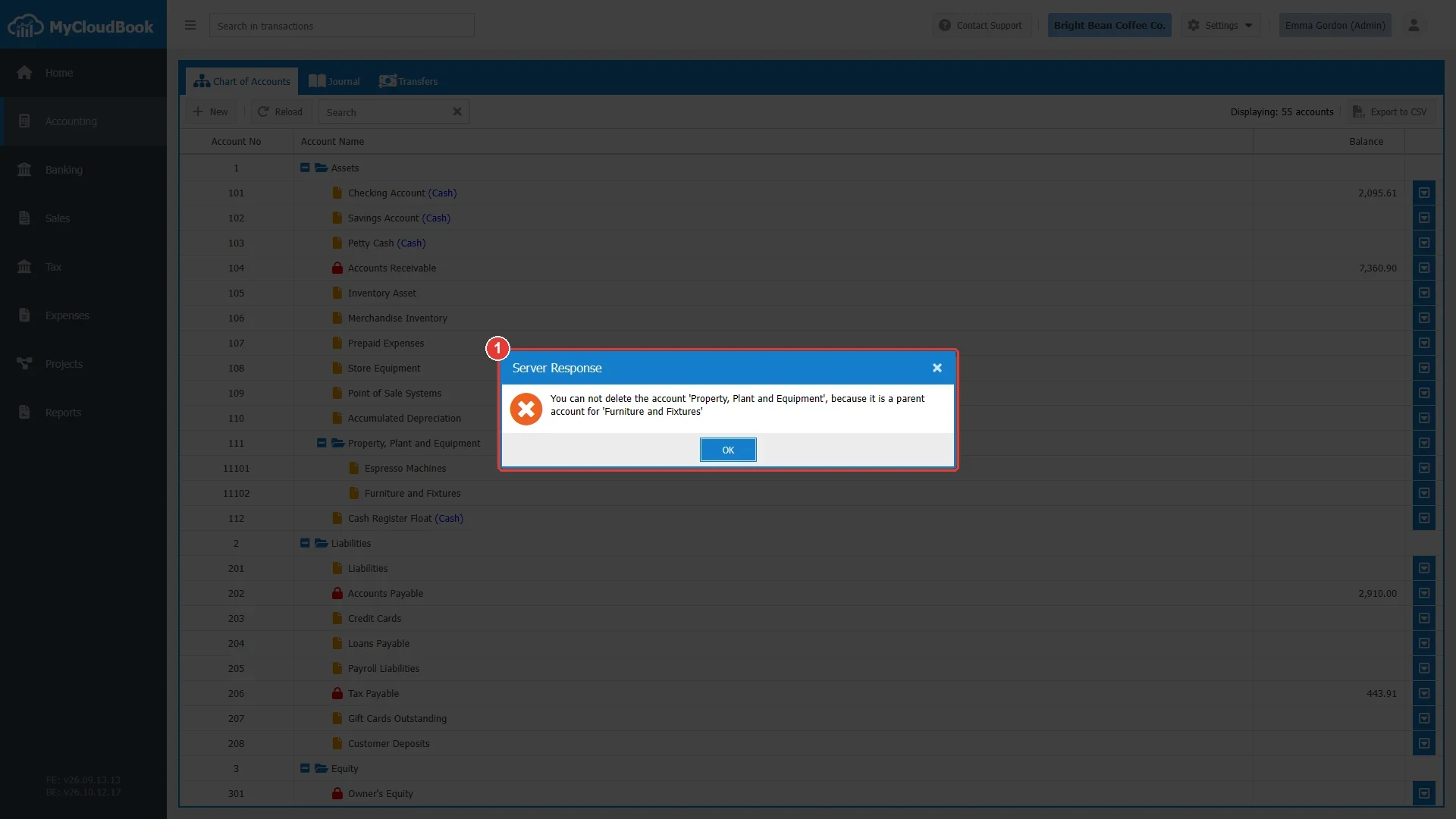
- 1The message names the first sub account of the main account.
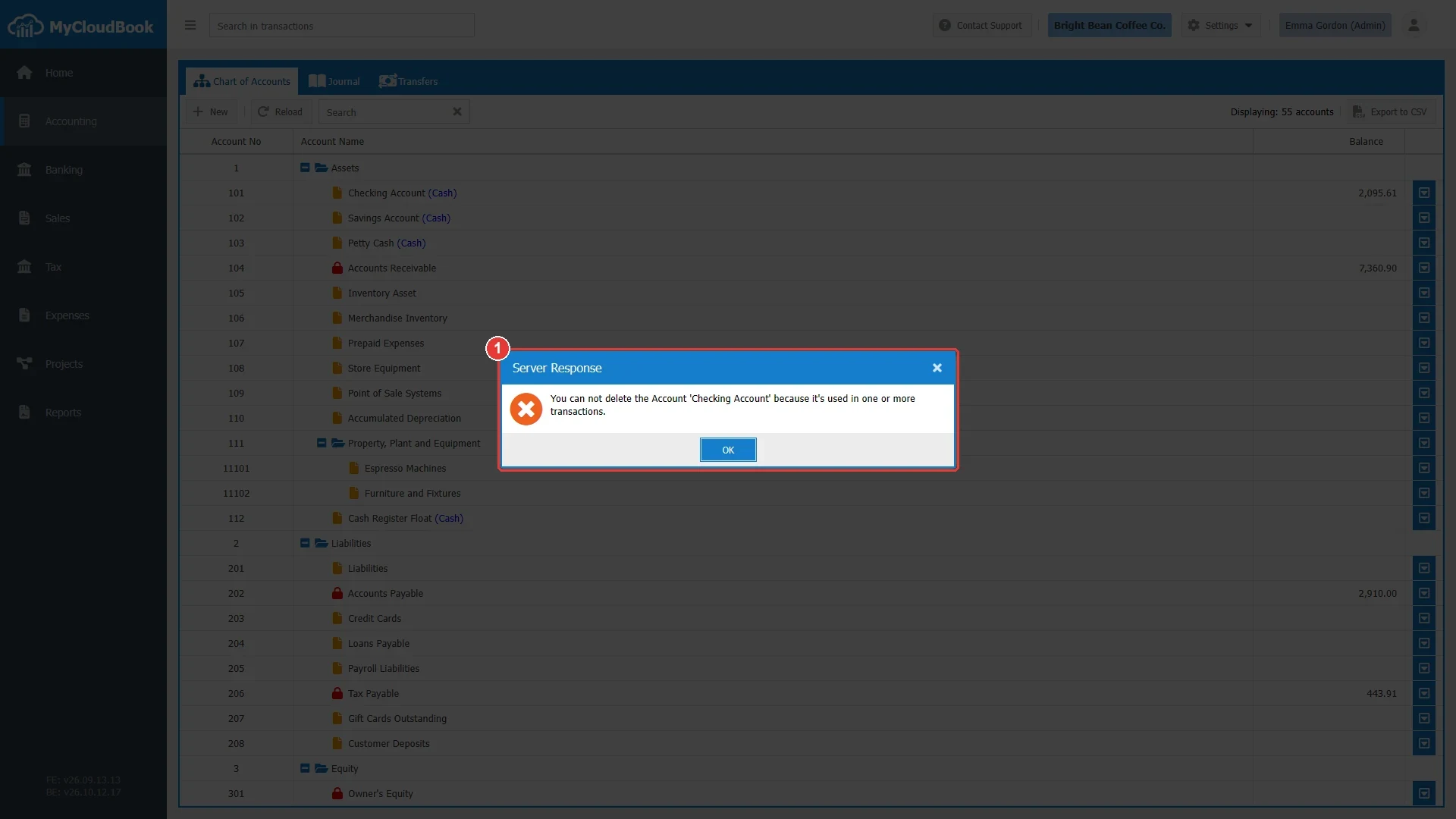
- 1The message that names the reason.
Searching and reloading
The Search box in the toolbar filters the tree while you type. The filter keeps every account whose name or number contains the typed text, together with the type row above it. The difference between capital and small letters is ignored. The number of rows shown is updated with every change. The cross at the end of the box clears the search and shows the whole tree again. The search looks at the name and the number only. The word (Cash) after a name is a mark, not a part of the name, so the text cash finds the accounts whose name holds the word, such as Petty Cash, and not every cash account.
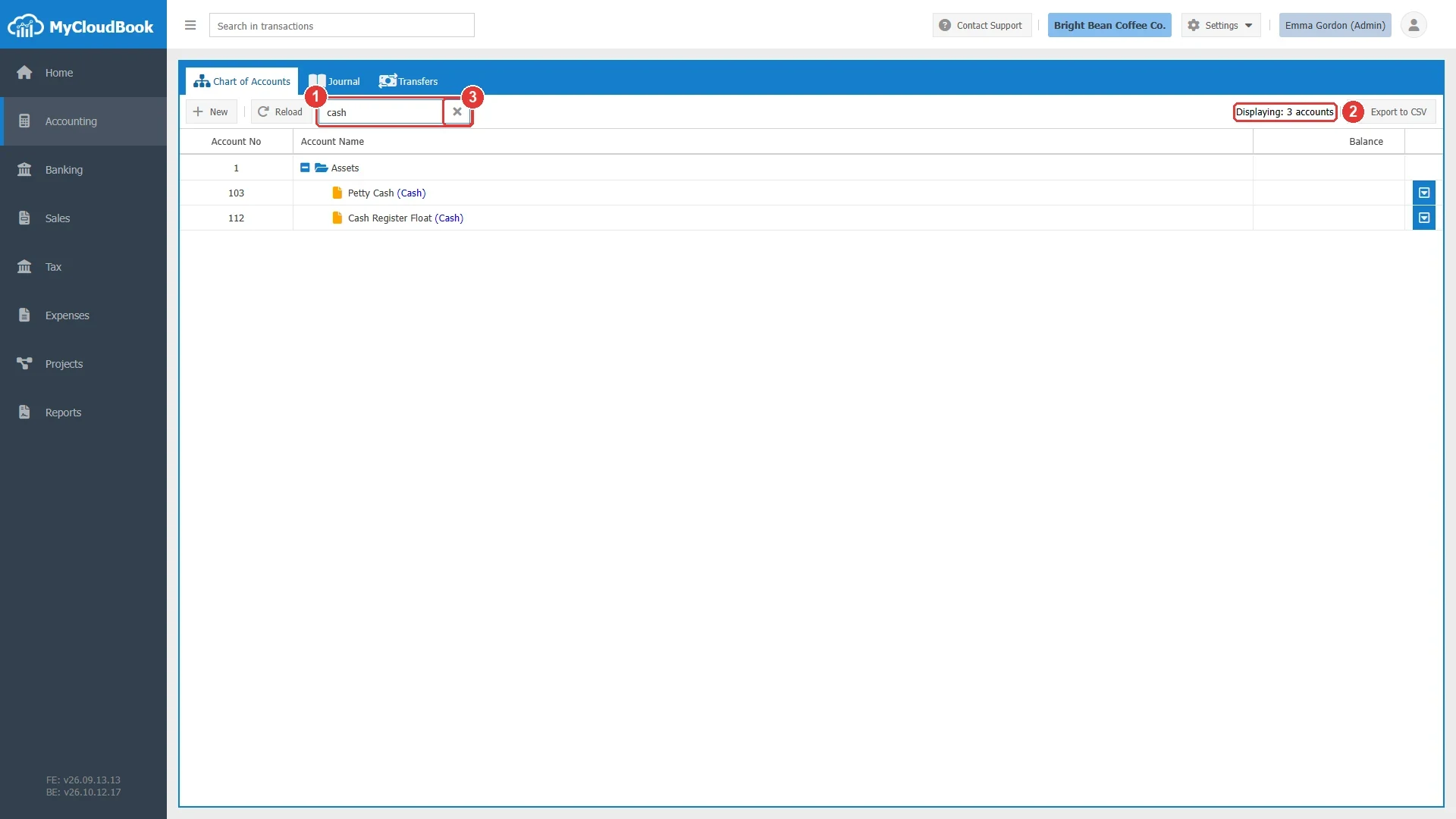
- 1The typed text. The tree keeps the accounts whose name or number contains it.
- 2The number of rows shown, including the type row.
- 3The cross clears the search.
The Reload button reads the chart again from the server. Use it when another user of the company changed the chart, or after a document was posted and you want to see the new balances.
Exporting to CSV
The Export to CSV button downloads the whole chart of accounts as a file named Chart of Accounts.csv. The file always holds every account of the company. The search box does not limit the file. A CSV file opens in Microsoft Excel, Google Sheets, and every spreadsheet program. The file has one line per account, in the order of the tree, with the following columns.
| Column | Content |
|---|---|
| Account No | The number of the account. |
| Account Name | The name of the account. |
| Account Type | Assets, Liabilities, Equity, Income, or Expenses. |
| Is Main | True for a main account, otherwise False. |
| Parent Account Name | The name of the main account. Empty for an account placed directly under its type. |
| Description | The description of the account. |
| Note | The note of the account. |
| Currency | The currency code of the account, for example USD. |
The first lines of the file of the example company look like this:
Account No,Account Name,Account Type,Is Main,Parent Account Name,Description,Note,Currency
101,Checking Account,Assets,False,,,,USD
102,Savings Account,Assets,False,,,,USD
103,Petty Cash,Assets,False,,,,USD
104,Accounts Receivable,Assets,False,,,,USD
111,"Property, Plant and Equipment",Assets,True,,"Long term assets of the coffee shop, such as machines and furniture.",,USD
11101,Espresso Machines,Assets,False,"Property, Plant and Equipment",Commercial espresso machines and grinders.,,USD
A value that contains a comma is written between double quotes, as the example shows. The file does not contain the balances. The balances are in the Trial Balance report.
Viewing the ledger of an account
The ledger of an account lists every transaction that was posted to the account, with the running balance. To open it, click View Ledger in the row actions menu, or double click the row of the account. The ledger opens as a new tab of the Accounting page, named Ledger #number (name).
The Account Ledger guide describes the ledger screen: its columns, the running balance, the pages of the list, the columns of a multi-currency company, and how to open the document of a transaction from the ledger.
Messages and their meaning
The following table lists the messages that the Chart of Accounts can show when a value is not accepted, together with the cause and what to do. The letter X in a message stands for the value that the message names.
The next three figures show three of these messages on the screen.
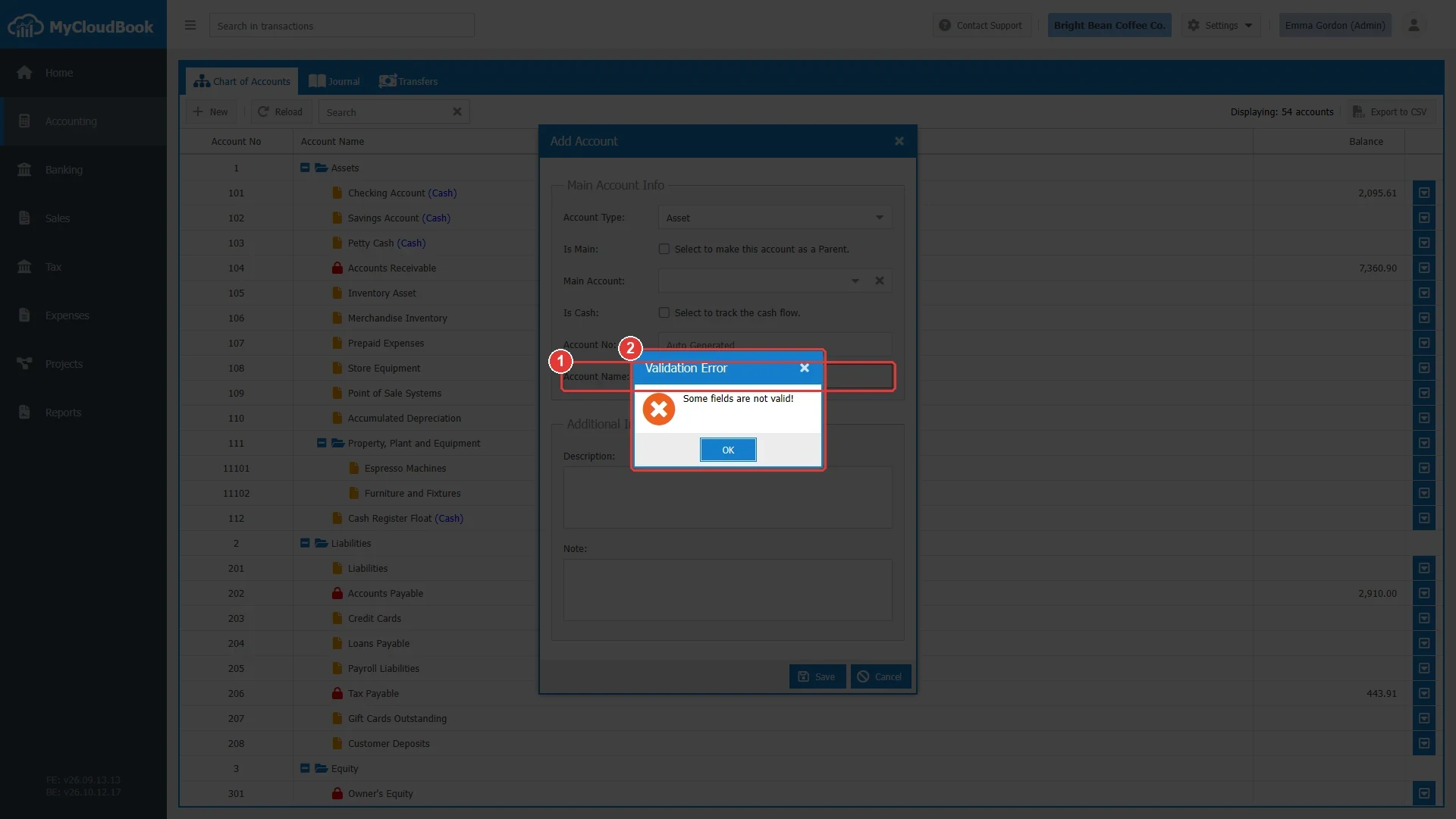
- 1The empty Account Name field.
- 2The validation message.
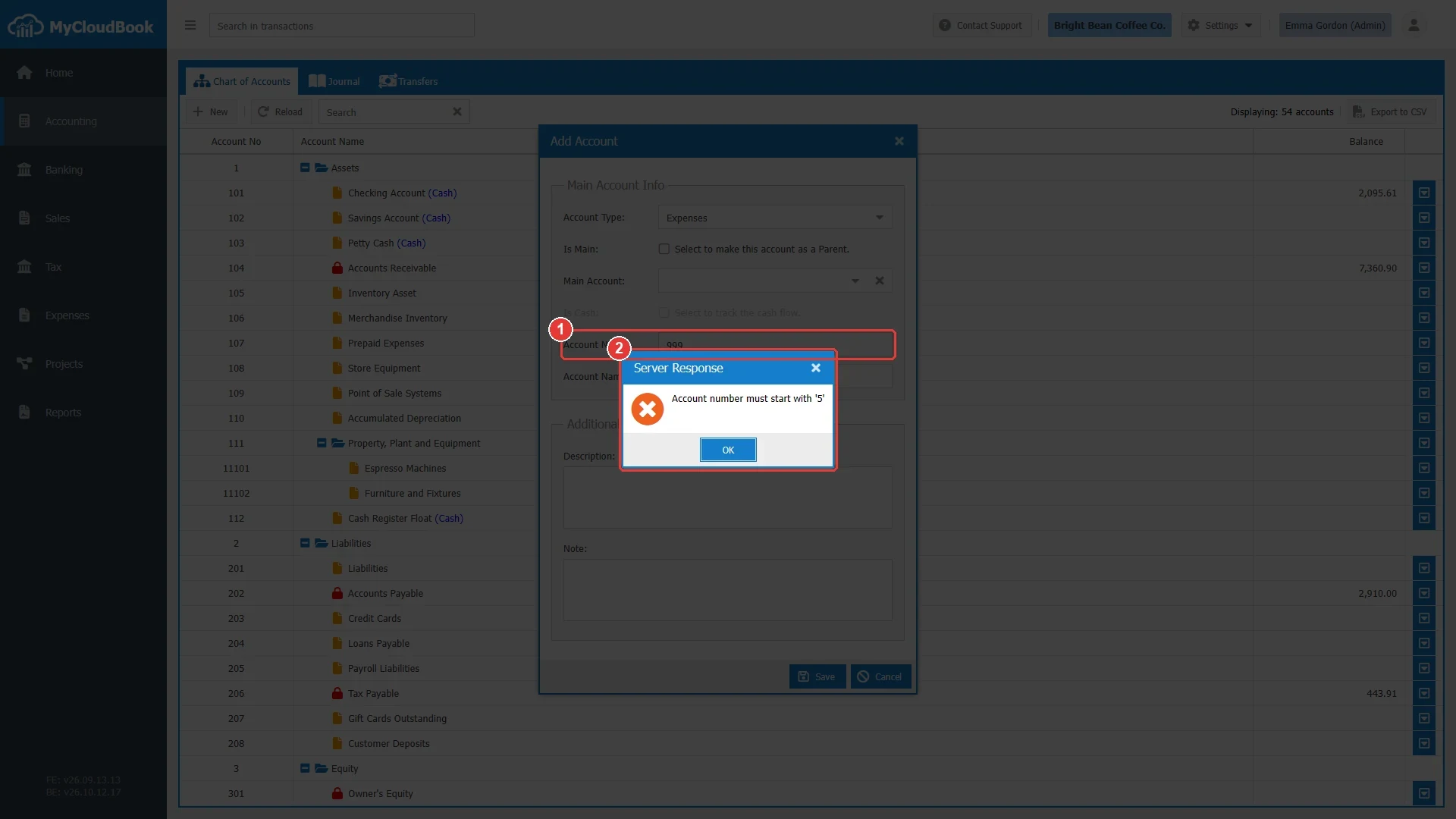
- 1The typed Account No. An Expenses account must start with 5.
- 2The message from the server.
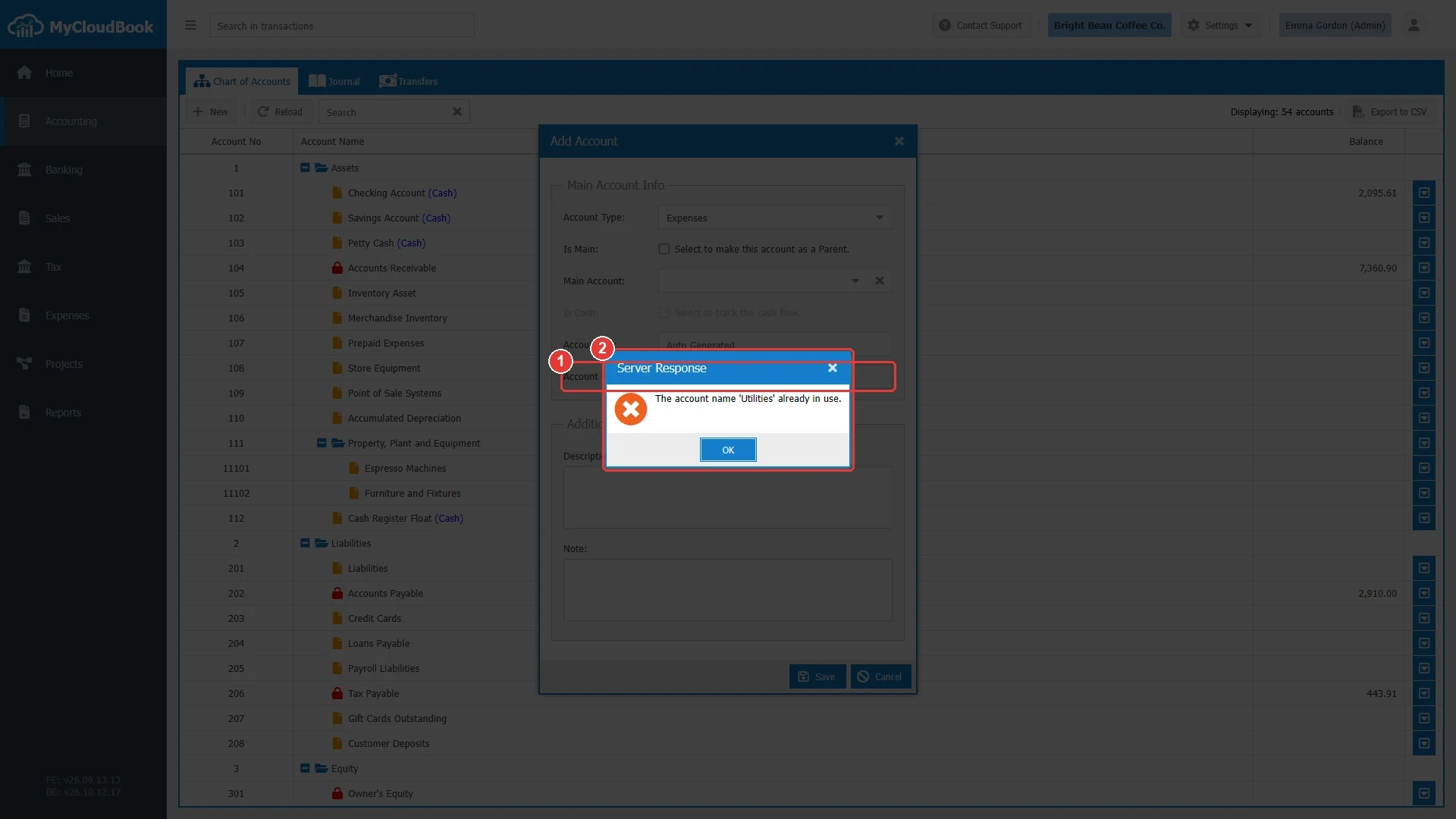
- 1The typed Account Name. The company has an account with this name already.
- 2The message from the server.
Questions and answers
Where is the Chart of Accounts in MyCloudBook?
Click Accounting in the left navigation. The Chart of Accounts opens as the first tab of the Accounting page, next to the Journal and Transfers tabs.
Which account types does MyCloudBook support?
Five types: Assets (1), Liabilities (2), Equity (3), Income (4), and Expenses (5). The number of the type is the first digit of every account number of that type. Assets and Expenses accounts have a debit balance. Liabilities, Equity, and Income accounts have a credit balance.
Do I have to type an account number?
No. When the Account No field is left empty, MyCloudBook generates the next free number. A typed number must contain digits only, must start with the type number or with the number of the main account, must have at least one more digit, and must not be used by another account.
What is a main account?
A main account is a parent account that groups sub accounts. It cannot be used in a transaction. Its balance is the total of its sub accounts. The Is Main option is set when the account is created and cannot be changed later.
What does the Is Cash option do?
Is Cash marks an Asset account as cash or bank money. The account shows the word (Cash) in the chart, the Banking module can link a bank to it, and the Cash Flow Statement treats it as cash. The option is available for Asset accounts that are not main accounts.
Why can I not delete an account?
An account cannot be deleted when it is a system account, when it is a main account with sub accounts, when it is used in a transaction, when a product or service uses it, when the PayPal integration uses it, or when it is a default account in the company settings. The message names the reason. See Deleting an account.
Which accounts are system accounts?
Accounts Receivable, Accounts Payable, Owner's Equity, Sales, Exchange Gain or Loss, Tax Payable, and Opening Balance Equity. They are created with the company, they show a red lock icon, and they cannot be deleted. Their type, main account, currency, and cash option are locked.
Can an account have a foreign currency?
Yes, when multi-currency is enabled in Settings, Preferences. Only Assets and Liabilities accounts can have a currency other than the main currency. The currency is set when the account is created and cannot be changed later. A sub account must have the currency of its main account.
Can I change the type of an account?
No. The type is locked after the first save, because the transactions of the account and the reports depend on it. When the account is not in use, delete it and create it again with the right type.
Why does the Balance column show nothing for an Income or Expenses account?
The Chart of Accounts shows the balance of the Balance Sheet accounts only: Assets, Liabilities, and Equity. The balance of an Income or Expenses account belongs to a period. It is shown in the Income Statement for the selected period, and in the ledger of the account.