Invoices and Receipts
This guide explains invoices and receipts in MyCloudBook: the list and its filters, every field of the document, lines with taxes and discounts, drafts, printing and email, receiving a payment, and the rules for changing and deleting a document.
Overview
An invoice records a sale that the customer pays later. It raises the balance that the customer owes, and it stays open until receipt vouchers or credit notes cover its total. A receipt records a sale that the customer pays at once, for example a sale at the counter. The money goes directly into a cash or bank account, and the receipt is always paid.
Both documents use the same screen and the same number sequence: invoice 14 can be followed by receipt 15. Each saved invoice or receipt creates one journal entry and, for inventory products, one inventory movement. A document can also be kept as a draft first: a draft creates no journal entry and no inventory movement until it is converted.
| Document | Journal entry of the document |
|---|---|
| Invoice | Debit Accounts Receivable for the total, with the customer as the contact of the post. Credit the sales account of each line for the line total. Credit Tax Payable for each tax. |
| Receipt | Debit the Deposit To account for the total. Credit the sales account of each line. Credit Tax Payable for each tax. |
| Both, with inventory products | Debit the cost of goods sold account and credit the inventory asset account of each product for the cost of the quantity sold. |
The sales account of a line is the sales account of its product. A line without a product uses the account chosen in the Income Account column, and otherwise the system Sales account.
How to open the screen
- In the left navigation, click Sales.
- Click the Invoices & Receipts tab, the second tab of the Sales page.
The same list also holds the estimates and the sales orders. They are described in the Estimates and Sales Orders guides.
The list
The list shows the documents from the newest to the oldest date, with up to one hundred documents per page. A double click on a row opens the document in a new tab of the Sales page.
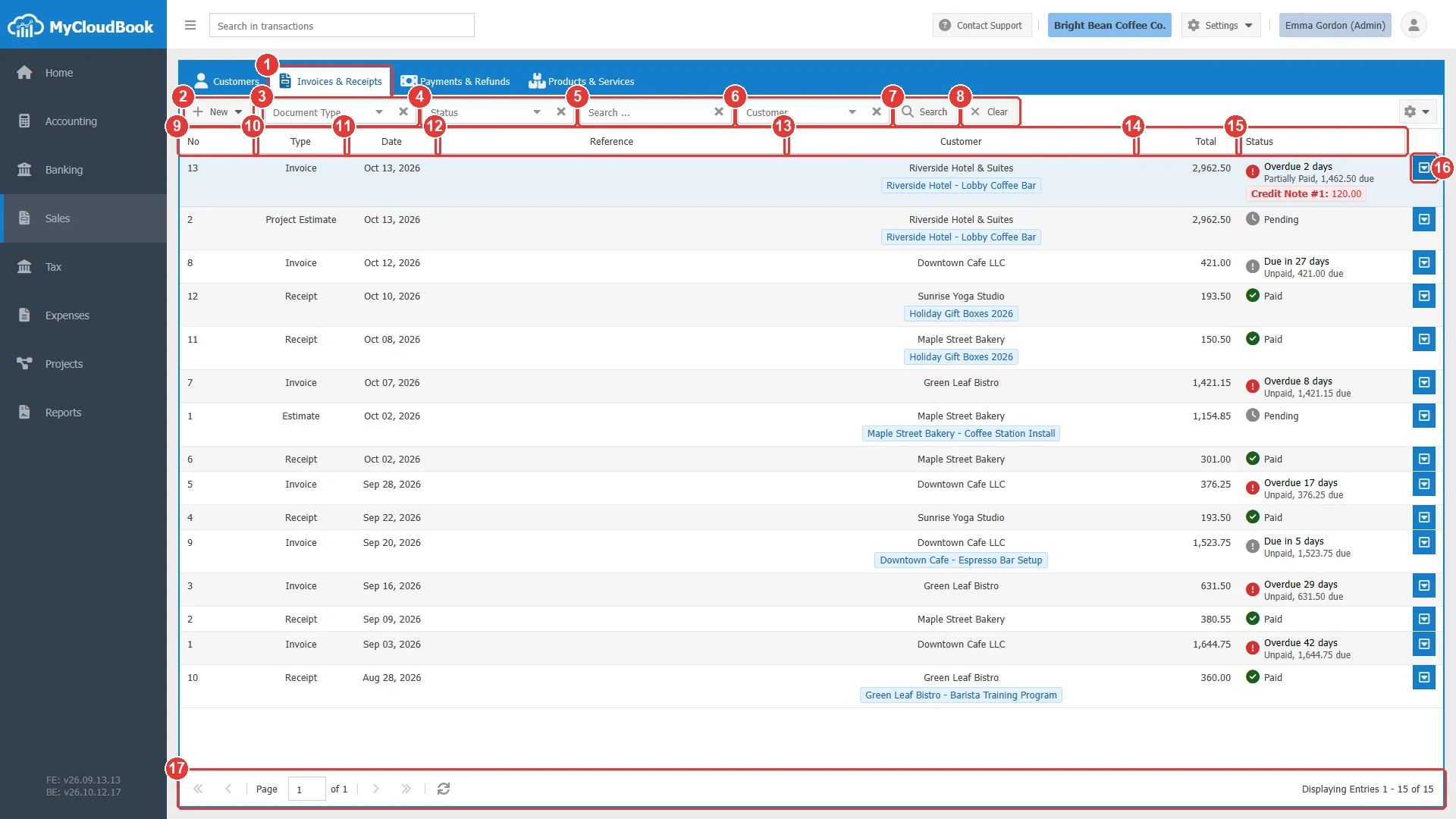
- 1Invoices & Receipts tab.
- 2New. Opens a menu: New Invoice, New Receipt, New Estimate, New Sales Order.
- 3Document Type. Keeps one document type.
- 4Status. Keeps one status.
- 5Search .... Finds a document by its number. Press Enter to search.
- 6Customer. Keeps the documents of one customer.
- 7Search. Runs the search with the current filters.
- 8Clear. Removes every filter.
- 9No. The number of the document.
- 10Type. Invoice, Receipt, Draft Invoice, Draft Receipt, Estimate, or Sales Order.
- 11Date.
- 12Reference.
- 13Customer. The customer, with the project of the document under it when there is one.
- 14Total. The total with taxes.
- 15Status. The payment status and, for an invoice, the due days and the amount due.
- 16The row actions button. It opens Edit, Print Preview, Download PDF Format, Send, and Delete.
- 17The paging toolbar.
The Status column of an invoice shows two lines:
- the due days: Due in 27 days, Due Today, or Overdue 2 days, with a red icon when the due date has come;
- the status and the amount due, for example Partially Paid, 414.75 due.
A paid document shows a green check and Paid. A receipt is always Paid. A draft has no status. When a credit note refunds the document, a red label such as Credit Note #1: 120.00 appears under the status.
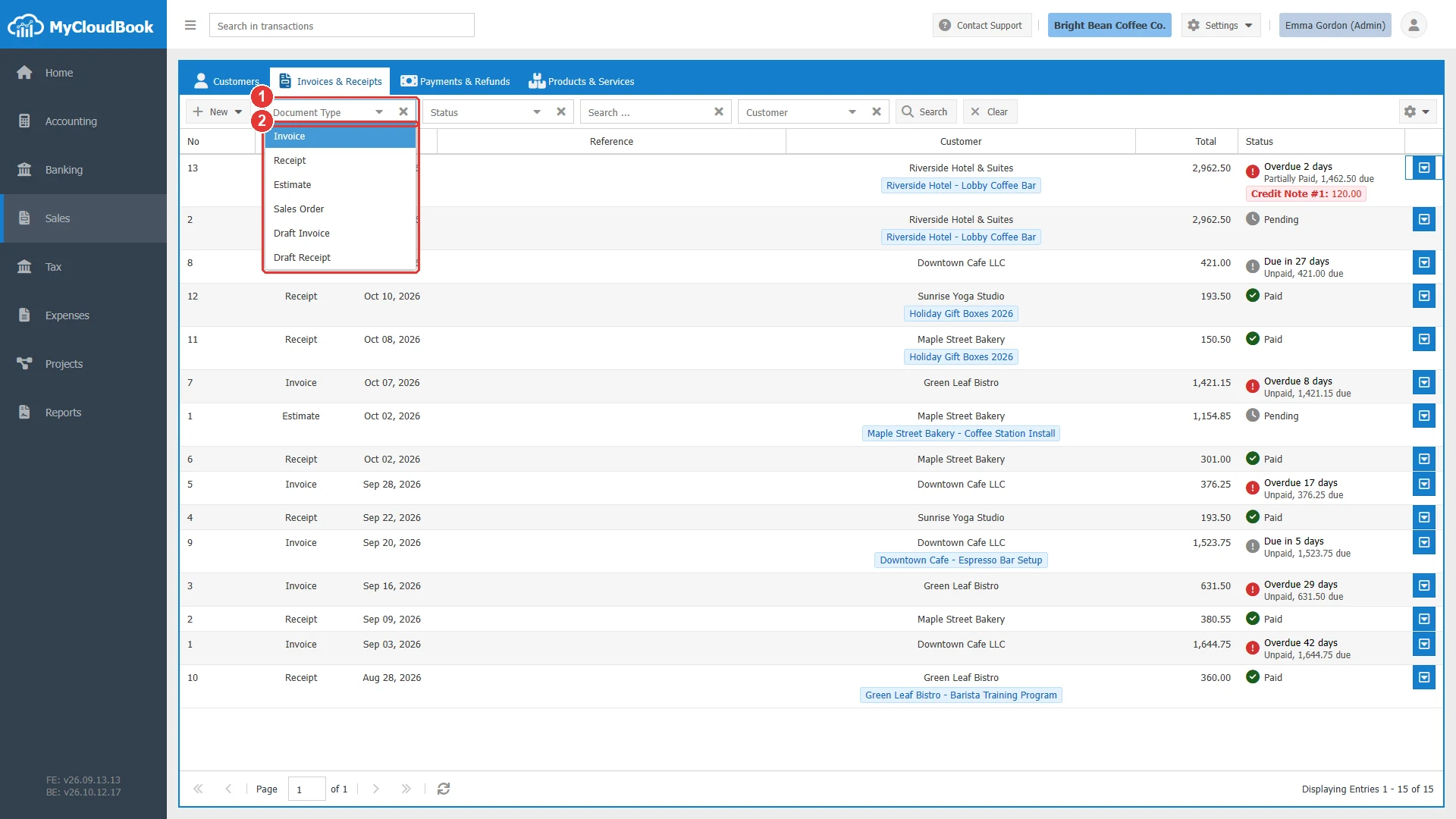
- 1Document Type.
- 2Invoice, Receipt, Estimate, Sales Order, Draft Invoice, Draft Receipt.
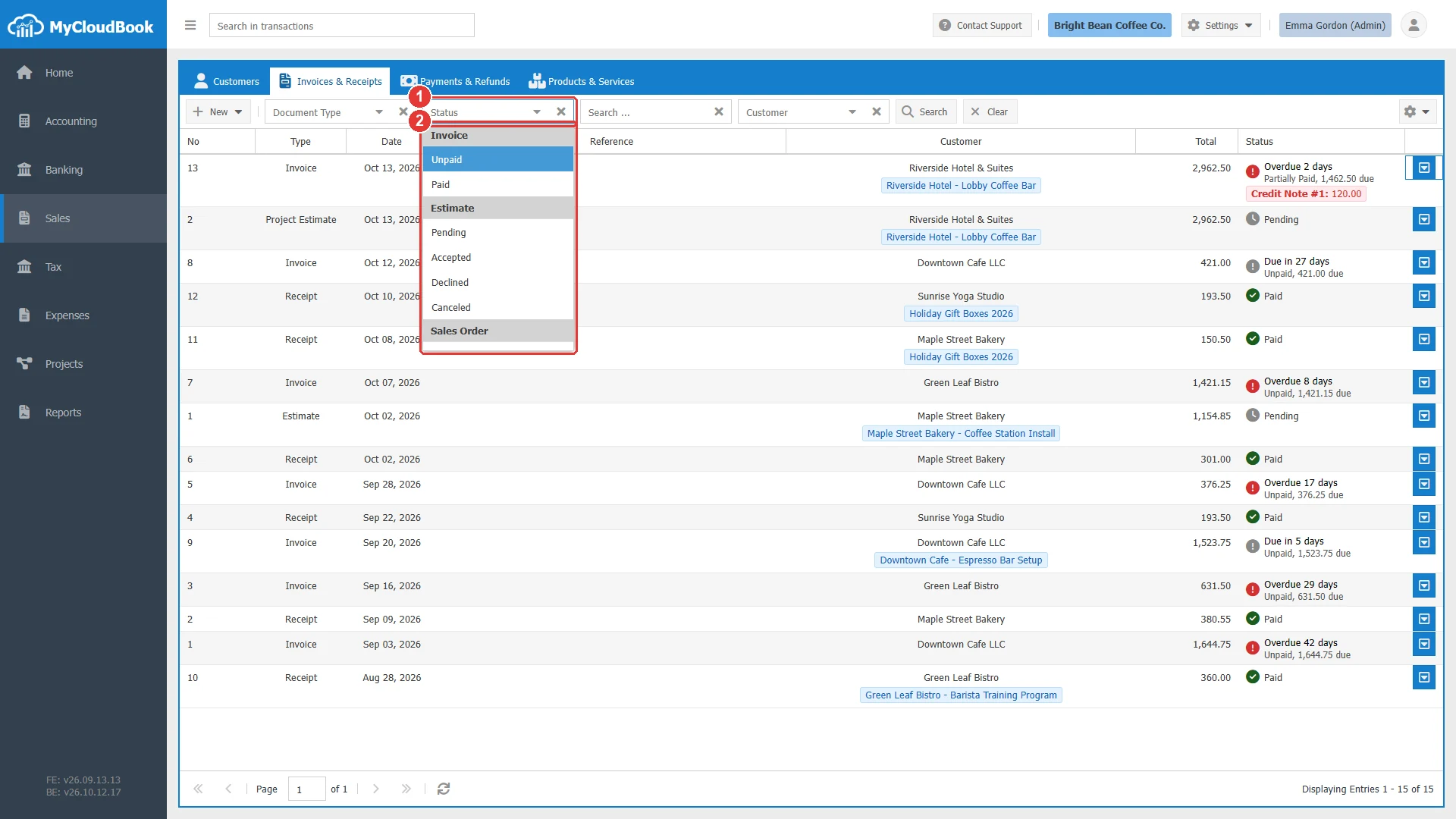
- 1Status.
- 2The statuses, grouped by document type. A status also sets the matching document type.
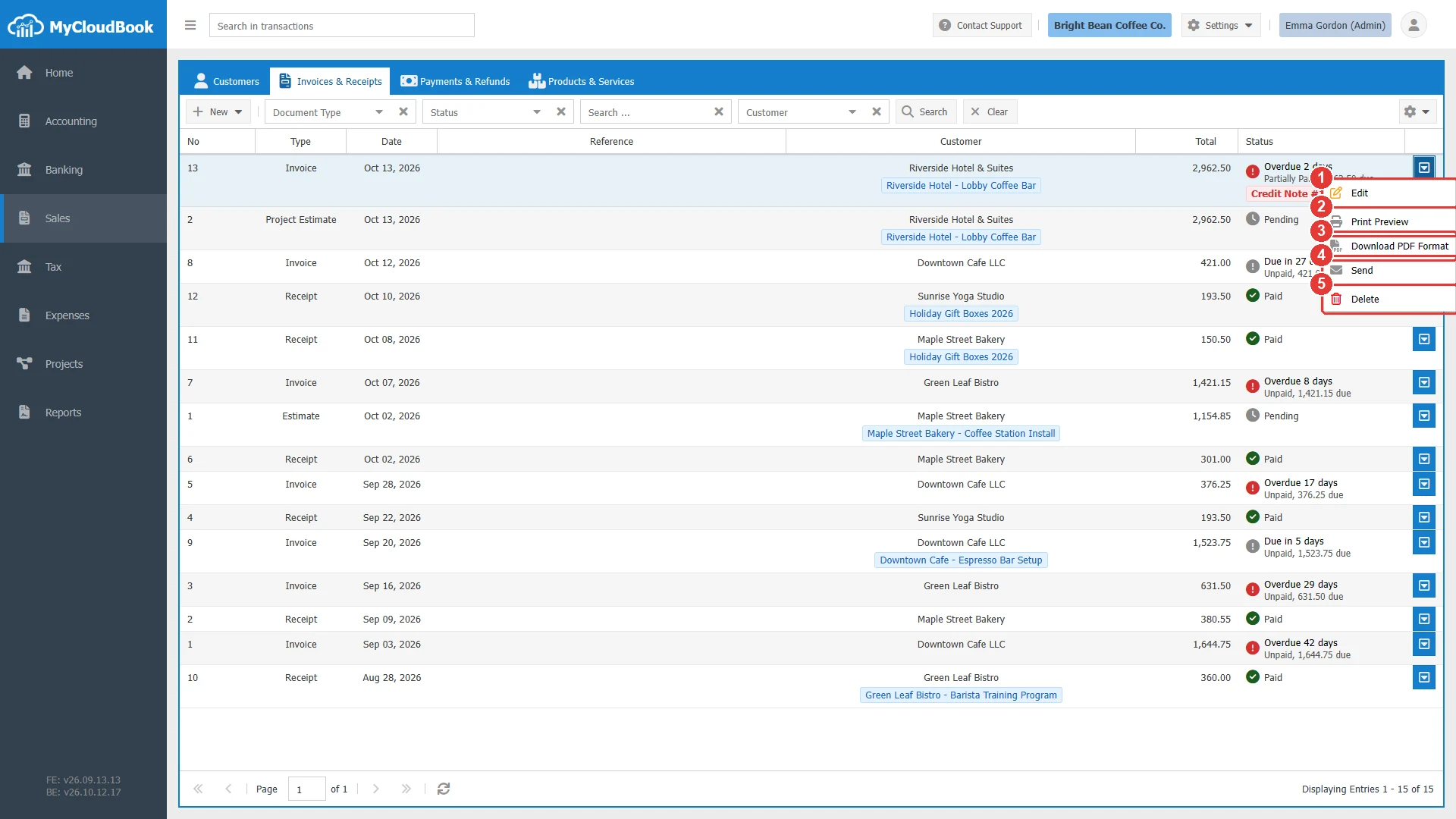
- 1Edit. Opens the document.
- 2Print Preview. Opens the PDF of the document in a tab.
- 3Download PDF Format. Downloads the PDF.
- 4Send. Opens the email window.
- 5Delete. Deletes the document after a confirmation.
Creating an invoice
- Click the New button and then New Invoice. A tab named New Invoice opens.
- Select the Customer. The billing and shipping addresses of the customer are copied into the Addresses tab.
- Check the Date and set the Due Date. Type a Ref if the customer gave you an order number.
- In each line, select the Product / Service, check the description, the quantity, the unit price, and the tax. A new empty line appears when the last line is used.
- Click Save. MyCloudBook gives the invoice the next number and shows its status.
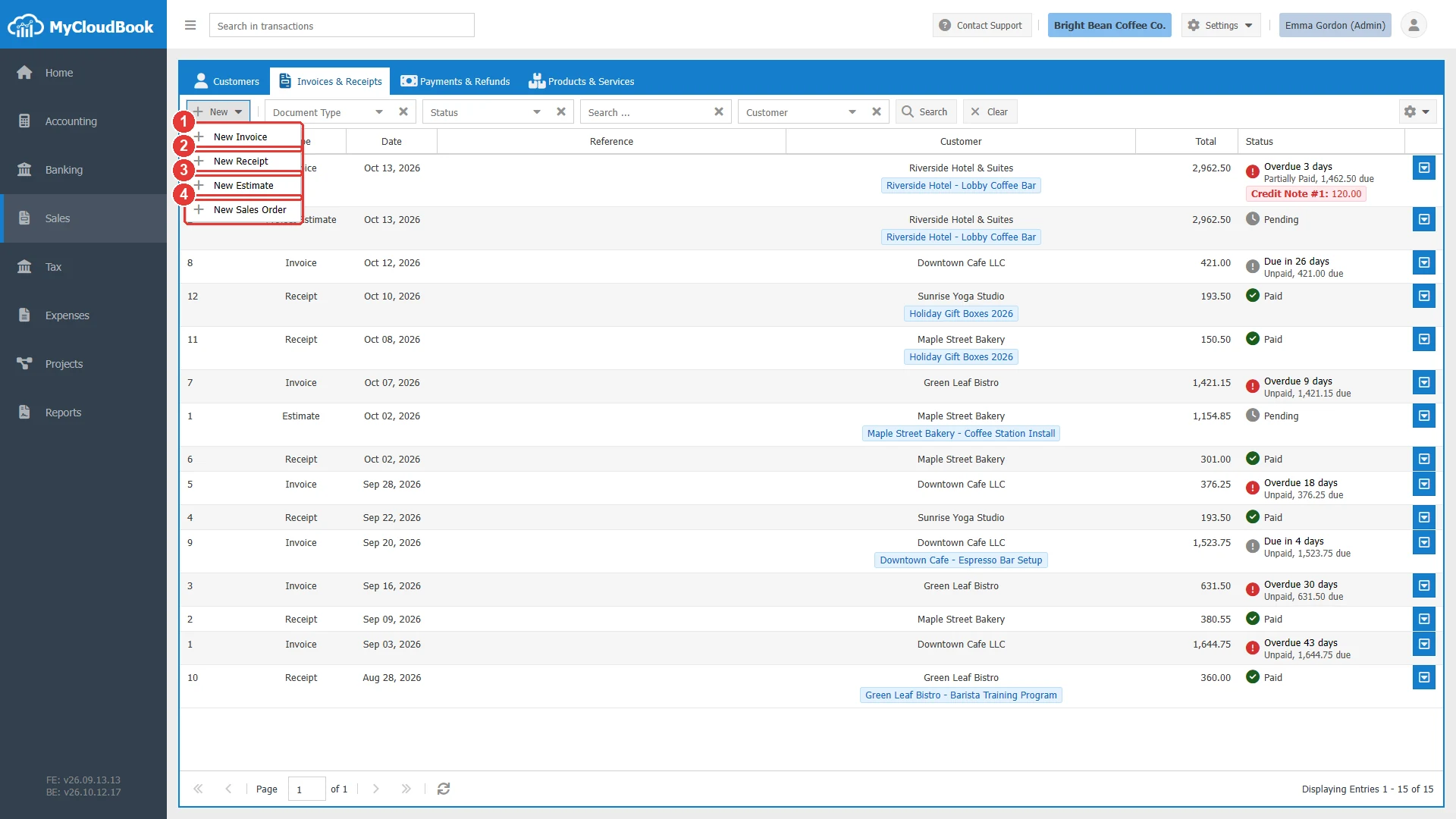
- 1New Invoice.
- 2New Receipt.
- 3New Estimate.
- 4New Sales Order.
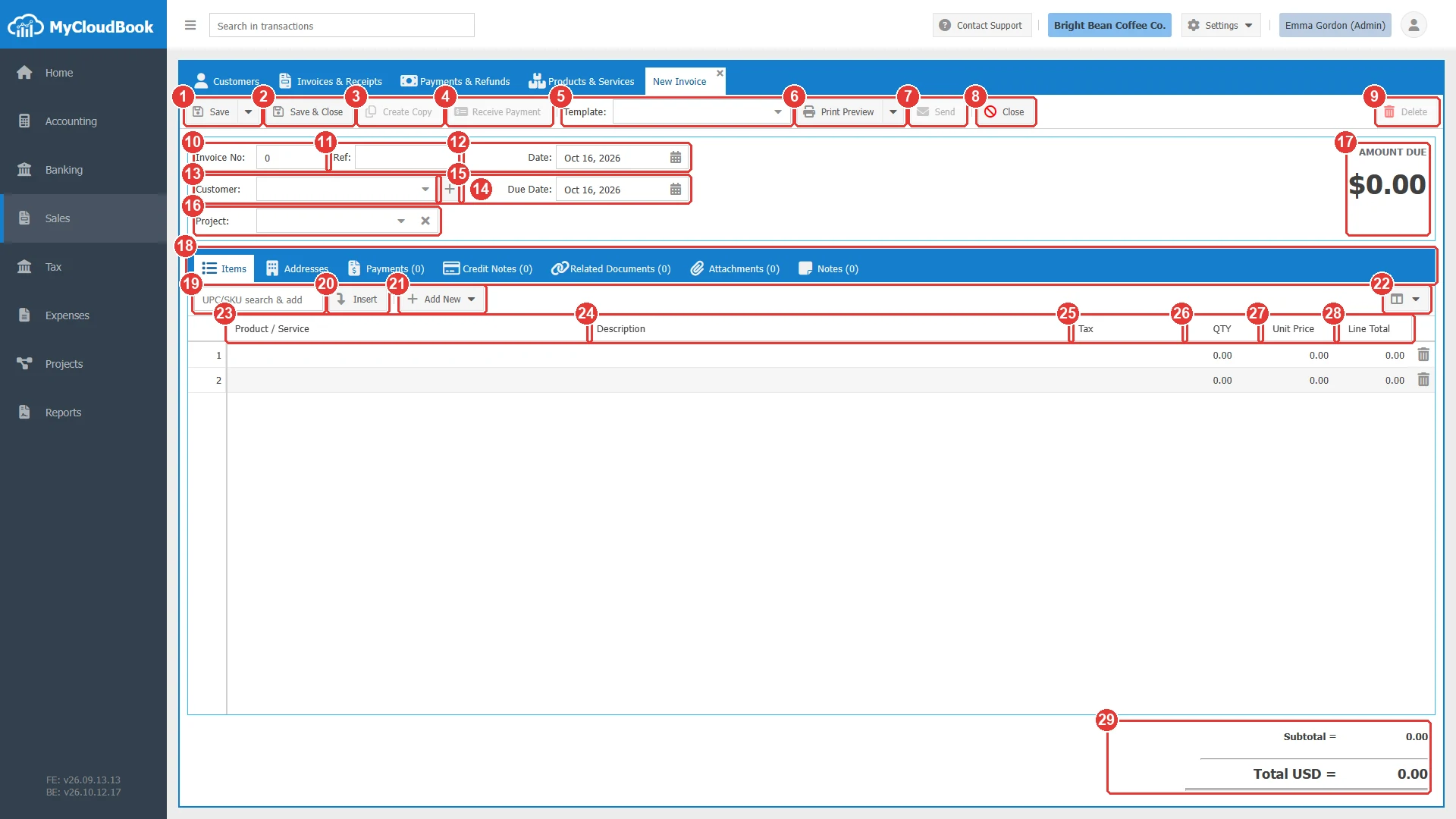
- 1Save. Saves the invoice. The arrow opens Save as Draft.
- 2Save & Close. Saves and closes the tab.
- 3Create Copy. Opens a new invoice with the same customer and lines. Available after the save.
- 4Receive Payment. Opens a receipt voucher for this invoice. Available while an amount is due.
- 5Template. The document template of the printed invoice.
- 6Print Preview. Saves and opens the PDF. The arrow opens Download PDF Format.
- 7Send. Saves and opens the email window. Available after the save.
- 8Close. Closes the tab without saving.
- 9Delete. Available after the save.
- 10Invoice No. 0 means the next number.
- 11Ref. A free reference, for example the order number of the customer.
- 12Date. The date of the sale.
- 13Customer. Required.
- 14The plus button adds a new customer without leaving the invoice.
- 15Due Date. The last day of payment. Required.
- 16Project. Shown when projects are enabled.
- 17The amount due, in large figures, and later the status.
- 18The tabs Items, Addresses, Payments, Credit Notes, Related Documents, Attachments, and Notes.
- 19UPC/SKU search & add. Type the SKU or barcode of a product and press Enter.
- 20Insert. Adds the product of the SKU field as a new line.
- 21Add New. Creates a new product and adds it as a line.
- 22Column Settings. Shows the Income Account, Contact, and Discount columns.
- 23Product / Service.
- 24Description.
- 25Tax.
- 26QTY.
- 27Unit Price.
- 28Line Total. The quantity times the unit price, less the discount.
- 29The totals: subtotal, discount, the taxes, and the total.
The fields
| Field | Required | Purpose and rules |
|---|---|---|
| Invoice No | Required | Keep 0 and MyCloudBook assigns the next number of the sequence that invoices and receipts share. A typed number must not be used by another invoice or receipt. The number cannot change after the save. |
| Ref | Optional | A free reference, printed on the invoice and shown in the list. |
| Date | Required | The date of the sale. It starts with today. The taxes use the rates that are valid on this date, so a change of the date reloads the taxes. |
| Customer | Required | An active customer. The list shows the AR Balance of each customer. After a payment is recorded, the customer of the invoice cannot change any more. |
| Due Date | Required | The last day of payment. It starts with today. The list counts the due days from this date. |
| Project | Optional | Shown when projects are enabled in the settings. The list holds the projects of the customer and the projects without a customer that are not started or in progress. A completed project blocks the save. |
| Currency | Required | Shown in a multi-currency company. A foreign currency shows its rate, which can be changed for the document. |
| Template | Optional | The document template of the PDF. Empty means the default template. |
| Product / Service | Optional | A product marked for sale. The selection fills the description, the quantity 1, the sales price, and the sales tax of the product. A line can also have only a description and an amount. |
| Description | Optional | Up to 4000 characters. It can hold several lines. |
| Tax | Optional | A tax or a tax group. A group, for example Combined Sales Tax, is split into its member taxes in the totals. |
| QTY | Required | The quantity, zero or more. |
| Unit Price | Required | The price of one unit, zero or more. |
| Discount | Optional | Shown through Column Settings, Show Discount. Type 10% for a percentage (up to 100) or 15 for a fixed amount, which cannot be larger than the line amount. |
| Income Account | Optional | Shown through Column Settings. The account of a line without a product. |
| Billing Address Shipping Address | Optional | In the Addresses tab. Copied from the customer and editable, up to 1000 characters each. |
Example
The example invoices Harbor View Catering for one commercial coffee grinder and four hours of barista training with a discount of 10 percent.
- Click New, New Invoice.
- Select the customer Harbor View Catering, type PO-HV-1001 in Ref, and set the Due Date to November 15, 2026.
- In line 1, select Commercial Coffee Grinder. The price 650.00 and the tax Combined Sales Tax come from the product.
- In line 2, select Barista Training - per hour and type 4 in QTY.
- Open Column Settings, check Show Discount, and type 10% in the Discount cell of line 2. The line total becomes 216.00.
- Check the totals and click Save.
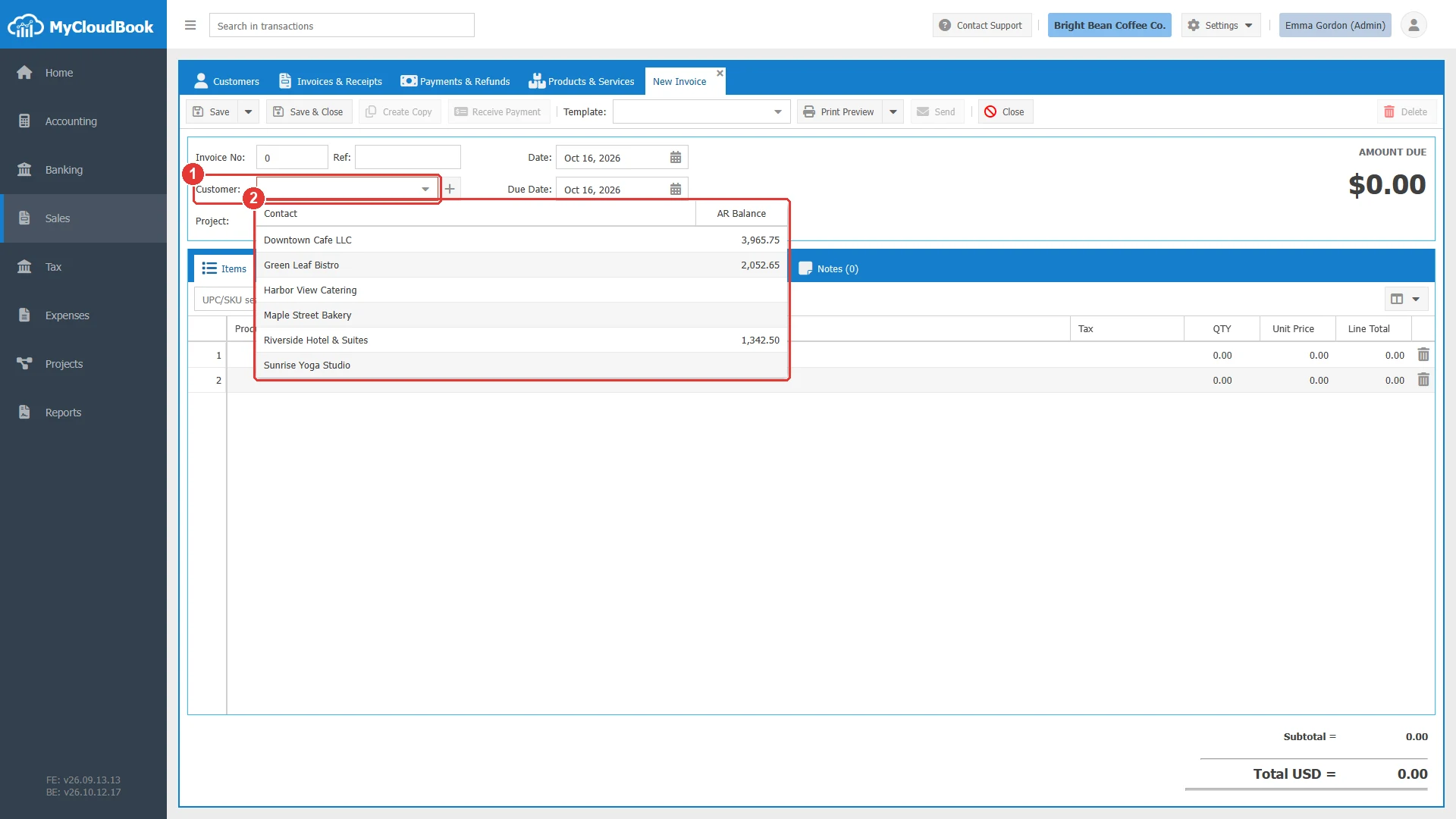
- 1Customer.
- 2The active customers, with their AR Balance.
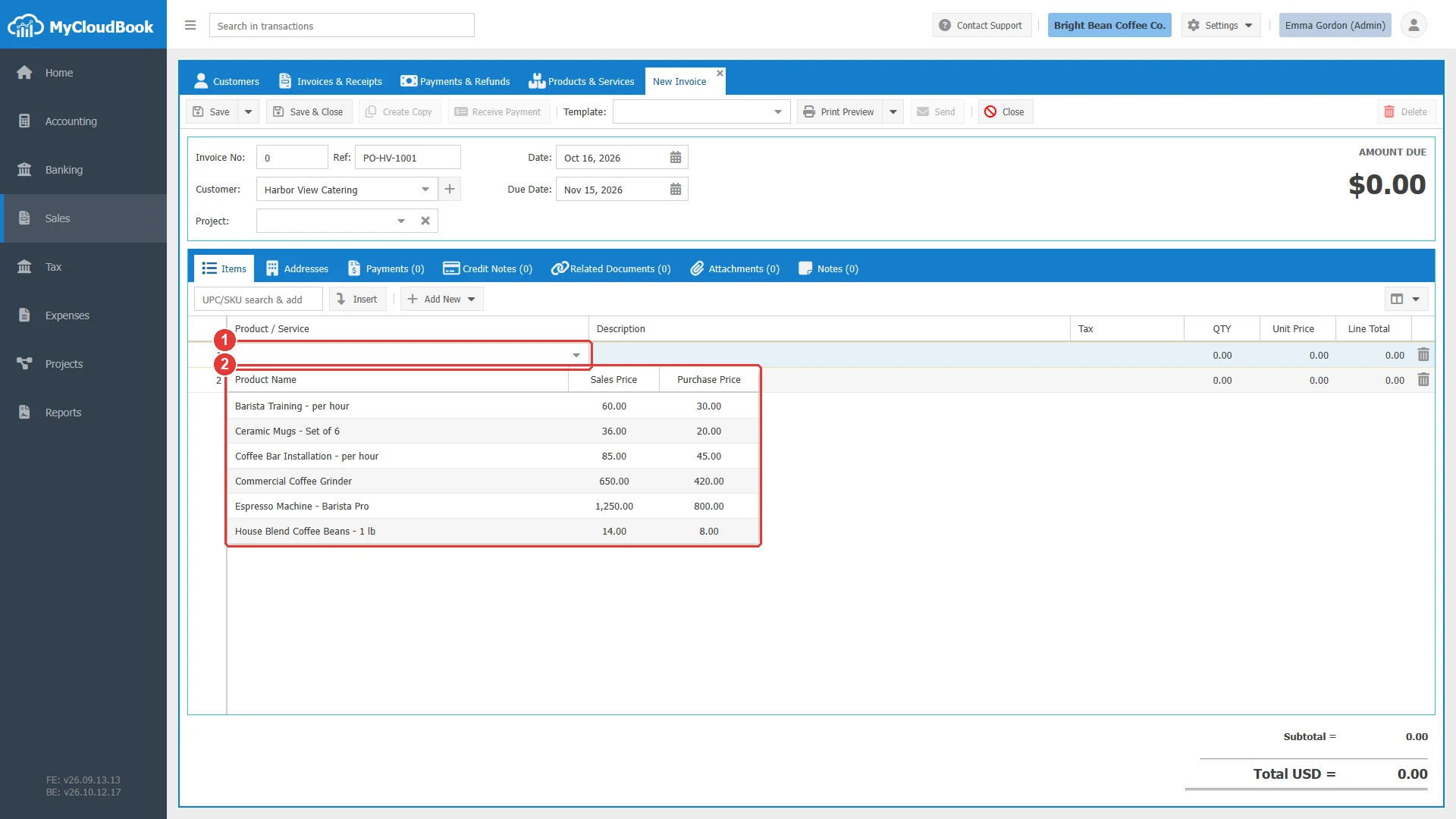
- 1The Product / Service cell.
- 2The products for sale, with the sales price and the purchase price.
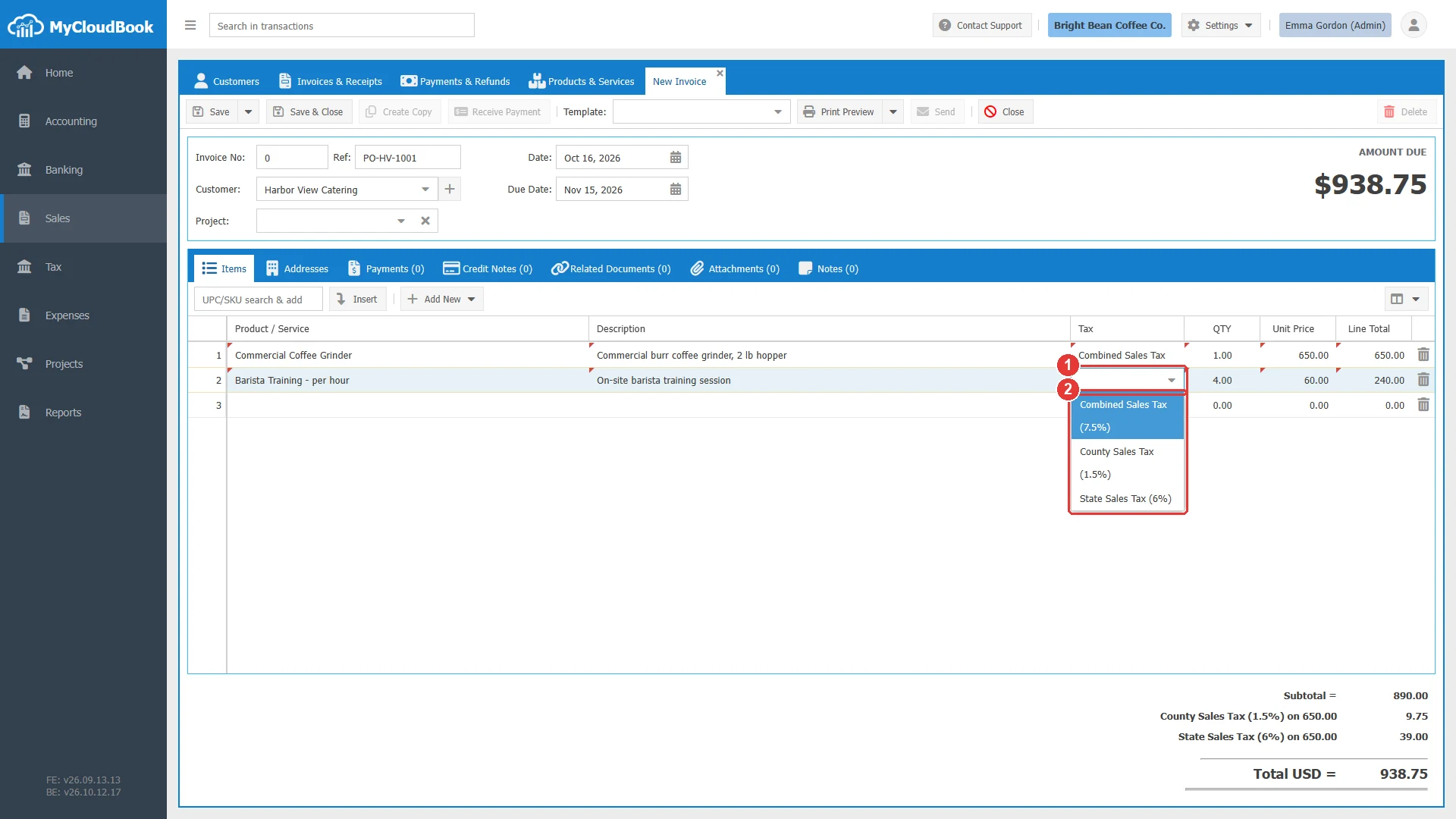
- 1The Tax cell.
- 2The taxes and the tax groups, with their rate.
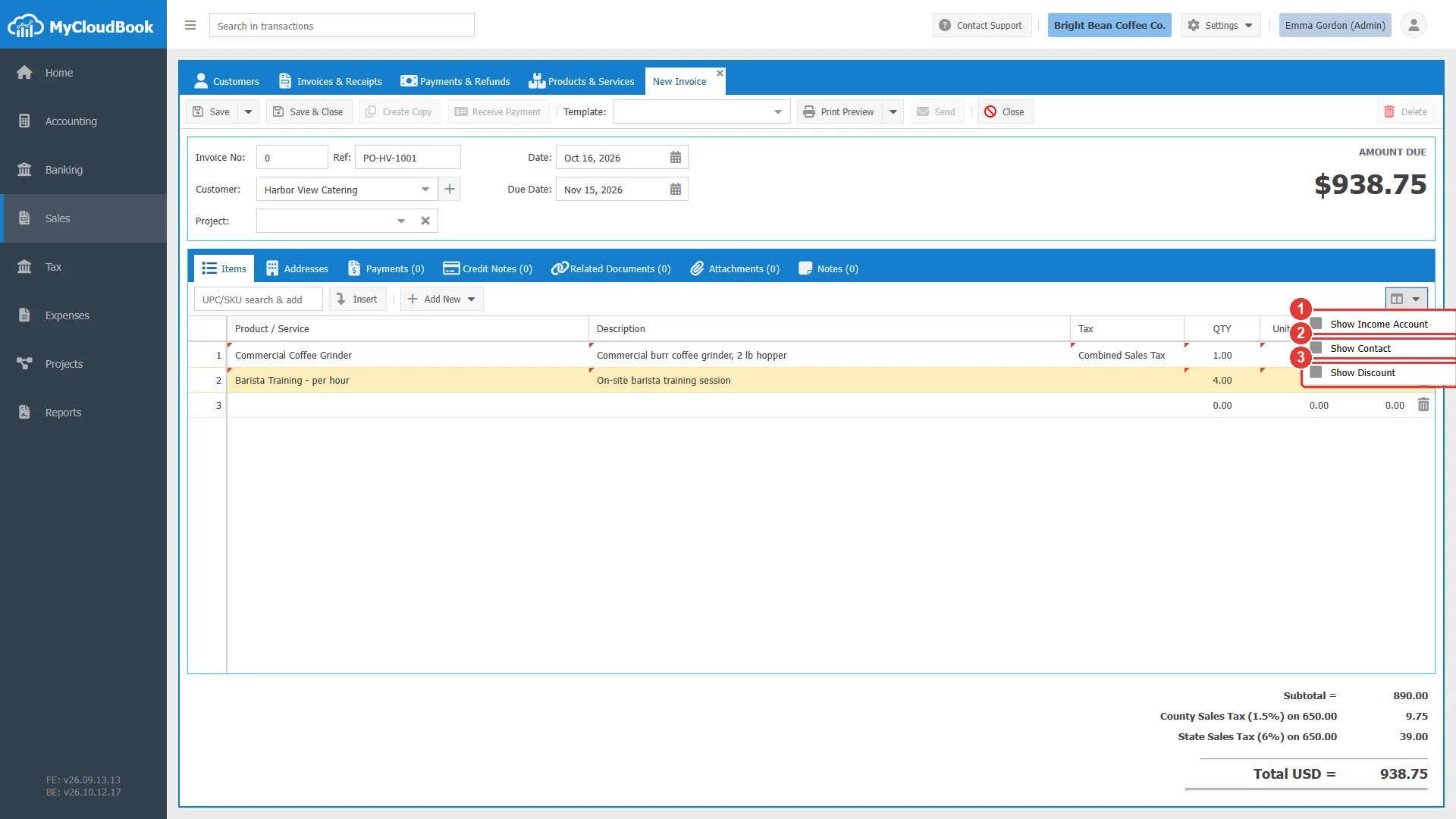
- 1Show Income Account.
- 2Show Contact.
- 3Show Discount.
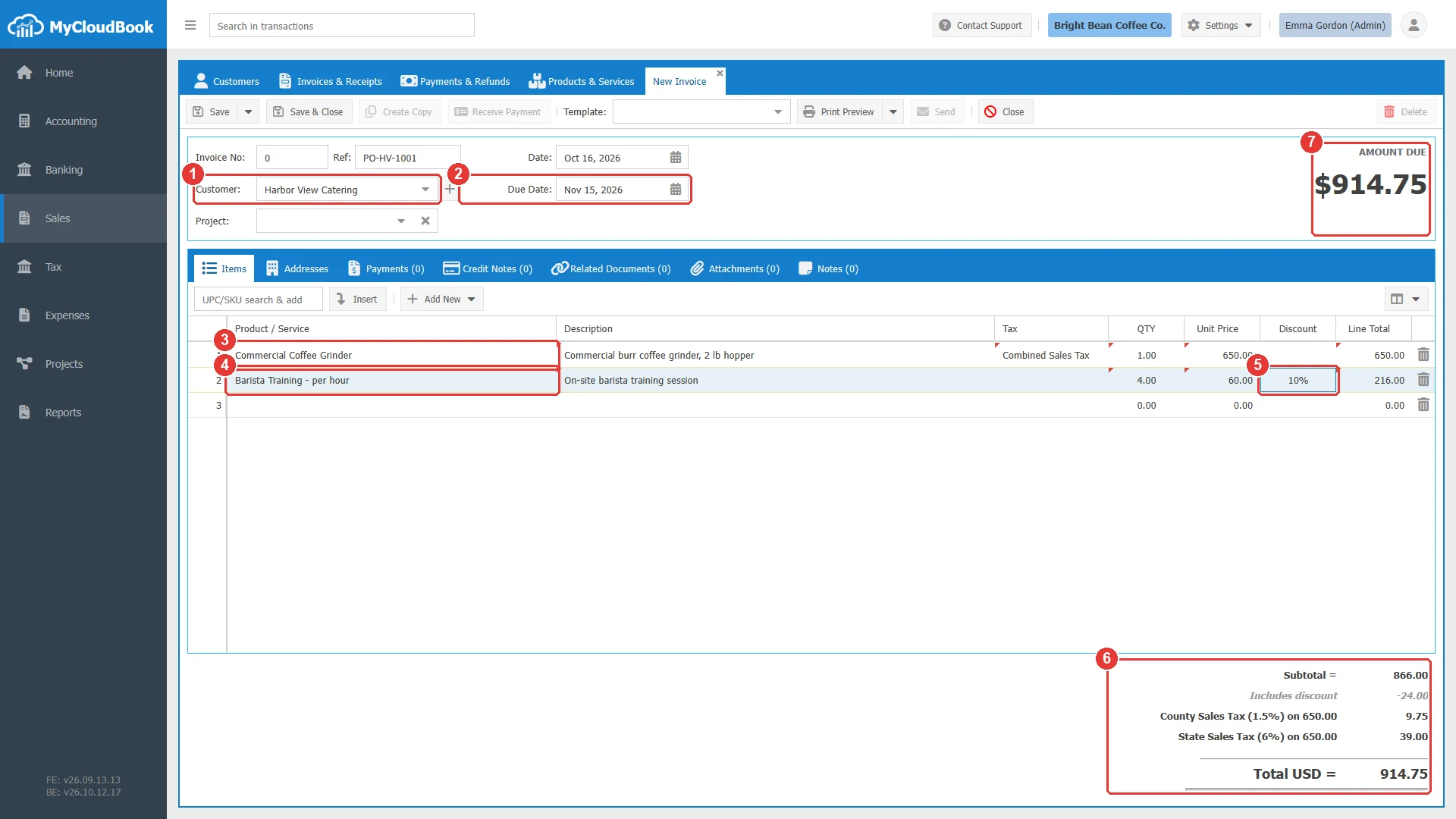
- 1The customer.
- 2The due date.
- 3Line 1: an inventory product with its sales tax.
- 4Line 2: a service, four hours.
- 5A discount of 10 percent on line 2.
- 6The totals: subtotal 866.00, which includes the discount of 24.00, the two member taxes of the tax group, and the total 914.75.
- 7The amount due.
The tax group Combined Sales Tax (7.5 percent) appears in the totals as its two member taxes: County Sales Tax 1.5 percent and State Sales Tax 6 percent, each on 650.00. After the save the tab shows Invoice #14, and the status is Unpaid.
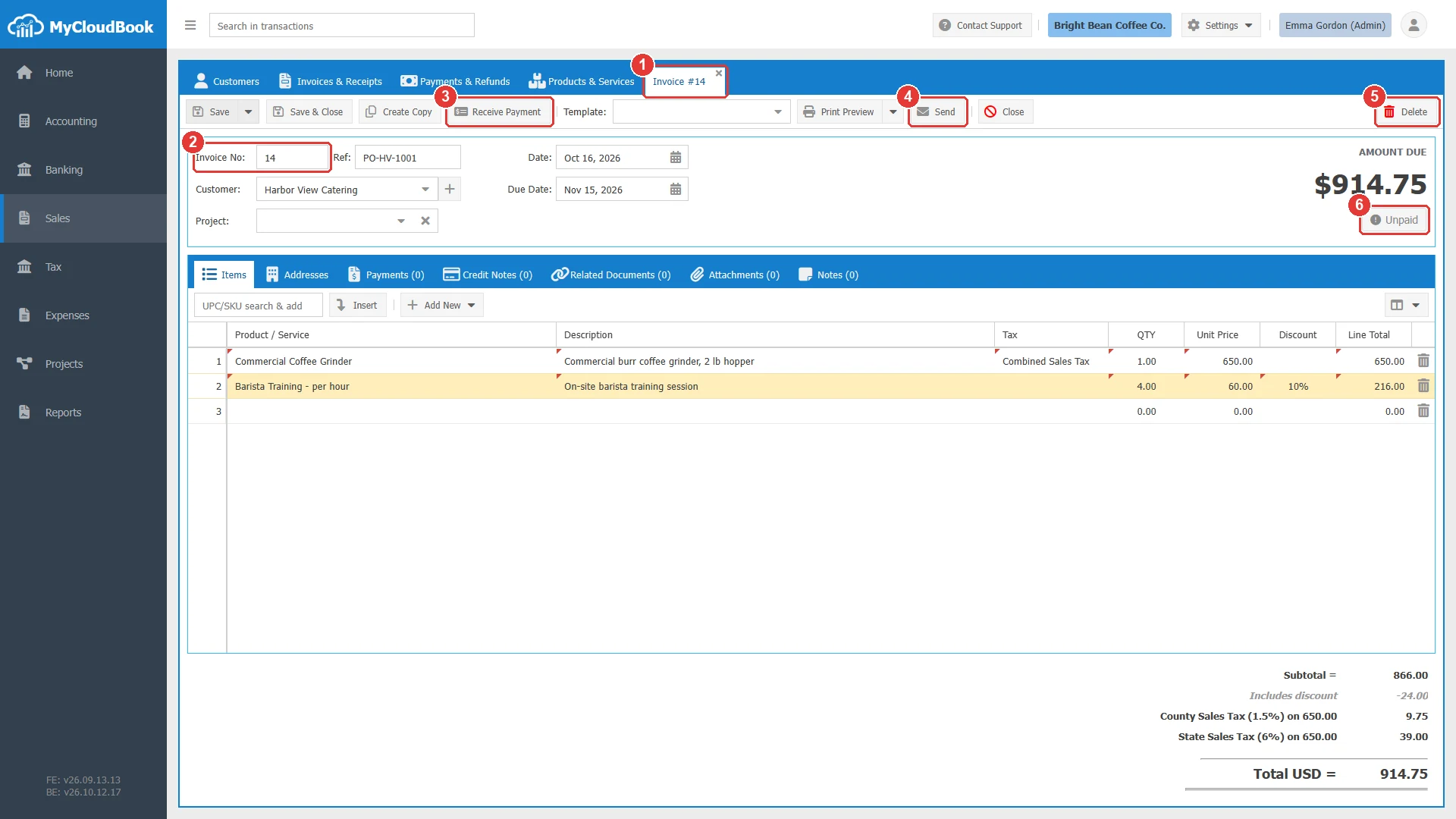
- 1The tab shows the number of the invoice.
- 2The number, assigned by MyCloudBook.
- 3Receive Payment is now enabled.
- 4Send is now enabled.
- 5Delete is now enabled.
- 6The status of the invoice.
The checks
The client checks the required fields first: an empty Customer or Due Date is marked in red with the message Some fields are not valid!. The server then checks the lines, the numbers, the accounts, the project, and the payments. The section Messages and their meaning lists the messages.
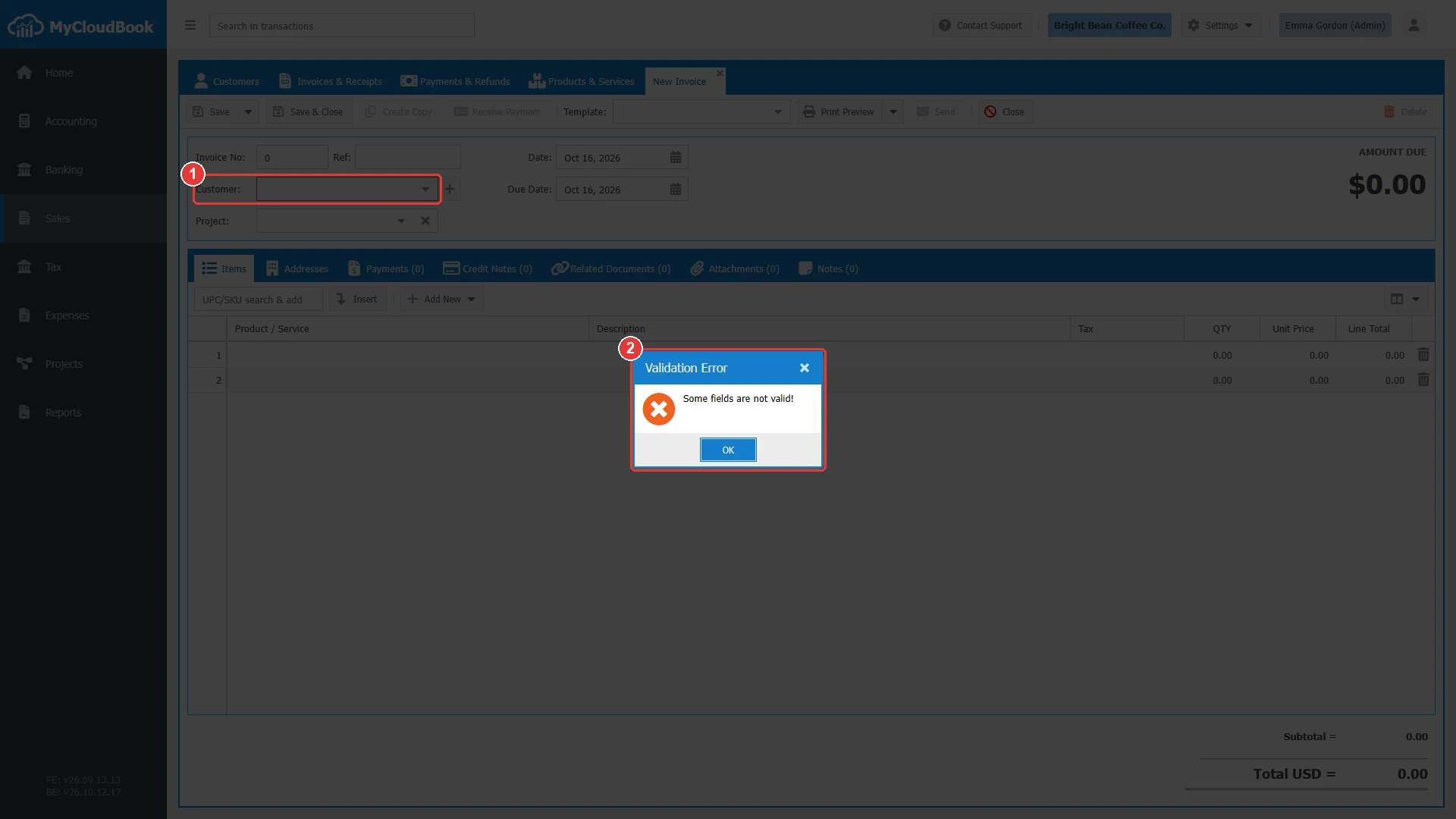
- 1Customer is required.
- 2The message.
Printing and sending
Print Preview saves the invoice and opens its PDF in a new tab of the Sales page, named Print Invoice #14. The arrow of the button offers Download PDF Format. Send saves the invoice and opens the email window. The window proposes the email of the customer, a subject, and a message from the email template of invoices, and it shows the PDF on the right. The message holds a link to a page where the customer can view the invoice.
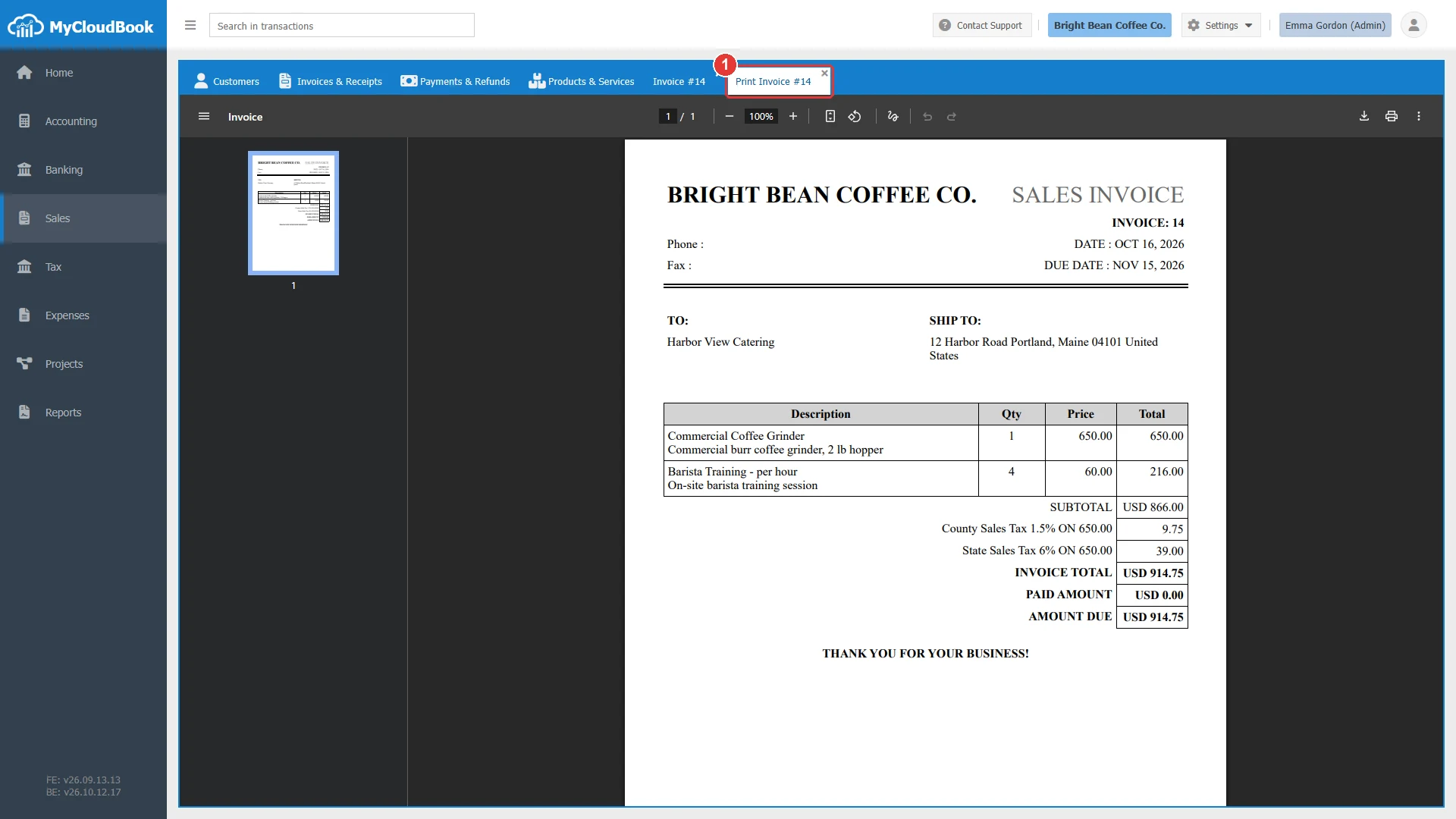
- 1The print preview opens in a tab of the Sales page.
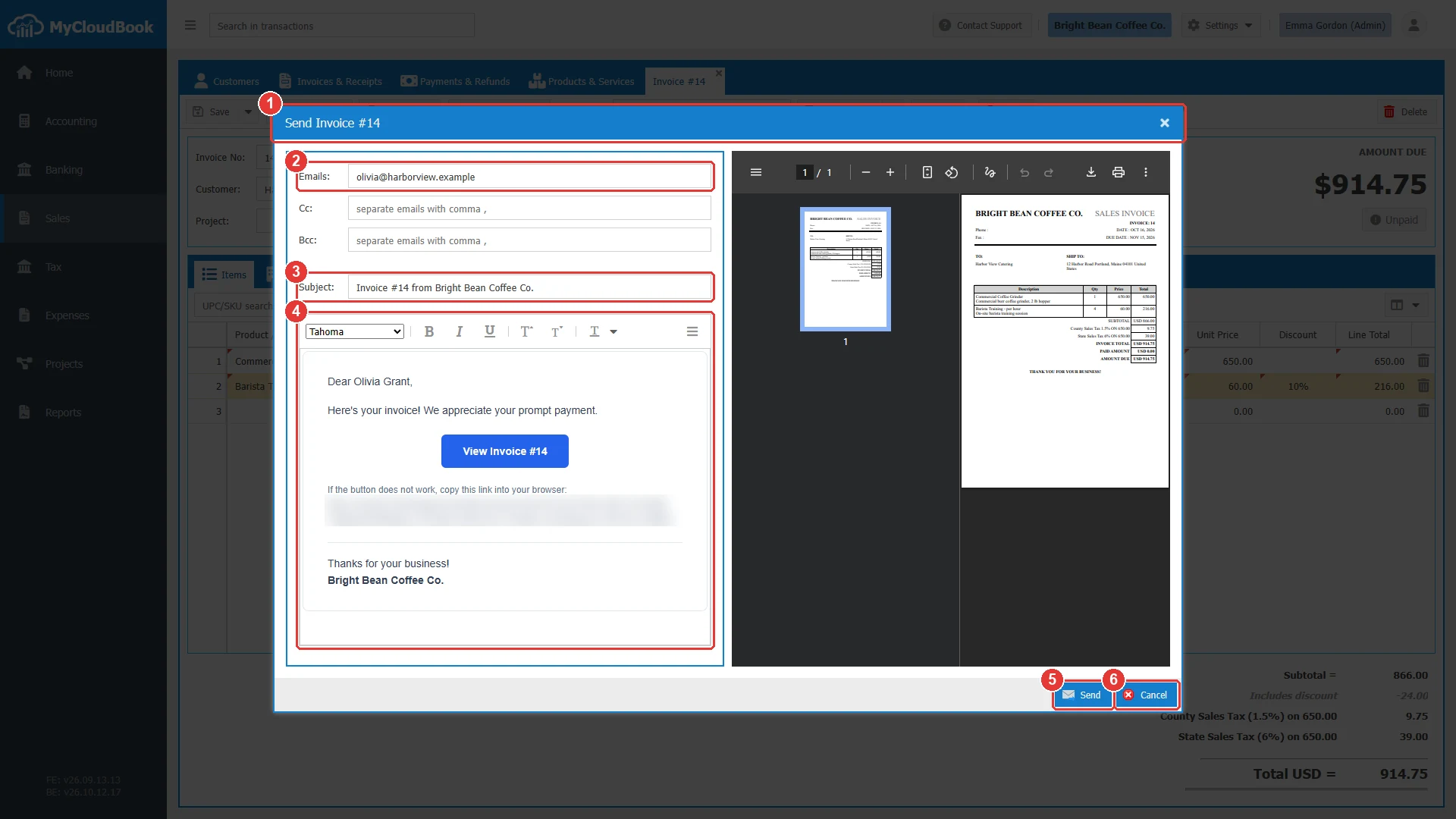
- 1The window title.
- 2Emails. Required. Separate several emails with commas. Cc and Bcc are optional.
- 3Subject.
- 4The message, from the email template of invoices.
- 5Send. Sends the email with the PDF.
- 6Cancel.
Receiving a payment
Receive Payment records money that the customer pays for the invoice. It opens a new receipt voucher with the customer of the invoice and the unpaid invoices of that customer.
- On the invoice, click Receive Payment.
- In the line of the invoice, type the amount paid in the Payment column.
- Type the same amount in Amount, select the account that receives the money in Deposit To, and select the Payment Method.
- Click Save.
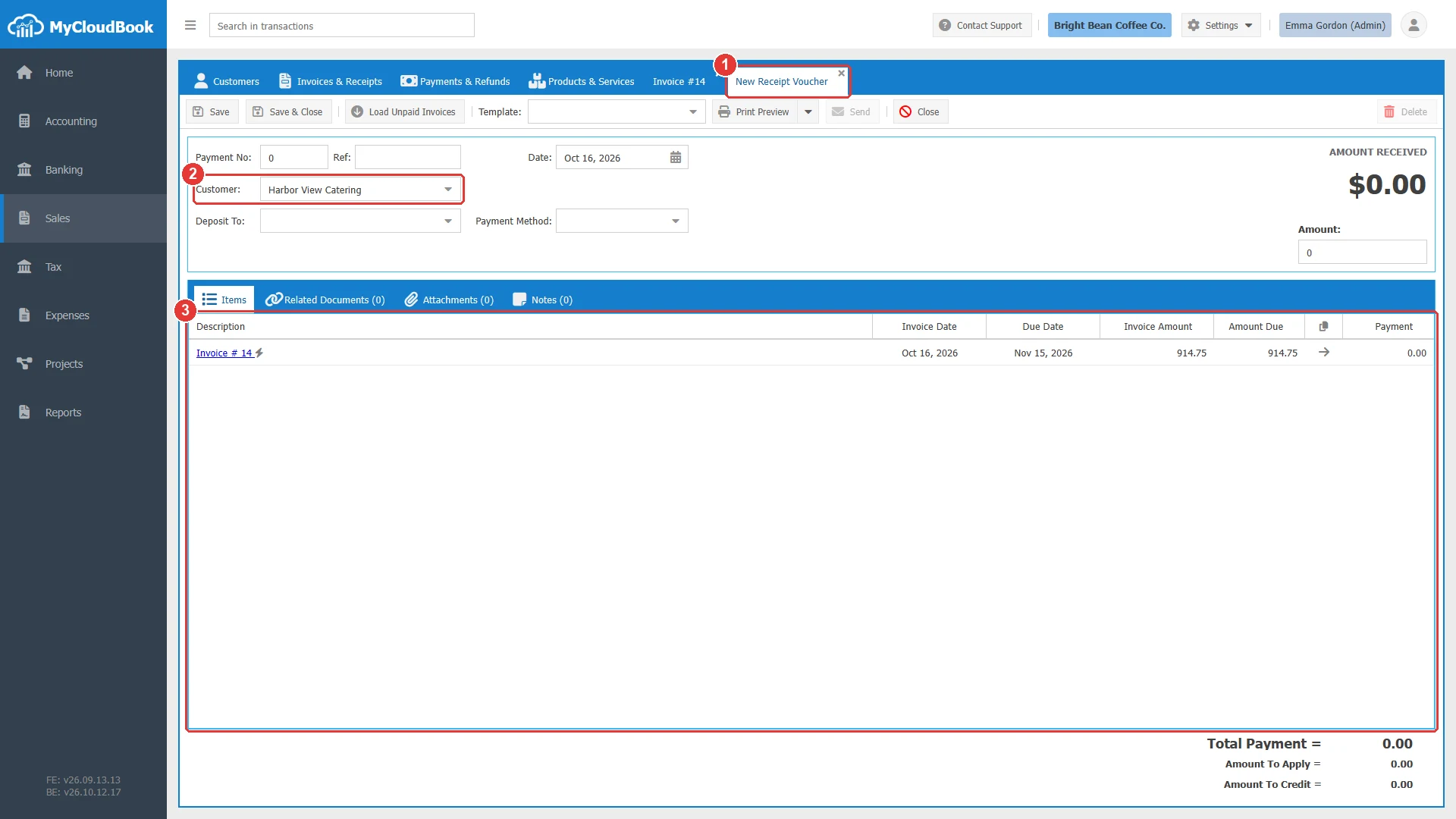
- 1A new receipt voucher opens.
- 2The customer of the invoice.
- 3The unpaid invoices of the customer.
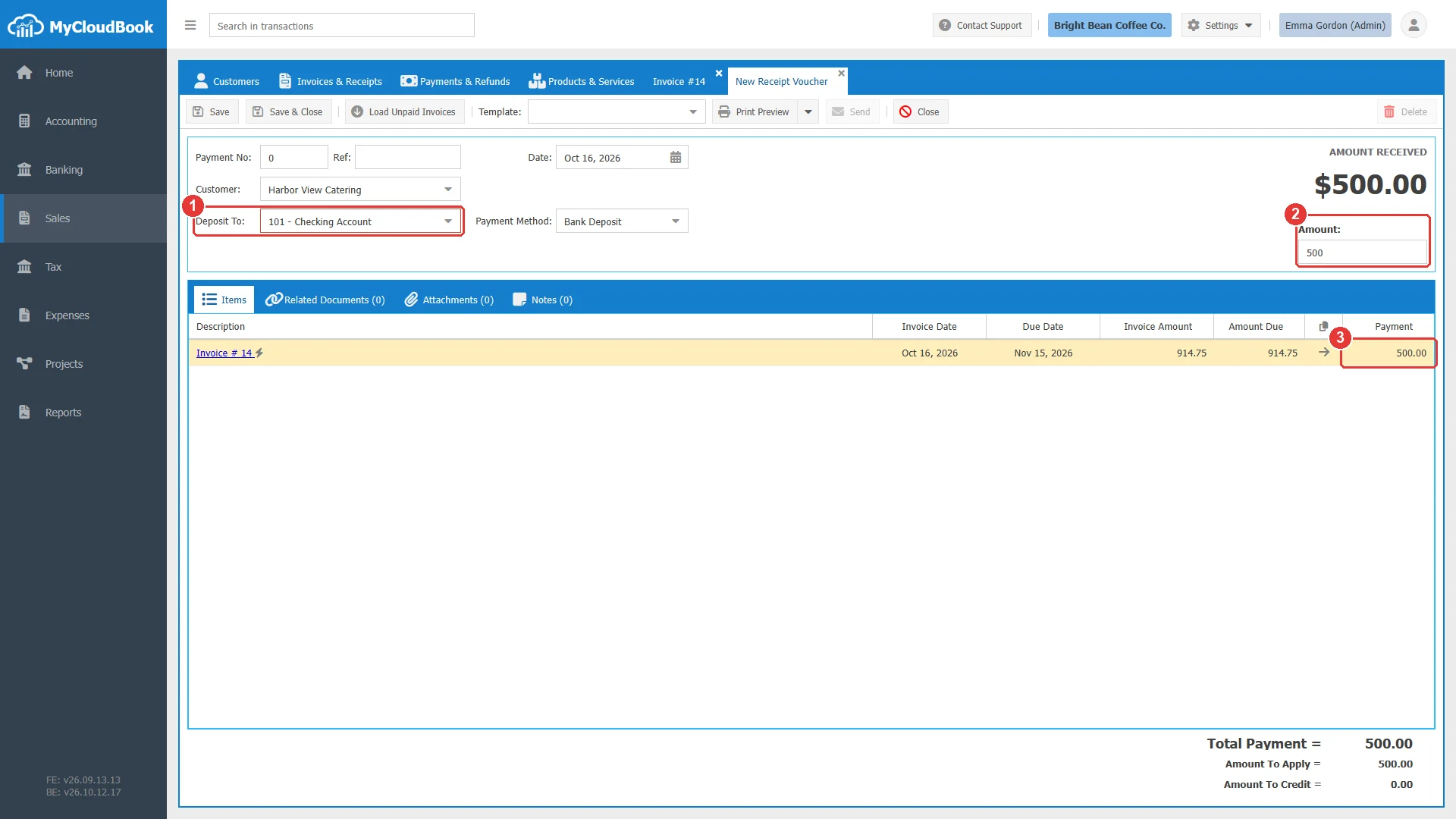
- 1Deposit To. The account that receives the money.
- 2Amount. The money received.
- 3The part of the money that pays this invoice.
After the save, the invoice shows the amount that is still due, the status Partially Paid, the rows Amount Received and Amount Due, and the payment in its Payments tab. When the payments cover the total, the large figure shows PAID and Receive Payment is disabled. The Receipt Vouchers guide describes the voucher in full.
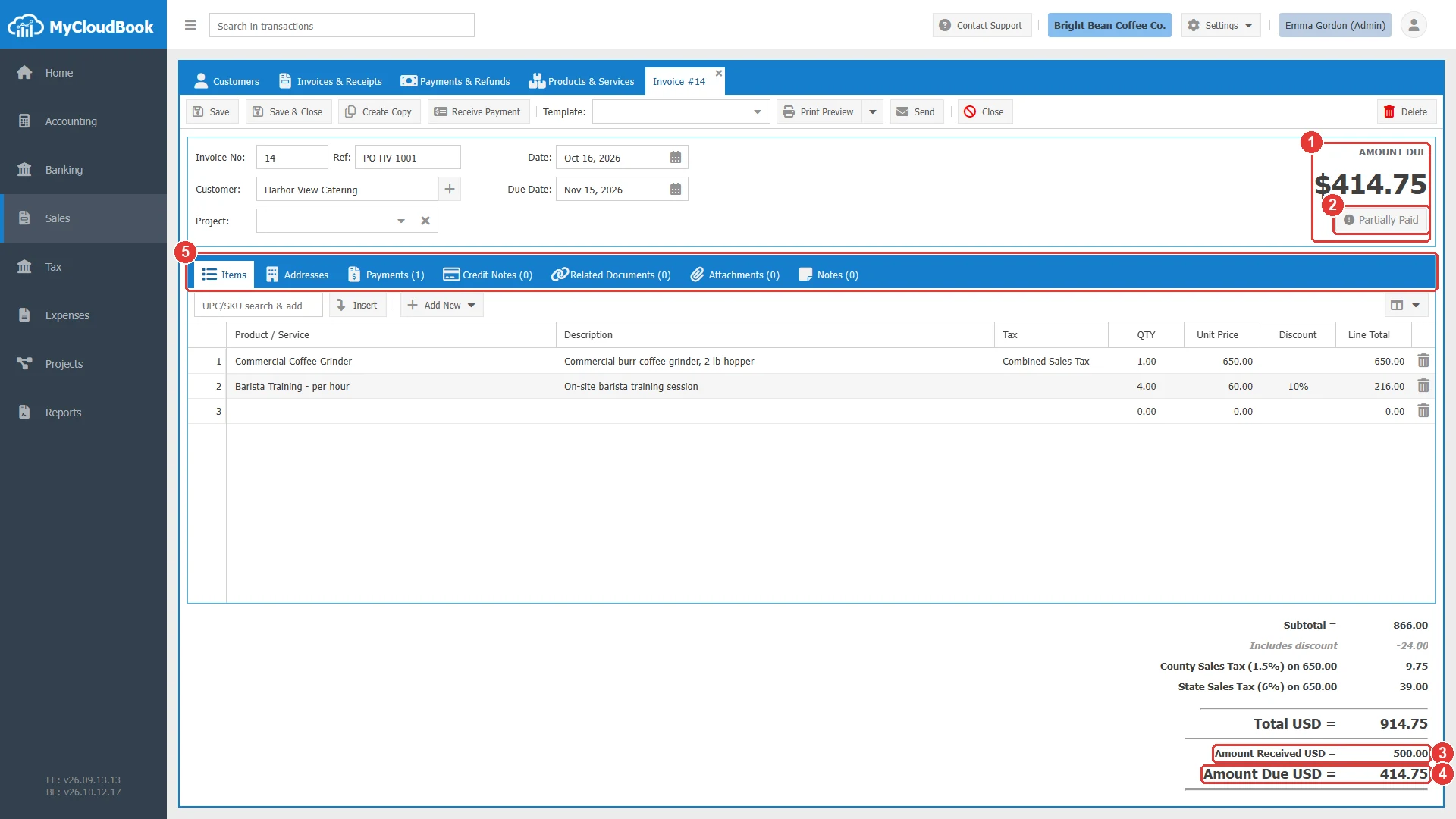
- 1The amount that is still due.
- 2The status Partially Paid.
- 3Amount Received.
- 4Amount Due.
- 5Payments (1).
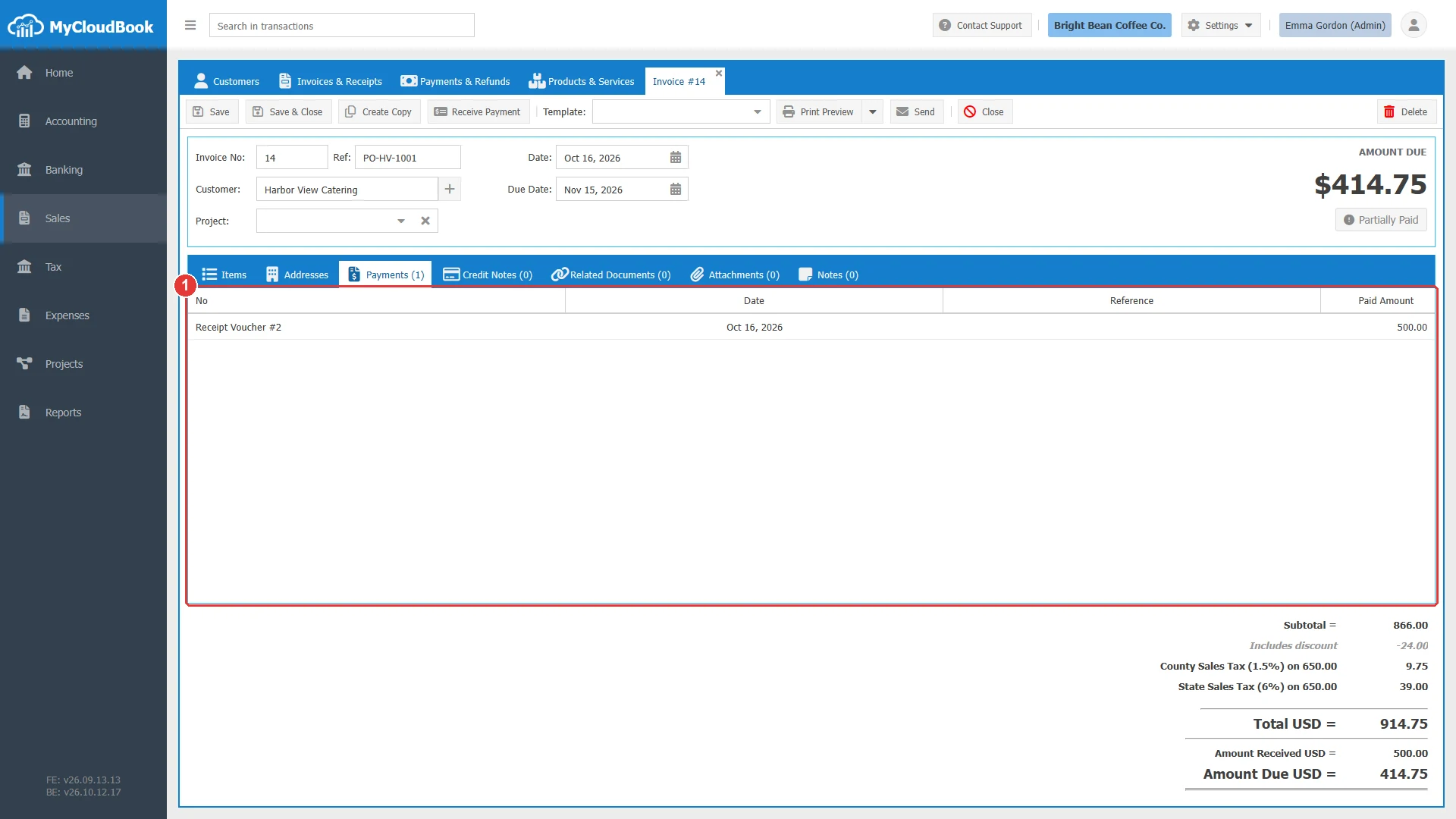
- 1The receipt vouchers and the credit notes that paid the invoice. A double click opens the document.
Receipts
A receipt records a sale paid at once. The screen is the invoice screen with these differences:
- Customer is optional, so a sale to an unknown customer can be recorded.
- Deposit To is required. It is the cash or bank account that receives the money. System accounts such as Accounts Receivable are not offered.
- Payment Method is offered, for example Cash, Check, or Credit Card.
- There is no due date, no Receive Payment button, and no Payments tab. The large figure is labelled AMOUNT.
- The status is always Paid.
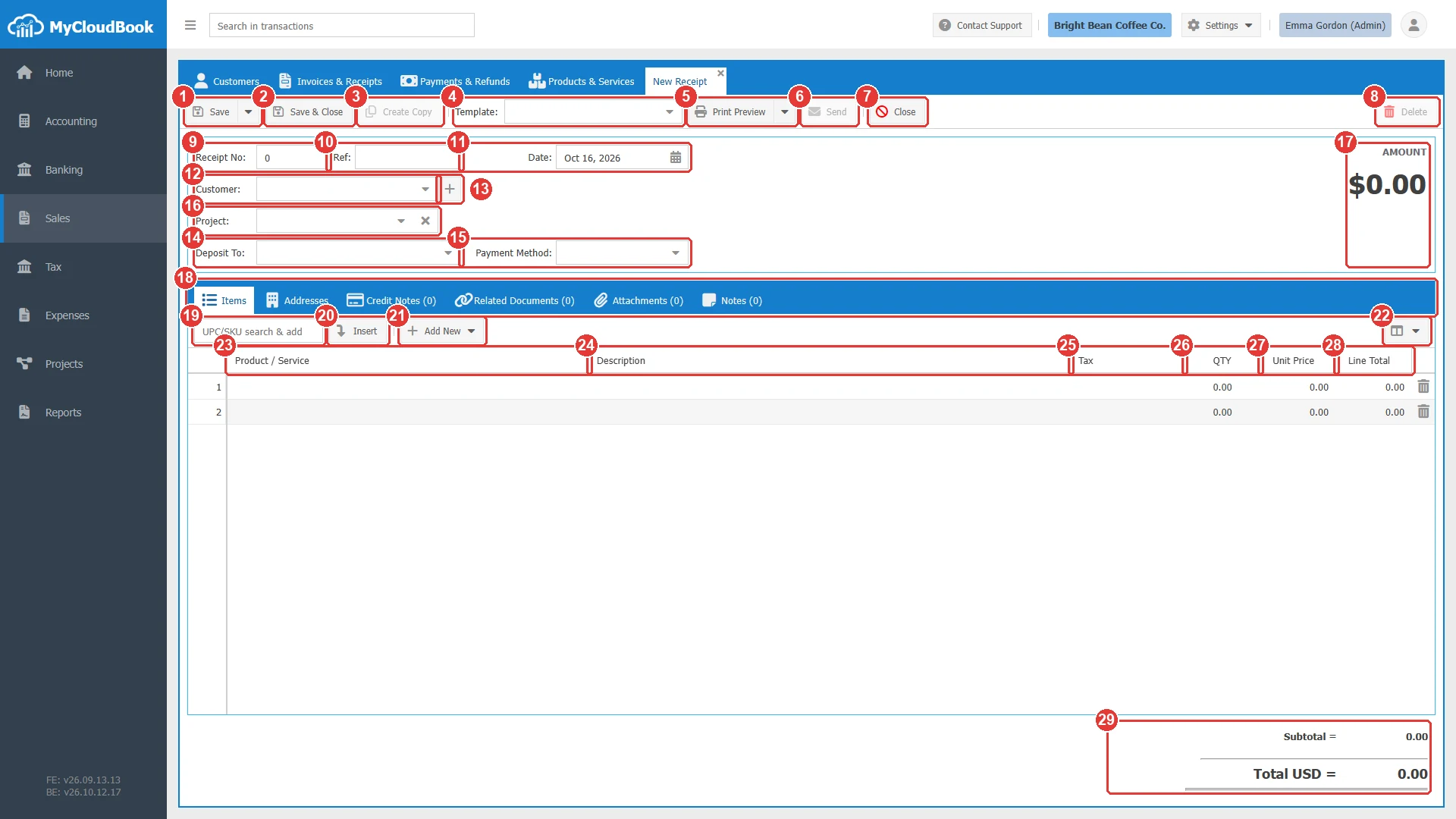
- 1Save, with Save as Draft in its menu.
- 2Save & Close.
- 3Create Copy.
- 4Template.
- 5Print Preview, with Download PDF Format in its menu.
- 6Send.
- 7Close.
- 8Delete.
- 9Receipt No. 0 means the next number of the shared sequence.
- 10Ref.
- 11Date.
- 12Customer. Optional.
- 13The plus button adds a new customer.
- 14Deposit To. Required.
- 15Payment Method. Optional.
- 16Project.
- 17The amount, in large figures.
- 18The tabs of the receipt.
- 19UPC/SKU search & add.
- 20Insert.
- 21Add New.
- 22Column Settings.
- 23Product / Service.
- 24Description.
- 25Tax.
- 26QTY.
- 27Unit Price.
- 28Line Total.
- 29The totals.
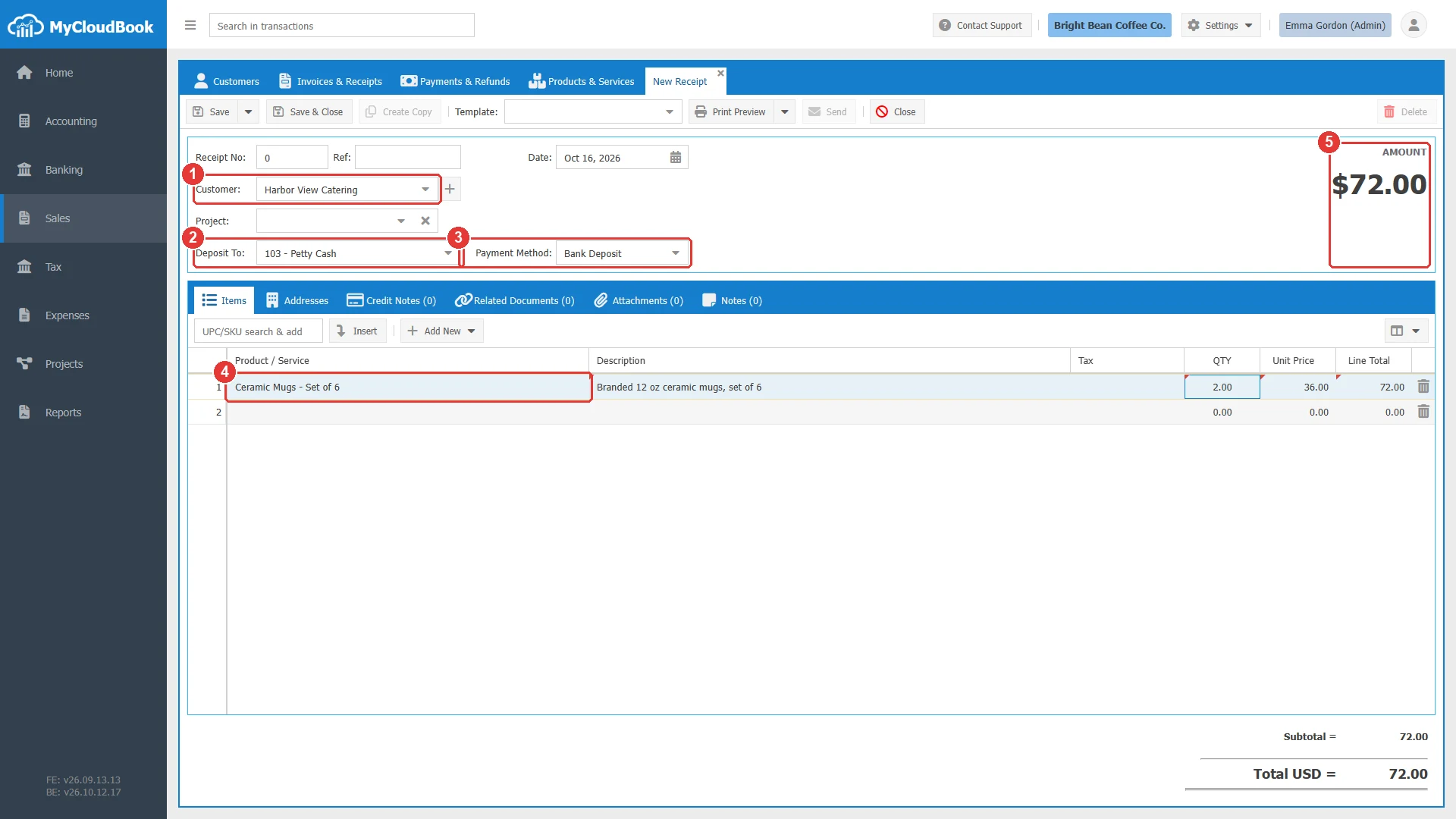
- 1The customer, optional for a receipt.
- 2Deposit To: the account that receives the money.
- 3Payment Method.
- 4The line.
- 5The amount.
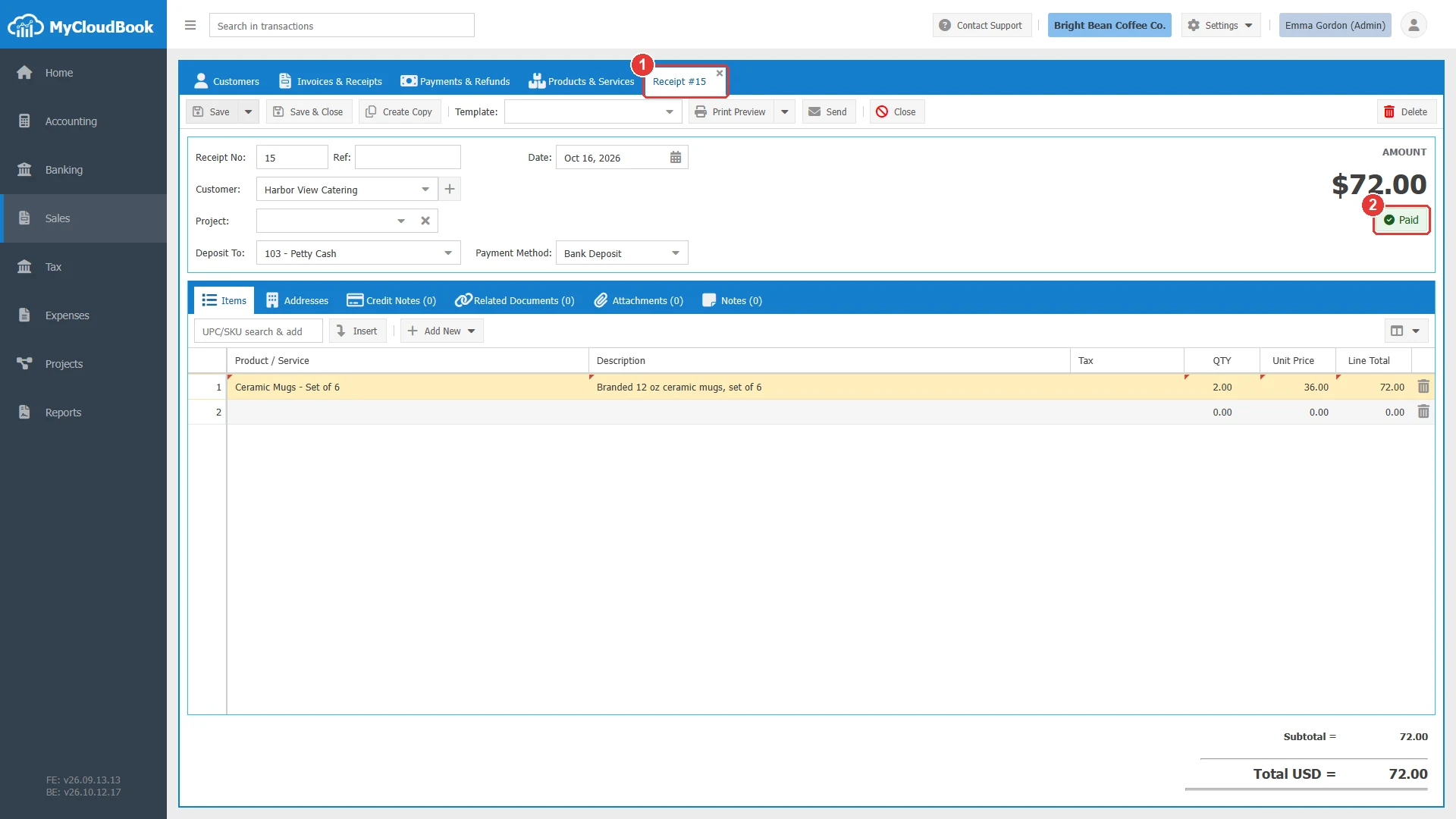
- 1The tab shows the number of the receipt. Invoices and receipts share one sequence.
- 2A receipt is always Paid.
Drafts
A new invoice or receipt can be saved as a draft, for example while the order is not confirmed. A draft creates no journal entry and no inventory movement, and it does not take a number of the sequence.
- Click the arrow of Save and then Save as Draft. The tab is named Draft Invoice or Draft Receipt.
- When the sale is confirmed, open the draft and click Convert to Invoice or Convert to Receipt. The draft becomes a final document with the next number of the sequence, and Template, Print Preview, and Send appear.
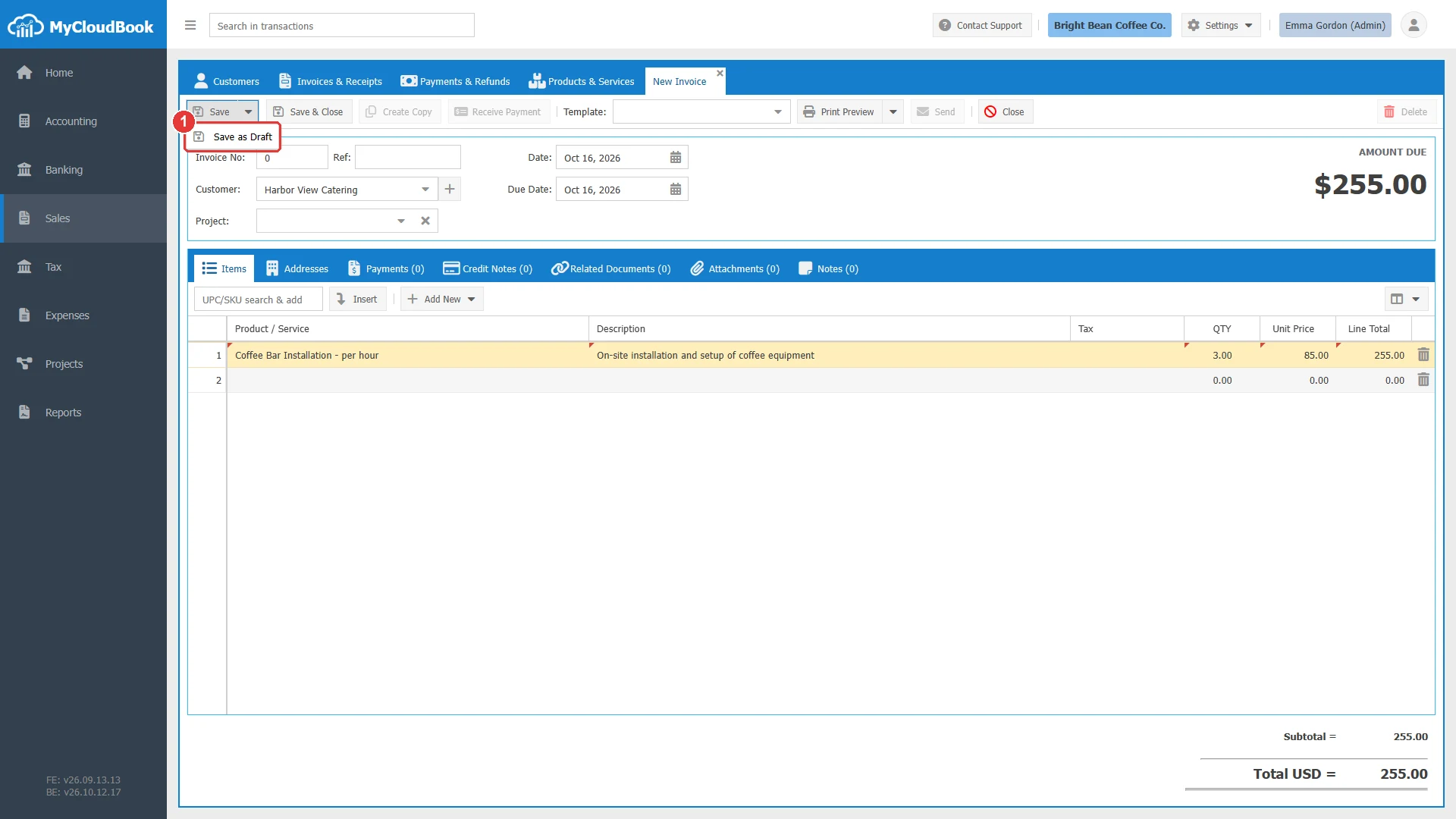
- 1Save as Draft.
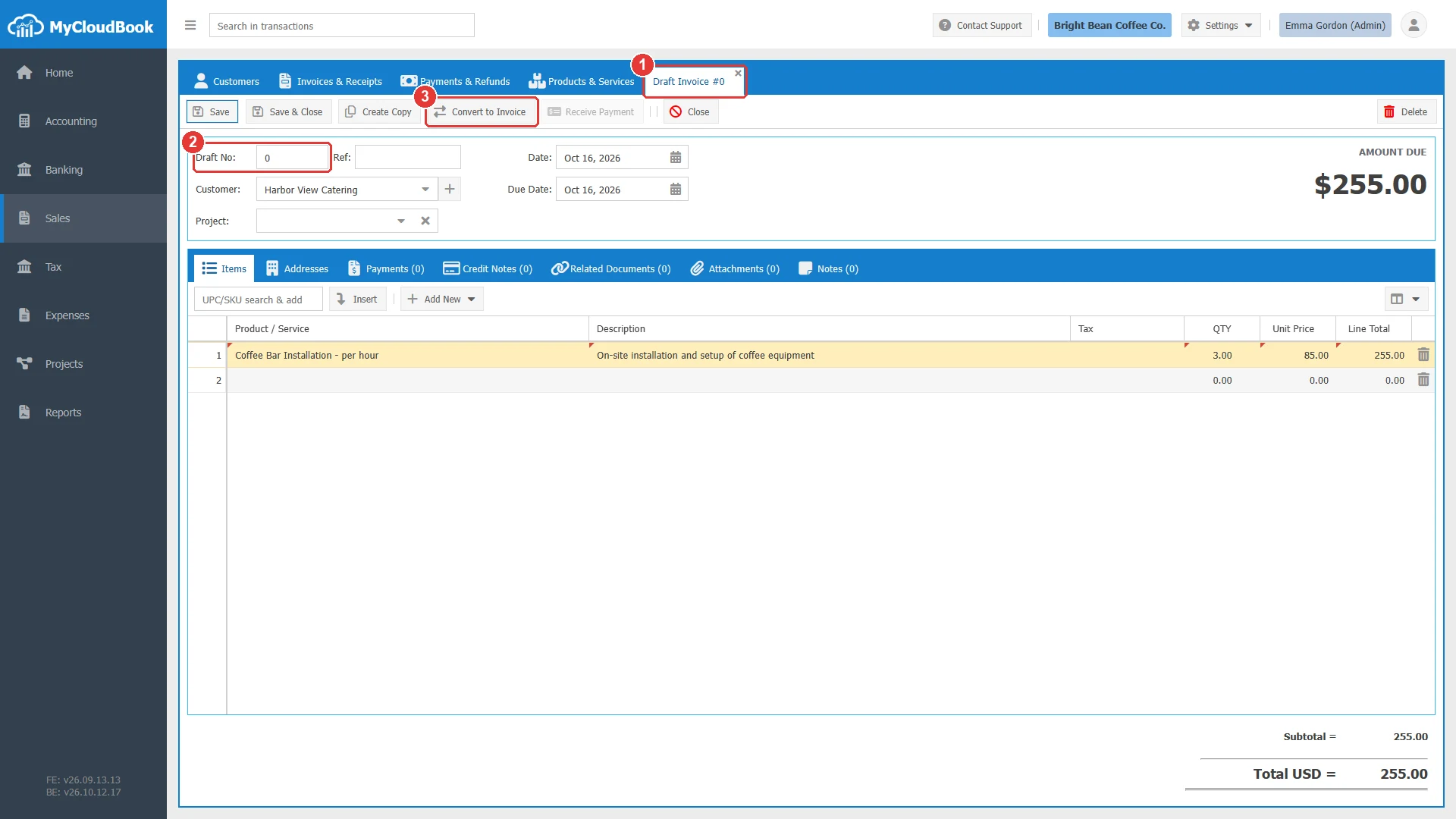
- 1The tab shows Draft Invoice.
- 2Draft No. A draft keeps the number 0 unless a number is typed.
- 3Convert to Invoice.
Changing and deleting
An invoice or a receipt opens from the list with a double click or Edit. It can be changed and saved again, with these limits:
- When a payment is recorded for an invoice, its customer, currency, and rate cannot change, and its total cannot become lower than the payments.
- When a credit note refunds an invoice, the invoice cannot be saved or deleted. Delete the credit note first.
- When a post of the document is reconciled with a bank transaction, the account and the amount of that post cannot change.
- A document in a completed project cannot be saved or deleted.
Delete asks for a confirmation that names the type and the number. A deleted invoice removes its journal entry and its inventory movements. The payments of a deleted invoice are removed from their receipt vouchers, and the money stays on the vouchers as an unapplied amount. An invoice with an applied credit note cannot be deleted.
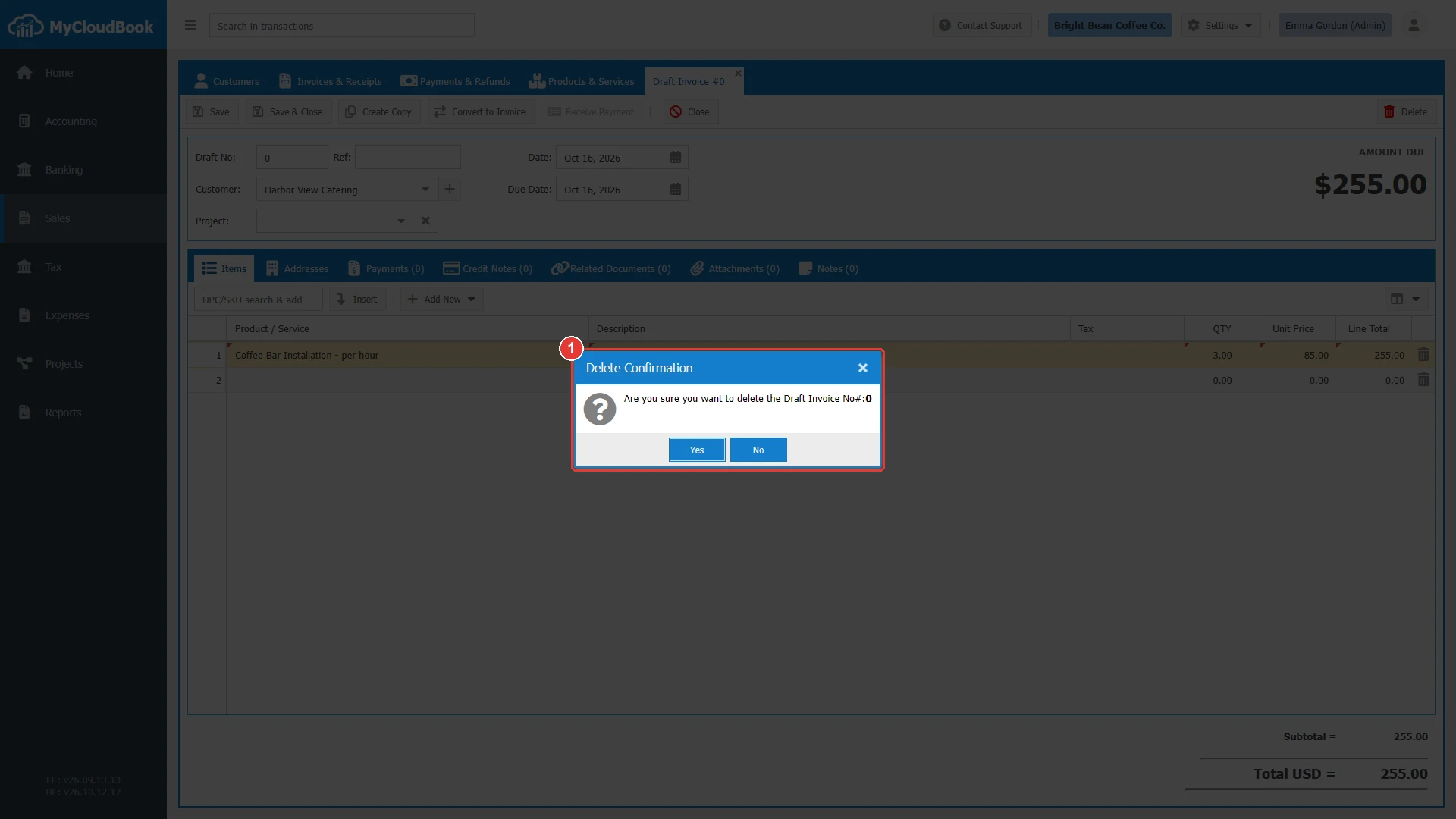
- 1The confirmation names the type and the number.
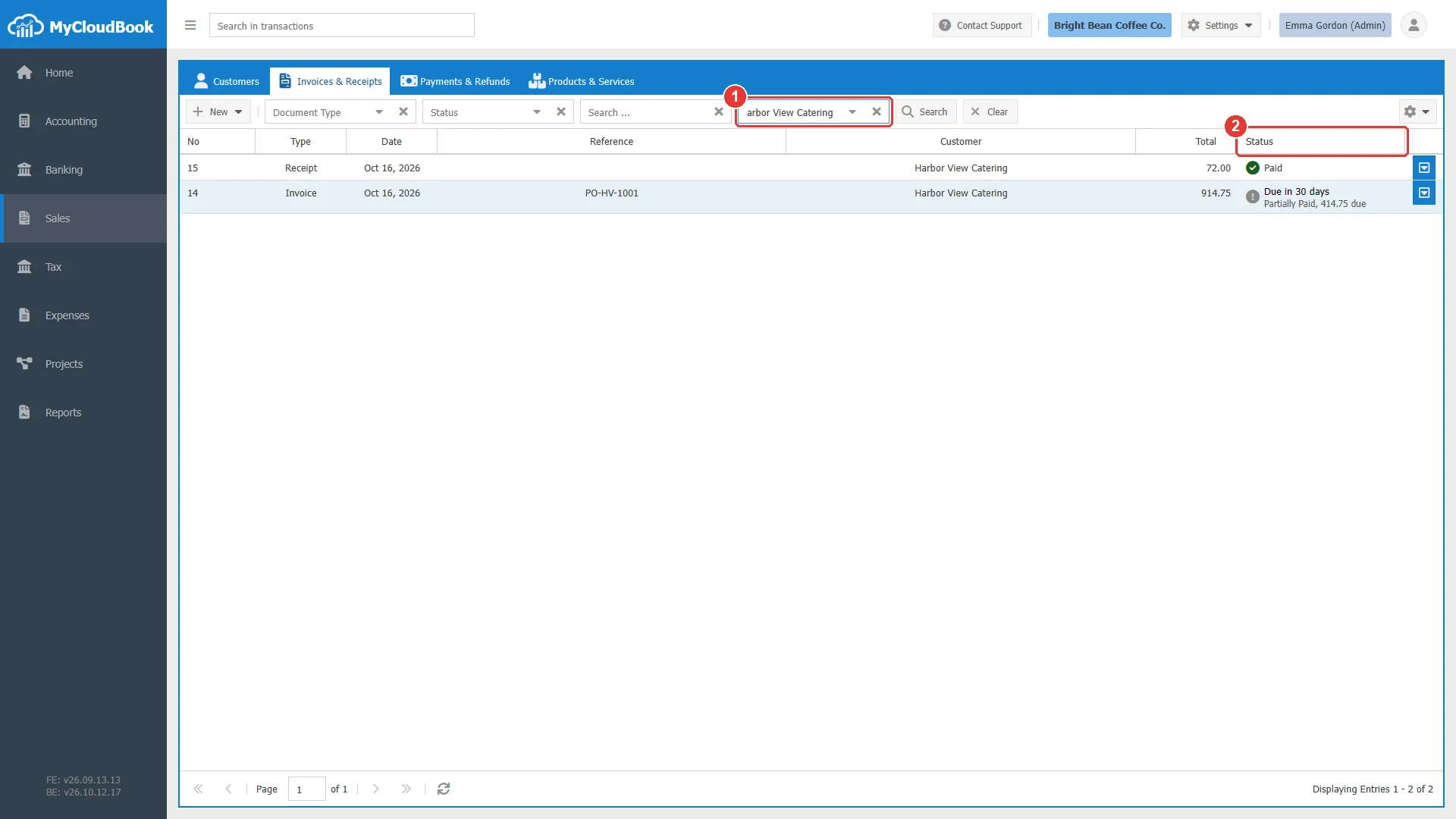
- 1The Customer filter.
- 2The status, the due days, and the amount due.
Messages and their meaning
Questions and answers
What is the difference between an invoice and a receipt in MyCloudBook?
An invoice is a sale that the customer pays later: it raises the Accounts Receivable balance of the customer and stays open until it is paid. A receipt is a sale paid at once: the money goes into the Deposit To account and the receipt is always paid.
How do I record a payment for an invoice?
Open the invoice and click Receive Payment. A receipt voucher opens with the customer and the unpaid invoices. Type the payment in the line of the invoice, the Amount, and the Deposit To account, and click Save.
Why do invoices and receipts share the same numbers?
MyCloudBook uses one number sequence for invoices and receipts, so every sales document that is paid or payable has a unique number. Invoice 14 can be followed by receipt 15.
How do I give a discount on an invoice line?
Open Column Settings above the lines, check Show Discount, and type a percentage such as 10% or a fixed amount such as 15 in the Discount cell of the line.
Can I change an invoice after it is paid?
Yes, within limits: the customer, the currency, and the rate cannot change, and the total cannot become lower than the payments. An invoice refunded by a credit note cannot be changed until the credit note is deleted.
What does a draft invoice do?
A draft keeps the invoice without accounting effect: no journal entry, no inventory movement, and no number. Convert to Invoice makes it a final invoice with the next number.