Subscriptions
This guide explains subscriptions in MyCloudBook: the plans, the subscriptions of the customers with their trial, the statuses, the lifecycle periods, and the renewal of a subscription on an invoice or a receipt.
Overview
Subscriptions record the recurring services that the company sells to its customers, for example a monthly coffee delivery or a yearly maintenance contract. The feature has three parts:
- a plan: the offer, with its billing frequency, price, trial days, income account, and tax;
- a subscription: a customer that takes a plan, with its own name and price;
- lifecycle periods: the periods that the subscription covers. A trial period, a renewal paid by an invoice or a receipt, or a period extended by hand.
A subscription has no accounting effect by itself. Money is recorded when an invoice or a receipt renews the subscription: the line of the document posts the sales to the income account of the plan, and the renewal adds a period to the subscription. The status of a subscription is computed from its periods every time the list is read.
Enable the feature first. The Subscriptions tab is shown only when Enable Subscription Services is checked in Settings, Preferences. The setting cannot be turned off while any subscription exists, including a canceled one. This setting is not the subscription of your company to MyCloudBook, which is managed under Manage My Subscriptions.
How to open the screen
- Check Enable Subscription Services in Settings, Preferences, and save.
- In the left navigation, click Sales, then the Subscriptions tab, the last tab of the Sales page.
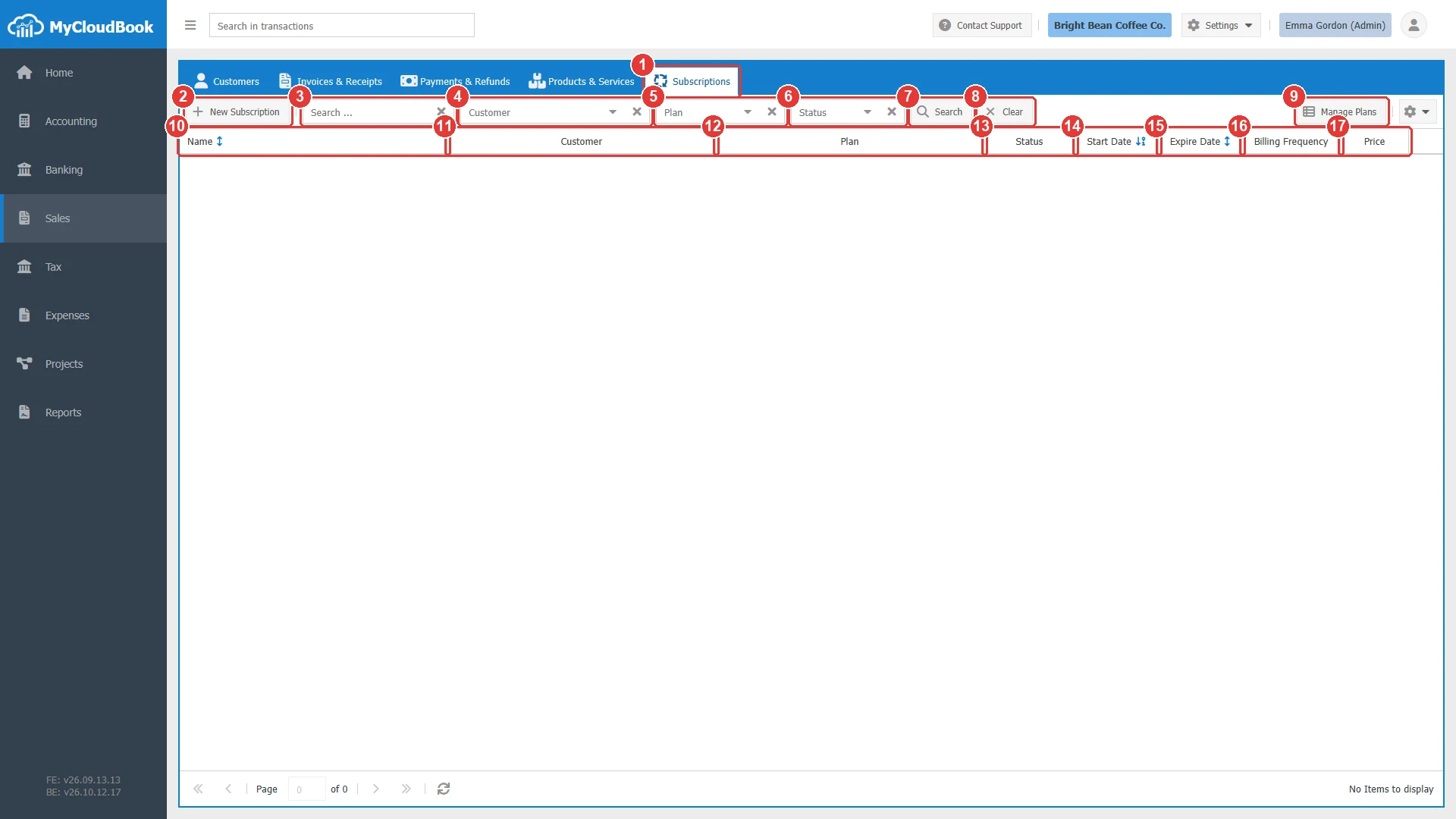
- 1Subscriptions tab.
- 2New Subscription.
- 3Search .... Finds the subscriptions by name, description, notes, or custom field values.
- 4Customer.
- 5Plan. The active plans.
- 6Status.
- 7Search.
- 8Clear. Clears the search, the customer, and the status.
- 9Manage Plans. Opens the plans window.
- 10Name. Shown in red for an expired or canceled subscription.
- 11Customer.
- 12Plan. The plan of the current period.
- 13Status.
- 14Start Date. The start of the first period.
- 15Expire Date. The end of the last period.
- 16Billing Frequency.
- 17Price.
Plans
- In the Subscriptions list, click Manage Plans, then Add Plan.
- Type the Plan Name and a description. Choose the Billing Frequency, the Trial Days, and the Price.
- Select the Income Account that the renewals credit, and the Tax if the plan is taxed.
- Click Save.
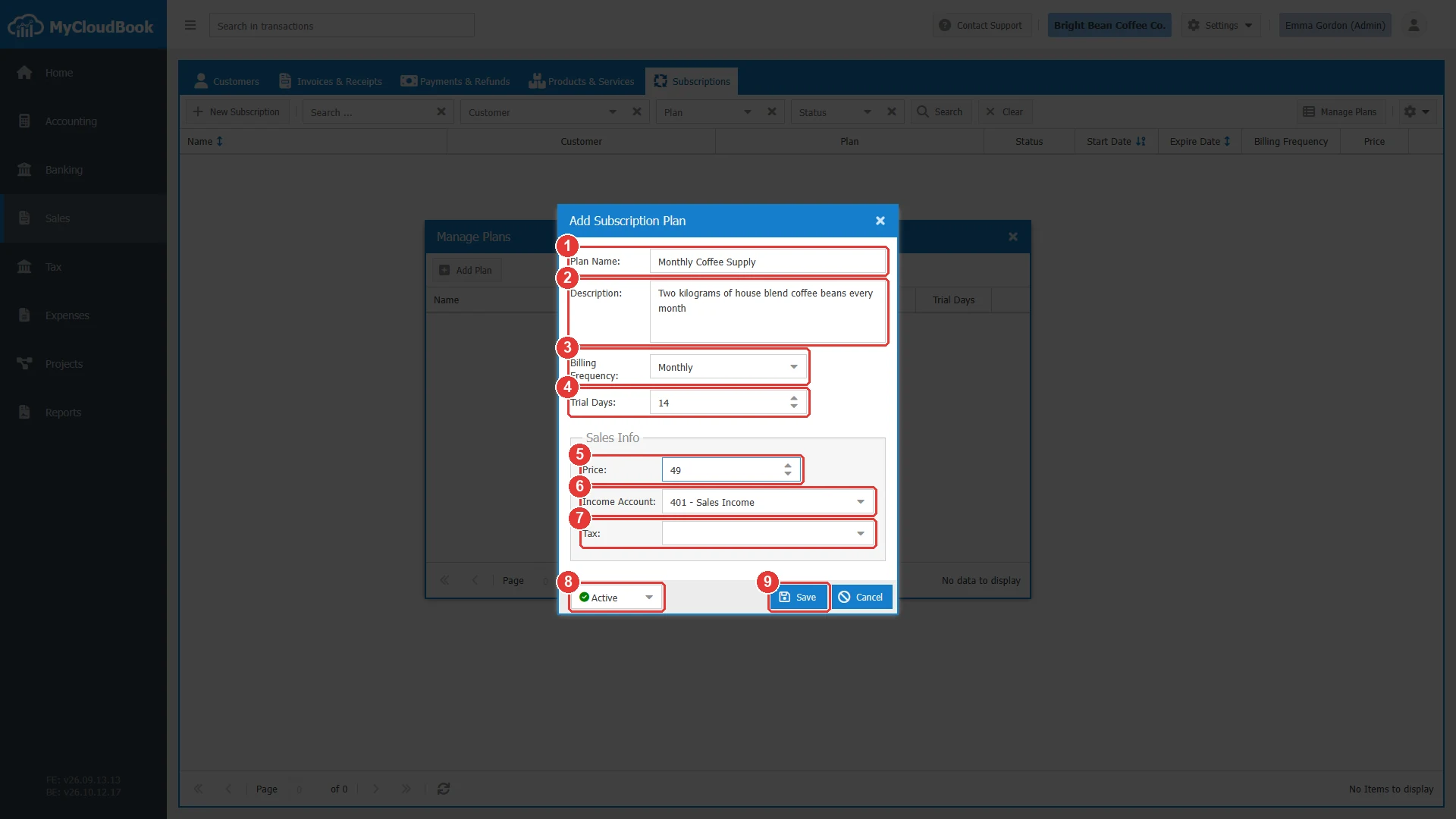
- 1Plan Name. Required and unique.
- 2Description.
- 3Billing Frequency: Monthly, Quarterly, Semi-Annually, or Annually.
- 4Trial Days. Proposed for the trial period of a new subscription. Default 30.
- 5Price.
- 6Income Account. Required. The renewals of the plan are posted to it.
- 7Tax. Proposed on the renewal lines.
- 8Active or Inactive. An inactive plan is not offered for new subscriptions.
- 9Save.
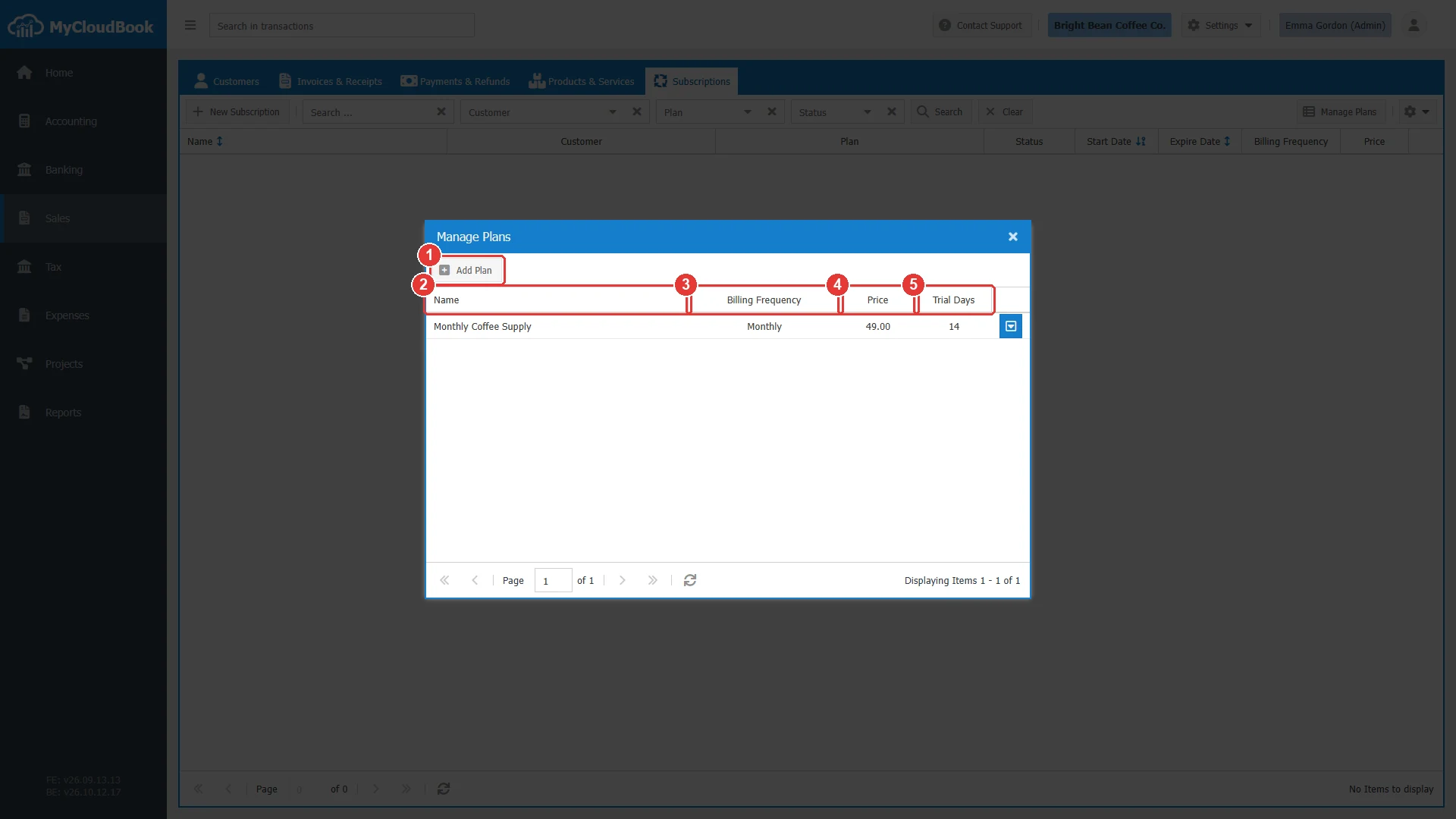
- 1Add Plan.
- 2Name. An inactive plan is marked (Inactive).
- 3Billing Frequency.
- 4Price.
- 5Trial Days.
A plan that is used by a subscription cannot be deleted. Set it to Inactive instead.
Adding a subscription
- In the Subscriptions list, click New Subscription.
- Type a Name, select the Customer, the Billing Frequency, and the Sales Price.
- For a trial, select the Plan in the Trial Period tab. The start date is today and the end date follows the trial days of the plan; both can be changed. Leave the plan empty to start without a trial.
- Click Save.
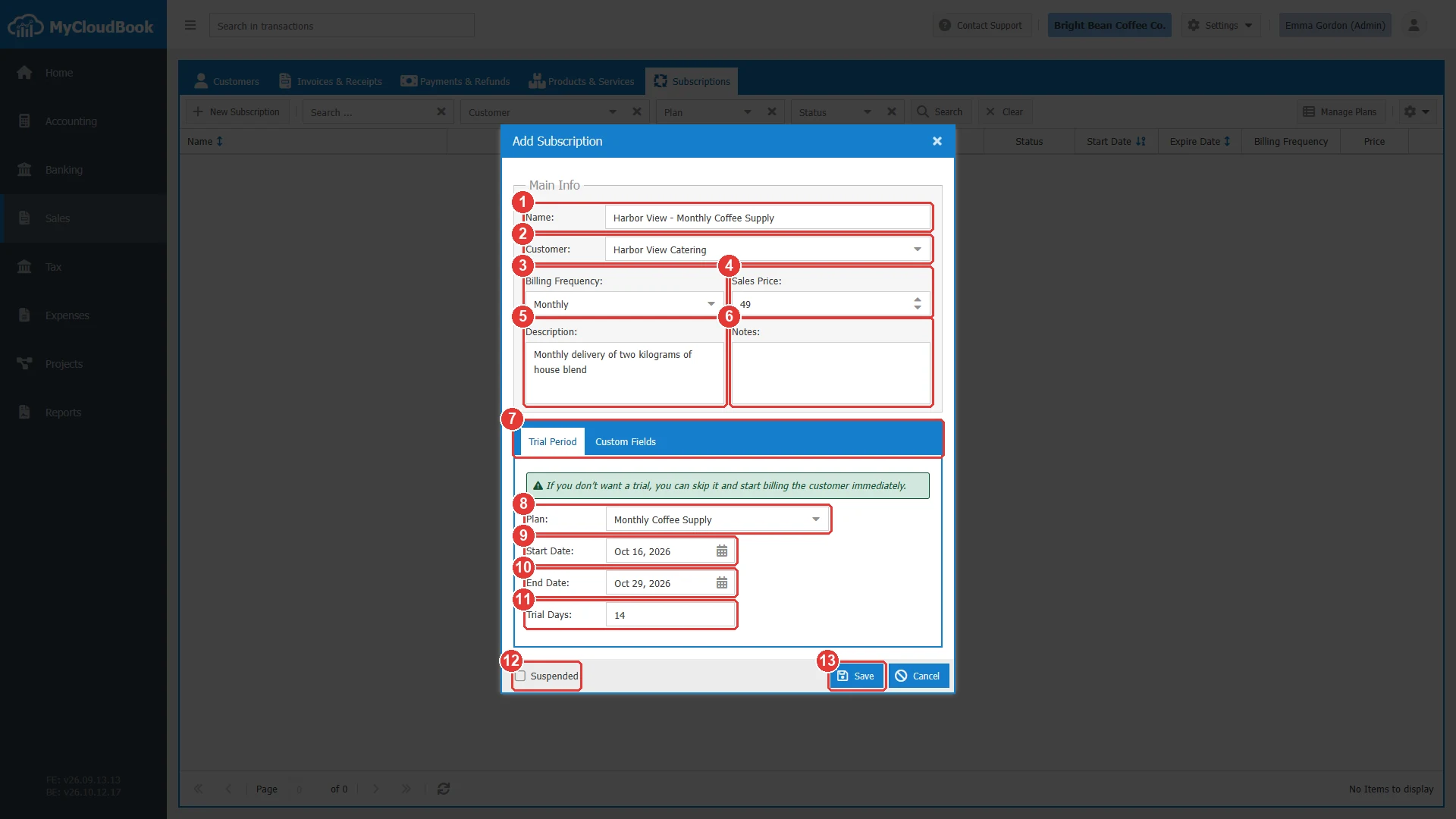
- 1Name. Required and unique.
- 2Customer. Required.
- 3Billing Frequency.
- 4Sales Price. The price proposed on the renewals.
- 5Description. Up to 1000 characters.
- 6Notes. Up to 1000 characters.
- 7The tabs Trial Period and Custom Fields.
- 8Plan of the trial period. Optional.
- 9Start Date of the trial.
- 10End Date of the trial.
- 11Trial Days. Computed from the two dates, both days included.
- 12Suspended. Gives the status Suspended.
- 13Save.
To change the trial period after the save, use Lifecycle Periods in the row menu of the subscription.
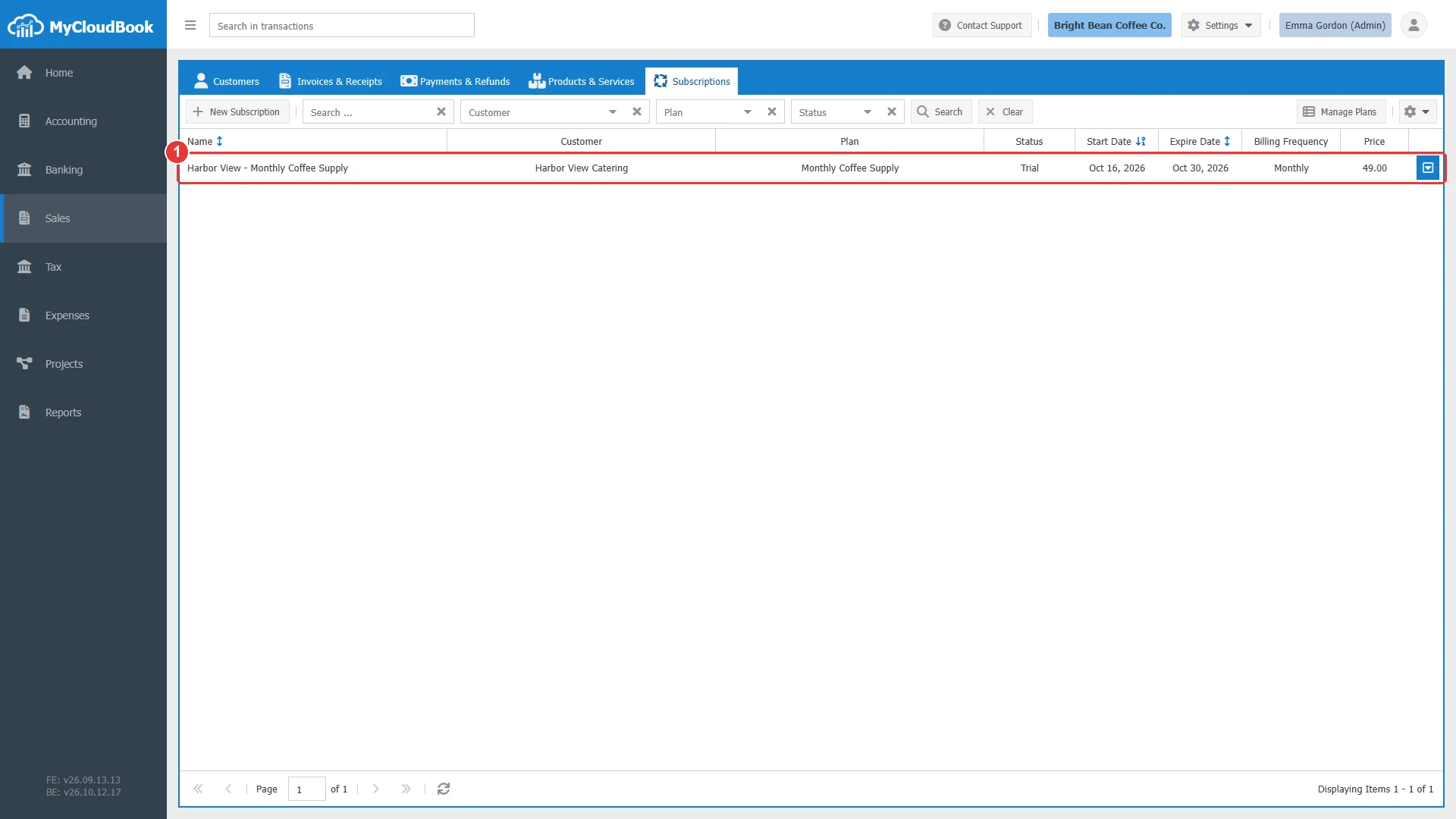
- 1The subscription: status Trial, the plan, the dates, the frequency, and the price.
The fields
| Field | Required | Purpose and rules |
|---|---|---|
| Name | Required | The name of the subscription, unique in the company. |
| Customer | Required | The customer. It cannot change once the subscription has a renewal. |
| Billing Frequency | Optional | Monthly, Quarterly, Semi-Annually, or Annually. Proposed as the period type of the renewals; empty means the frequency of the plan. |
| Sales Price | Optional | Proposed as the unit price of the renewals; empty means the price of the plan. |
| Description Notes | Optional | Up to 1000 characters each. The search finds them. |
| Plan (trial) | Optional | The plan of the trial period. With a plan, the trial start and end dates are required and the start must be before the end. |
| Suspended | Optional | Marks the subscription as suspended. |
Statuses
The status is not stored. MyCloudBook computes it from the periods and the dates each time the list is read, so a subscription becomes Expired by itself after its last period.
| Status | When it is shown |
|---|---|
| Pending | The subscription has no period yet, for example a subscription saved without a trial and not yet renewed. |
| Trial | The current period is a trial period, and it has not ended. |
| Active | The current period is a renewal or an extended period, and it has not ended. |
| Expired | The last period ended before today. |
| Suspended | The Suspended box is checked. |
| Canceled | The subscription was canceled with Cancel. It is hidden from the list unless the filter is Canceled, and it cannot be renewed. Restore cancels the cancel. |
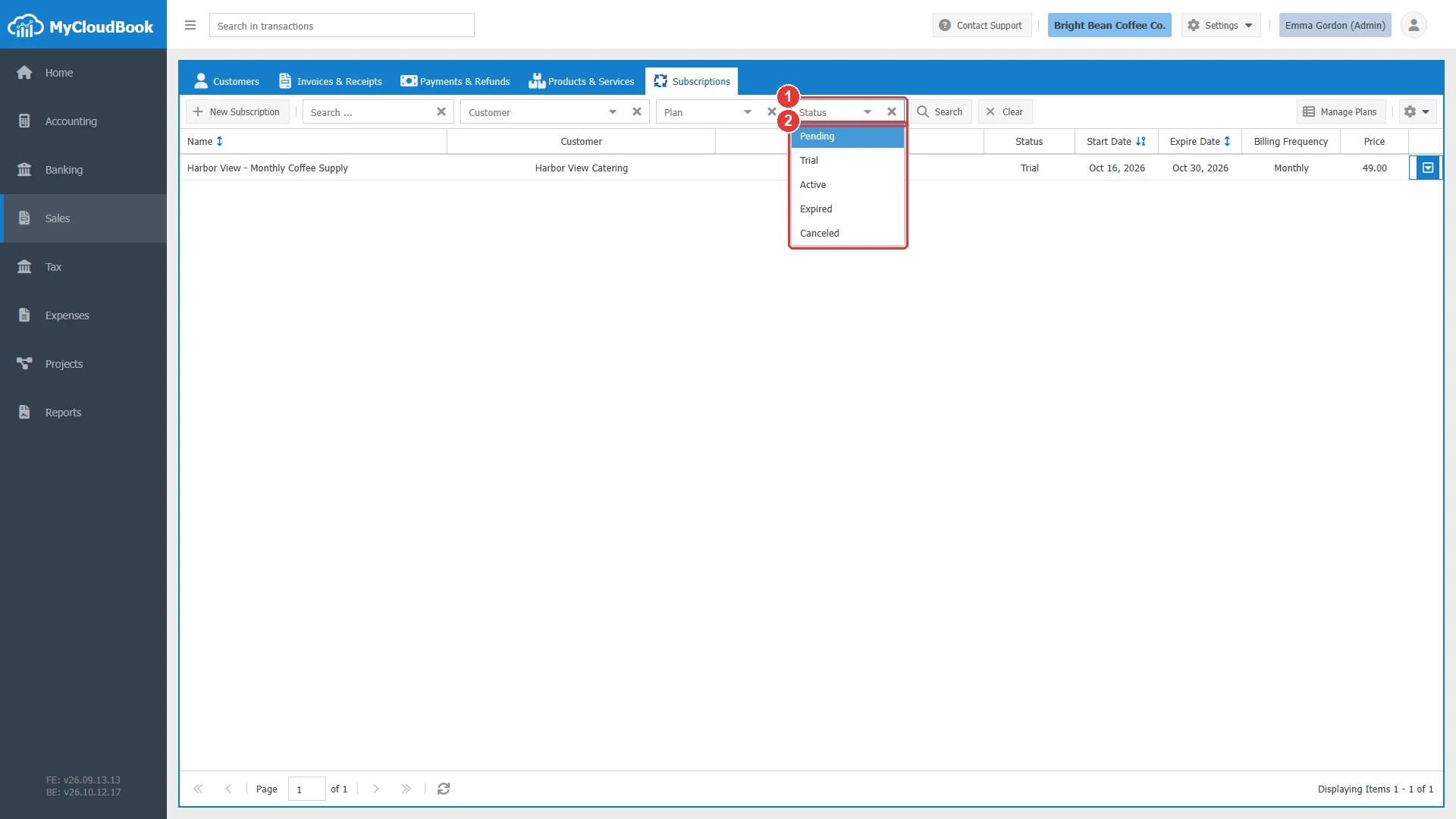
- 1Status.
- 2Pending, Trial, Active, Expired, Canceled.
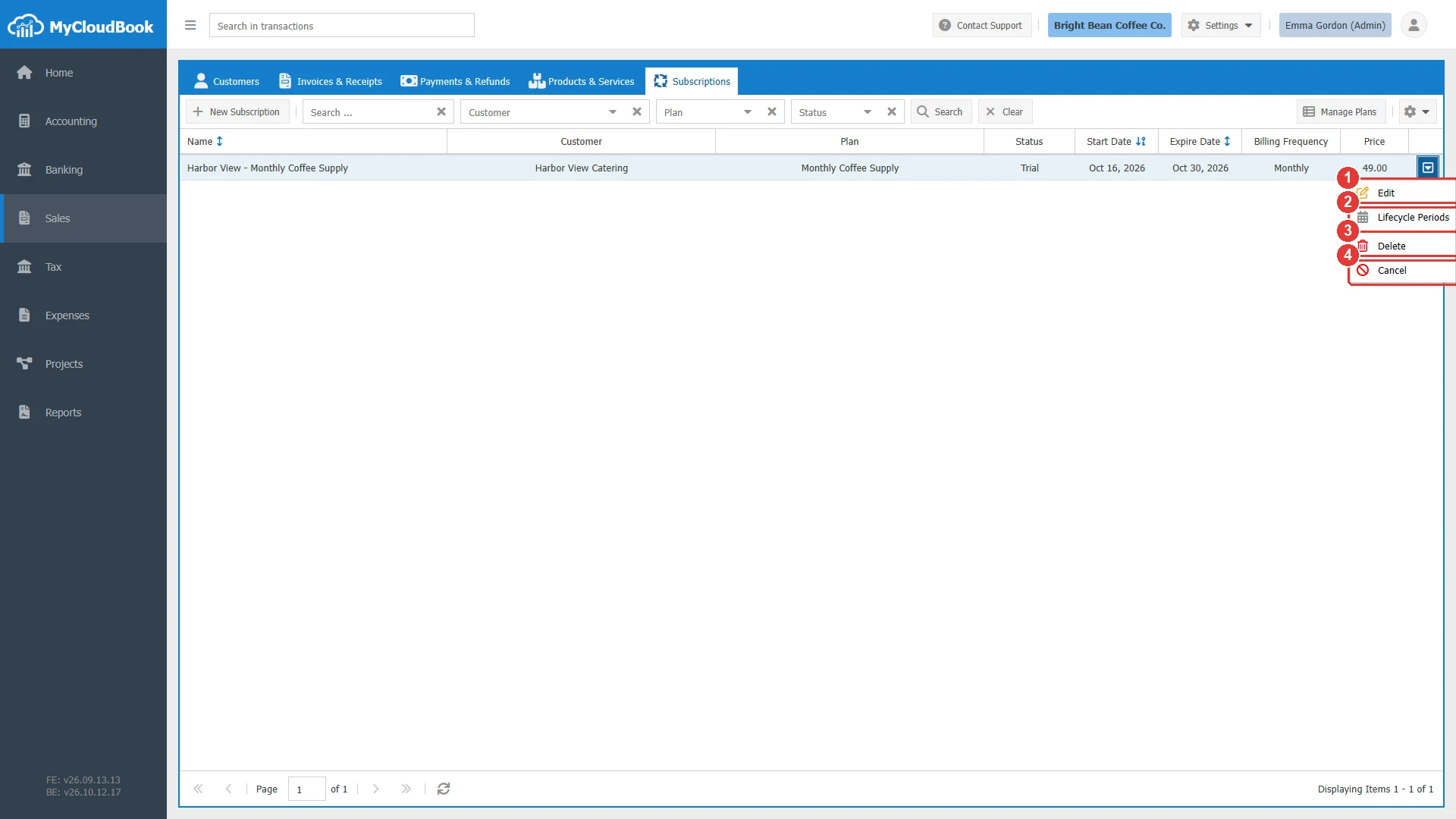
- 1Edit.
- 2Lifecycle Periods.
- 3Delete. Allowed only while the subscription has no period other than its trial.
- 4Cancel. For a canceled subscription the menu shows Restore instead.
Lifecycle periods
Lifecycle Periods in the row menu opens the periods of the subscription in a tab: the trial, the renewals with the invoice or the receipt that paid them, and the extended periods. Record Lifecycle Period adds a trial period or an extended period by hand, for example a free month. The new period starts on the day after the last period and must not overlap another period.
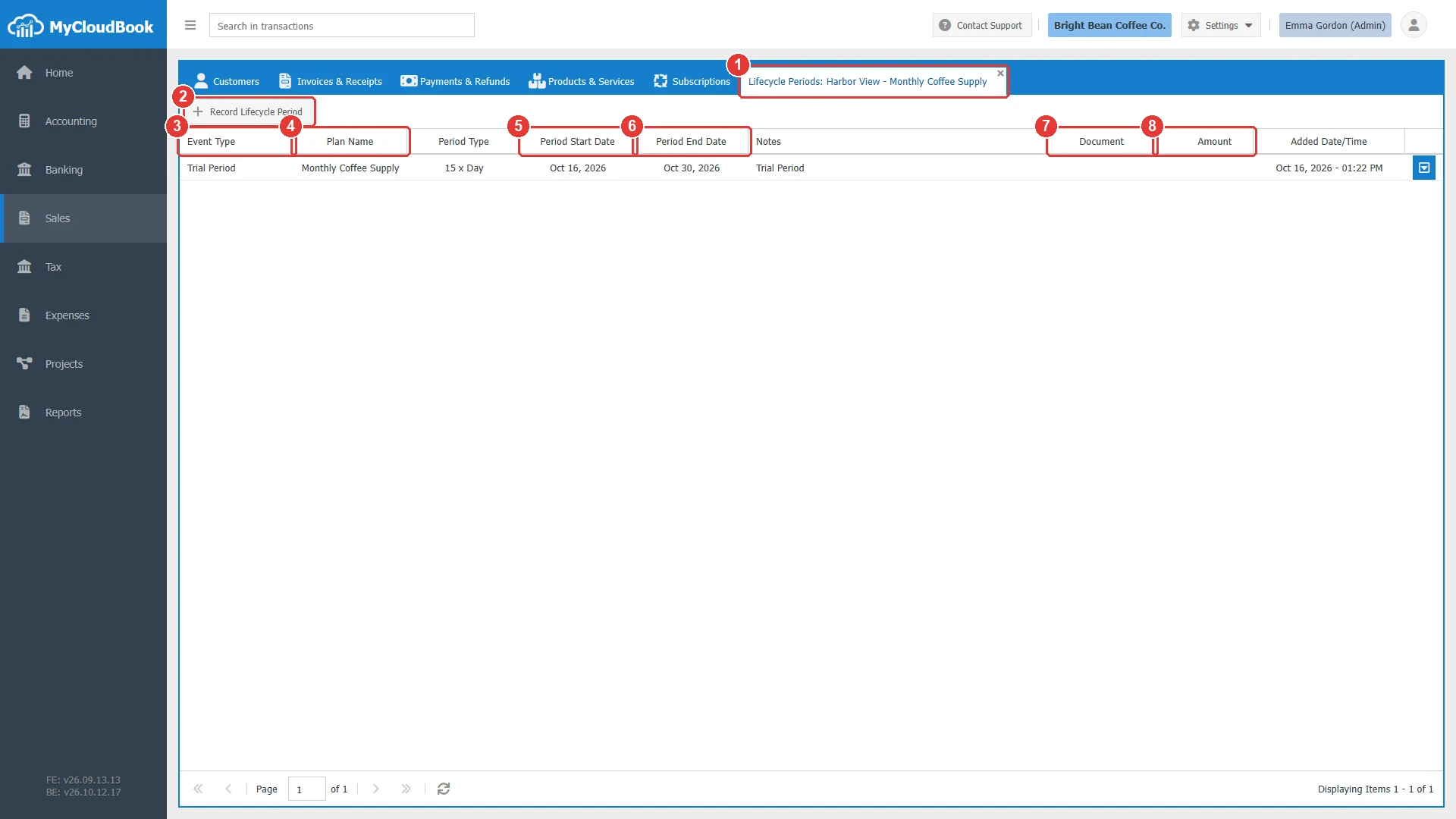
- 1The Lifecycle Periods tab of the subscription.
- 2Record Lifecycle Period.
- 3Event Type: Trial Period, Renew, or Extended Period.
- 4Plan Name.
- 5Period Start Date.
- 6Period End Date.
- 7Document: the invoice or the receipt of a renewal. A click opens it.
- 8Amount.
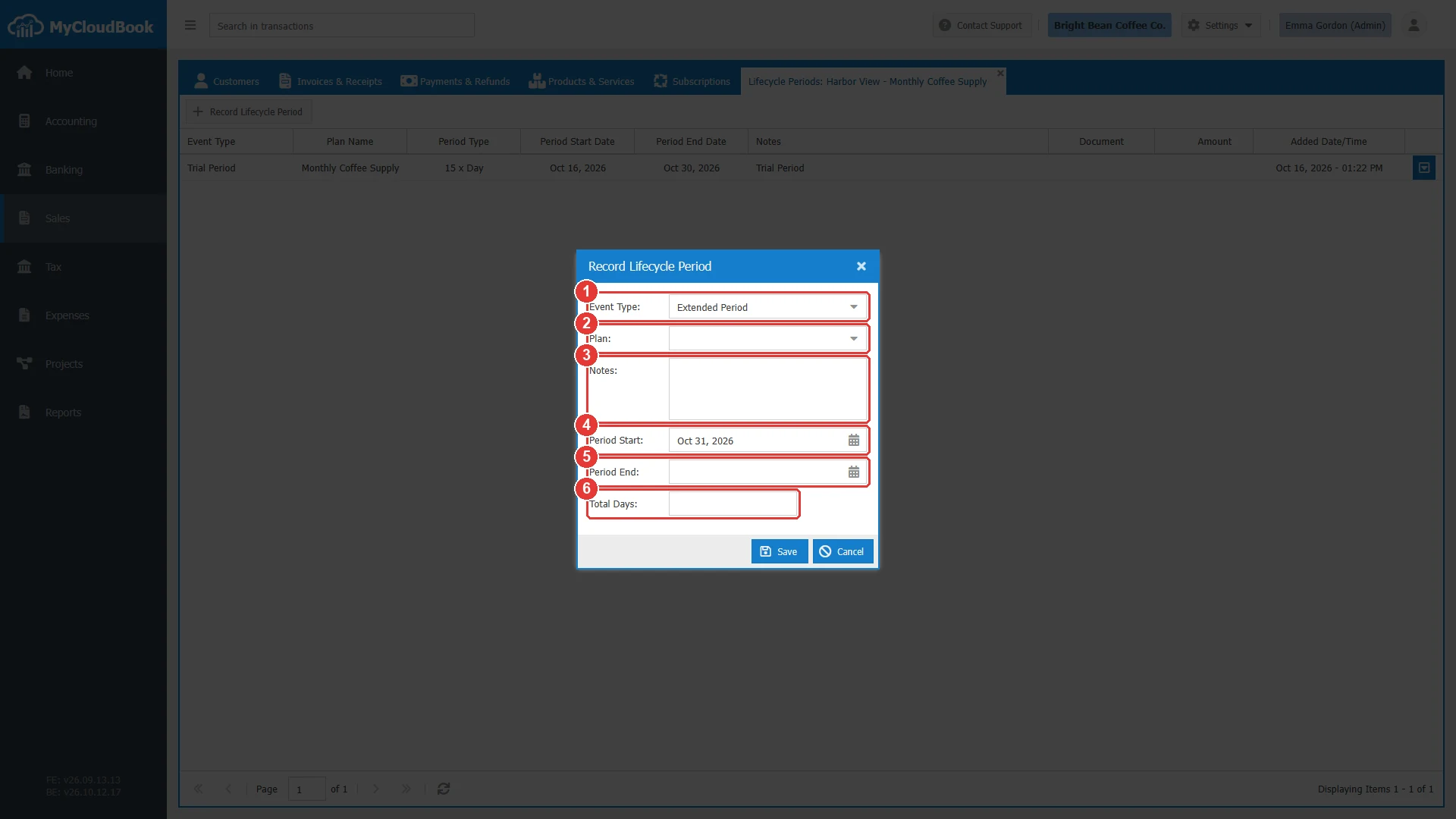
- 1Event Type: Extended Period or Trial Period.
- 2Plan. Required.
- 3Notes.
- 4Period Start: the day after the last period.
- 5Period End.
- 6Total Days.
A renewal period can be changed or deleted only through its document: change the line of the invoice or the receipt, or delete the document.
Renewing a subscription
- Open a new invoice or receipt and select the customer.
- Click Renew Subscription above the lines. The window lists the subscriptions of the customer that are not canceled.
- Select the subscription. The plan, the period type, the start date (the day after the expire date), the quantity 1, and the unit price are proposed; the end date and the total are computed.
- Change the period type or the quantity if needed, and click Add. A line with the subscription and its period is added to the document.
- Save the document. The renewal period is added to the subscription, and the expire date moves to its end.
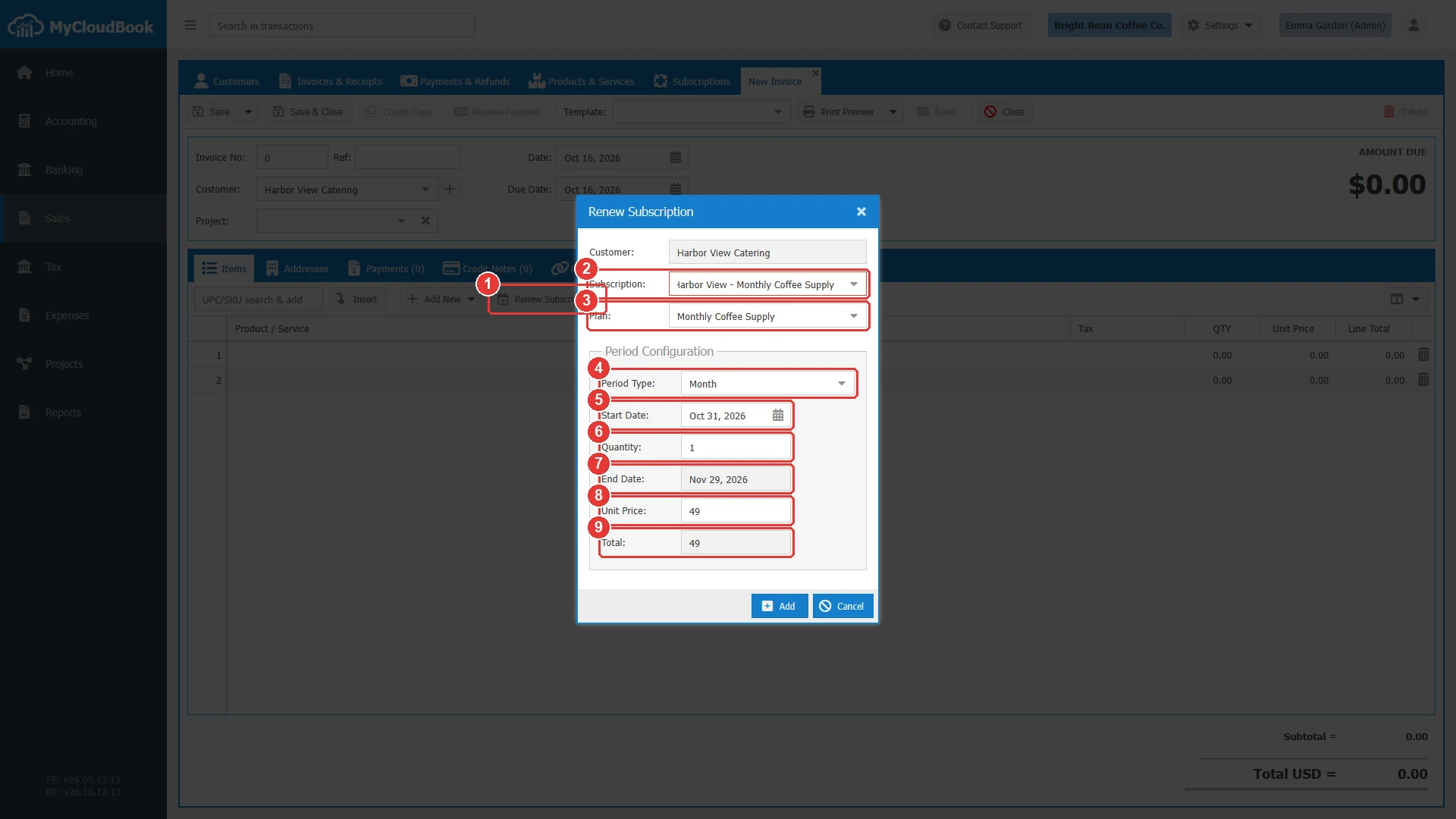
- 1Renew Subscription, on an invoice or a receipt.
- 2Subscription.
- 3Plan.
- 4Period Type: Month, Quarter, Semi-Annual, Year, or Custom Days.
- 5Start Date: the day after the expire date.
- 6Quantity. The number of periods.
- 7End Date, computed.
- 8Unit Price.
- 9Total.
The edit icon in the Subscription column of the line reopens the window as Update Renew Subscription; the subscription itself cannot change there. Removing the line or deleting the document removes the renewal period.
Messages and their meaning
Questions and answers
How do I sell a subscription in MyCloudBook?
Enable Subscription Services in Settings, Preferences. Create a plan in Manage Plans, create the subscription for the customer, and renew it with Renew Subscription on an invoice or a receipt.
How are the renewals of a subscription recorded?
Each renewal is a line of an invoice or a receipt that a user creates with Renew Subscription. The document records the sale and adds the period to the subscription.
How do I give a customer a free month?
Open Lifecycle Periods of the subscription, click Record Lifecycle Period, choose Extended Period, and set the dates.
Can I delete a subscription?
Only while it has no period other than its trial. A subscription with renewals can be canceled; Restore reverses the cancel.
Why can I not turn off Enable Subscription Services?
The setting cannot be turned off while any subscription exists, including a canceled one. Delete the subscriptions first.