Suppliers
This guide explains the suppliers of MyCloudBook: how to add and change a supplier, how the AP balance is computed, and how to read the statement and the documents of a supplier.
Overview
A supplier is a person or a company that sells goods or services to your company. MyCloudBook keeps one record per supplier with the name, the primary contact person, and the address. Every purchase document, such as a bill, an expense, a purchase order, or a bill payment, names a supplier.
The balance of a supplier, the AP Balance, is the amount that the company owes to the supplier. MyCloudBook does not store this balance in the supplier record. It computes the balance from the posts on the Accounts Payable account that carry the supplier. A bill raises the balance, and a bill payment lowers it. An expense is paid at once, so it does not change the balance. A purchase order and a draft have no accounting effect.
The Suppliers screens are:
- the suppliers list, the first tab of the Expenses page;
- the Add Supplier window, which also serves to change a supplier (Update Supplier);
- the supplier information screen, with the balance, the statement, the documents, the attachments, and the notes of one supplier.
The supplier screens work like the customer screens. The Customers guide explains the shared parts in more detail.
How to open the screen
- In the left navigation, click Expenses.
- The Suppliers tab is the first tab of the Expenses page. It opens by default.
The Expenses page has the tabs Suppliers, Bills & Expenses, and Bill Payments.
The suppliers list
The list shows one row per supplier, in the alphabetical order of the display name, with up to one hundred suppliers per page. A double click on a row opens the supplier information screen.
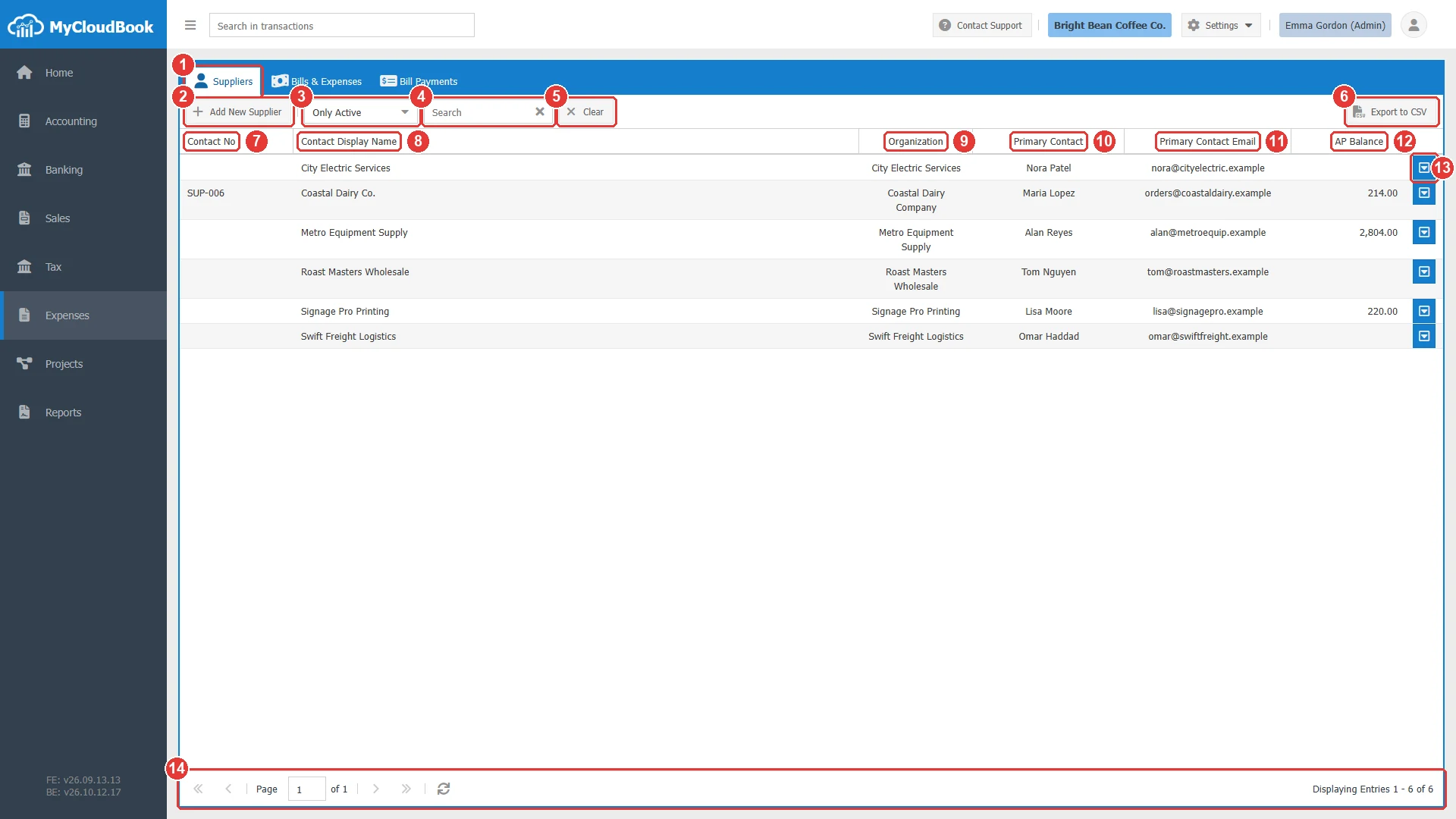
- 1Suppliers tab.
- 2Add New Supplier. Opens the Add Supplier window.
- 3The status filter: Only Active (the default), Only Inactive, or Show All.
- 4Search. Finds the suppliers by number, name, organization, contact person, email, telephone, or address. Press Enter to search.
- 5Clear. Removes the search and sets the status filter back to Only Active.
- 6Export to CSV. Downloads the suppliers of the current filter as the file Supplier-List.csv.
- 7Contact No. The supplier number.
- 8Contact Display Name. The name of the supplier.
- 9Organization. The organization name.
- 10Primary Contact. The name of the contact person.
- 11Primary Contact Email. The emails of the contact person.
- 12AP Balance. The amount that the company owes to the supplier. An empty cell means a zero balance.
- 13The row actions button, with Edit and Delete.
- 14The paging toolbar.
Adding a supplier
- In the suppliers list, click Add New Supplier. The Add Supplier window opens.
- Type the Display Name. This is the only required field. Type a Supplier No and an Organization Name if you use them.
- In the Primary Contact Person tab, type the name, the job title, the emails, and the telephone numbers of the contact person.
- In the Address tab, type the address of the supplier.
- Click Save. The window closes, the message Contact '...' Saved Successfully. appears, and the supplier is added to the list.
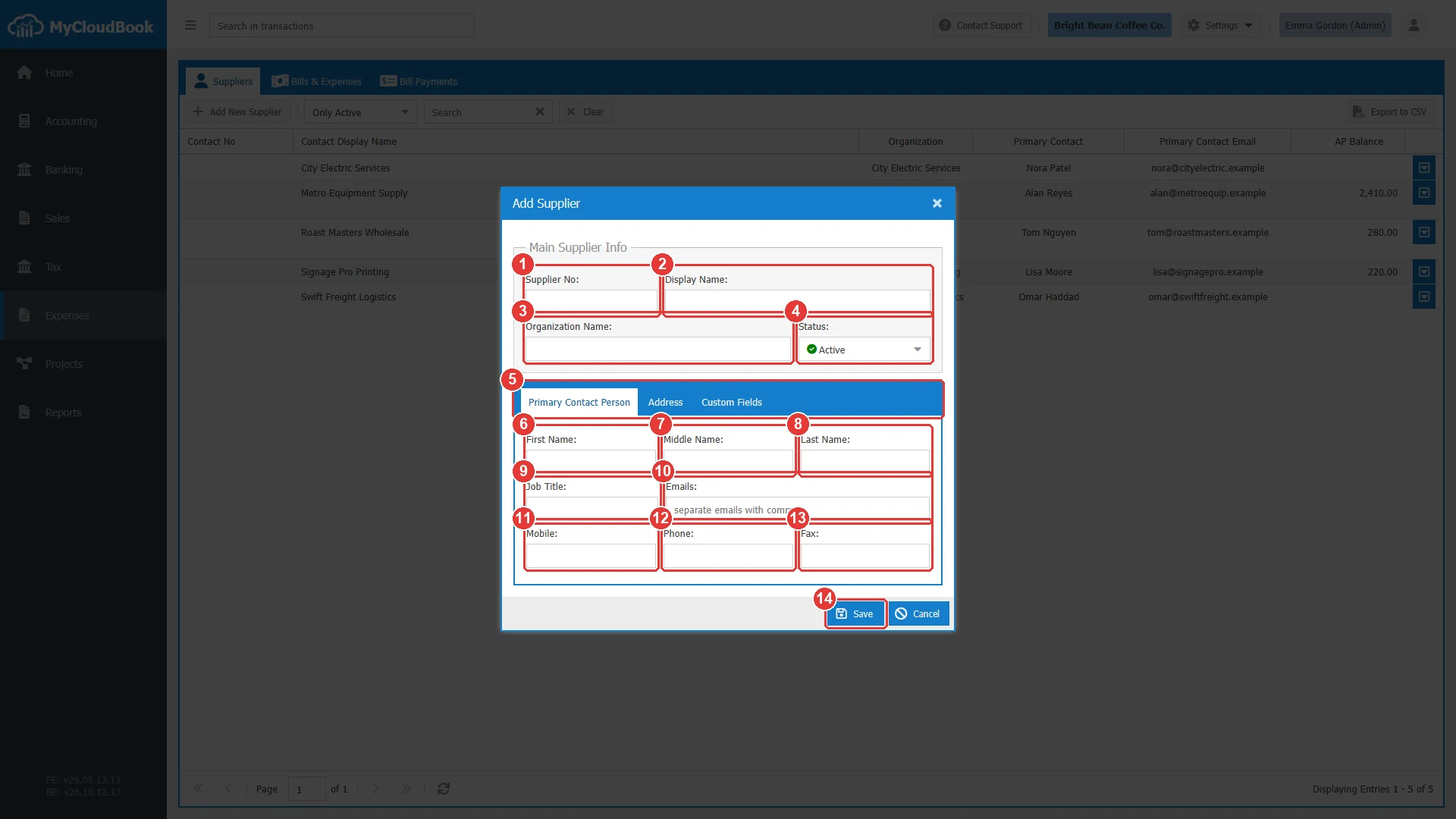
- 1Supplier No. An optional supplier number.
- 2Display Name. The name of the supplier. Required.
- 3Organization Name. The legal name of the organization.
- 4Status. Active or Inactive.
- 5The tabs Primary Contact Person, Address, and Custom Fields.
- 6First Name.
- 7Middle Name.
- 8Last Name.
- 9Job Title.
- 10Emails. One or more emails, separated by commas. They are proposed when a purchase order is sent to the supplier.
- 11Mobile.
- 12Phone.
- 13Fax.
- 14Save.
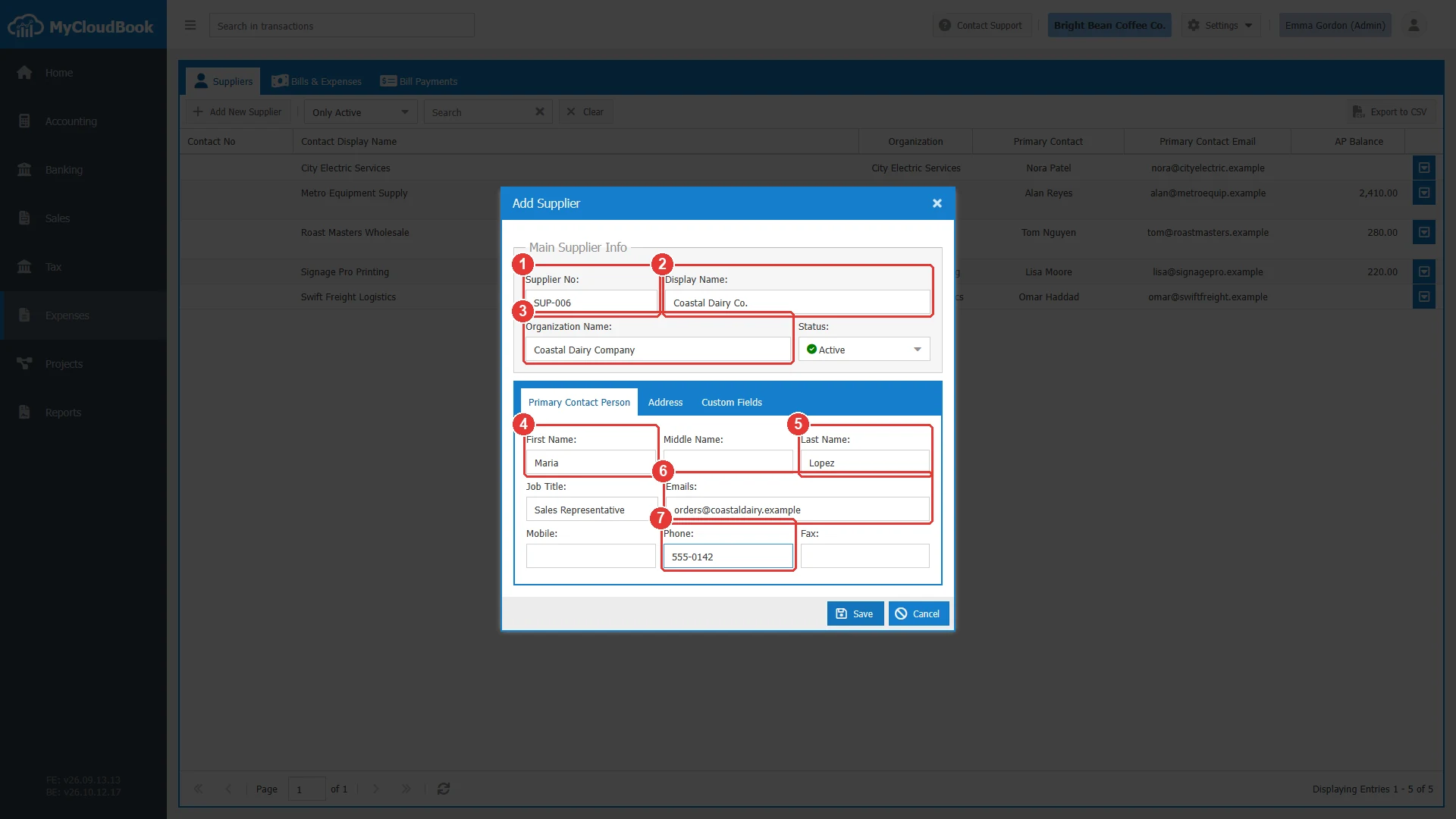
- 1Supplier No: SUP-006.
- 2Display Name: Coastal Dairy Co.
- 3Organization Name.
- 4First Name.
- 5Last Name.
- 6Emails.
- 7Phone.
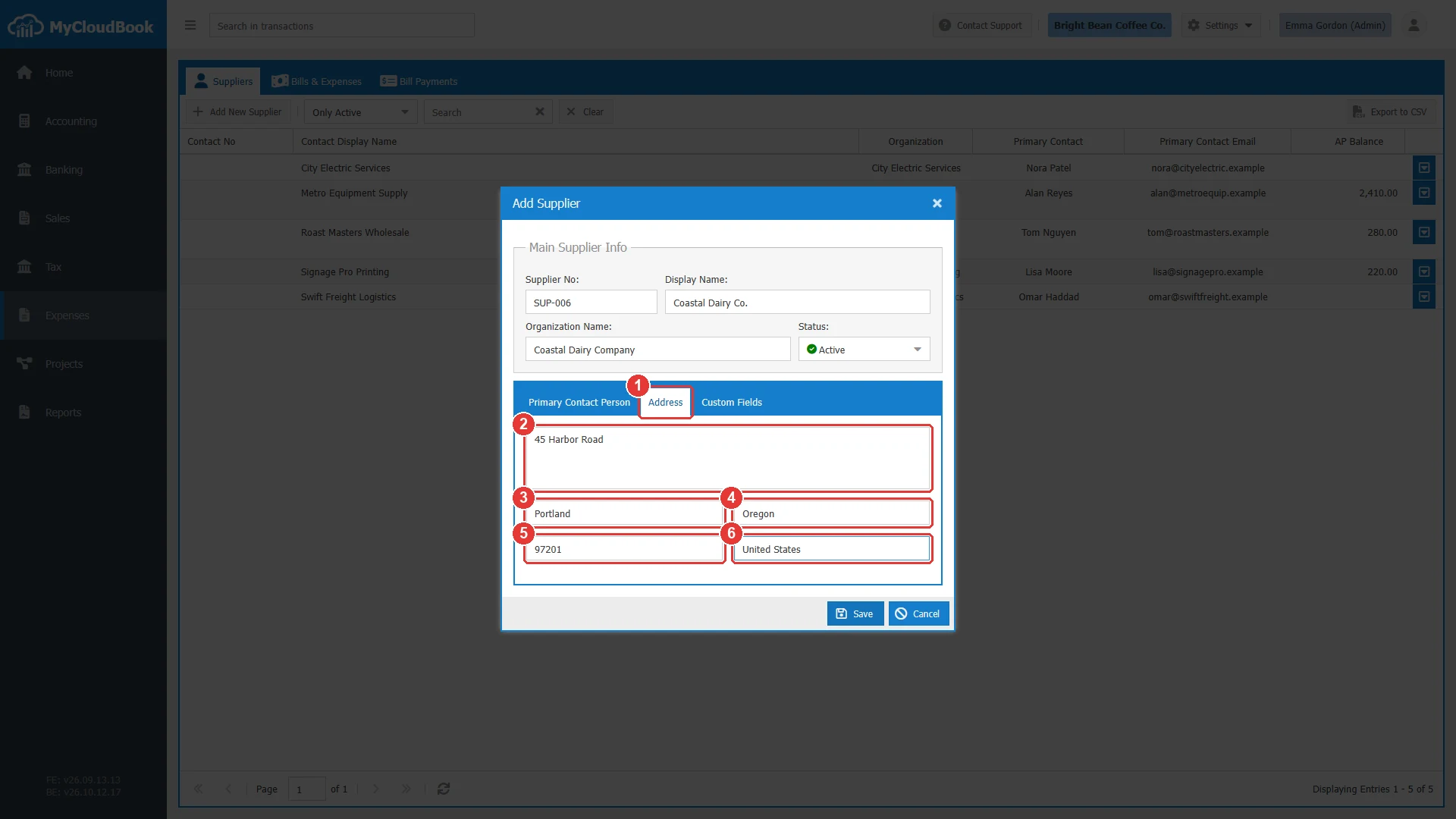
- 1The Address tab. A supplier has one address.
- 2Street. The field accepts several lines.
- 3City/Town.
- 4State/Province.
- 5Zip Code.
- 6Country.
The Custom Fields tab shows the custom fields that the company defined for suppliers in Settings, Custom Fields. It is empty when the company has no custom fields for suppliers.
The fields
| Field | Required | Purpose and rules |
|---|---|---|
| Supplier No | Optional | A number or a code, for example SUP-006. When it is given, it must be unique among all the customers and suppliers of the company. Up to 50 characters. |
| Display Name | Required | The name in the lists, on the documents, and in the reports. It must be unique among the suppliers of the company. A customer can have the same name. Up to 100 characters. |
| Organization Name | Optional | Up to 100 characters. |
| Status | Required | Active (the default) or Inactive. See Active and inactive suppliers. |
| First Name Middle Name Last Name | Optional | The name of the primary contact person. Up to 100 characters each. |
| Job Title | Optional | Up to 100 characters. |
| Emails | Optional | Up to five emails, separated by commas. Each email must have a valid format. Up to 100 characters in total. |
| Mobile Phone Fax | Optional | Up to 200 characters each. |
| Address | Optional | Street, City/Town, State/Province, Zip Code, and Country. |
The supplier information screen
A double click on a supplier opens its information screen in a new tab of the Expenses page. The left panel shows the supplier and its balance. The tabs on the right show the statement, the documents, the attachments, and the notes.
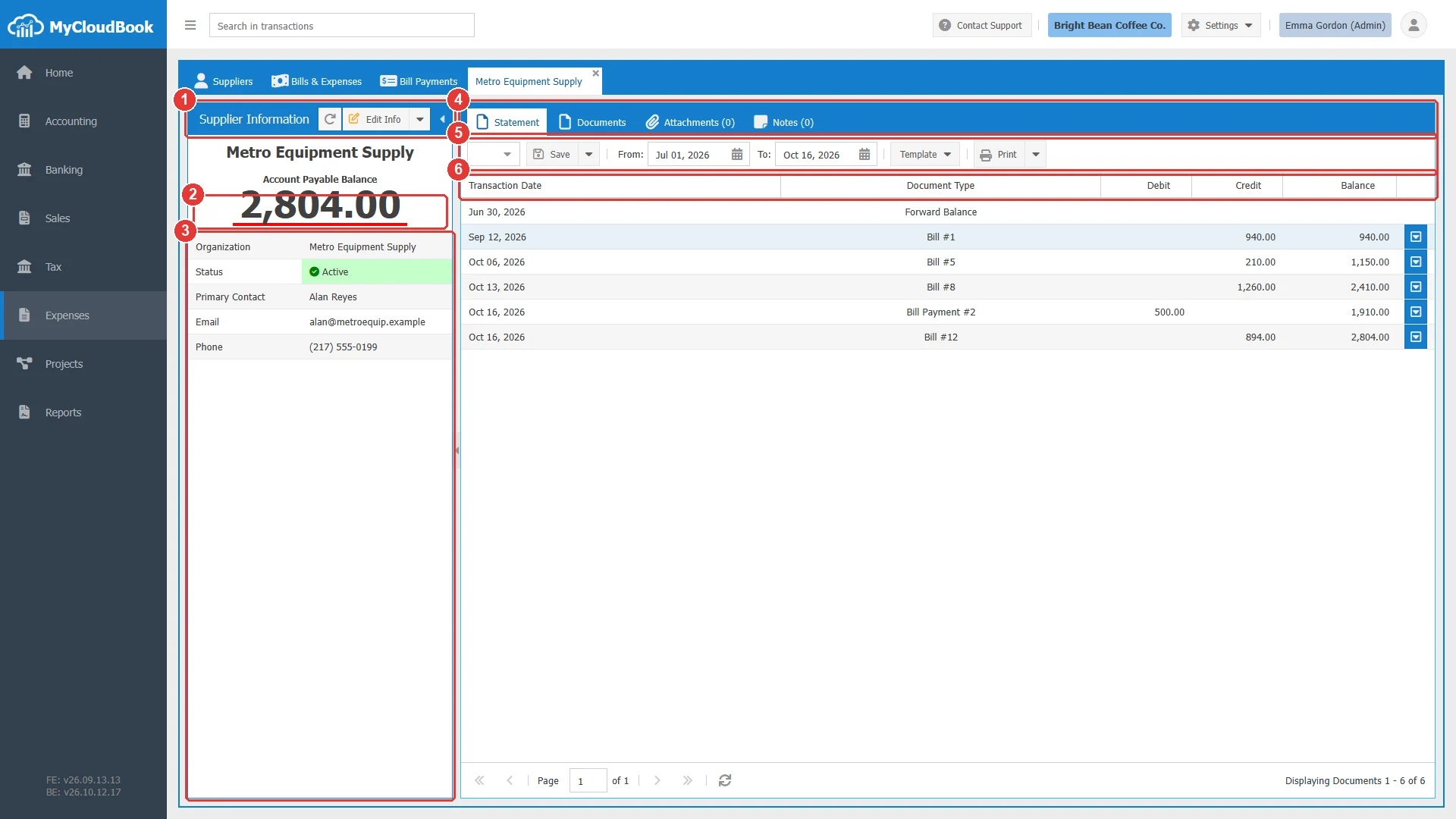
- 1Supplier Information. Edit Info opens the Update Supplier window. Its menu has Delete.
- 2Account Payable Balance. The line under the amount is red when the company owes money, green when the supplier owes money (for example after an overpayment), and black for zero.
- 3The details: organization, status, contact person, email, and telephones.
- 4The tabs Statement, Documents, Attachments, and Notes.
- 5The statement: From and To, Save with its menu, Template, and Print.
- 6The rows of the statement: Transaction Date, Document Type, Debit, Credit, and Balance.
The Statement tab
The statement lists the posts on Accounts Payable for the supplier between two dates. The first row, Forward Balance, is the balance before the From date. Then each bill, bill payment, or journal entry of the supplier is one row, in date order. A bill is in the Credit column and raises the balance. A bill payment is in the Debit column and lowers it. Expenses, purchase orders, and drafts never appear, because they have no Accounts Payable post.
- The default period starts on the first day of the month three months ago and ends today. A change of a date reloads the statement.
- Save stores the statement with its dates under a number. The saved statements of the supplier are in the list on the left of Save. The menu of Save has Create New Statement and Delete Statement.
- Print saves the statement and opens the PDF in the tab Print Supplier Statement.
The Documents tab
The Documents tab lists every bill, expense, purchase order, bill payment, draft bill, and draft expense of the supplier, newest first. The Document Type filter selects one type, and From and To limit the dates. The Status column shows Paid, Partially Paid, or Unpaid with the number of days until the due date, or since the due date. A double click opens the document.
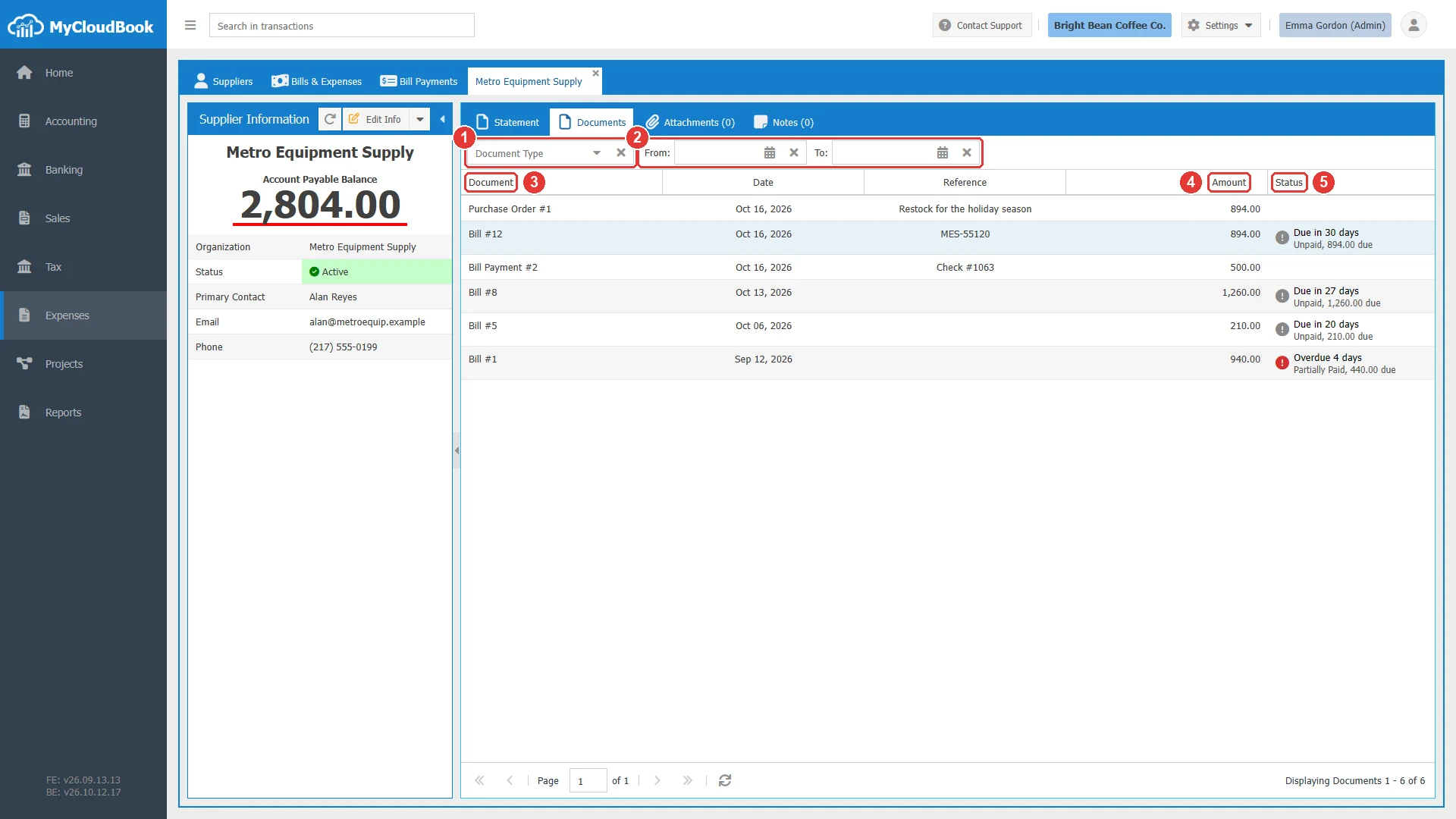
- 1Document Type: Bill, Expense, Purchase Order, Bill Payment, Draft Bill, or Draft Expense.
- 2From and To.
- 3Document: the type and the number.
- 4Amount.
- 5Status.
To create a bill, an expense, a purchase order, or a payment for the supplier, use the Bills & Expenses and Bill Payments tabs, and select the supplier there.
Active and inactive suppliers
An inactive supplier keeps all its documents and its balance. It is hidden from the suppliers list while the filter is Only Active, and it is not offered in the Supplier field of new bills, expenses, purchase orders, and bill payments. A saved document of an inactive supplier still opens and shows (Inactive) after the name. To pay the bills of an inactive supplier, set the supplier to Active again.
Deleting a supplier
- In the suppliers list, open the row actions menu of the supplier and click Delete. The menu Edit Info of the information screen has the same item.
- Confirm with Yes. The message Supplier deleted successfully. appears.
| The supplier is used by | Result |
|---|---|
| A bill, a bill payment, or a journal entry line on Accounts Payable | Refused: You can not delete the Contact '...' because it's used in one or more transactions. |
| A product or a service, as its preferred supplier | Refused: ... because it's used in one or more Product/Service as a Preferred Supplier. |
| The Stripe settings | Refused: You can not delete the Supplier '...' because it's used in Stripe Settings as Supplier. |
A supplier that was used cannot be deleted. Set it to Inactive instead.
Messages and their meaning
Questions and answers
How do I add a supplier in MyCloudBook?
Open Expenses, click Add New Supplier, type the Display Name, the contact person, and the address, and save.
Where do I see how much I owe a supplier?
The AP Balance column of the suppliers list, and the Account Payable Balance of the supplier information screen. The statement shows each bill and payment.
Why does an expense not change the AP Balance?
An expense is paid when it is recorded, so it posts nothing to Accounts Payable. Only bills, bill payments, and journal entries change the balance.
Can I delete a supplier?
Only when no document uses it. A supplier with documents can be set to Inactive.
Can the same name be a customer and a supplier?
Yes. The display name must be unique among the suppliers, and a customer can have the same name. The number must be unique among customers and suppliers together.