Project Status and Progress
This guide explains the status and the progress of a project in MyCloudBook: how to change them, what each status allows, and how a completed project protects its documents.
Overview
Every project has a status and a progress. The status tells where the project stands: Not Started, In Progress, Completed, or Cancelled. The progress is the share of the work that is done, from 0 to 100 percent.
Both values are set by a user. MyCloudBook does not change them by itself: a new document, a date, or a payment does not change the status, and the status does not change the progress. The status also decides which projects the documents can use, and a completed project locks its documents.
How to open the windows
- In the left navigation, click Projects, and double click the project in the projects list.
- In the Project Information panel, click the Status row to change the status, or the Progress row to change the progress. A pencil icon marks the two rows.
The status can also be set in the Add Project and Update Project window. The projects list shows the status and the progress of every project, but it does not change them.
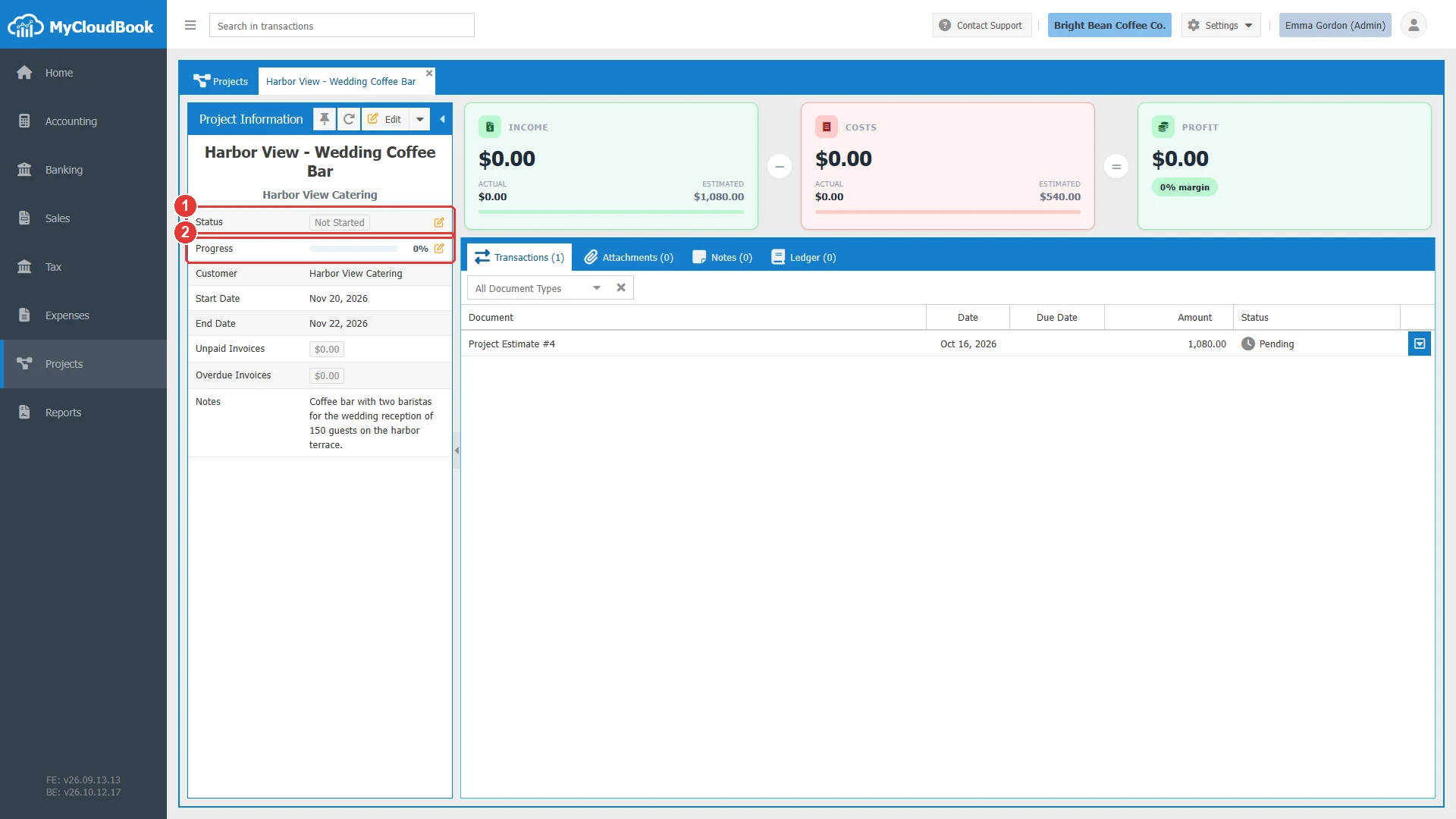
- 1Status. The status of the project in a colored badge. A click opens the Update Status window.
- 2Progress. The progress as a bar and a percentage. A click opens the Update Progress window.
Changing the status
The example starts the preparation of the project Harbor View - Wedding Coffee Bar: the status changes from Not Started to In Progress.
- Click the Status row. The Update Status window opens with the current status.
- Select the new status in the Status list.
- Click Save. The message Project 'NAME': status changed to 'In Progress'. appears, and the badge of the panel changes at once.
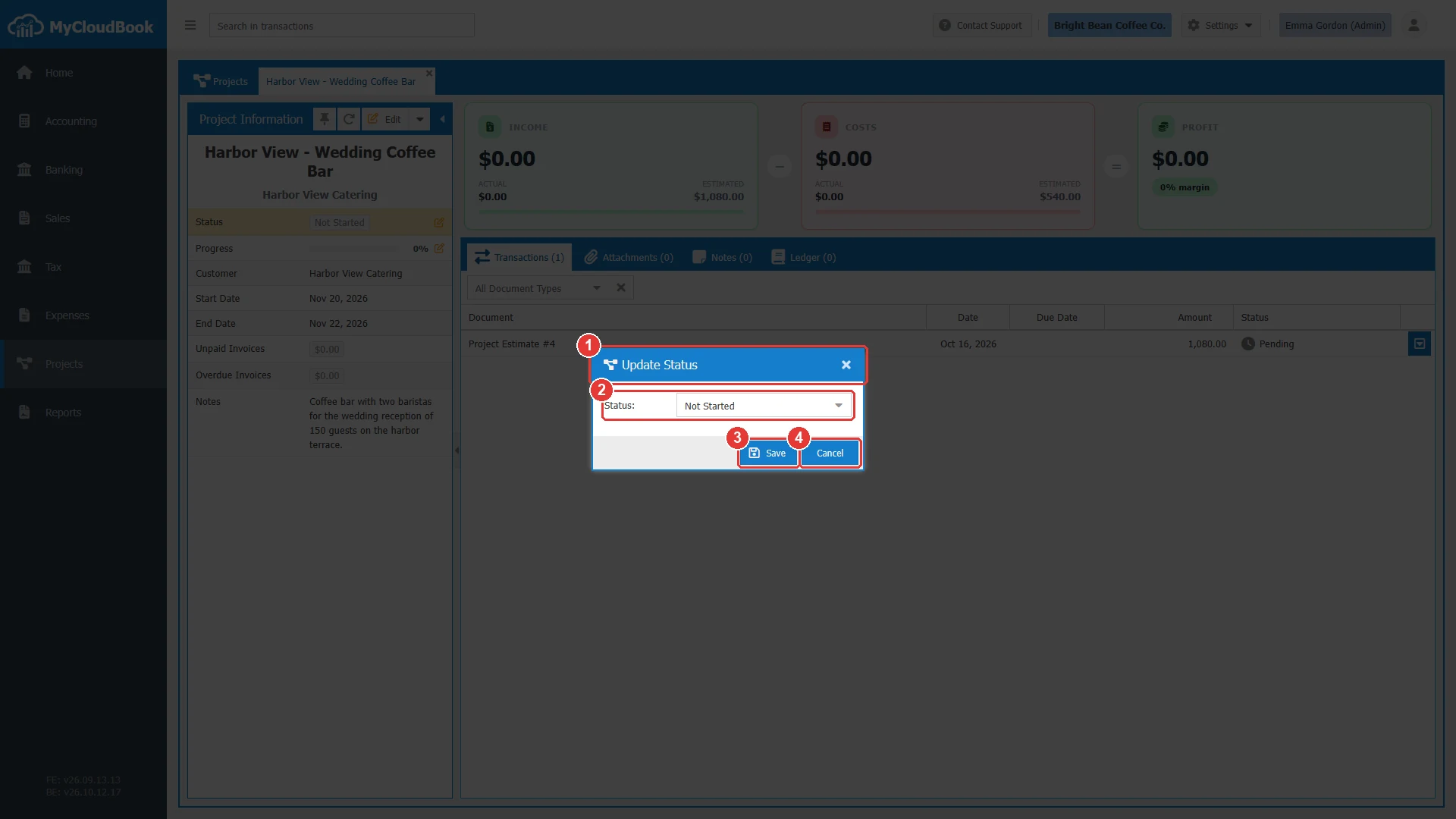
- 1The window title, Update Status.
- 2Status. The current status of the project.
- 3Save.
- 4Cancel. Closes the window without a change.
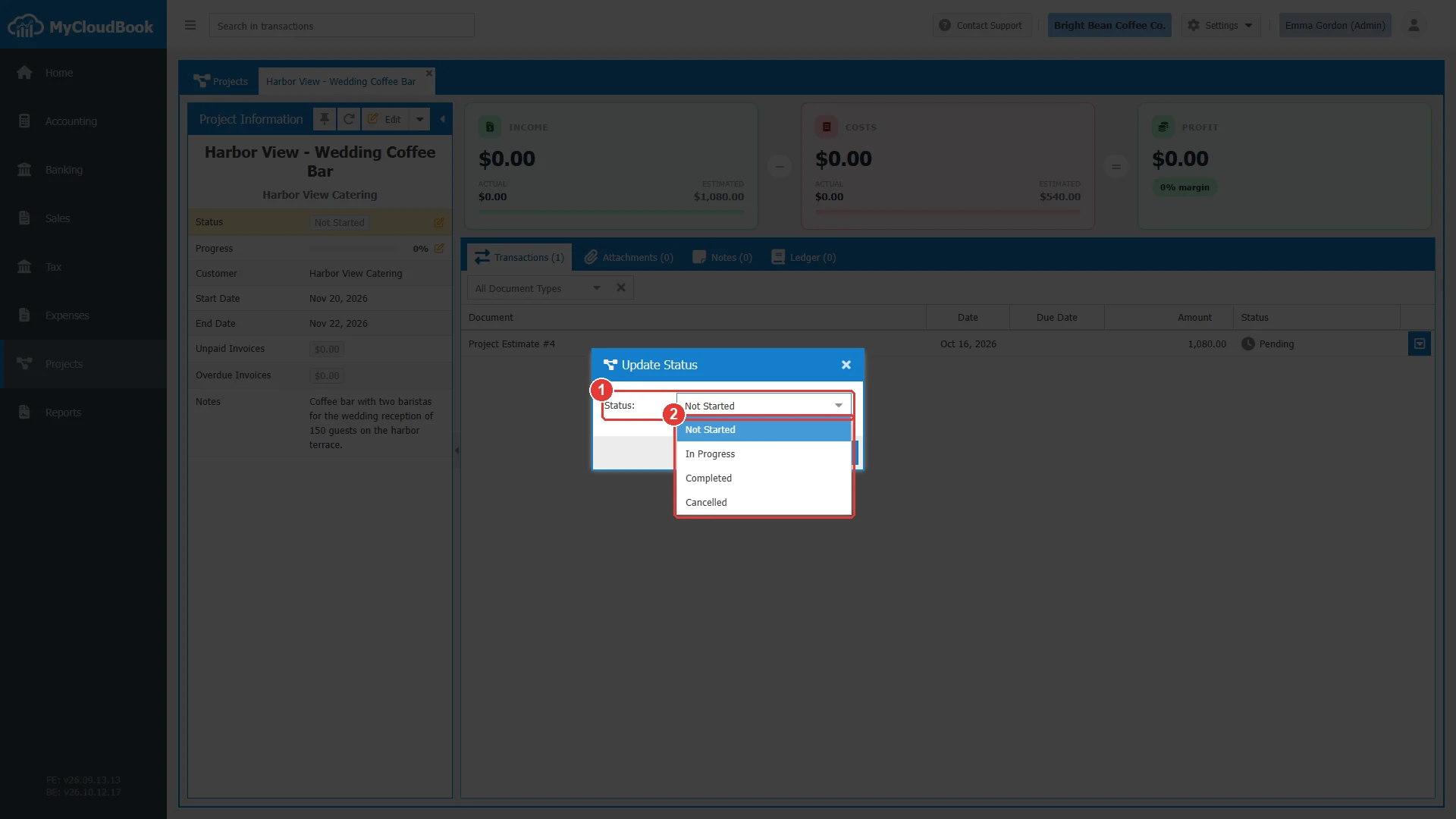
- 1Status.
- 2The values of the list.
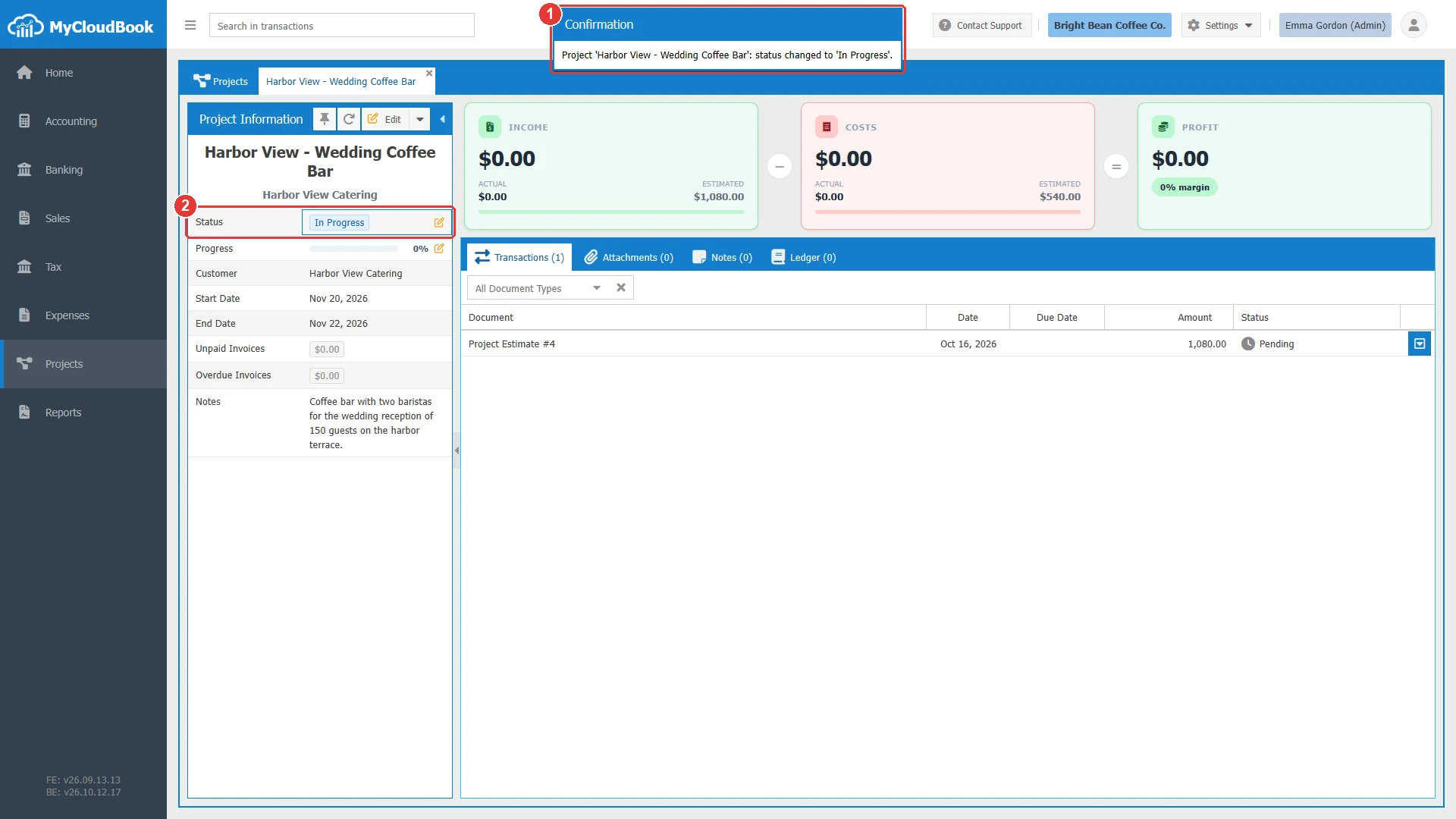
- 1The message of the change.
- 2The new status, In Progress.
Every status can change to every other status, in any order. For example, a completed project can return to In Progress when a document of the project must be corrected.
| Status | Meaning and effect |
|---|---|
| Not Started | Gray. The status of a new project. The work has not started. New documents can use the project. |
| In Progress | Blue. The work is running. New documents can use the project. |
| Completed | Green. The work is finished. New documents cannot use the project, and its documents are locked (see below). |
| Cancelled | Red. The project was stopped. The Project lists of new documents do not offer the project. |
Changing the progress
The progress is a number from 0 to 100, with up to two decimals. Set it from your own measure of the work, for example the hours done, the delivered goods, or the finished stages.
- Click the Progress row. The Update Progress window opens with the current value.
- Drag the slider, or type the value in the Progress (%) field. The slider and the field follow each other.
- Click Save. The message Project 'NAME': progress set to 30%. appears, and the bar of the panel changes.
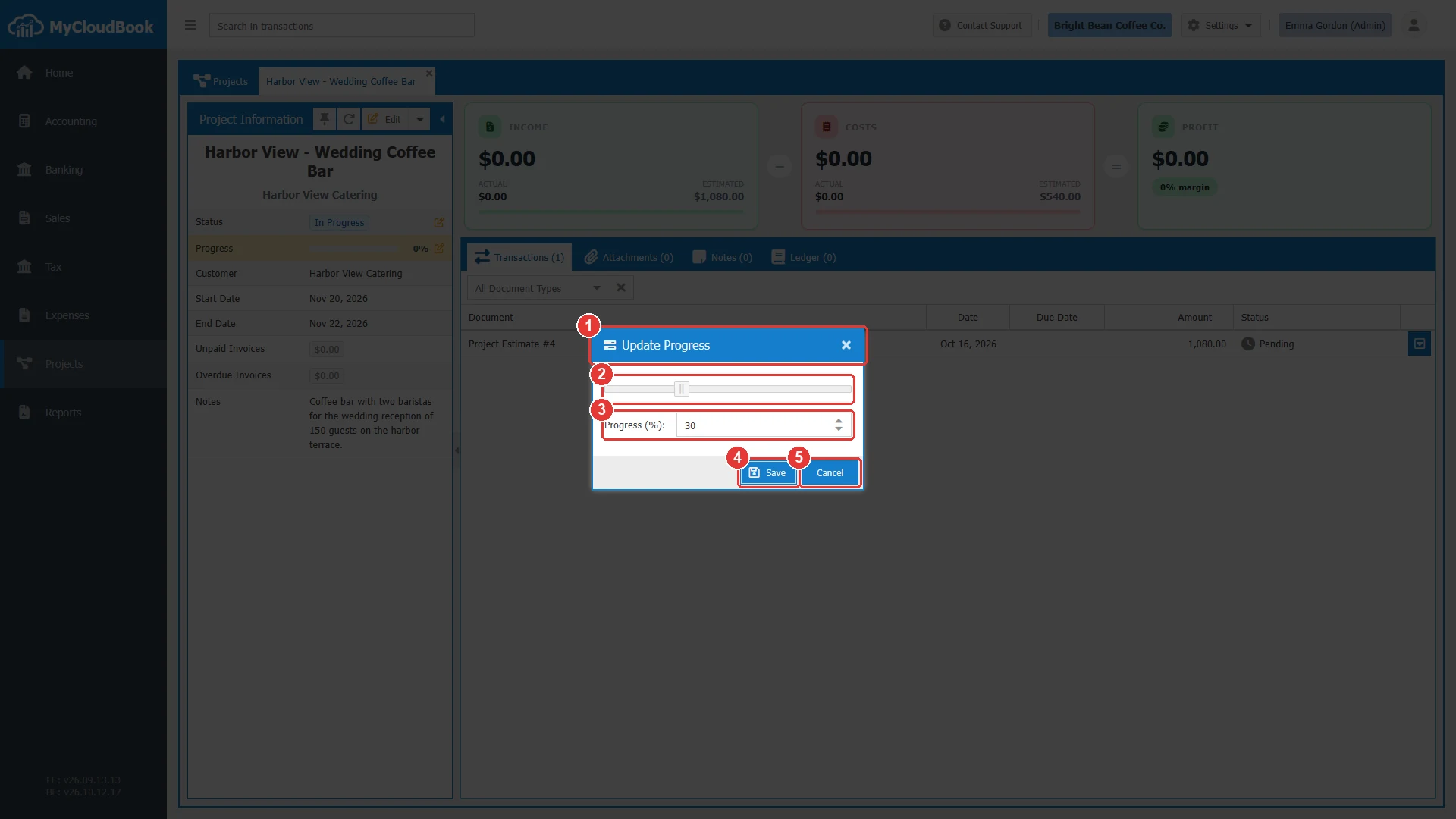
- 1The window title, Update Progress.
- 2The slider. It moves in steps of one percent.
- 3Progress (%). A value from 0 to 100, with up to two decimals.
- 4Save.
- 5Cancel. Closes the window without a change.
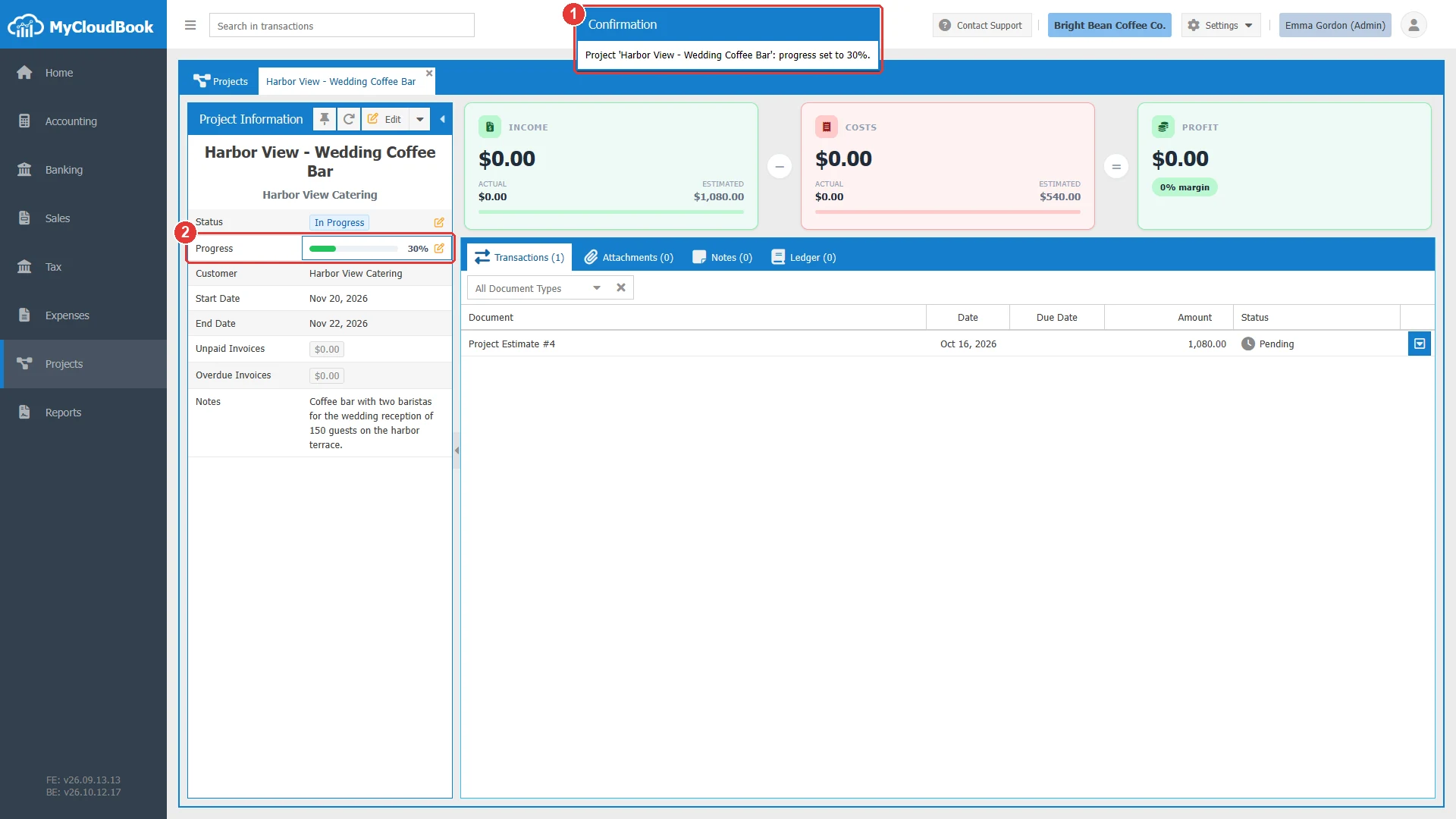
- 1The message of the change.
- 2The new progress, 30%.
After a change of the status or the progress, an open projects list loads its rows again.
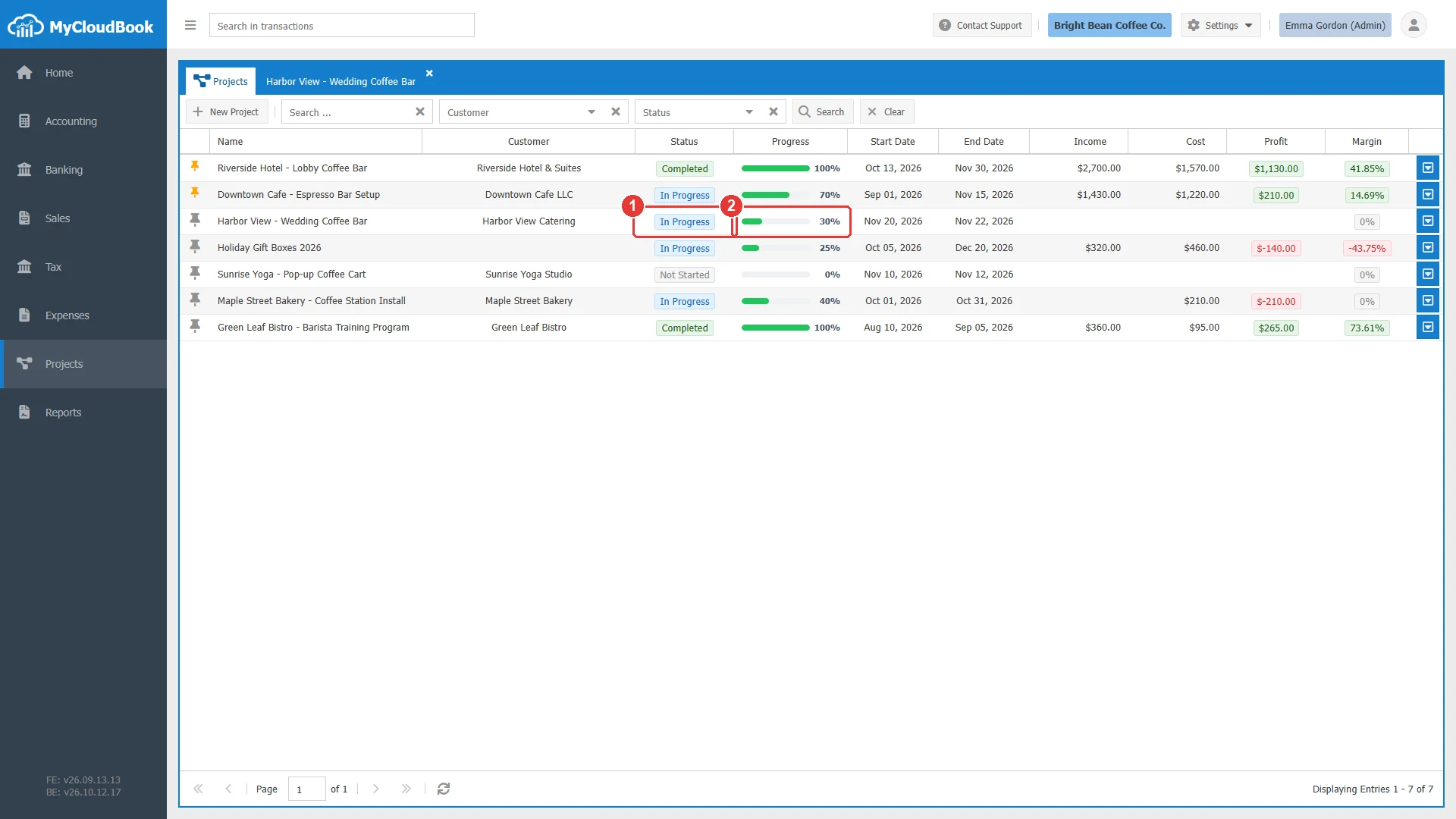
- 1Status. In Progress.
- 2Progress. 30%.
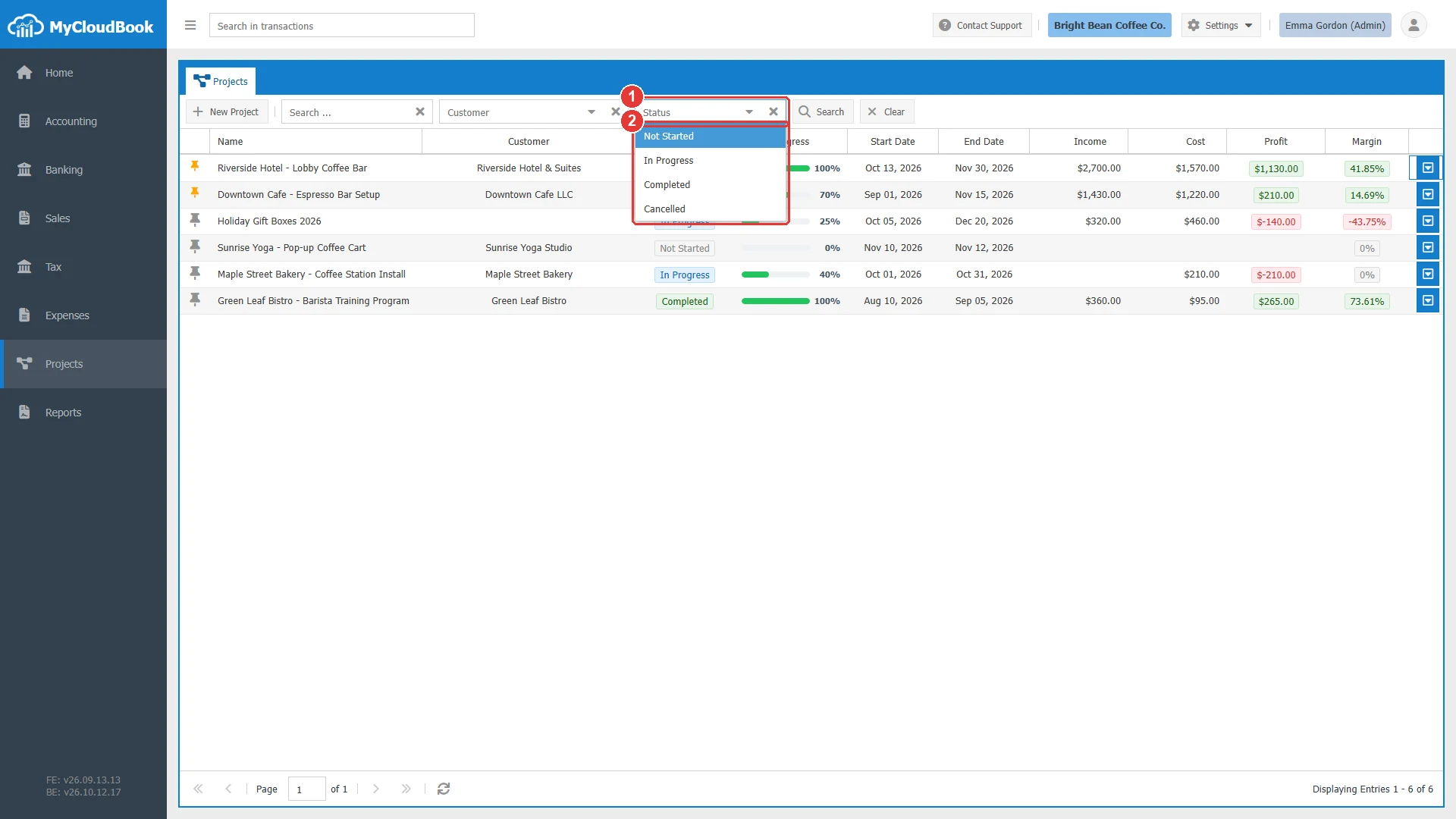
- 1Status. The filter of the projects list.
- 2The four statuses.
The projects that documents can use
The Project field of a sales document and the Project column of a purchase document list the projects in the status Not Started or In Progress. A sales document lists the projects of its customer and the projects without a customer. When no project fits, the list shows No assignable projects found.
A document that already belongs to a project keeps it, whatever the status of the project. The project information screen also fills in its own project in the new documents of its Edit menu.
The lock of a completed project
The status Completed protects the figures of a finished project. MyCloudBook locks the documents of the project:
- A sales document of the project (an invoice, a receipt, an estimate, a project estimate, a sales order, or a draft) cannot be saved or deleted. A new sales document cannot be saved in the project.
- On a bill, an expense, or a purchase order, the lines of the project cannot be added, changed, or removed. The other lines of the document stay open. A document with a line of the project cannot be deleted.
- A credit note that refunds an invoice of the project cannot be saved or deleted.
Payments stay possible: a receipt voucher can still receive the amount due of an invoice of the project, and a bill payment can still pay a bill of the project. The project itself can still be edited, pinned, and given notes and attachments.
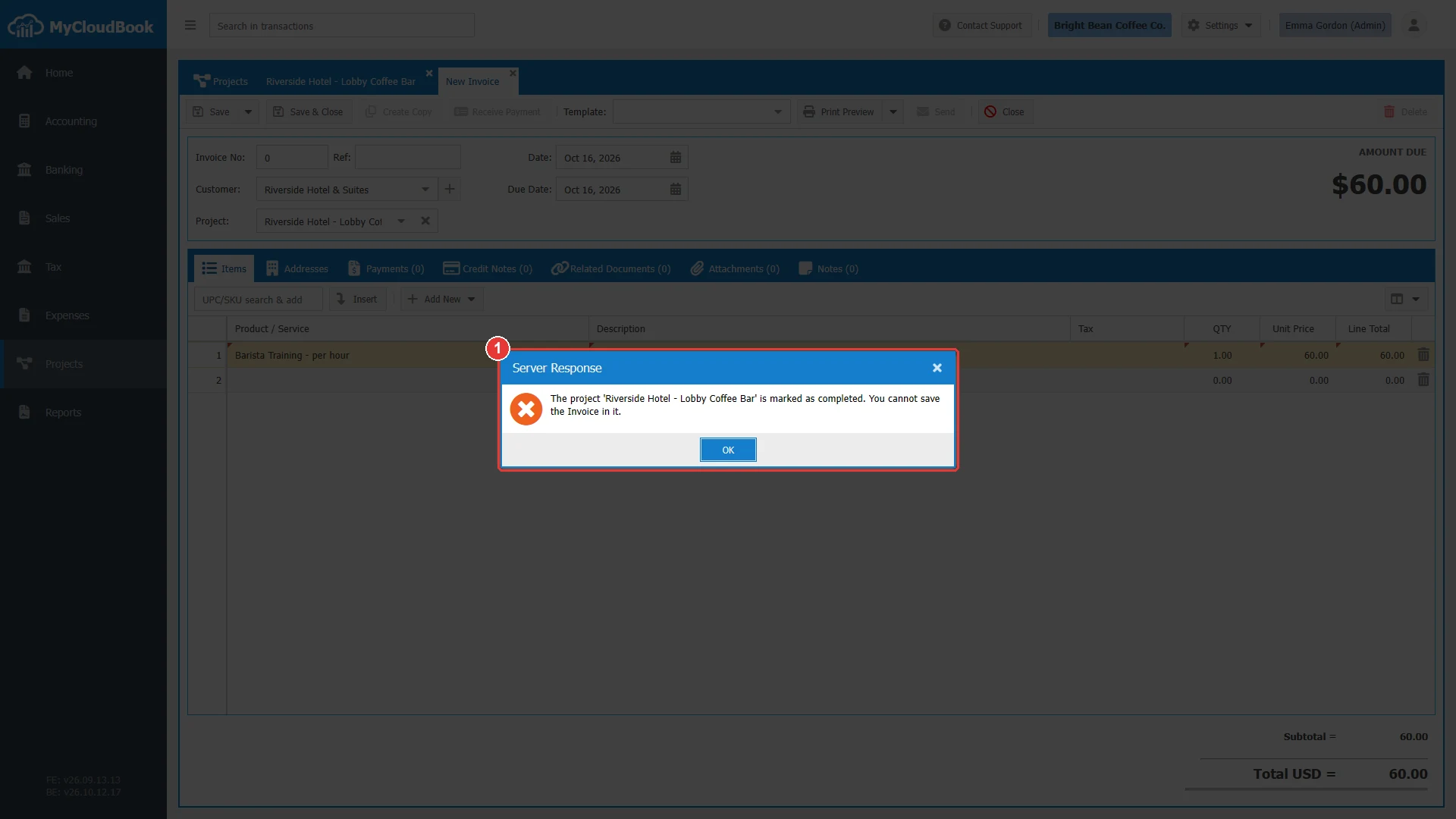
- 1The message from the server. The invoice is not saved.
To correct a document of a completed project, set the status of the project to In Progress, change the document, and set the status back to Completed.
Messages and their meaning
Questions and answers
Who changes the status of a project?
A user, in the Update Status window or in the Update Project window. Documents, dates, and payments leave the status as it is.
How is the progress of a project set?
A user sets it in the Update Progress window, from 0 to 100 percent.
What does the status Completed lock?
The sales documents of the project, the lines of the project on purchase documents, and the credit notes that refund an invoice of the project. They cannot be saved or deleted. Payments stay possible.
Can I reopen a completed project?
Yes. Set the status to In Progress in the Update Status window. The documents of the project are open again.
What is the difference between Completed and Cancelled?
Completed is for a finished project and locks its documents. Cancelled is for a stopped project: the Project lists of new documents do not offer it.