Record Tax Payment
This guide explains how to record a sales tax payment to a tax agency, and a tax refund from an agency, in MyCloudBook, and what each document records in the accounts.
Overview
A tax payment records the sales tax that the company pays to a tax agency, for example with the monthly sales tax return. The same window records a tax refund: money that the agency pays back to the company, for example after an overpayment.
A payment lowers the tax that the company owes to the agency, and a refund raises it again. Each document creates a journal entry between the bank account and the Tax Payable account, and it appears in the Sales Tax Center as Tax Payment #n or Tax Refund #n.
How to open the screen
- In the left navigation, click Tax.
- In Tax Agency, select the agency that you pay.
- Click Record Payment. The Record Tax Payment window opens with the taxes of that agency.
The window always uses the agency that was selected in the Sales Tax Center.
Recording a payment
In the example, Bright Bean Coffee Co. pays the County Sales Tax of September, 61.26, by check.
- Set Show Sales Tax Due Through to the last day of the period of the return, here Sep 30, 2026. The Amount Due of each tax is loaded for that date.
- Select the Pay from Account, the bank account of the payment.
- Check the Payment Date, and select the Payment Method.
- Type a Reference and, if you wish, Notes.
- In the Paid Amount column, type the amount of each tax that you pay.
- Click Save. The window closes, and the Sales Tax Center shows the payment.
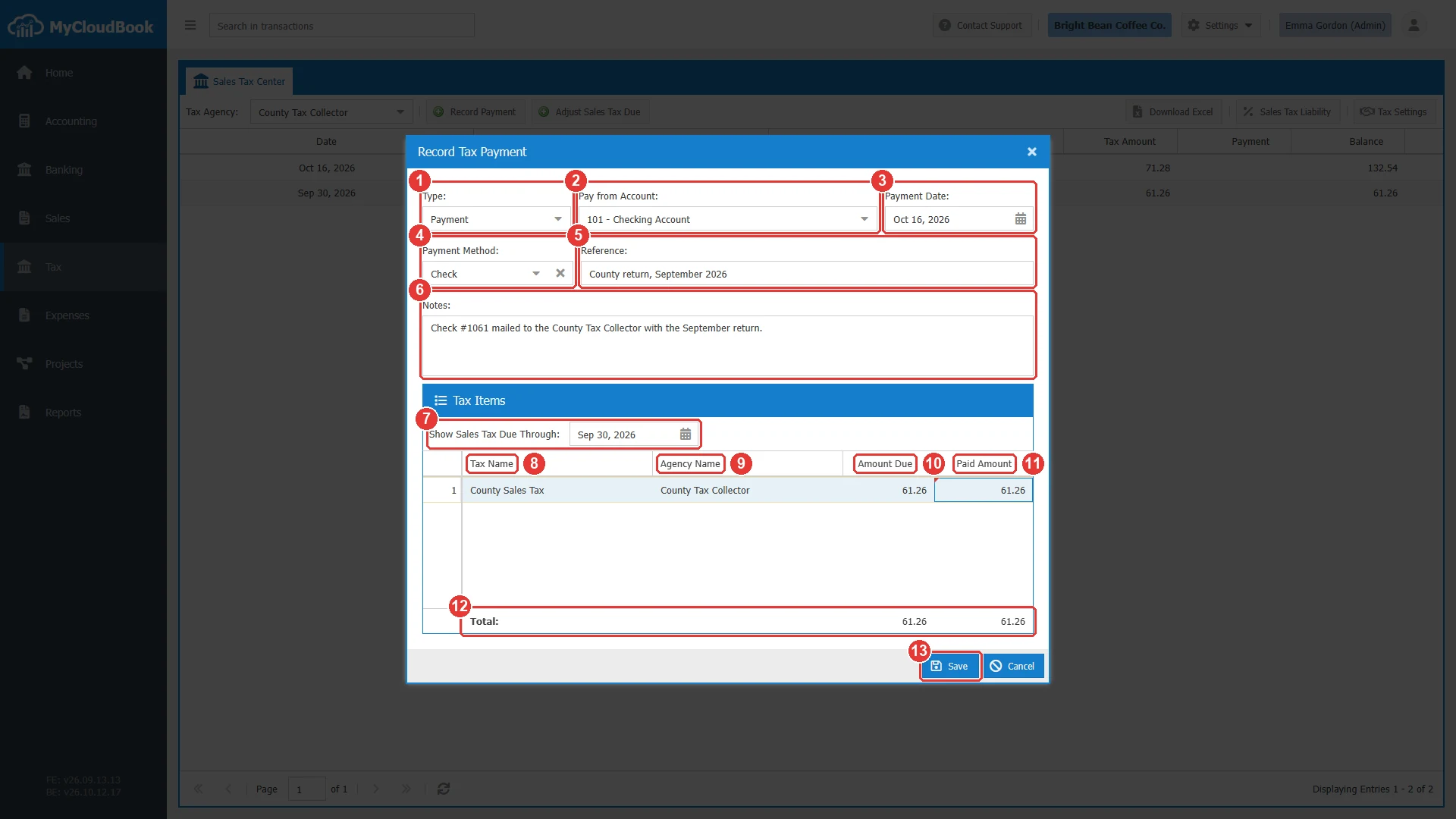
- 1Type: Payment or Refund.
- 2Pay from Account. Required. The account that pays.
- 3Payment Date. Required. The default is today.
- 4Payment Method. Optional. The payment methods of the company.
- 5Reference. Optional, up to 100 characters.
- 6Notes. Optional, up to 2000 characters.
- 7Show Sales Tax Due Through. The date of the amounts due. A change loads the amounts again and clears the typed paid amounts.
- 8Tax Name. One row for each active tax of the agency.
- 9Agency Name.
- 10Amount Due. The balance of the tax on the date of the field above.
- 11Paid Amount. Type the amount that you pay. A click on the cell opens it.
- 12The totals of the amounts due and of the paid amounts.
- 13Save.
The amount due is a balance. It is the tax of the documents up to the date, minus the earlier payments and reductions, plus the refunds and increases.
The fields
| Field | Required | Purpose and rules |
|---|---|---|
| Type | Required | Payment or Refund. The default is Payment. |
| Pay from Account Refund to Account | Required | An asset, liability, or equity account. The list does not offer the system accounts, such as Tax Payable. A main account cannot be used. Select one of its sub-accounts. The account must be in the main currency. |
| Payment Date Refund Date | Required | The date of the document. Any date is accepted. |
| Payment Method Refund Method | Optional | The payment methods of the company, for example Check or Bank Deposit. |
| Reference | Optional | Up to 100 characters, for example the period of the return. |
| Notes | Optional | Up to 2000 characters. |
| Show Sales Tax Due Through | Optional | Only for a new document. The date of the amounts due. The date is not saved. |
| Paid Amount | Required | 0 or more for each tax. The total must be more than 0. A tax with 0 stays in the document, but it creates no journal post. |
What the payment records
When the document is saved, MyCloudBook gives it the next number and creates its journal entry. The payments, the refunds, and the adjustments share one number sequence: in the example company, Tax Adjustment Increase #1 was followed by Tax Payment #2 and Tax Payment #3.
| Document | Journal entry |
|---|---|
| Tax Payment | Debit: Tax Payable, one line for each tax with a paid amount. Credit: the Pay from Account, with the total. |
| Tax Refund | Debit: the Refund to Account, with the total. Credit: Tax Payable, one line for each tax. |
For Tax Payment #3, the entry is: debit Tax Payable 61.26 for the County Sales Tax, and credit 101 Checking Account 61.26. The amounts are in the main currency. In the ledger of the Tax Payable account, the Contact Display Name of the line is the tax, County Sales Tax.
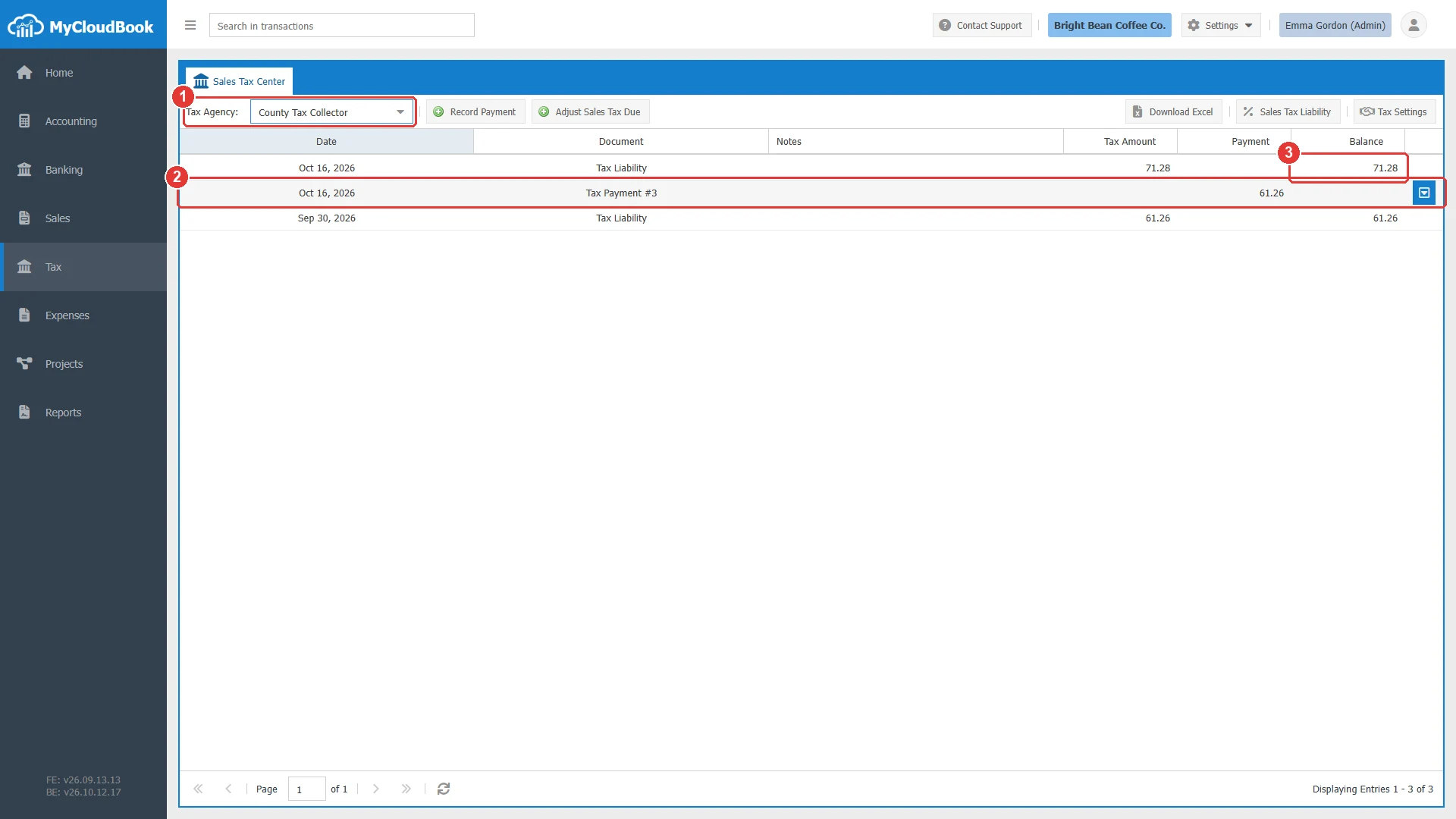
- 1Tax Agency: County Tax Collector.
- 2The row Tax Payment #3 with 61.26 in the Payment column. The September balance became 0.00.
- 3The balance due now: the County tax of October.
Recording a refund
- Open Record Payment for the agency that pays the refund.
- Select Refund in Type. The labels change to Refund to Account, Refund Date, and Refund Method.
- Select the account that receives the money, and type the refund of each tax in the last column.
- Click Save. The Sales Tax Center shows Tax Refund #n in the Tax Amount column, and the balance increases.
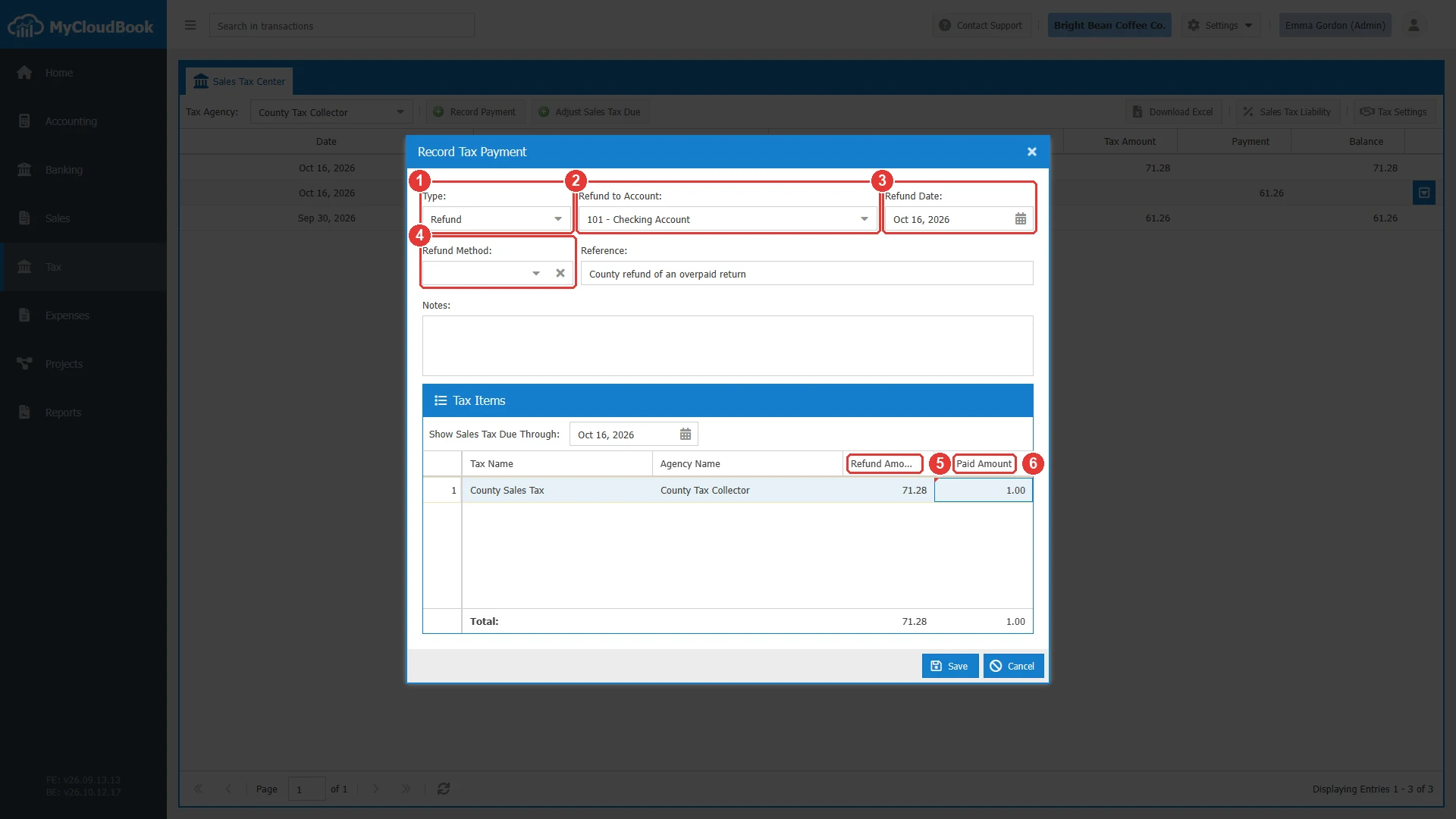
- 1Type: Refund.
- 2Refund to Account. The account that receives the money.
- 3Refund Date.
- 4Refund Method.
- 5The amount due of each tax. This column is read-only.
- 6Paid Amount. Type the refund of each tax in this column.
Changing and deleting a payment
To open a saved payment or refund, double click its row in the Sales Tax Center, or use Edit in the row actions menu. The window title shows the type and the number, for example Tax Payment #3.
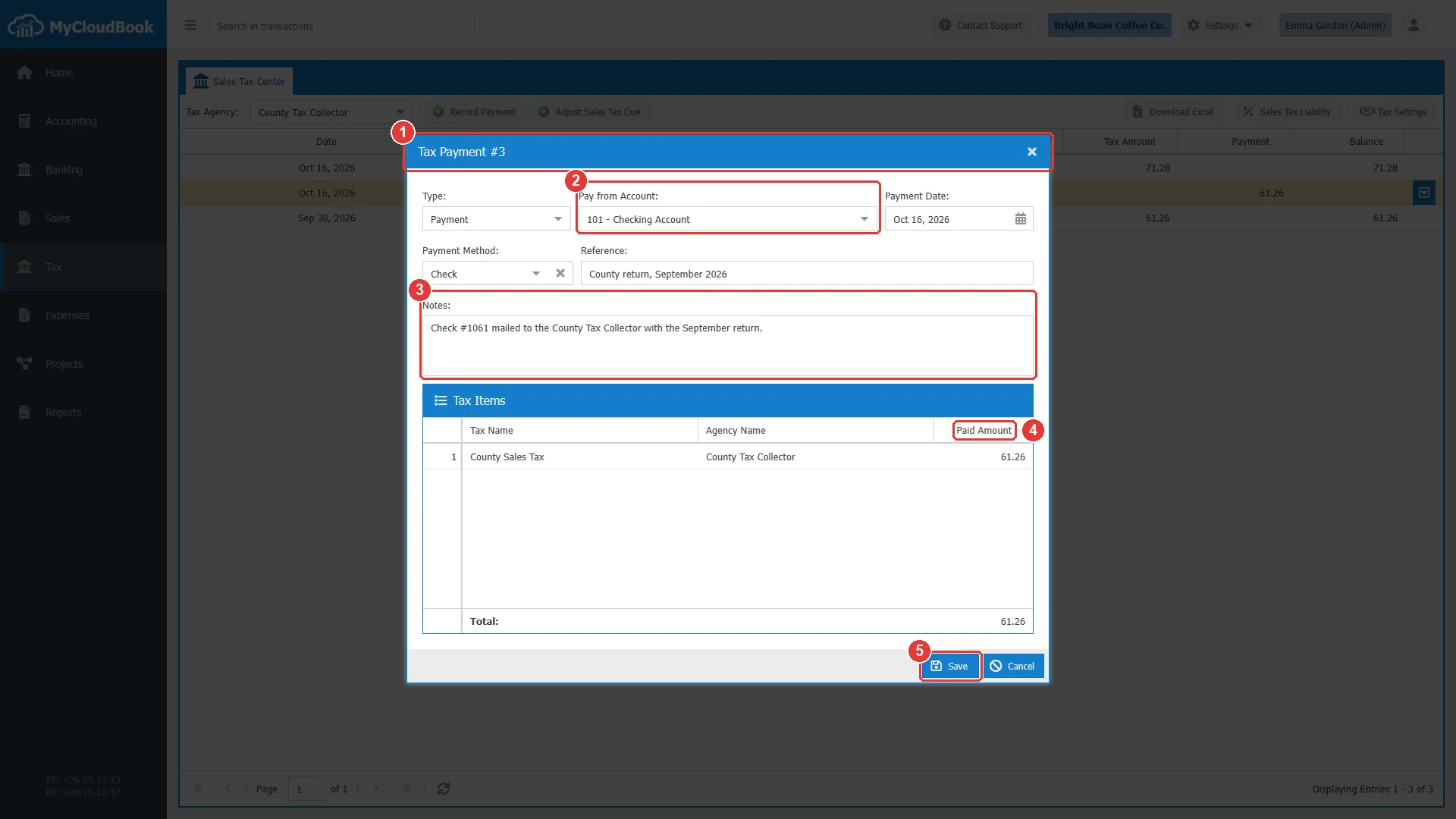
- 1The title: the type and the number.
- 2Pay from Account.
- 3Notes.
- 4Paid Amount. The Amount Due column and the due date are hidden for a saved document.
- 5Save. Saves the changes. The number does not change.
- You can change the type, the account, the date, the method, the reference, the notes, and the amounts. You cannot add or remove a tax.
- The journal entry is updated with the document.
- When the bank post of the document is reconciled in Banking, the account and the amount cannot change, and the document cannot be deleted. Unreconcile the bank transaction first.
To delete a document, use Delete in the row actions menu of the Sales Tax Center. The delete removes the document and its journal entry, and cannot be undone.
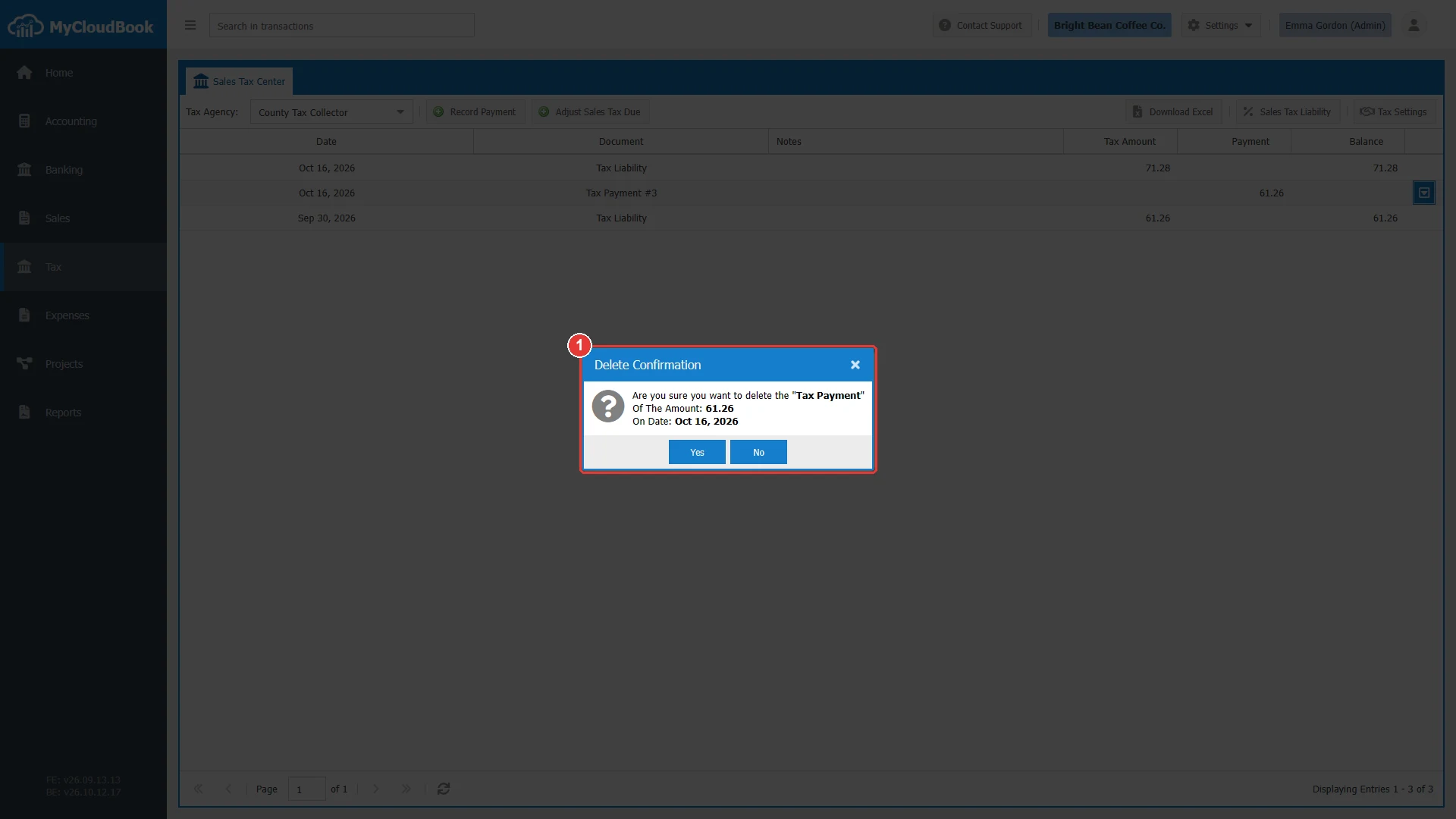
- 1The type, the amount, and the date of the document.
Messages and their meaning
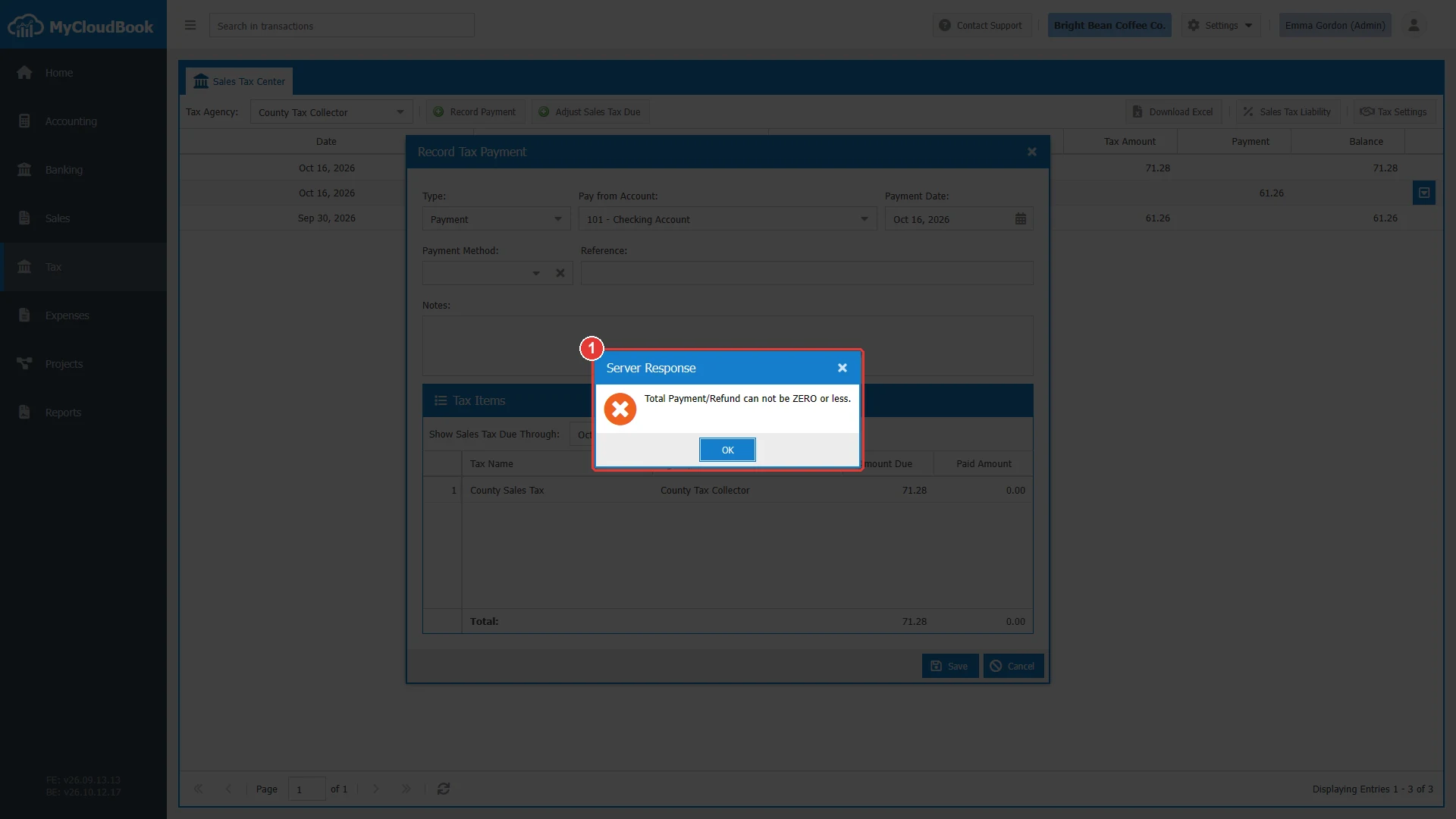
- 1The message of the server.
Questions and answers
How do I pay sales tax in MyCloudBook?
Open Tax, select the tax agency, and click Record Payment. Set Show Sales Tax Due Through to the end of the period, select the bank account, type the paid amount of each tax, and save.
How do I record a sales tax refund?
Open Record Payment for the agency, select Refund in Type, select the account that receives the money, type the refund in the last column, and save.
How do I pay two agencies?
Record one payment for each agency. Each payment belongs to one agency, so the Sales Tax Center shows the balance of each agency.