Refund Vouchers
This guide explains refund vouchers in MyCloudBook: paying money back to a customer from the credit of credit notes and receipt vouchers, the funding of the refund, and the rules for changing and deleting it.
Overview
A refund voucher records money that the company pays back to a customer. The money comes from a credit that the customer already has:
- the unapplied credit of a credit note, for example for returned goods;
- the unapplied amount of a receipt voucher, for example an overpayment.
A refund voucher names the account that pays the money (the Refund From account) and the sources that fund it. The total of the funding must equal the amount refunded exactly.
| Post | Account and amount |
|---|---|
| Debit | Accounts Receivable, one post per source, with the customer as the contact of the post and the description Refund for Credit Note #N or Refund for Receipt Voucher #N. |
| Credit | The Refund From account, for the full amount. |
The credit of the customer is used up, and the balance of the customer returns to what it was before the credit. Refund vouchers have their own number sequence and no status.
How to open the screen
- In the left navigation, click Sales, then the Payments & Refunds tab.
- Click New Refund Voucher, or open a refund voucher with a double click.
The Receipt Vouchers guide describes the Payments & Refunds list.
The refund voucher screen
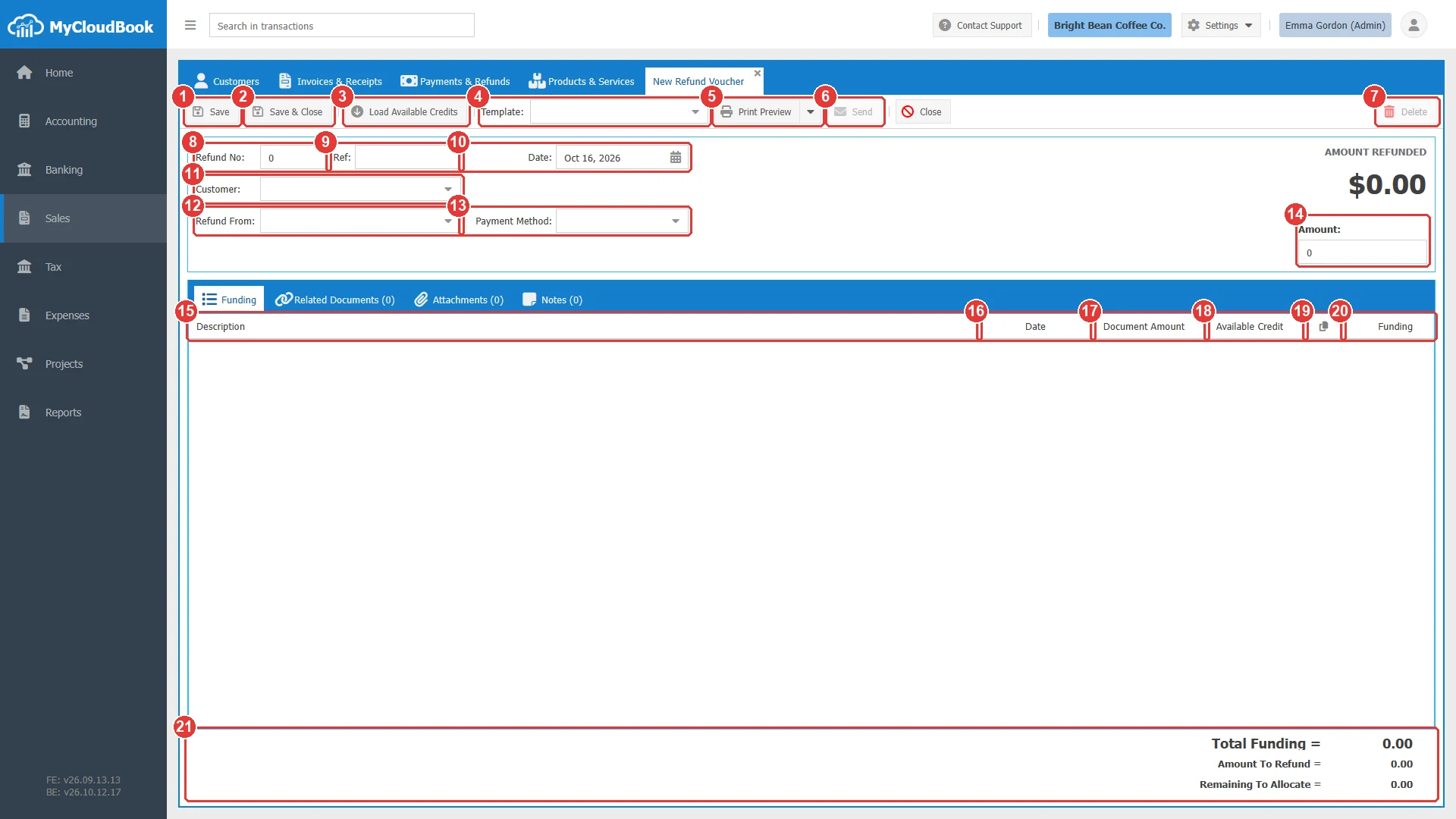
- 1Save.
- 2Save & Close.
- 3Load Available Credits. Loads the credit notes and the receipt vouchers of the customer that have a credit.
- 4Template.
- 5Print Preview, with Download PDF Format and Download Microsoft Word Format in its menu.
- 6Send. Available after the save.
- 7Delete. Available after the save.
- 8Refund No. 0 means the next number.
- 9Ref.
- 10Date.
- 11Customer. Required.
- 12Refund From. The account that pays the money. Required.
- 13Payment Method.
- 14Amount. The money paid back. Required.
- 15Description. The source document. A click opens it.
- 16Date. The date of the source.
- 17Document Amount.
- 18Available Credit. The credit that the source can still give.
- 19The copy icon fills the funding of every row, up to the amount. The arrow of a row fills one row.
- 20Funding. The part of the refund that comes from the source.
- 21The totals: Total Funding, Amount To Refund, and Remaining To Allocate.
The fields
| Field | Required | Purpose and rules |
|---|---|---|
| Refund No | Required | Keep 0 for the next number of the refund voucher sequence. |
| Ref | Optional | A free reference, for example the number of the check. |
| Date | Required | The date of the refund. It starts with today. |
| Customer | Required | The customer who receives the money. A change of the customer empties the funding rows and loads the credits of the new customer. |
| Refund From | Required | The account that pays the money: an Assets, Liabilities, or Equity account that is not a system account, for example the checking account. |
| Payment Method | Optional | For example Check or Bank Deposit. |
| Amount | Required | The money paid back. It must be above zero and equal to the total of the funding. |
| Funding | Required | Per source, the part of the refund. It cannot exceed the available credit of the source. A row with 0 is not saved; at least one row is needed. |
Example
The example pays 121.25 back to Harbor View Catering by check. The money comes from the 36.00 left on credit note 2 and the 85.25 left on receipt voucher 3.
- Click New Refund Voucher and select the customer. The credit note and the receipt voucher with a credit are loaded into the Funding tab.
- Select the Refund From account Checking Account, the payment method Check, and type Check 1022 in Ref.
- Type 121.25 in Amount.
- Click the copy icon in the header of the funding grid. The funding of each row is filled up to the amount, and Remaining To Allocate shows 0.00.
- Click Save.
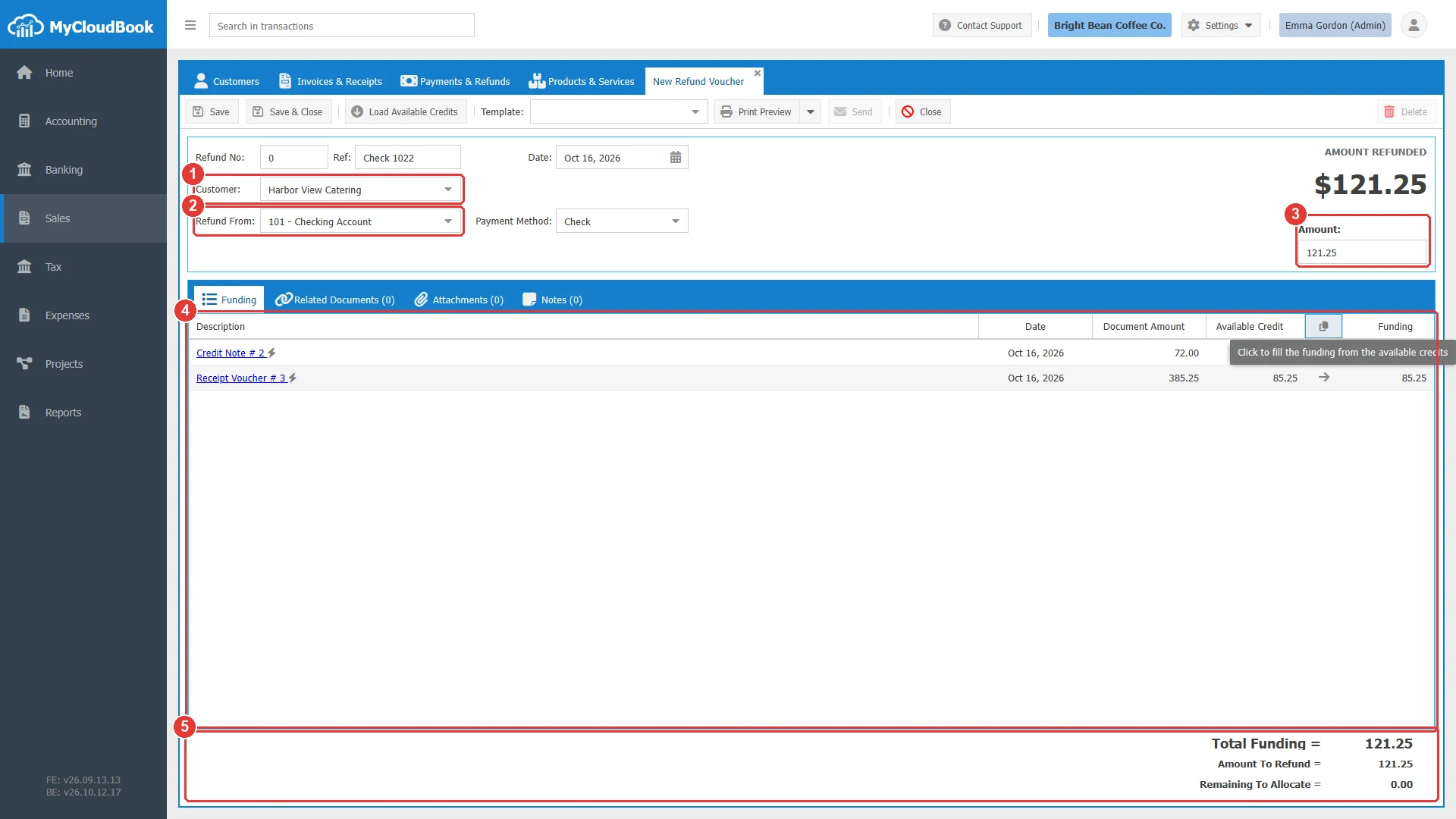
- 1The customer.
- 2Refund From: the account that pays the money back.
- 3Amount: the money paid back.
- 4The credit note and the receipt voucher that fund the refund.
- 5Remaining To Allocate is 0.00.
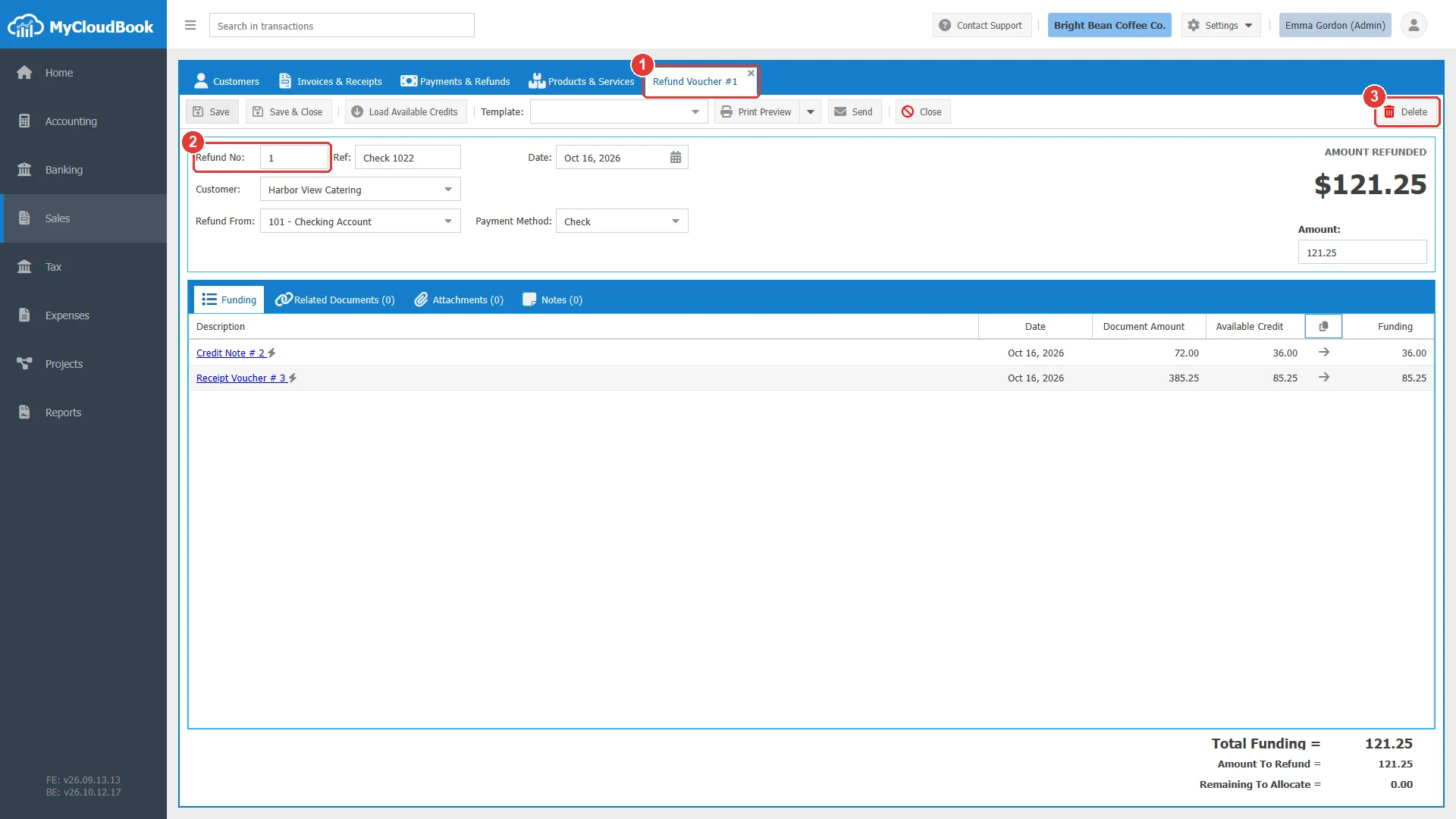
- 1The tab shows the number of the refund voucher.
- 2Refund No, assigned by MyCloudBook.
- 3Delete is now enabled.
After the save, the credit note shows the refund voucher in its Credit Applied To tab, the receipt voucher shows a read-only row Refund Voucher #1, and both have no balance left in the Payments & Refunds list.
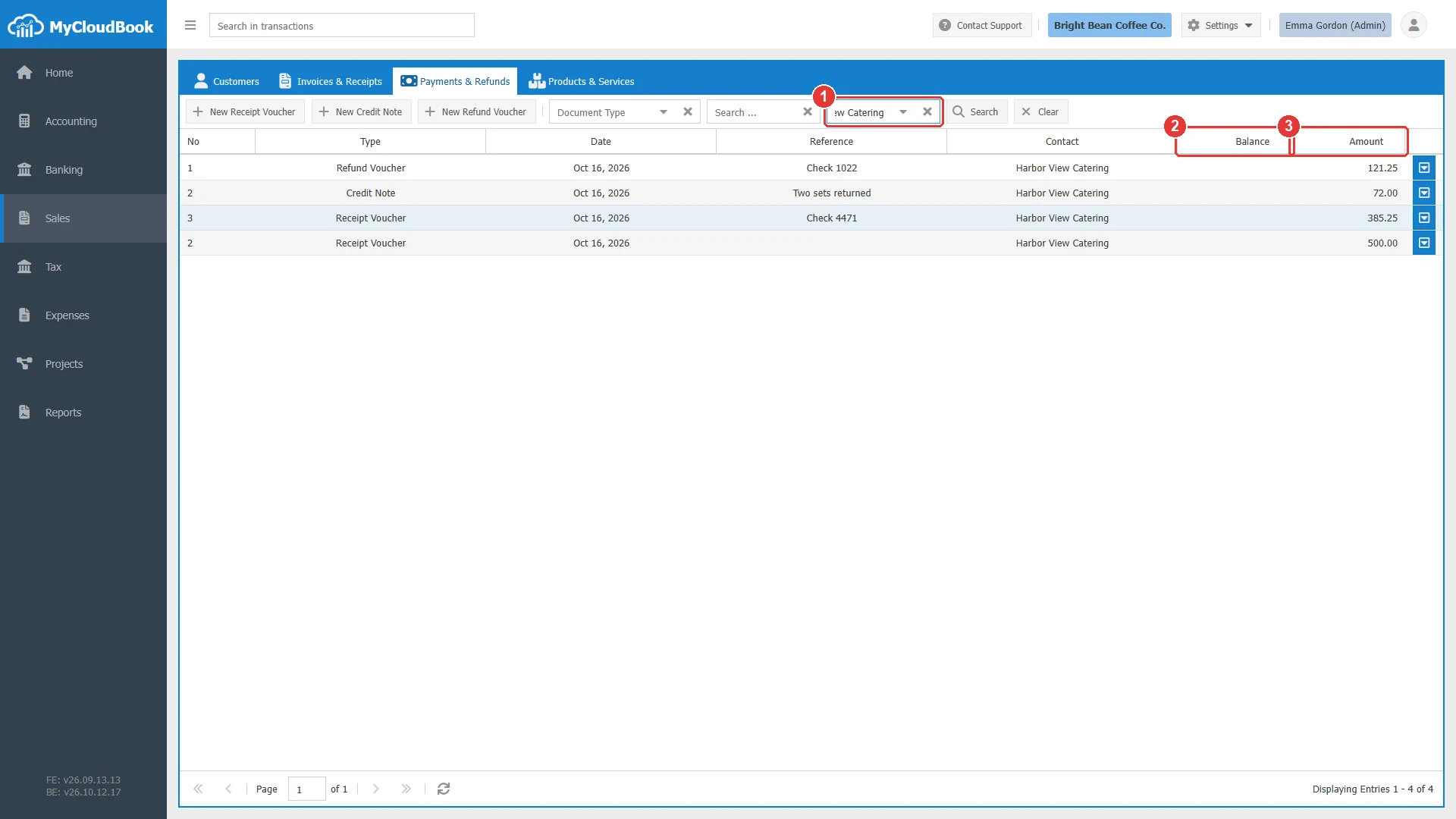
- 1The Customer filter.
- 2Balance: empty, because the credits are used.
- 3Amount.
Changing and deleting
Every field of a saved refund voucher can change except the number. When the customer or the currency changes, the funding rows are emptied and must be loaded again. While a refund voucher uses a source:
- the receipt voucher cannot change its customer or currency, and cannot be deleted;
- the credit note cannot be deleted, and its refund row cannot be removed from the credit note.
Delete the refund voucher to release the credit. Deleting a refund voucher removes its journal entry and gives the credit back to its sources. A refund voucher with a post reconciled in the Banking module cannot be deleted until the bank transaction is unreconciled.
Messages and their meaning
Questions and answers
How do I pay money back to a customer in MyCloudBook?
Create a refund voucher: select the customer, the Refund From account, and the amount, load the available credits, fill the funding so that the remaining amount is 0.00, and save.
Where does the money of a refund come from?
From the unapplied credit of credit notes and the unapplied amount of receipt vouchers of the same customer and currency. Load Available Credits lists them.
Can I refund without a credit note?
A refund voucher needs a source with a credit. Create a credit note for the amount first, or use the unapplied amount of a receipt voucher.
How do I cancel a refund?
Delete the refund voucher. The credit returns to the credit notes and the receipt vouchers that funded it.