Sales Orders
This guide explains sales orders in MyCloudBook: creating an order, its statuses, fulfilling it with an invoice or a receipt, canceling and reopening it, and the rules for changing and deleting it.
Overview
A sales order records an order that the customer confirmed and that the company has still to deliver or to invoice. It keeps the agreed products, quantities, and prices until the invoice or the receipt is made. When that document is created from the order, MyCloudBook marks the order as Fulfilled and links the two documents.
A sales order has no accounting effect: no journal entry, no inventory movement, and no customer balance. Sales orders have their own number sequence. They are listed in the Invoices & Receipts tab and use the invoice screen; the Invoices and Receipts guide describes the shared parts.
How to open the screen
- In the left navigation, click Sales, then the Invoices & Receipts tab.
- To see the sales orders only, set the Document Type filter to Sales Order.
- To create a sales order, click New and then New Sales Order.
The sales order screen
The sales order screen is the invoice screen with these differences:
- The number field is S. Order No, in the sales order sequence.
- The date field is Expire Date, the last day of the order. It is optional.
- The large figure is labelled AMOUNT, and the status appears under it.
- There is no draft, no Receive Payment, no Payments tab, and no Credit Notes tab.
- After the save, the buttons Create Invoice and Mark as Fulfilled appear while the order is open.
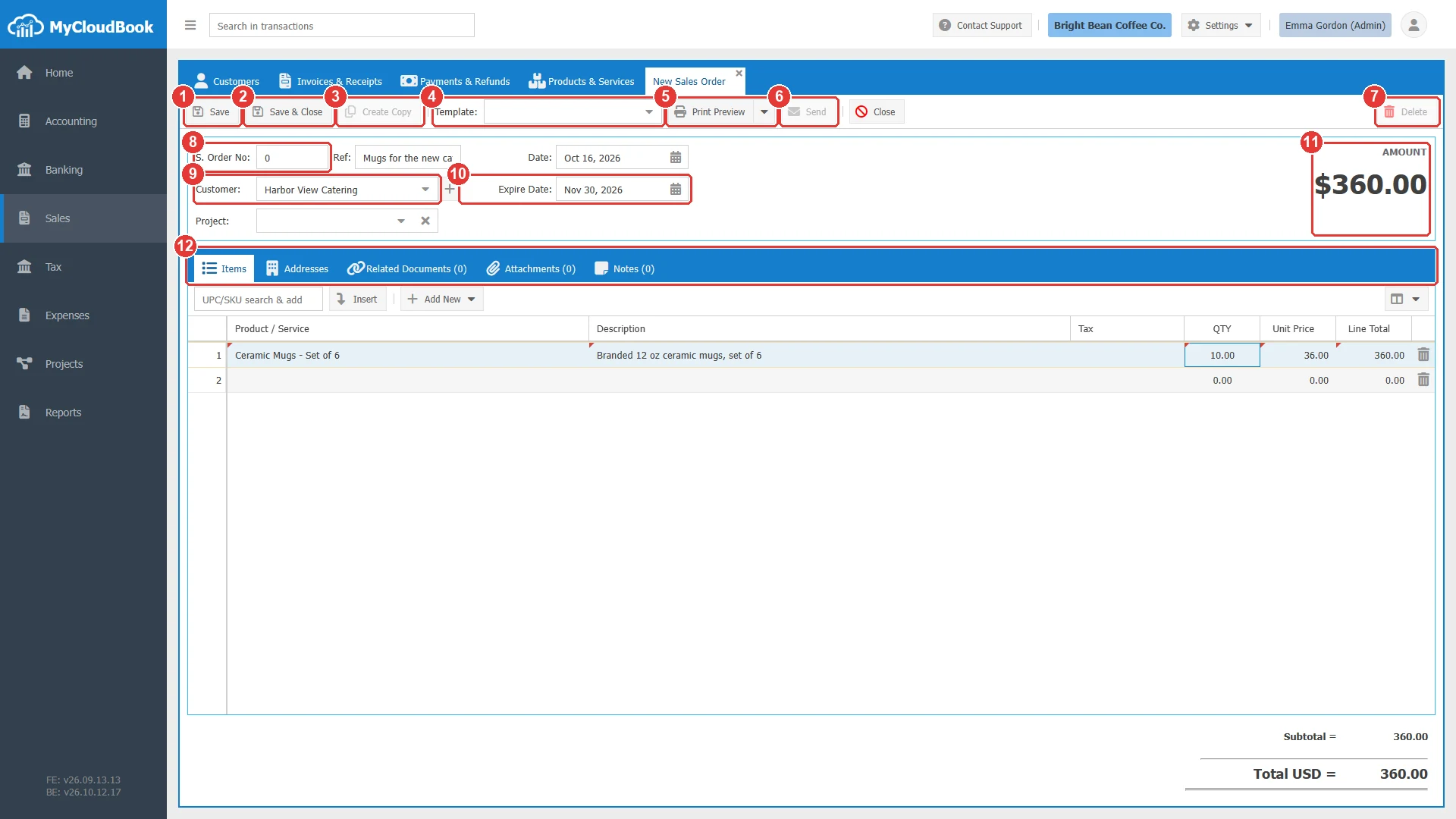
- 1Save.
- 2Save & Close.
- 3Create Copy. Available after the save.
- 4Template. The sales order templates only.
- 5Print Preview.
- 6Send. Available after the save.
- 7Delete. Available after the save.
- 8S. Order No. 0 means the next number of the sales order sequence.
- 9Customer. Required.
- 10Expire Date. Optional.
- 11The amount of the order and, after the save, its status.
- 12The tabs.
The fields
| Field | Required | Purpose and rules |
|---|---|---|
| S. Order No | Required | Keep 0 for the next number of the sales order sequence. |
| Ref | Optional | A free reference, for example the purchase order number of the customer. |
| Date | Required | The date of the order. It starts with today. |
| Customer | Required | The customer who placed the order. |
| Expire Date | Optional | The last day of the order. When online payment is set up, the customer can pay the order online only until this day. The date does not change the status. |
| Lines | Required | At least one line, as on an invoice. |
Statuses
A new sales order is Open. The status changes through the buttons of the order or through the documents created from it.
| Status | Meaning and what it allows |
|---|---|
| Open | The order is waiting. It can be changed, deleted, fulfilled, or canceled. Create Invoice, Create Receipt, and Mark as Fulfilled are offered. |
| Fulfilled | An invoice or a receipt fulfilled the order. The order cannot be changed or deleted. Reopen Order sets it back to Open. |
| Canceled | The order was withdrawn. It cannot be changed, but it can be deleted. Reopen Order sets it back to Open. |
A fulfilled order cannot be canceled, and a canceled order cannot be fulfilled: reopen the order first. When the invoice or the receipt that fulfilled an order is deleted, the order becomes Open again.
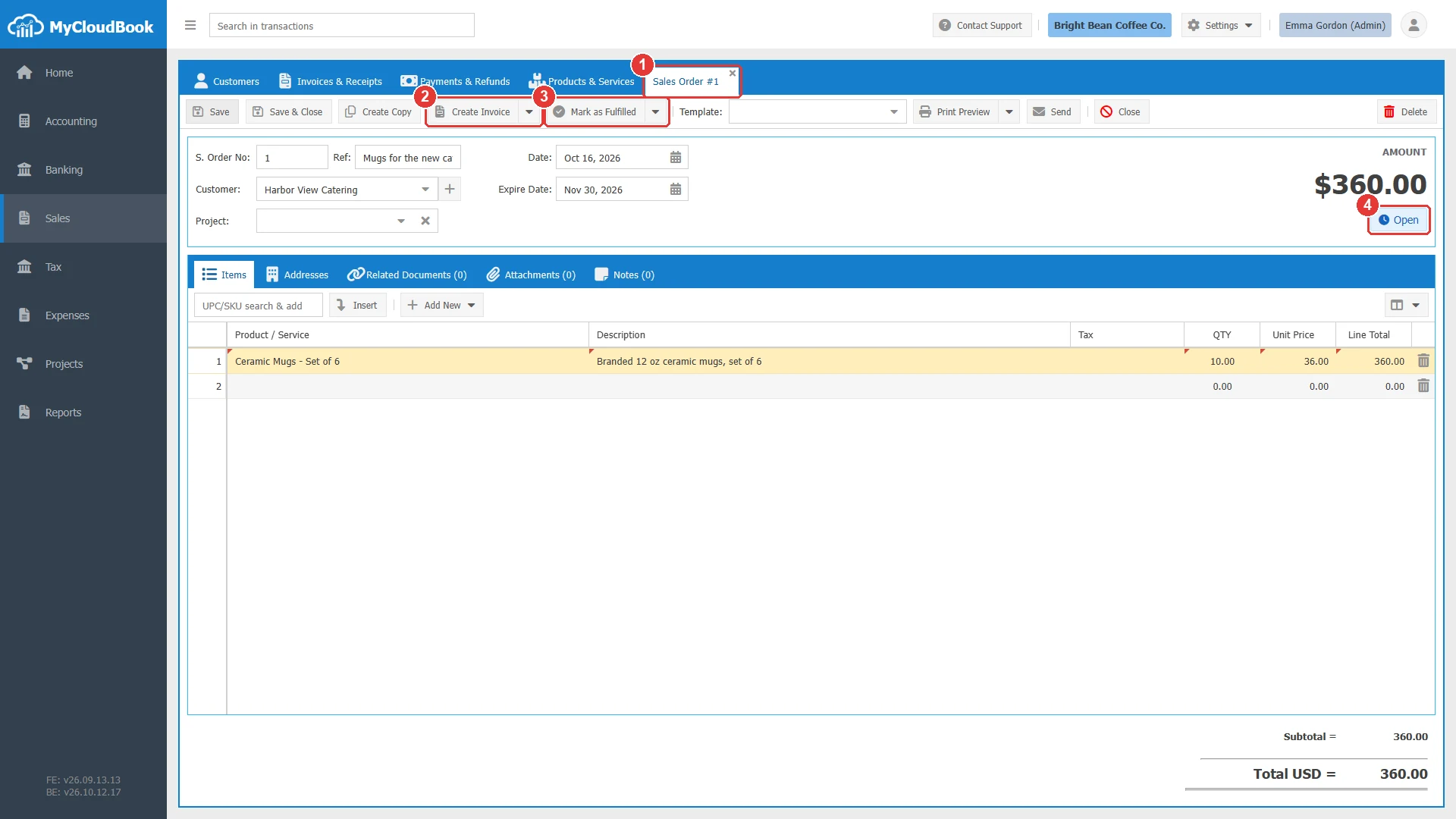
- 1The tab shows the number of the order.
- 2Create Invoice, with Create Receipt in its menu.
- 3Mark as Fulfilled, with Cancel Order in its menu.
- 4The status Open.
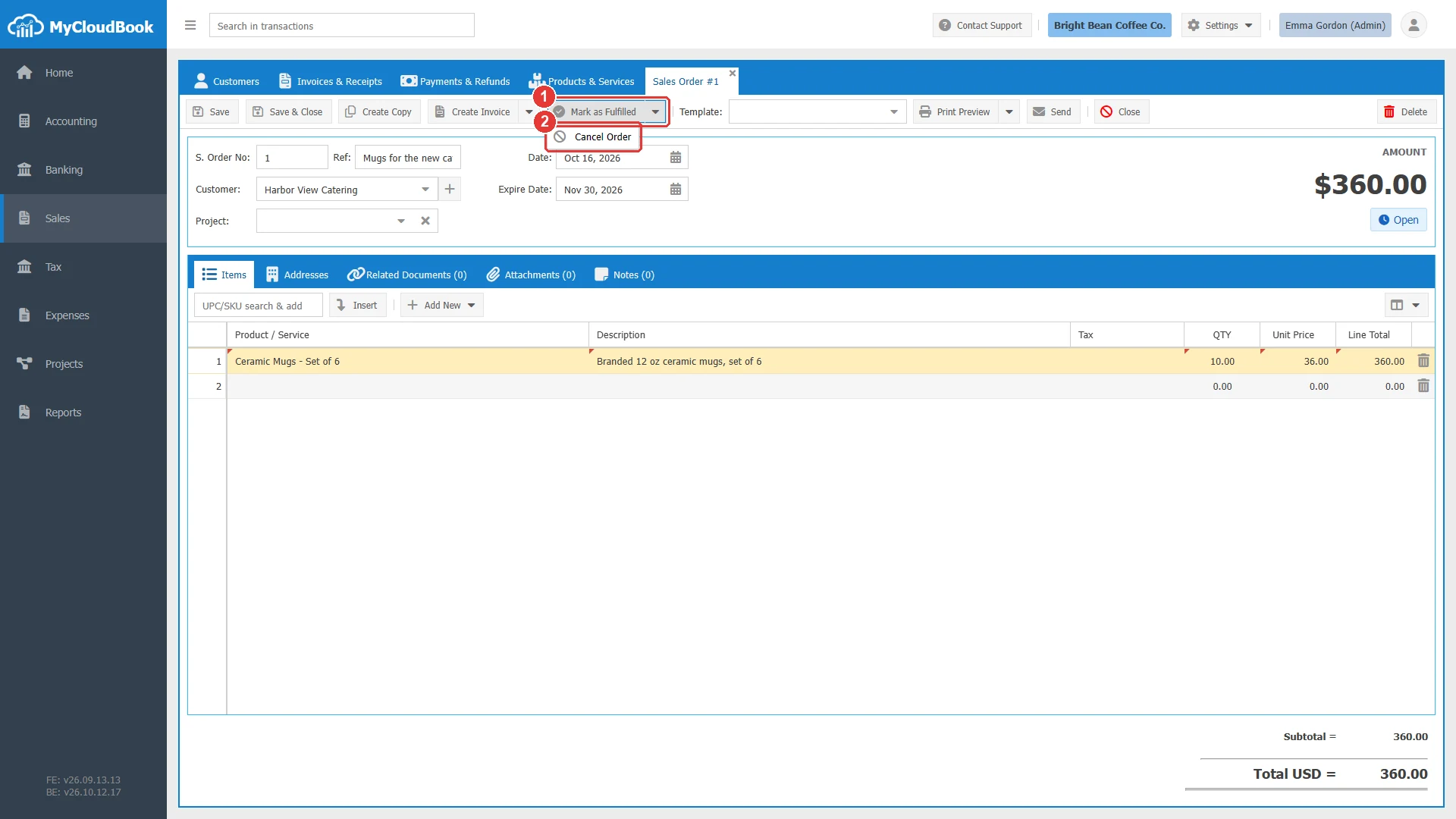
- 1Mark as Fulfilled.
- 2Cancel Order. Sets the status of the order to Canceled.
Fulfilling an order
An order is fulfilled in one of three ways:
- Create Invoice or Create Receipt. The button opens a new invoice, or a receipt from its menu, filled with the customer, the reference, the lines, and the addresses of the order. When the new document is saved, the order becomes Fulfilled and the two documents are linked in their Related Documents tabs.
- Mark as Fulfilled. For an invoice or a receipt that already exists. The window lists the invoices and the receipts of the customer; select the document and click Save.
- Online payment. When Stripe is set up, the customer page of an open order shows a payment button. A successful payment creates a receipt from the order and fulfills it.
The example creates a receipt from the order, paid by credit card into the checking account:
- Open the order and click the arrow of Create Invoice, then Create Receipt.
- Select the Deposit To account and the Payment Method.
- Click Save. The receipt receives its number, and the order becomes Fulfilled.
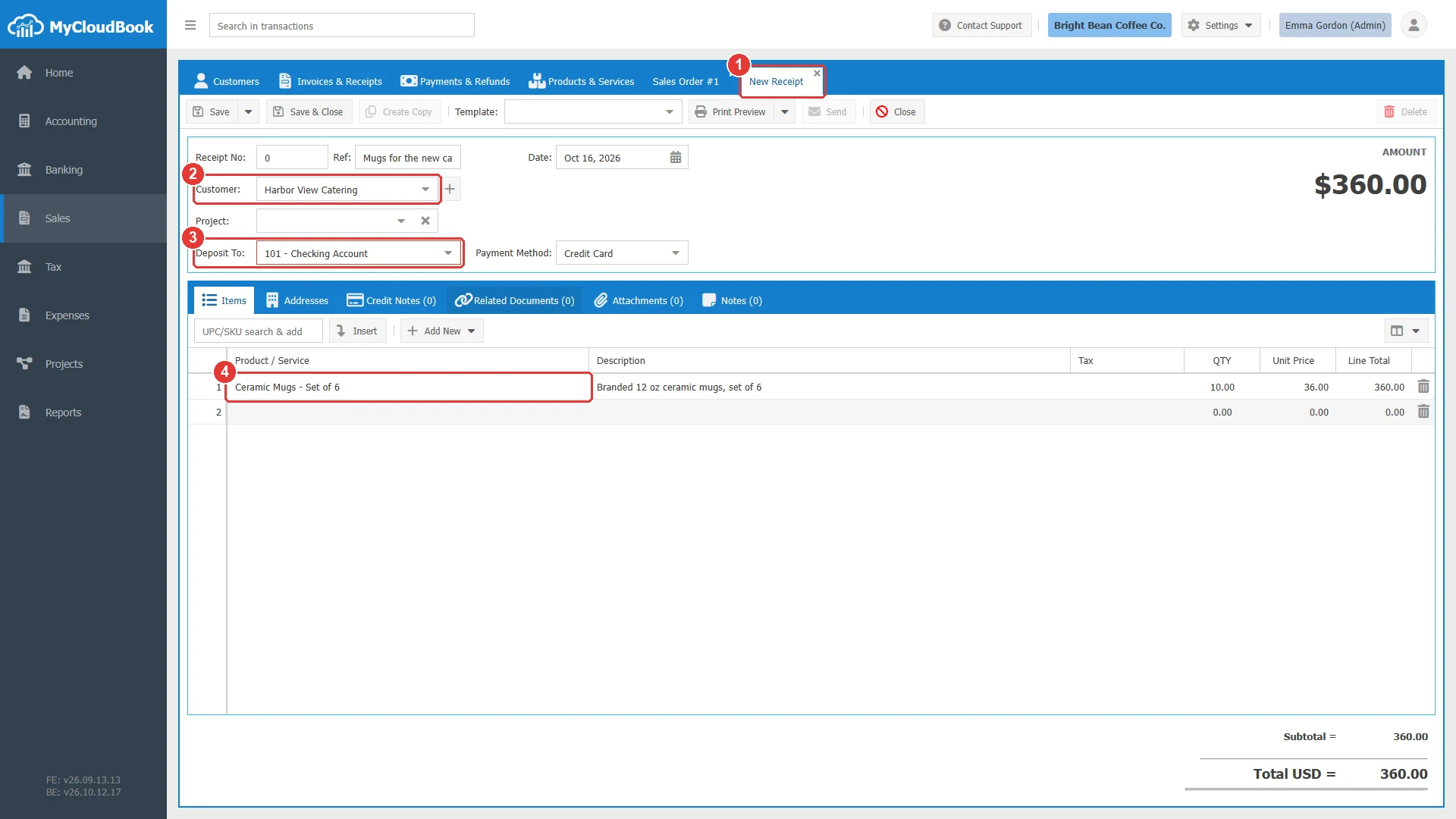
- 1A new receipt opens.
- 2The customer of the order.
- 3Deposit To.
- 4The lines of the order.
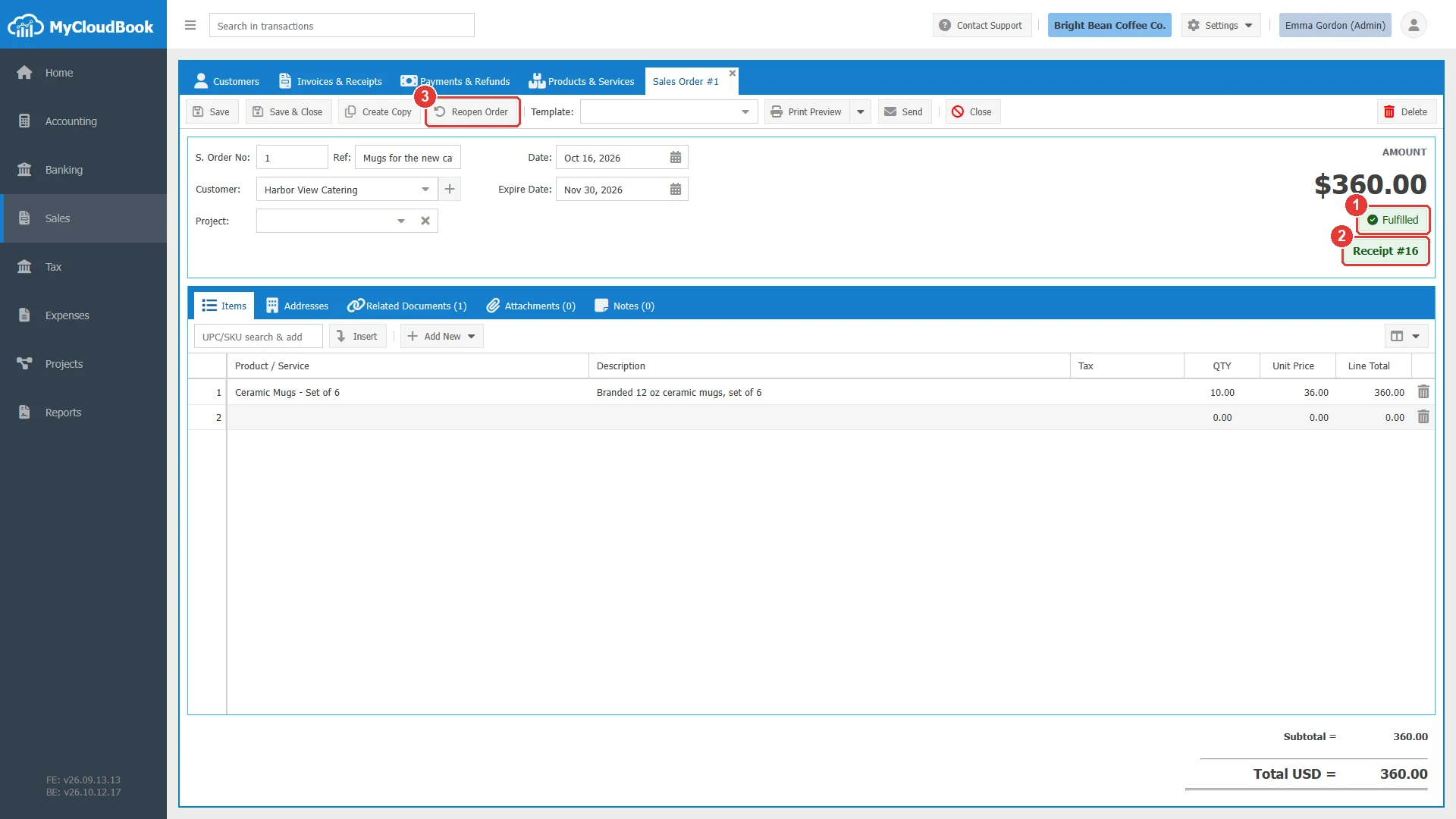
- 1The status Fulfilled.
- 2The receipt that fulfilled the order. A click opens it.
- 3Reopen Order.
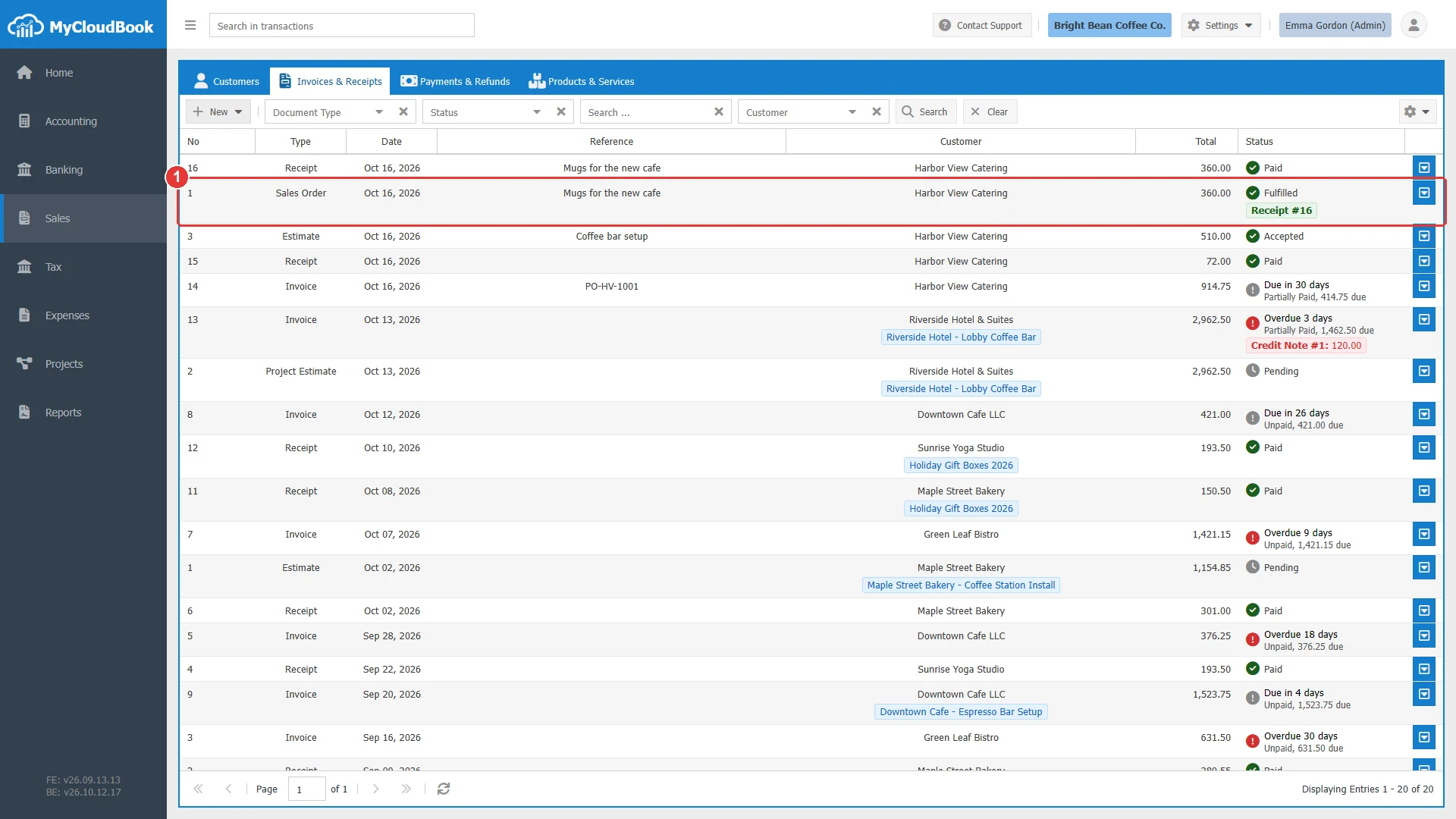
- 1The order: Fulfilled, with the receipt that fulfilled it.
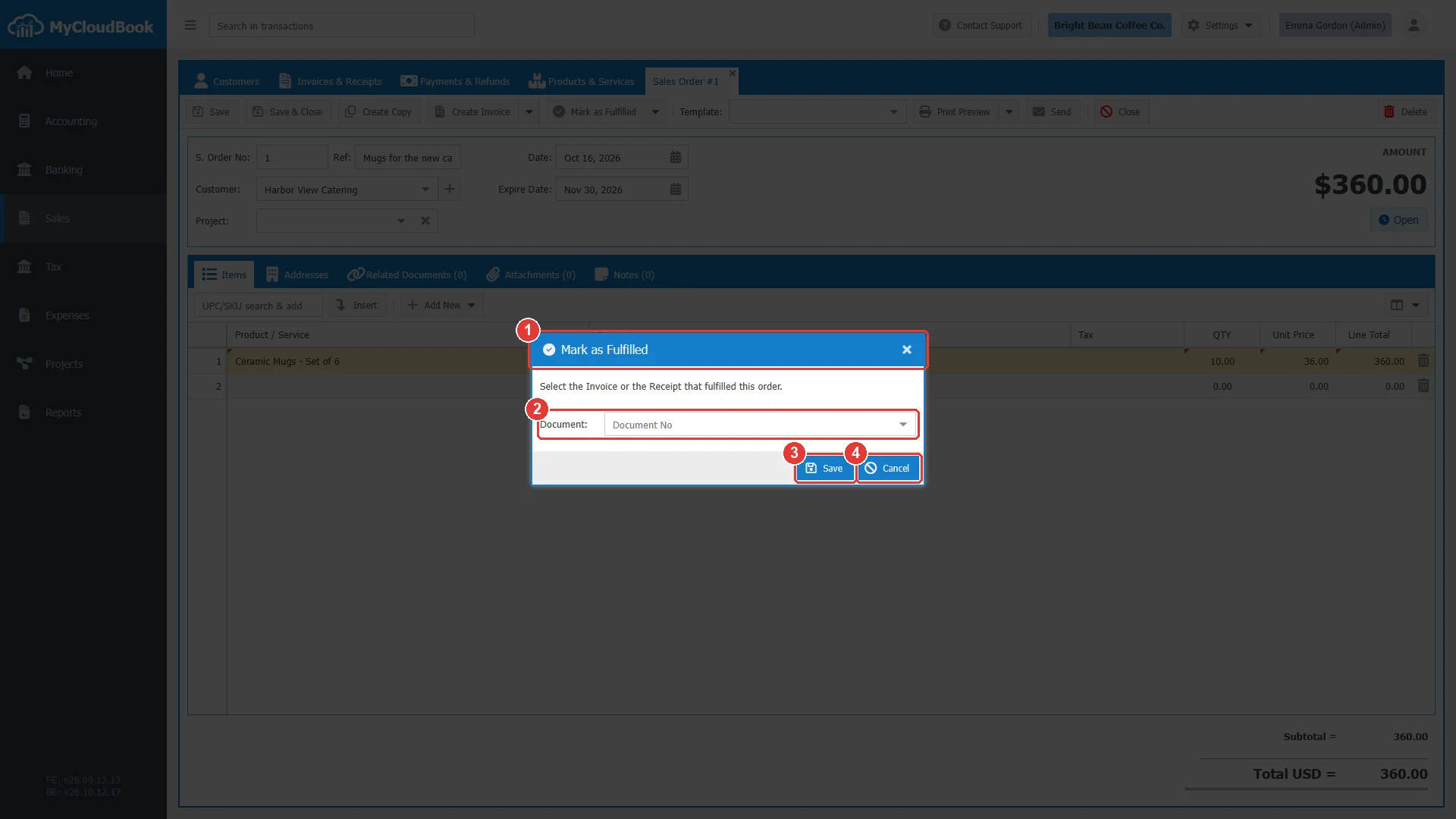
- 1The window title.
- 2Document. The invoice or the receipt that fulfilled the order.
- 3Save. A document is required.
- 4Cancel.
Deleting an order
An open or a canceled order can be deleted from the list or with Delete. A fulfilled order cannot be deleted; reopen it first.
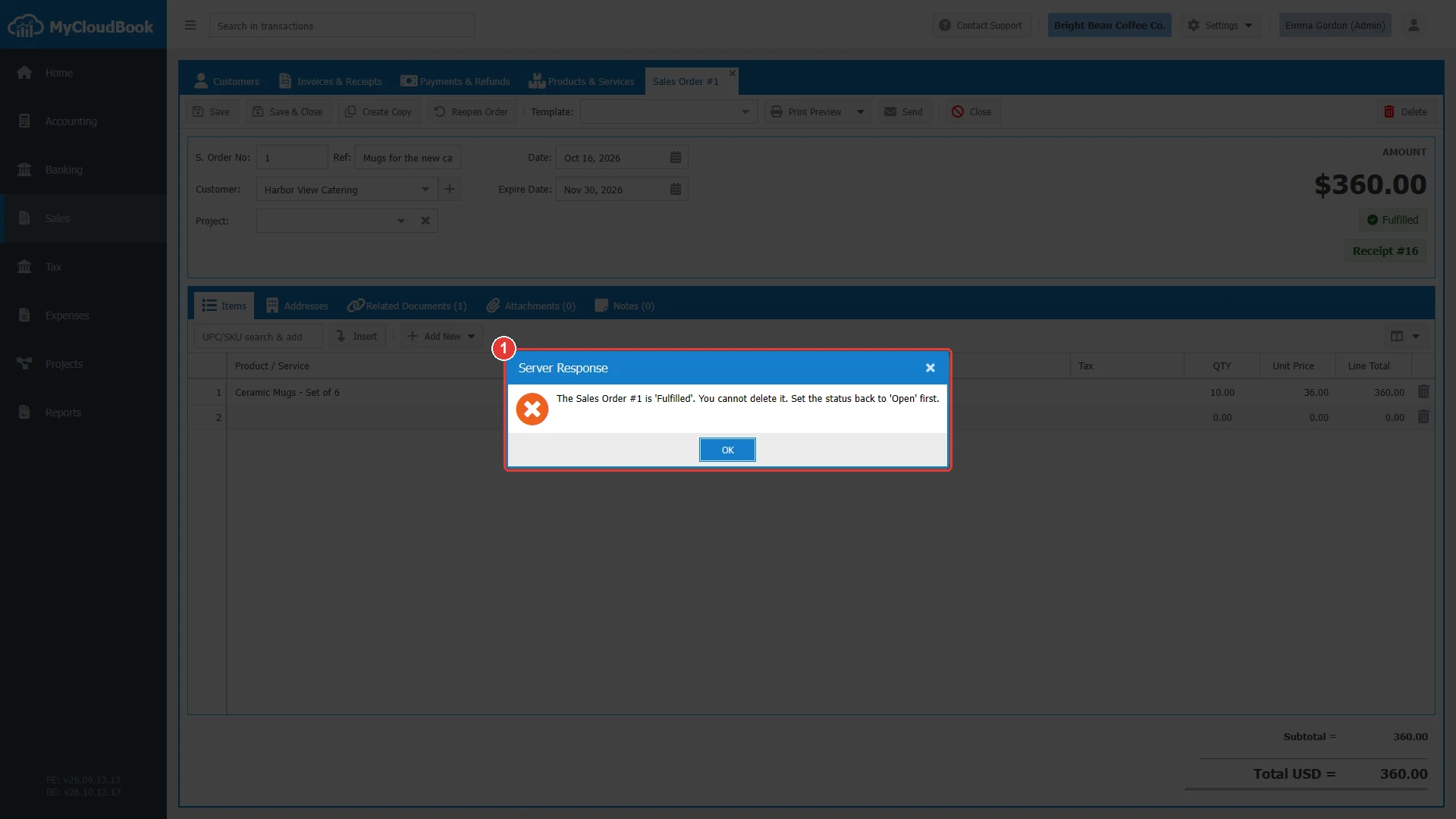
- 1The message from the server.
Messages and their meaning
Questions and answers
What is the difference between a sales order and an estimate?
An estimate is an offer that the customer can accept or decline. A sales order is an order that the customer already confirmed and that waits for the invoice or the delivery. Both have no accounting effect.
How is a sales order marked as fulfilled?
Create the invoice or the receipt from the order with Create Invoice or Create Receipt, or use Mark as Fulfilled and select an existing invoice or receipt. A Stripe payment on the customer page also fulfills the order.
How do I change a fulfilled sales order?
Click Reopen Order to set it back to Open, change it, and fulfill it again.
Does a sales order reserve stock or post to the accounts?
No. A sales order creates no journal entry and no inventory movement. The invoice or the receipt created from it does.