Account Ledger
This guide explains the ledger of an account in MyCloudBook: how to open it, what every column shows, how the running balance is computed, how to move between the pages of a long ledger, and how to open the document behind a transaction.
Overview
MyCloudBook keeps one general ledger for the company. Every document, such as an invoice, a bill, a receipt voucher, a journal entry, or a transfer, posts one or more lines to the general ledger. Each line names an account, a debit or a credit amount, and the document that created it. The ledger of an account shows the lines of the general ledger that belong to that account, from the newest to the oldest, together with the running balance of the account.
The ledger of an account answers three common questions:
- Which transactions changed the balance of the account, and when?
- Which document created a transaction, and who was the customer, the supplier, or the tax agency?
- What was the balance of the account after each transaction?
Every ledger opens in its own tab of the Accounting page, next to the Chart of Accounts, the Journal, and the Transfers tabs. Several ledgers can be open at the same time.
How to open the ledger
- In the left navigation, click Accounting. The Chart of Accounts tab is active.
- Find the account in the tree. The search box of the toolbar filters the tree by name or by number.
- Click the row actions button at the end of the row of the account, and then click View Ledger. A double click on the row of the account does the same.
- The ledger opens as a new tab, named Ledger #number (name), for example Ledger #101 (Checking Account). The newest transaction is at the top.
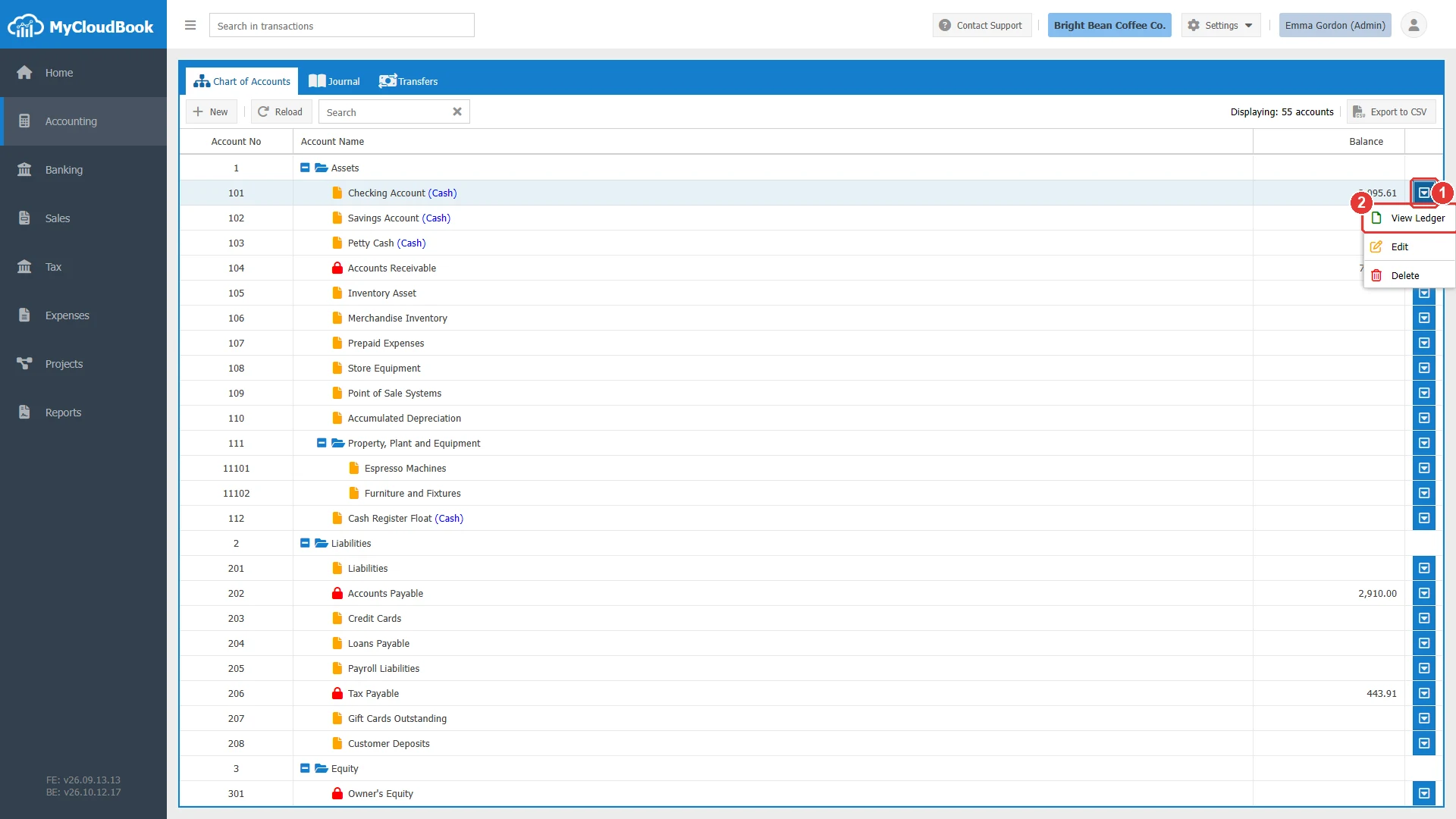
- 1The row actions button of the account.
- 2View Ledger. Opens the ledger of the account in a new tab.
The following rules apply:
- Only an account that receives transactions has a ledger. A main account groups sub accounts and does not receive transactions. When the ledger of a main account is requested, the message The ledger book is available only for Journal Accounts. is shown.
- The five account type rows, such as Assets, have no row actions button and no ledger.
- When the ledger of the account is already open, MyCloudBook activates its tab instead of opening a second tab for the same account.
- A ledger tab stays open until you close it with the cross on the tab. The tabs are closed when you sign out or reload the application.
The screen
The ledger is a list with one row per transaction line. Figure 2 shows the ledger of the Checking Account of the example company, with every part marked.
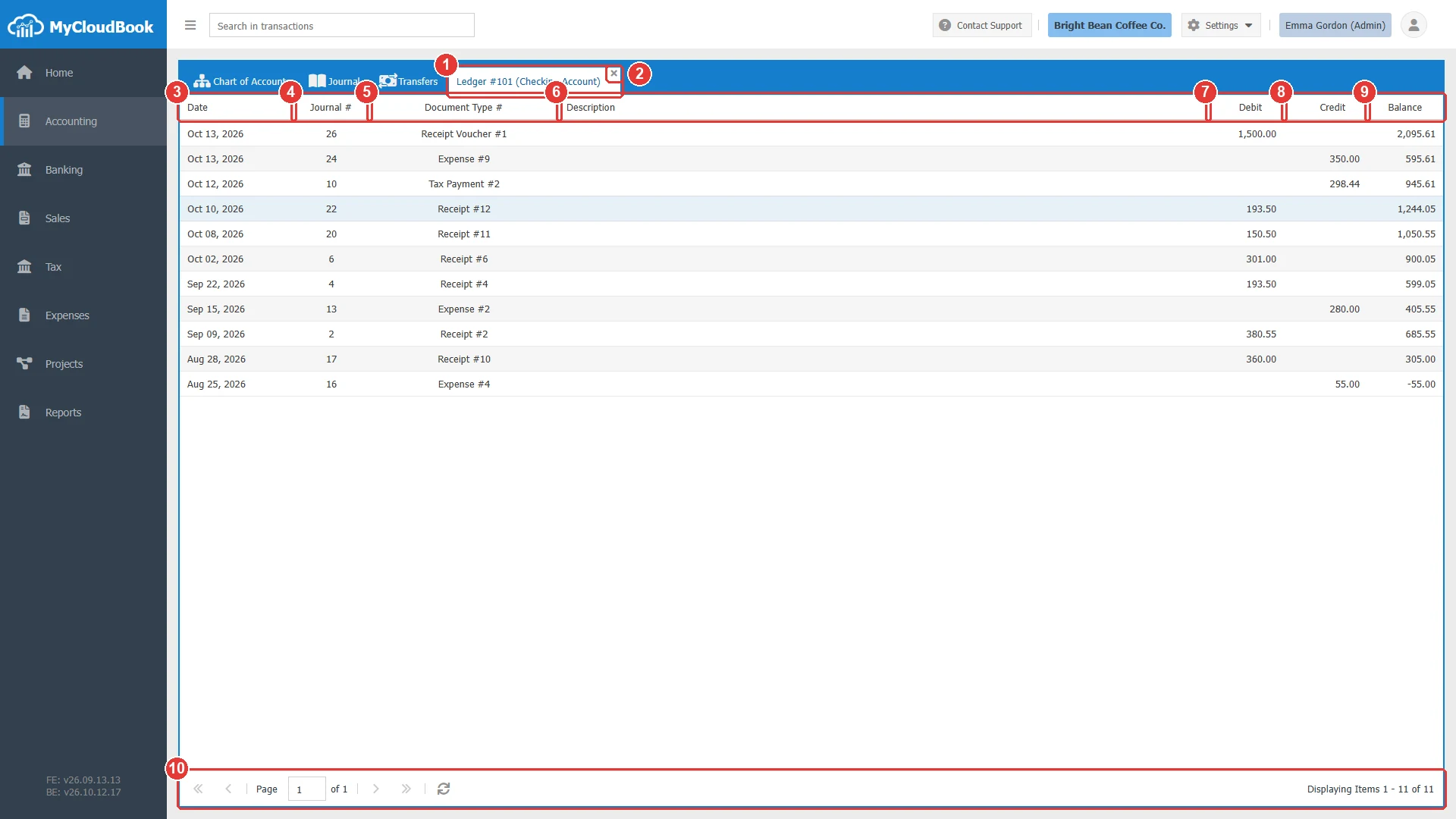
- 1The ledger tab. Its name holds the number and the name of the account.
- 2The cross closes the tab.
- 3Date. The date of the transaction.
- 4Journal #. The number of the journal entry that holds the transaction.
- 5Document Type #. The type and the number of the document that created the transaction.
- 6Description. The description of the transaction line.
- 7Debit. The debit amount, in the currency of the account.
- 8Credit. The credit amount, in the currency of the account.
- 9Balance. The balance of the account after the transaction.
- 10The paging toolbar. It shows the rows that are displayed and moves between the pages of a long ledger.
The columns
Some columns are shown for some accounts only. The table lists every column, its content, and the accounts for which it is shown.
The rows are listed from the newest to the oldest, by the date of the transaction. The transactions of the same date are listed with the higher journal number first. One document can appear more than once in the same ledger, when the document has several lines that post to the account, for example an invoice with two lines that use the same income account.
The running balance
The Balance column shows the balance of the account after each transaction. MyCloudBook computes it from the oldest transaction upwards, so the balance of the top row is the current balance of the account. It is the same amount as the Balance column of the Chart of Accounts.
- For an Assets account, each debit increases the balance and each credit decreases it.
- For a Liabilities or Equity account, each credit increases the balance and each debit decreases it.
- The balance includes every transaction of the account, from the first day of the company. A negative balance is shown with a minus sign, for example -55.00.
- The balance is computed in the currency of the account.
- The column is not shown for Income and Expenses accounts, because their amounts belong to a period. The Income Statement shows the totals of these accounts for the selected period.
The pages of the list
The toolbar at the bottom of the ledger shows which rows are displayed and the total number of rows. When the ledger holds more rows than one page, the arrows move between the pages.
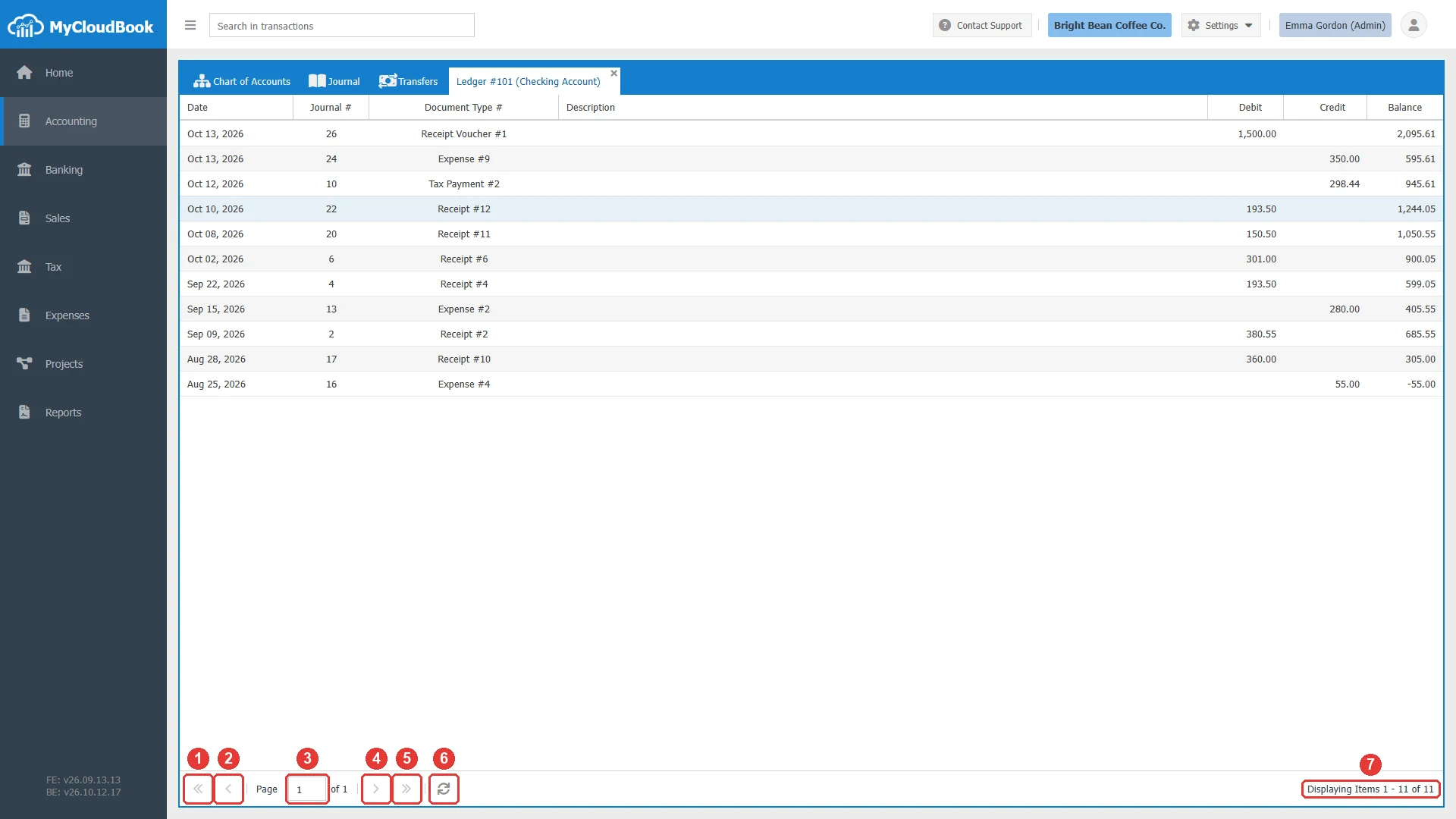
- 1First page.
- 2Previous page.
- 3The number of the current page. Type a number and press Enter to open that page.
- 4Next page.
- 5Last page.
- 6Refresh. Reads the ledger again from the server, for example after a document was changed in another tab.
- 7The rows that are displayed and the total number of rows, for example Displaying Items 1 - 11 of 11.
When the account has no transaction, the list is empty.
Receivable, payable and tax accounts
The ledgers of the Accounts Receivable, Accounts Payable, and Tax Payable accounts show one more column, Contact Display Name. It names the customer, the supplier, or the tax of every transaction. On the Tax Payable account, the column shows the tax, for example State Sales Tax, and not the tax agency. Figure 4 shows the ledger of the Accounts Receivable account, opened in a second tab next to the ledger of the Checking Account.
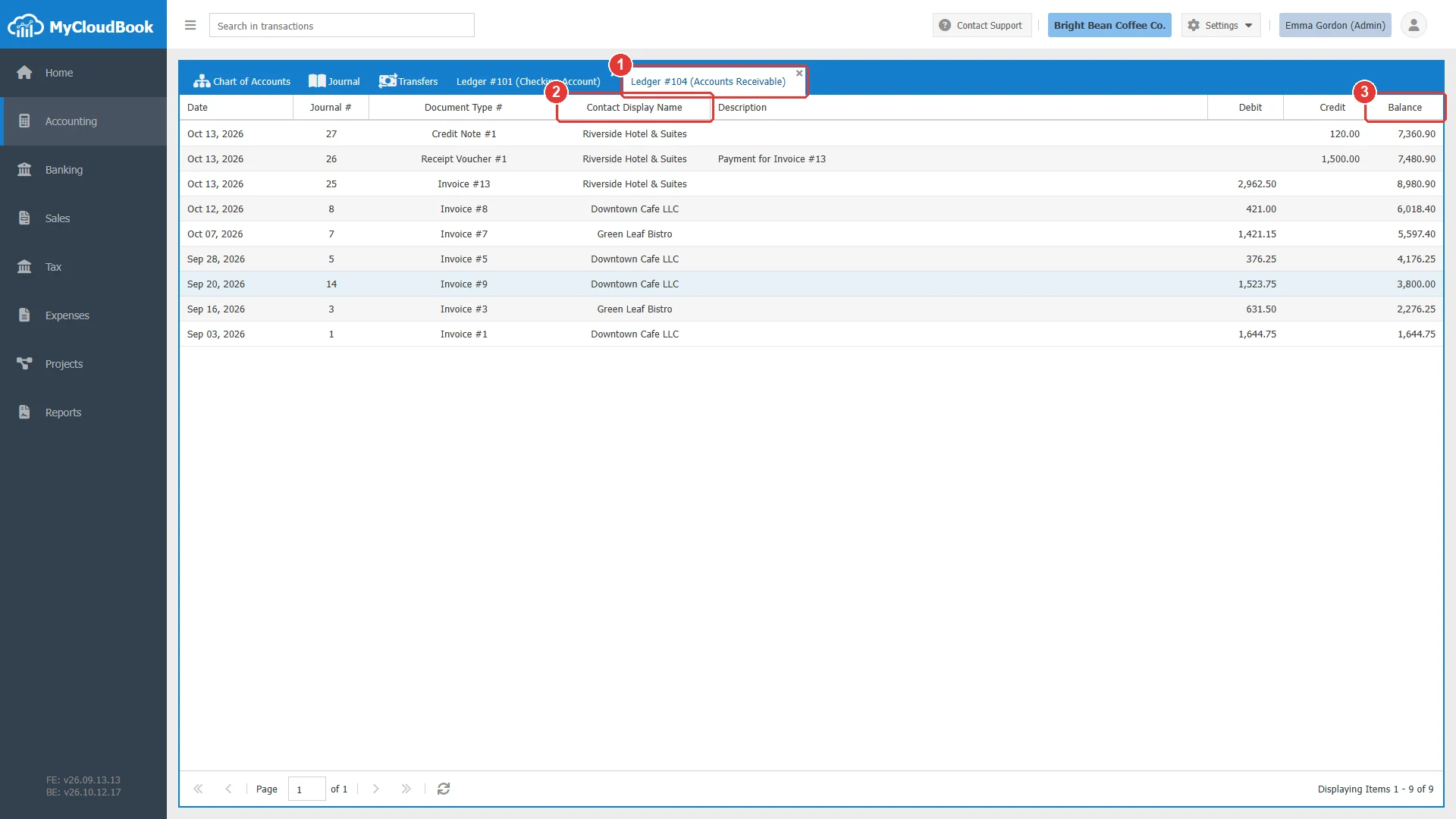
- 1A second ledger tab. Every ledger opens in its own tab.
- 2Contact Display Name. The customer of each transaction. The column is shown for the Accounts Receivable, Accounts Payable, and Tax Payable accounts.
- 3Balance. The total that all the customers owe to the company after each transaction.
The ledger of the Accounts Receivable account mixes the transactions of all the customers. To follow one customer, open the statement of the customer in Sales, Customers. In the same way, the statement of a supplier in Expenses, Suppliers follows one supplier, and the Sales Tax Center follows one tax agency.
Income and expense accounts
The ledger of an Income or Expenses account lists the transactions in the same way, with two differences. The Balance column is not shown, and the Project column is shown when Projects is enabled in Settings, Preferences. Figure 5 shows the ledger of the Cost of Sales account.
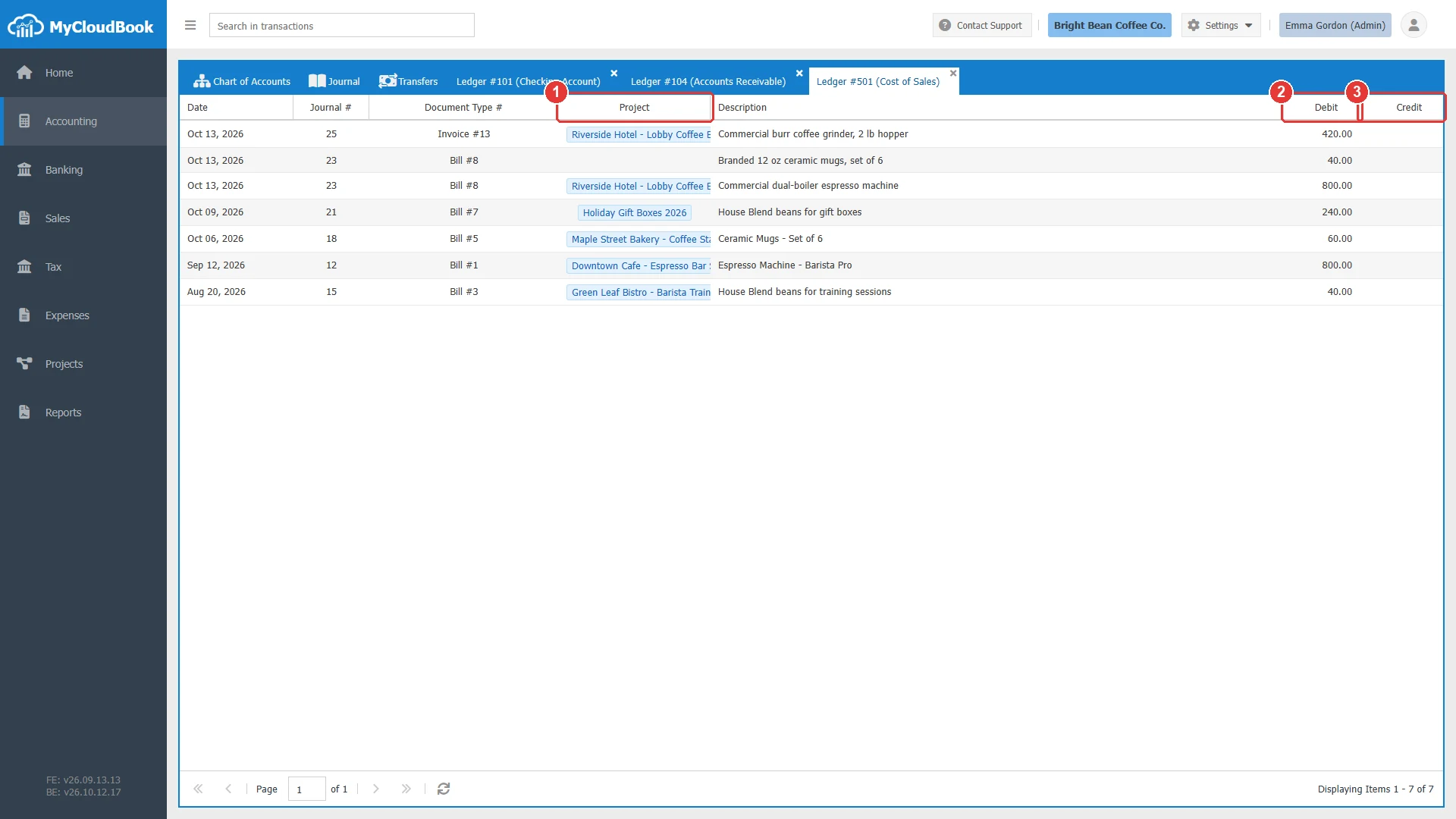
- 1Project. The project of the transaction line. The column is shown for Income and Expenses accounts when Projects is enabled.
- 2Debit.
- 3Credit. There is no Balance column for Income and Expenses accounts.
The totals of an Income or Expenses account for a period are in the Income Statement. The Project column helps to see which project carries a cost or an income. The profit of a project is shown in the Projects module.
Opening the document of a transaction
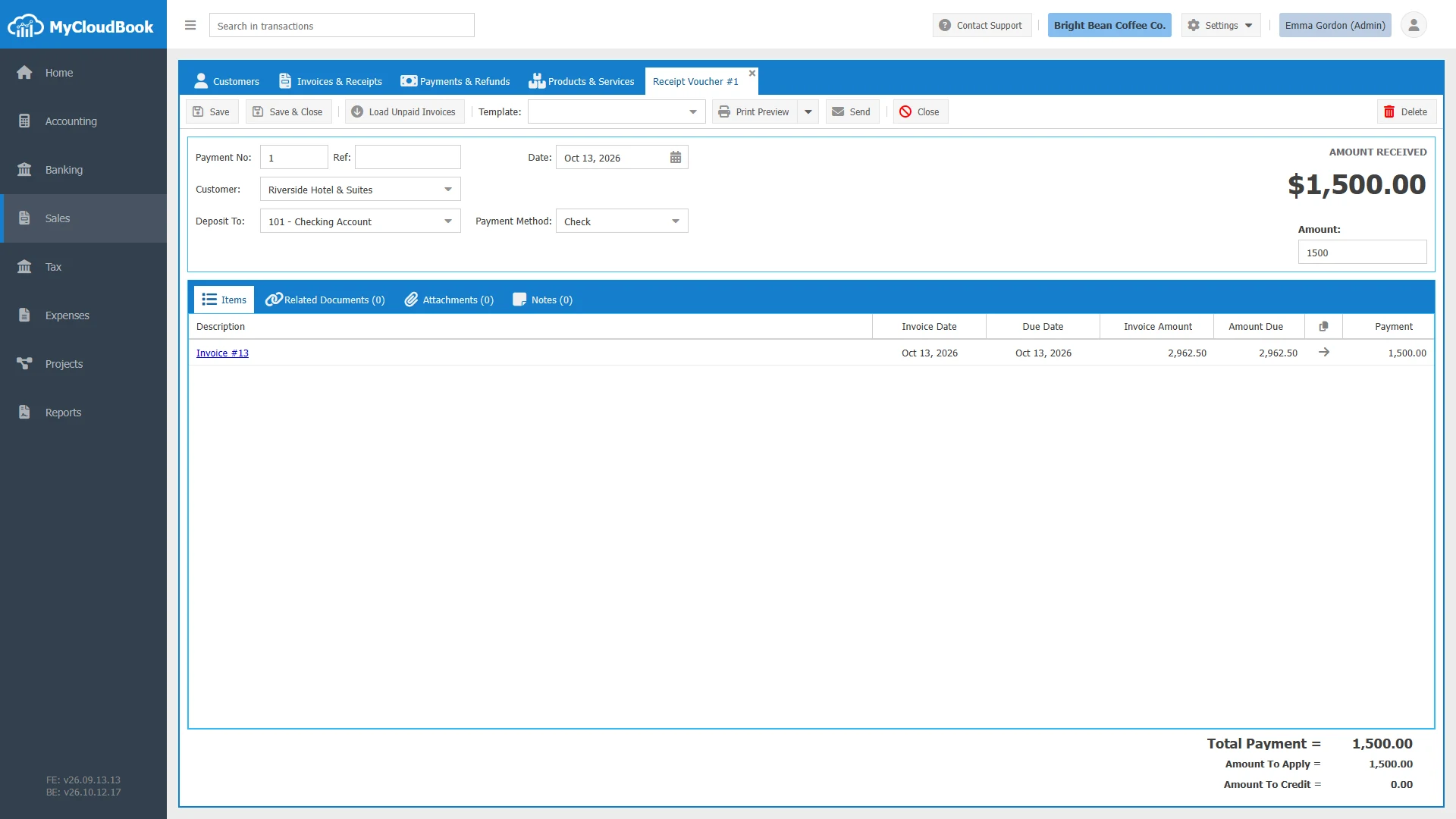
A double click on a row opens the document that created the transaction. The document opens in its own module, and the left navigation switches to that module. For example, a double click on the row of Receipt Voucher #1 opens the receipt voucher in the Sales module, as Figure 6 shows. The ledger tab stays open in the Accounting module.
The table shows where each kind of document opens.
| Document type | Opens in |
|---|---|
| Journal Entry | The journal entry window of Accounting, Journal. |
| Transfer | The transfer window of Accounting, Transfers. |
| Invoice, Receipt, Estimate, Project Estimate, Sales Order, Draft Invoice, Draft Receipt | A document tab of Sales, Invoices and Receipts. |
| Receipt Voucher, Credit Note, Refund Voucher | A document tab of Sales, Payments and Refunds. |
| Bill, Expense, Purchase Order, Draft Bill, Draft Expense | A document tab of Expenses, Bills and Expenses. |
| Bill Payment | A document tab of Expenses, Bill Payments. |
| Inventory Adjustment, Inventory Init | The inventory adjustment window of Sales, Products and Services. |
Open a tax payment, a tax refund, or a tax adjustment from Tax, Sales Tax Center.
When a change is saved in the opened document, the ledger reads its rows again, so the amounts and the running balance stay correct.
Multi-currency columns
When multi-currency is enabled in Settings, Preferences, the ledger shows one more column. The column depends on the currency of the account.
- For an account in the main currency of the company, the Foreign Currency column shows the amount of a transaction that was made in another currency, with the exchange rate on a second line, for example 1 USD = 0.87 EUR. The column is empty for a transaction in the main currency.
- For an account in a foreign currency, for example a bank account in euros, the Main Currency column shows the amount in the main currency of the company, with the exchange rate on a second line.
- The Debit, Credit, and Balance columns are always in the currency of the account.
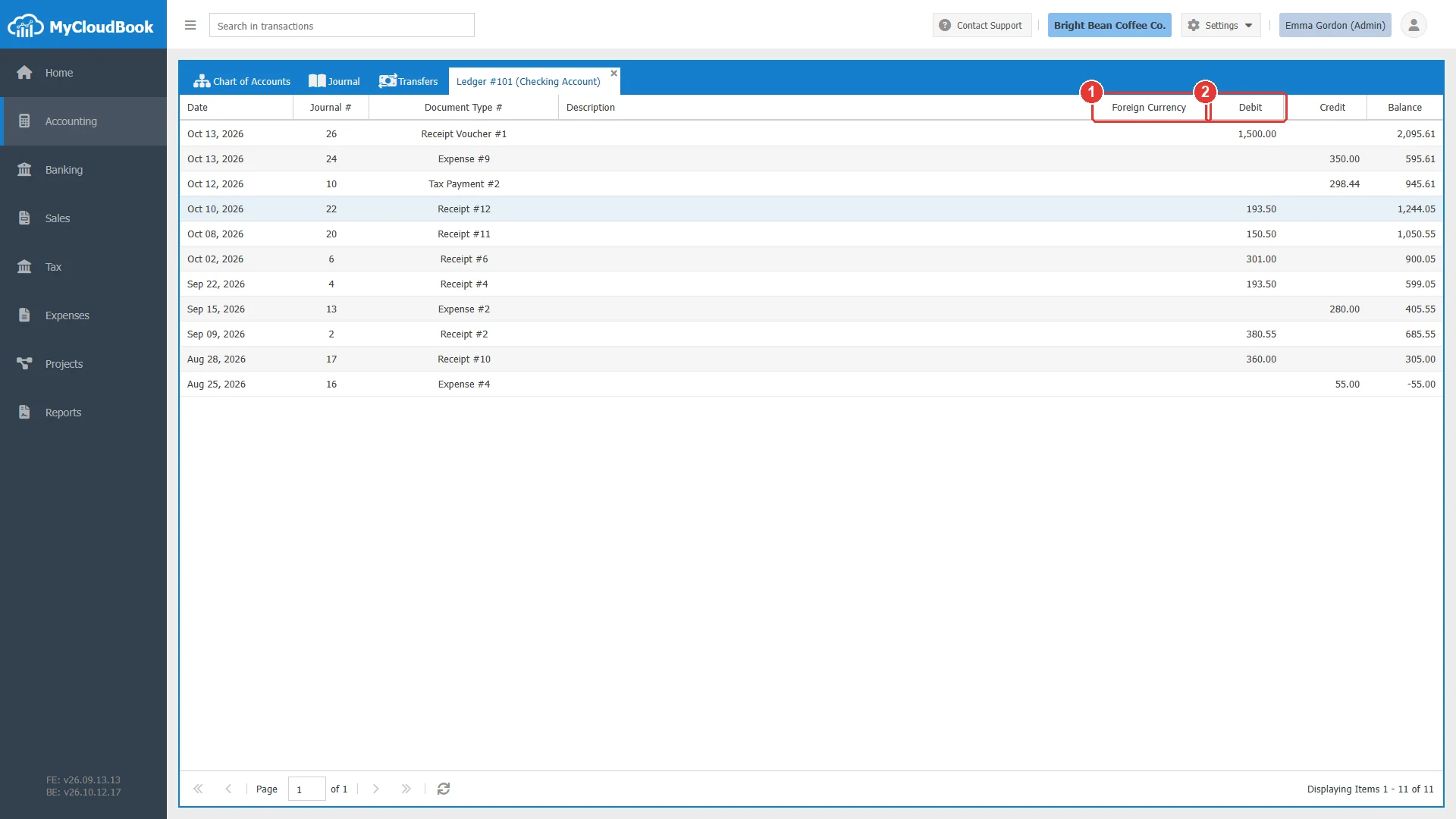
- 1Foreign Currency. The amount in the currency of the document, for the transactions that were made in another currency.
- 2Debit, in the currency of the account.
Messages and their meaning
Questions and answers
How do I open the ledger of an account?
Open Accounting, Chart of Accounts, click the row actions button of the account and then View Ledger, or double click the row of the account. The ledger opens as a new tab of the Accounting page.
In which order does the ledger list the transactions?
From the newest to the oldest, by transaction date. The transactions of the same date are listed with the higher journal number first. The running balance is computed from the oldest transaction, so the balance of the top row is the current balance of the account.
Why is the Balance column empty for an income or expense account?
The ledger shows the running balance for Assets, Liabilities, and Equity accounts only. The amounts of Income and Expenses accounts belong to a period, so the Balance column is not shown for them. The Income Statement shows their totals for a period.
How do I see the document behind a transaction?
Double click the row. The document opens in its own module, for example a receipt voucher opens in Sales and a journal entry opens in the Journal. After a change is saved in the document, the ledger reads its rows again.
Why does the ledger show the message "The ledger book is available only for Journal Accounts"?
The account is a main account. A main account groups sub accounts and does not receive transactions, so it has no ledger. Open the ledger of one of its sub accounts.
Which columns does the ledger show in a multi-currency company?
Debit, Credit, and Balance are always in the currency of the account. For an account in the main currency, a Foreign Currency column shows the amount of a transaction that was made in another currency, with its exchange rate. For an account in a foreign currency, a Main Currency column shows the amount in the main currency of the company, with its exchange rate.
Where do I see the totals of a period?
Use the Trial Balance report for the totals of the accounts in a period. Use the statement of the customer or the supplier for the activity of one customer or one supplier in a period.