Products and Services
This guide explains products and services in MyCloudBook: the three item types and their fields, inventory products and their opening stock, categories, inventory adjustments, the product movements, and the delete rules.
Overview
The products and services are the items that the company sells or buys. Every line of an invoice, a receipt, an estimate, or a credit note can name one of them; the item then proposes the description, the price, the tax, and the accounts of the line. MyCloudBook has three types:
| Type | Meaning |
|---|---|
| Inventory Product | A good that the company keeps in stock, for example a coffee grinder. MyCloudBook counts its quantity on hand and its value with the FIFO method (first in, first out). The product must be for sale and for purchase. |
| Non-Inventory Product | A good that the company sells or buys without stock control, for example goods bought for one order. |
| Service | Work that the company sells or buys, for example an hour of training. |
The type is chosen when the item is created and cannot change later. The stock of an inventory product changes with every invoice, receipt, credit note, bill, and expense, and with the inventory adjustments of this screen.
How to open the screen
- In the left navigation, click Sales.
- Click the Products & Services tab, the fourth tab of the Sales page.
The list
The list shows every product and service in the alphabetical order of the name.
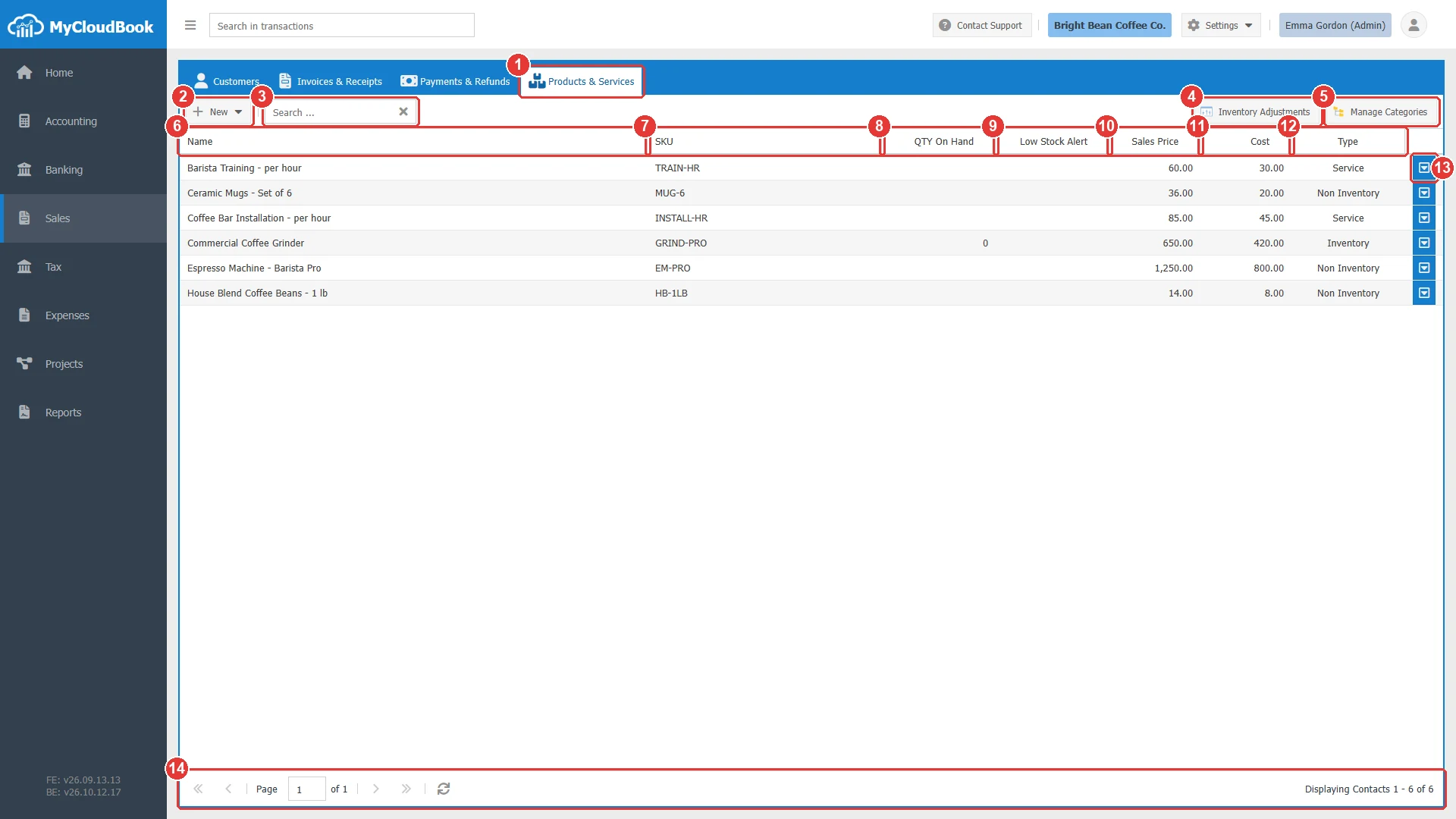
- 1Products & Services tab.
- 2New. Opens a menu: Inventory Product, Non-Inventory Product, Service.
- 3Search .... Finds the items by name or SKU. Press Enter.
- 4Inventory Adjustments. Opens the list of the inventory adjustments.
- 5Manage Categories. Opens the categories window.
- 6Name.
- 7SKU.
- 8QTY On Hand. Inventory products only.
- 9Low Stock Alert. The reorder level of an inventory product.
- 10Sales Price.
- 11Cost. The purchase price.
- 12Type. Inventory, Non Inventory, or Service.
- 13The row actions button: Edit, Product Movements (inventory products only), and Delete.
- 14The paging toolbar.
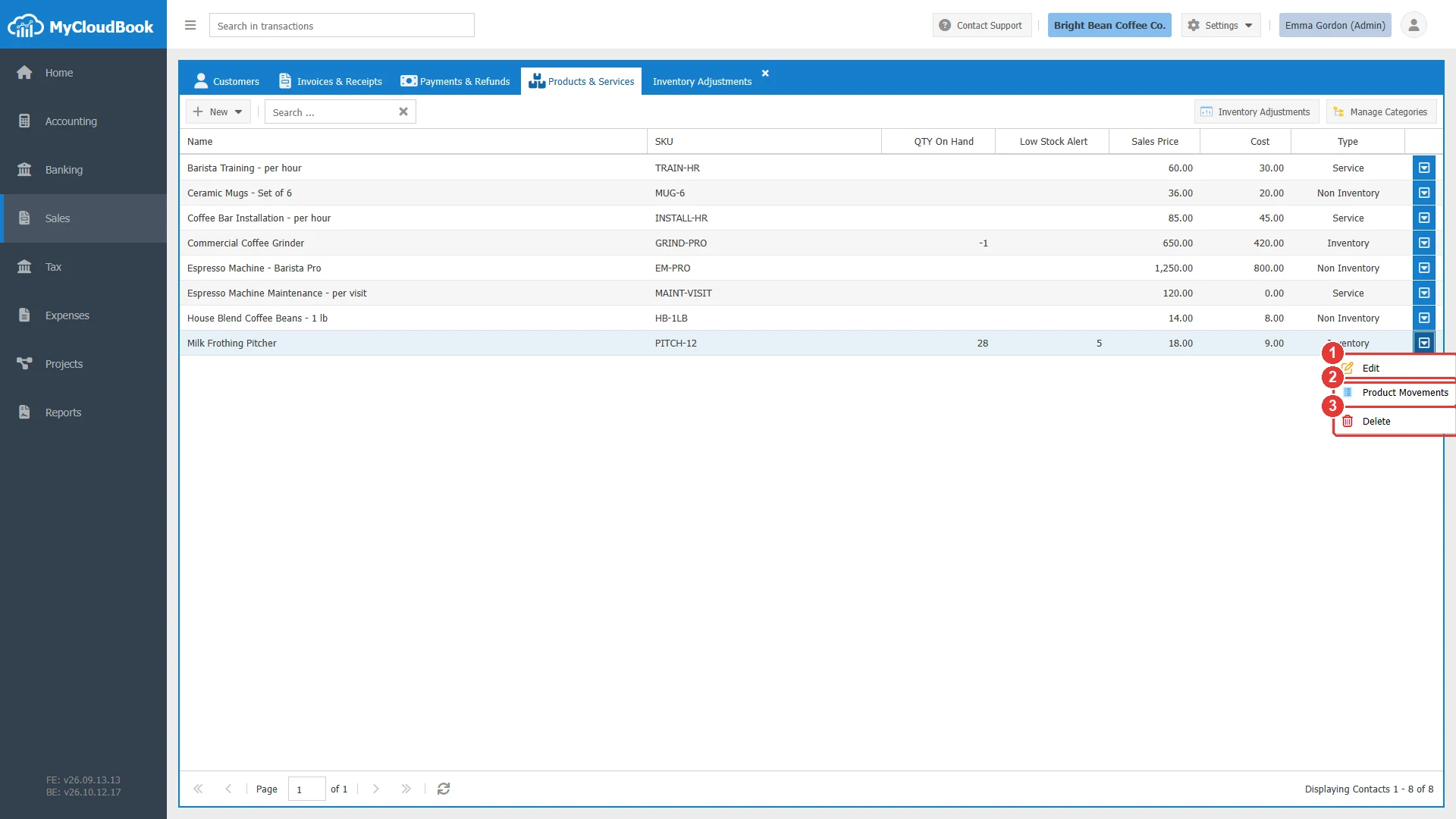
- 1Edit. Opens the product window.
- 2Product Movements. Opens the stock movements of the product.
- 3Delete.
Adding a product or a service
- Click New and choose the type. The window opens with the tabs of the type.
- Type the Name, and the UPC / SKU if you use codes or barcodes. Choose a Category if you use categories.
- In Sales Info, type the Sales Price, select the Income Account, the sales description, and the Tax.
- In Purchasing Info, check Is For Purchase when you buy the item, and type the Cost and the Expense Account.
- For an inventory product, fill in Inventory Tracking.
- Click Save.
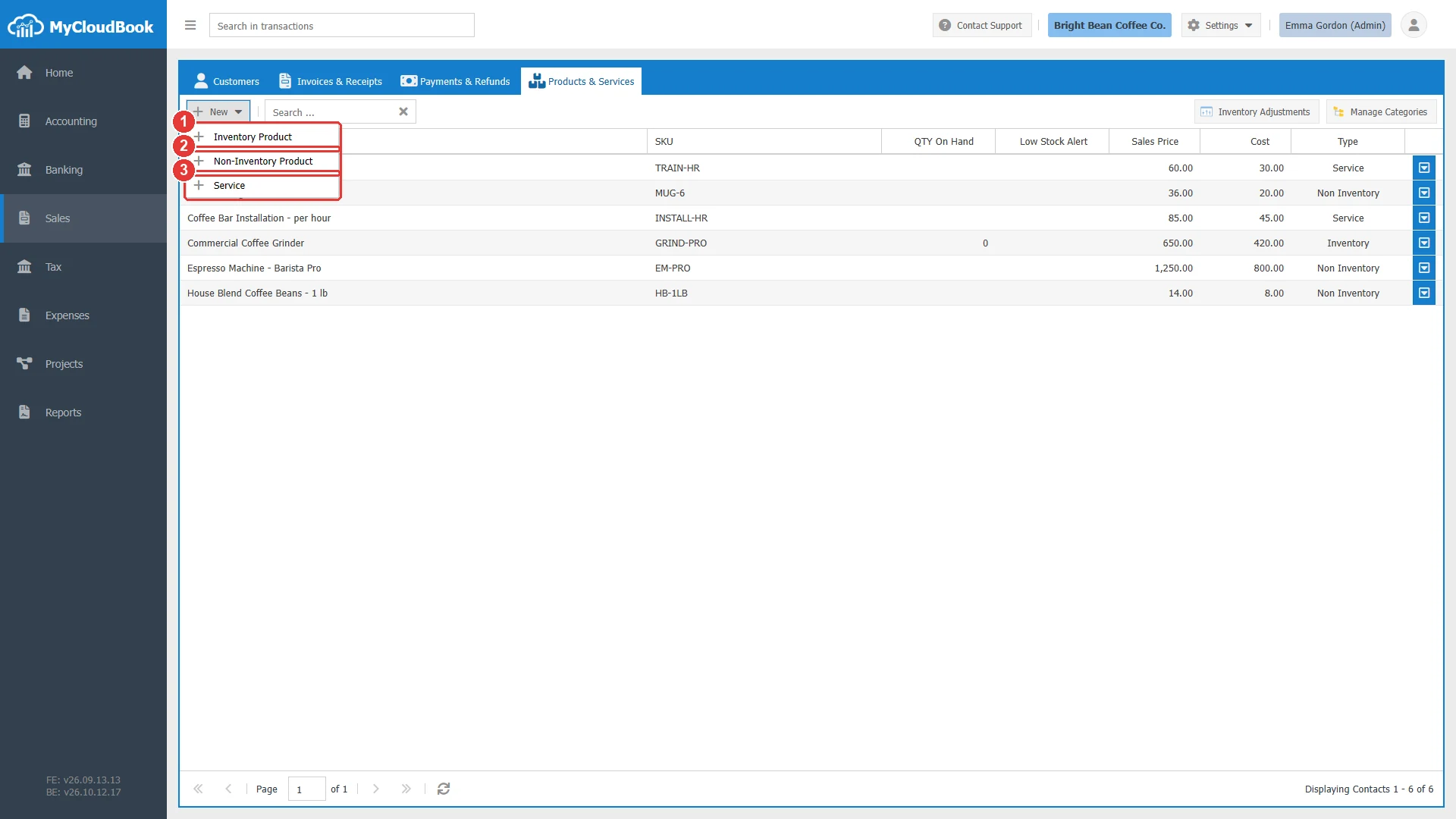
- 1Inventory Product.
- 2Non-Inventory Product.
- 3Service.
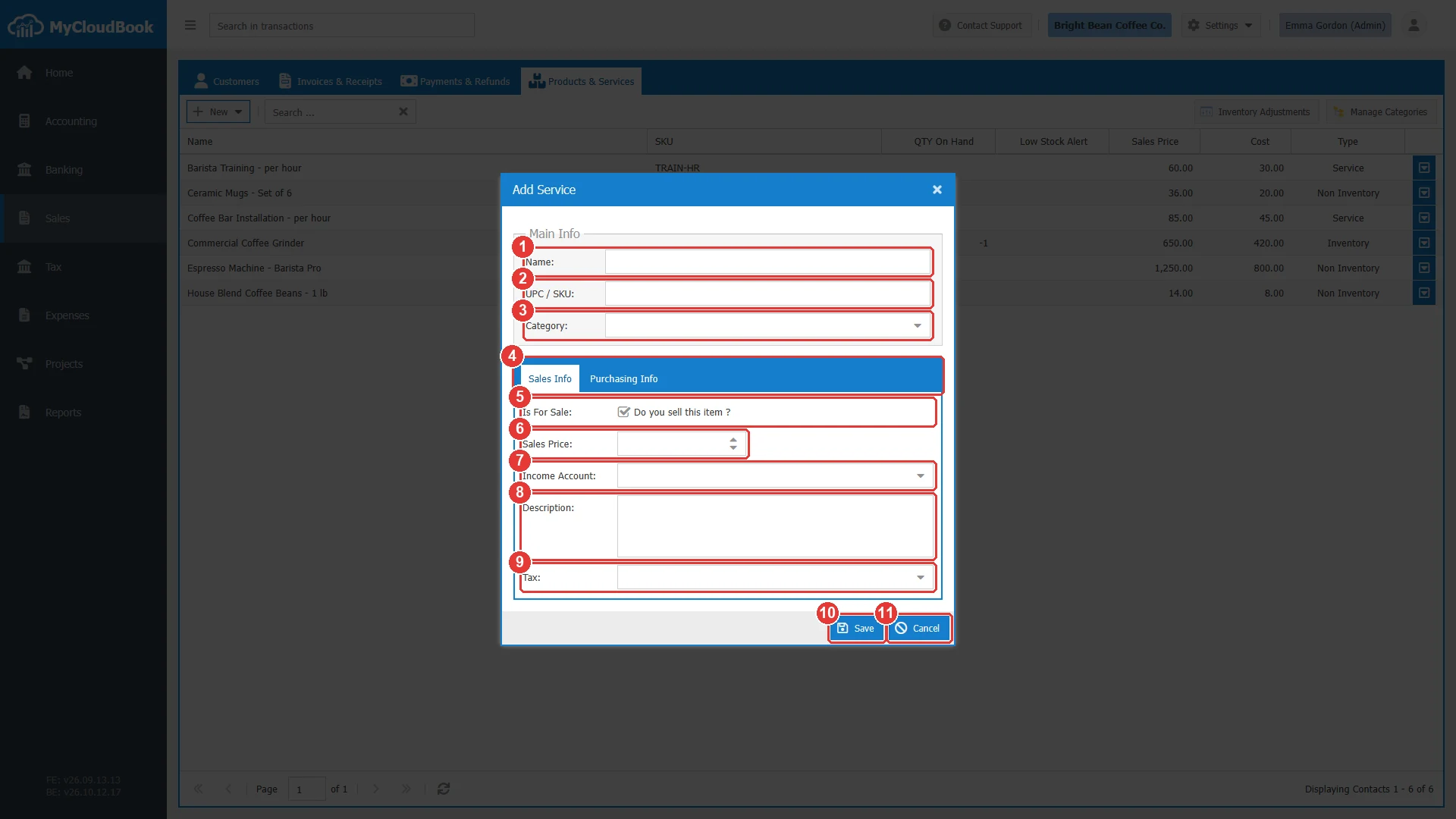
- 1Name. Required.
- 2UPC / SKU.
- 3Category.
- 4The tabs Sales Info and Purchasing Info.
- 5Is For Sale. Checked by default.
- 6Sales Price.
- 7Income Account. Required while the item is for sale.
- 8Description. The sales description, proposed on the documents.
- 9Tax. The sales tax, proposed on the documents.
- 10Save.
- 11Cancel.
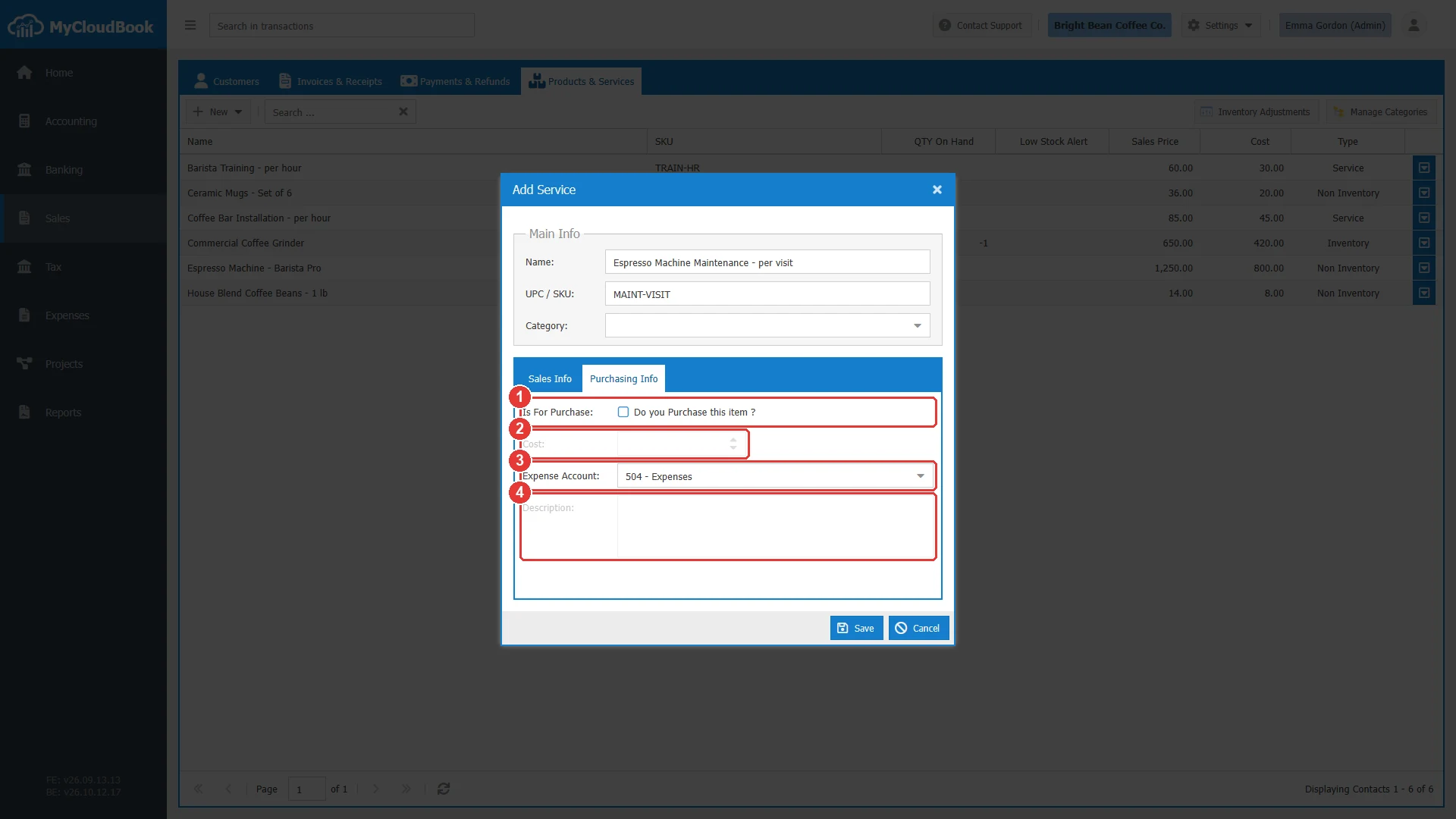
- 1Is For Purchase.
- 2Cost.
- 3Expense Account.
- 4Description. The purchase description.
The fields
| Field | Required | Purpose and rules |
|---|---|---|
| Name | Required | The name of the item. It must be unique in the company; the letter case is ignored, so ceramic mugs and Ceramic Mugs are the same name. |
| UPC / SKU | Optional | A product code or a barcode. When given, it must be unique, ignoring the letter case. The documents can add an item by its SKU. |
| Category | Optional | A category of the categories window. It groups the items; it has no accounting effect. |
| Is For Sale | Optional | Checked when the item is sold. Only items for sale appear on invoices, receipts, estimates, and credit notes. Always checked for an inventory product. |
| Sales Price | Optional | The price proposed on the sales documents. It can be changed on each document. |
| Income Account | Required | Required while the item is for sale. The account that the sales of the item credit. A main account is refused. |
| Description (sales) | Optional | Up to 4000 characters. Proposed as the line description on the sales documents. |
| Tax | Optional | The sales tax proposed on the sales documents. |
| Is For Purchase | Optional | Checked when the item is bought. Always checked for an inventory product. |
| Cost | Optional | The purchase price. Required for an inventory product, where it is also the cost of the initial quantity. |
| Expense Account | Required | Required while the item is for purchase. For an inventory product it is the cost of goods sold account. A main account is refused. |
| Initial Quantity on hand | Required | Inventory product only. The quantity in stock on the As of Date, 0 or more. A negative quantity needs a decrease adjustment. |
| As of Date | Required | Inventory product only. The date of the initial quantity. |
| Inventory Asset Account | Required | Inventory product only. An asset account in the main currency that holds the value of the stock. It cannot change once the product is used in documents. |
| Low Stock alert | Optional | Inventory product only. The reorder level shown in the list. |
Example: an inventory product
The example adds the inventory product Milk Frothing Pitcher, with 24 pitchers in stock on October 1, 2026, bought at 9.00 each.
- Click New, Inventory Product. Type the name, the SKU PITCH-12, and choose the category Barware.
- In Sales Info, type the price 18 and check the Income Account.
- In Purchasing Info, type the cost 9.
- In Inventory Tracking, type 24 in Initial Quantity on hand, set the As of Date to October 1, 2026, and type 5 in Low Stock alert.
- Click Save.
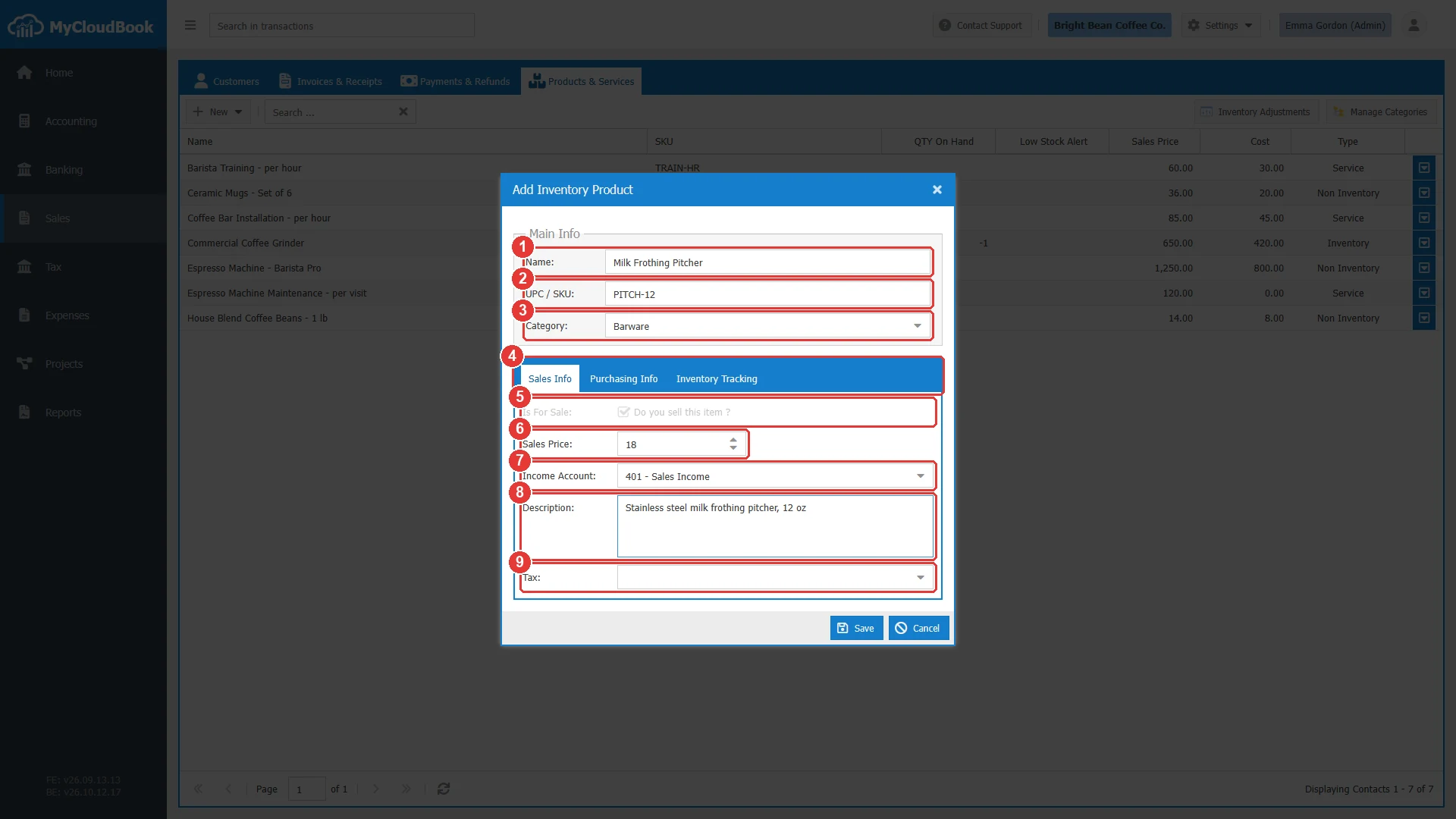
- 1Name.
- 2UPC / SKU.
- 3Category.
- 4The tabs Sales Info, Purchasing Info, and Inventory Tracking.
- 5Is For Sale: always checked for an inventory product.
- 6Sales Price.
- 7Income Account.
- 8Description.
- 9Tax.
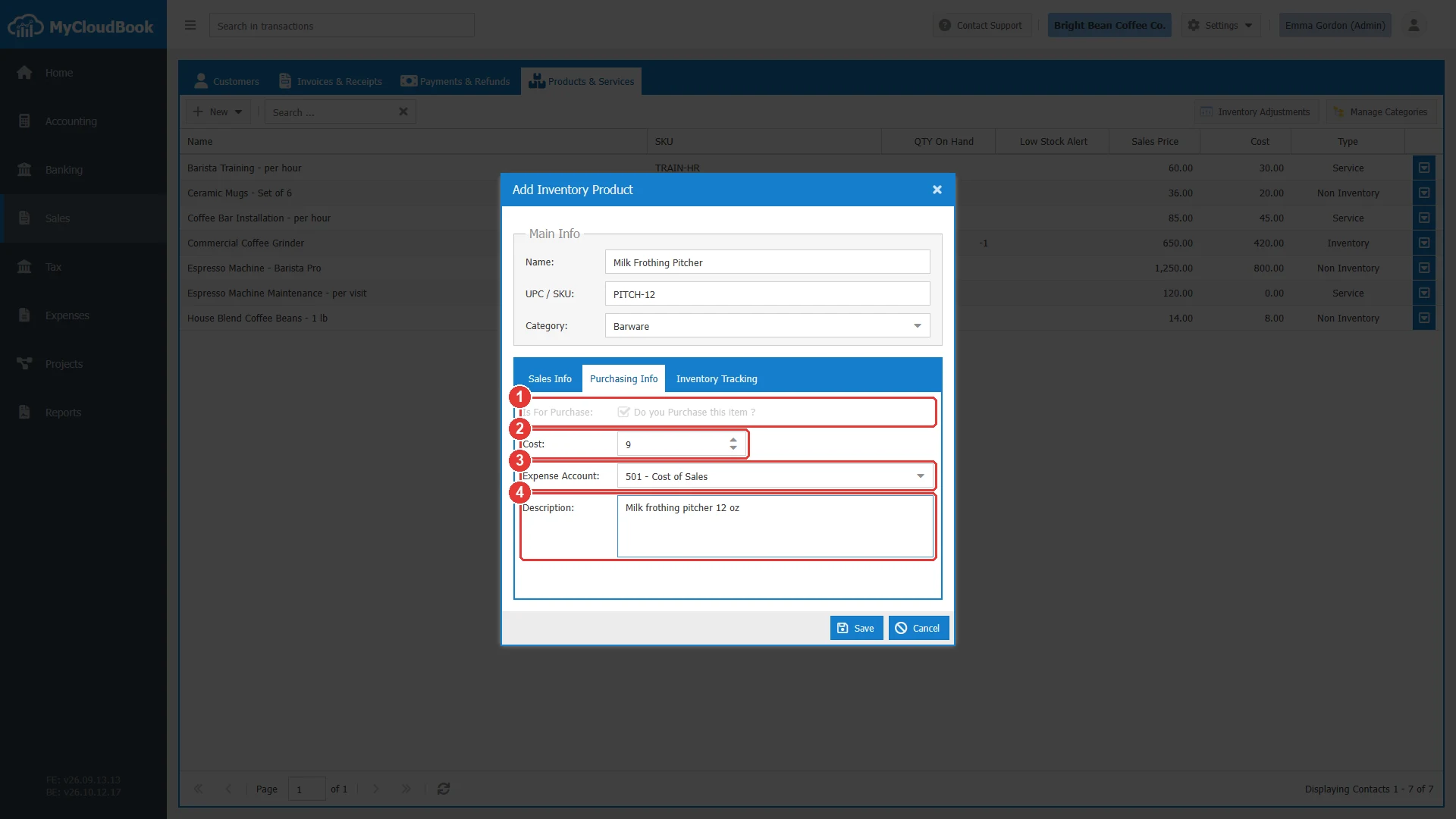
- 1Is For Purchase: always checked for an inventory product.
- 2Cost: required.
- 3Expense Account: the cost of goods sold.
- 4Description.
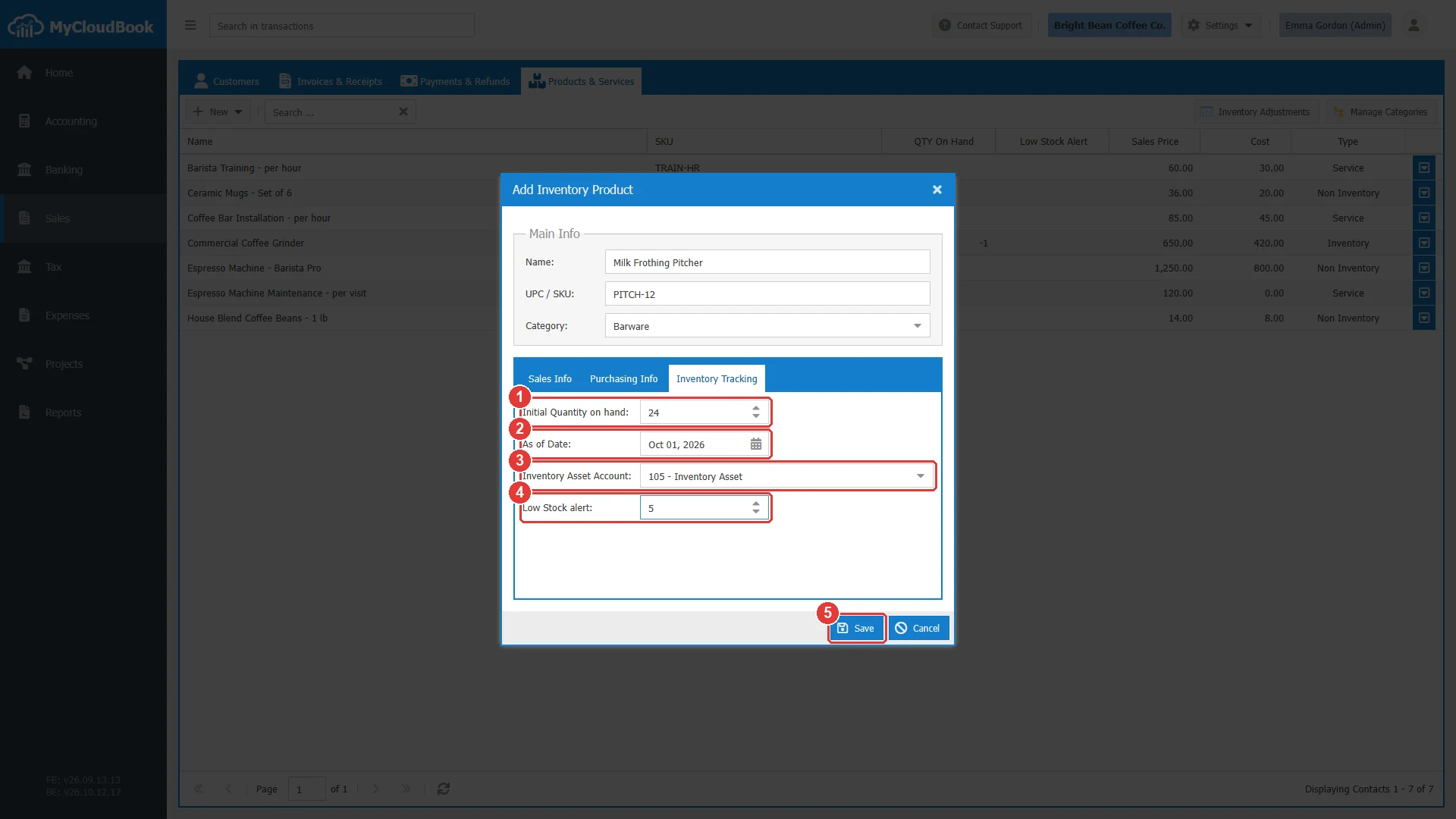
- 1Initial Quantity on hand.
- 2As of Date.
- 3Inventory Asset Account.
- 4Low Stock alert.
- 5Save.
The save creates an Inventory Init document: 24 pitchers enter the stock at 9.00, and a journal entry debits the Inventory Asset account and credits Opening Balance Equity for 216.00. The list then shows 24 in QTY On Hand. A later change of the initial quantity, the date, or the asset account updates that document.
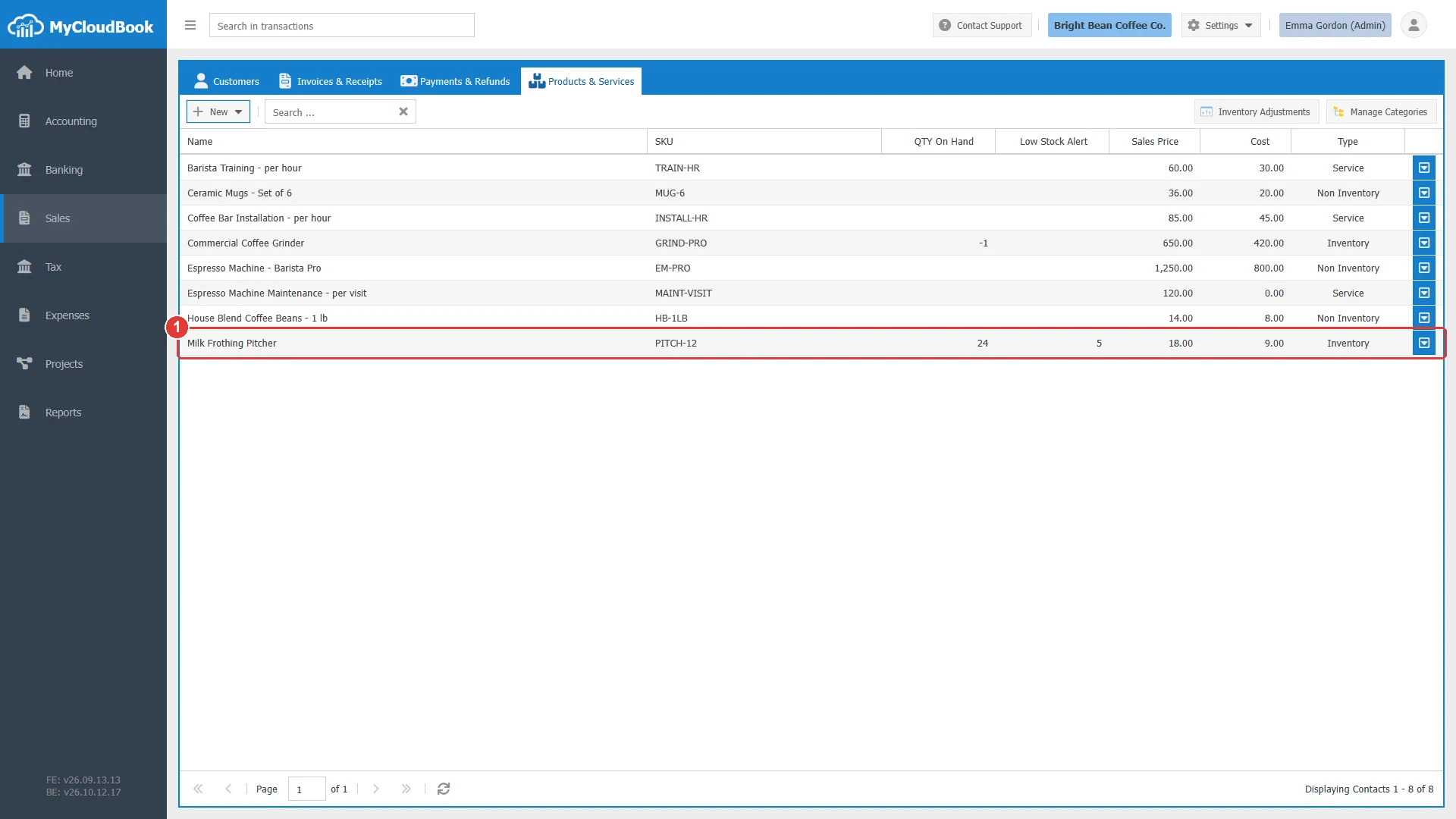
- 1The new inventory product, with 24 on hand.
The checks
The window checks the required fields of the visible tabs and opens the tab of the first empty field. The server refuses a name or an SKU that another item already uses.
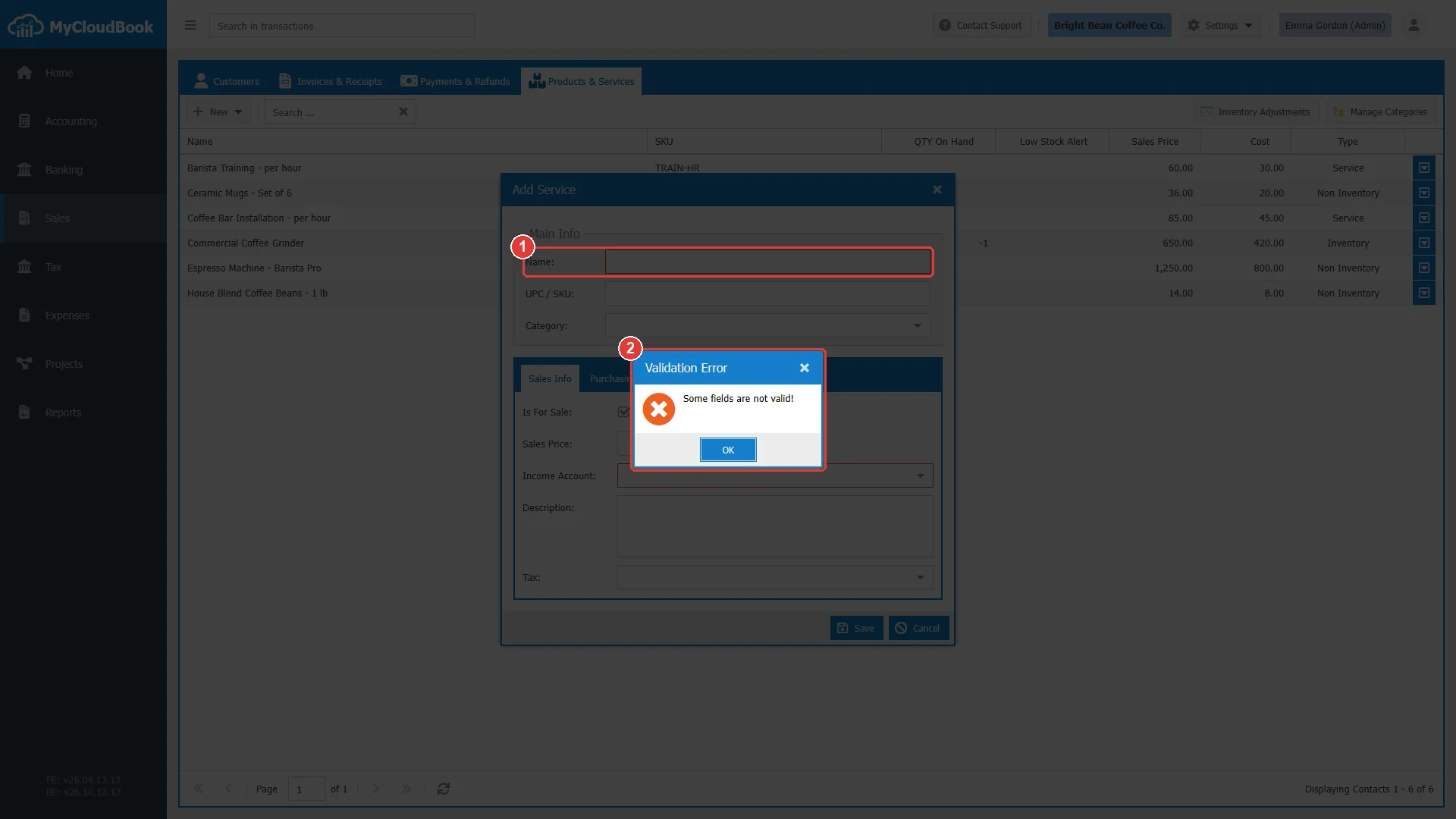
- 1Name is required.
- 2The message.
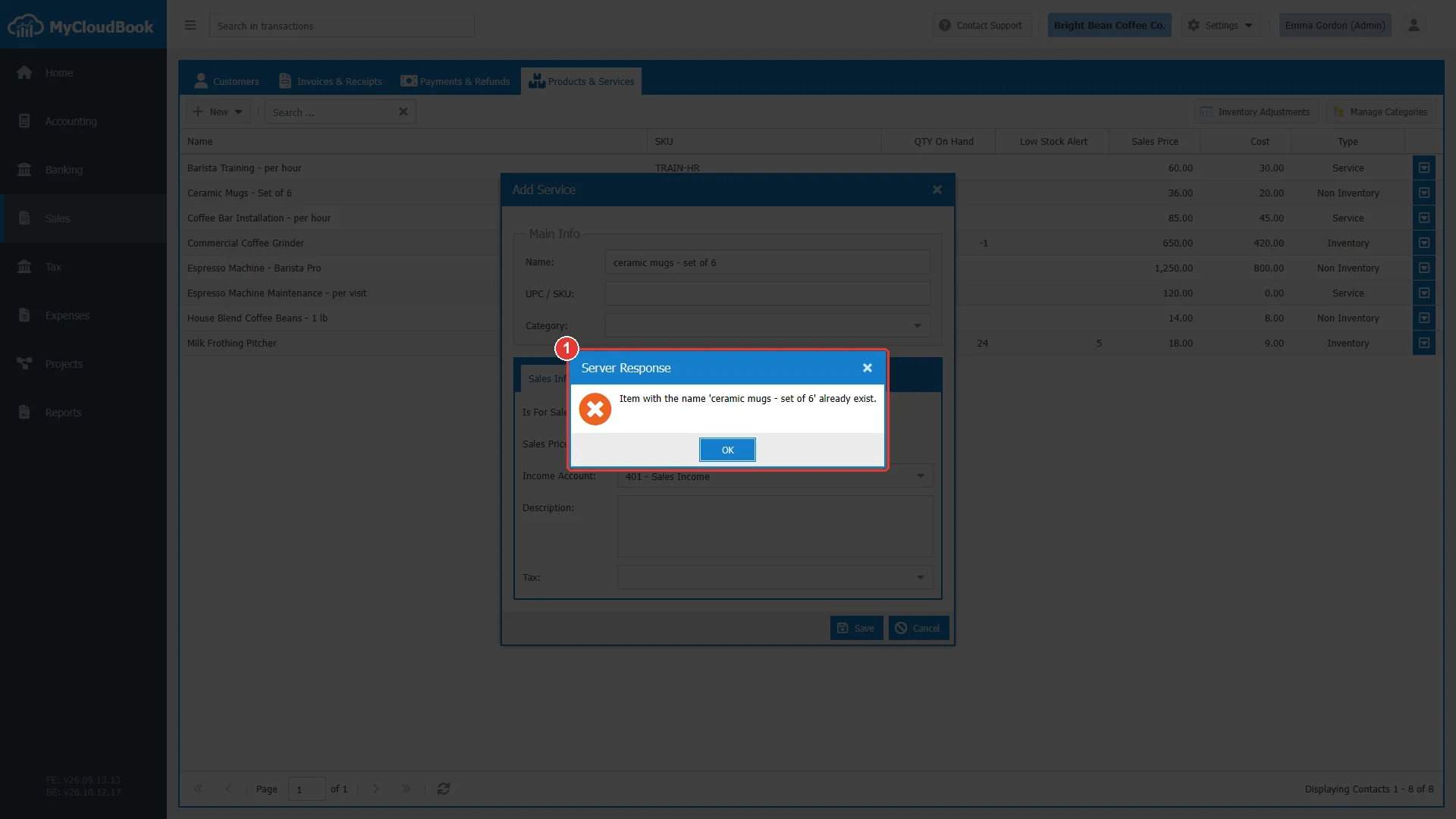
- 1The message from the server.
Categories
Categories group the products, for example Barware or Coffee Equipment. A category can belong to a main category, which gives a tree. Click Manage Categories in the products list, then Add Category. The row menu of a category offers Edit and Delete. A category that has sub-categories or products cannot be deleted.
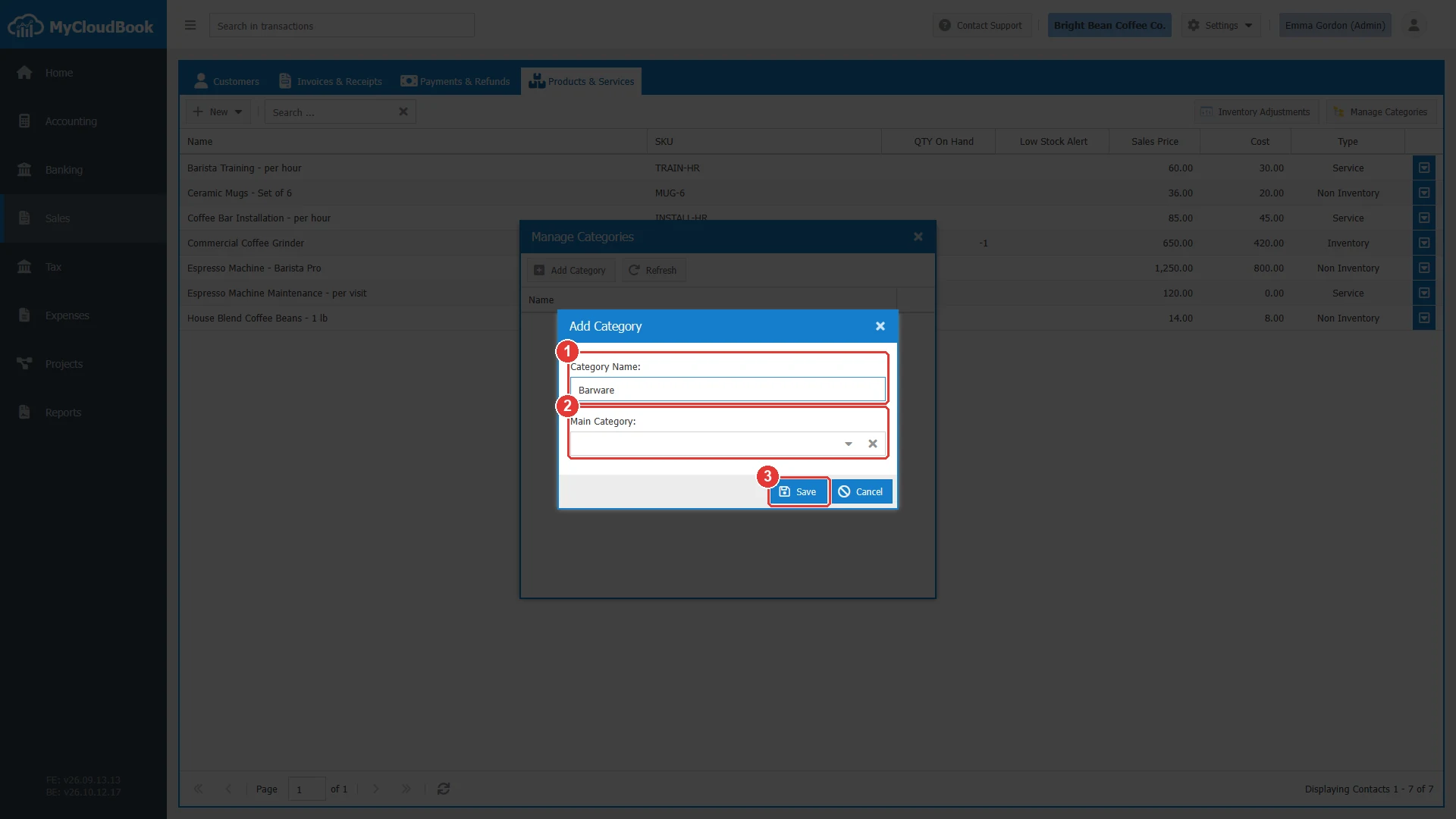
- 1Category Name. Required.
- 2Main Category. Empty for a top category.
- 3Save.
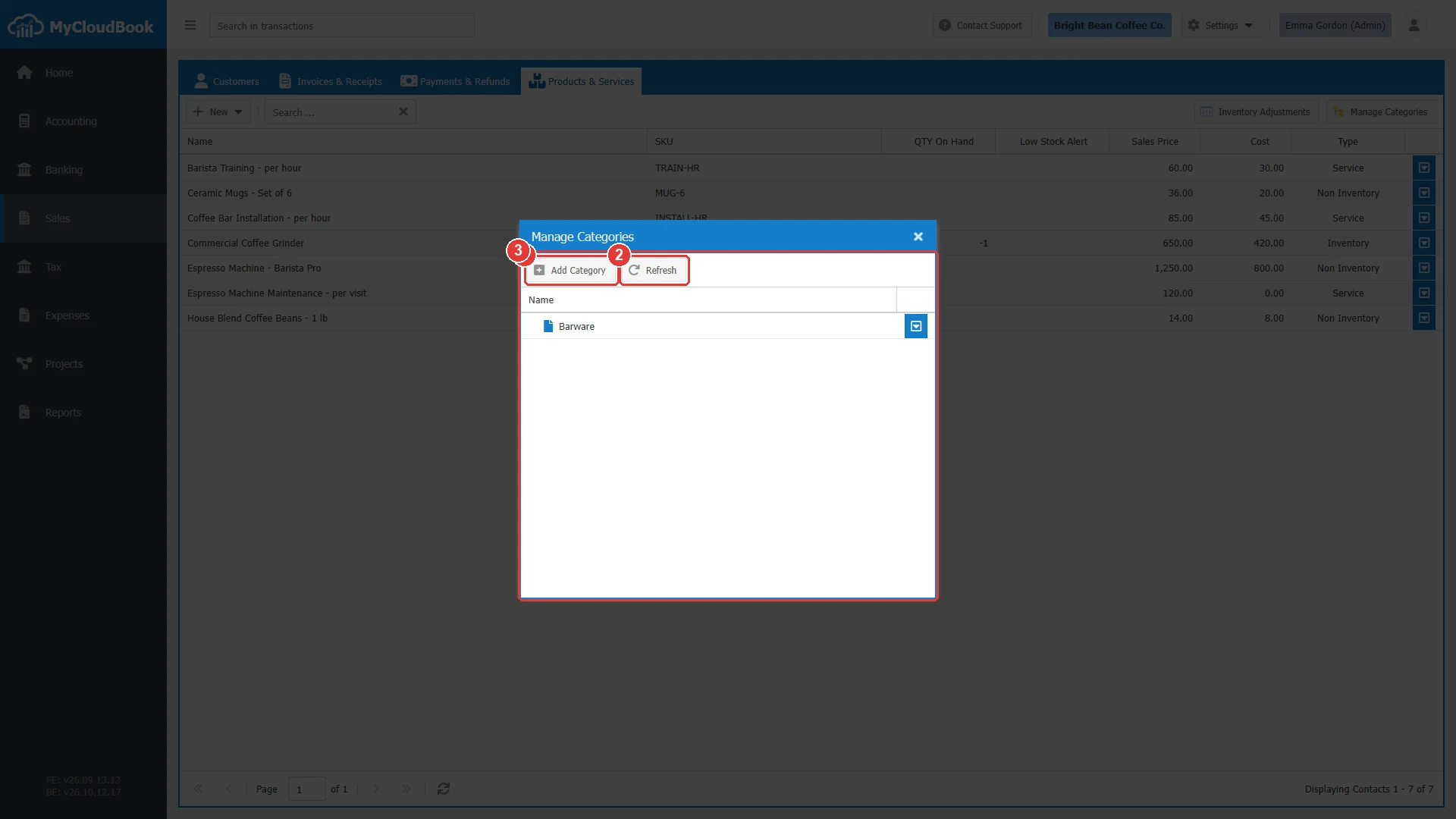
- 1Add Category.
- 2Refresh.
- 3The categories, with their sub-categories.
Inventory adjustments
An inventory adjustment corrects the stock of inventory products: an Increase adds quantities, for example free units from a supplier, and a Decrease removes quantities, for example broken or lost goods. Click Inventory Adjustments in the products list. The list also shows the Inventory Init documents that the product window creates.
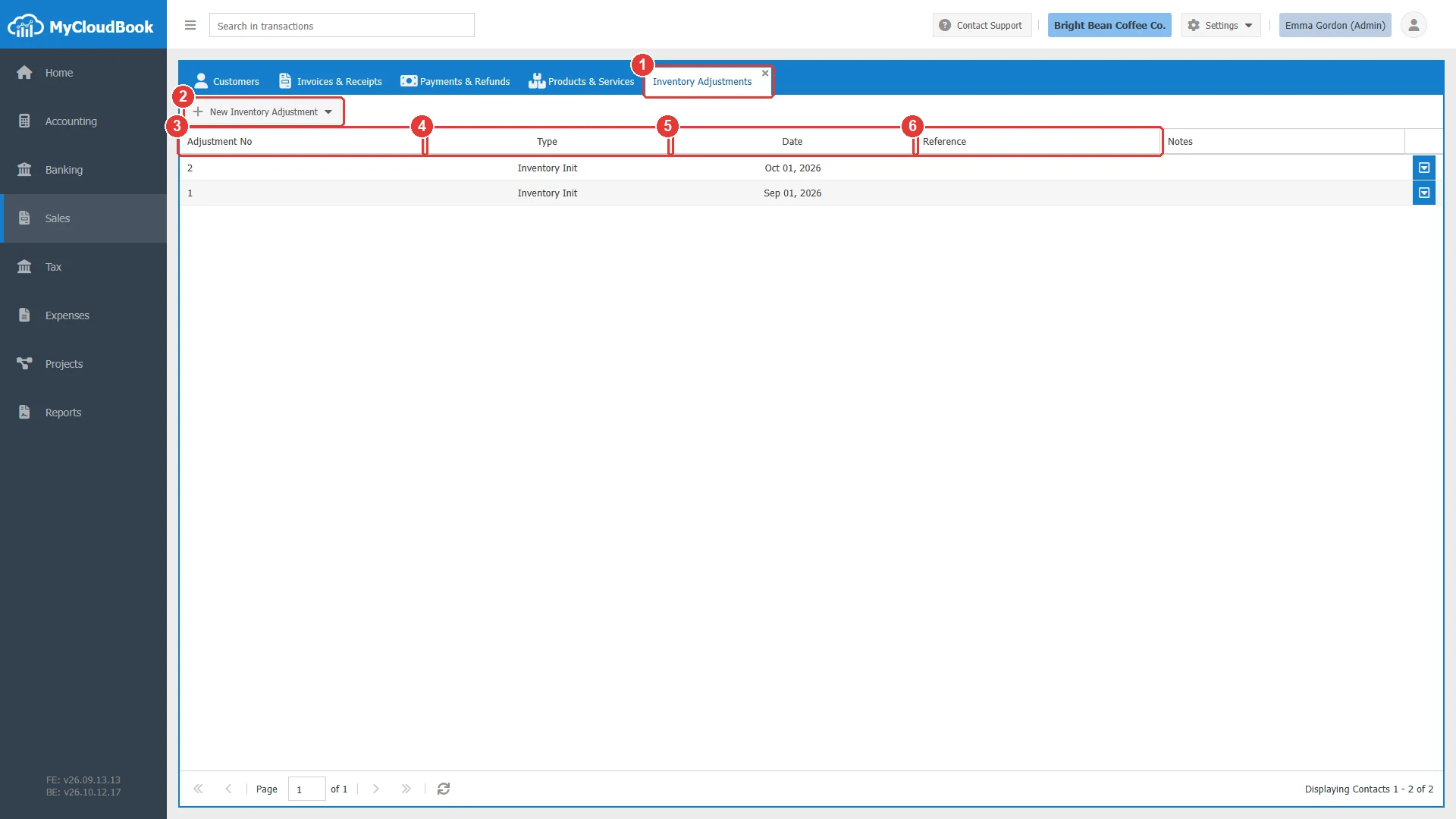
- 1Inventory Adjustments tab.
- 2New Inventory Adjustment.
- 3Adjustment No.
- 4Type: Inventory Init, Increase, or Decrease.
- 5Date.
- 6Reference.
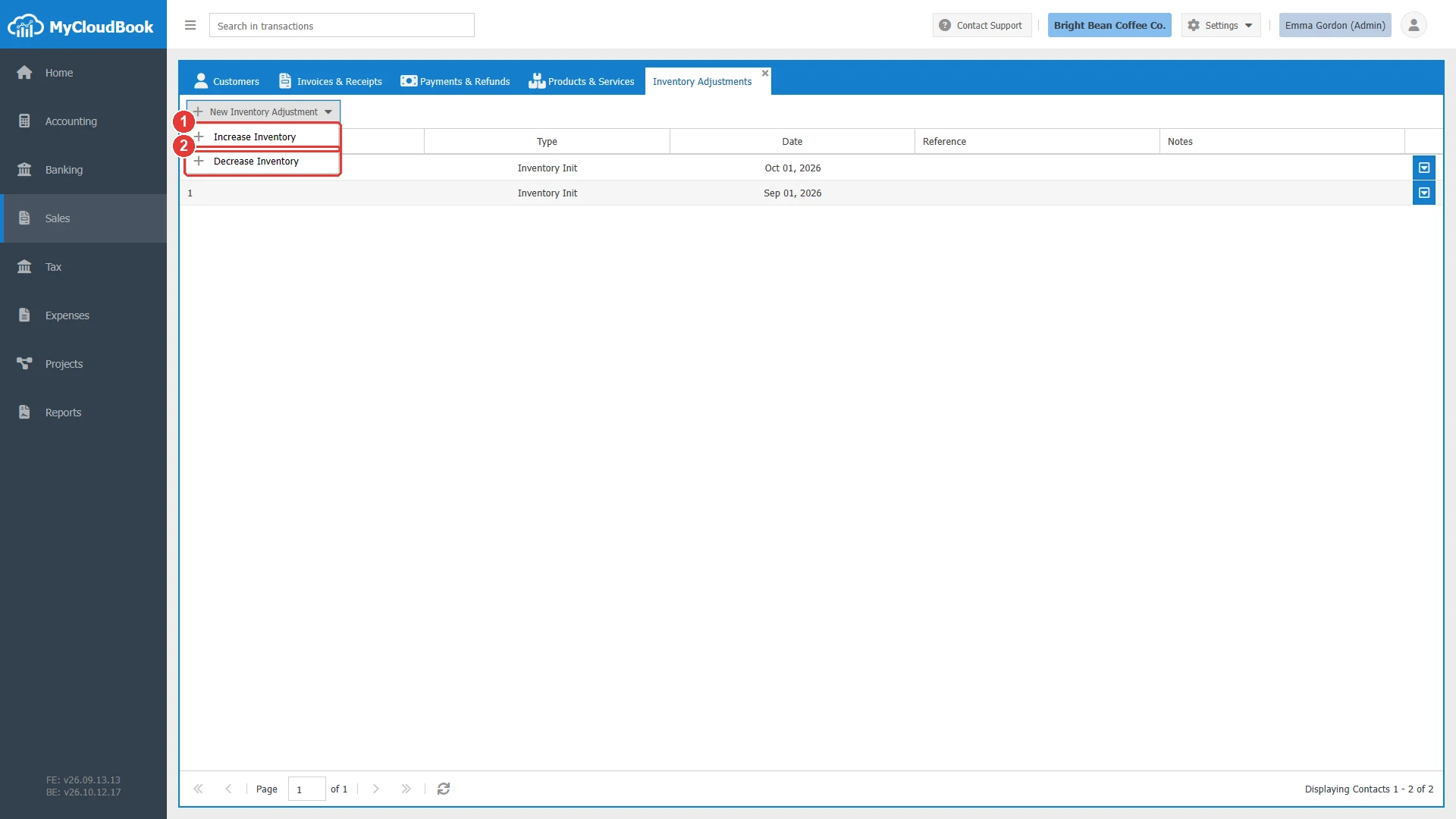
- 1Increase Inventory.
- 2Decrease Inventory.
- Click New Inventory Adjustment and choose Increase Inventory or Decrease Inventory.
- Check the Date and the Inventory Adjustment Account: Inventory Adjustment Gain for an increase, Inventory Shrinkage for a decrease.
- In each line, select the Product (inventory products only), type the quantity added or removed in QTY, and the Unit Cost. Current QTY and New QTY show the stock before and after.
- Click Save.
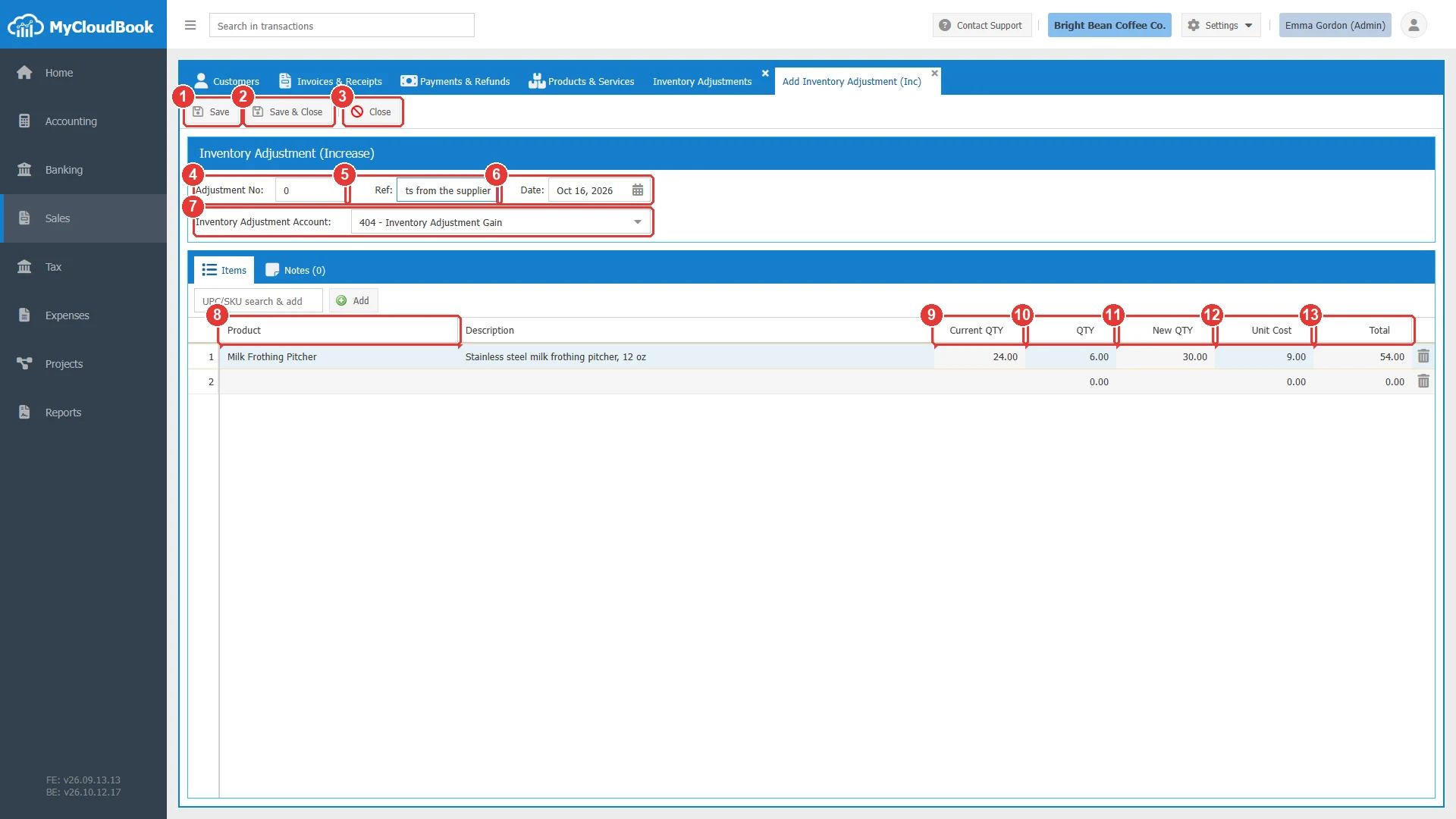
- 1Save.
- 2Save & Close.
- 3Close.
- 4Adjustment No. 0 means the next number.
- 5Ref.
- 6Date.
- 7Inventory Adjustment Account. The other side of the journal entry.
- 8Product. Inventory products only.
- 9Current QTY. The stock before the adjustment.
- 10QTY: the quantity added.
- 11New QTY. The stock after the adjustment.
- 12Unit Cost.
- 13Total.
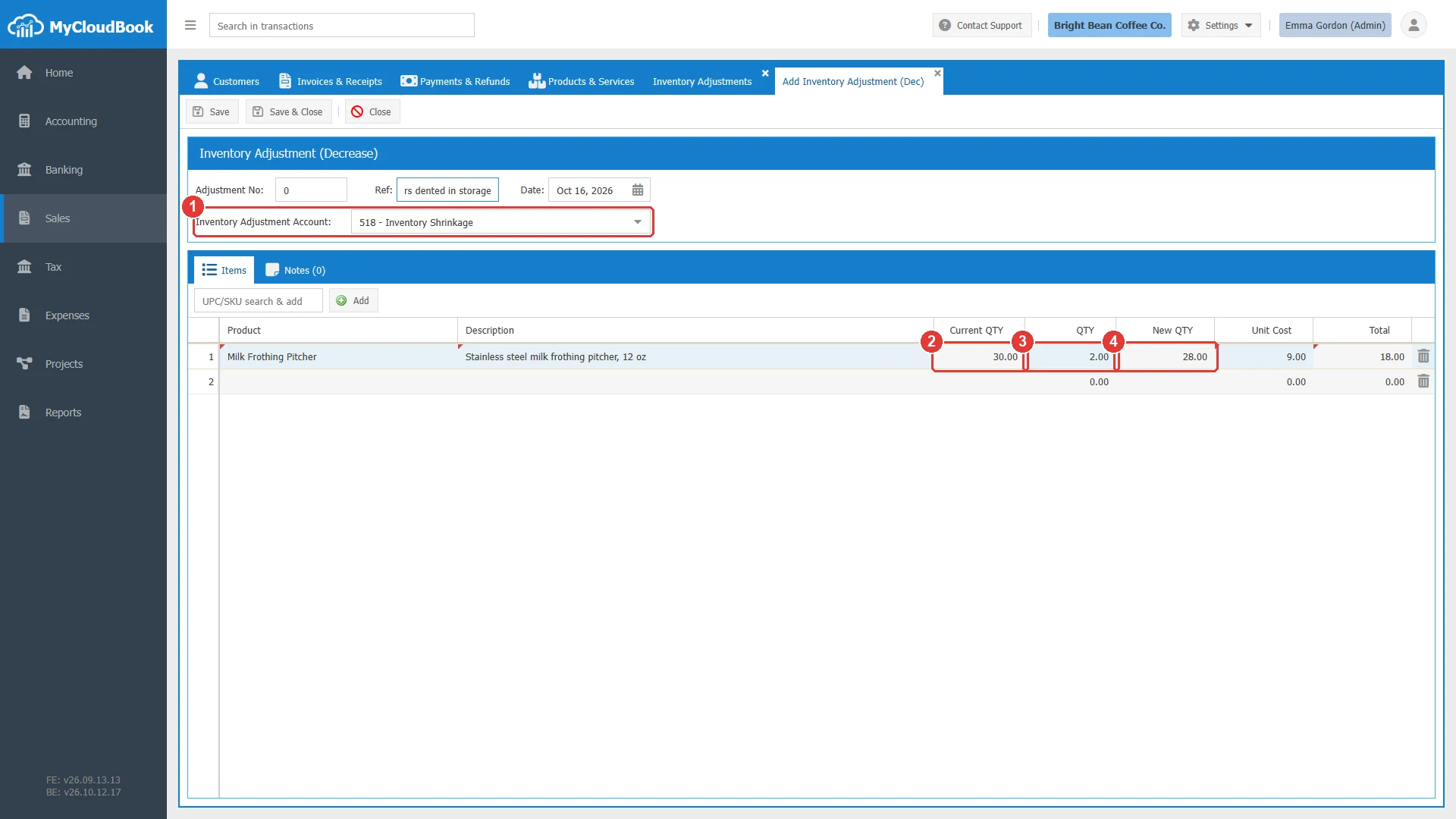
- 1Inventory Adjustment Account: Inventory Shrinkage.
- 2Current QTY.
- 3QTY: the quantity removed.
- 4New QTY.
An increase debits the Inventory Asset account and credits the adjustment account. A decrease takes the oldest stock first (FIFO) and credits the Inventory Asset account at its cost. An Inventory Init document cannot be deleted from this list; change the initial quantity in the product window instead.
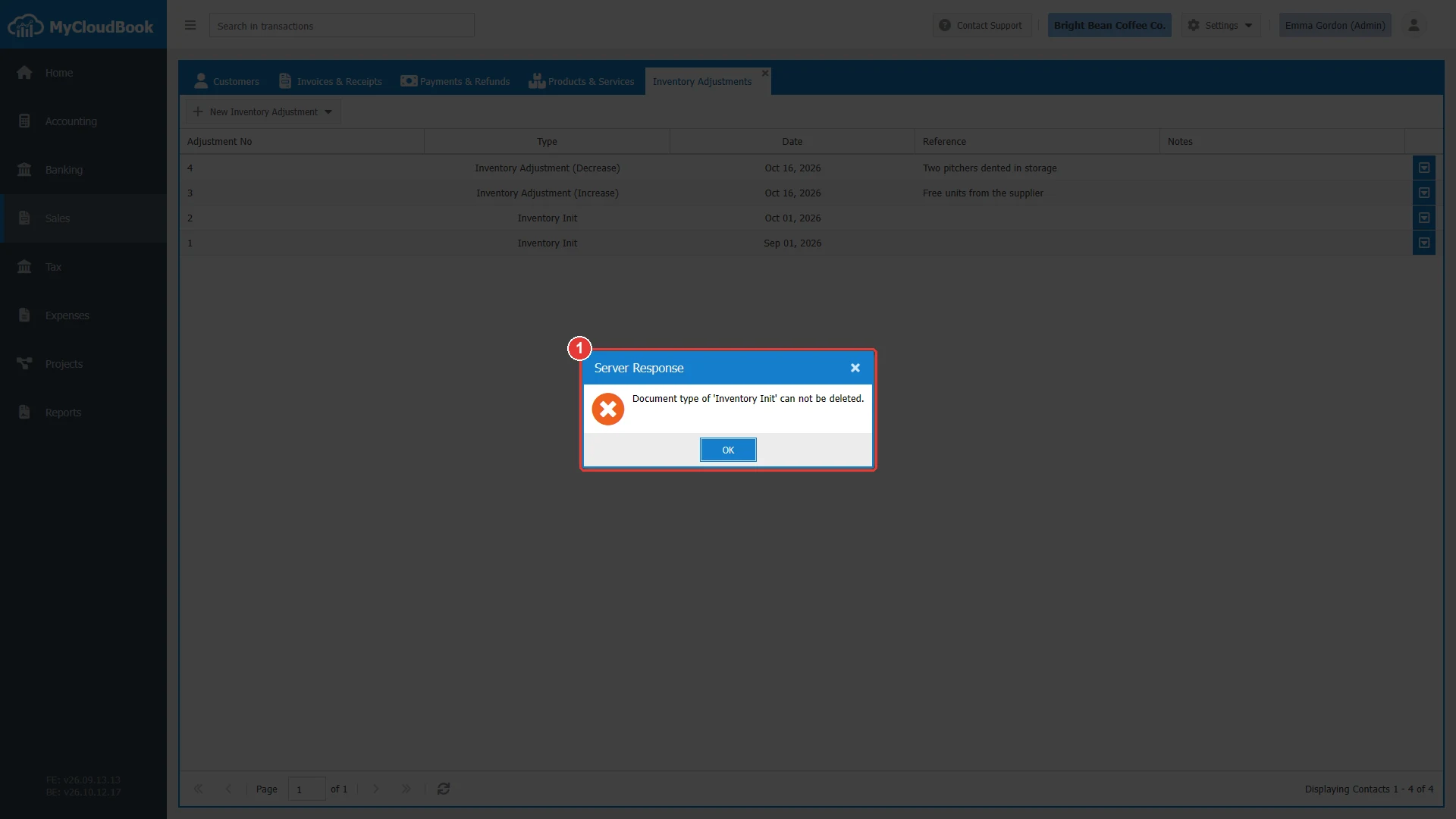
- 1The message from the server.
Product movements
Product Movements in the row menu of an inventory product opens the history of its stock: every document that added or removed quantities, with the unit cost, the value, and the balance after each movement. Group by Day and Group by Month total the movements per period. Download Excel downloads the current view. A double click on a movement in the full details opens its document.
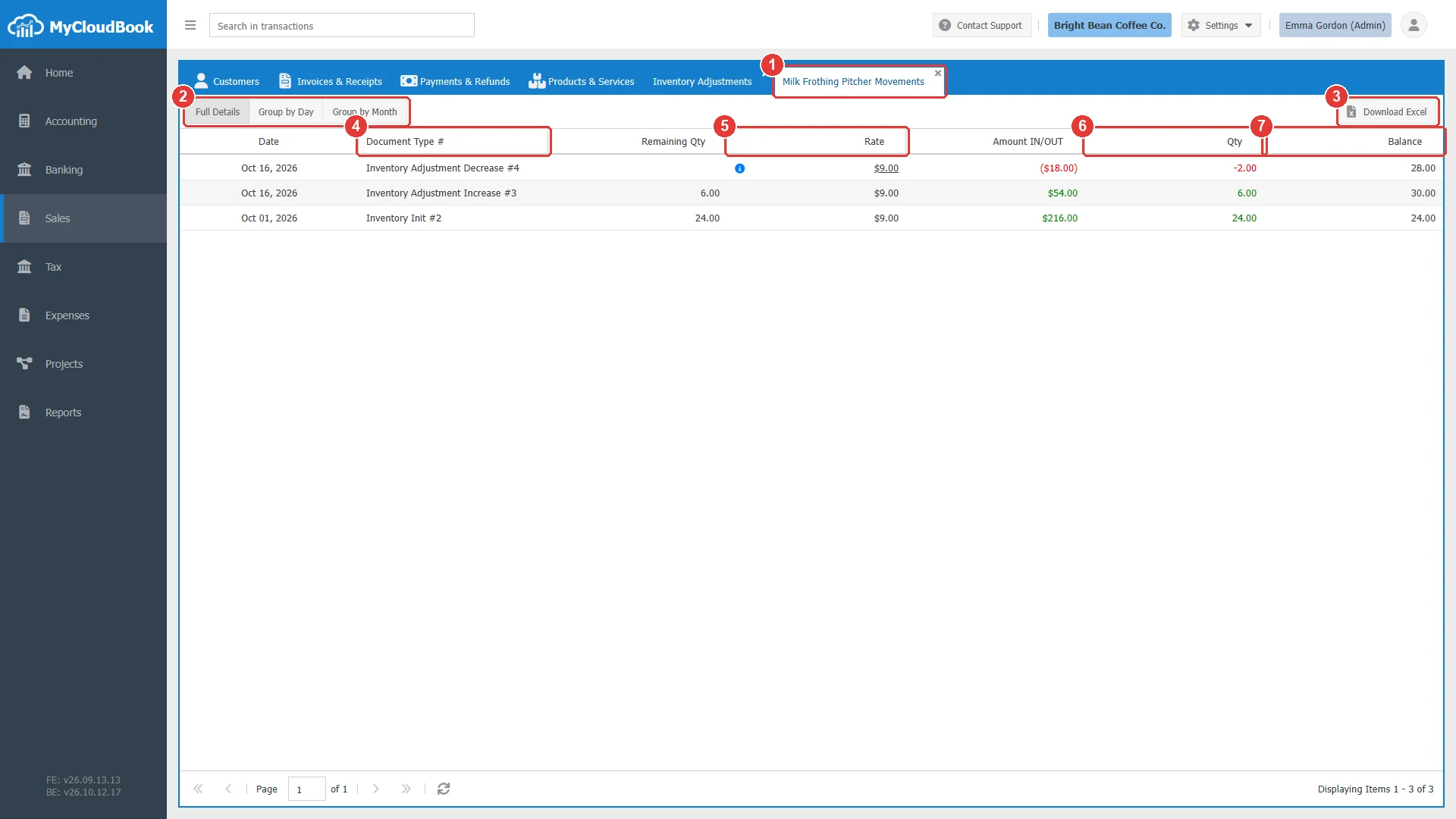
- 1The movements tab of the product.
- 2Full Details, Group by Day, Group by Month.
- 3Download Excel.
- 4Document Type #.
- 5Rate: the unit cost. For a quantity that leaves the stock, the information icon shows the FIFO sources of the cost.
- 6Qty: in (positive) or out (negative).
- 7Balance: the quantity after the movement.
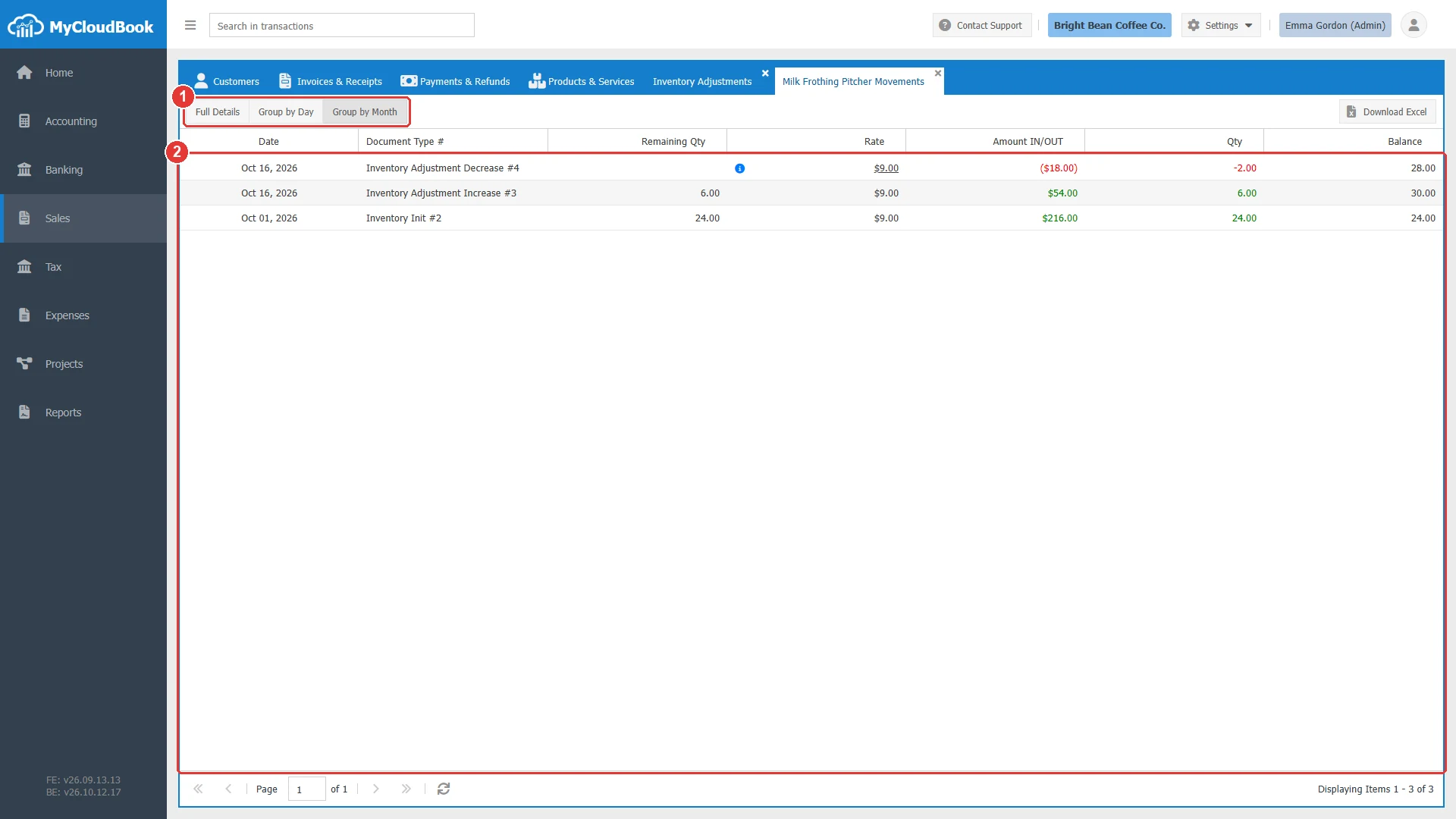
- 1Group by Month.
- 2Qty (IN), Qty (OUT), the closing balance, and the values of the period.
Deleting an item
Delete in the row menu asks for a confirmation. An item that is used on an invoice, a receipt, a bill, an expense, or an inventory adjustment cannot be deleted.
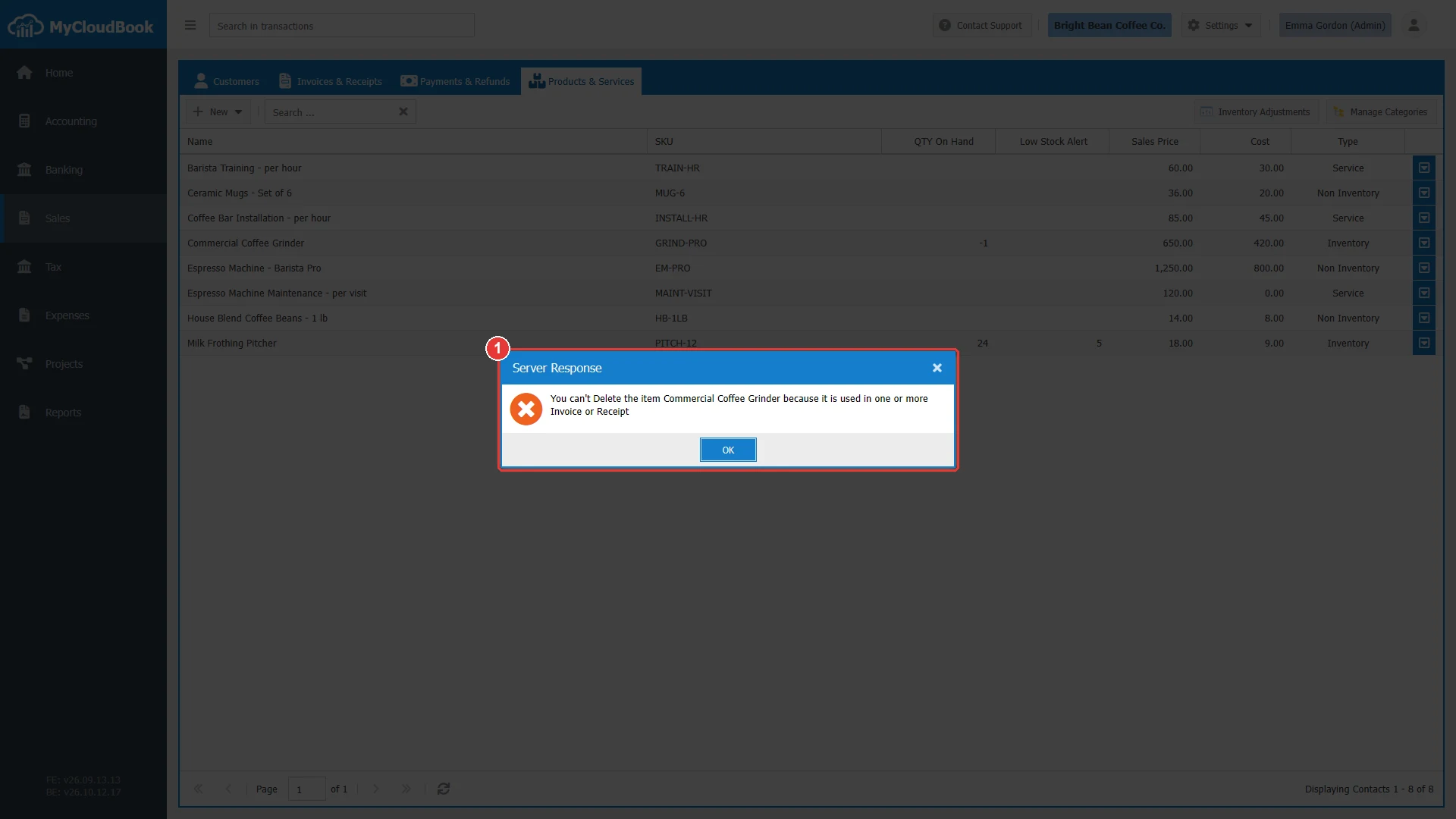
- 1The message from the server.
Messages and their meaning
Questions and answers
What is the difference between an inventory product and a non-inventory product?
MyCloudBook counts the quantity and the value of an inventory product: sales reduce the stock and post the cost of goods sold, purchases increase it. A non-inventory product is sold or bought without stock control.
How do I enter the opening stock of a product?
Type the Initial Quantity on hand, the As of Date, and the Cost in the product window. MyCloudBook creates an Inventory Init document and posts the value to Inventory Asset and Opening Balance Equity.
How do I correct the stock after a count?
Create an inventory adjustment: Increase Inventory for missing quantities, Decrease Inventory for lost or broken goods. Current QTY and New QTY show the effect.
Which cost method does MyCloudBook use?
FIFO: the quantity that leaves the stock takes the cost of the oldest quantity that entered it. The Rate column of the product movements shows the sources of each cost.
How do I use another type for a product?
Create a new item of the other type. The type of an item is set when the item is created.