Bill Payments
This guide explains how to pay the bills of a supplier: in full, in part, several bills at once, or with an amount that stays as a credit for later bills.
Overview
A bill payment records money that the company pays to a supplier for one or more of its bills. One payment has one supplier, one paying account, and one amount. The amount is split over the bills of the supplier in the lines of the payment.
- A payment can pay a bill in full or in part. A bill is Paid when its payments reach its total, and Partially Paid before that.
- One payment can pay several bills of the same supplier.
- A payment can be larger than the bills that it pays. The rest, the Amount To Credit, stays as a credit of the supplier and can pay later bills.
A payment lowers the balance that the company owes to the supplier (the AP balance) and takes the money from the Pay From account. A payment has no status of its own.
How to open the screen
- In the left navigation, click Expenses.
- Click the Bill Payments tab. It is the third tab of the Expenses page.
A new bill payment opens in one of these ways:
- New in the Bill Payments list.
- Make Payment on a saved bill that still has an amount due.
- Create Bill Payment in the Reconcile menu of a bank account, for money that left the bank.
The Bill Payments list
The list shows the bill payments of the company, the newest first. A page holds up to one hundred payments. A double click on a row opens the payment.
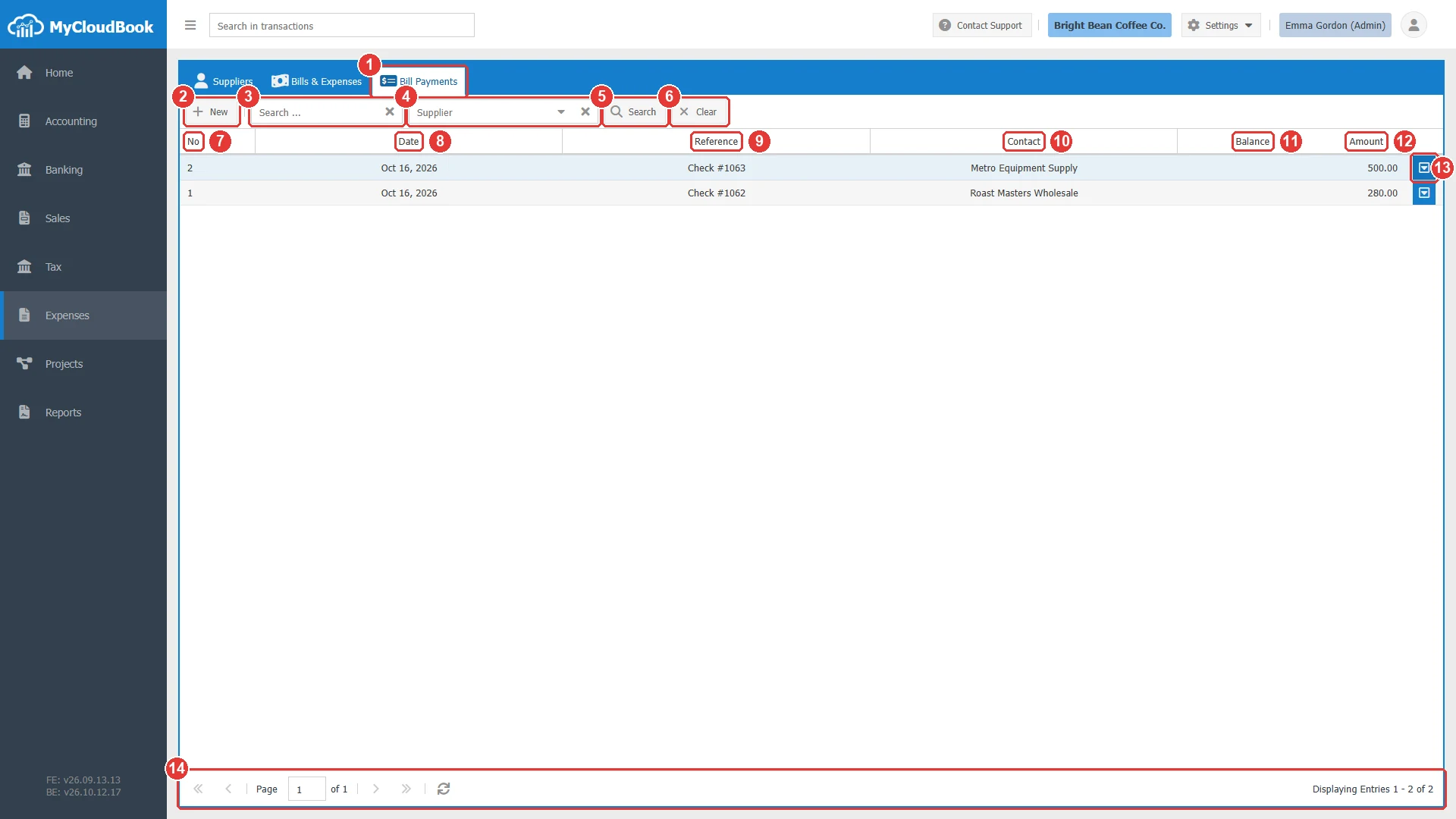
- 1Bill Payments tab.
- 2New. Opens a new bill payment.
- 3Search .... Finds payments by their number. Press Enter or click Search.
- 4Supplier. Shows the payments of one active supplier.
- 5Search.
- 6Clear. Removes the search text and the supplier.
- 7No. The payment number.
- 8Date.
- 9Reference. The Ref of the payment, for example the check number.
- 10Contact. The supplier.
- 11Balance. The part of the amount that pays no bill, the Amount To Credit. An empty cell means 0.
- 12Amount. The amount of the payment.
- 13The row actions button.
- 14The paging toolbar.
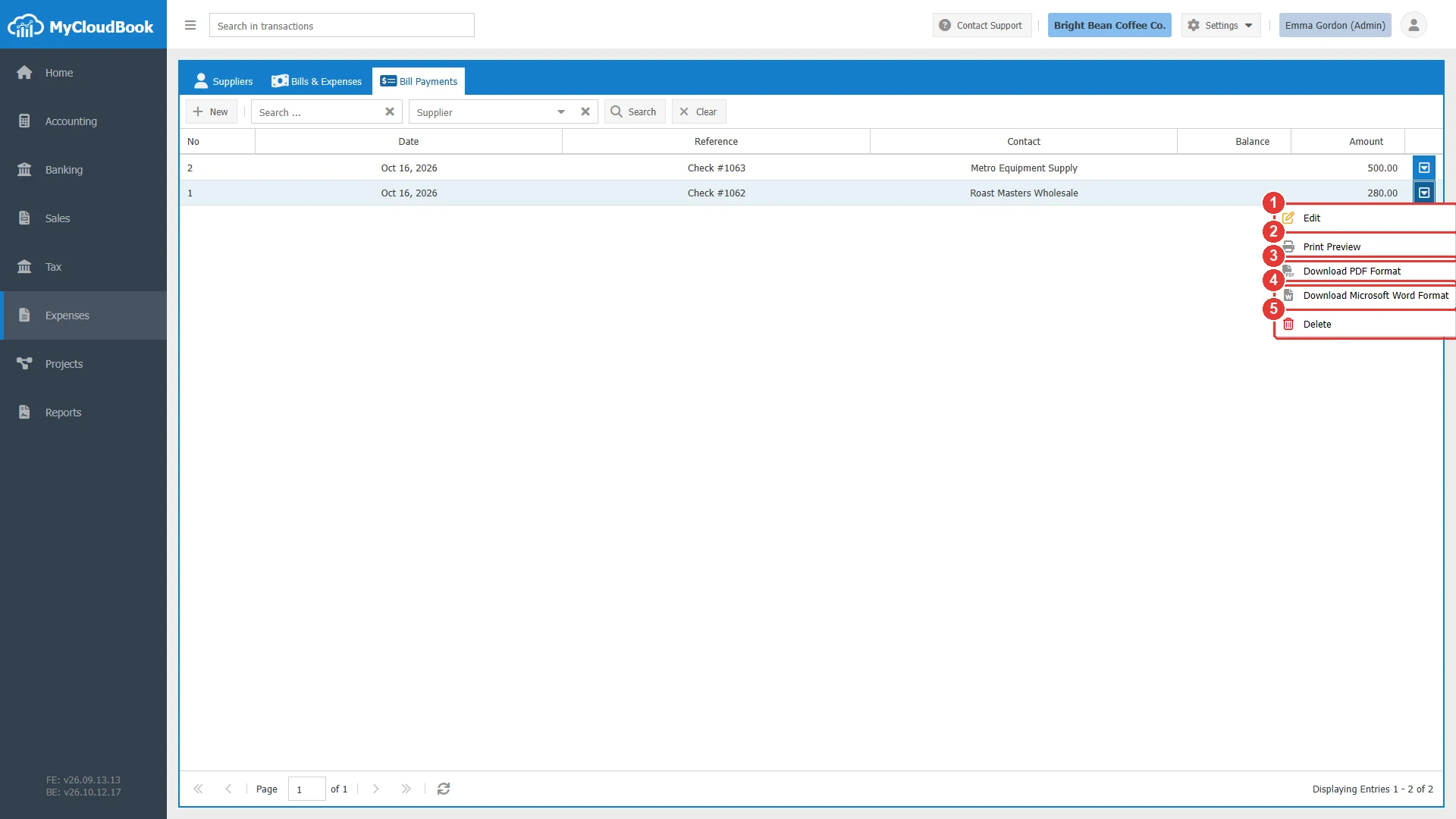
- 1Edit. Opens the payment.
- 2Print Preview. Opens the PDF in the tab Print Bill Payment #1.
- 3Download PDF Format.
- 4Download Microsoft Word Format.
- 5Delete. Deletes the payment after a confirmation.
Paying bills
In the example, the coffee shop pays its two bills of Roast Masters Wholesale, Bill #7 (240.00) and Bill #3 (40.00), with the check 1062 from the Checking Account.
- In the Bill Payments list, click New. The tab New Bill Payment opens.
- Select the Supplier. The grid lists every bill of the supplier that is not fully paid, the newest first. Each bill has a Payment of 0.
- Type the Ref, for example the check number, and check the Date.
- Select the Pay From account and the Payment Method.
- For each bill that you pay, type the amount in Payment, or click the arrow of the row to copy its Amount Due. The copy icon in the column header copies the amount due of every bill.
- Type the total of the payments in Amount.
- Click Save. The tab title becomes Bill Payment #1.
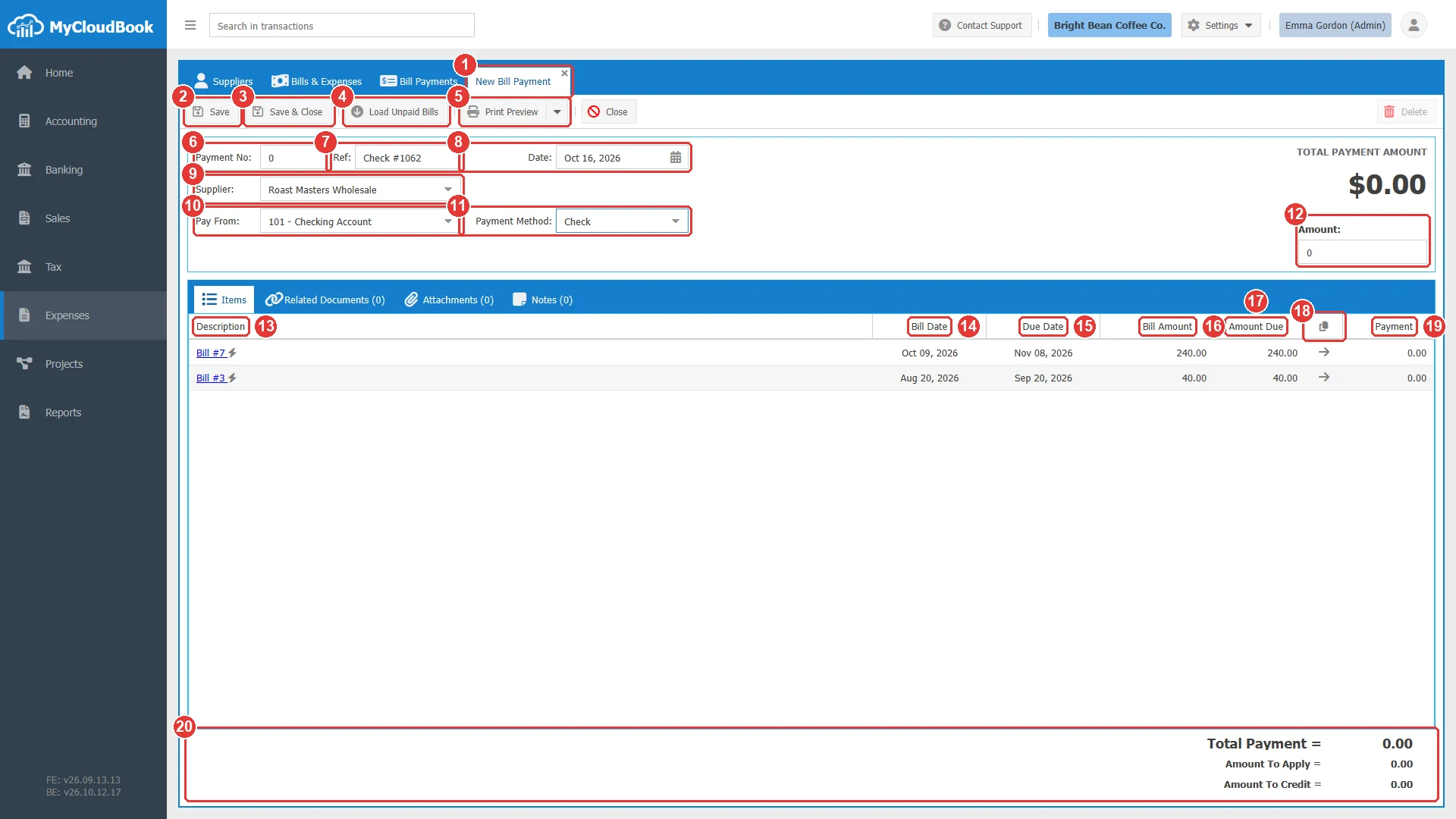
- 1The tab of the new payment.
- 2Save.
- 3Save & Close.
- 4Load Unpaid Bills. Adds the unpaid bills of the supplier that are not in the grid yet.
- 5Print Preview. Saves the payment, then shows its PDF. The menu has the downloads.
- 6Payment No. Keep 0, and MyCloudBook gives the next number.
- 7Ref. The check number or the bank reference.
- 8Date. The default is today.
- 9Supplier. Required.
- 10Pay From. Required. The bank or cash account that pays.
- 11Payment Method. Optional.
- 12Amount. Required. The money that leaves the Pay From account.
- 13Description. The bill, for example Bill #7. A click opens the bill.
- 14Bill Date.
- 15Due Date.
- 16Bill Amount. The total of the bill.
- 17Amount Due. The rest that the company still owes for the bill.
- 18The copy icon. Copies the amount due of every bill into Payment. The arrow of a row copies the amount due of that bill only.
- 19Payment. The amount that this payment pays for the bill.
- 20The totals: Total Payment, Amount To Apply, and Amount To Credit.
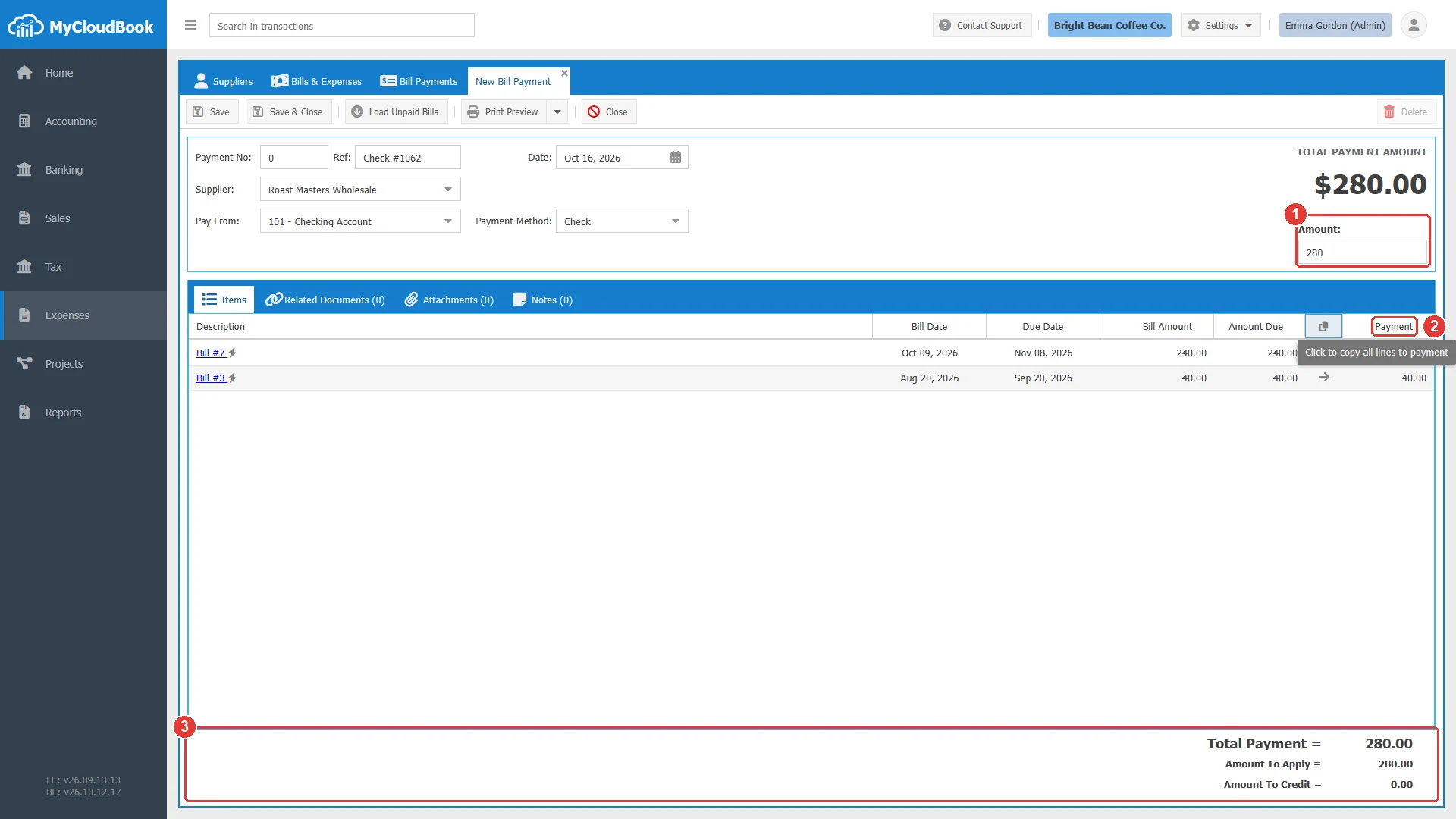
- 1Amount: 280.00.
- 2Payment: 240.00 for Bill #7 and 40.00 for Bill #3.
- 3The totals. Amount To Credit is 0.00, because the payment pays the two bills exactly.
Paying part of a bill
To pay a part of a bill, type a Payment that is lower than its Amount Due. In the example, the coffee shop pays 500.00 of Bill #1 of Metro Equipment Supply (940.00) with the check 1063. Bill #1 becomes Partially Paid with 440.00 due. The other bills of the supplier keep the payment 0 and do not change.
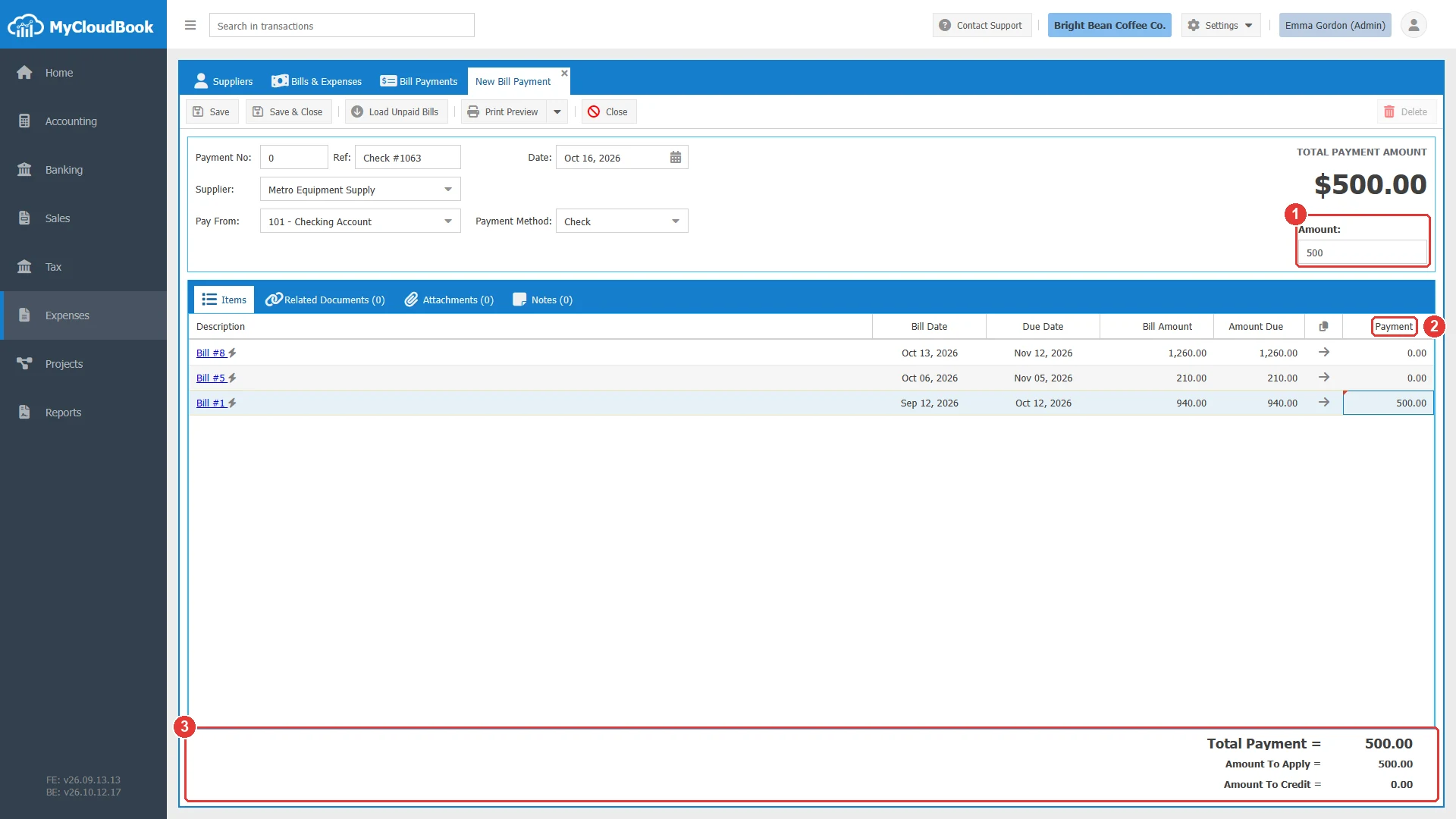
- 1Amount: 500.00.
- 2Payment: 500.00 for Bill #1. The other bills have 0.
- 3The totals.
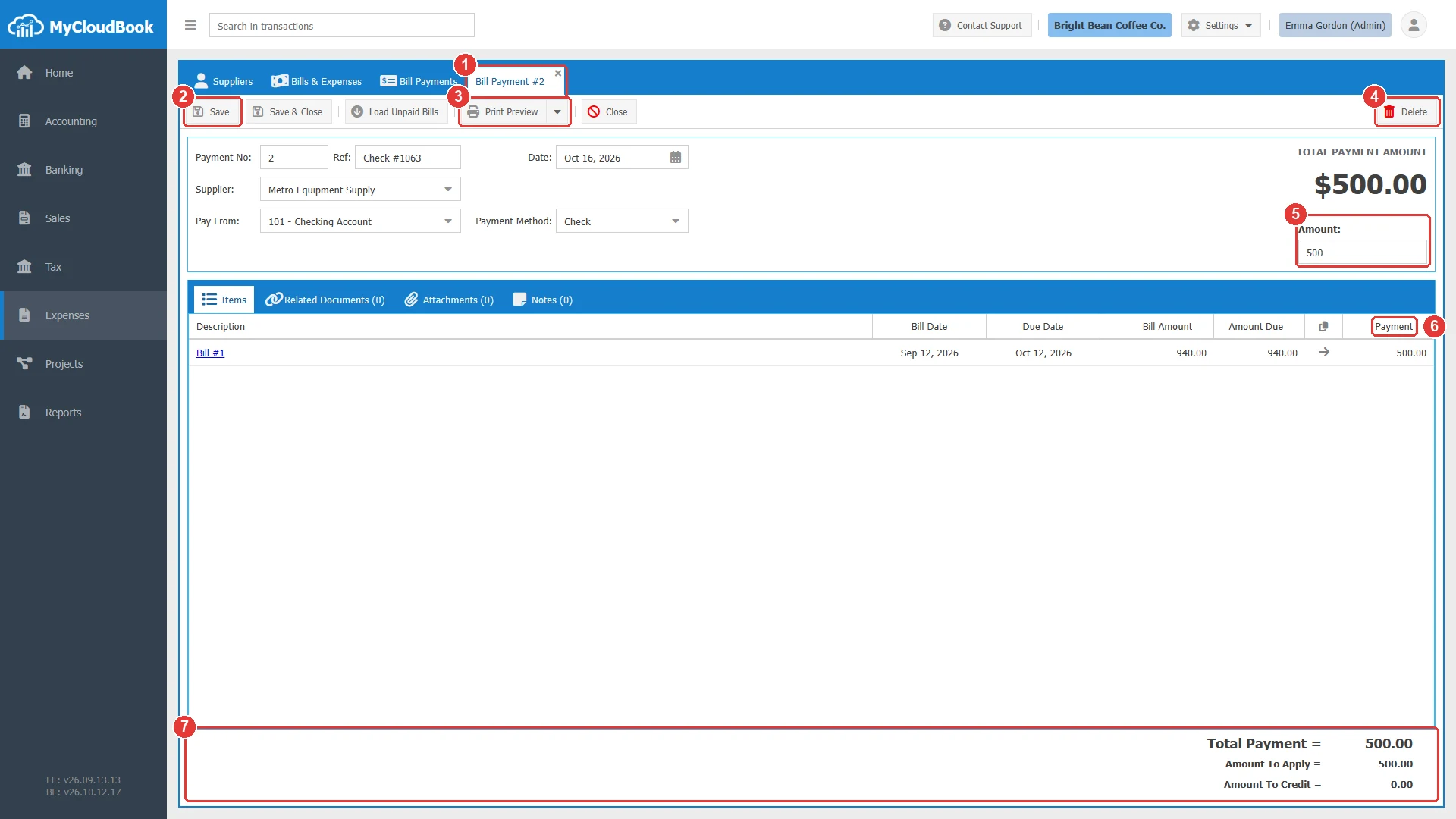
- 1The tab title Bill Payment #2.
- 2Save. Saves the changes of the payment.
- 3Print Preview.
- 4Delete.
- 5Amount: 500.
- 6Payment. The saved payment for Bill #1. The lines with 0 are not saved.
- 7The totals.
The saved payment keeps only the bills with a payment above 0. In a saved payment, the Amount Due of a line includes the payment itself: Bill #1 shows 940.00, the amount due before this payment.
The fields
| Field | Required | Purpose and rules |
|---|---|---|
| Payment No | Required | Keep 0, and MyCloudBook gives the largest payment number plus 1. The number cannot change after the first save. |
| Ref | Optional | The check number or the bank reference. Up to 100 characters. |
| Date | Required | The date of the payment and of its journal entry. The default is today. |
| Supplier | Required | The active suppliers. The selection loads the unpaid bills of the supplier into the grid. |
| Pay From | Required | An asset, liability, or equity account, for example the Checking Account or a credit card account. Select an account that is not a main account. Main accounts are shown in gray. |
| Payment Method | Optional | The payment methods of the company, for example Check. |
| Currency | Required | Only when the company uses several currencies. The bills of the grid are the bills in this currency. |
| Amount | Required | The money that leaves the Pay From account. It must be equal to or larger than the total of the payments. The part above the total is the Amount To Credit. |
| Payment | Optional | For each bill: 0 or more, and not more than the amount due of the bill. A bill can be in one line only. |
The totals
| Total | Meaning |
|---|---|
| TOTAL PAYMENT AMOUNT (top right) | The Amount field. |
| Total Payment | The sum of the Payment column: the money that pays bills. |
| Amount To Apply | The Amount field. |
| Amount To Credit | The Amount minus the Total Payment. It stays as a credit of the supplier. The list shows it in the Balance column. |
Amount To Credit
When the Amount is larger than the total of the payments, the difference is the Amount To Credit. MyCloudBook posts it to Accounts Payable for the supplier with the description Remaining Amount. It lowers the balance of the supplier like an advance payment. A payment with an Amount and no bill at all is also accepted: the whole amount is then a credit.
To use the credit for a later bill:
- Open the saved payment.
- Click Load Unpaid Bills. The unpaid bills of the supplier are added to the grid.
- Type the payment of the new bill, and save. The credit becomes smaller by the same amount.
The total of the payments cannot be larger than the Amount. In that case the save is refused with 'Total Payment=...' can not be more than 'Payment Amount=...'. Correct the Amount, then save again.
The journal entry
When a payment is saved, MyCloudBook creates its journal entry:
| Line of the journal entry | Account and amount |
|---|---|
| Credit | The Pay From account, with the Amount. |
| Debit, one line for each bill | Accounts Payable, with the supplier and the text Payment for Bill #n, with the payment of the bill. |
| Debit, Remaining Amount | Accounts Payable, with the supplier, with the Amount To Credit. Only when the Amount is larger than the payments. |
For Bill Payment #2 of the example, the entry credits the Checking Account with 500.00 and debits Accounts Payable with 500.00 for Metro Equipment Supply, Payment for Bill #1. Every save of the payment builds the entry again.
A payment changes nothing in the bill itself. MyCloudBook computes the paid amount, the amount due, and the status of a bill from its payments each time the bill is shown. The bill lists its payments in its Bill Payments tab. See the Bills and Expenses guide.
Editing, printing, and deleting
- Every field of a saved payment can change, except the number.
- The amount and the Pay From account of a payment that is reconciled with a bank transaction cannot change. Unreconcile the bank transaction first.
- Print Preview and the downloads of the screen save the payment first.
- The PDF shows the bills, their dates, the payments, and the totals.
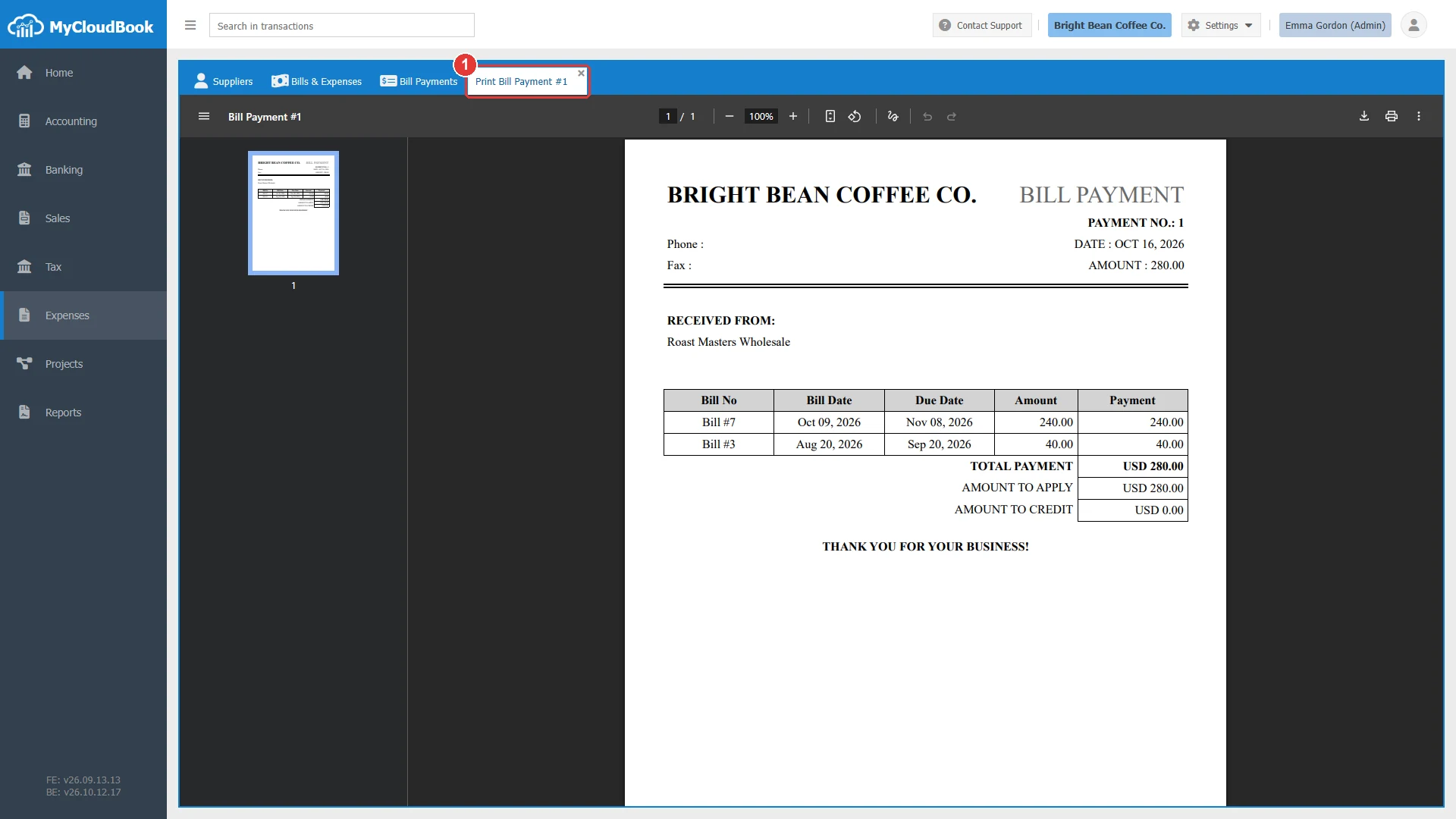
- 1The tab Print Bill Payment #1.
To delete a payment:
- Click Delete on the payment, or in the row menu of the list.
- The question Are you sure you want to delete the Bill Payment No#:1 appears. Click Yes.
- The message Bill Payment#1 deleted successfully. appears. The journal entry is deleted, and the bills return to their earlier amounts due.
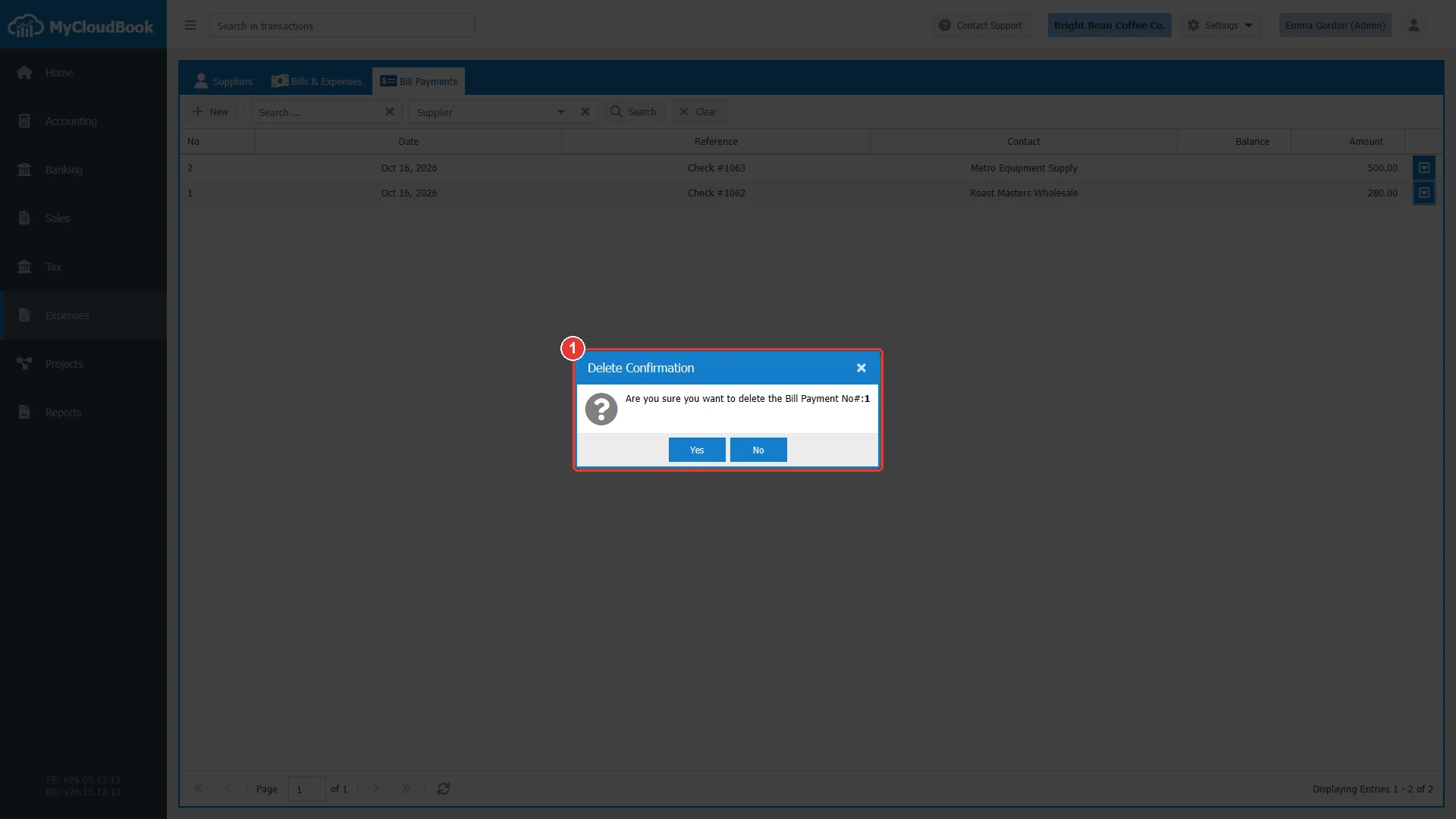
- 1The question with the payment number.
A payment that is reconciled with a bank transaction cannot be deleted. The message is The Bill Payment #n is reconciled with a bank transaction. Unreconcile the bank transaction first.
Messages and their meaning
Questions and answers
How do I pay a supplier bill in MyCloudBook?
Open Expenses, then Bill Payments, and click New. Select the supplier, type the payment of each bill and the total in Amount, select the Pay From account, and save.
Can one payment pay several bills?
Yes. Type a payment for each bill of the supplier in the same payment. The bills must have the same supplier and currency.
How do I pay part of a bill?
Type a Payment that is lower than the Amount Due of the bill. The bill becomes Partially Paid, and the rest stays due.
What is the Amount To Credit?
The part of the Amount that pays no bill. It stays as a credit of the supplier, and you can use it for later bills with Load Unpaid Bills.