Bills and Expenses
This guide explains how to record what the company buys: a bill that the company pays later, an expense that the company paid at once, and a draft that is completed later.
Overview
A purchase of the company is recorded as a bill or as an expense. Both documents name what was bought, for how much, and from which supplier. The difference is the time of the payment:
- A bill is a purchase that the company pays later. The bill raises the amount that the company owes to the supplier (the AP balance). The bill stays Unpaid or Partially Paid until bill payments pay it in full. Then it is Paid.
- An expense is a purchase that the company paid at once, for example with cash, a bank card, or a check. The expense takes the money from the Pay From account. It is always Paid, and it does not change the balance of the supplier.
A bill or an expense can also be saved as a draft (Draft Bill or Draft Expense). A draft is an incomplete document. It has no accounting effect until it is converted into a bill or an expense.
The Bills & Expenses list also shows the purchase orders. The Purchase Orders guide explains them. The command Autofill with AI creates drafts from pictures of receipts. The Scan Receipt to Expense guide explains it.
How to open the screen
- In the left navigation, click Expenses.
- Click the Bills & Expenses tab. It is the second tab of the Expenses page.
Each document opens in its own tab of the Expenses page, next to the Suppliers, Bills & Expenses, and Bill Payments tabs.
The Bills and Expenses list
The list shows the bills, the expenses, the purchase orders, and the drafts of the company. The newest document is first: the list is ordered by the date, then by the number. A page holds up to one hundred documents. A double click on a row opens the document.
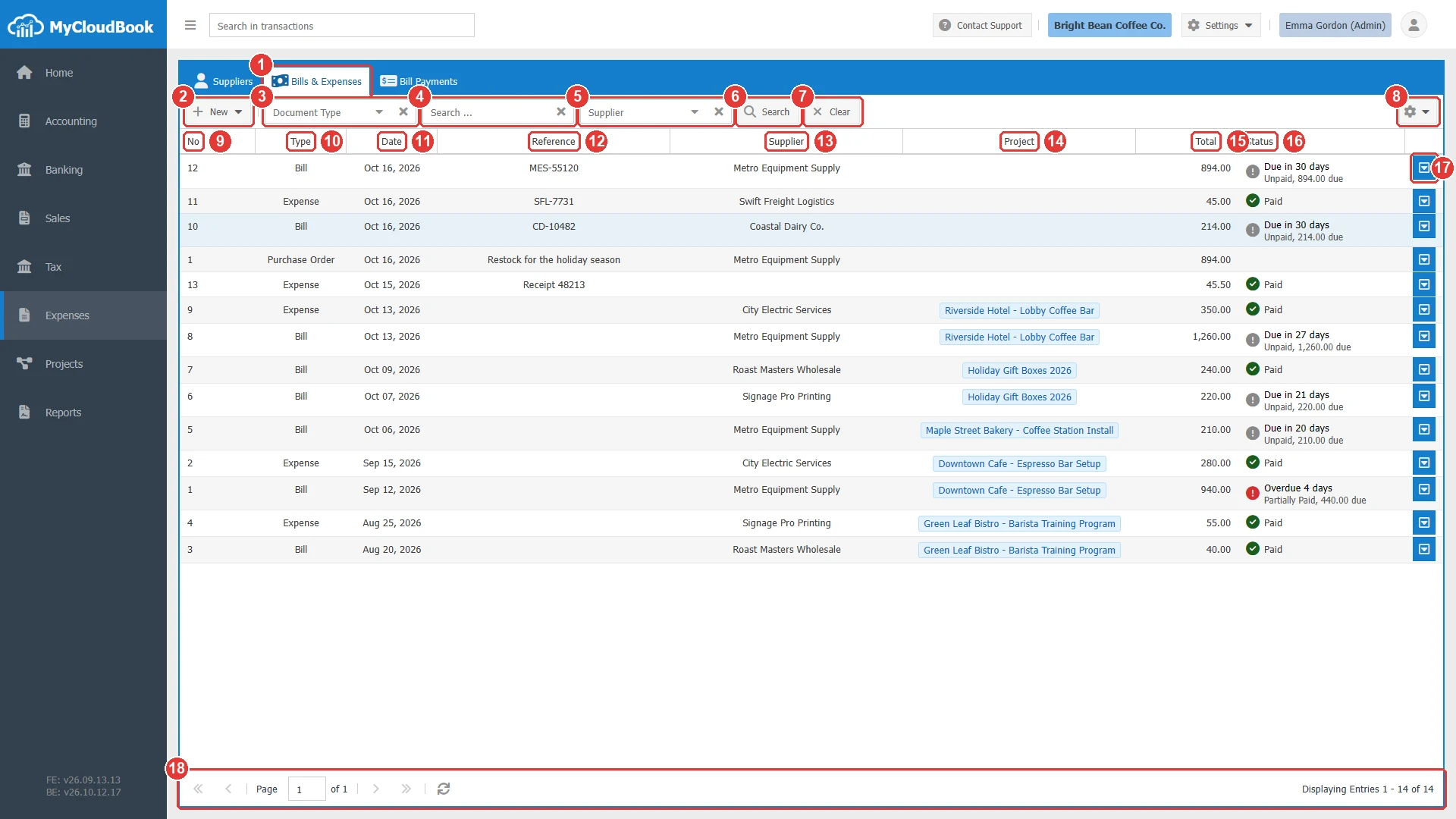
- 1Bills & Expenses tab.
- 2New. Its menu has New Bill, New Expense, New Purchase Order, and Autofill with AI.
- 3Document Type. Shows one type only. The list changes at once.
- 4Search .... Finds documents by their number. Press Enter or click Search.
- 5Supplier. Shows the documents of one supplier. The list offers the active suppliers only.
- 6Search. Runs the search with the text of the search field.
- 7Clear. Removes the search text, the supplier, and the document type.
- 8The column settings button. Its menu shows or hides each column. Reset Columns restores the default columns.
- 9No. The document number. A draft shows 0.
- 10Type. Bill, Expense, Purchase Order, Draft Bill, or Draft Expense.
- 11Date. The date of the document.
- 12Reference. The Ref field of the document.
- 13Supplier. The display name of the supplier.
- 14Project. One badge for each project of the lines. The column exists only when the company uses projects.
- 15Total. The total of the document.
- 16Status. The payment status. See the table below.
- 17The row actions button, with Edit, Print Preview, Download PDF Format, and Delete.
- 18The paging toolbar.
The search field finds documents by their number. For example, the text 12 finds the numbers 12, 112, and 120. To find a document by its reference, use the search box at the top of the page. The browser remembers the width and the visibility of the columns.
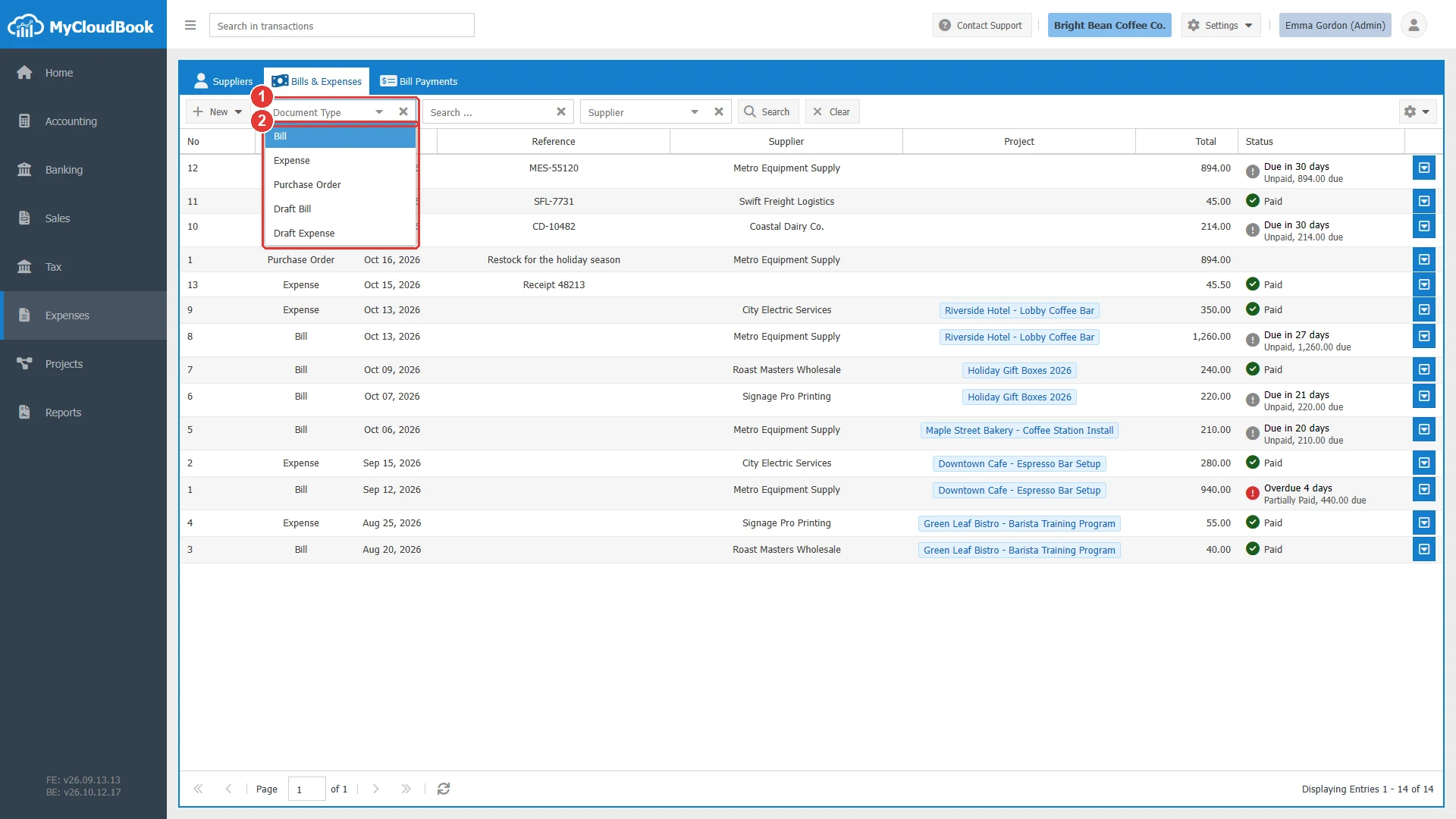
- 1Document Type.
- 2The five types of the list.
The Status column shows the payment status of each document:
| Status column | Meaning |
|---|---|
| Paid (green check) | A bill with no amount due, or an expense. An expense is always paid. |
| Due in n days Unpaid, amount due | A bill without payment whose due date is in the future. The icon is gray. |
| Due Today, or Overdue n days | A bill whose due date is today or has passed. The icon is red. |
| Partially Paid, amount due | A bill that bill payments have paid in part. The amount is the rest that the company still owes. |
| (empty) | A purchase order or a draft. These documents have no payment status. |
MyCloudBook does not store the status. It computes the status from the bill payments each time the list or the document is shown. Overdue is not a status of its own. It is an unpaid or partially paid bill after its due date.
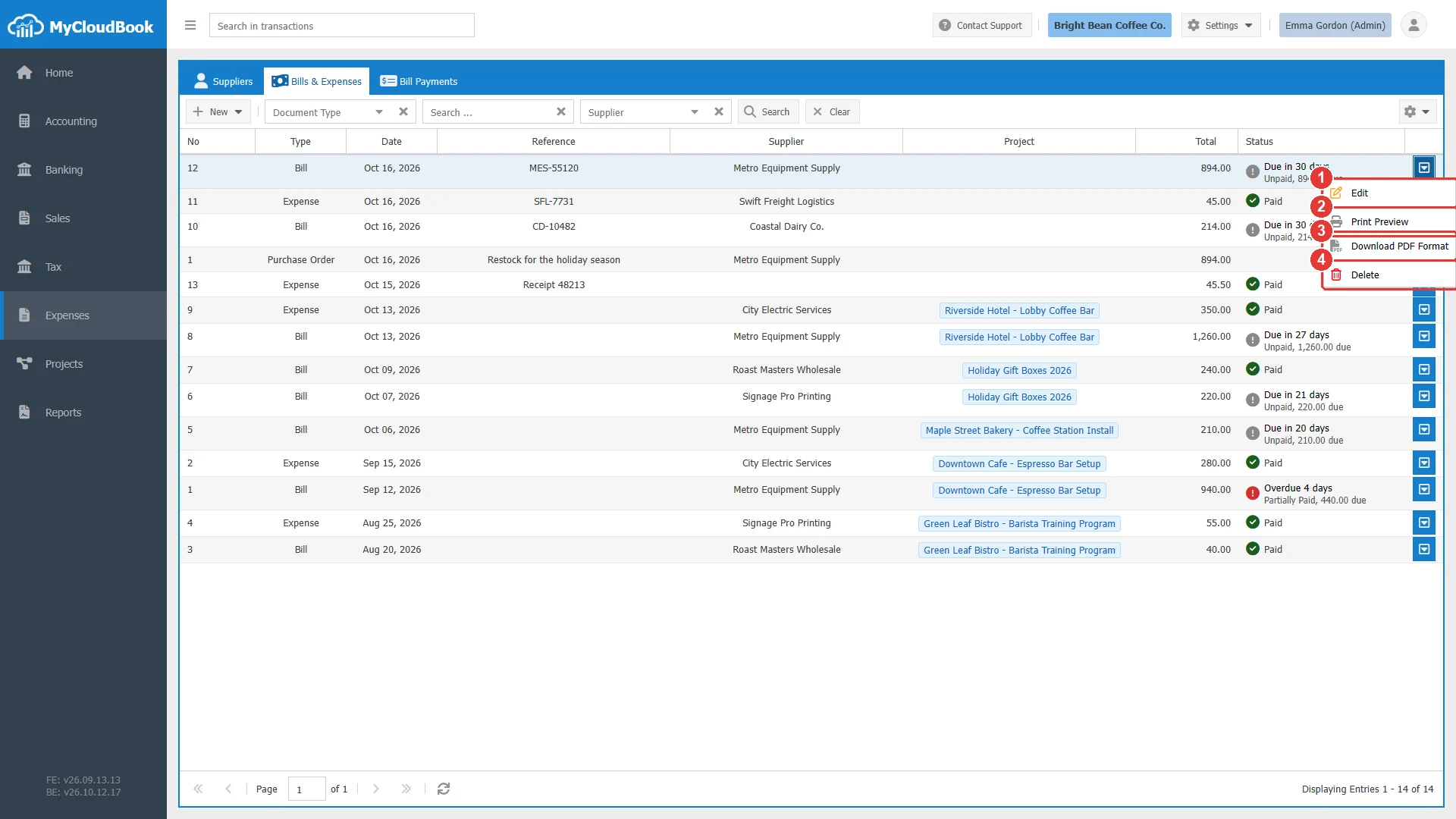
- 1Edit. Opens the document.
- 2Print Preview. Opens the PDF of the document in a new tab.
- 3Download PDF Format. Downloads the PDF file.
- 4Delete. Deletes the document after a confirmation.
Recording a bill
In the example, Bright Bean Coffee Co. receives the October milk bill of Coastal Dairy Co. The bill number of the supplier is CD-10482, and the bill must be paid by November 15, 2026.
- In the Bills & Expenses list, click New, then New Bill. The tab New Bill opens.
- Select the Supplier. Type a part of the name, then pick the supplier in the list.
- In Ref, type the number of the supplier's bill.
- Check the Date, and set the Due Date. Both dates are today by default.
- For each line, select the GL Account, type a Description, and type the Amount. To buy products of the product list, see The lines.
- Click Save. The message Document Saved Successfully appears. The tab title becomes the number of the bill, here Bill #10.
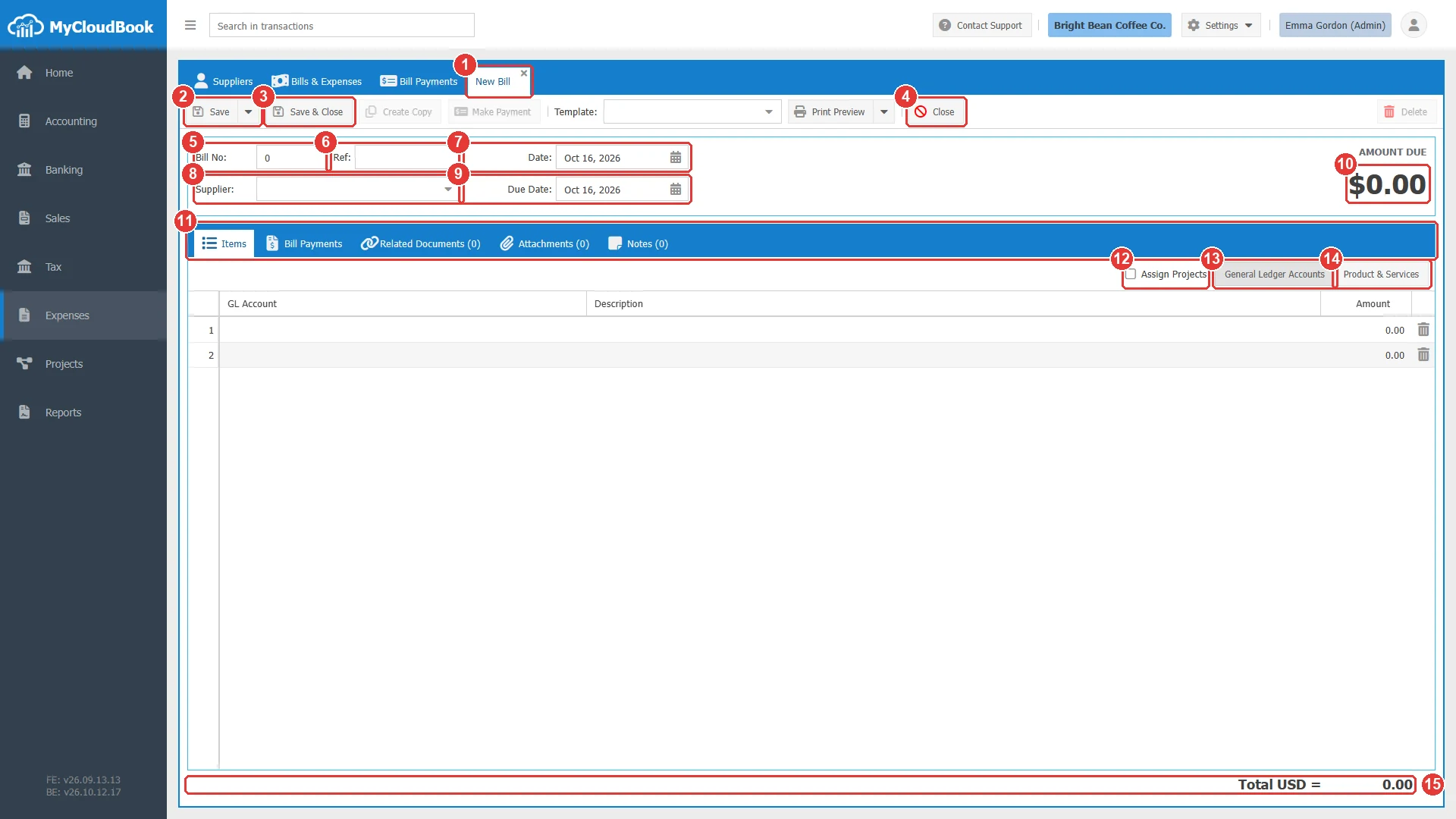
- 1The tab of the new document.
- 2Save. Its menu has Save as Draft, only for a new document.
- 3Save & Close. Saves, then closes the tab.
- 4Close. Closes the tab.
- 5Bill No. Keep 0, and MyCloudBook gives the next number when you save.
- 6Ref. The reference of the supplier, for example the number of the supplier's bill.
- 7Date. The date of the bill. The default is today.
- 8Supplier. Required for a bill.
- 9Due Date. Required. The default is today.
- 10AMOUNT DUE. The total of the bill minus the payments.
- 11The tabs Items, Bill Payments, Related Documents, Attachments, and Notes.
- 12Assign Projects. Shows the Project column of the lines. The box exists only when the company uses projects.
- 13General Ledger Accounts. The line mode with accounts. It is the default mode.
- 14Product & Services. The line mode with products and services.
- 15The total of the bill.
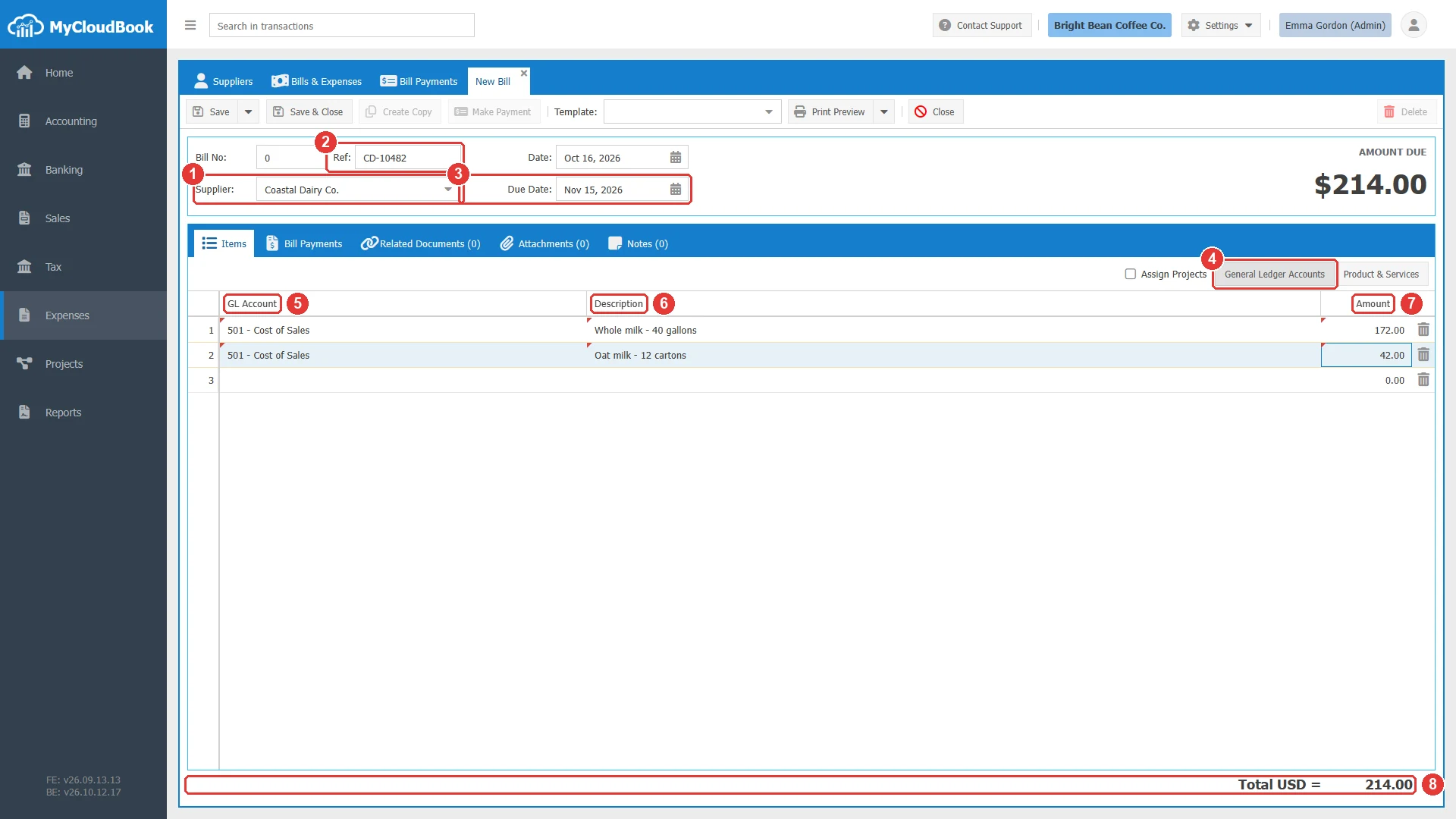
- 1Supplier: Coastal Dairy Co.
- 2Ref: CD-10482.
- 3Due Date: Nov 15, 2026.
- 4The General Ledger Accounts mode.
- 5GL Account. The account of each line, here 501 - Cost of Sales.
- 6Description. Whole milk, 40 gallons, and oat milk, 12 cartons.
- 7Amount. 172.00 and 42.00.
- 8The total: 214.00.
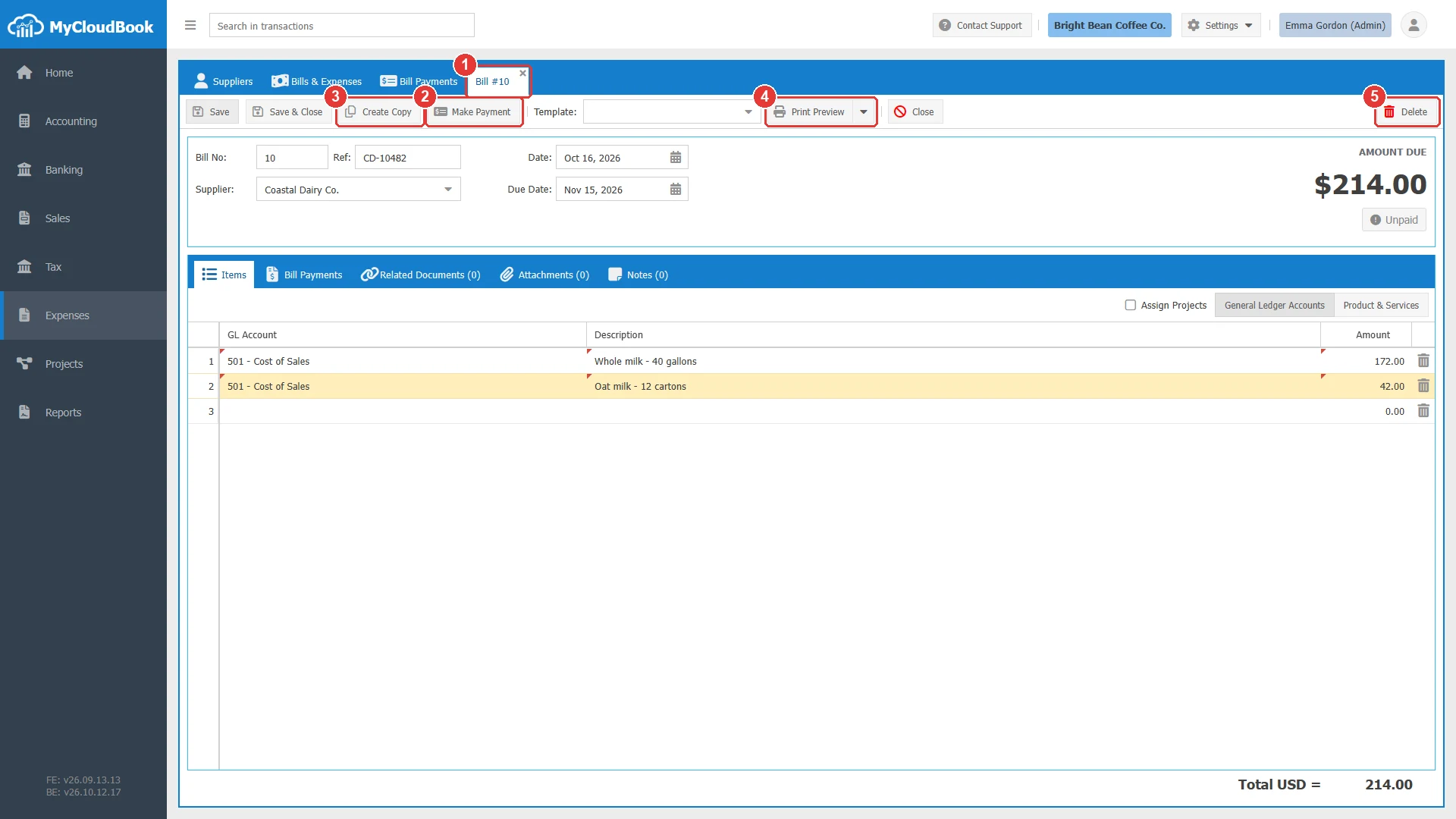
- 1The tab title Bill #10.
- 2Make Payment. Opens a new bill payment for the supplier. See Paying a bill.
- 3Create Copy. Opens a new bill with the same supplier and lines.
- 4Print Preview. Saves the bill and shows its PDF in a new tab. The menu has Download PDF Format.
- 5Delete. Deletes the bill.
The saved bill shows the status Unpaid under the amount due. The bill has a number now, and the number cannot change.
The fields
| Field | Required | Purpose and rules |
|---|---|---|
| Bill No Expense No | Required | Keep 0, and MyCloudBook gives the next number when you save. Bills and expenses share one number sequence: the next number is the largest number of all bills and expenses plus 1. A number that you type must not be in use. The number cannot change after the first save. |
| Ref | Optional | The reference of the supplier, for example the number of the supplier's bill or receipt. Up to 100 characters. |
| Date | Required | The date of the document and of its journal entry. The default is today. |
| Supplier | Bill: Required Expense: Optional | Only active suppliers are offered. Pick the supplier in the list: a typed name that is not picked is removed. The supplier of a bill that has payments cannot change. |
| Due Date | Bill: Required | The date when the bill must be paid. The default is today. |
| Pay From | Expense: Required | The account that paid the expense, for example Petty Cash, a bank account, or a credit card account. The list offers asset, liability, and equity accounts. Select an account that is not a main account. Main accounts are shown in gray. |
| Payment Method | Expense: Optional | The payment methods of the company, for example Cash or Check. |
| Currency | Required | Only when the company uses several currencies. The default is the main currency. |
| Template | Optional | A print template of the document type. The choice is saved with the document. |
| Lines | Required | At least one line. Each line needs an account or a product. The accounts Accounts Receivable, Accounts Payable, and Tax Payable are refused. A description has up to 4000 characters. The amount, the quantity, and the unit price must be 0 or more, with up to 2 decimals. |
The lines
The lines grid has two modes. The buttons on the right of the grid toolbar select the mode:
- General Ledger Accounts, the default. Each line has a GL Account, a Description, and an Amount. Use it for costs such as rent, utilities, or supplies that are not in the product list. The account list shows the expense accounts first.
- Product & Services. Each line has a Product / Service, a QTY, a Unit Price, and a Line Total. Use it to buy products of the product list, for example goods for the stock.
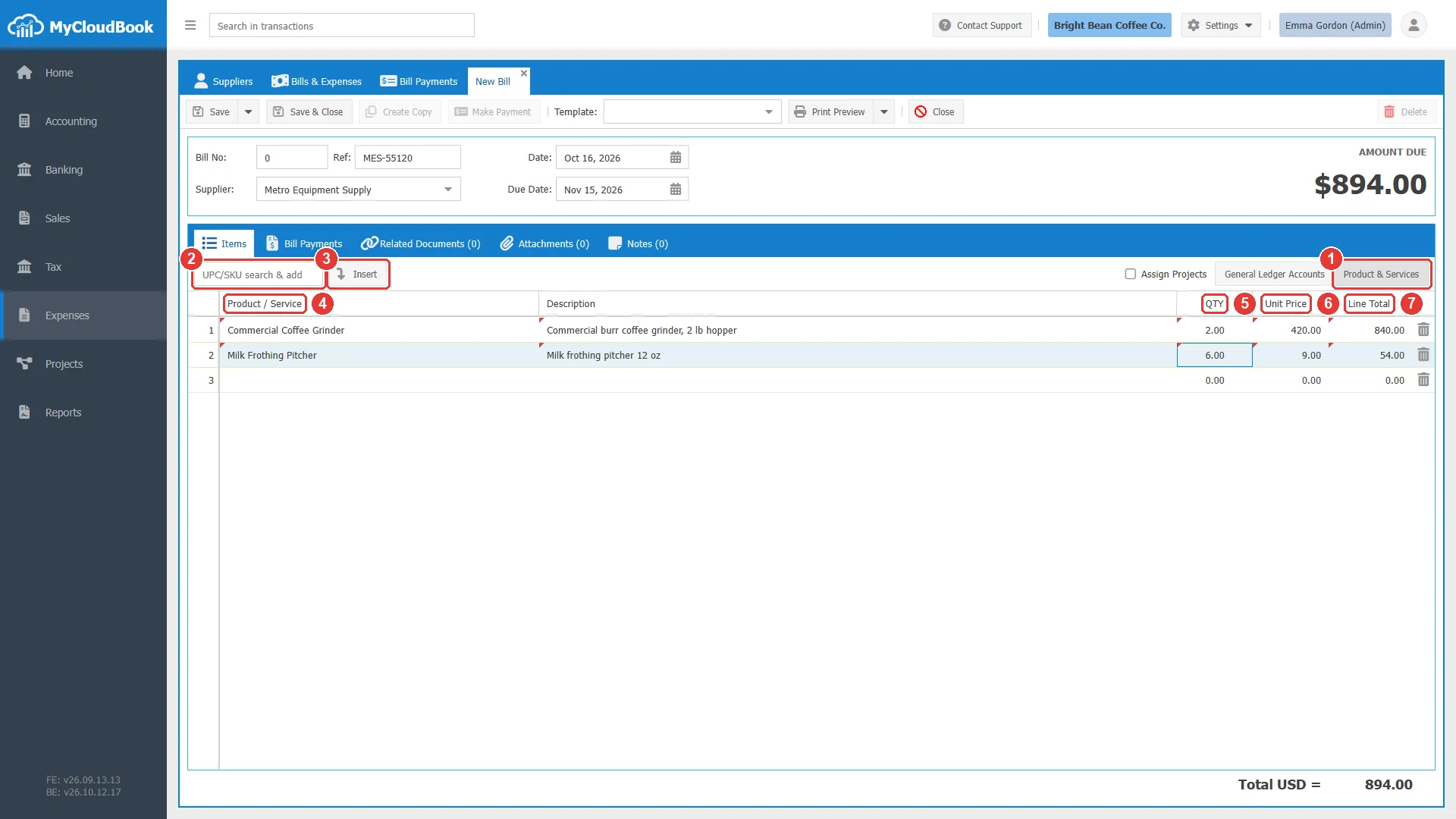
- 1Product & Services. The mode with products.
- 2UPC/SKU search & add. Type the SKU of a product, at least 2 characters, then press Enter.
- 3Insert. Adds the product of the SKU field as a new line.
- 4Product / Service. The products that are marked for purchase. A selection fills the description, the quantity 1, and the purchase price of the product.
- 5QTY. The quantity.
- 6Unit Price. The price of one unit.
- 7Line Total. The quantity times the unit price. It is computed and cannot be typed.
- A new document starts with two empty lines. When you fill the last line, a new empty line is added. Empty lines are not saved.
- The trash icon at the end of a line removes the line. Drag a line to change the order of the lines.
- Enter all the lines of a document in one mode. A saved document opens in the mode of its first line.
- When the company uses projects, check Assign Projects to show the Project column. Each line can have its own project. The list offers the projects that are Not Started or In Progress. The lines of a completed project cannot change.
Recording an expense
In the example, the coffee shop paid 45.00 in cash to Swift Freight Logistics for the delivery of the October coffee bean order. The money came from the Petty Cash account.
- In the Bills & Expenses list, click New, then New Expense. The tab New Expense opens.
- Select the Supplier if you know it. An expense can be saved without a supplier.
- Type the Ref, for example the number of the receipt, and check the Date.
- Select the Pay From account and the Payment Method.
- Enter the lines, as for a bill.
- Click Save. The tab title becomes the number of the expense, here Expense #11, and the status is Paid.
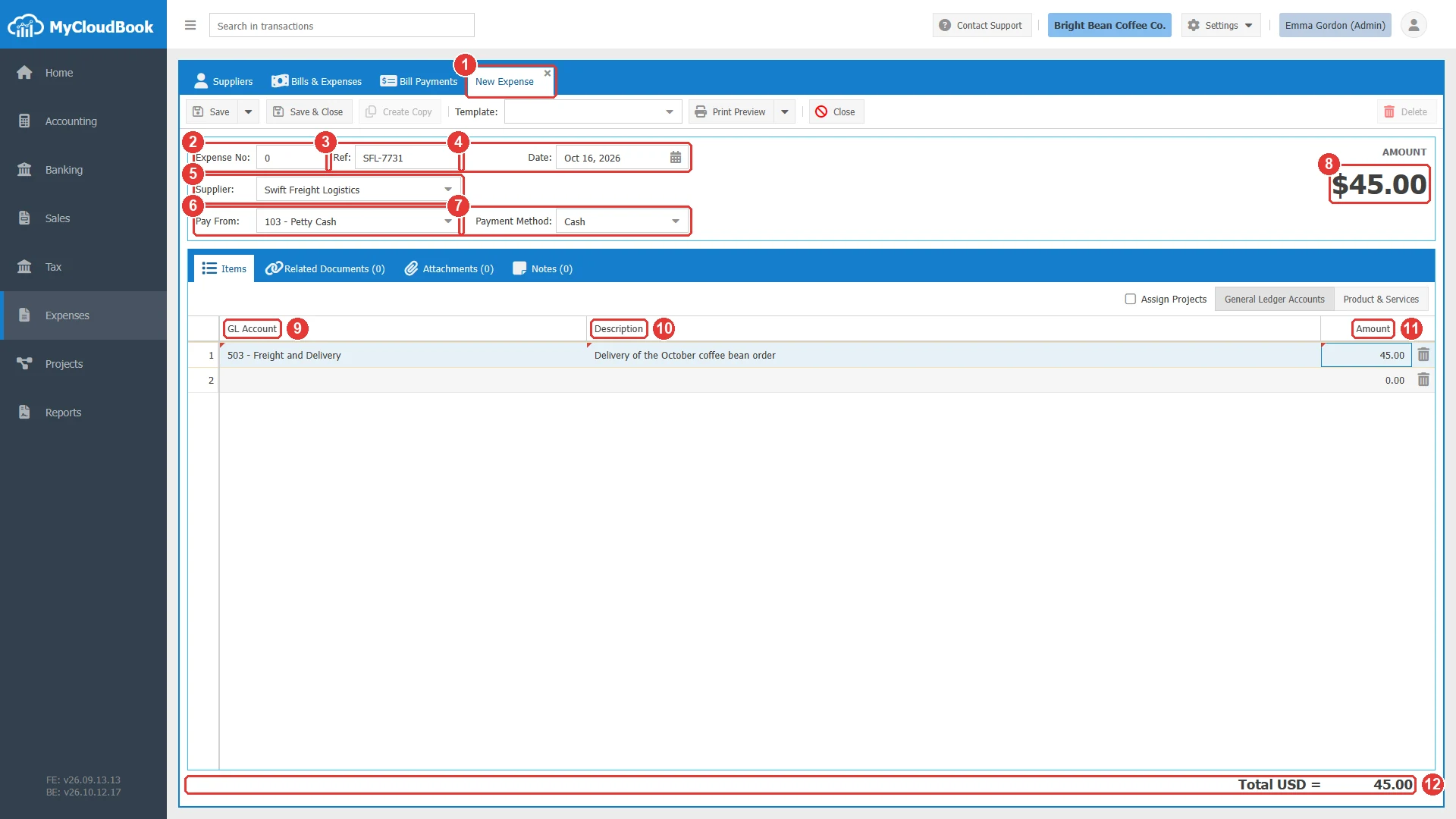
- 1The tab of the new expense.
- 2Expense No. Keep 0 for the next number.
- 3Ref: SFL-7731.
- 4Date.
- 5Supplier. Optional for an expense.
- 6Pay From. Required. The account that paid, here 103 - Petty Cash.
- 7Payment Method: Cash.
- 8AMOUNT. The total of the expense.
- 9GL Account: Freight and Delivery.
- 10Description.
- 11Amount: 45.00.
- 12The total.
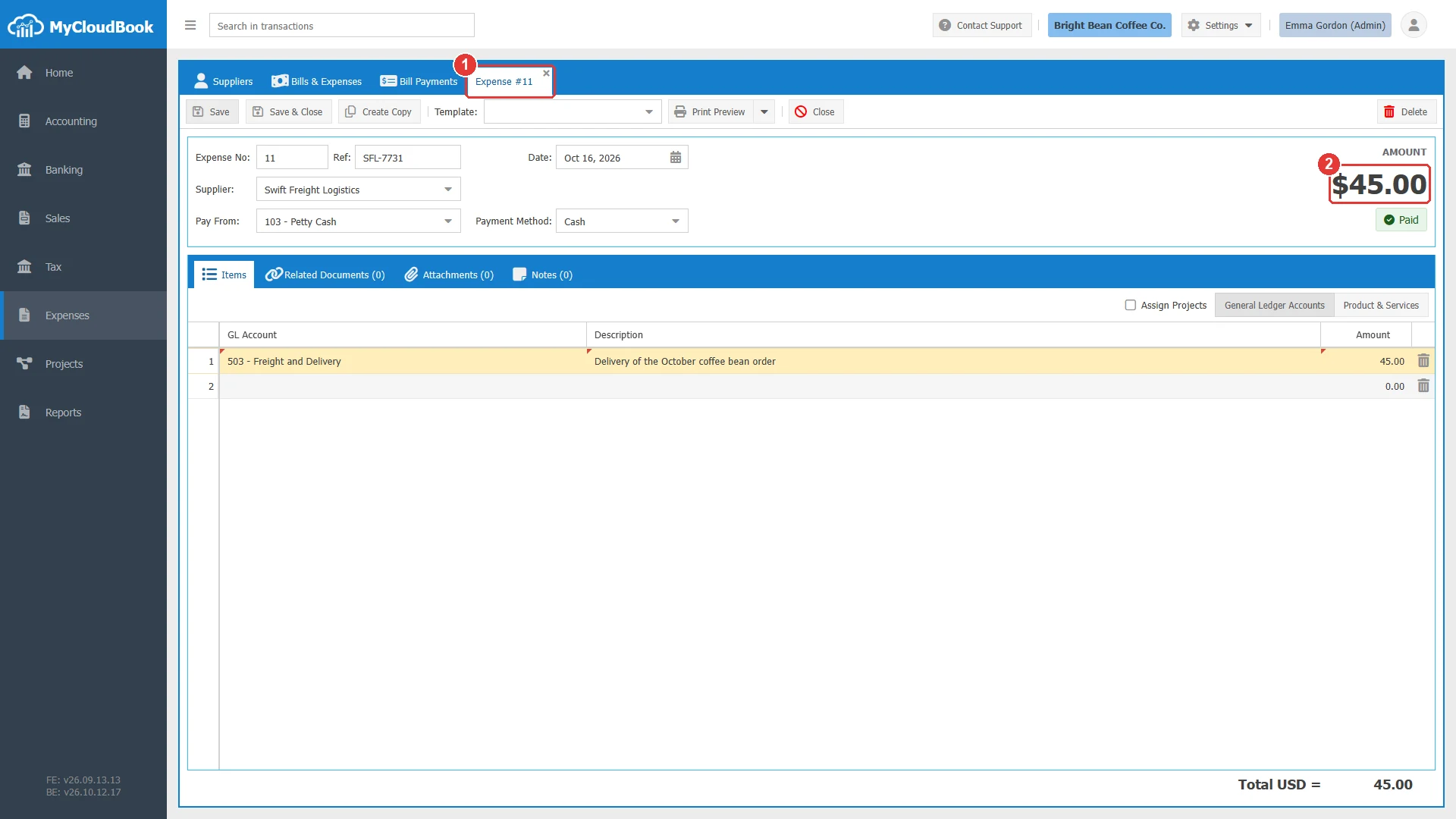
- 1The tab title Expense #11.
- 2AMOUNT and the status Paid.
| Item | Bill compared with expense |
|---|---|
| Supplier | Bill: required. Expense: optional. |
| Due Date | Bill: required. Expense: not shown. |
| Pay From and Payment Method | Bill: not shown. Expense: Pay From is required, and the payment method is optional. |
| Credit side of the journal entry | Bill: Accounts Payable, with the supplier. Expense: the Pay From account. |
| Status | Bill: Unpaid, Partially Paid, or Paid. Expense: always Paid. |
| Make Payment and the Bill Payments tab | Bill only. |
| Total label | Bill: AMOUNT DUE. Expense: AMOUNT. |
The journal entry and the stock
When a bill or an expense is saved, MyCloudBook creates its journal entry. The entry has one debit line for each line of the document and one credit line for the total.
| Line of the document | Debit account |
|---|---|
| A line with a GL Account | The account of the line. |
| An inventory product | The inventory asset account of the product. |
| A non-inventory product or a service | The purchase account of the product. |
| Document | Credit account |
|---|---|
| Bill | Accounts Payable, with the supplier. This raises the AP balance of the supplier. |
| Expense | The Pay From account. The supplier is not on the entry, so the AP balance of the supplier does not change. |
For Bill #10 of the example, the entry debits Cost of Sales with 172.00 and 42.00, and it credits Accounts Payable with 214.00 for Coastal Dairy Co. The project of a line goes to its debit line when the account is an income or an expense account.
A line with an inventory product also adds the quantity to the stock of the product. MyCloudBook records the purchase as an inventory receipt with the unit cost of the line, and it computes the cost of the product again. In the example company, a bill of one milk frothing pitcher raised the quantity on hand from 34 to 35. A draft and a purchase order have no journal entry and do not change the stock.
Drafts
A draft keeps a document that is not complete, for example a receipt without its account. A draft has no journal entry, no stock change, and no status.
- On a new bill or a new expense, open the menu of Save and click Save as Draft.
- The tab title becomes Draft Bill #0 or Draft Expense #0. The Convert to Bill or Convert to Expense button appears.
- Complete the draft later. Click Save to keep it as a draft.
- When the draft is complete, click Convert to Bill or Convert to Expense. MyCloudBook checks every rule of a bill or an expense, gives the next number, and creates the journal entry.
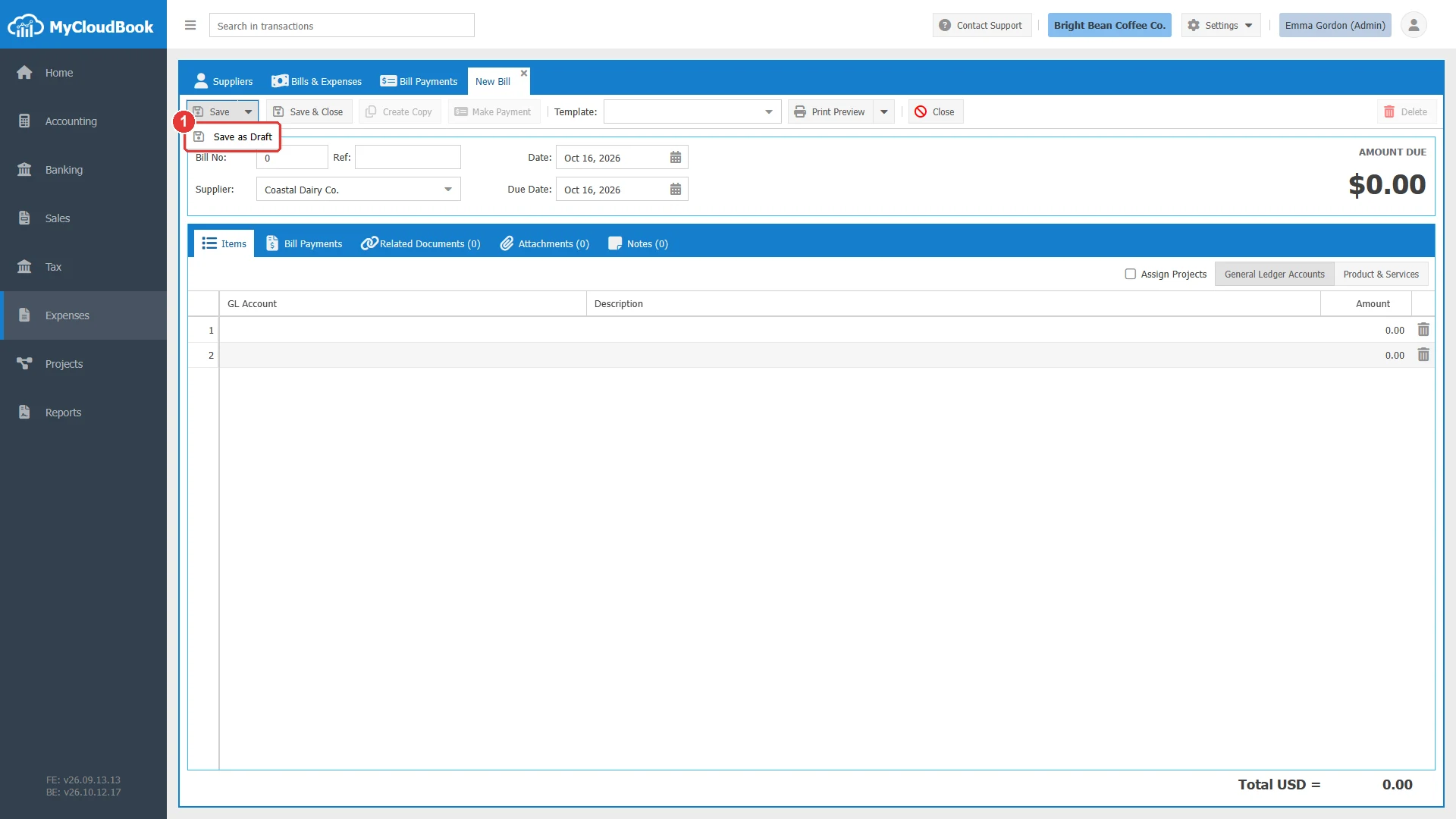
- 1Save as Draft.
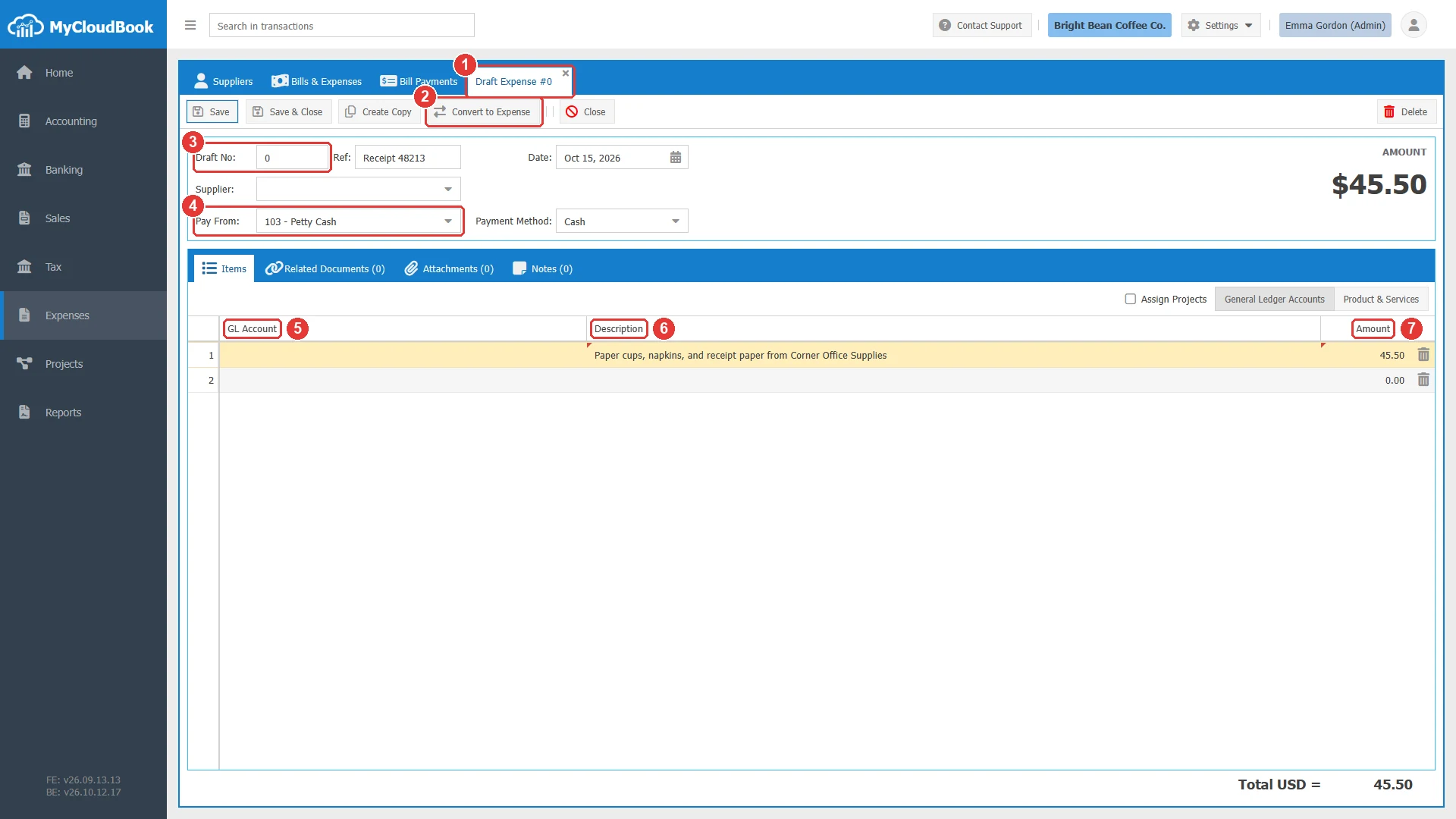
- 1The tab title Draft Expense #0.
- 2Convert to Expense. Converts the draft into an expense.
- 3Draft No. A draft has the number 0, unless you type a number.
- 4Pay From. Required.
- 5GL Account. Empty: a draft line can be saved without an account.
- 6Description.
- 7Amount: 45.50.
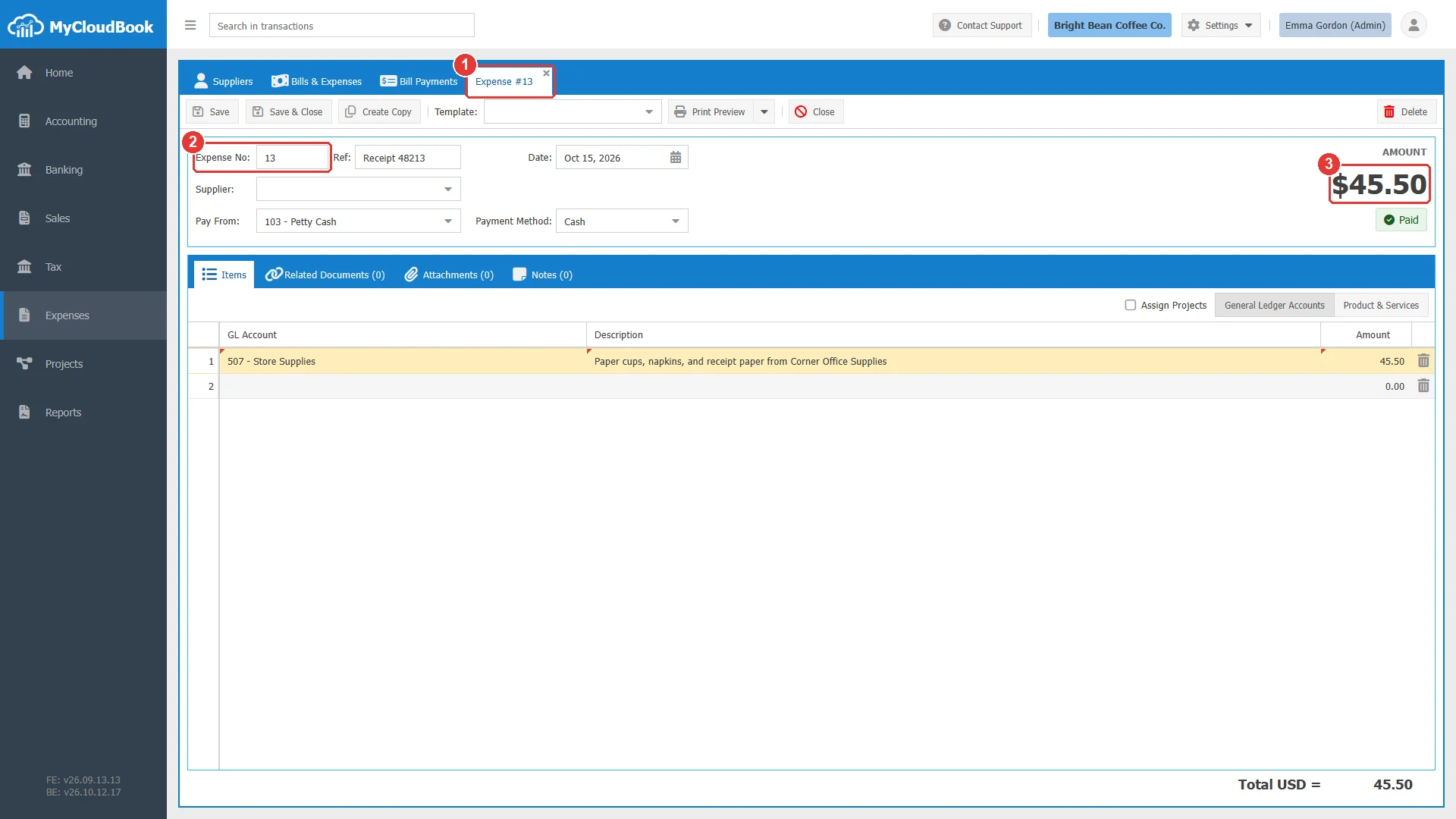
- 1The tab title Expense #13.
- 2Expense No: 13, the next number of the bills and expenses.
- 3AMOUNT and the status Paid.
- A draft can be saved without a supplier, a due date, or an account on the lines. It still needs one line that is not empty.
- A draft has no Template, no Print Preview, and no Make Payment.
- A draft is created with Save as Draft or by Autofill with AI.
- A bill or an expense cannot go back to a draft.
Paying a bill
A bill is paid with a bill payment. The Bill Payments guide explains the payment screen.
- Open the bill and click Make Payment. A new bill payment opens for the supplier of the bill.
- In the line of the bill, type the payment. Type the total of the payments in Amount.
- Save the payment. The bill then shows the payment in its Bill Payments tab.
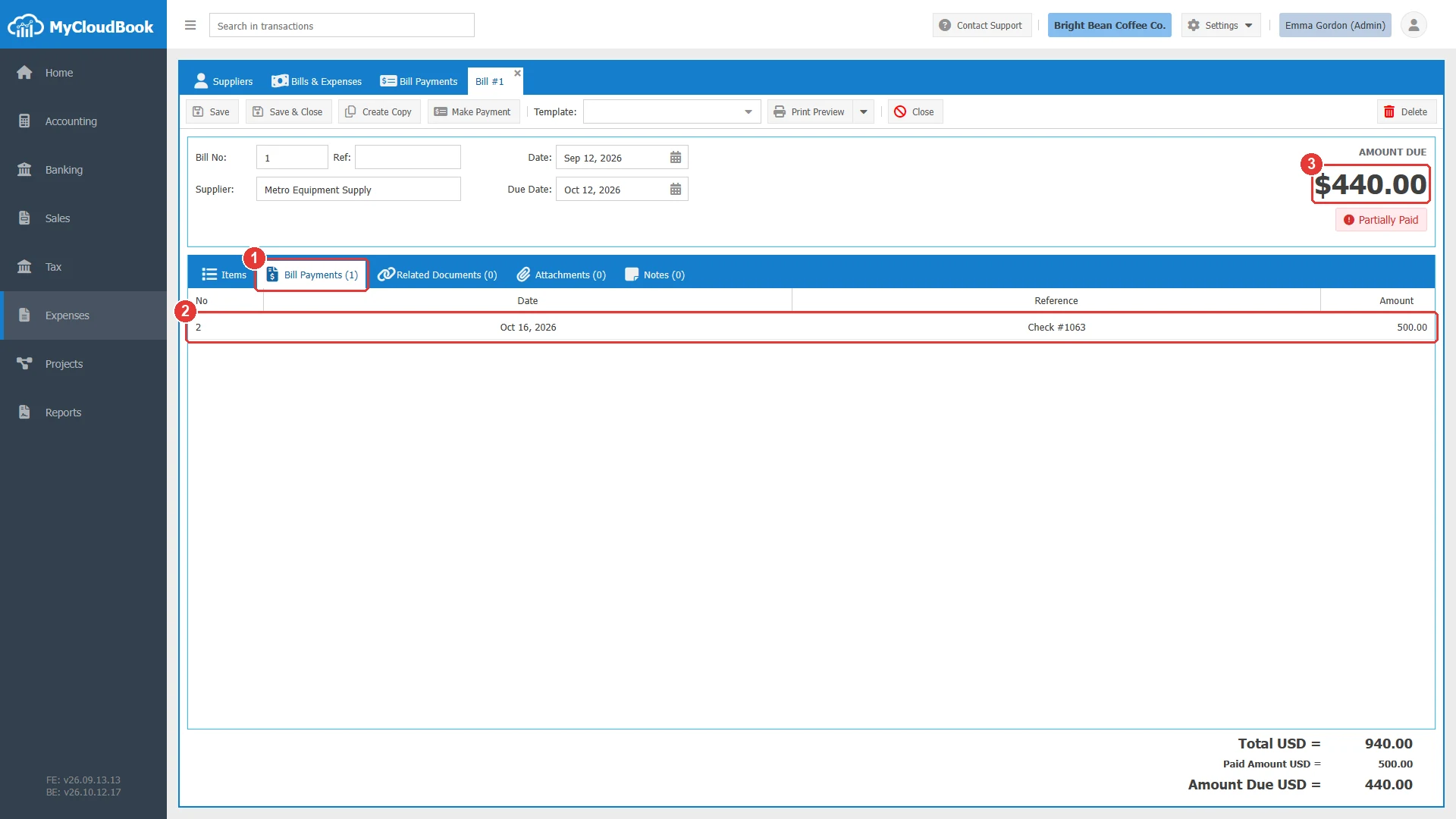
- 1Bill Payments (1). The number in brackets is the number of payments.
- 2One row for each payment of the bill. A double click opens the payment.
- 3AMOUNT DUE. Under it, the status, here Partially Paid in red, because the due date has passed.
A bill that has payments has some limits: the supplier, the currency, and the exchange rate cannot change, and the total cannot be lower than the payments. The Supplier field is read-only. The other fields and the lines can change within these limits.
Related documents, attachments, and notes
After the first save, a document has three more tabs. They work the same way on every document of MyCloudBook.
- Related Documents links the document to other documents, for example a bill to the purchase order of the same goods.
- Attachments keeps files, for example the scan of the supplier's bill. Add Attachment adds one or several files.
- Notes keeps short texts. Add Note adds a note.
To link a document, type a part of the number, the reference, or a line description of the other document in Search to add. Then click Add on the row of the document.
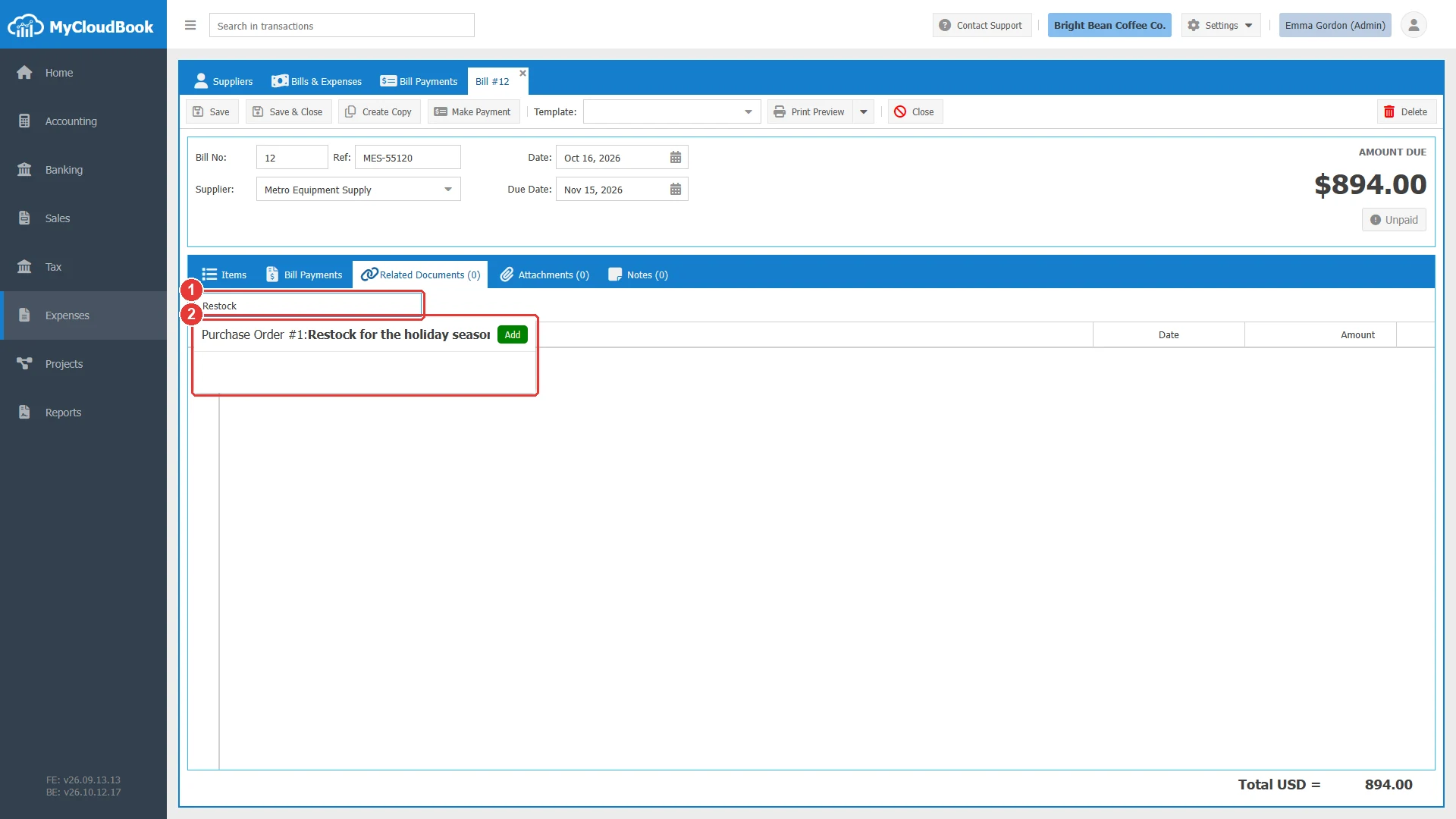
- 1Search to add.
- 2The results, each with an Add button.
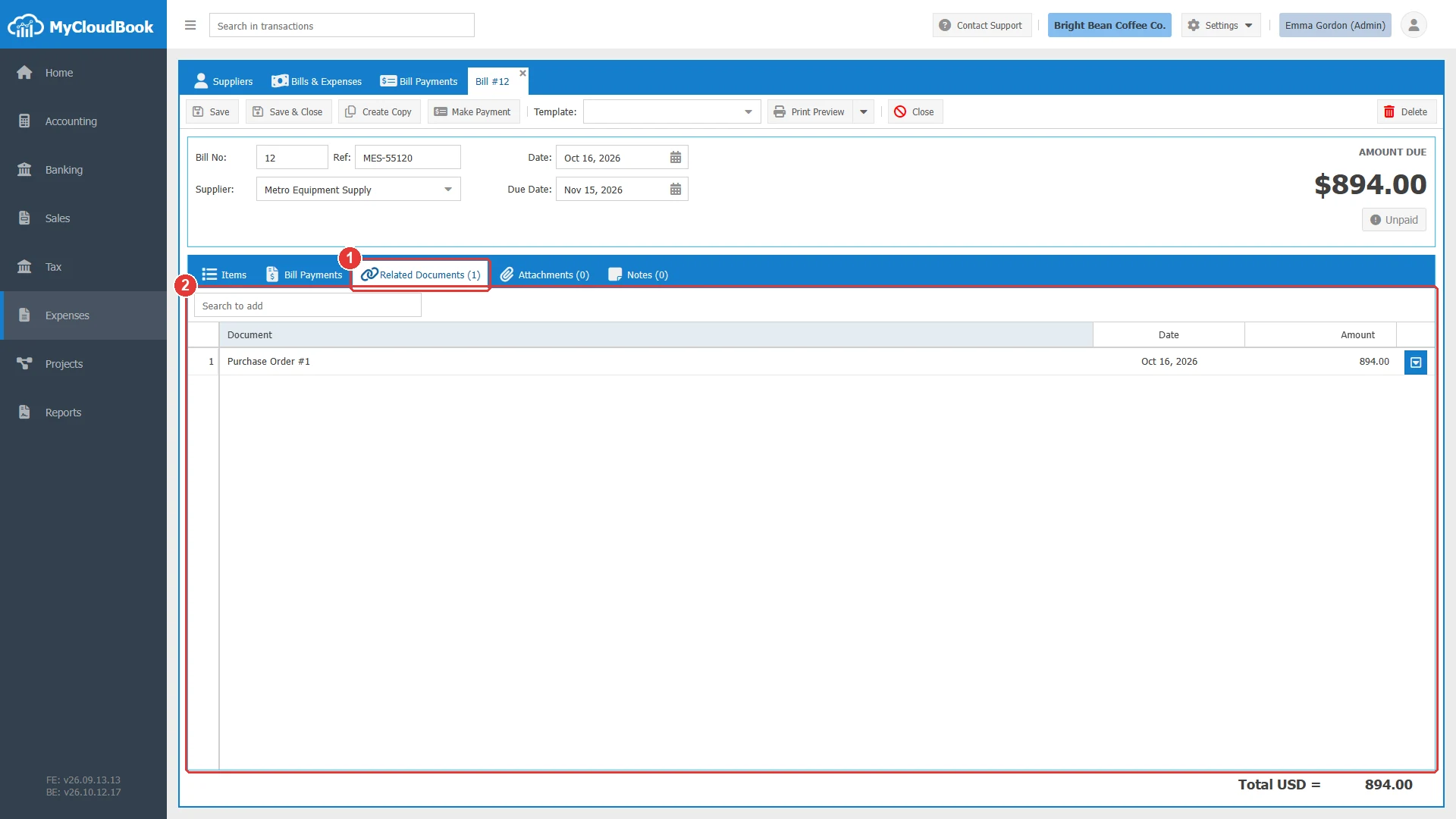
- 1Related Documents (1).
- 2The linked document. Its menu has Open Document and Remove.
When several documents are linked, each of them lists the others in its Related Documents tab.
Opening, copying, and printing
- To open a document, double click its row, or click Edit in its row menu. A document that is open already gets the focus.
- The number and the type of a saved document cannot change.
- Create Copy opens a new document of the same type with the supplier, the dates, the reference, the currency, and the lines with their projects. The number is 0. The payments, the links, the attachments, and the notes are not copied.
- Print Preview saves the document first. Then it opens the PDF in the tab Print Bill #10. Download PDF Format downloads the PDF file.
Deleting a bill or an expense
- Open the document and click Delete, or use Delete in the row menu of the list.
- The question Are you sure you want to delete the Bill No#:10 appears. Click Yes.
- The message Bill #10 deleted successfully. appears, and the tab of the document closes.
MyCloudBook deletes the journal entry and the stock receipts of the document, and it computes the cost of the products again. The delete of a bill also removes the bill from its bill payments. The paid amount then stays on the payment as an unapplied amount of the supplier (Remaining Amount).
| The document | Result of the delete |
|---|---|
| Has a journal line that is reconciled with a bank transaction | Refused: The Bill #n is reconciled with a bank transaction. Unreconcile the bank transaction first. |
| Has a line of a completed project | Refused: The project '...' is marked as completed. You cannot delete the Bill #n from it. |
| Has bill payments | Deleted. The paid amount stays on the payments as an unapplied amount. |
Messages and their meaning
Questions and answers
What is the difference between a bill and an expense in MyCloudBook?
A bill is a purchase that the company pays later. It raises the amount owed to the supplier until bill payments pay it. An expense is a purchase that was paid at once from the Pay From account. It is always Paid.
How do I pay a bill?
Open the bill and click Make Payment, or create a new bill payment in the Bill Payments tab. Type the payment in the line of the bill and the total in Amount, then save.
How do I record the bill of a purchase order?
Create the bill with New Bill and the lines of the supplier's bill. Then link the purchase order in the Related Documents tab of the bill.
Why does my draft have the number 0?
Drafts do not use the number sequence. A draft gets the next bill or expense number when it is converted with Convert to Bill or Convert to Expense.
Why can I not delete a bill?
A bill that is reconciled with a bank transaction, or that has a line of a completed project, cannot be deleted.
Does an expense change the balance of the supplier?
No. An expense credits the Pay From account, so the AP balance of the supplier stays the same. Only bills, bill payments, and journal entries change it.