Custom Fields
This guide explains the custom fields of MyCloudBook: how to add extra fields to customers, suppliers, sales documents, expenses, and subscriptions, and the rules for changing and deleting them.
Overview
A custom field adds an extra field to some forms of MyCloudBook, for the data that the standard fields do not hold. Examples are the delivery time of an order, the license number of a customer, or the contract date of a supplier. A custom field has a name, a type, and the list of the forms where it appears.
The value of a custom field is saved with the record. The printed documents can show the custom fields of the document in a table, when the document template has the place for them. See Document Templates.
| Type | The value |
|---|---|
| Text | Any text, up to 255 characters. |
| Number | A number. |
| Date | A date, chosen with a date picker in the date format of the company. |
| Drop-Down List | One of the options of the field. |
How to open the window
- In the top bar, click Settings. The button is between the name of the company and the name of the user.
- In the menu, click Custom Fields.
The Settings menu is shown to the users with the Admin role. The other users do not see the menu.
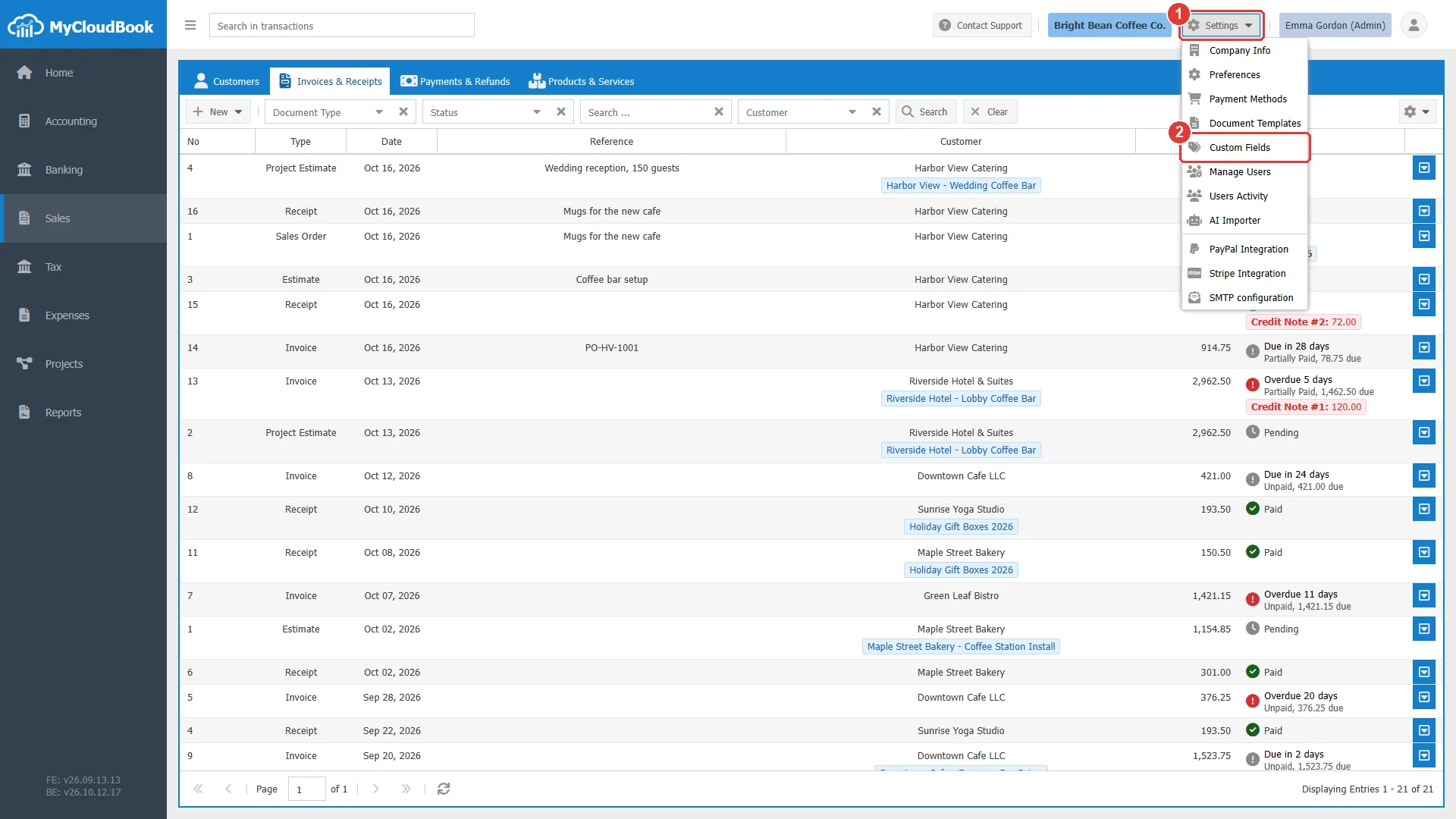
- 1Settings. Opens the menu of the company settings.
- 2Custom Fields.
Adding a custom field
- In the Custom Fields window, click Add Custom Field.
- Type the Field Name and the Order.
- Choose the Type. For a Drop-Down List, type the options in Drop-Down List Options, one option on each line.
- In Appear In, choose the forms of the field.
- Keep the status Active and click Save.
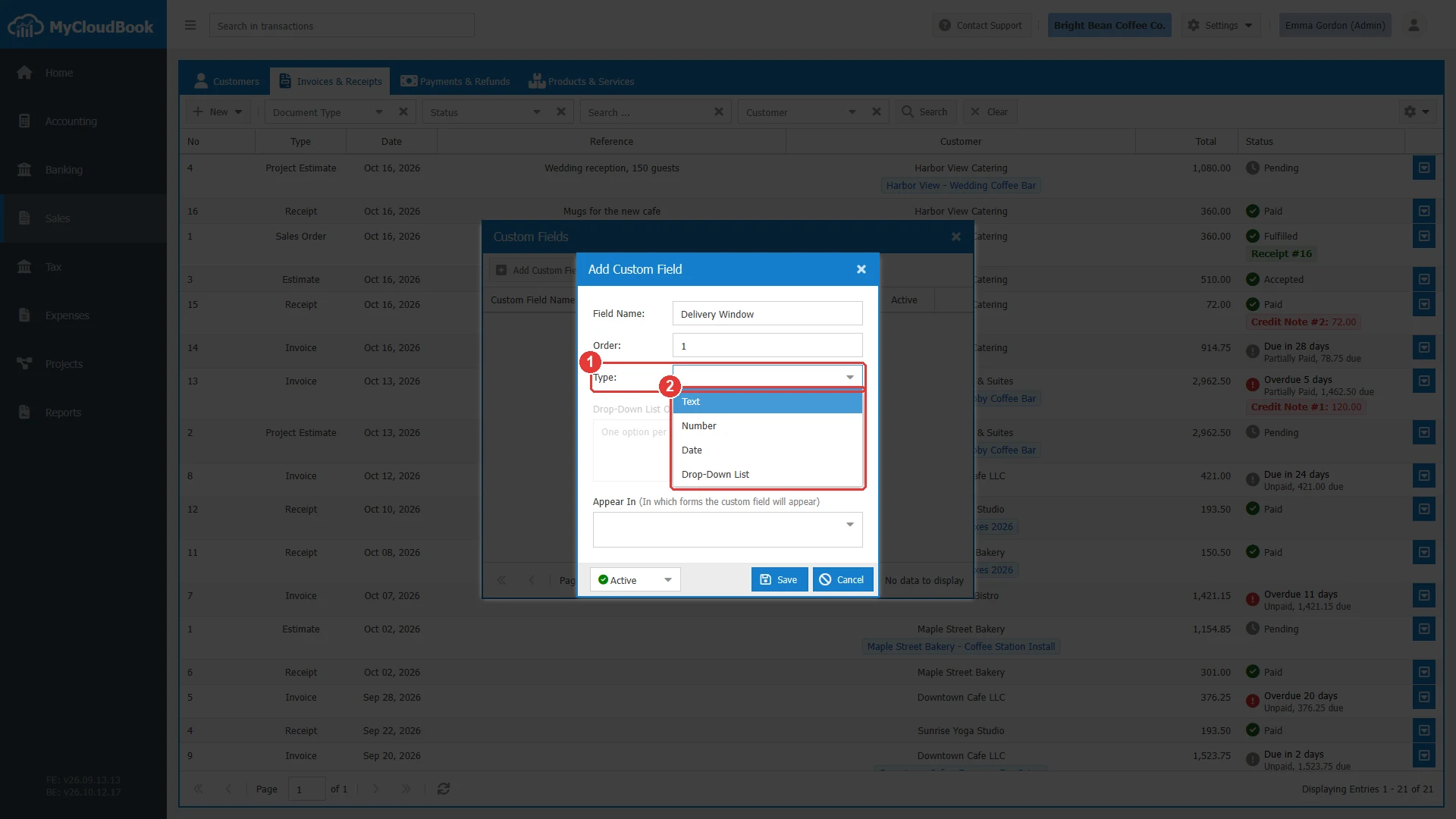
- 1Type.
- 2The four types.
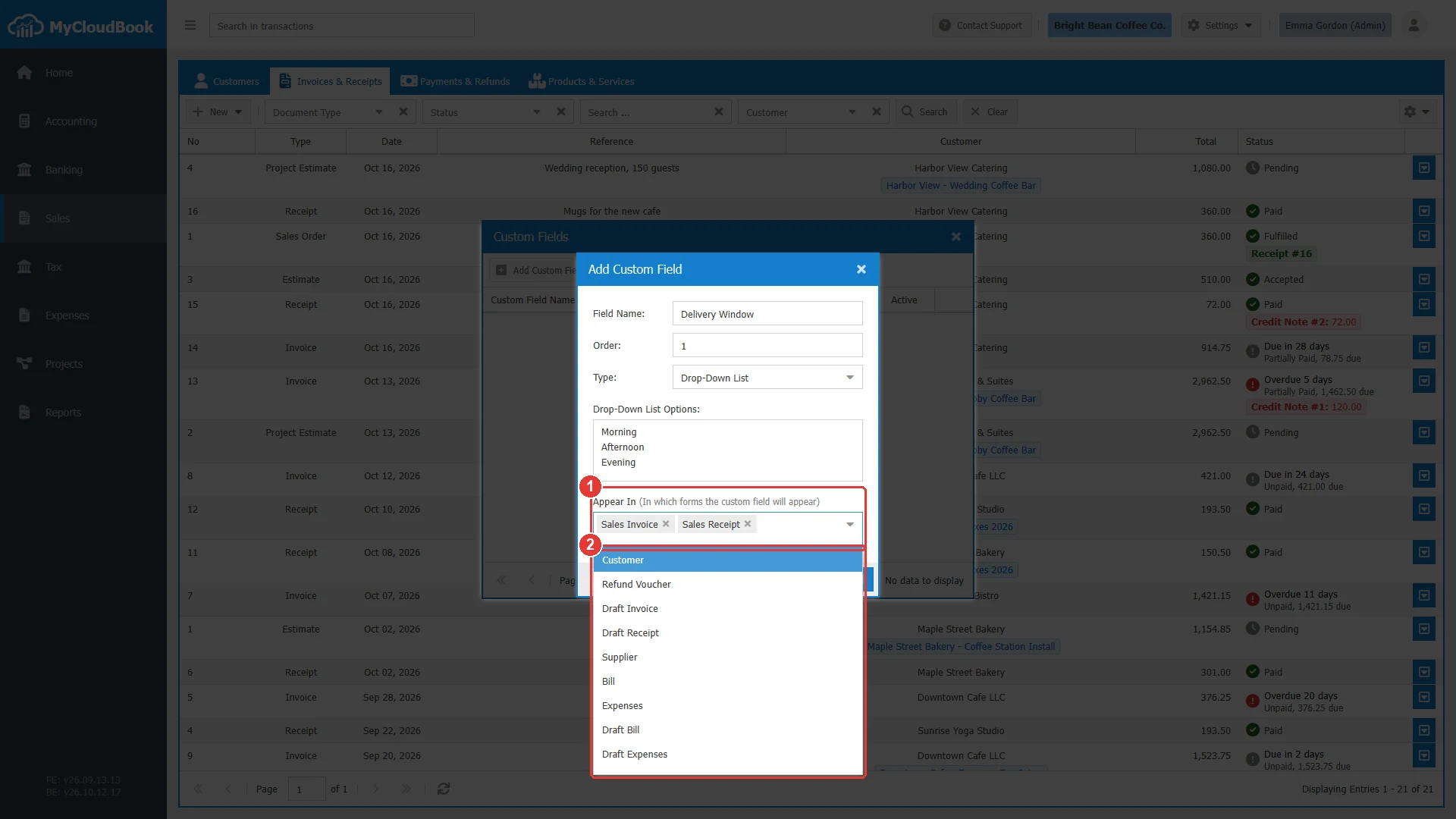
- 1Appear In, with two forms chosen. The x of a form removes it.
- 2The other forms.
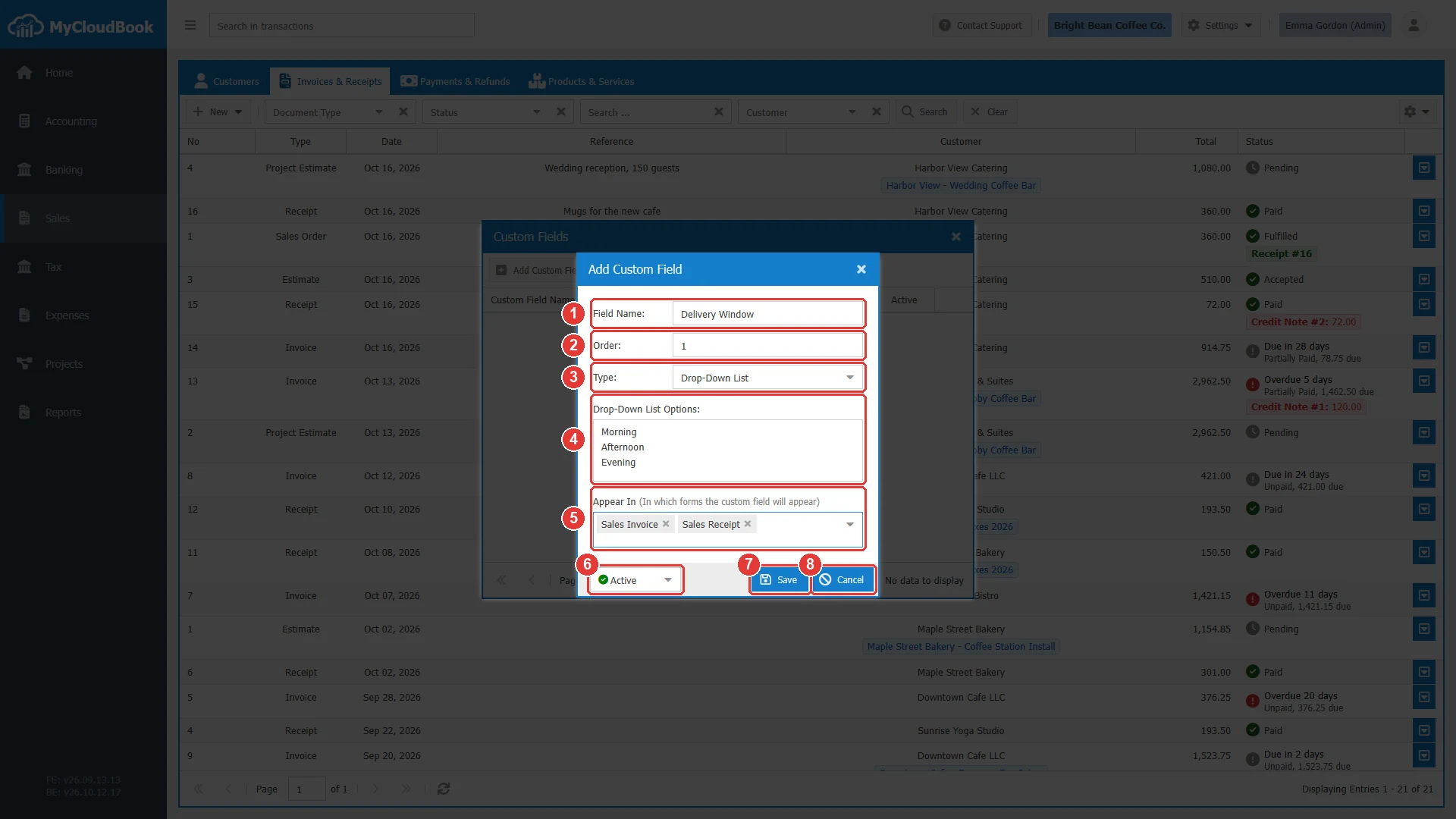
- 1Field Name. Required.
- 2Order. Required.
- 3Type. Required.
- 4Drop-Down List Options. Enabled for the type Drop-Down List.
- 5Appear In. Required.
- 6The status: Active or Inactive.
- 7Save.
- 8Cancel.
| Field | Required | Purpose and rules |
|---|---|---|
| Field Name | Required | The label of the field on the forms, up to 40 characters. |
| Order | Required | A number that sets the position of the field in the custom fields table of a printed document. Lower numbers come first. |
| Type | Required | Text, Number, Date, or Drop-Down List. The type is fixed at the first save, so the saved values always match it. |
| Drop-Down List Options | For a Drop-Down List | The options of the list, one option on each line. |
| Appear In | Required | The forms of the field: Customer, Sales Invoice, Sales Receipt, Refund Voucher, Draft Invoice, Draft Receipt, Supplier, Bill, Expenses, Draft Bill, Draft Expenses, and Subscription. |
| Status | Required | Active or Inactive. An inactive field is not shown on the forms. |
The Custom Fields window
The Custom Fields window lists the custom fields of the company in the order of their names.
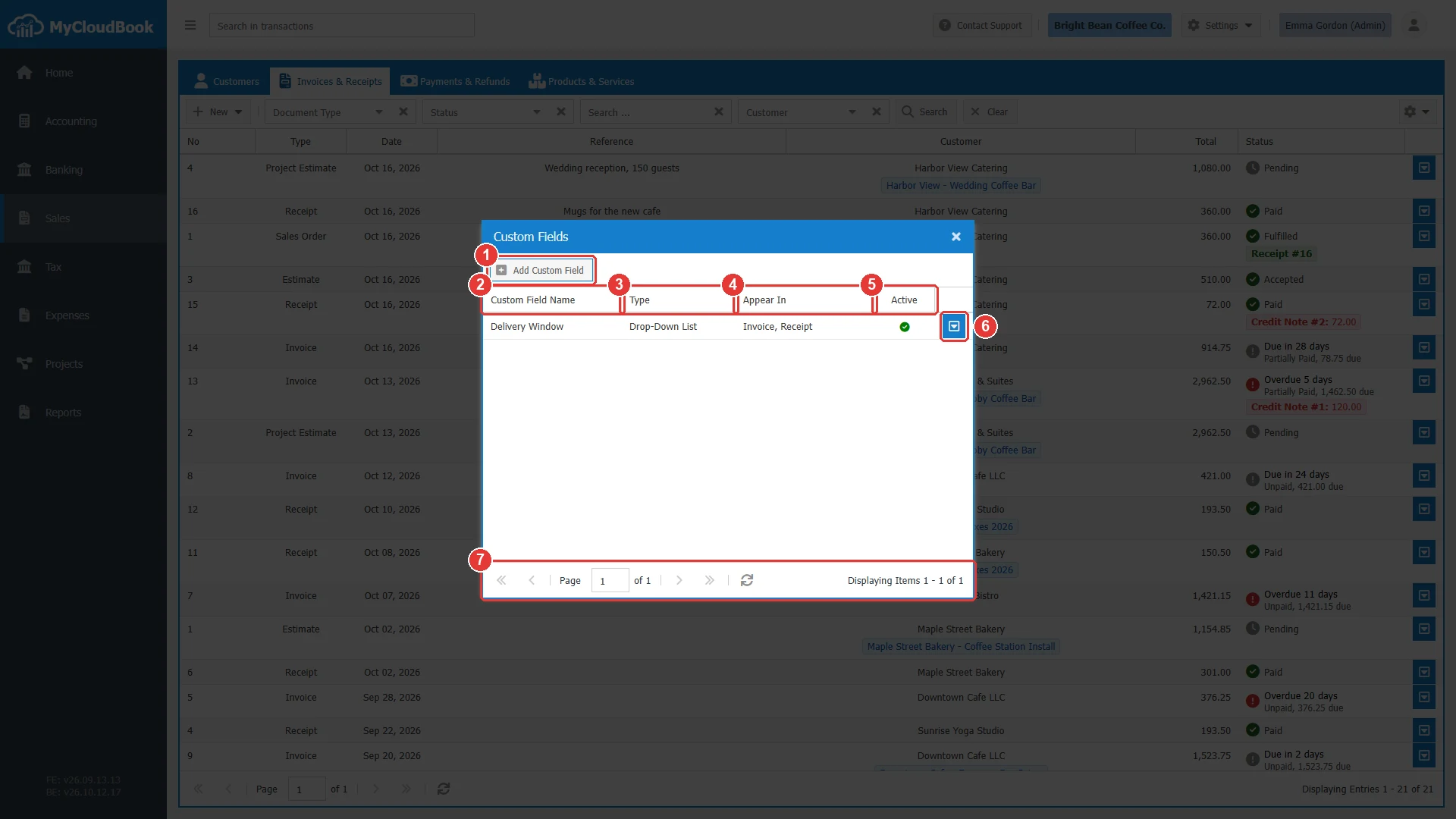
- 1Add Custom Field.
- 2Custom Field Name.
- 3Type.
- 4Appear In. The forms of the field.
- 5Active. A green icon for an active field, a red icon for an inactive field.
- 6The row actions button, with Edit and Delete. A double click on a row also opens the field.
- 7The paging bar.
The custom field on the forms
An active custom field appears on the forms of its Appear In list. On a sales document, the custom fields are shown under the main fields. The example shows a new invoice with the field Delivery Window. MyCloudBook checks the value when the record is saved. A number field takes only a number, and a date field only a date. A drop-down list takes only one of its options.
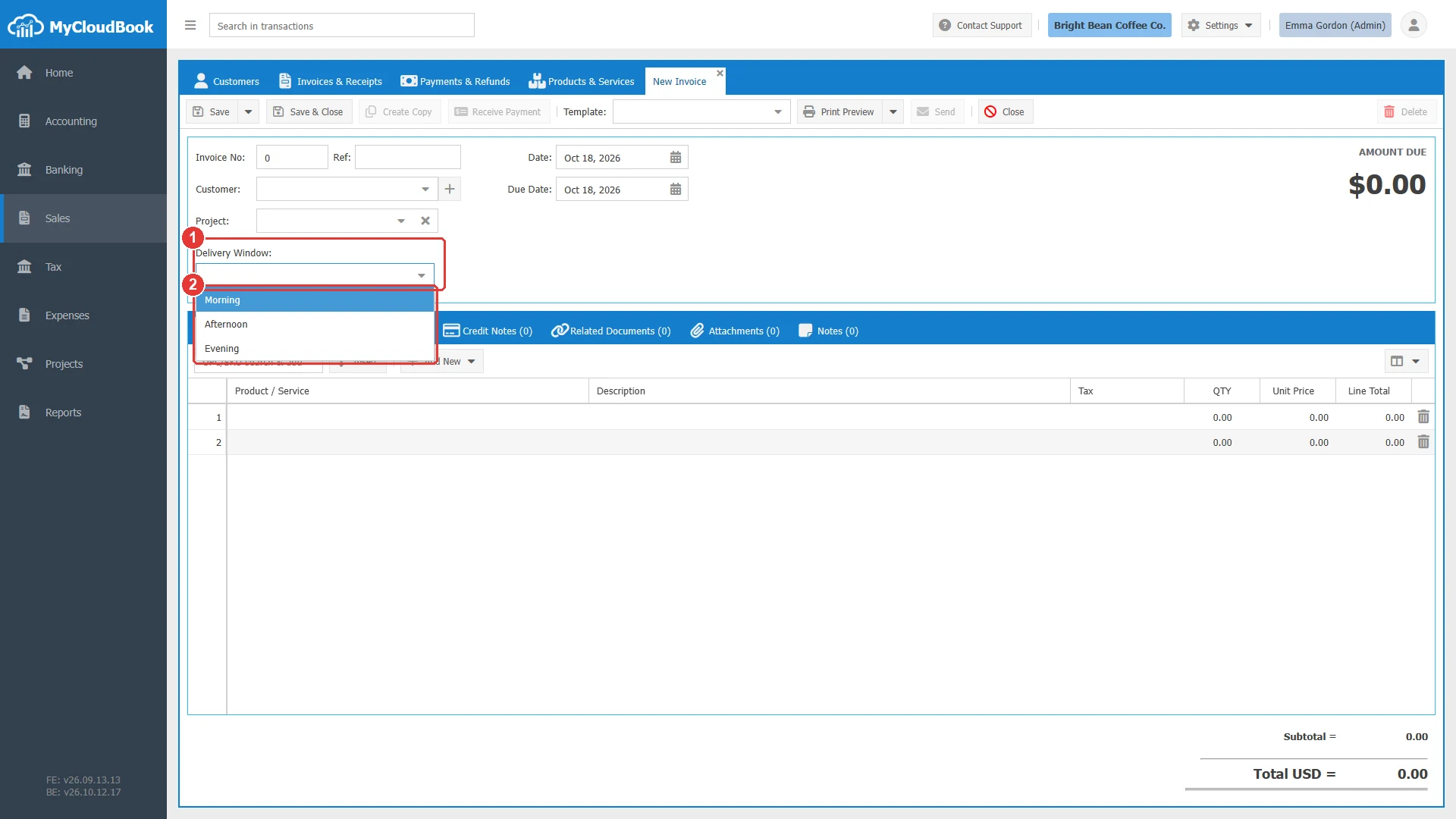
- 1The custom field, under the main fields of the invoice.
- 2The options of the drop-down list.
Changing a custom field
- Double click the field in the list, or open its row actions menu and click Edit.
- Change the values in the Edit Custom Field window and click Save.
| Change | Rule |
|---|---|
| Field Name, Order, options, status | Can change at any time. |
| Type | Cannot change after the first save. Create a new field for another type. |
| Appear In | A form can be added at any time. A form can be removed only while no record of that form has a value in the field. |
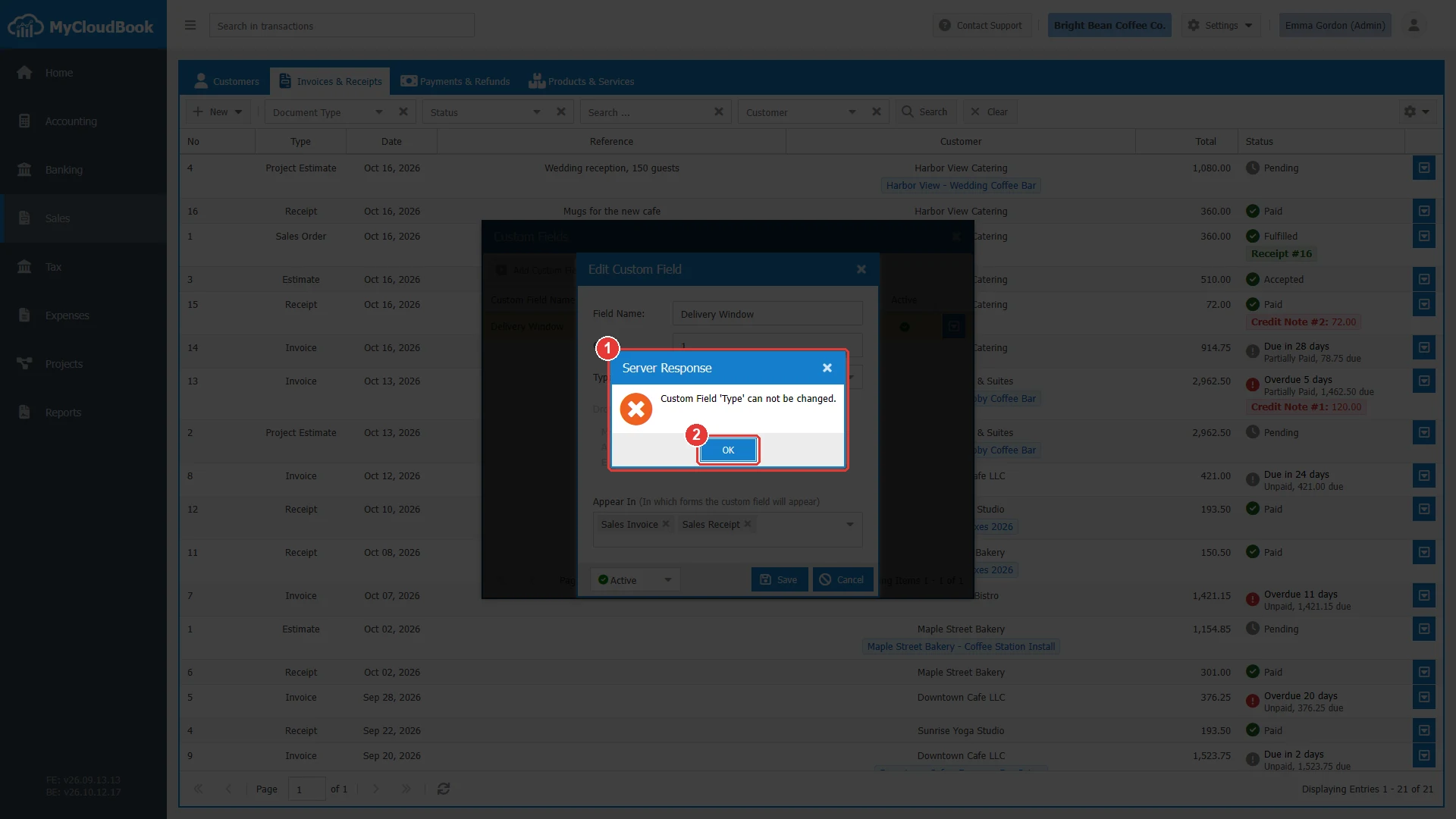
- 1The message of the server.
- 2OK. Closes the message. The field keeps its type.
Deleting a custom field
- Open the row actions menu of the field and click Delete.
- Answer the question with Yes.
MyCloudBook keeps a field that has a value in any record, so the saved data stays complete. In this case, a message explains the reason.
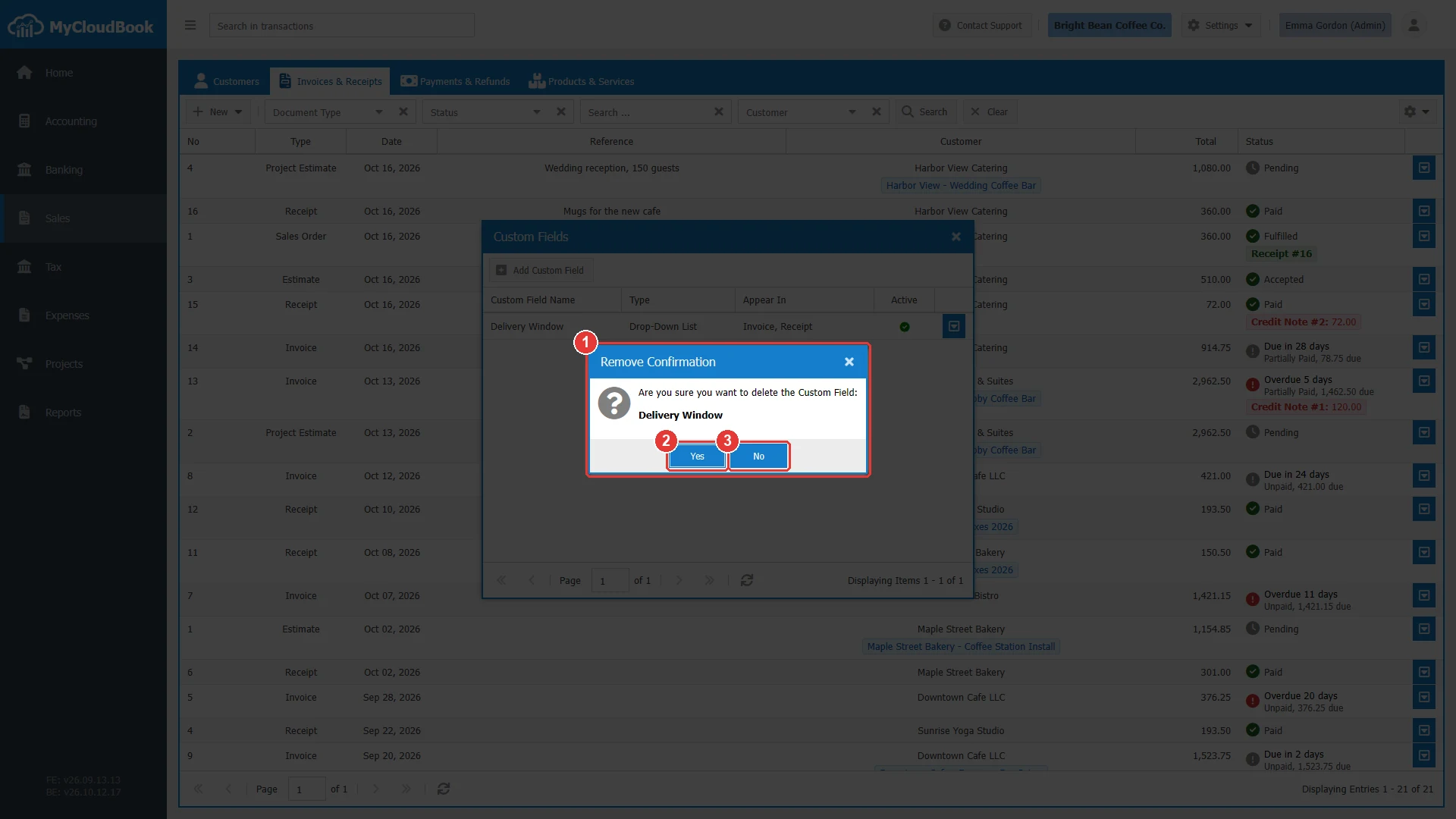
- 1The question with the name of the field.
- 2Yes. Deletes the field.
- 3No. Keeps the field.
Messages and their meaning
Questions and answers
How do I add a custom field to my invoices?
Open Settings, Custom Fields, click Add Custom Field, type the name, choose the type, choose Sales Invoice in Appear In, and save. New and saved invoices then show the field.
How do I use another type for a custom field?
Create a new field with the other type. The type of a field is fixed at the first save, so the saved values always match it.
When can I delete a custom field?
When no record has a value in the field. MyCloudBook keeps a field that holds values, so the saved data stays complete.
Which forms can have custom fields?
Customer, Sales Invoice, Sales Receipt, Refund Voucher, Draft Invoice, Draft Receipt, Supplier, Bill, Expenses, Draft Bill, Draft Expenses, and Subscription.
Do the custom fields appear on the printed documents?
Yes, when the document template has the table of the custom fields. The Order of each field sets its position in that table.