Change Password
This guide explains how to change the password of a MyCloudBook user, and which passwords MyCloudBook accepts.
Overview
The Change Password window changes the password of the signed in user. The password belongs to the user, so the new password is used for the sign in to every company of the user. The user stays signed in after the change. The new password is needed at the next sign in.
A user who does not know the current password uses the link Forgot Password? on the sign in page instead.
The password rule
MyCloudBook accepts a new password that has at least 8 characters and at least three of these four kinds of characters:
| Kind of character | Examples |
|---|---|
| A lower-case letter | a to z |
| An upper-case letter | A to Z |
| A digit | 0 to 9 |
| A special character | A space, or one of these characters: ! # $ % & ' ( ) * + , - . / : ; < = > ? @ [ ] ^ _ ` { | } ~ |
For example, a password of 12 characters with lower-case letters, upper-case letters, and digits is accepted. A password of only lower-case letters is refused, whatever its length.
How to open the window
- In the top bar, click the round user icon at the right end, next to the name of the user.
- In the menu, click Change Password.
The user menu is shown to every user, whatever the role of the user.
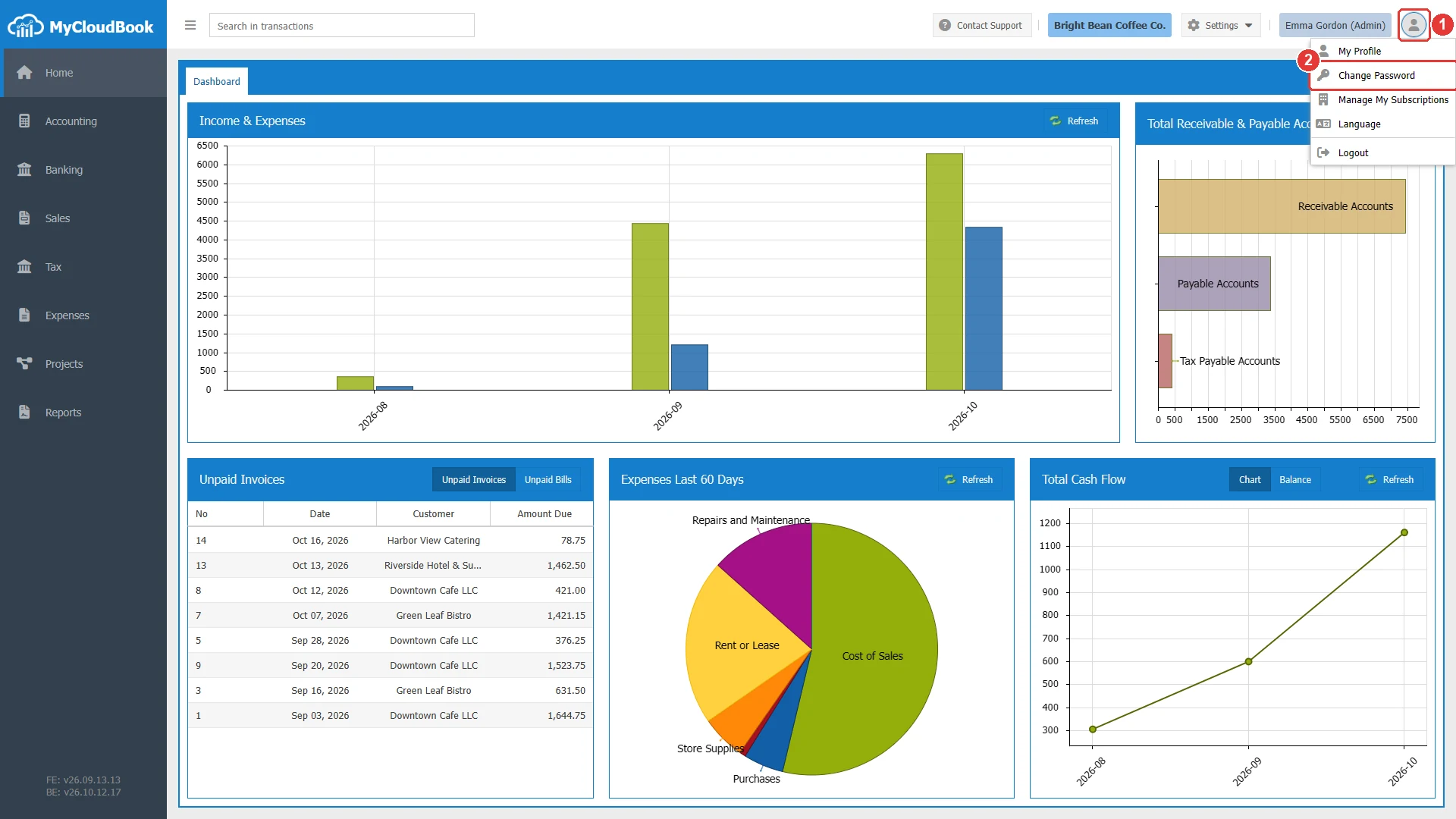
- 1The user icon. Opens the menu with My Profile, Change Password, Manage My Subscriptions, Language, and Logout.
- 2Change Password.
Changing the password
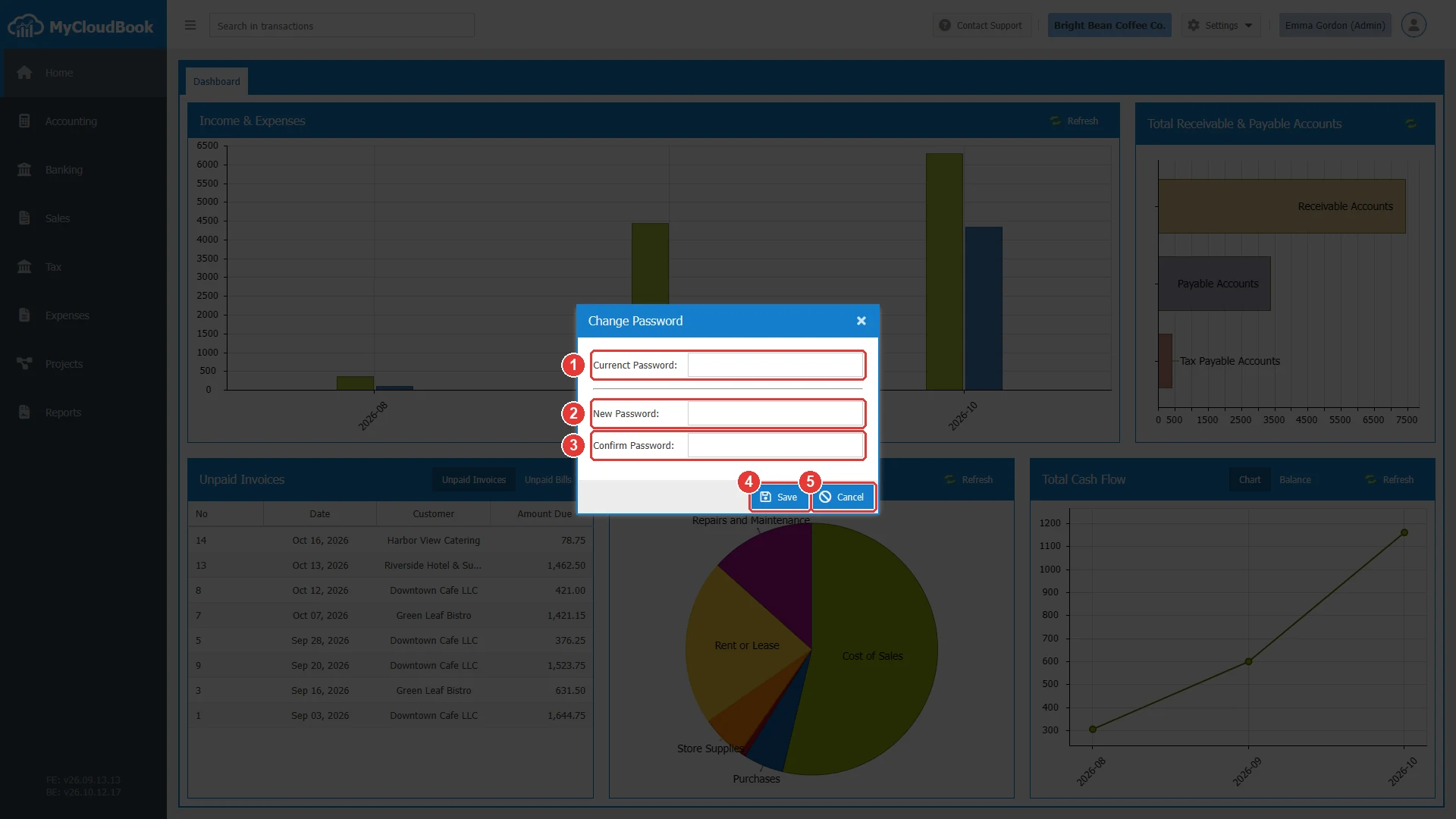
- 1The current password of the user.
- 2New Password.
- 3Confirm Password. The new password again.
- 4Save.
- 5Cancel.
| Field | Required | Purpose and rules |
|---|---|---|
| Current password | Required | The password of the sign in. The first field of the window. |
| New Password | Required | The new password. It must follow the password rule. |
| Confirm Password | Required | The same new password again, to avoid a typing error. |
- Type the current password in the first field.
- Type the new password in New Password and again in Confirm Password.
- Click Save. The window closes, and a confirmation appears at the top of the page.
The fields hide the characters. Type the passwords with care.
Messages and their meaning
MyCloudBook checks the two new passwords before it sends them. The server then checks the current password and the password rule.
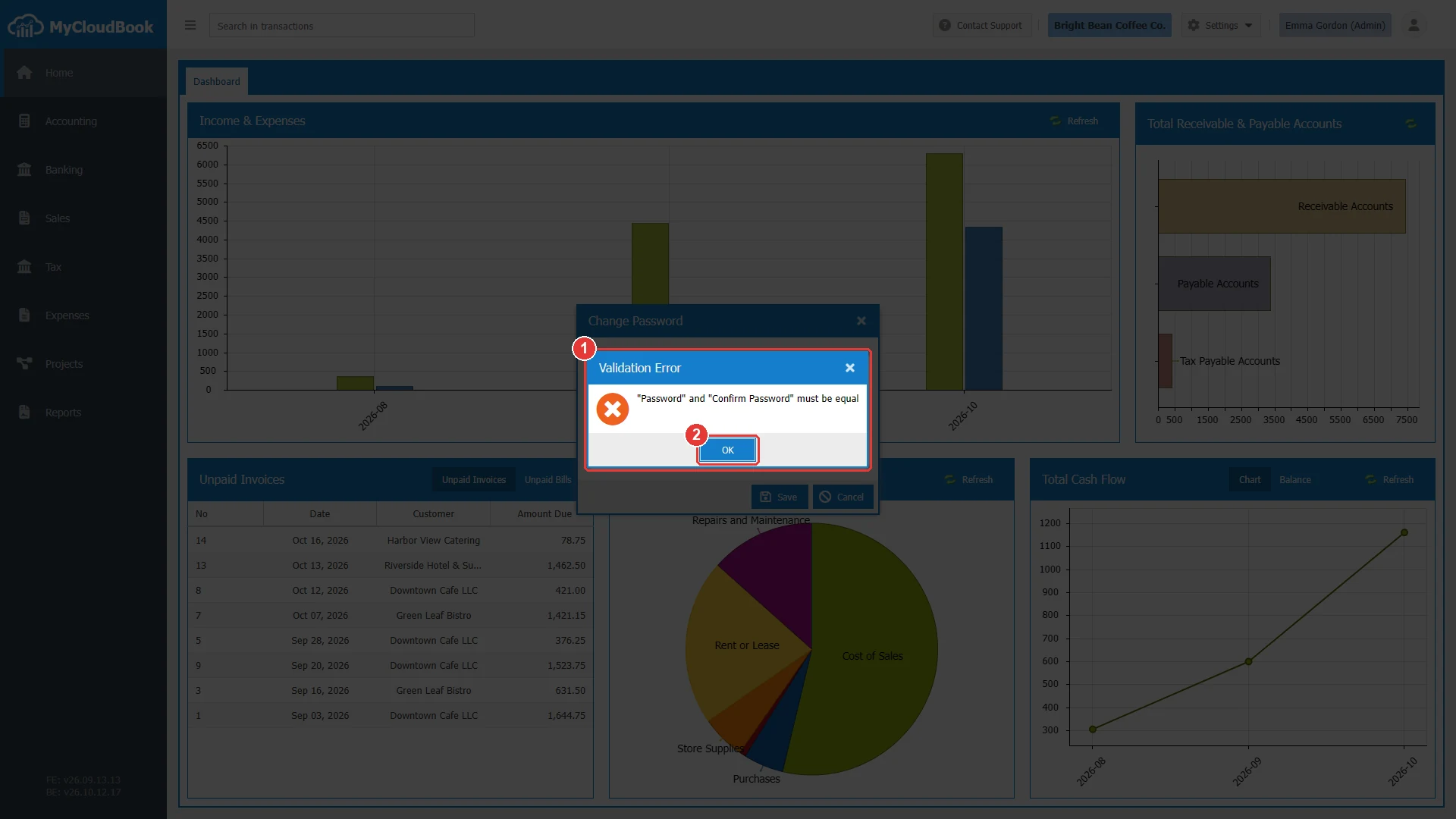
- 1The message of the window.
- 2OK. Returns to the window.
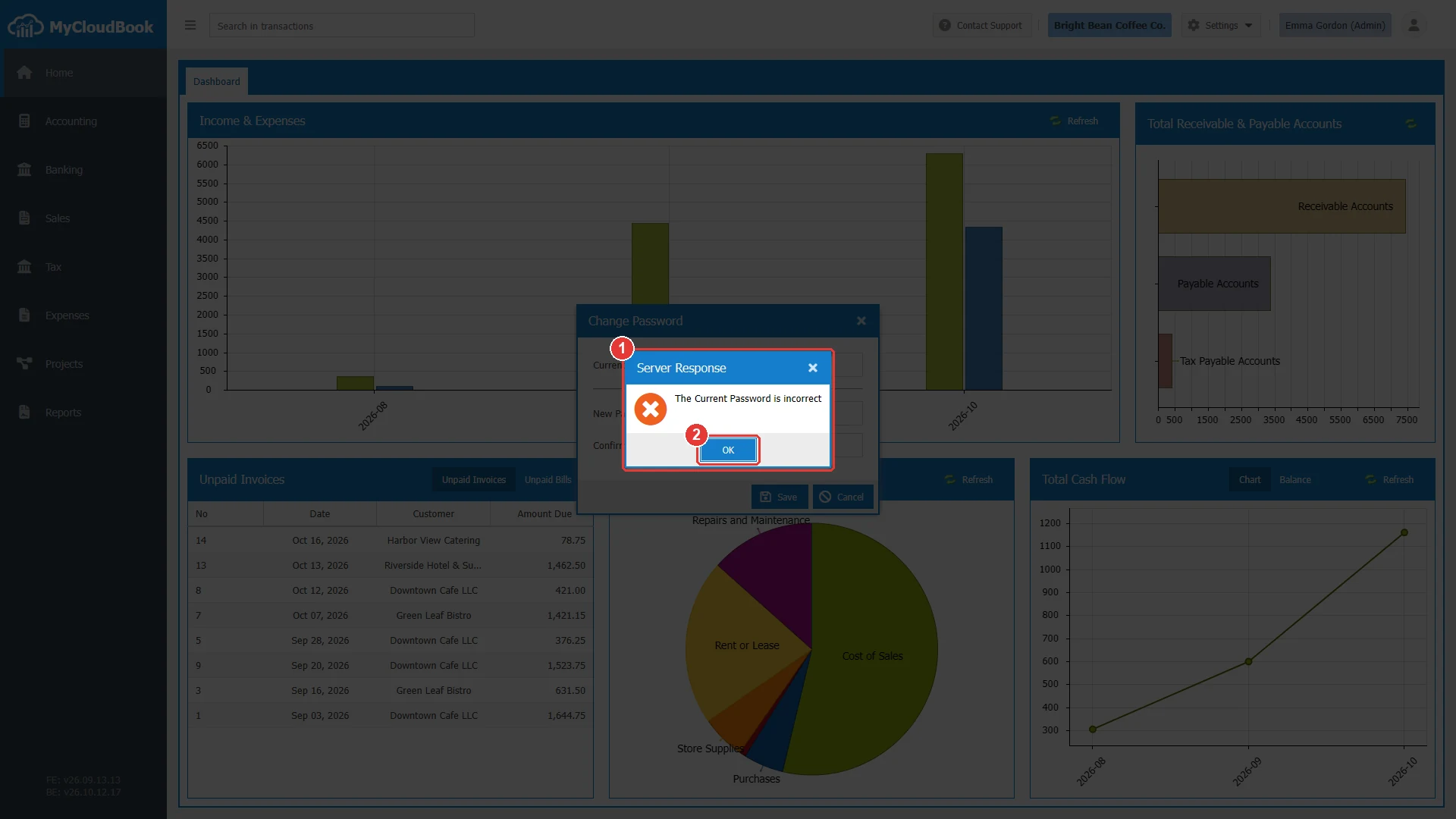
- 1The message of the server. The password is not changed.
- 2OK. Returns to the window.
Questions and answers
How do I change my password in MyCloudBook?
Click the user icon in the top bar, then Change Password. Type the current password, type the new password twice, and click Save.
What is a valid password?
At least 8 characters, with at least three of these four kinds: lower-case letters, upper-case letters, digits, and special characters.
I forgot my password. What do I do?
Sign out, and click Forgot Password? on the sign in page. MyCloudBook sends the steps to reset the password by email.
Does the new password apply to all my companies?
Yes. The password belongs to the user, and one sign in opens every company of the user.