Project Information
This guide explains the project information screen of MyCloudBook: how the income, the costs, and the profit of a project are computed, how to read its documents and its ledger, and how to create documents from the project.
Overview
The project information screen shows everything about one project: its status and progress, its customer and dates, the income, the costs, and the profit, every document of the project, its attachments and notes, and the journal posts behind the figures. New documents can be created from the screen with the project already filled in.
The figures of the screen come from the journal. A project collects the posts of its invoices and receipts on the income accounts, and the posts of its bills, expenses, and sold stock products on the expense accounts. The Projects guide explains how to create a project.
How to open the screen
- In the left navigation, click Projects.
- In the projects list, double click the project, or open its row actions menu and click View.
- The screen opens in a new tab with the name of the project. When the tab is open already, it becomes the active tab.
The project information screen
The example is the project Riverside Hotel - Lobby Coffee Bar: an espresso machine, a grinder, the installation, and a barista training for a hotel. The project is completed. Its invoice is partly paid and overdue.
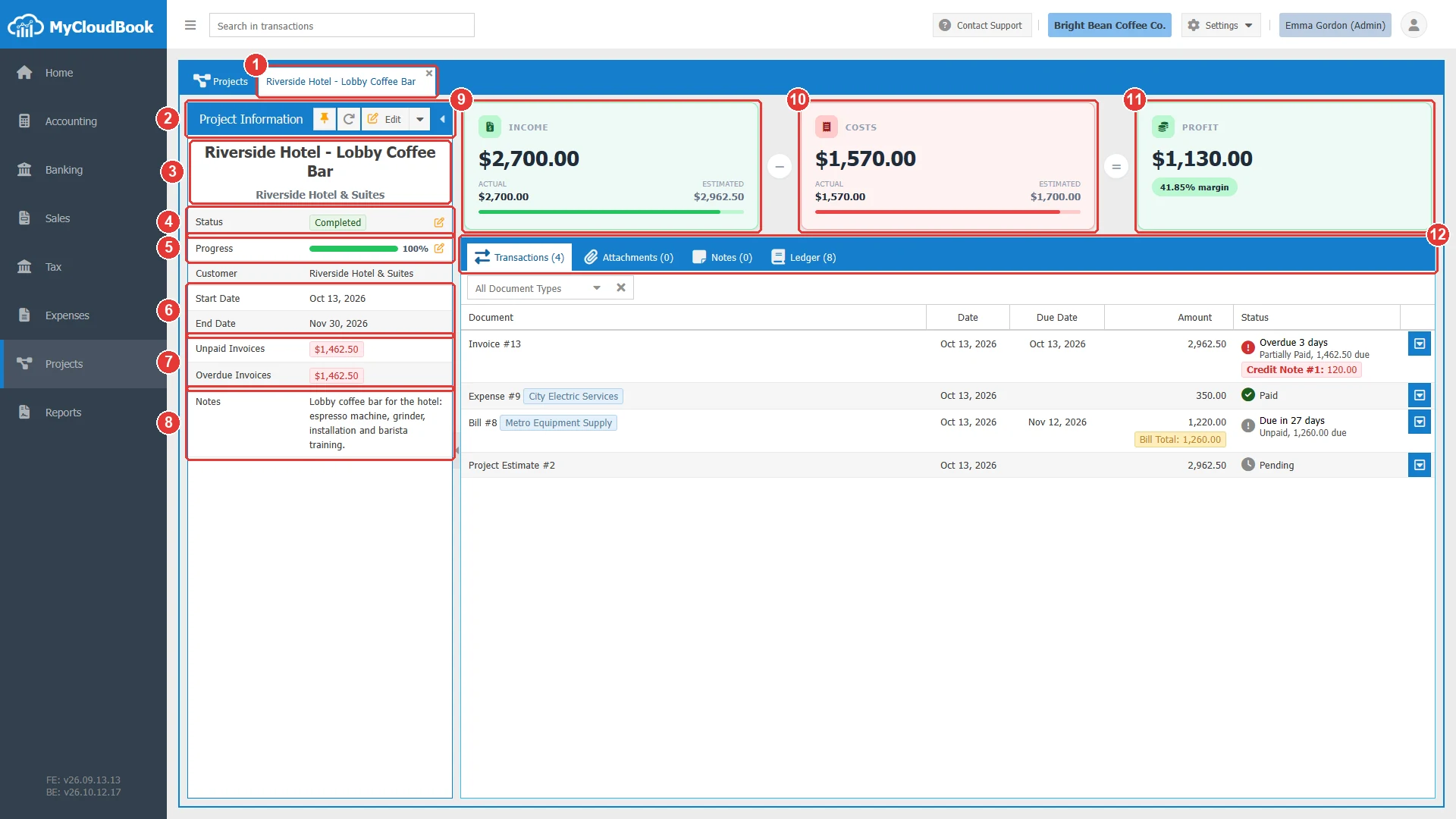
- 1The tab of the project. Its title is the name of the project. The x closes the tab.
- 2The Project Information panel and its buttons: the pin button (an orange pin marks a pinned project), the reload button (a circular arrow), which loads the data again, and Edit. The arrow at the right end hides the panel.
- 3The name of the project and the name of its customer. A project without a customer shows No Customer.
- 4Status. A click on the row opens the Update Status window.
- 5Progress. A click on the row opens the Update Progress window.
- 6Start Date and End Date.
- 7Unpaid Invoices and Overdue Invoices. The amounts that the customer still owes on the invoices of the project. Red when the amount is above zero.
- 8Notes. The notes of the project from the Update Project window.
- 9INCOME. The actual income in large figures, the ACTUAL and ESTIMATED values, and a bar that compares them.
- 10COSTS. The actual costs, the estimated costs, and a bar that compares them.
- 11PROFIT. The income minus the costs, with the margin.
- 12The tabs Transactions, Attachments, Notes, and Ledger. Each tab shows its count.
The rows Status and Progress of the panel show a pencil icon, because a click on them changes the value. The Project Status and Progress guide explains the two windows.
The figures
All figures are in the main currency of the company. The bar of a card shows the actual value as a percentage of the estimated value. In the example, the actual income is 2,700.00: the invoice lines without tax (2,820.00) minus the credit note of 120.00.
| Figure | How MyCloudBook computes it |
|---|---|
| Actual income | The credits minus the debits of the project posts on income accounts. Invoices and receipts add income. Credit notes that refund an invoice of the project lower it. Sales tax is not income, so it is not included. |
| Estimated income | The total of the estimates and the project estimates of the project. |
| Actual costs | The debits minus the credits of the project posts on expense accounts: the lines of bills and expenses, and the cost of goods sold of the stock products that the invoices of the project sold. |
| Estimated costs | The sum of Your total of the project estimates of the project. See the Project Estimates guide. |
| Profit | The actual income minus the actual costs. |
| Margin | The profit as a percentage of the actual income. |
| Unpaid Invoices | The sum of the amounts due of the invoices of the project. |
| Overdue Invoices | The part of the unpaid amount whose due date has passed. |
Payments do not change the income or the costs. A receipt voucher for an invoice of the project lowers only the Unpaid Invoices and Overdue Invoices amounts.
The Transactions tab
The Transactions tab lists every document of the project, the newest first:
- the sales documents with the project in their header: invoices, receipts, estimates, project estimates, sales orders, and drafts;
- the purchase documents with at least one line in the project: bills, expenses, purchase orders, and drafts.
A credit note is not a row of its own. It appears as a red badge under the invoice that it refunds. A double click on a row opens the document next to the project tab.
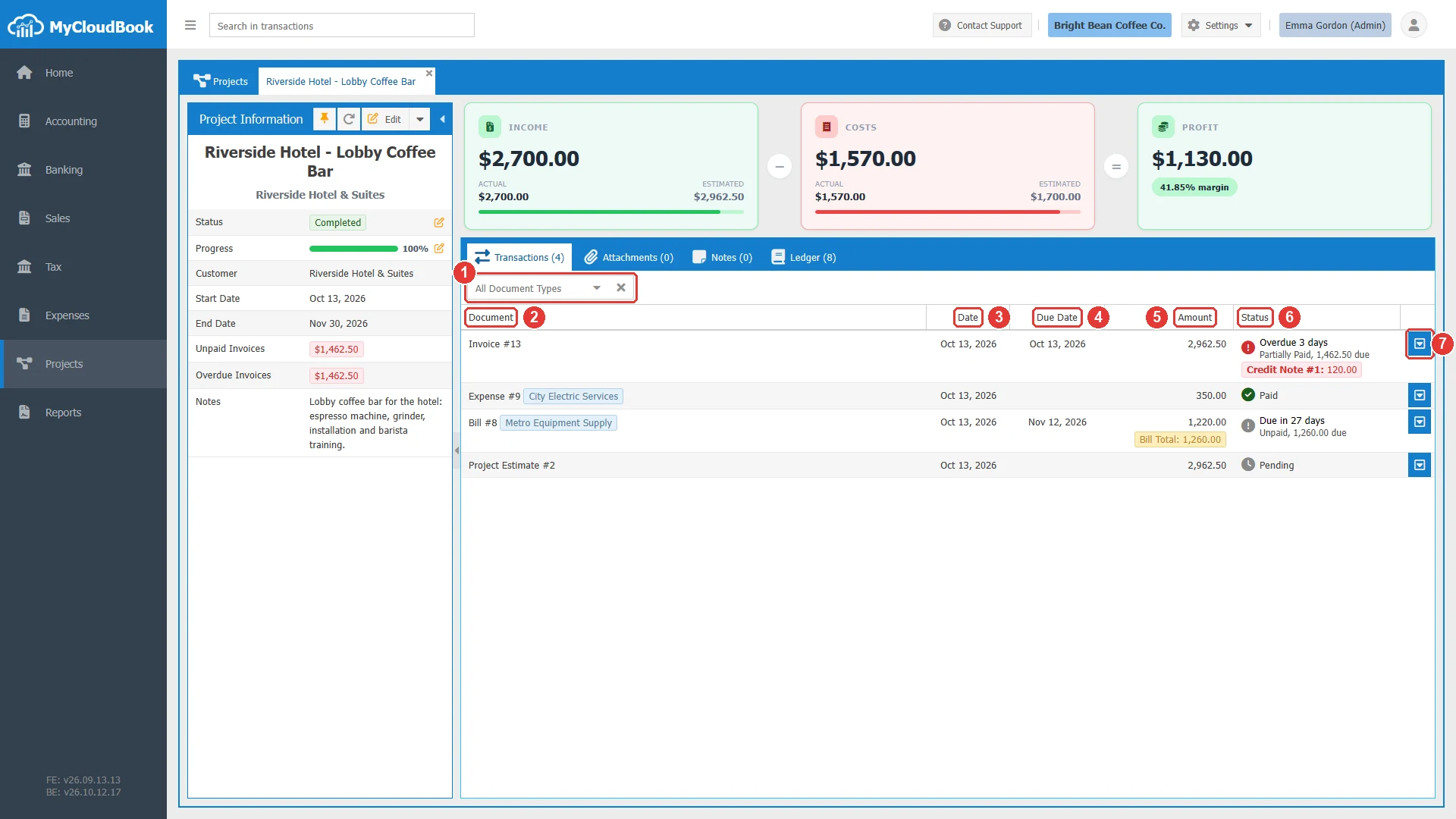
- 1The document type filter. It lists the types that the project holds.
- 2Document. The type and the number. A purchase document also shows the name of the supplier.
- 3Date. The date of the document.
- 4Due Date. The due date of an invoice or a bill.
- 5Amount. The amount of the document that belongs to the project. When only some lines of a bill belong to the project, a yellow badge shows the total of the whole bill.
- 6Status. The payment status of an invoice or a bill, or the status of an estimate. A red badge shows a credit note that refunds the document.
- 7The row actions button, with Edit and Delete.
In the example, Bill #8 shows 1,220.00 for the project and the badge Bill Total: 1,260.00, because one line of the bill belongs to no project.
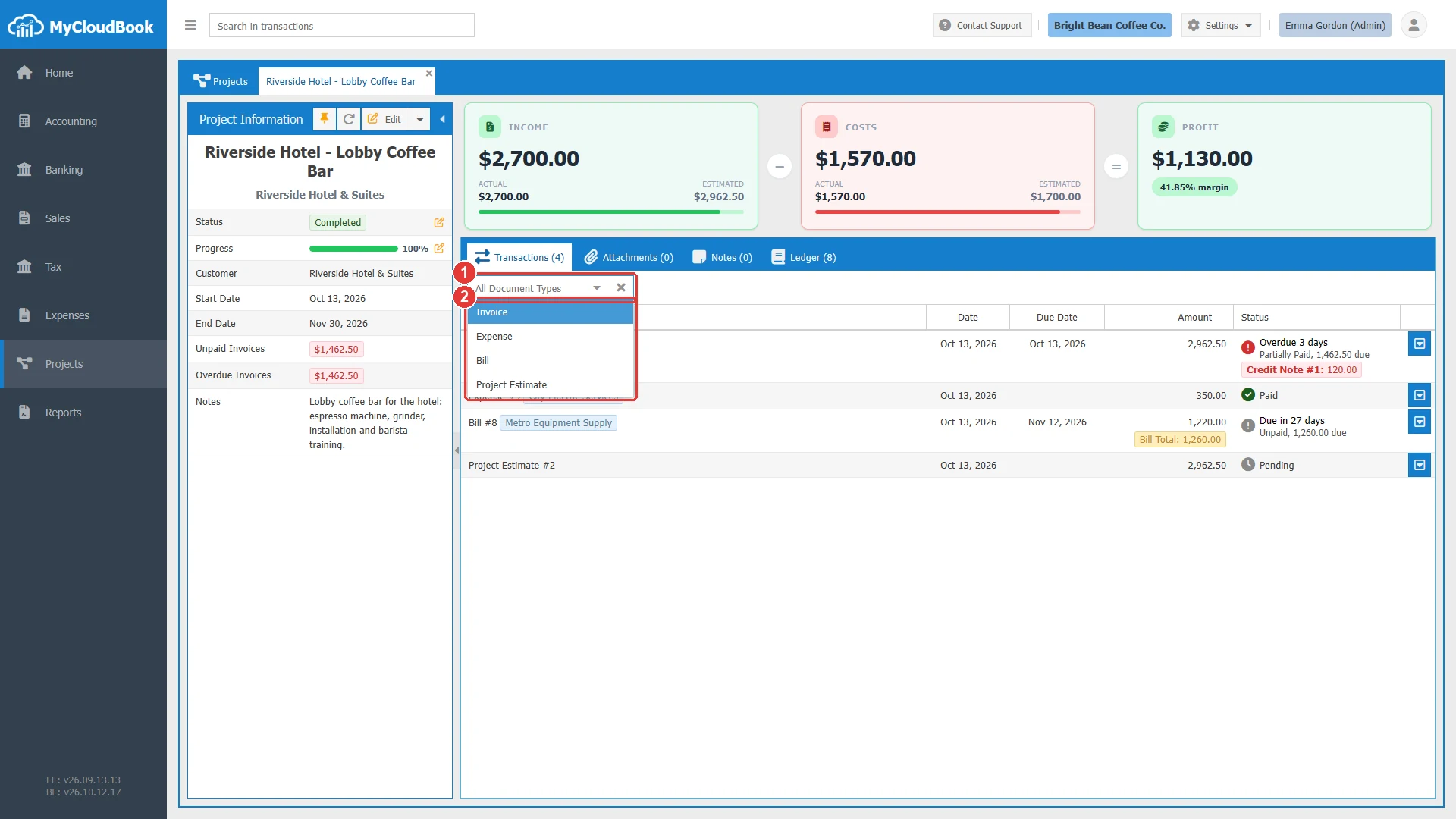
- 1The filter. The x shows every type again.
- 2The types of the documents of the project.
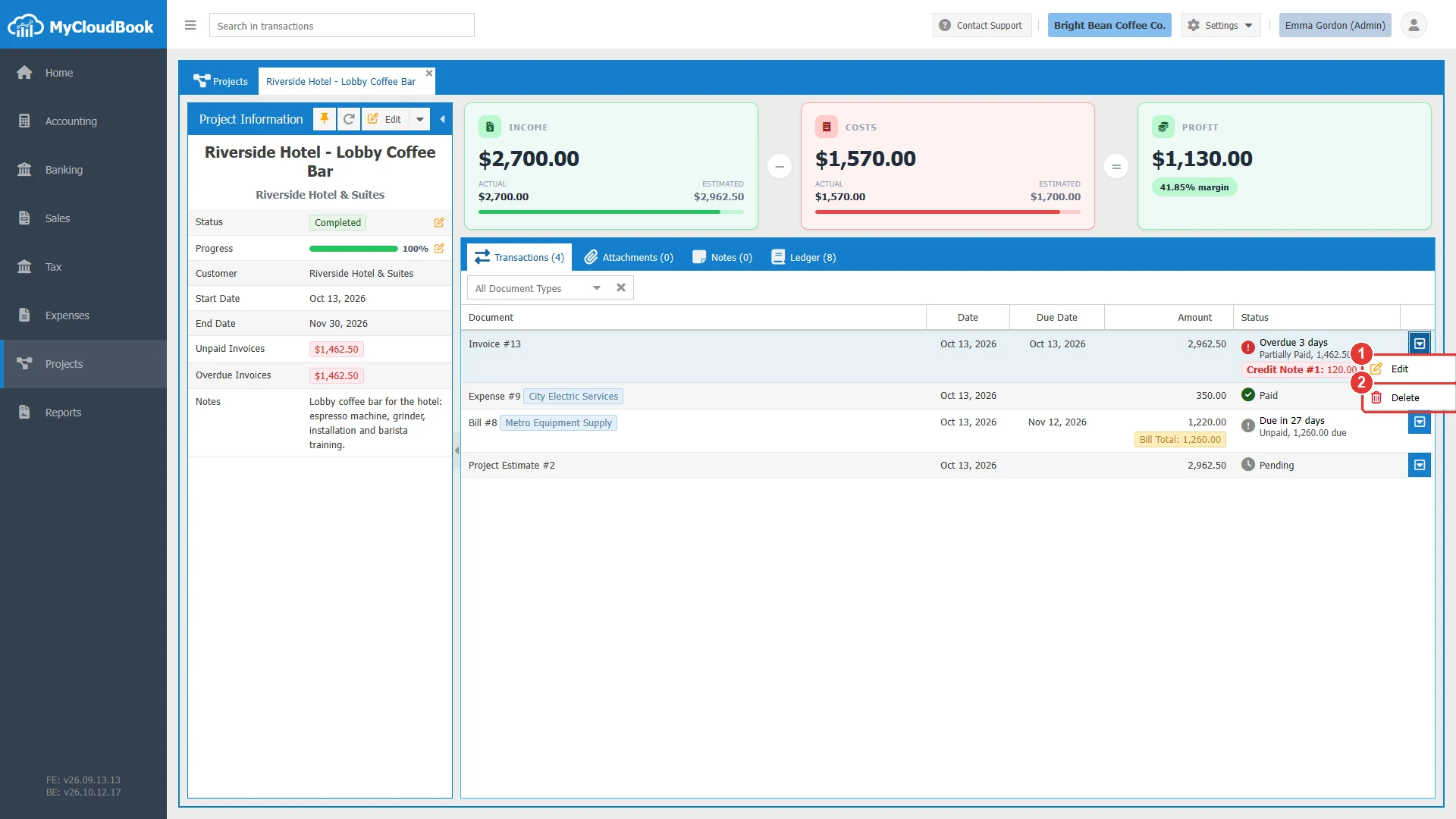
- 1Edit. Opens the document.
- 2Delete. Deletes the document after a confirmation, and the screen loads the figures again.
The Ledger tab
The Ledger tab shows the journal posts of the project in two tables: the income on the left and the costs on the right. The two tables add up to the actual figures of the cards. The posts are grouped by account, the oldest first. A double click on a row opens the document of the post.
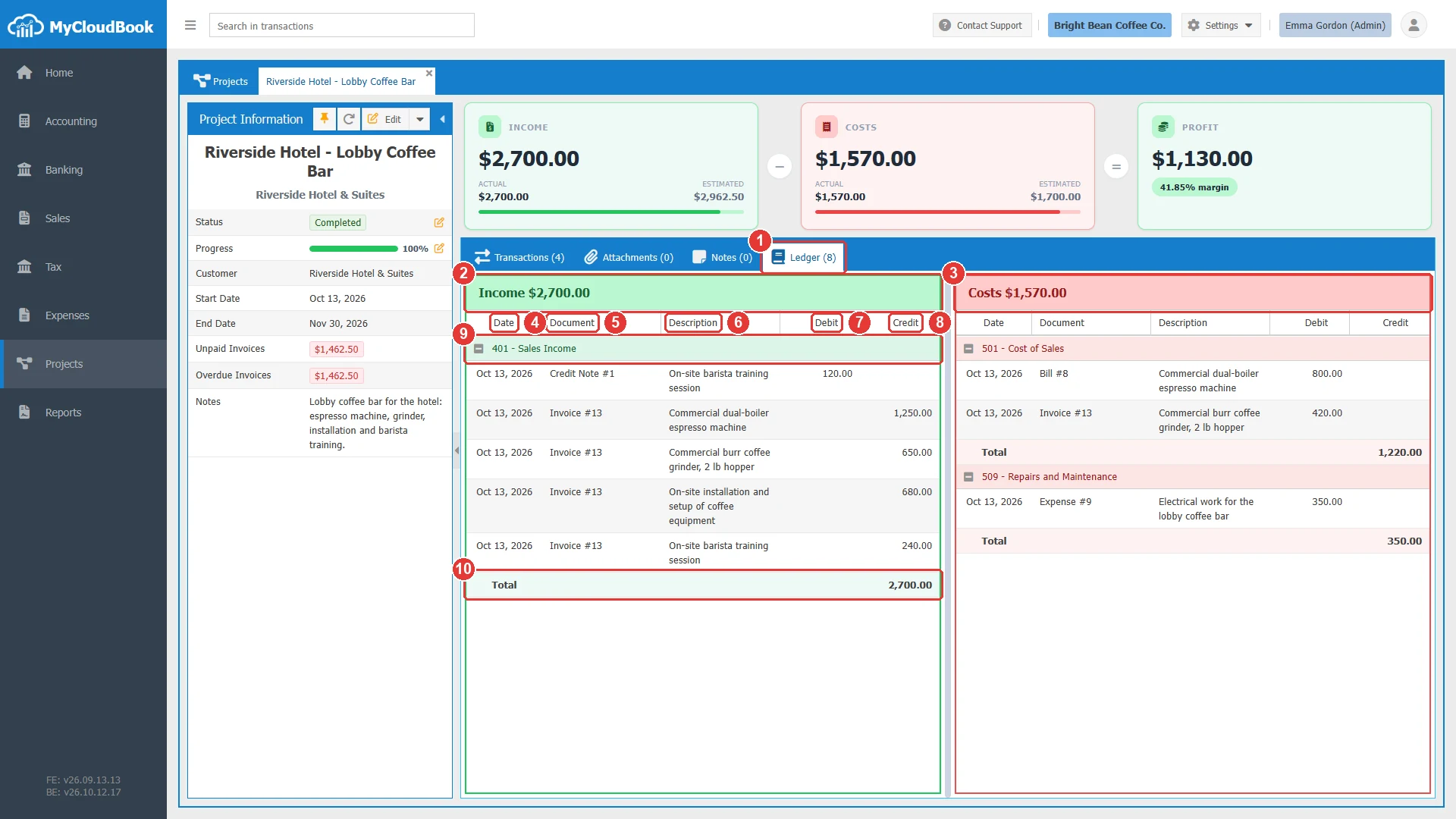
- 1The Ledger tab. The count is the number of posts.
- 2The income table, with the actual income in its title.
- 3The costs table, with the actual costs in its title.
- 4Date. The date of the post.
- 5Document. The document that made the post.
- 6Description. The description of the line.
- 7Debit.
- 8Credit.
- 9The heading of an account group: the number and the name of the account. A click on the heading hides or shows its posts.
- 10Total. The total of the account.
The cost of a stock product is counted when an invoice of the project sells the product. In the example, Invoice #13 appears in the costs table on 501 - Cost of Sales with 420.00, the cost of the grinder that it sold. A table without posts shows Nothing posted to this project yet.
Attachments and notes
The Attachments tab keeps the files of the project, for example a signed offer, a floor plan, or photos of the installation. Pictures (JPEG, GIF, PNG, WEBP) and PDF files are accepted, up to 10 MB each.
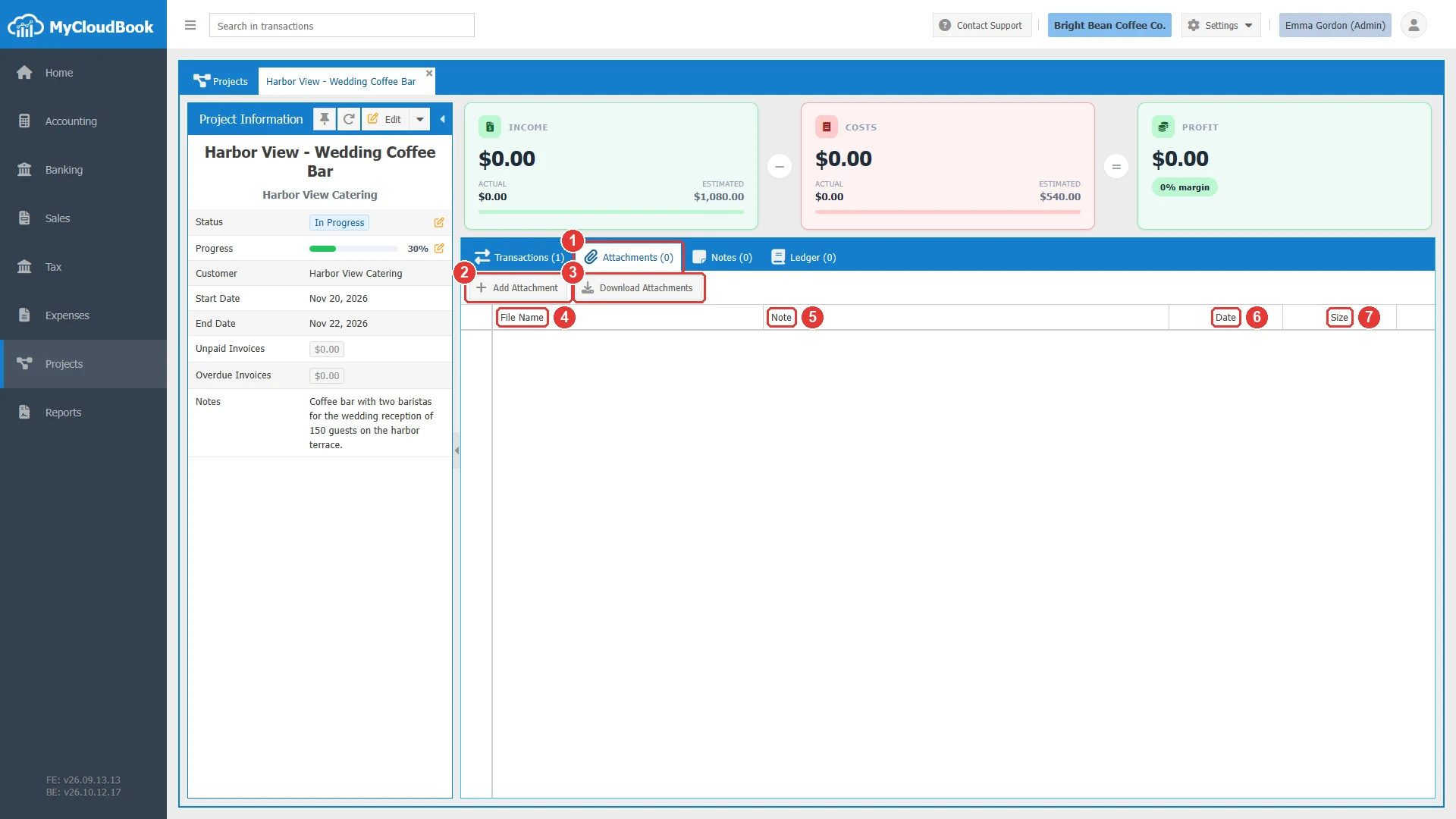
- 1The Attachments tab.
- 2Add Attachment. Adds one or more files.
- 3Download Attachments. Downloads every file of the project in one ZIP file.
- 4File Name.
- 5Note. A note about the file. The row menu item Set Note changes it.
- 6Date. The day the file was added.
- 7Size.
The row actions menu of a file has Set Note, Download, and Delete. A double click on a file downloads it.
The Notes tab keeps dated notes about the project, for example the wishes of the customer or the result of a meeting. A project can hold up to 100 notes. These notes are separate from the Notes row of the panel, which shows the description of the project.
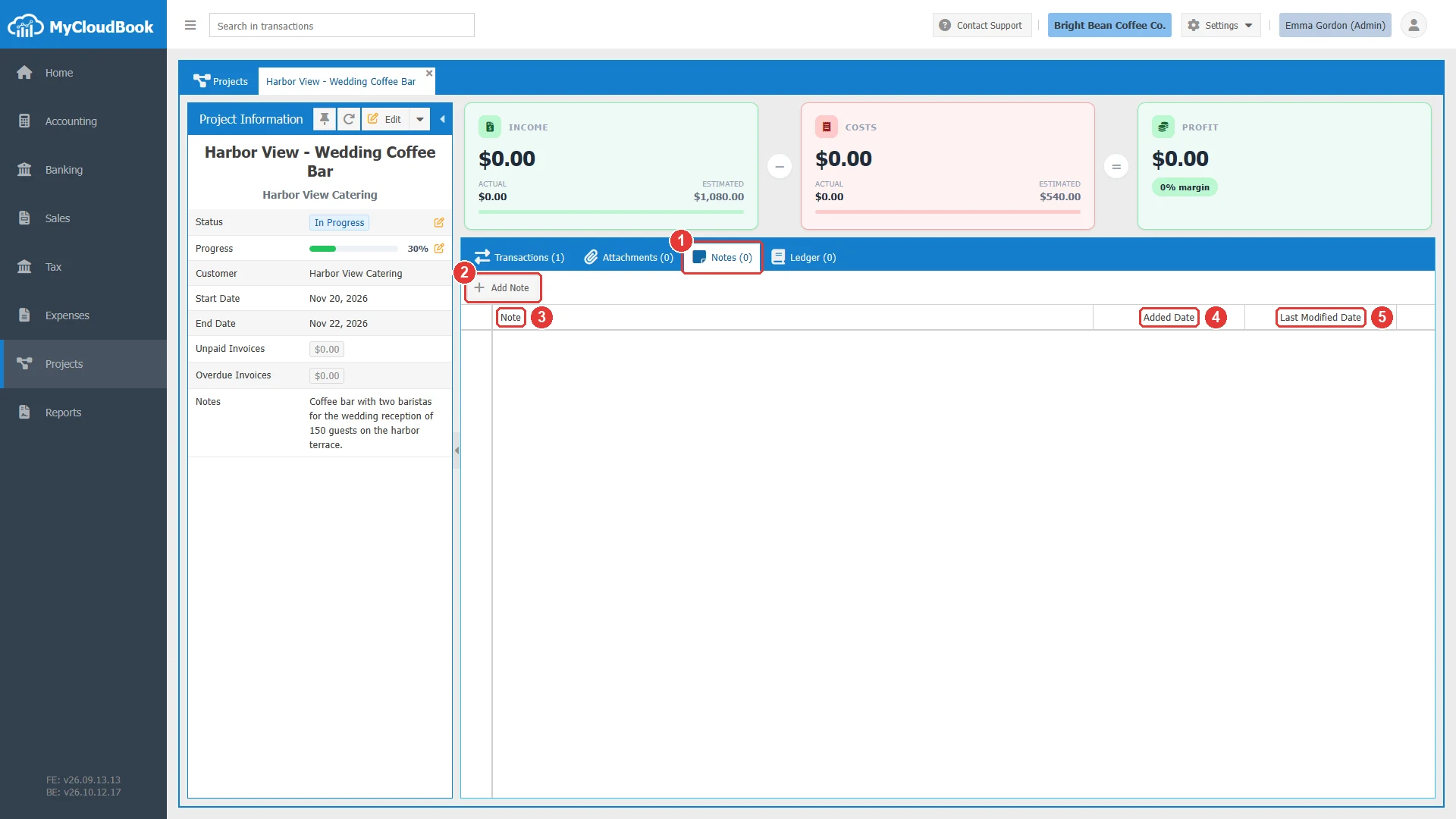
- 1The Notes tab.
- 2Add Note. Opens the Add Note window.
- 3Note. The text of the note.
- 4Added Date.
- 5Last Modified Date.
The row actions menu of a note has Edit Note and Delete. A double click on a note opens it.
Creating documents from the project
The arrow of the Edit button opens a menu with the documents that a project can hold. The new document opens in a tab of the Projects page, next to the project tab, and the project is filled in.
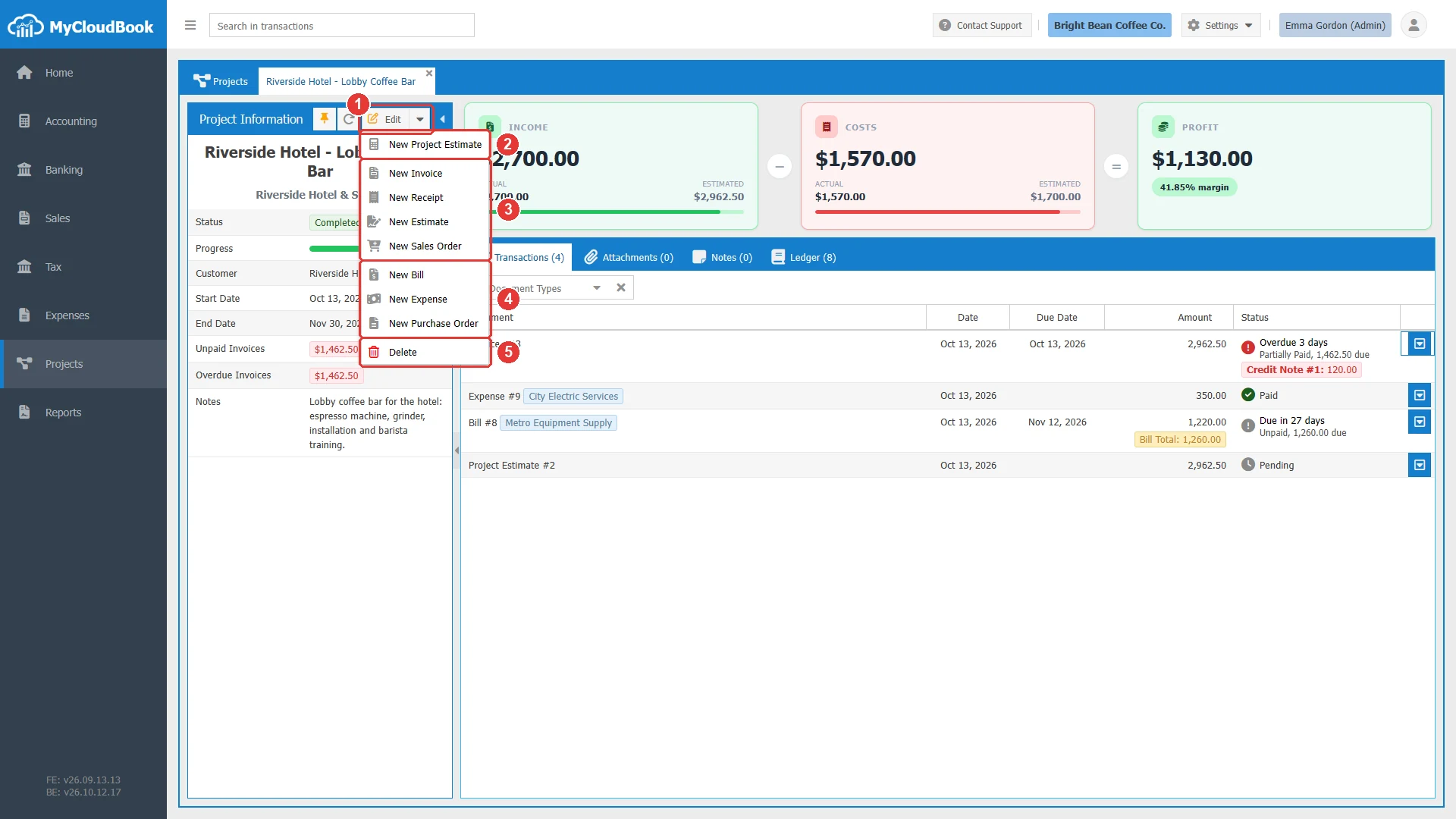
- 1Edit. The button itself opens the Update Project window. The arrow opens the menu.
- 2New Project Estimate. An estimate with your costs and your markup. See the Project Estimates guide.
- 3New Invoice, New Receipt, New Estimate, and New Sales Order. The customer of the project and the project are filled in.
- 4New Bill, New Expense, and New Purchase Order. The project is filled in on the first line.
- 5Delete. Deletes the project. See the Projects guide.
A sales document belongs to one project: its Project field is in the header. A purchase document carries the project on each line. In a new bill from the project, Assign Projects is selected, and the first line holds the project. Type the data of the first line, and select the project in the Project column of every other line that belongs to the project.
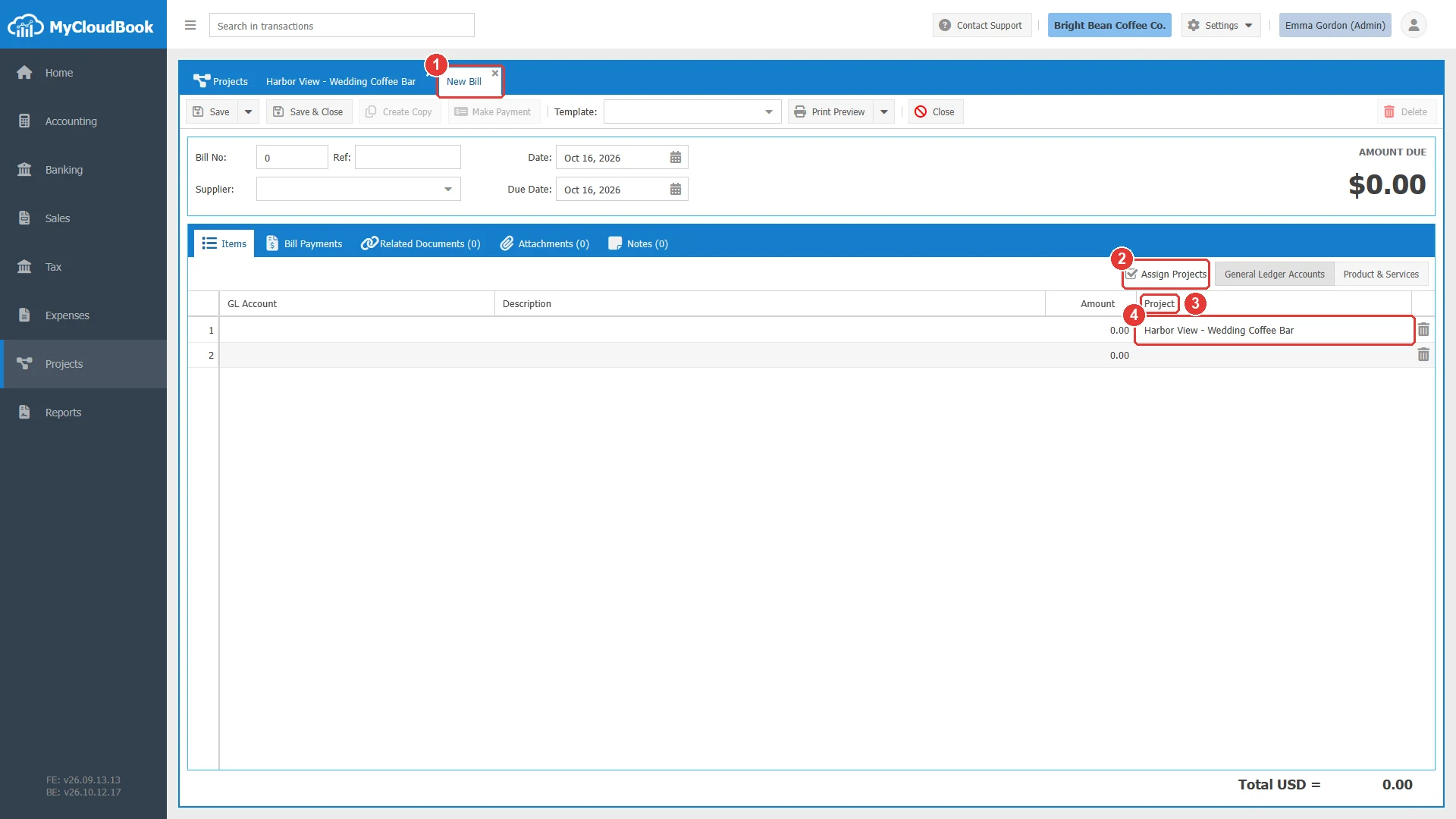
- 1The tab of the new bill, in the Projects page.
- 2Assign Projects. Shows the Project column of the lines.
- 3Project. The project of each line.
- 4The project on the first line.
After the save, the document appears in the Transactions tab, and the figures change when the document posts to the journal. A document cannot be saved in a completed project. The Project Status and Progress guide explains this rule.
Messages and their meaning
Questions and answers
Why is the income of a project lower than the total of its invoices?
Sales tax is not income, so the income of a project is the total of the invoice lines without tax. Credit notes that refund an invoice of the project lower the income too.
When does a stock product become a cost of the project?
A bill that buys a stock product adds it to the inventory. The product becomes a cost when an invoice of the project sells it. The Ledger tab then shows the cost of goods sold post of that invoice.
Do payments change the income of a project?
No. A payment changes only the Unpaid Invoices and Overdue Invoices amounts. The income comes from the invoices and receipts themselves.
What is the difference between the Notes row and the Notes tab?
The Notes row shows the description of the project from the Update Project window. The Notes tab keeps separate, dated notes about the project.
Can a bill share its costs between several projects?
Yes. Each line of a bill can carry another project. The Transactions tab of each project shows the part of the bill that belongs to it, with the total of the whole bill in a badge.