Credit Notes
This guide explains credit notes in MyCloudBook: crediting returned goods or a correction, with or without a document, applying the credit to an invoice, and the rules for changing and deleting a credit note.
Overview
A credit note records an amount that the company owes back to a customer: goods returned, a price corrected, or a service not delivered. It reduces the balance of the customer at once. The credit can then be applied to an open invoice of the customer, or paid back with a refund voucher.
A credit note can be made in two ways:
- For an invoice or a receipt. The credit note takes the lines of the document, and only the quantities that come back are typed. The quantity of a line cannot exceed the quantity of the document.
- Without a document. The lines are typed freely, as on an invoice.
| Post | Account and amount |
|---|---|
| Credit | Accounts Receivable, for the total of the credit note, with the customer as the contact of the post. |
| Debit | The sales account of each line (the sales account of the product, or the account of the line), for the line total. |
| Debit | Tax Payable, for each tax. |
| Inventory | For each returned inventory product: debit the inventory asset account and credit the cost of goods sold account, at the cost of the original sale. The quantity returns to stock. |
Credit notes have their own number sequence.
How to open the screen
- In the left navigation, click Sales, then the Payments & Refunds tab.
- Click New Credit Note, or open a credit note with a double click.
For a credit note on a document, open the invoice or the receipt, click its Credit Notes tab, and click New Credit Note. The Receipt Vouchers guide describes the Payments & Refunds list.
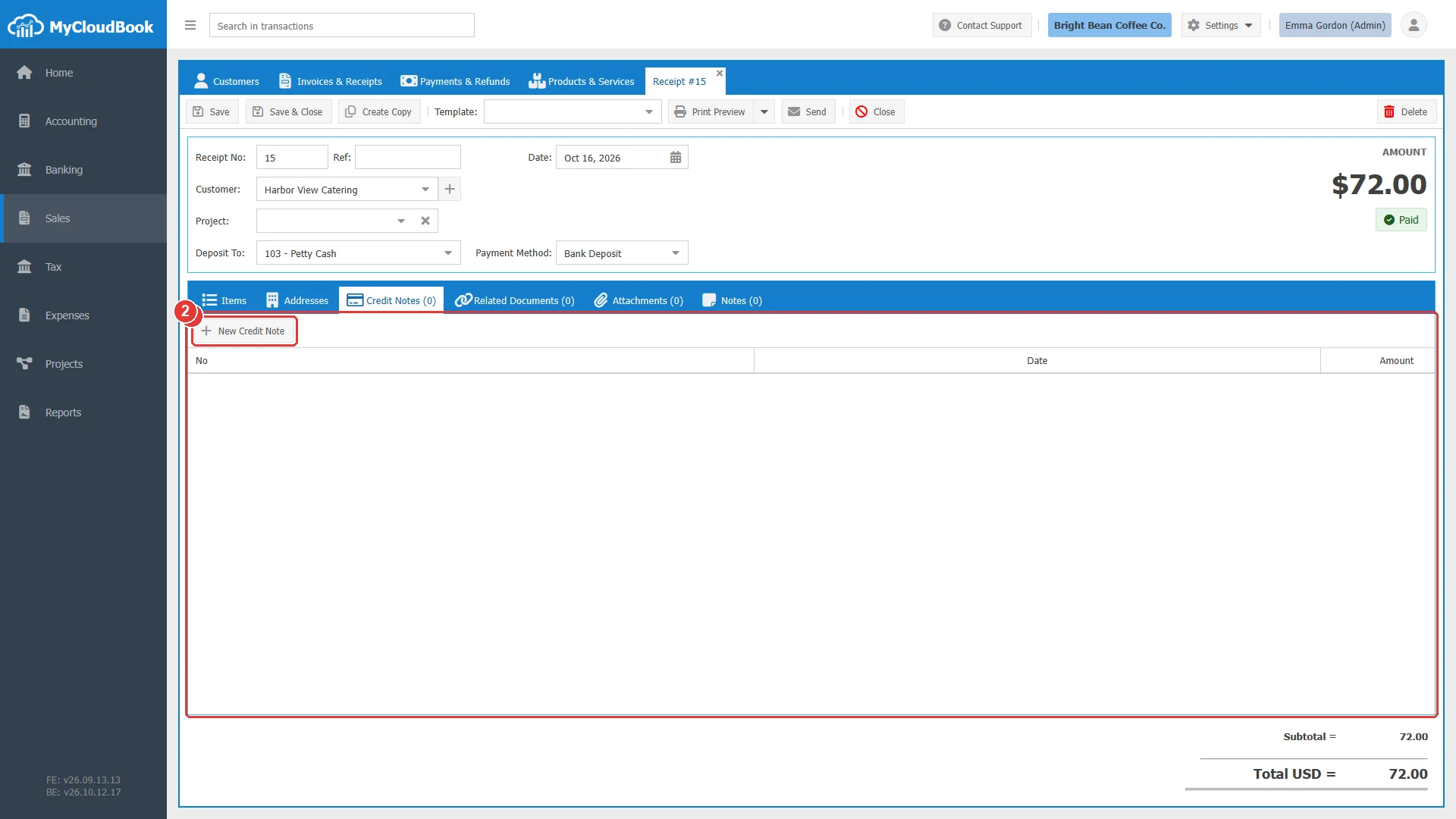
- 1New Credit Note. Opens a credit note for this document.
- 2The credit notes of this document.
The credit note screen
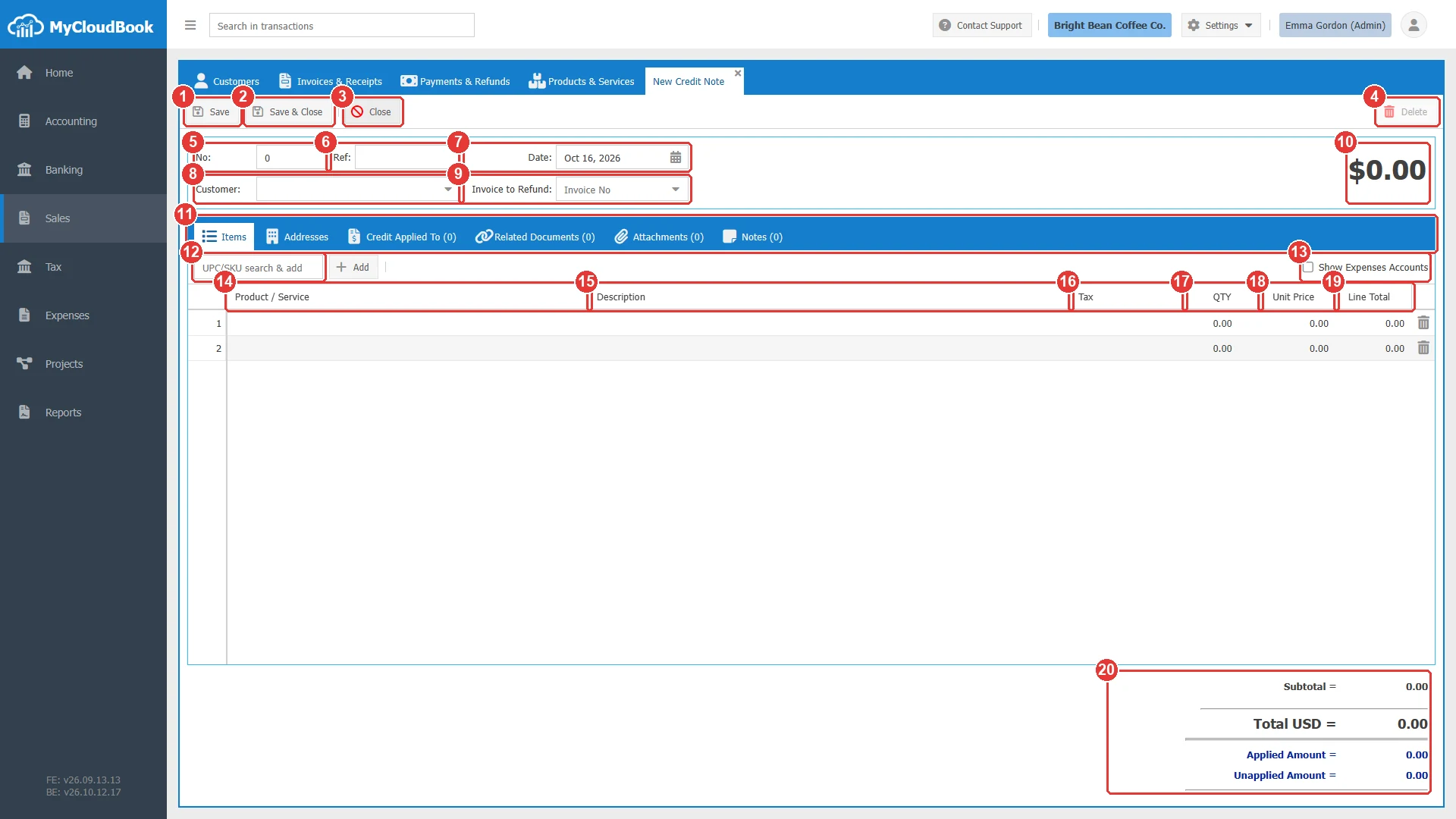
- 1Save.
- 2Save & Close.
- 3Close.
- 4Delete. Available after the save.
- 5The credit note number. 0 means the next number.
- 6Ref.
- 7Date.
- 8Customer. Required.
- 9Invoice to Refund. The invoice or the receipt that the credit note corrects. Optional.
- 10The total, in large figures.
- 11The tabs Items, Addresses, Credit Applied To, Related Documents, Attachments, and Notes.
- 12UPC/SKU search & add.
- 13Show Expenses Accounts. Shows the account column of the lines.
- 14Product / Service.
- 15Description.
- 16Tax.
- 17QTY.
- 18Unit Price.
- 19Line Total.
- 20The totals, with Applied Amount and Unapplied Amount.
The fields
| Field | Required | Purpose and rules |
|---|---|---|
| No | Required | Keep 0 for the next number of the credit note sequence. |
| Ref | Optional | A free reference, for example the reason of the credit. |
| Date | Required | The date of the credit note. It starts with today. The taxes use the rates of this date. |
| Customer | Required | An active customer. The credit reduces the balance of this customer. |
| Invoice to Refund | Optional | The invoice or the receipt that the credit note corrects. The selection loads its lines with the quantity 0. The document must belong to the same customer and use the same currency. |
| Product / Service | Optional | Without an invoice to refund: a product marked for sale, as on an invoice. With an invoice to refund: the lines come from the document and cannot be changed. |
| QTY | Required | The quantity credited. A line with 0 is not saved. With an invoice to refund, the quantity cannot exceed the quantity of the document line. |
| Unit Price Tax Description | Optional | As on an invoice. The description is limited to 4000 characters. |
| Expenses Account | Optional | Shown with Show Expenses Accounts. The account of a line without a product. The list shows every account. |
A credit note for a document
The example credits two sets of mugs that Harbor View Catering returned from receipt 15.
- Open receipt 15, click the Credit Notes tab, and click New Credit Note. The credit note opens with the customer, the receipt in Invoice to Refund, and the lines of the receipt with the quantity 0.
- Type 2 in the QTY of the mugs line, and a reference such as Two sets returned.
- Click Save. The credit note of 72.00 receives its number. The mugs return to stock, and the receipt shows the credit note in its Credit Notes tab.
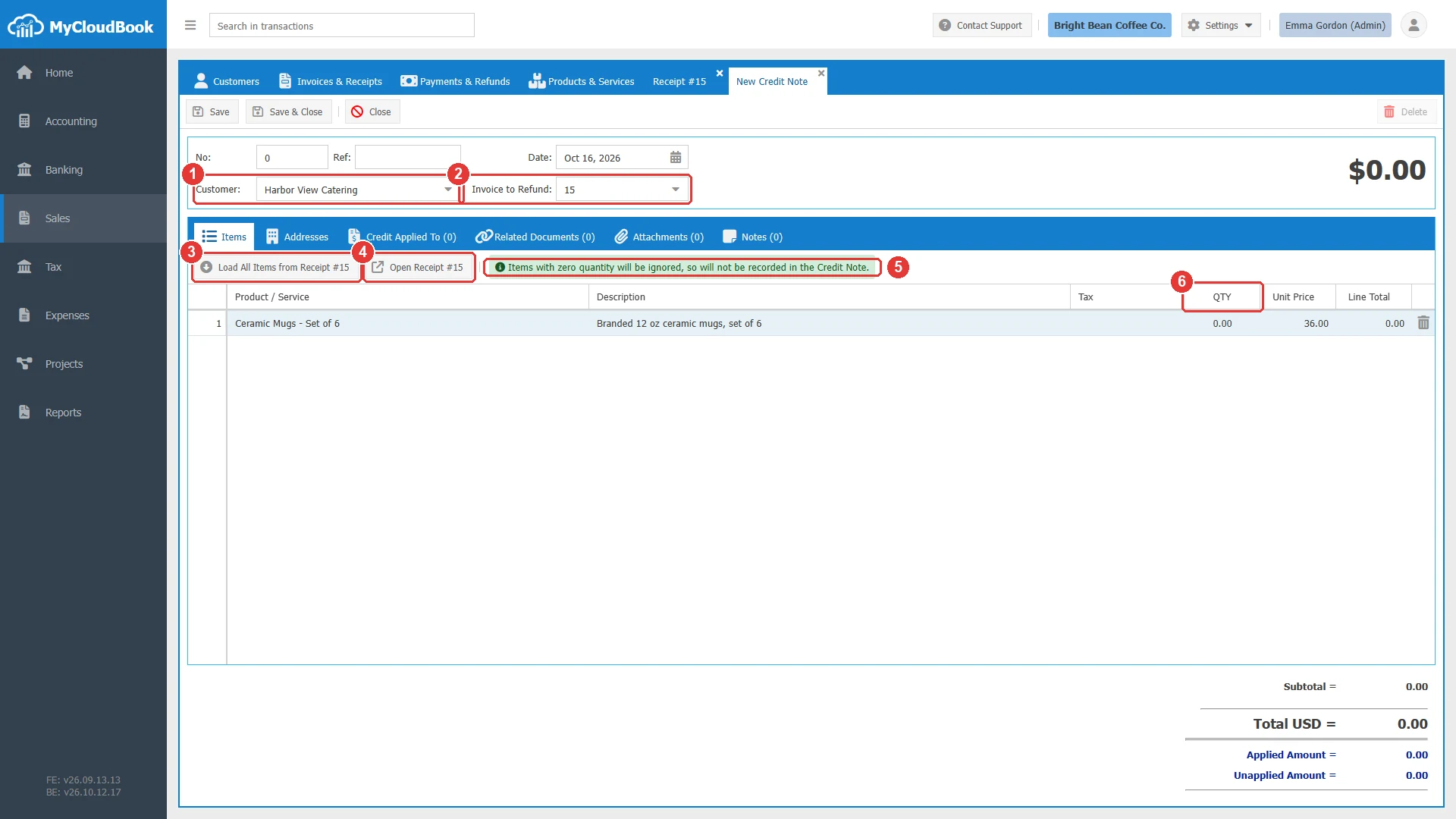
- 1The customer of the receipt.
- 2Invoice to Refund: the receipt.
- 3Load All Items from Receipt #15. Loads the lines of the document again.
- 4Open Receipt #15. Opens the document.
- 5Lines with a zero quantity are ignored.
- 6QTY starts with 0. Type the returned quantity.
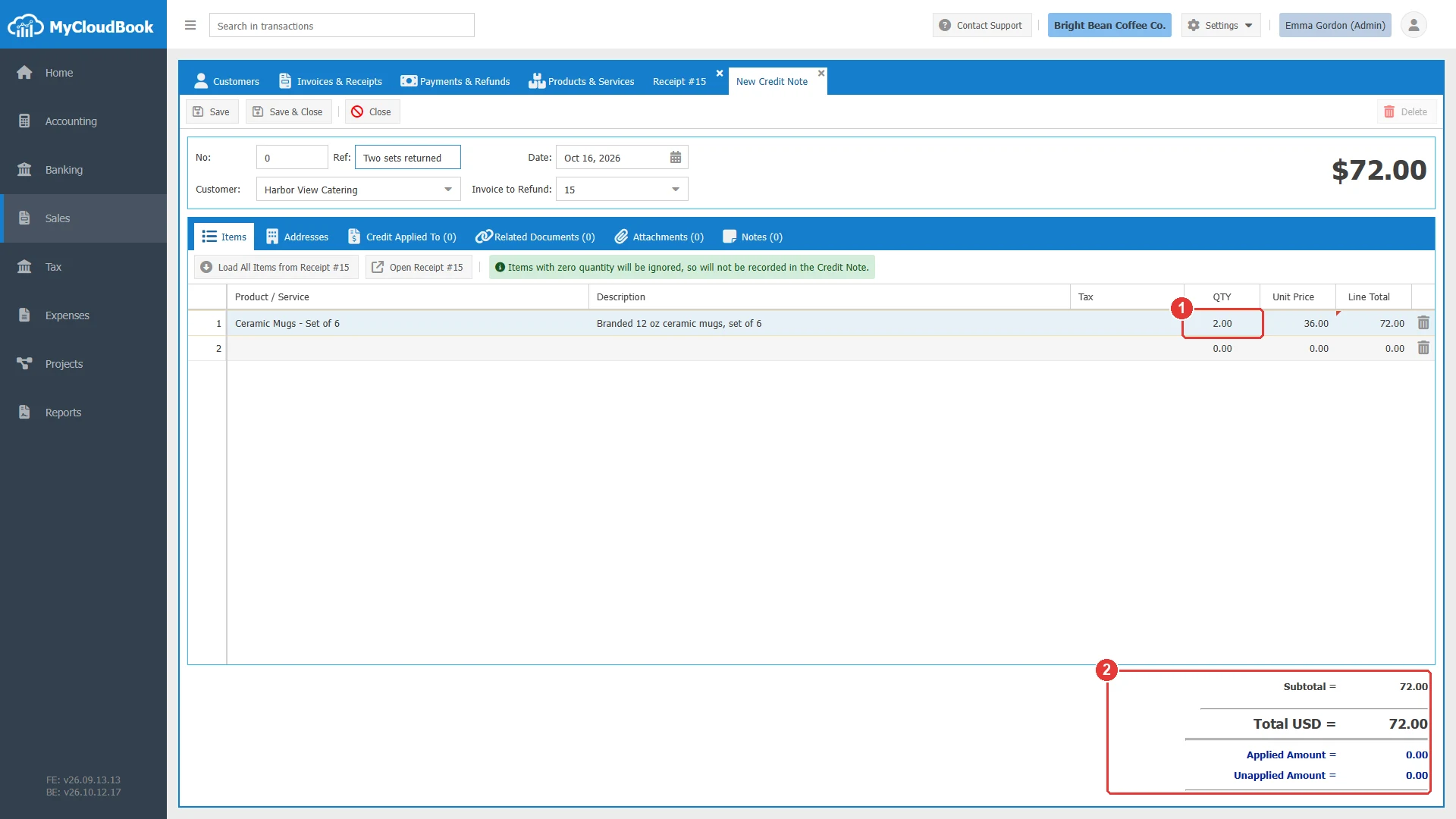
- 1The returned quantity.
- 2The total of the credit note.
The credited document is locked. An invoice that a credit note refunds cannot be changed or deleted while the credit note exists. To correct it, delete the credit note, change the invoice, and create the credit note again. The invoices list shows a red label, for example Credit Note #2: 72.00, under the status of the document.
Applying the credit to an invoice
The credit reduces the balance of the customer, but it does not reduce the amount due of a specific invoice until it is applied to that invoice.
- Open the saved credit note and click the Credit Applied To tab.
- Click Apply to Invoice. The window lists the invoices of the customer.
- Select the invoice in Apply to Invoice, check the Apply Date, type the Amount to Apply, and click Save.
The amount must be above zero, within the unapplied credit, and within the amount due of the invoice. The invoice then counts the credit in its received amount and lists it in its Payments tab.
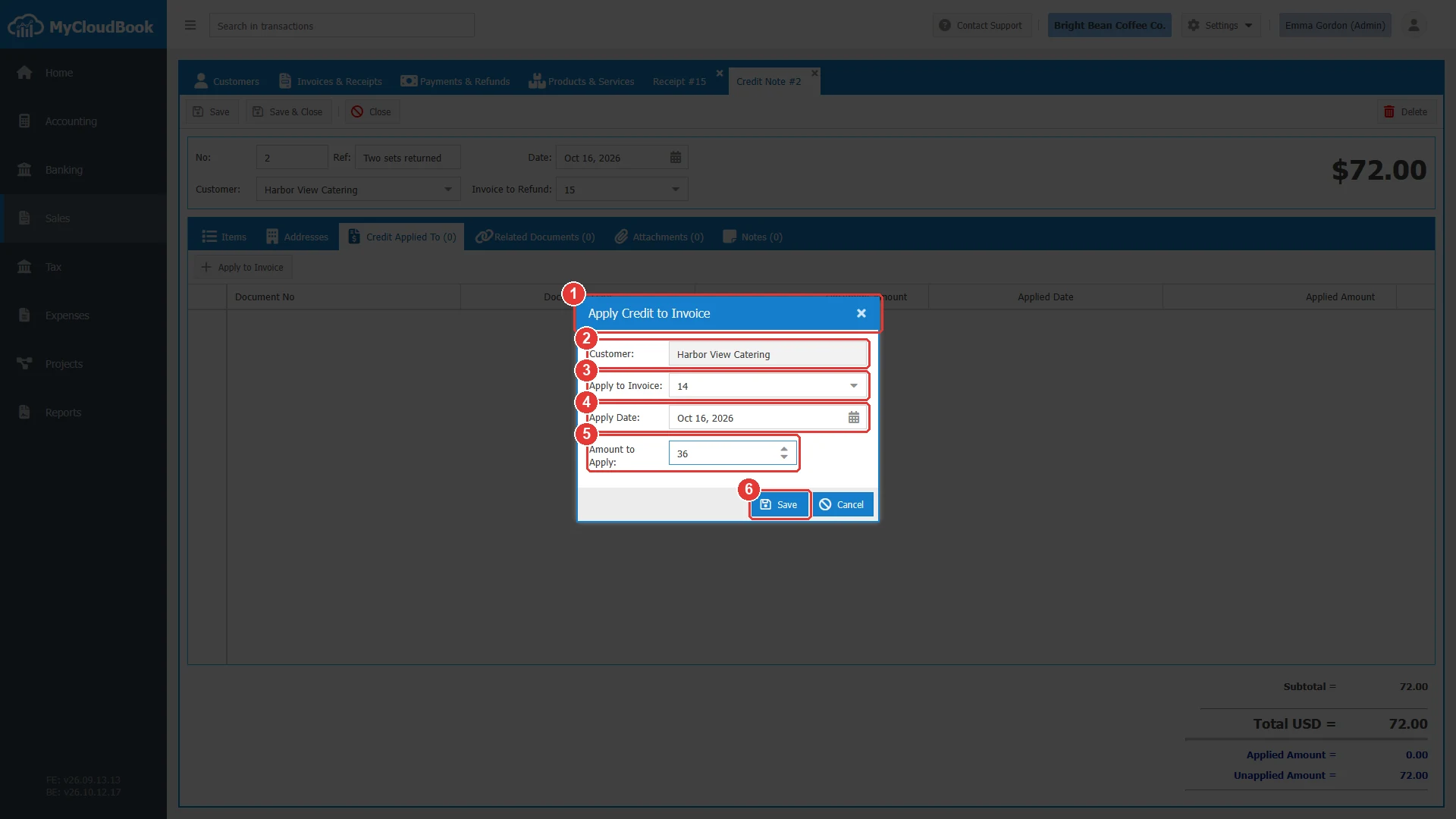
- 1The window title.
- 2Customer.
- 3Apply to Invoice: the invoices of the customer, with their amount due.
- 4Apply Date.
- 5Amount to Apply.
- 6Save.
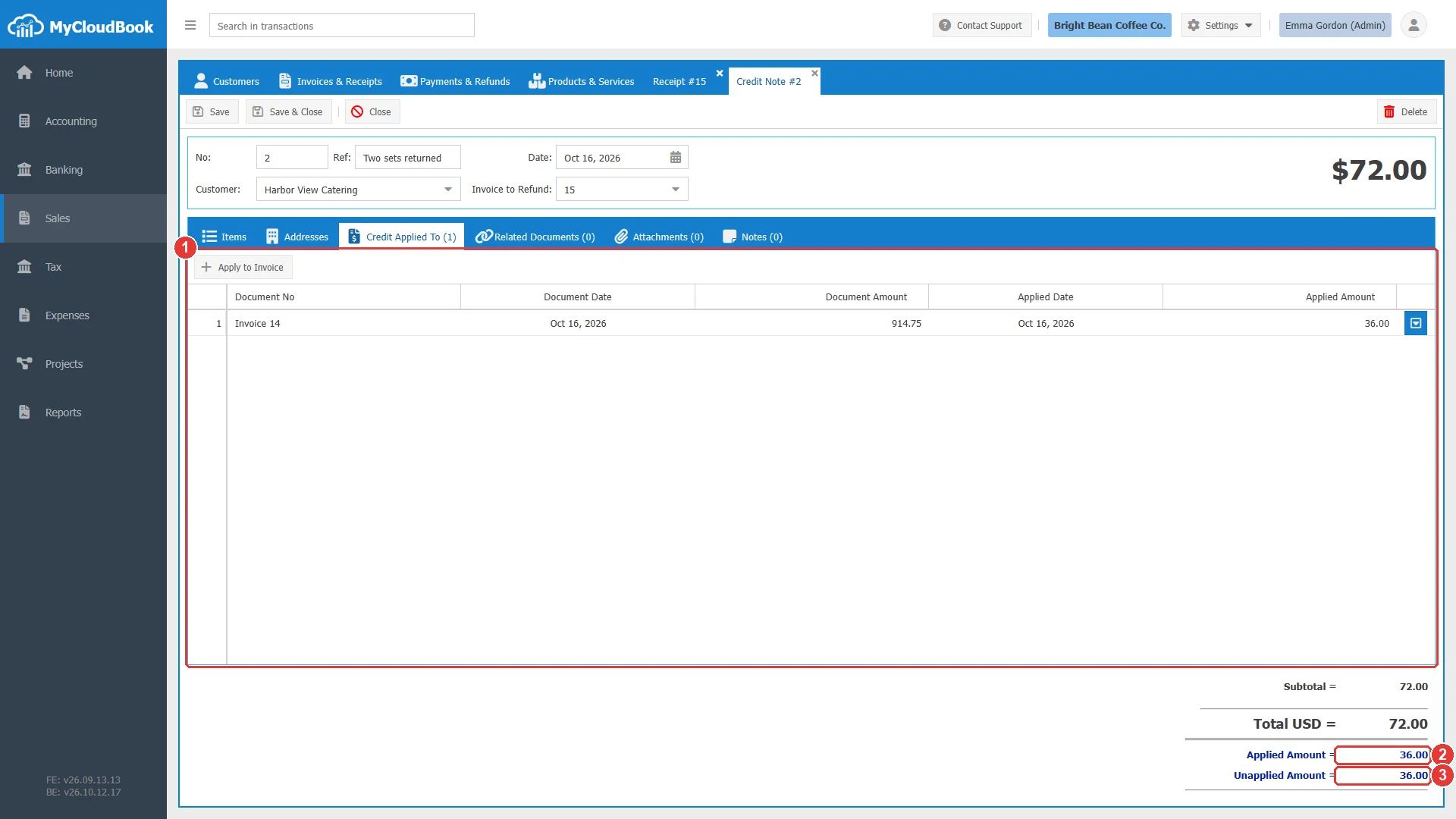
- 1Apply to Invoice, and the invoices that received the credit.
- 2Applied Amount.
- 3Unapplied Amount: the credit that can still be applied or refunded.
The row menu of an applied invoice offers Edit and Remove. Remove takes the credit back from the invoice. A refund voucher that uses the credit also appears in this tab; it can be changed only through the refund voucher.
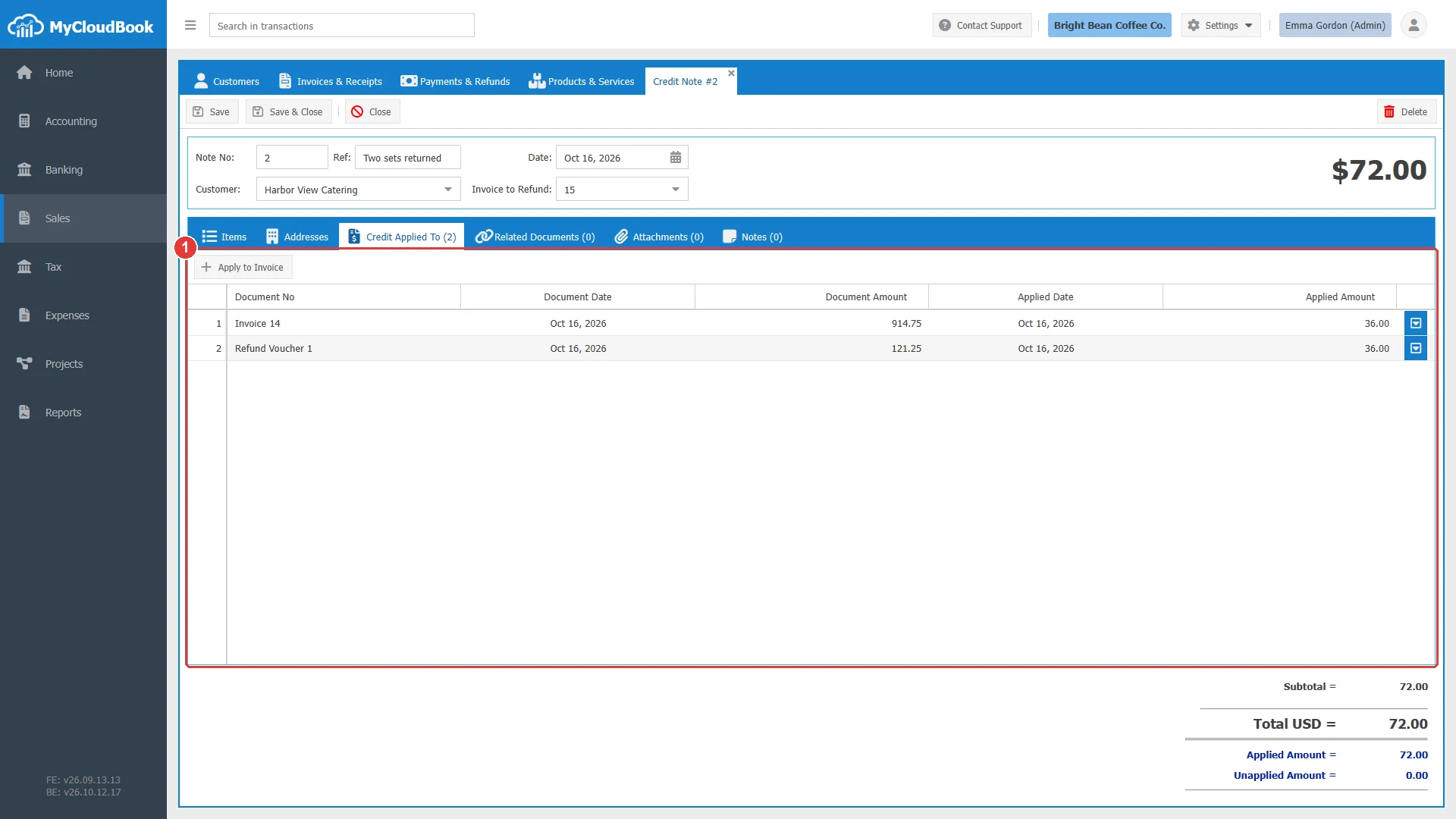
- 1The invoice and the refund voucher that used the credit.
Changing and deleting
A credit note can be changed after the save, with these limits: the currency cannot change while credit is applied, the total cannot become lower than the applied amount, and the customer must stay the customer of the applied documents. A credit note on an invoice in a completed project cannot be saved or deleted.
A credit note whose credit was applied or refunded cannot be deleted. Remove the applications in the Credit Applied To tab and delete the refund vouchers first. Deleting a credit note removes its journal entry and its inventory returns.
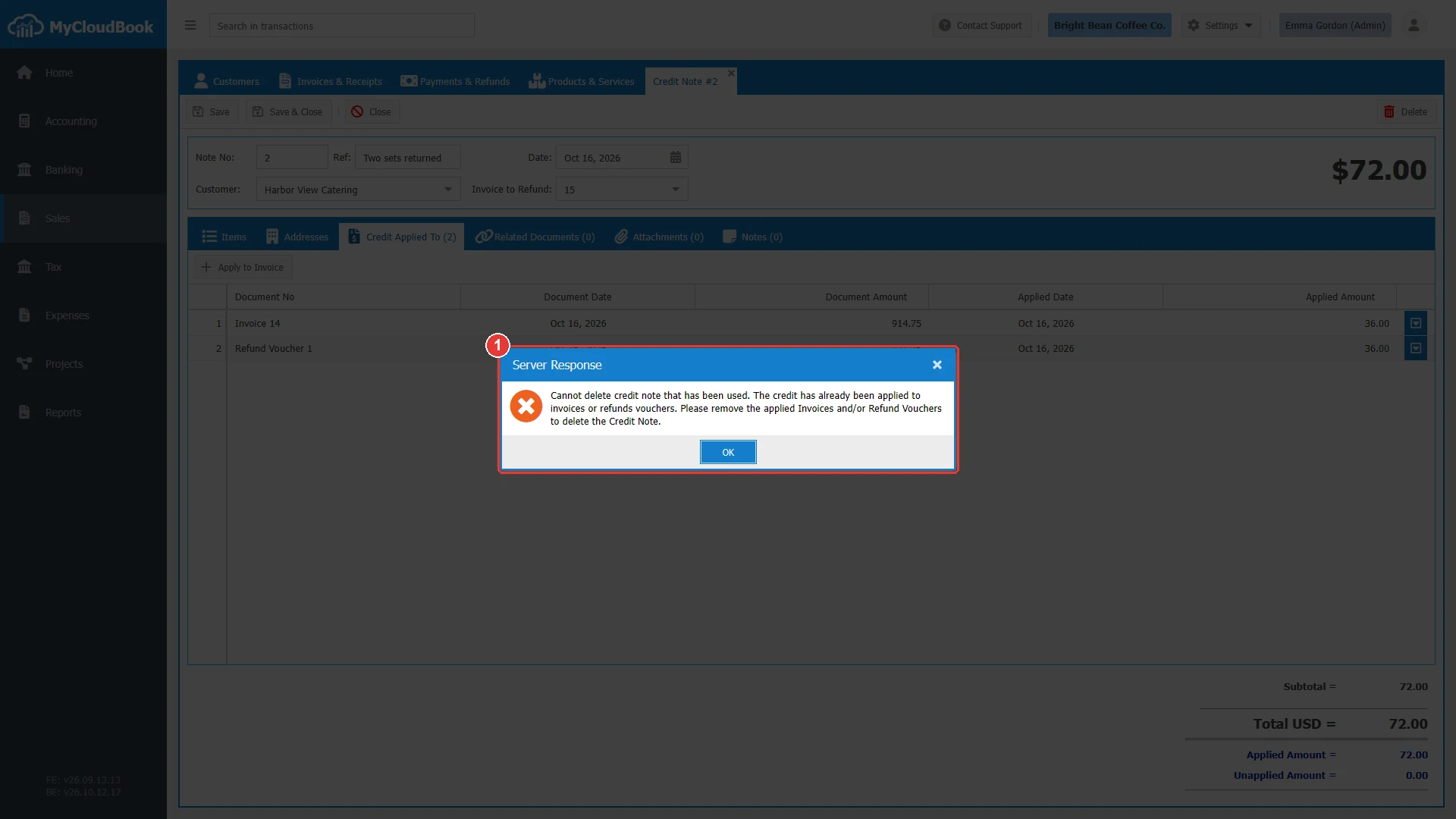
- 1The message from the server.
Messages and their meaning
Questions and answers
How do I give a customer credit for returned goods?
Open the invoice or the receipt, click the Credit Notes tab and New Credit Note. Type the returned quantity in each line and save. The goods return to stock and the balance of the customer falls.
Does a credit note reduce the amount due of the invoice?
The credit note reduces the balance of the customer at once. The amount due of a specific invoice falls when the credit is applied to that invoice in the Credit Applied To tab.
How do I pay the credit back to the customer?
Create a refund voucher for the customer. Load Available Credits lists the credit notes with unapplied credit.
Why can I not change an invoice after a credit note?
An invoice that a credit note refunds is locked. Delete the credit note, change the invoice, and create the credit note again.