Manage My Subscriptions
This guide explains Manage My Subscriptions in MyCloudBook: the companies of the user, the subscription of each company, and how to renew, create, switch, and cancel companies.
Overview
Manage My Subscriptions shows the companies of the signed in user and the subscription of each company to MyCloudBook. The window, titled Subscription Management, has three tabs:
- Companies & Subscription: the companies, with their status, plan, and dates. Here the user creates a company, switches to another company, renews a subscription, or cancels a company;
- Payments History: the payments of the subscriptions, with their receipts;
- My Invitations: the invitations of other users to join their companies.
Two kinds of subscriptions. This window manages the subscription of your company to MyCloudBook. The recurring services that your company sells to its own customers are managed in Subscriptions of the Sales page.
How to open the window
- In the top bar, click the round user icon at the right end, next to the name of the user.
- In the menu, click Manage My Subscriptions.
The user menu is shown to every user, whatever the role of the user.
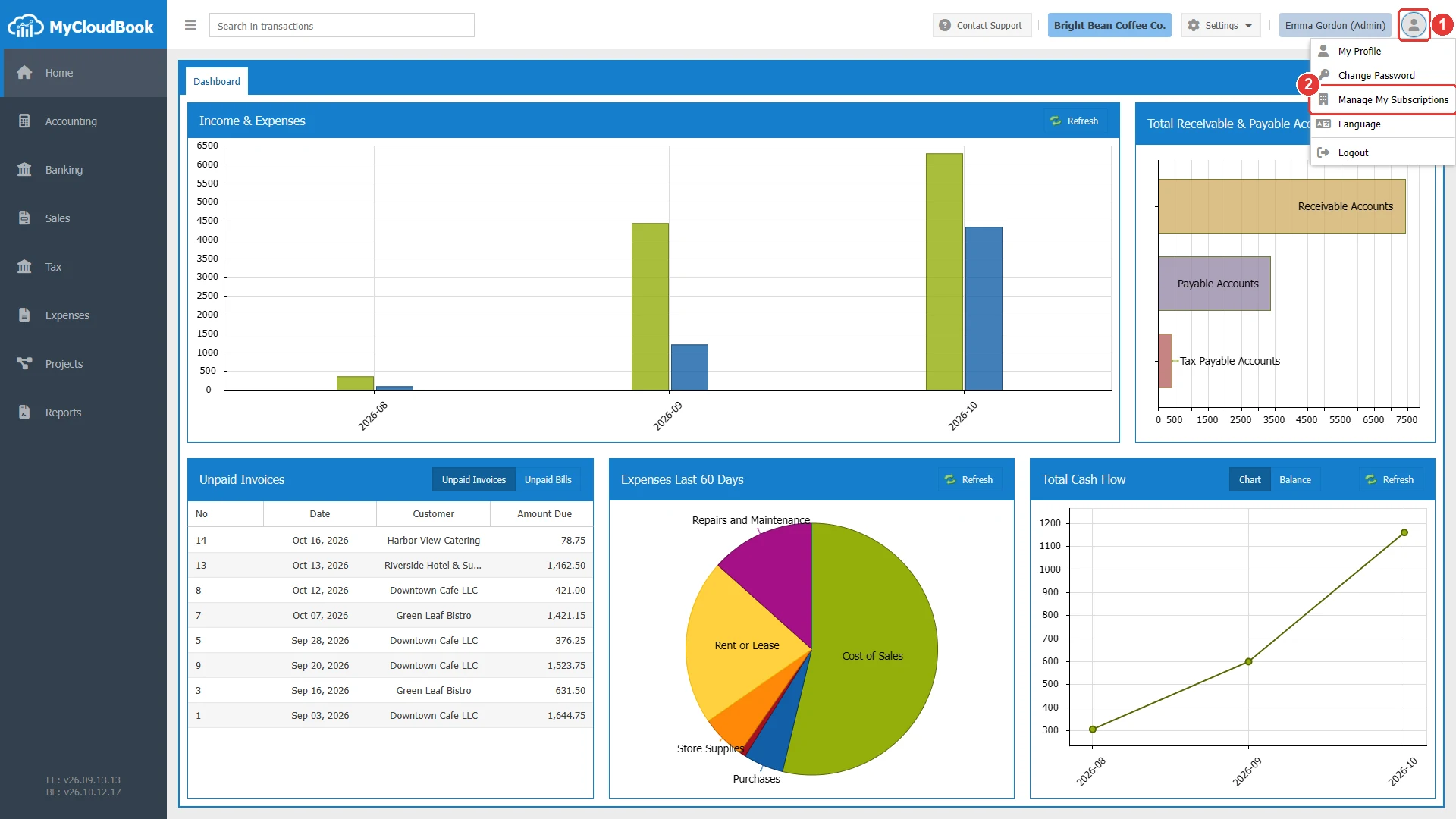
- 1The user icon. Opens the menu with My Profile, Change Password, Manage My Subscriptions, Language, and Logout.
- 2Manage My Subscriptions.
The Companies & Subscription tab
The tab lists every company that the user belongs to, as the owner or as an invited user. The search box finds a company by its name or its number: type the text and press Enter. The example shows the list after a search for Bright Bean.
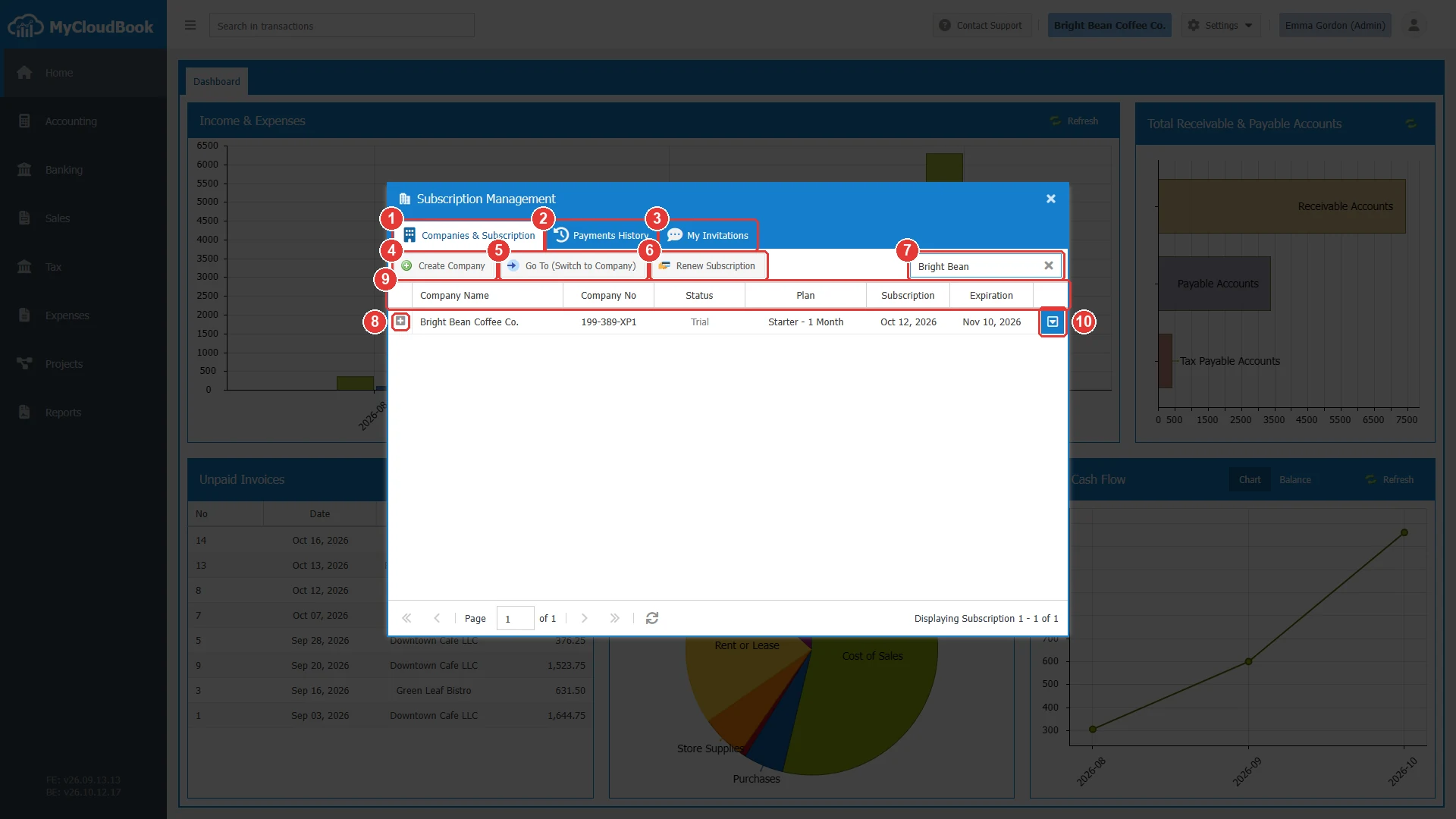
- 1Companies & Subscription tab.
- 2Payments History tab.
- 3My Invitations tab.
- 4Create Company. Creates a new company.
- 5Go To (Switch to Company). Opens the selected company.
- 6Renew Subscription. Opens the plans for the selected company.
- 7The search box. Enter starts the search, and the x clears it.
- 8The plus sign. Shows the usage of the company and its owner.
- 9The columns Company Name, Company No, Status, Plan, Subscription, and Expiration.
- 10The row actions button, with Go To (Switch to Company), Renew Subscription, and Cancel Company.
| Status | Meaning |
|---|---|
| Trial | A new company. The trial lasts 30 days, from the day of the creation to the expiration date. |
| Active | The subscription is paid until the expiration date. |
| Expired | The expiration date has passed. Renew the subscription to continue. |
| Canceled | The owner canceled the company. |
| Suspended | MyCloudBook suspended the company. Contact the support. |
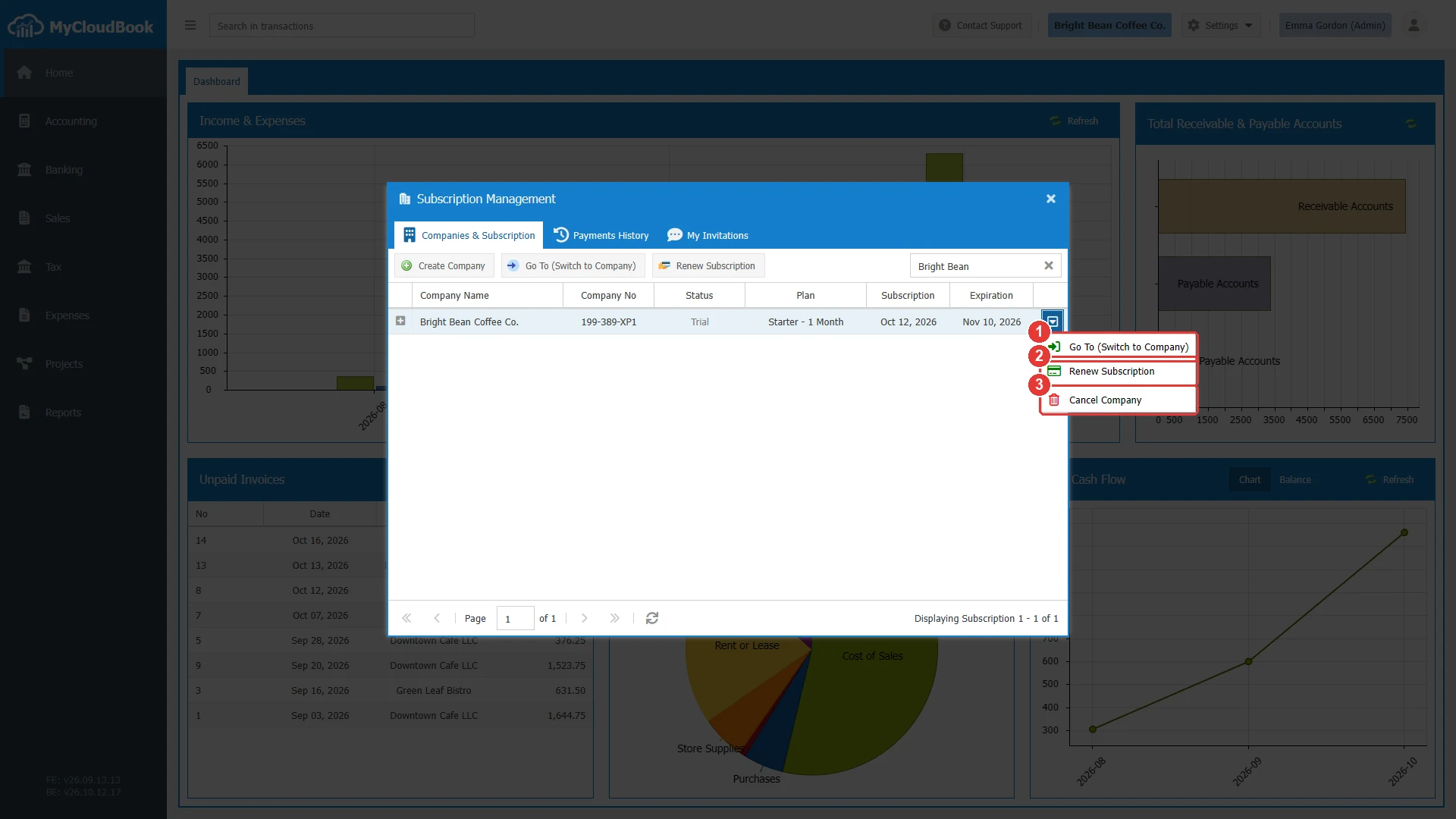
- 1Go To (Switch to Company).
- 2Renew Subscription.
- 3Cancel Company.
Switching to another company
- Click the row of the company.
- Click Go To (Switch to Company), or use the item of the row actions menu.
The application loads again with the selected company. The top bar shows its name.
Renewing a subscription
Only the owner of a company can renew its subscription. The company must be active, and its subscription must be in the status Trial, Active, Pending, or Expired.
- Click the row of the company, then Renew Subscription. The window Choose Your Plan opens.
- Choose the billing period: Monthly, Quarterly, Semi Annually, or Annually.
- Click a plan. The window shows the subscription period and the amount.
- Click the pay button. The checkout page of Stripe opens in a new tab of the browser, where the payment is made by card.
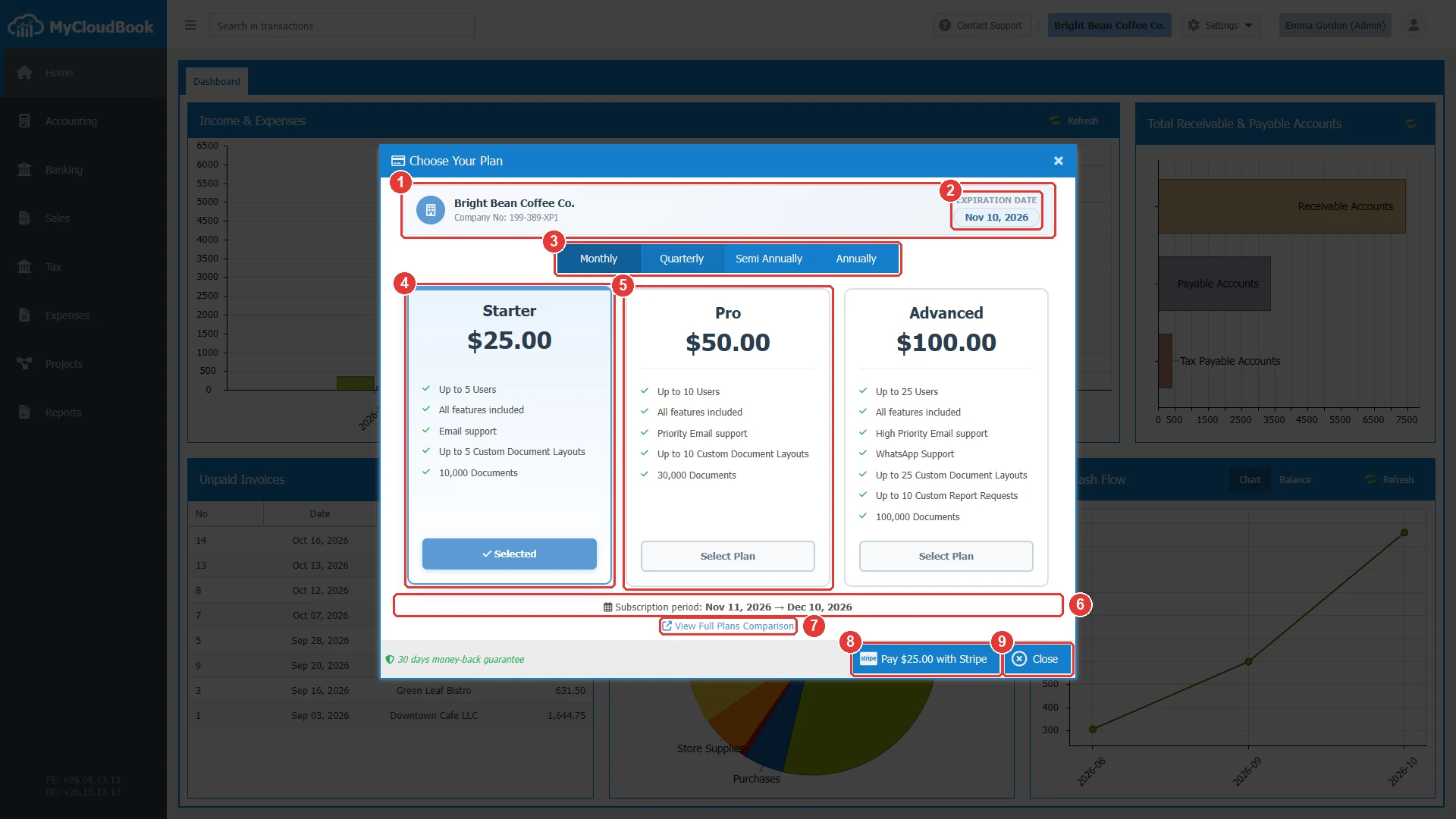
- 1The company and its number.
- 2The expiration date of the current subscription.
- 3The billing period.
- 4The selected plan. The current plan of the company is selected when the window opens.
- 5Another plan. A click selects it.
- 6The subscription period of the selected plan. It starts the day after the expiration date.
- 7View Full Plans Comparison. Opens the pricing page of the MyCloudBook website.
- 8The pay button, with the amount of the selected plan.
- 9Close.
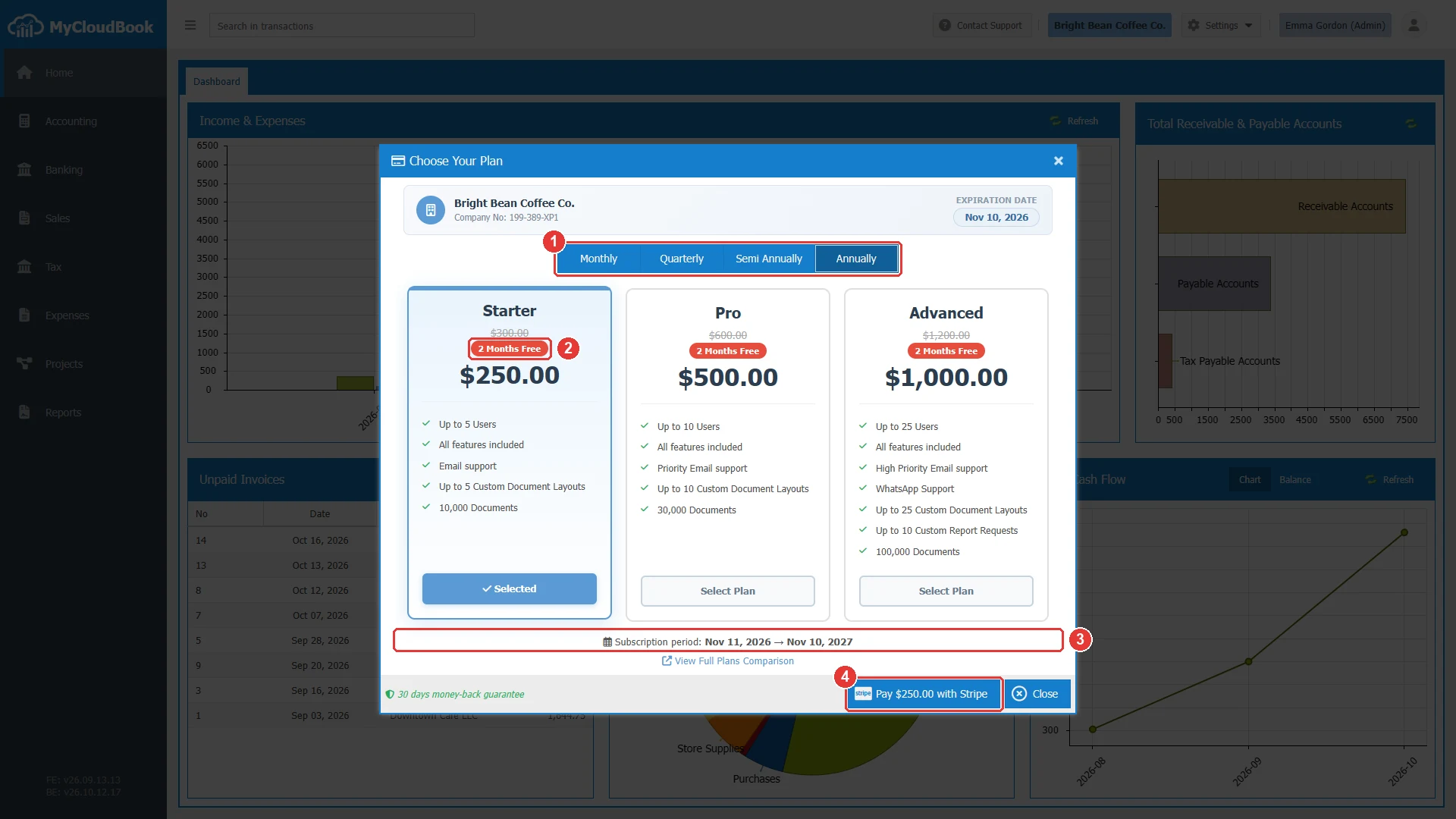
- 1Annually.
- 2The label 2 Months Free. The price of a year is the price of ten months.
- 3The period of one year.
- 4The amount to pay.
The prices are in US dollars. The window shows the guarantee 30 days money-back guarantee. After the payment, the new period appears in the list, and the receipt appears in Payments History.
Creating a company
- Click Create Company.
- Type the Company Name, and choose the Country, the Main Currency, and the Chart of Accounts.
- Click Create Company. The list shows the new company in the status Trial.
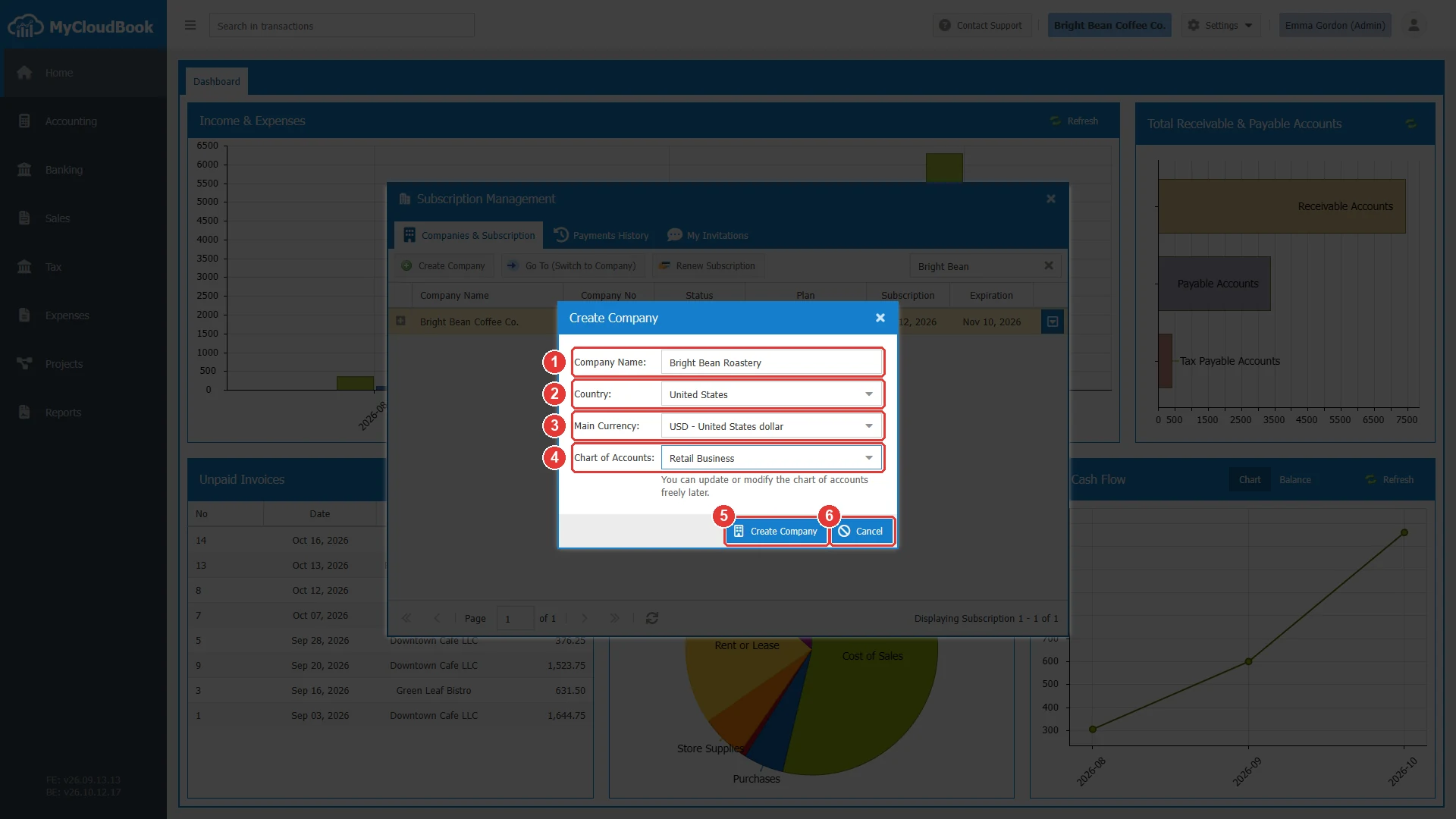
- 1Company Name. Required.
- 2Country. Required.
- 3Main Currency. Required. The currency of the books.
- 4Chart of Accounts. The starting chart of accounts: Common Accounts or Retail Business.
- 5Create Company. Creates the company.
- 6Cancel.
| Field | Required | Purpose and rules |
|---|---|---|
| Company Name | Required | The name of the new company. It can change later in Company Info. |
| Country | Required | The country of the company. |
| Main Currency | Required | The currency of the books. It is set once, when the company is created. See Currencies. |
| Chart of Accounts | Required | The starting accounts. The chart of accounts can be changed freely later. See Chart of Accounts. |
The user who creates the company is its owner. A new company starts a trial of 30 days. A user can have up to ten companies in the trial status at the same time.
The Payments History tab
The Payments History tab lists the invoices of MyCloudBook for the subscriptions and their payment status. The print icon of a row downloads its receipt. The example company has no payment yet.
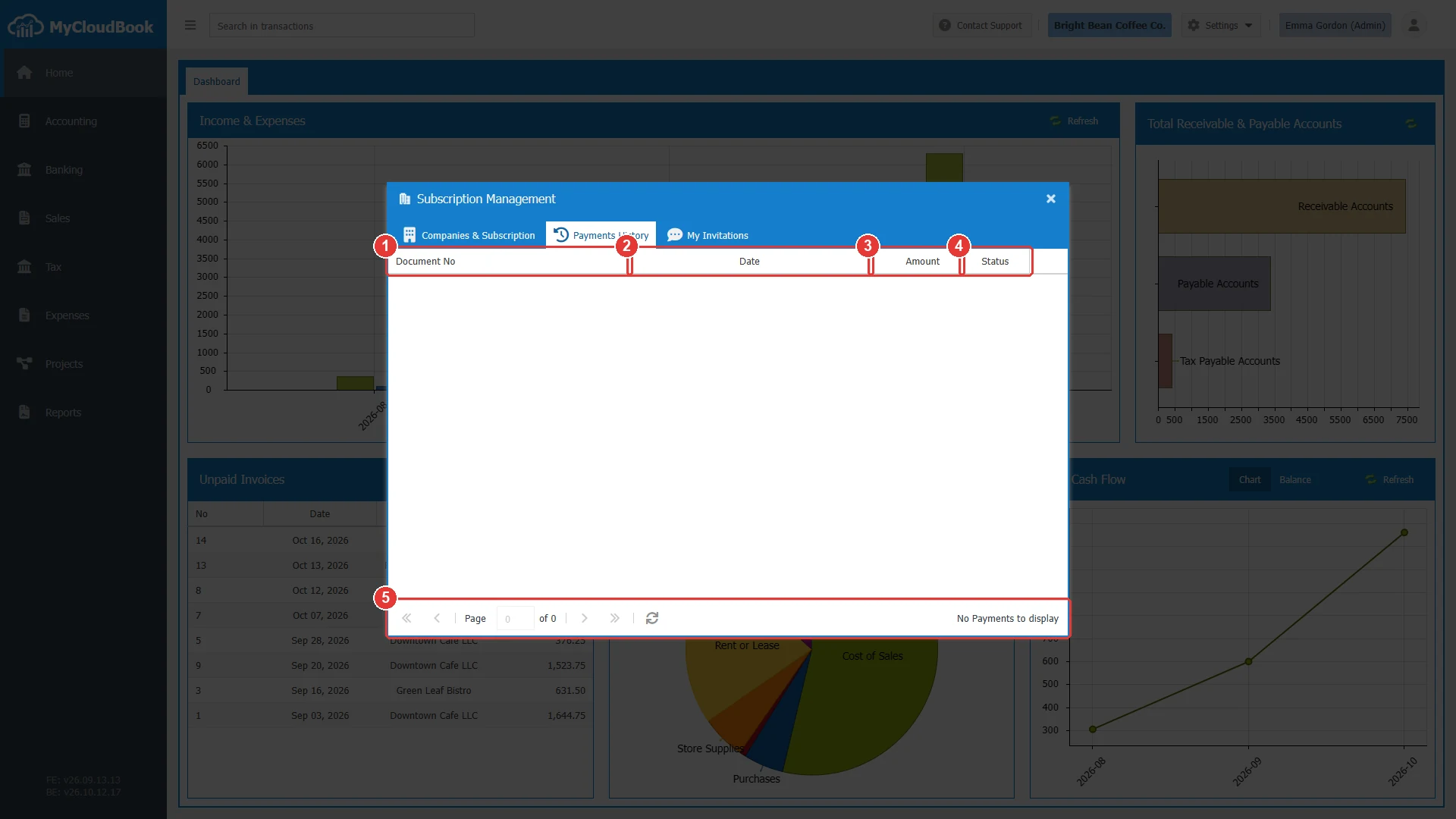
- 1Document No. The type and the number of the document.
- 2Date.
- 3Amount.
- 4Status: Paid, Partially Paid, or Unpaid.
- 5The paging bar.
The My Invitations tab
The My Invitations tab lists the invitations of other users to join their companies. The columns are Invited By, To Join Company, Invited Date (UTC), and Status. The status is Waiting, Accepted, or Rejected. The View button of an invitation opens the question Reply to Invitation with three answers:
| Answer | Effect |
|---|---|
| Accept | The user joins the company. The company appears in the Companies & Subscription tab. |
| Reject | The invitation is rejected. |
| Remind me Later | The invitation stays in the status Waiting. |
Canceling a company
The owner of a company can cancel it. The cancellation is permanent and cannot be undone.
- Open the row actions menu of the company and click Cancel Company.
- In the Cancel Company window, type the Company Name and the Company No exactly as the list shows them.
- Click Cancel Company.
MyCloudBook marks the company as canceled, signs out every user of the company, removes its open invitations, and makes the company inactive. A canceled company cannot be opened any more.
Messages and their meaning
Questions and answers
How do I renew the subscription of my company?
Click the user icon, then Manage My Subscriptions. Click the row of the company, then Renew Subscription. Choose the billing period and the plan, and pay with Stripe.
When does a renewed period start?
The day after the expiration date of the current subscription. For example, a company that expires on Nov 10, 2026 gets a new period from Nov 11, 2026.
How long is the trial of a new company?
30 days, counted from the day of the creation.
Who can renew or cancel a company?
Only the owner of the company. The owner is the user who created it.
How do I open another company?
Click its row in Manage My Subscriptions, then Go To (Switch to Company). The application loads again with that company.