Preferences
This guide explains the Preferences window of MyCloudBook: the date and number formats, the features that can be turned on, and the default accounts of new products, services, and inventory adjustments.
Overview
The Preferences window holds the settings that apply to the whole company. It has three tabs:
- General: the date format, the number format, and three features that can be turned on: multi-currency, subscription services, and projects;
- Products & Services: the default accounts of a new product or service, for each of the three types Service, Non-Inventory, and Inventory;
- Inventory Adjustments: the default accounts of a new inventory adjustment.
One Save stores the values of the three tabs together, and then the application reloads.
How to open the window
- In the top bar, click Settings. The button is between the name of the company and the name of the user.
- In the menu, click Preferences.
The Settings menu is shown to the users with the Admin role. The other users do not see the menu.
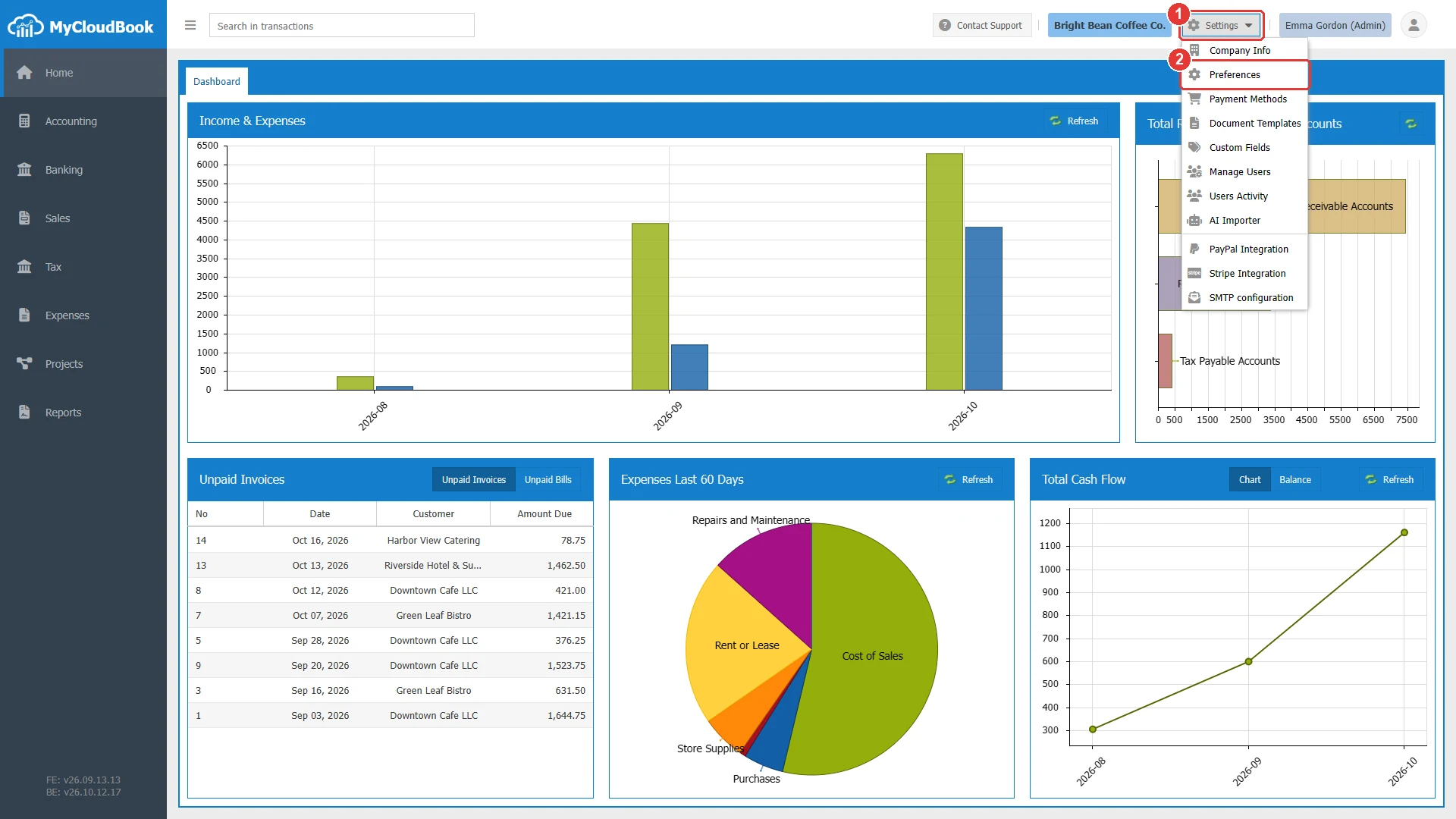
- 1Settings. Opens the menu of the company settings.
- 2Preferences.
The General tab
The General tab opens first. It has the groups Regional & Formatting and Features.
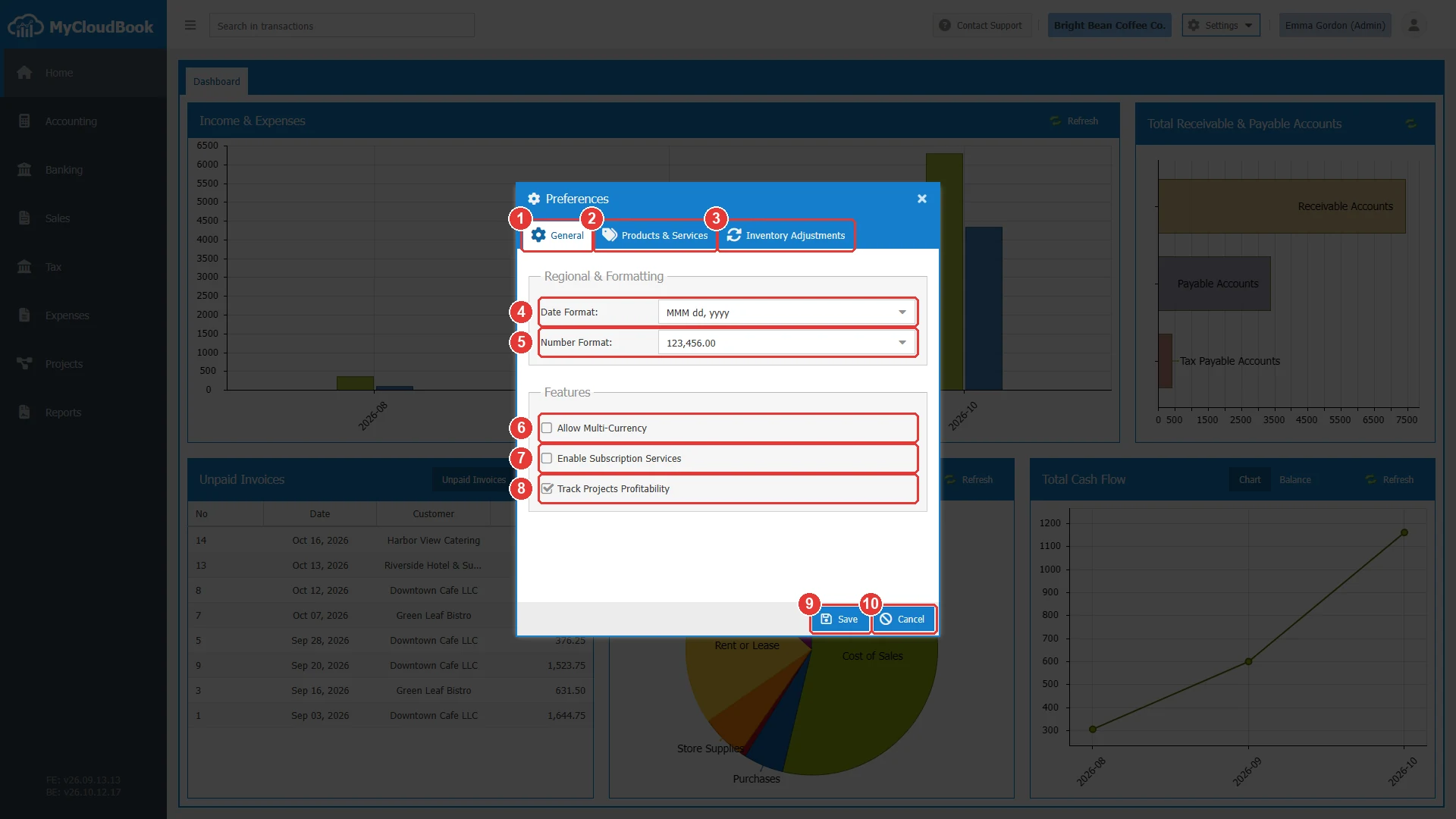
- 1General tab.
- 2Products & Services tab.
- 3Inventory Adjustments tab.
- 4Date Format. The form of the dates.
- 5Number Format. The form of the amounts.
- 6Allow Multi-Currency. Not checked in the example.
- 7Enable Subscription Services. Not checked in the example.
- 8Track Projects Profitability. Checked in the example.
- 9Save. Saves the three tabs and reloads the page.
- 10Cancel. Closes the window without a save.
The date format and the number format
The Date Format sets the form of the dates. It applies to the date fields of the screens, the lists, and the printed documents and reports. The Number Format sets the thousands separator and the decimal separator of the amounts. A new format changes only the display. The stored dates and amounts stay the same.
| Date Format | October 17, 2026 is shown as |
|---|---|
| MMM dd, yyyy | Oct 17, 2026. This is the default format. |
| MM/dd/yyyy | 10/17/2026 |
| dd/MM/yyyy | 17/10/2026 |
| yyyy/MM/dd | 2026/10/17 |
| MM-dd-yyyy | 10-17-2026 |
| dd-MM-yyyy | 17-10-2026 |
| yyyy-MM-dd | 2026-10-17 |
| MM.dd.yyyy | 10.17.2026 |
| dd.MM.yyyy | 17.10.2026 |
| yyyy.MM.dd | 2026.10.17 |
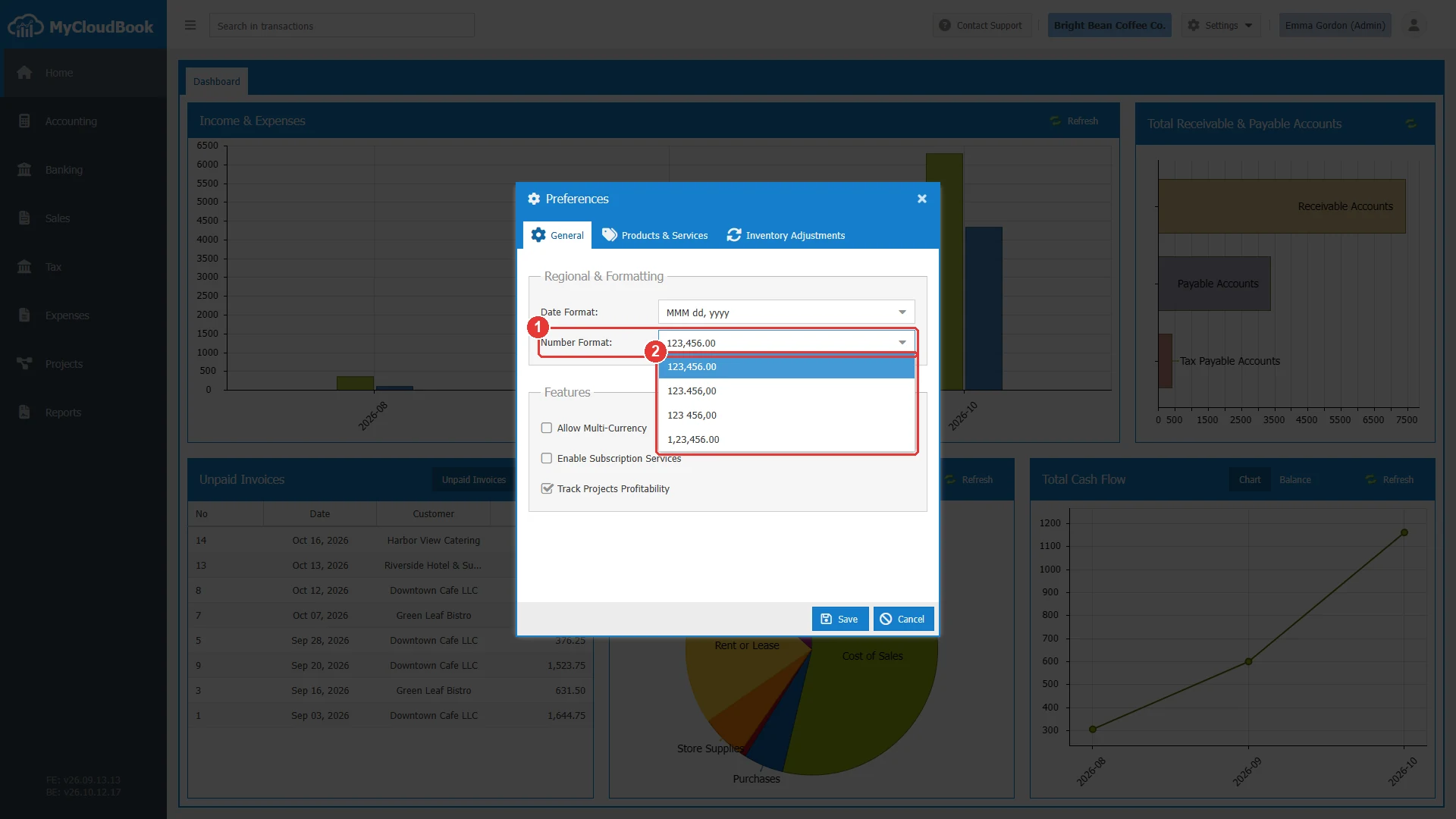
- 1Number Format.
- 2The four formats. Each format is shown with the number 123456 as an example.
| Number Format | Separators |
|---|---|
| 123,456.00 | A comma between the thousands and a point before the decimals. This is the default format. |
| 123.456,00 | A point between the thousands and a comma before the decimals. |
| 123 456,00 | A space between the thousands and a comma before the decimals. |
| 1,23,456.00 | The grouping that is used in India: the last three digits, then groups of two digits. |
The features
The Features group turns on parts of MyCloudBook that not every company needs.
| Feature | Effect and rule |
|---|---|
| Allow Multi-Currency | Adds Currencies to the Settings menu, so the company can add other currencies. It also shows the currency fields of the accounts and the documents. The feature can be turned off again only while the company has no currency other than the main currency. See Currencies. |
| Enable Subscription Services | Shows the Subscriptions tab of the Sales page, for the recurring services that the company sells. The feature cannot be turned off while any subscription exists, also a canceled one. See Subscriptions. |
| Track Projects Profitability | Adds Projects to the left navigation and the Project field to the documents. The feature cannot be turned off while any project exists. See Projects. |
The Products & Services tab
The Products & Services tab holds the accounts that a new product or service receives at once. When a user creates a product of the type Service, Non-Inventory, or Inventory, the product window starts with these accounts. The user can still choose other accounts for that product. The defaults do not change the products that exist already.
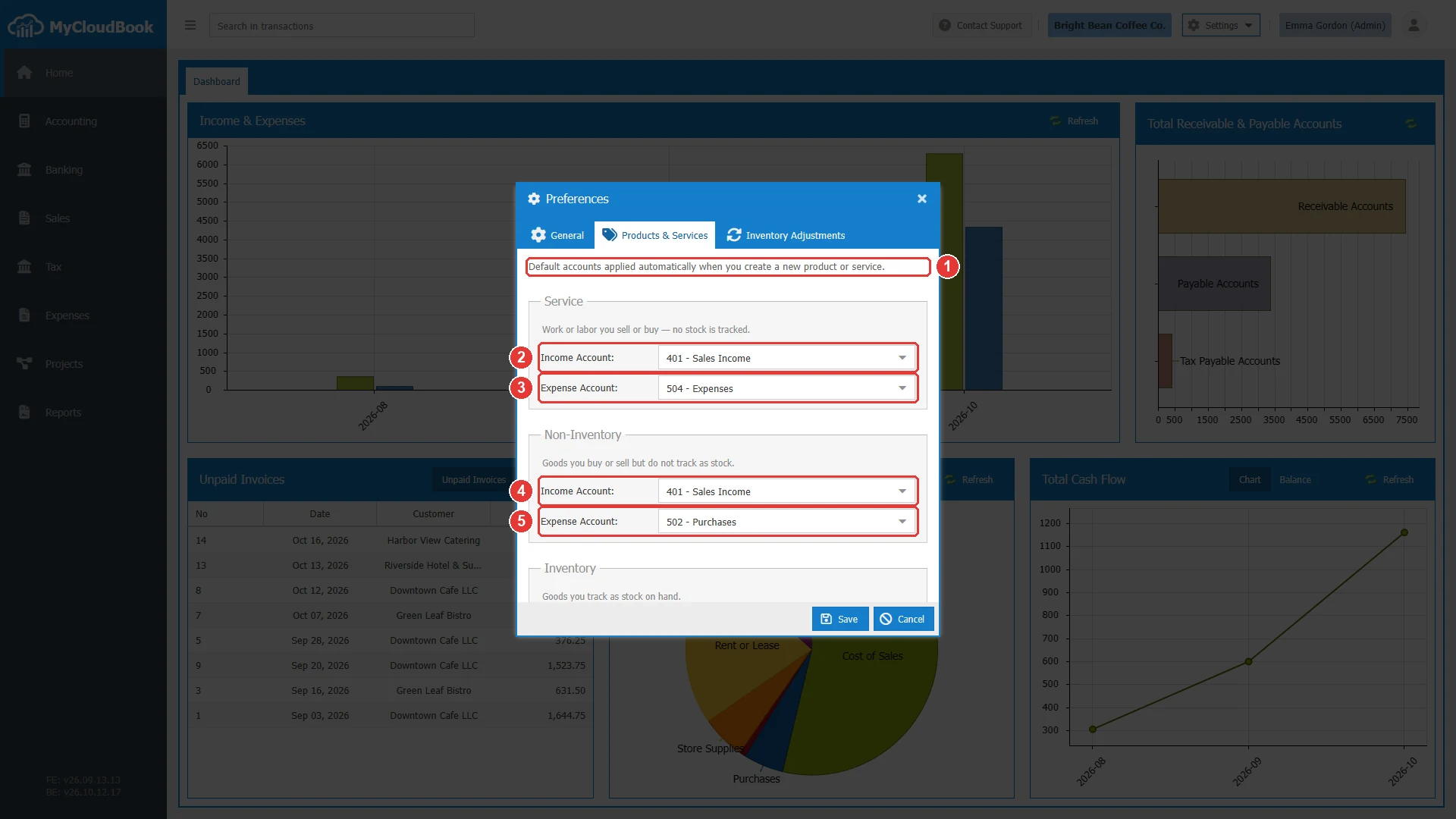
- 1The purpose of the tab.
- 2Service: Income Account. Here 401 - Sales Income.
- 3Service: Expense Account. Here 504 - Expenses.
- 4Non-Inventory: Income Account. Here 401 - Sales Income.
- 5Non-Inventory: Expense Account. Here 502 - Purchases.
The tab scrolls. The Inventory group is at its end.
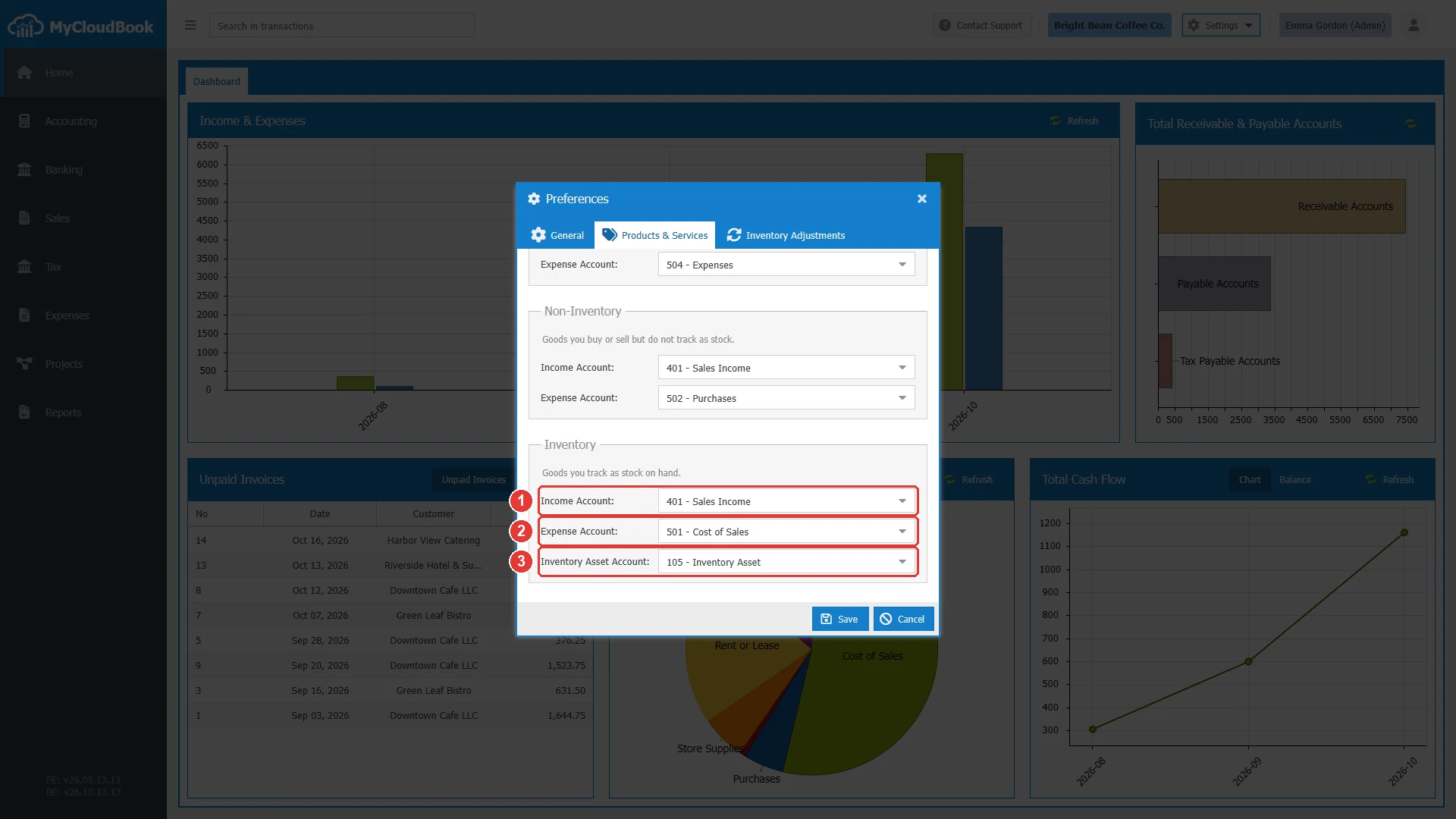
- 1Inventory: Income Account. Here 401 - Sales Income.
- 2Inventory: Expense Account. The cost of the goods sold, here 501 - Cost of Sales.
- 3Inventory: Inventory Asset Account. The value of the stock on hand, here 105 - Inventory Asset.
Each field opens a list of the accounts of the right type. Type a part of the account number or the name to filter the list. Main accounts are shown in gray.
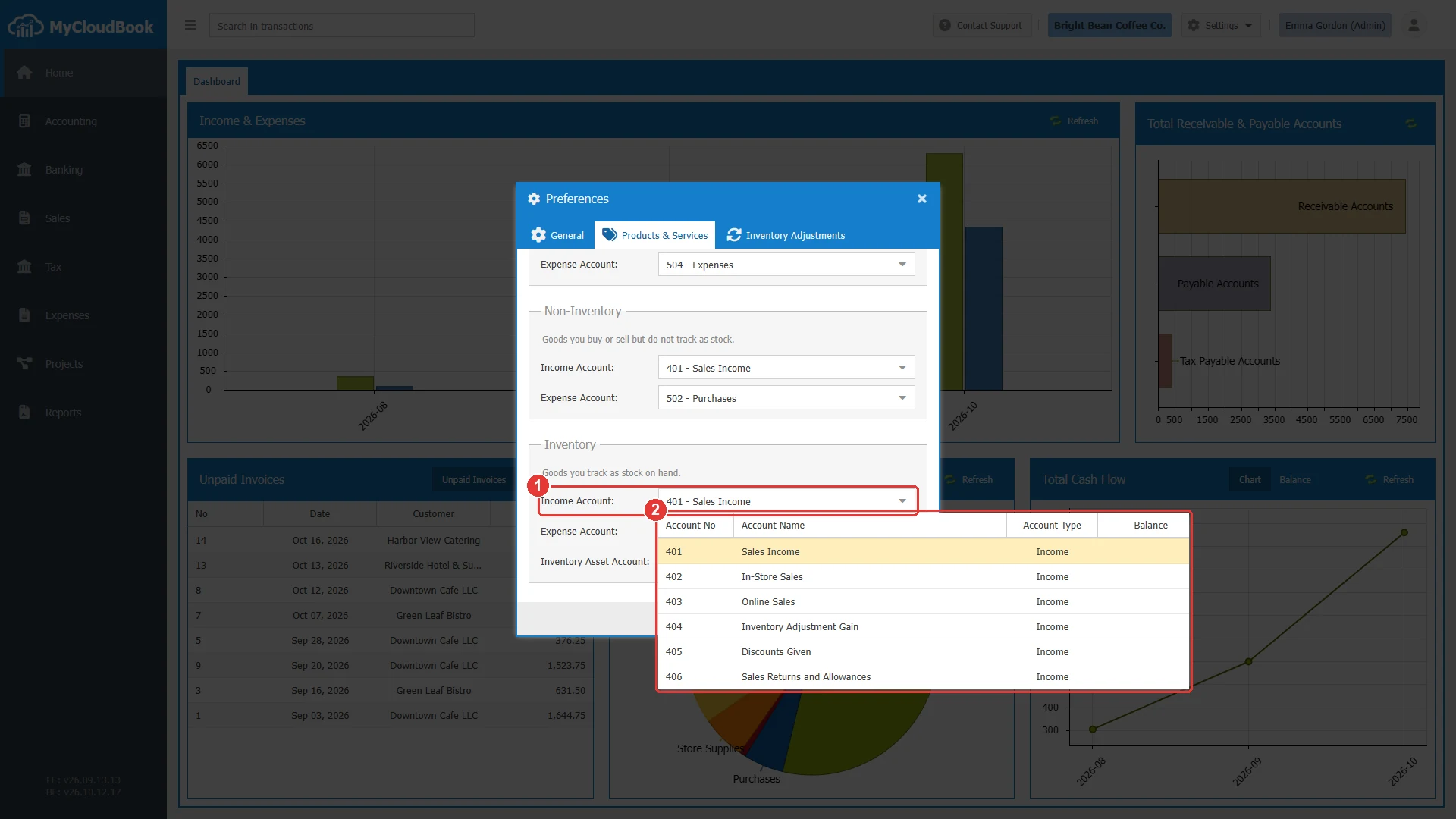
- 1The Income Account field of the Inventory group.
- 2The income accounts of the company, with the columns Account No, Account Name, Account Type, and Balance.
The rules of the default accounts
| Field | Required | Purpose and rules |
|---|---|---|
| Income Account | Optional | An account of the type Income. It receives the sales of the product. |
| Expense Account | Optional | An account of the type Expenses. It receives the purchases of a service or a non-inventory product, and the cost of the goods sold of an inventory product. |
| Inventory Asset Account | Optional | An account of the type Assets in the main currency. It holds the value of the stock of the inventory products. |
- A main account cannot be a default account, because MyCloudBook does not post to main accounts. Choose a sub account.
- An empty field gives no account to new products of that type. The user then chooses the account in the product window.
- An account that is a default account cannot be deleted from the chart of accounts. Choose another default account first.
- The AI Importer also uses these accounts when an imported product has no account.
The Inventory Adjustments tab
The Inventory Adjustments tab holds the two accounts of a new inventory adjustment. An increase adds stock and records a gain in an income account. A decrease removes stock and records a loss in an expense account. See Products and Services for the adjustments.
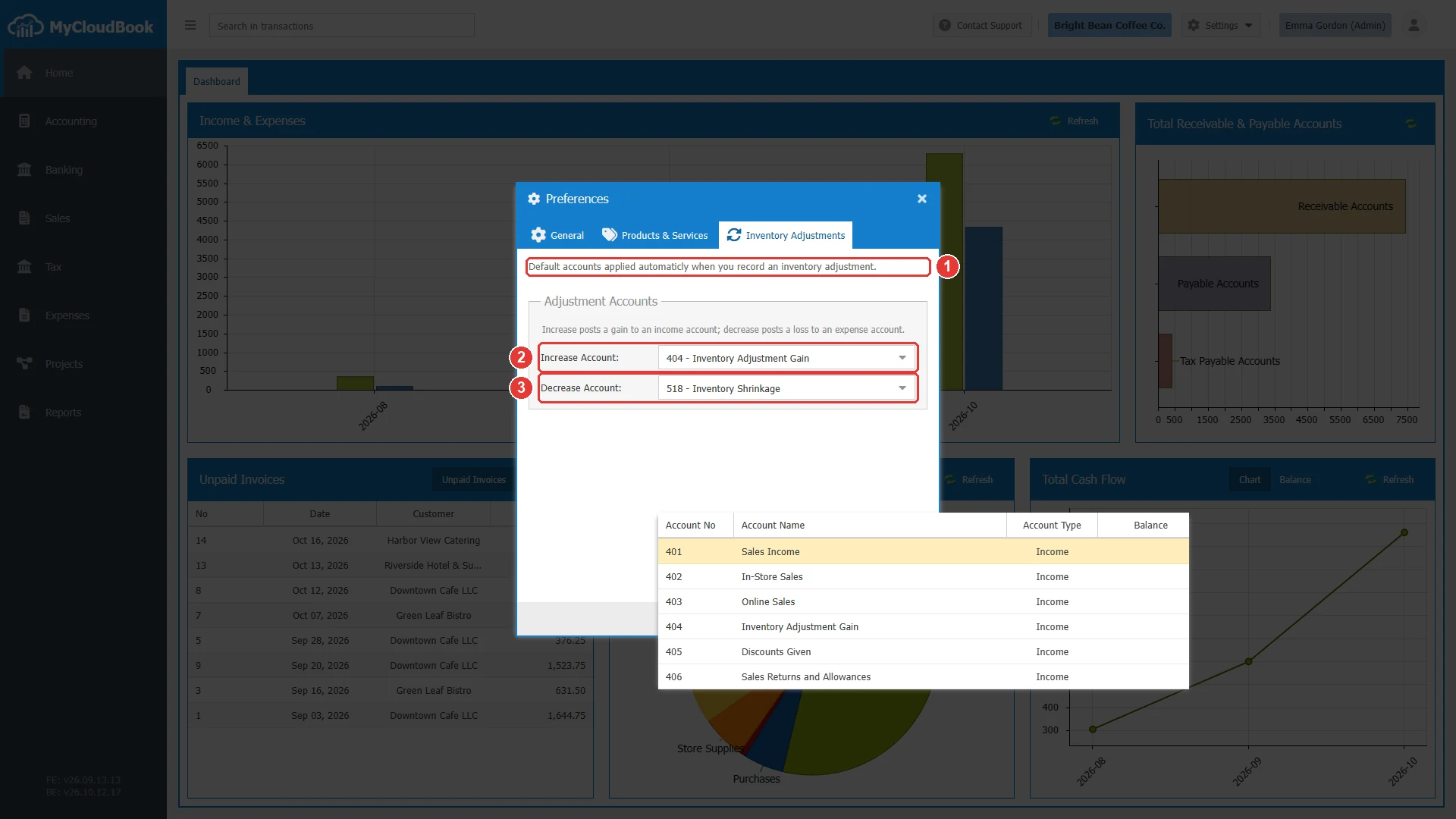
- 1The purpose of the tab.
- 2Increase Account. An income account in the main currency, here 404 - Inventory Adjustment Gain.
- 3Decrease Account. An expense account in the main currency, here 518 - Inventory Shrinkage.
Saving the preferences
- Change the values on one or more tabs.
- Click Save.
- Answer the question with Yes.
A click on Save first shows the question Clicking ‘Yes’ button will refresh the page, please save any opened document before. The save reloads the whole application, so every screen uses the new values at once. Save the open documents first, because the reload closes every open tab without a save.
- Click Yes to save. MyCloudBook saves the preferences and loads the application again.
- Click No to keep the window open without a save.
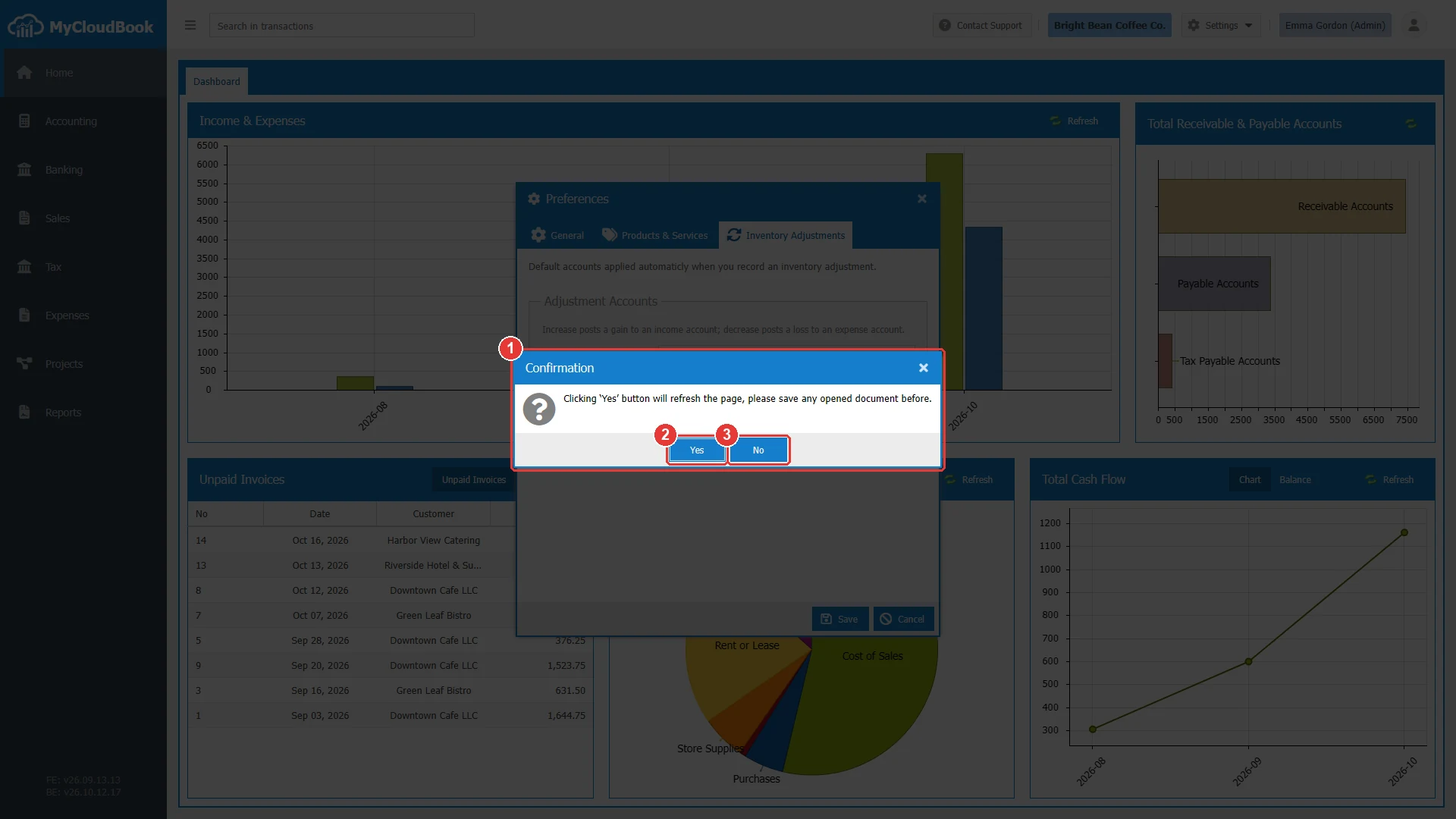
- 1The question. The save reloads the page.
- 2Yes. Saves and reloads the page.
- 3No. Returns to the window without a save.
MyCloudBook checks every value before it stores any of them. When one value is refused, the window shows the message and nothing is saved.
Messages and their meaning
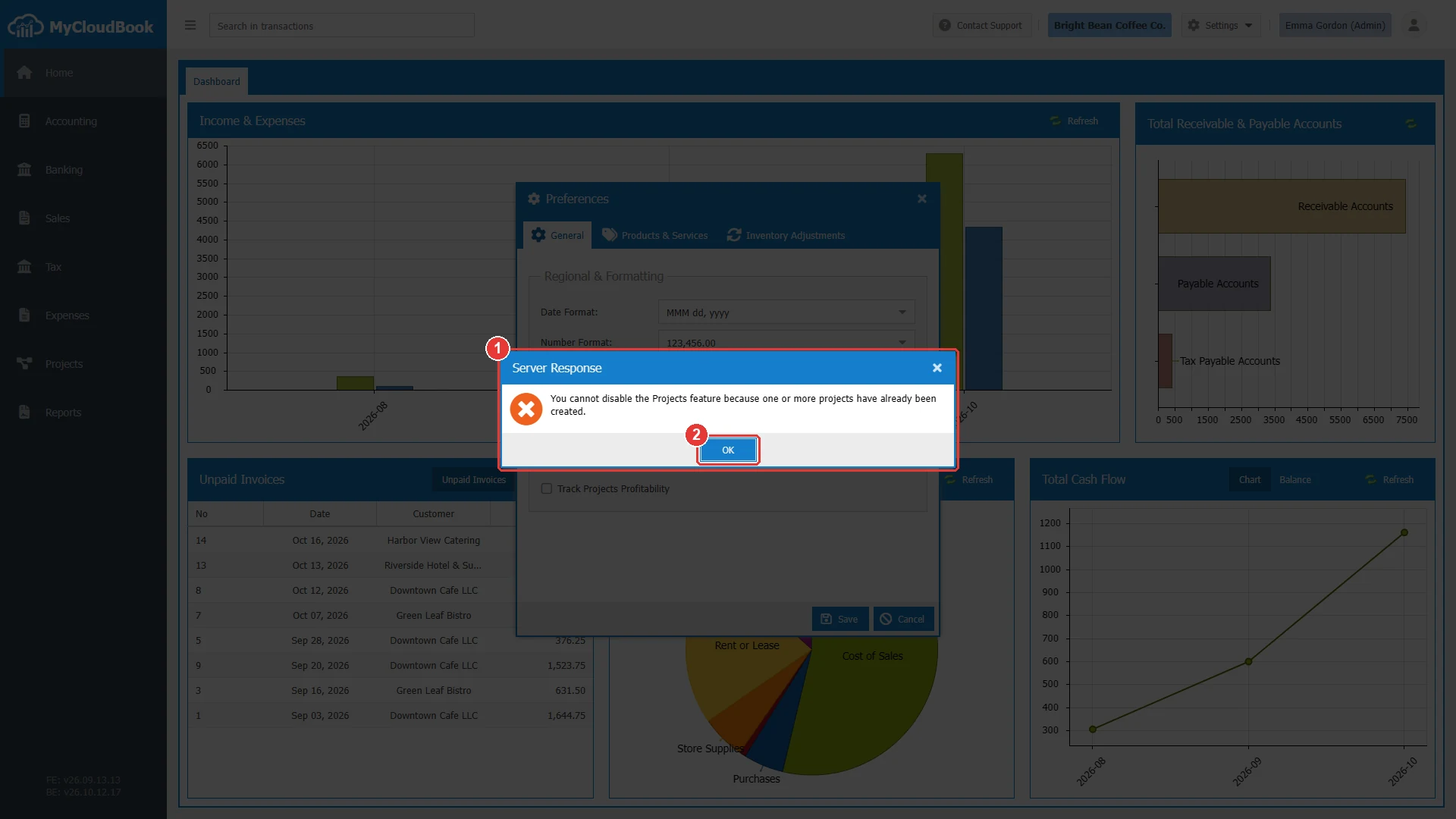
- 1The message of the server.
- 2OK. Closes the message. The window stays open, and nothing is saved.
Questions and answers
Does a new date format change my documents?
The format changes only how MyCloudBook shows and prints the dates. The dates of the documents stay the same.
Can I turn multi-currency off again?
Yes, while the company has no currency other than the main currency. Remove the added currencies first in Settings, Currencies.
Do the default accounts change the existing products?
No. They apply to the products and services that are created after the save. The accounts of an existing product are changed in the product window.
Why can I not choose a main account as a default account?
MyCloudBook does not post to main accounts. A default account must be a sub account of the right type.
Why does the page reload after the save?
The reload makes every screen use the new settings at once. Save the open documents before you click Yes.