Language
This guide explains how to change the language of the MyCloudBook screens, and what the language changes.
Overview
The screens of MyCloudBook are available in eight languages. The Language window changes the language of the menus, the buttons, and the labels of the application. The data of the company keeps its own language: the names of the customers, the products, and the accounts, and the printed documents do not change.
The choice is stored in the browser. It applies to every company that the user opens in this browser on this computer. Another browser or another computer starts in English until a language is chosen there.
| Language in the list | Language |
|---|---|
| English | English. The default language. |
| Español | Spanish. |
| Português | Portuguese. |
| Français | French. |
| Italiano | Italian. |
| Deutsch | German. |
| العربية | Arabic. The screens use the right-to-left layout: the navigation is on the right side. |
| Türkçe | Turkish. |
How to open the window
- In the top bar, click the round user icon at the right end, next to the name of the user.
- In the menu, click Language.
The user menu is shown to every user, whatever the role of the user.
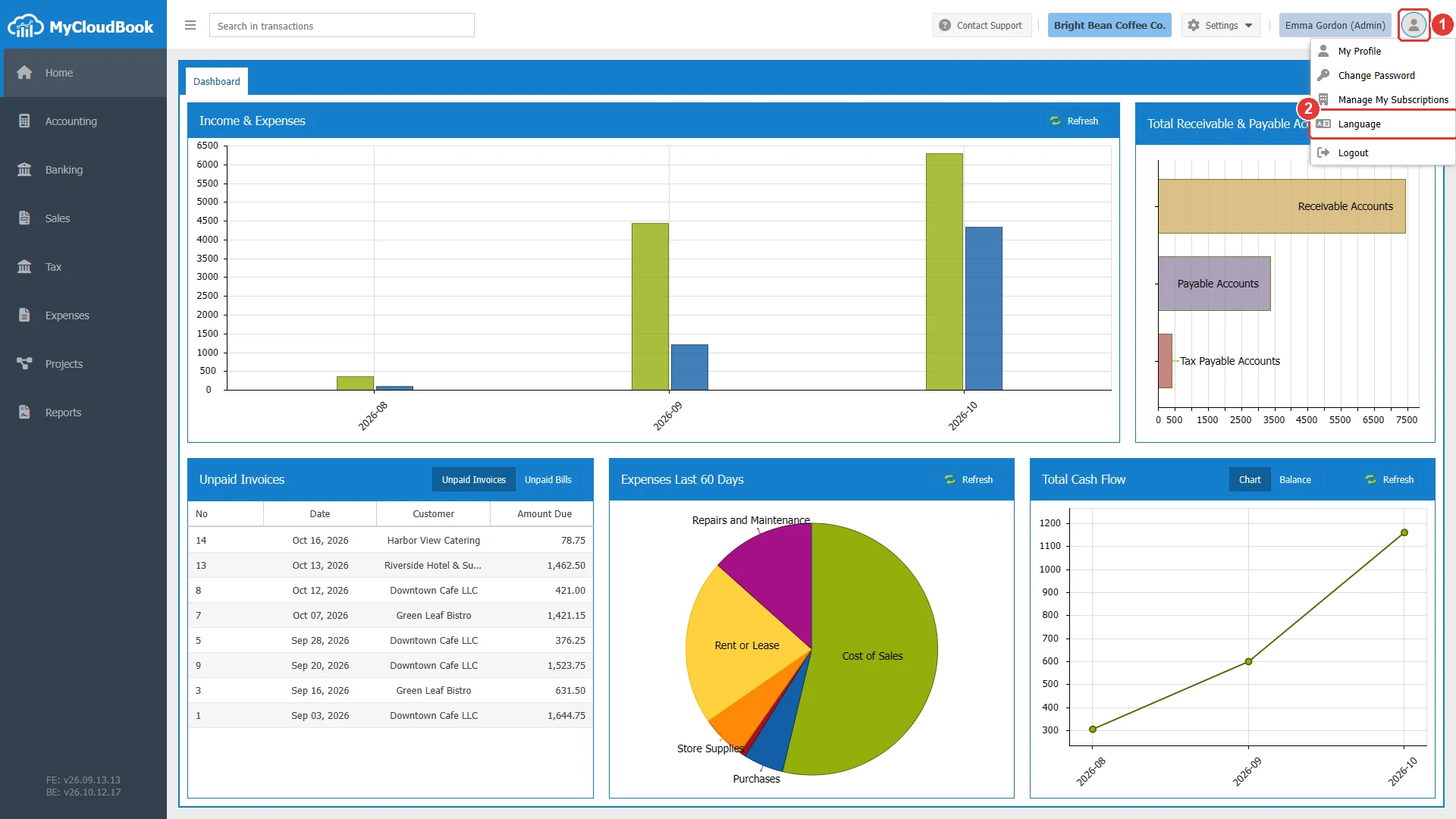
- 1The user icon. Opens the menu with My Profile, Change Password, Manage My Subscriptions, Language, and Logout.
- 2Language.
The window opens with the title Select Language. The list shows the current language.
Changing the language
- Open the Language list and click the language.
- Click Apply. MyCloudBook shows Loading translation..., loads the texts of the language, and reloads the page.
The reload closes the open tabs. Save the open documents before you click Apply. To return to English, open the same window and choose English.
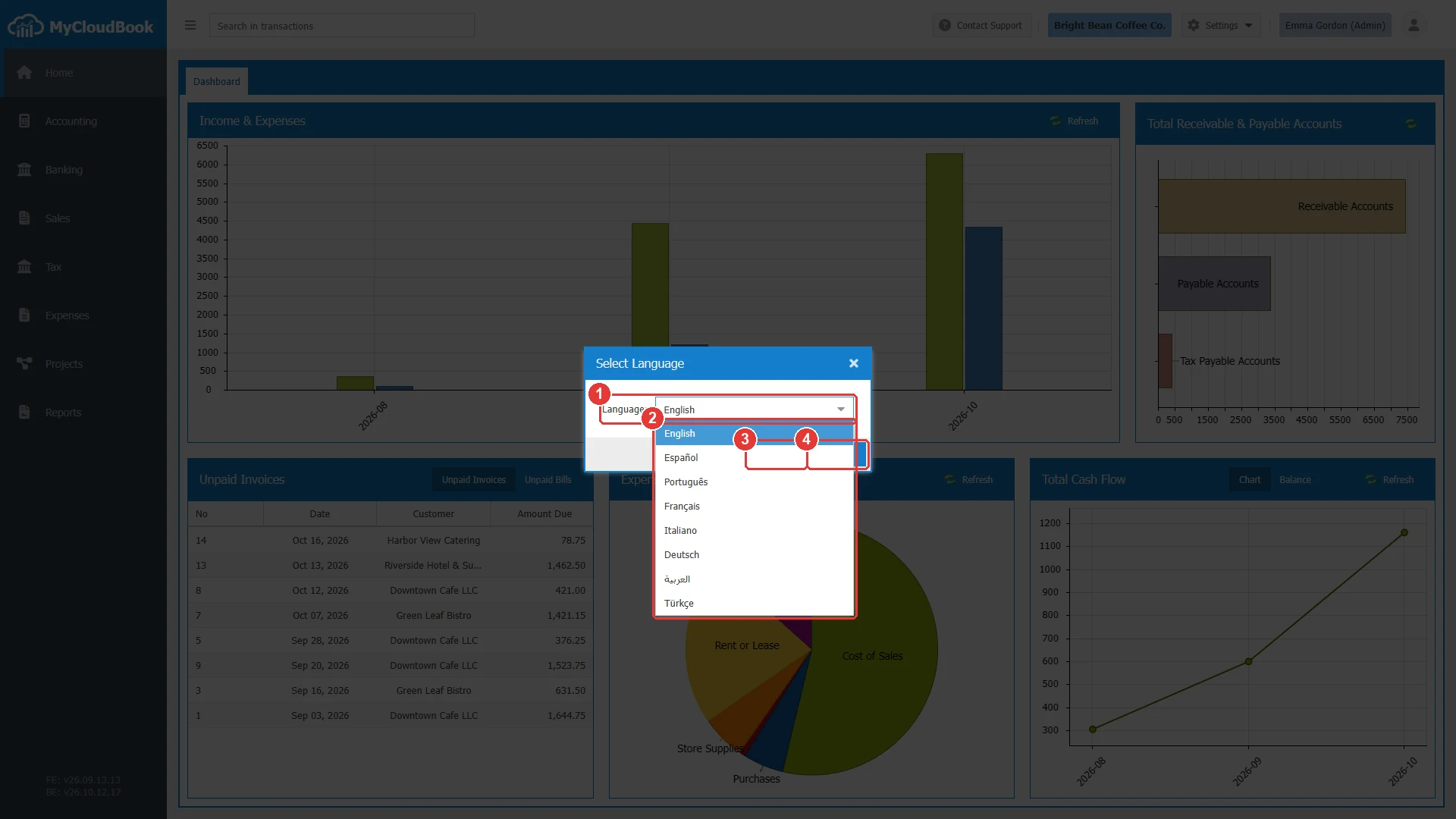
- 1Language. The current language is selected.
- 2The eight languages, each in its own language.
- 3Apply. Loads the language and reloads the page.
- 4Cancel. Closes the window without a change.
Messages and their meaning
Questions and answers
How do I change the language of MyCloudBook?
Click the user icon in the top bar, then Language. Choose the language and click Apply. The page reloads in the new language.
Which languages does MyCloudBook offer?
English, Spanish, Portuguese, French, Italian, German, Arabic, and Turkish.
Does the language change my invoices or my data?
No. The language changes the screens of the application. The data of the company and the printed documents keep their own language.
Why is my language English on another computer?
The choice is stored in the browser. Choose the language once in each browser that you use.