Company Info
This guide explains the Company Info window of MyCloudBook: the company number, the name and the contact details of the company, and where MyCloudBook shows them.
Overview
The Company Info window holds the name, the contact details, and the address of the company. MyCloudBook uses these details in three places:
- the top bar of the application shows the name of the company;
- the header of the printed documents (Portable Document Format, PDF) shows the name, the address, and the contact details, for example on invoices, receipts, estimates, sales orders, vouchers, bills, and expenses;
- the name of a downloaded PDF document starts with the name of the company, for example Bright_Bean_Coffee_Co.-Invoice-#14.pdf.
MyCloudBook assigns the company number when the company is created. The number stays the same for the life of the company. The main currency and the chart of accounts are also set when the company is created. The guides Currencies and Chart of Accounts explain them.
How to open the window
- In the top bar, click Settings. The button is between the name of the company and the name of the user.
- In the menu, click Company Info.
The Settings menu is shown to the users with the Admin role. The other users do not see the menu.
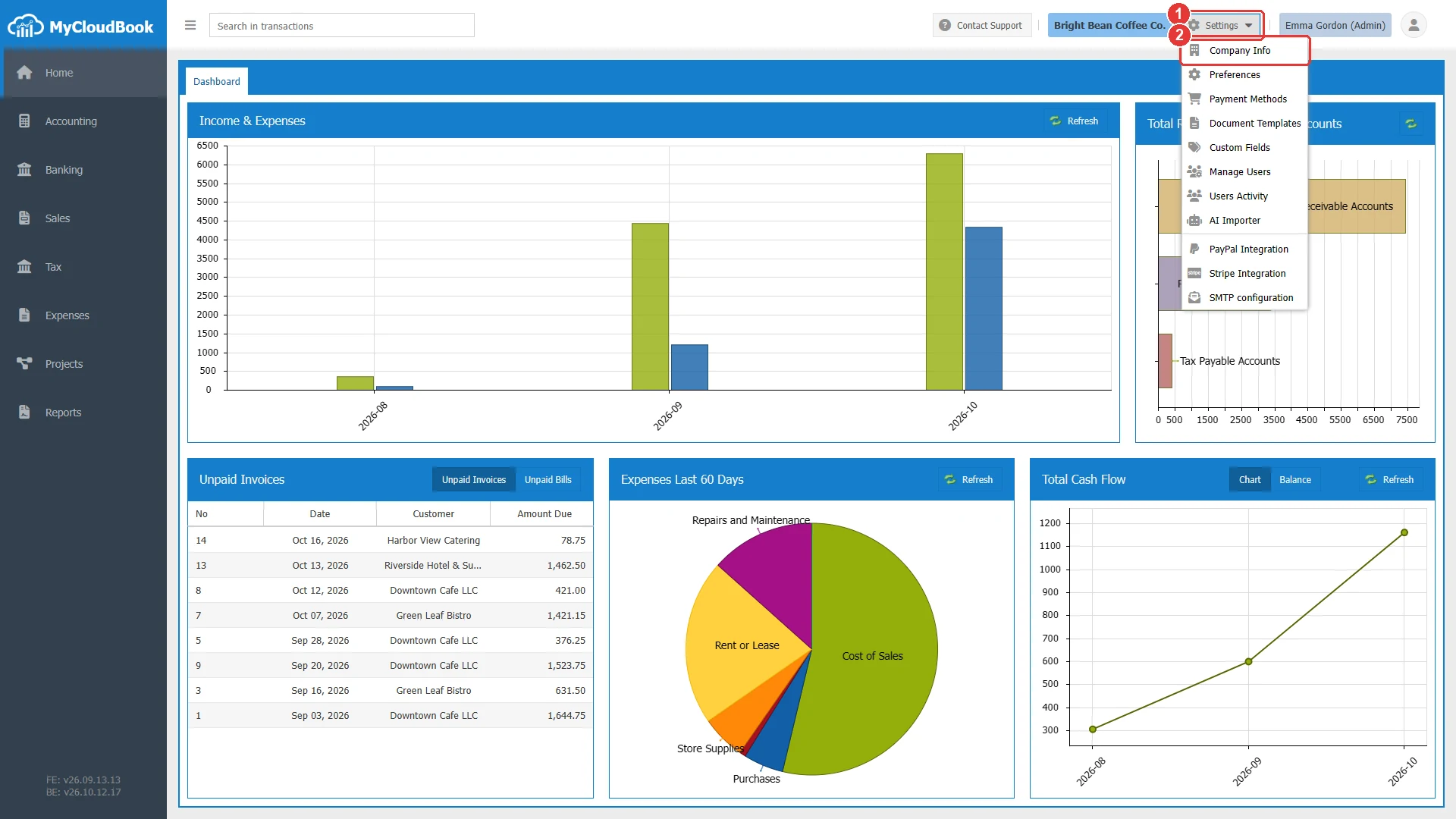
- 1Settings. Opens the menu of the company settings.
- 2Company Info.
The Company Info window
The window has two groups: Main Company Info and Company Address. The example shows the test company Bright Bean Coffee Co. with fictional contact details.
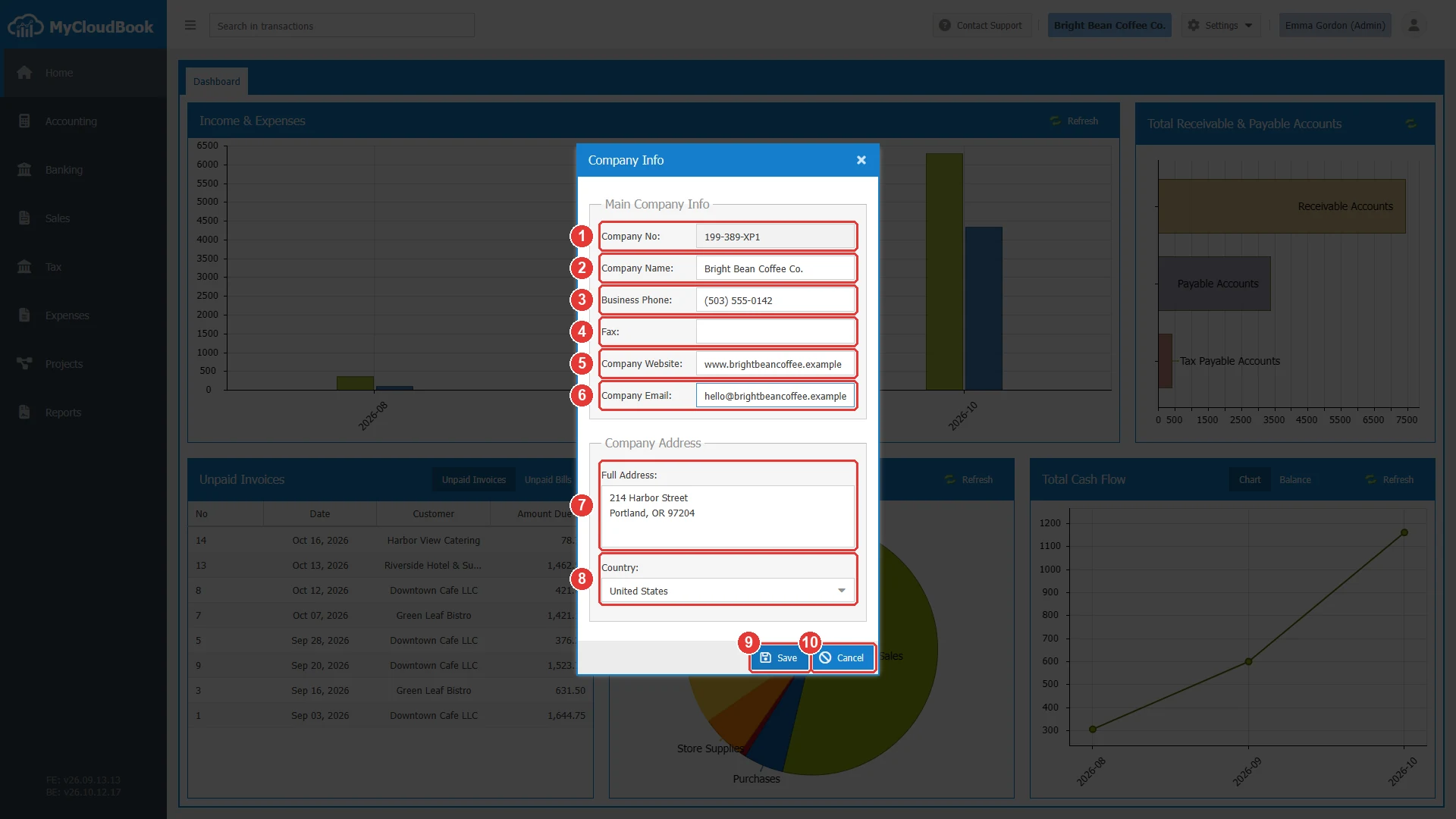
- 1Company No. The number of the company in MyCloudBook. It is read-only.
- 2Company Name. Required.
- 3Business Phone.
- 4Fax. Empty in the example.
- 5Company Website.
- 6Company Email. The email address where the customers can contact the company.
- 7Full Address. The address of the company, for example the street, the city, the state, and the postal code.
- 8Country. Required. A list of the countries.
- 9Save. Asks for a confirmation, saves, and reloads the page.
- 10Cancel. Closes the window without a save.
The fields
| Field | Required | Purpose and rules |
|---|---|---|
| Company No | Read-only | Assigned by MyCloudBook when the company is created. Give this number to the support team when you ask for help about the company. |
| Company Name | Required | The name in the top bar, on the documents, and in the names of the downloaded PDF files. Up to 255 characters. |
| Business Phone | Optional | Shown in the header of the documents as Phone. Up to 50 characters. |
| Fax | Optional | Shown in the header of the standard document templates as Fax. Up to 50 characters. |
| Company Website | Optional | The address of the website of the company, for example www.brightbeancoffee.example. Up to 255 characters. |
| Company Email | Optional | The email address that the customers use to contact the company. MyCloudBook checks the form of the address. Up to 255 characters. The tip of the field reads Customer-facing email: Where your customers can contact you. |
| Full Address | Optional | The postal address of the company. Up to 500 characters. |
| Country | Required | The country of the company. Type a part of the name to filter the list, then choose the country. |
Saving the changes
- Change the values in the window.
- Click Save.
- Answer the question with Yes.
A click on Save first shows the question Clicking ‘Yes’ button will refresh the page, please save any opened document before. The save reloads the whole application, so every screen uses the new values at once. Save the open documents first, because the reload closes every open tab without a save.
- Click Yes to save. MyCloudBook saves the company details and loads the application again.
- Click No to keep the window open without a save.
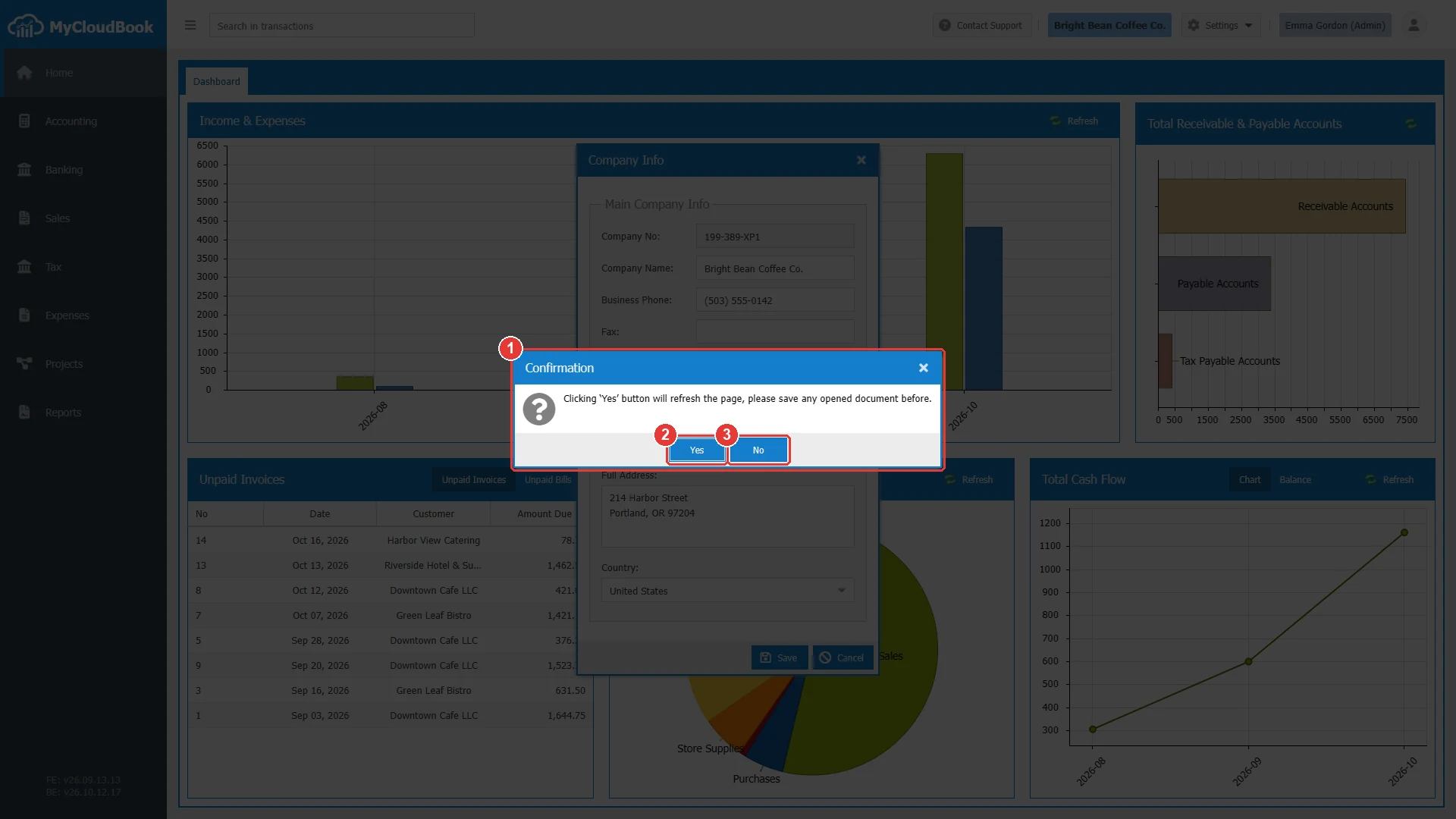
- 1The question. The save reloads the page.
- 2Yes. Saves and reloads the page.
- 3No. Returns to the window without a save.
After the reload, the top bar shows the new name, and the next printed document uses the new details. Documents that were printed or downloaded before the change keep the old details.
The company details on the documents
The document templates read the company details when MyCloudBook creates the PDF document. The standard templates show the name, the address, the phone number, and the fax number in the header. Some templates of the gallery also show the email address and the website. See Document Templates.
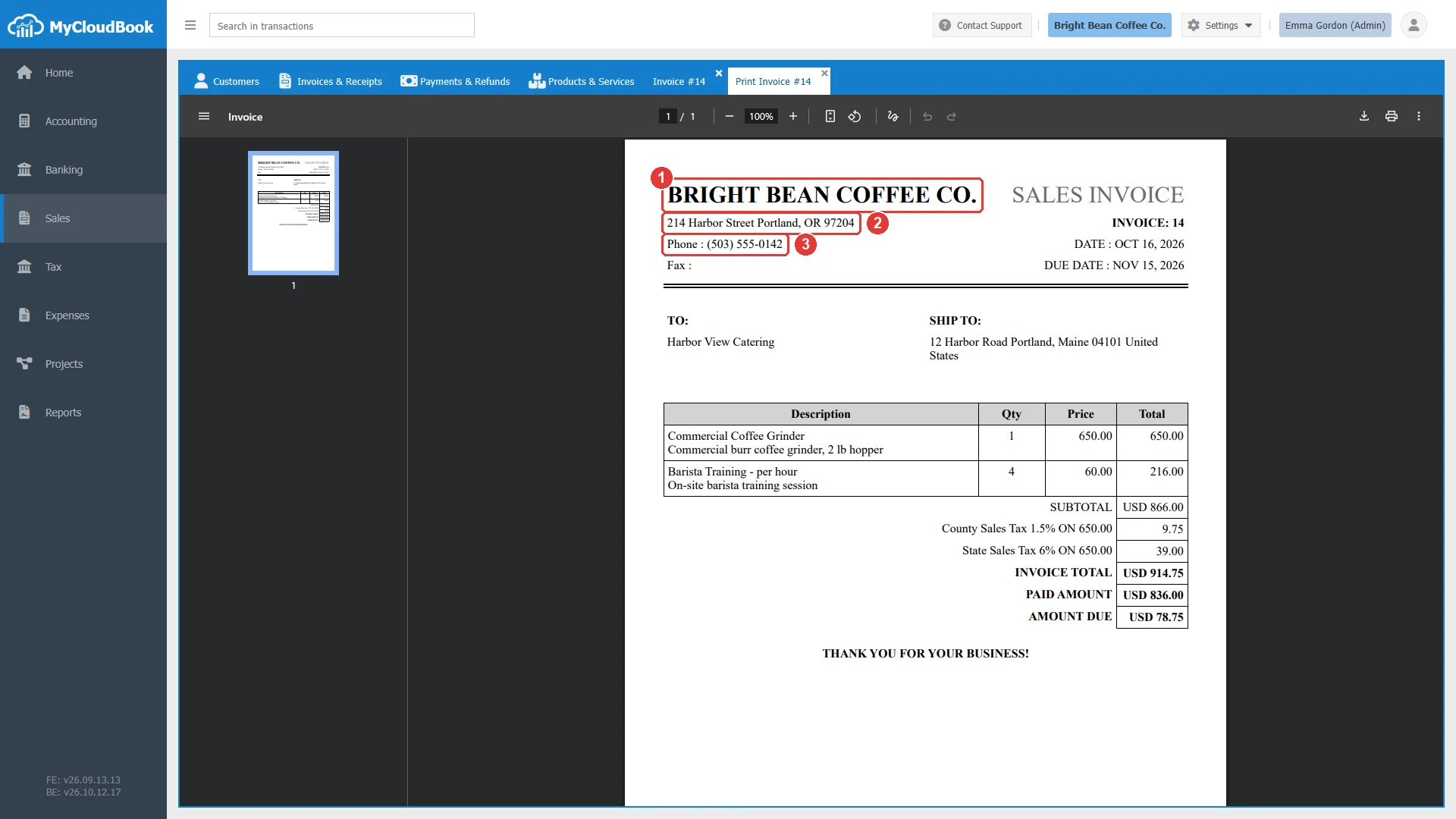
- 1The name of the company, in capital letters.
- 2The Full Address.
- 3The Business Phone.
Messages and their meaning
Questions and answers
What is the company number for?
The company number identifies the company. MyCloudBook assigns it when the company is created, and it stays the same. Give it to the support team when you ask for help.
Where does the company name appear?
In the top bar of the application, in the header of the printed documents, and at the start of the names of the downloaded PDF documents.
Why does the page reload after the save?
The reload makes every screen use the new details at once. Save the open documents before you click Yes, because the reload closes the open tabs.
Does the country change the main currency of the company?
No. The main currency is set when the company is created, and the country does not affect it. A multi-currency company adds other currencies in Settings, Currencies.
Who can change the company information?
The users with the Admin role. The Settings menu is shown only to them.