Purchase Orders
This guide explains how to order goods from a supplier with a purchase order, how to send and print it, and how to connect it to the bill when the goods arrive.
Overview
A purchase order is the order that the company sends to a supplier before the goods or the services arrive. It lists what the company wants to buy, the quantities, and the prices. The supplier receives it as a PDF or through a link in an email.
A purchase order has no accounting effect. It creates no journal entry, it does not change the stock, and it does not change the balance of the supplier. When the goods and the supplier's bill arrive, record a bill with the Bills and Expenses screens, and link the purchase order to the bill.
Purchase orders are in the Bills & Expenses list, together with the bills, the expenses, and the drafts. They use the same screen as a bill, with a few differences that this guide explains.
How to open the screen
- In the left navigation, click Expenses, then the Bills & Expenses tab.
- To create a purchase order, click New, then New Purchase Order.
- To see the purchase orders only, select Purchase Order in the Document Type filter.
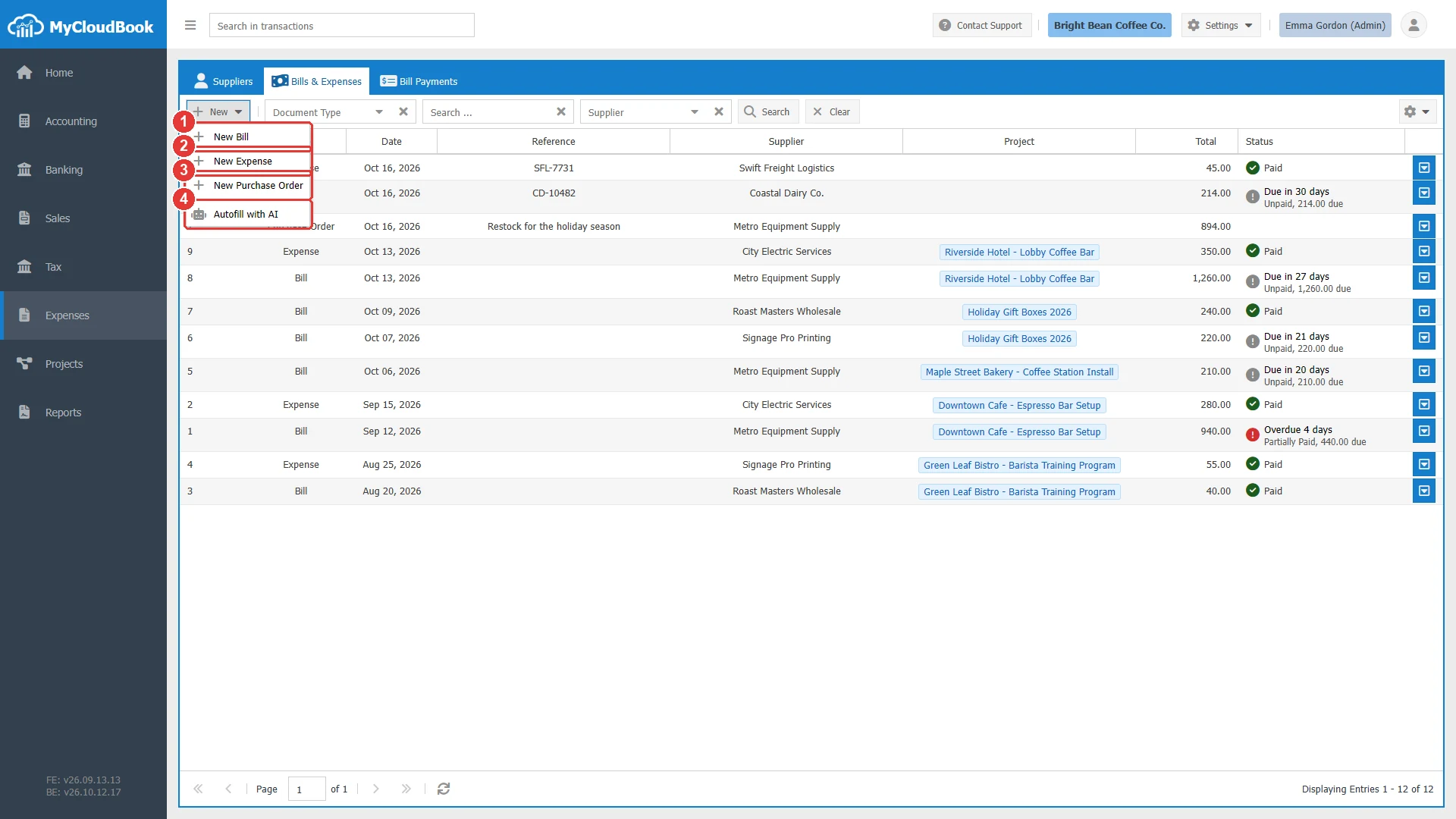
- 1New Bill.
- 2New Expense.
- 3New Purchase Order.
- 4Autofill with AI. Creates drafts of bills and expenses from pictures of documents.
When the company uses projects, the Edit menu of a project also has New Purchase Order. The new purchase order then opens in the Projects page, with the project on its first line. The Documents tab of a supplier lists the purchase orders of that supplier.
Creating a purchase order
In the example, the coffee shop orders two commercial coffee grinders and six milk frothing pitchers from Metro Equipment Supply for the holiday season.
- Click New, then New Purchase Order. The tab New Purchase Order opens.
- Select the Supplier. A purchase order must have a supplier.
- Type a Ref if you use one, and check the Date. Set the Expected Date if you know when the goods arrive.
- Click Product & Services to order products of the product list. For each line, select the Product / Service and type the QTY. Check the Unit Price.
- Click Save. The tab title becomes Purchase Order #1.
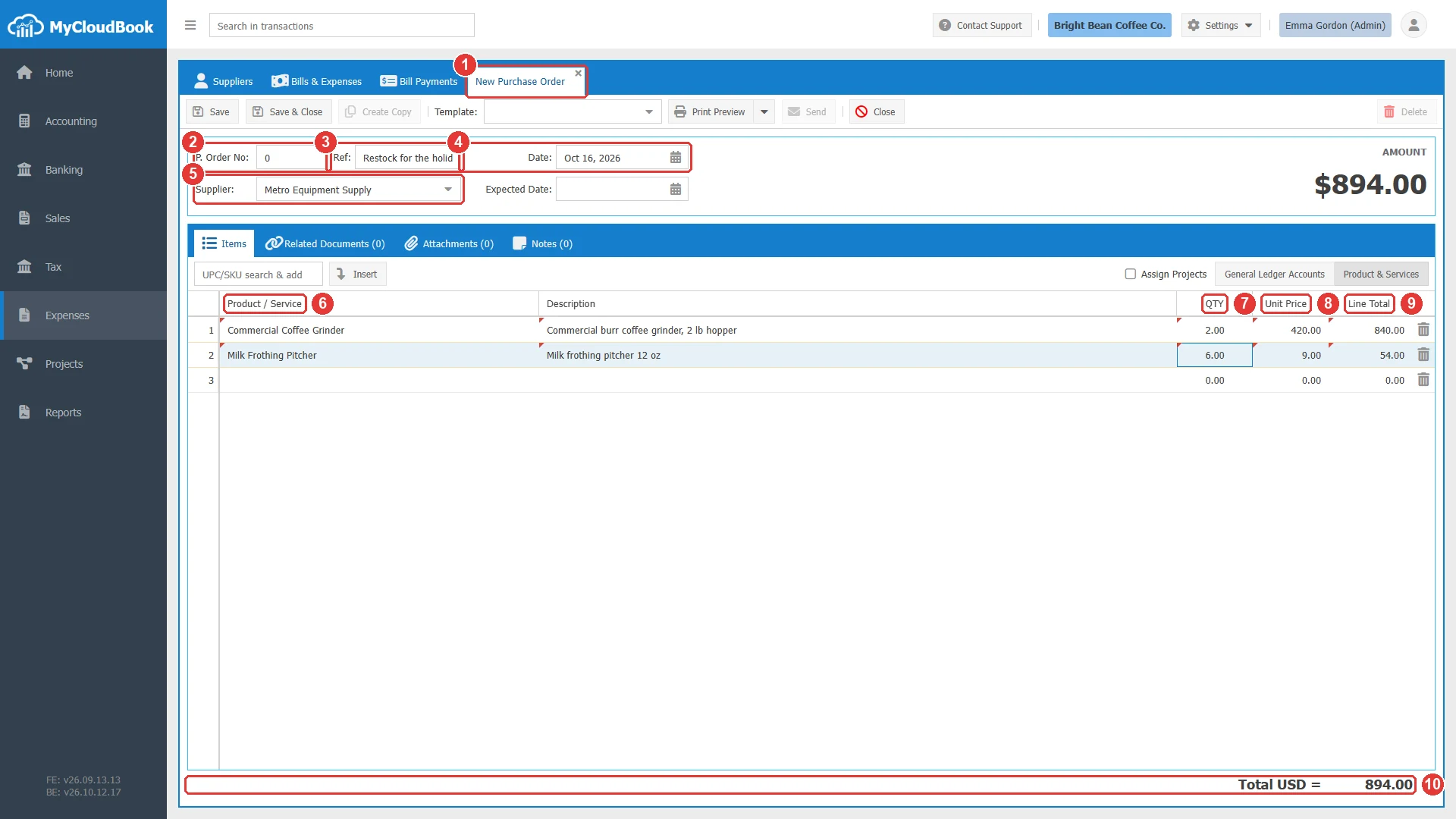
- 1The tab of the new purchase order.
- 2P. Order No. Keep 0, and MyCloudBook gives the next purchase order number.
- 3Ref: Restock for the holiday season.
- 4Date. The default is today.
- 5Supplier. Required.
- 6Product / Service. The products that are marked for purchase. The description and the purchase price come from the product.
- 7QTY.
- 8Unit Price.
- 9Line Total. The quantity times the unit price.
- 10The total of the purchase order: 894.00.
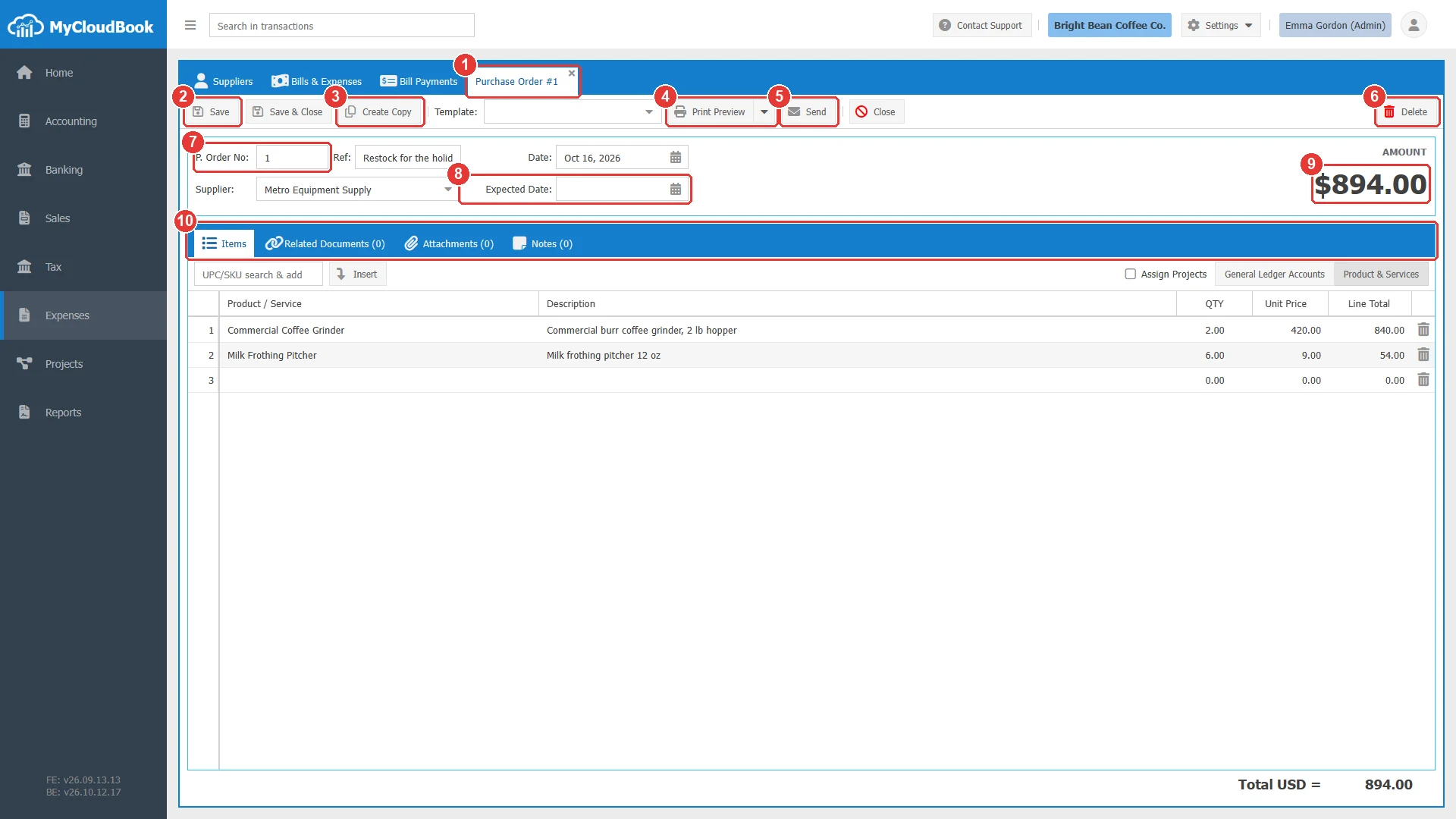
- 1The tab title Purchase Order #1.
- 2Save. A purchase order has no Save as Draft.
- 3Create Copy. Opens a new purchase order with the same supplier and lines.
- 4Print Preview. Saves the purchase order and shows its PDF. The menu has Download PDF Format.
- 5Send. Opens the email window. See Sending a purchase order.
- 6Delete.
- 7P. Order No. The number cannot change after the first save.
- 8Expected Date. Optional. Here it is empty.
- 9AMOUNT. The total of the purchase order.
- 10The tabs Items, Related Documents, Attachments, and Notes.
The fields
| Field | Required | Purpose and rules |
|---|---|---|
| P. Order No | Required | Keep 0, and MyCloudBook gives the largest purchase order number plus 1. Purchase orders have their own number sequence, separate from the bills and expenses. |
| Ref | Optional | A reference of your choice, up to 100 characters. |
| Date | Required | The date of the order. The default is today. |
| Supplier | Required | The active suppliers. A purchase order without a supplier is refused with You must provide 'Contact'. |
| Expected Date | Optional | The date when you expect the goods. It is printed on the purchase order. |
| Template | Optional | A print template of the purchase order type. |
| Lines | Required | At least one line with a product or an account. The rules are the same as on a bill. Enter all the lines in one mode. |
The number
A purchase order keeps the number 0 until it is saved. The save gives the next purchase order number. Because purchase orders have their own sequence, Purchase Order #1 and Bill #1 can both exist.
From the purchase order to the bill
When the goods arrive with the supplier's bill, record the bill and link the purchase order to it:
- Create the bill with New Bill, and enter the lines of the supplier's bill. In the example, Bill #12 of Metro Equipment Supply has the same two grinders and six pitchers, with the reference MES-55120.
- Save the bill. Then open its Related Documents tab.
- In Search to add, type a part of the reference or the number of the purchase order, for example Restock, and click Add on the purchase order. The message The Bill #12 connected successfully to the Purchase Order #1 appears.
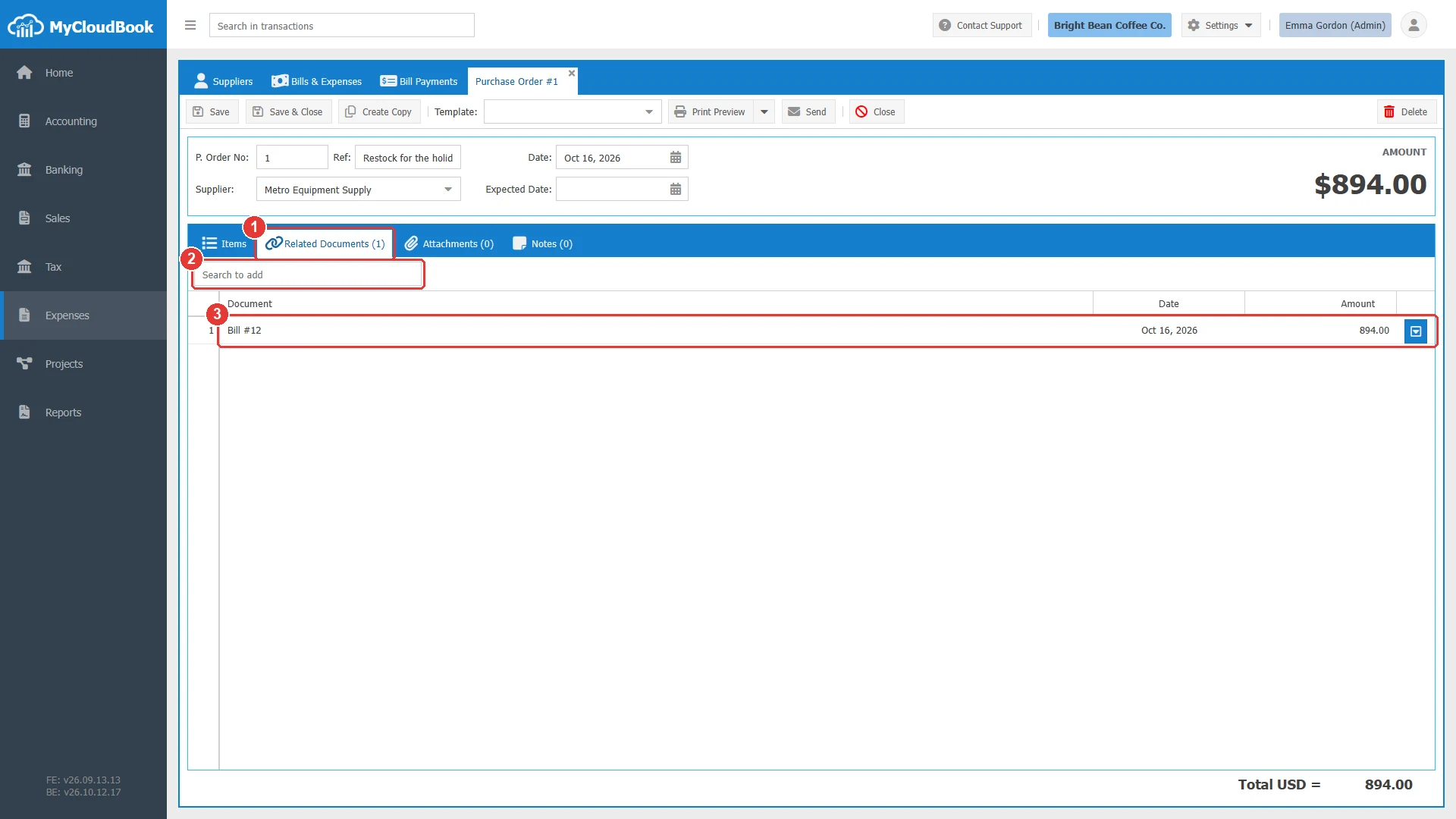
- 1Related Documents (1).
- 2Search to add. Finds other documents to link.
- 3The linked bill. Its menu has Open Document and Remove.
- The link is visible on both documents. A double click on the row opens the other document.
- One purchase order can be linked to several bills, for example when the goods arrive in two deliveries.
Sending a purchase order
Send emails the purchase order to the supplier. The button is enabled after the first save. MyCloudBook saves the purchase order, then opens the window Send Purchase Order #1.
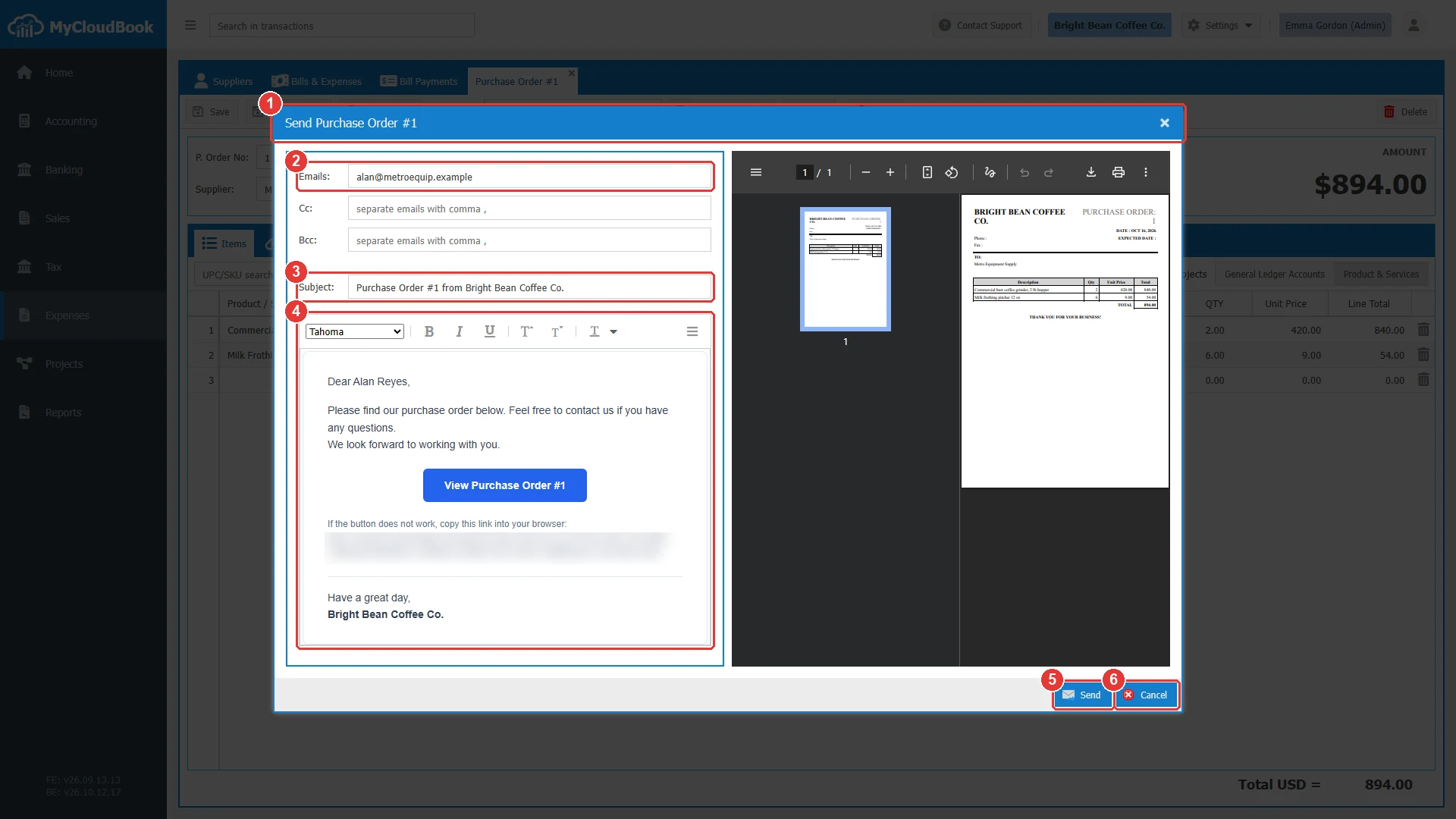
- 1The title of the window.
- 2Emails. Required. The email of the supplier's primary contact person is proposed. Separate several emails with commas.
- 3Subject. The default is Purchase Order #1 from Bright Bean Coffee Co.
- 4The text of the email, with the button View Purchase Order #1. You can change the text.
- 5Send. Sends the email.
- 6Cancel. Closes the window without an email.
- Cc and Bcc accept more emails. Each of the three fields accepts up to five emails.
- The supplier opens the purchase order through the link in the email. The page of the link shows the purchase order, its expected date, its total, and the PDF.
- The company must have its email (SMTP) settings. Otherwise the message SMTP is not configured. Please configure it to send emails. appears.
- After the email, the message Message send successfully appears.
Printing a purchase order
Print Preview saves the purchase order and opens its PDF in the tab Print Purchase Order #1. Download PDF Format downloads the file. The row menu of the list has the same two items.
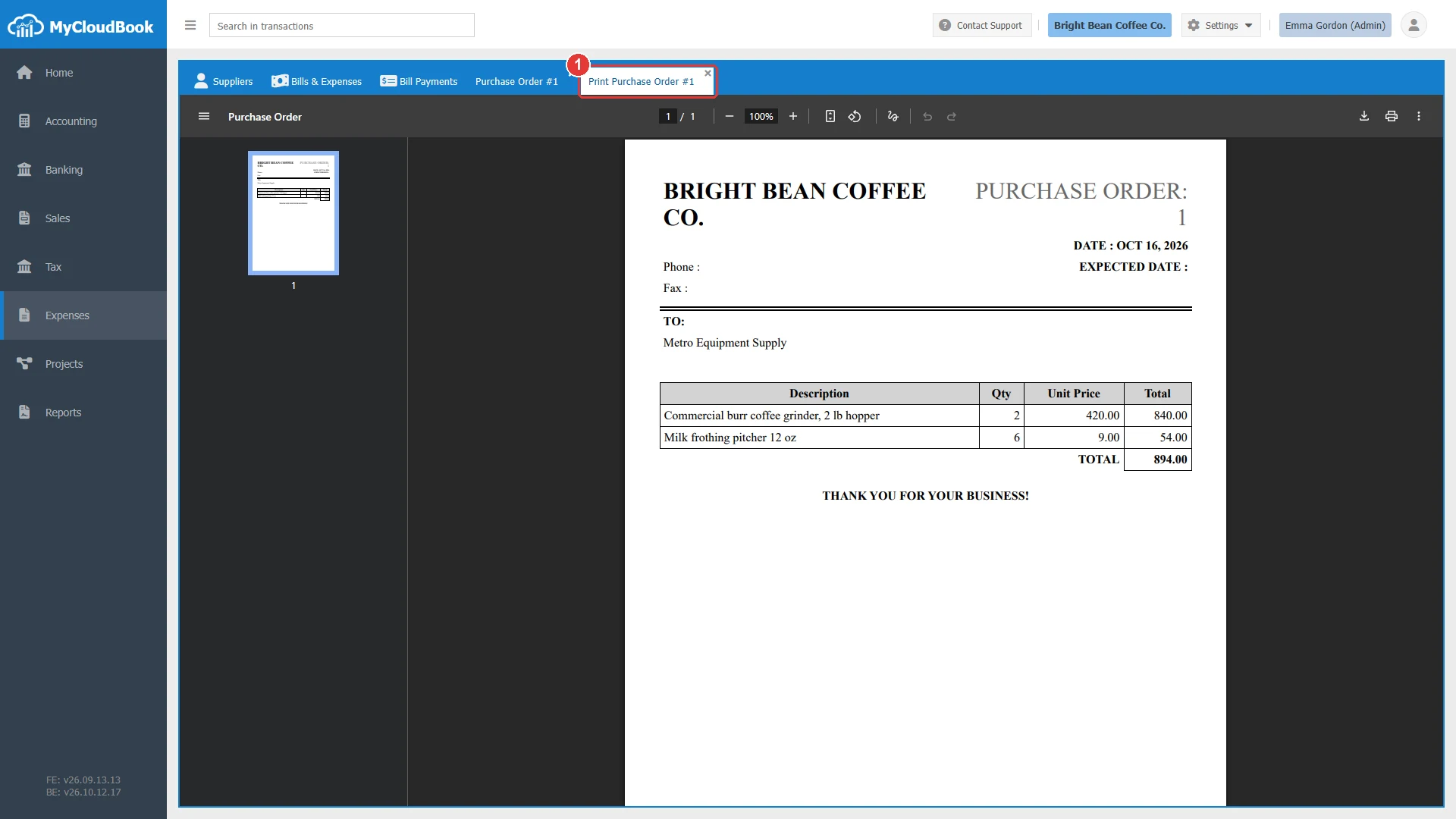
- 1The tab Print Purchase Order #1.
- The PDF shows the company, the number, the date, the expected date, the supplier name, the lines, and the total.
- The print templates of purchase orders are in the Document Templates window of the Settings menu, in the group Supplier Related.
Purchase orders in the list
In the Bills & Expenses list, a purchase order row has the type Purchase Order, the total, and an empty Status cell.
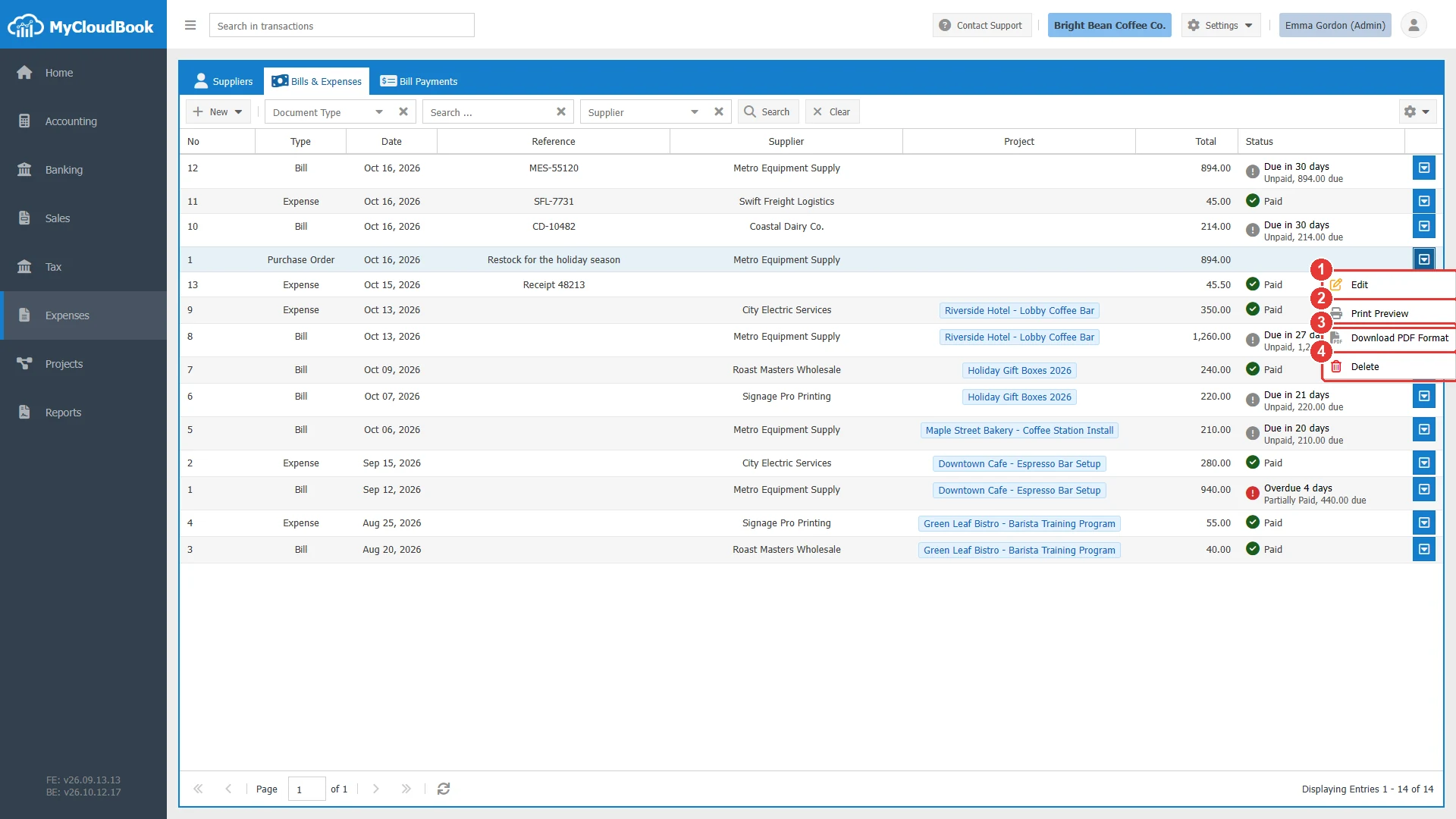
- 1Edit. Opens the purchase order.
- 2Print Preview.
- 3Download PDF Format.
- 4Delete.
Deleting a purchase order
- Open the purchase order and click Delete, or use Delete in the row menu of the list.
- The question Are you sure you want to delete the Purchase Order No#:1 appears. Click Yes.
- The message Purchase Order #1 deleted successfully. appears.
| The purchase order | Result of the delete |
|---|---|
| Has a line of a completed project | Refused: The project '...' is marked as completed. You cannot delete the Purchase Order #1 from it. |
| Any other purchase order | Deleted. Nothing else changes, because a purchase order has no accounting effect. |
Messages and their meaning
Questions and answers
How do I record the bill of a purchase order in MyCloudBook?
Create the bill with New Bill, enter the lines of the supplier's bill, save it, and link the purchase order in the Related Documents tab of the bill.
Does a purchase order change my accounts or my stock?
No. A purchase order has no journal entry and no stock movement. The bill of the goods changes the accounts and the stock.
Can I email a purchase order to the supplier?
Yes. Save it and click Send. The email has a link to the purchase order. The company needs its email settings.