Stripe Integration
This guide explains the Stripe Integration of MyCloudBook: how customers pay invoices and sales orders by card, how to connect a Stripe account, and how MyCloudBook records the payments and the fees.
Overview
Stripe is an online payment service. With the Stripe Integration, the customers of the company can pay their invoices and sales orders by card. The company needs its own Stripe account.
The customer opens the shared link of an invoice or a sales order, for example from the email of the document. Then the customer clicks Pay with Card. Stripe takes the payment on its own checkout page. For an invoice, the amount is the amount that is still due. For a sales order, the amount is the total, while the order is open and not expired. After the payment, MyCloudBook records it by itself:
| Event | What MyCloudBook records |
|---|---|
| An invoice is paid | A receipt voucher for the customer that pays the invoice. The money goes to the deposit account of the currency of the payment. |
| A sales order is paid | A sales receipt for the order. The receipt fulfills the order. |
| Stripe takes its fee | An expense for the Stripe supplier on the fee expense account, paid from the deposit account. The expense is linked to the payment document as a related document. |
| The documents are created | The customer receives an email with the link of the new document. This needs an SMTP configuration of the company and an email address of the customer. |
The setup has two parts. The connection uses the secret key of the Stripe account. The accounting settings tell MyCloudBook how to record the payments and the fees. The payment button appears on the shared documents only while the configuration is active.
How to open the window
- In the top bar, click Settings. The button is between the name of the company and the name of the user.
- In the menu, click Stripe Integration. The window Stripe Integration Settings opens.
The Settings menu is shown to the users with the Admin role. The other users do not see the menu.
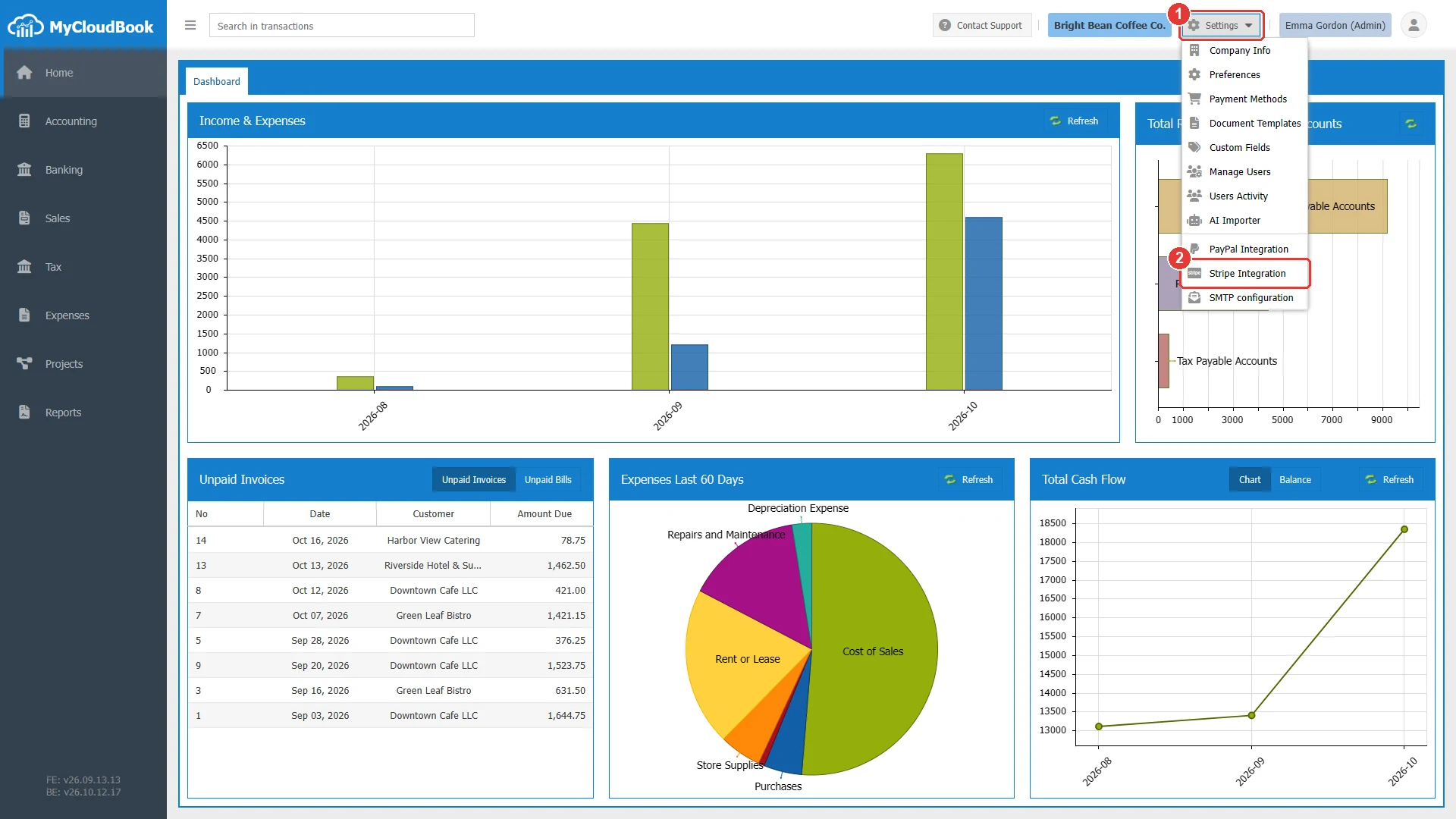
- 1Settings. Opens the menu of the company settings.
- 2Stripe Integration.
The Stripe Integration Settings window
The window has three groups: Stripe Connection, Accounting, and Redirect URLs. The example shows a company that is not connected yet, with example values in the accounting fields.
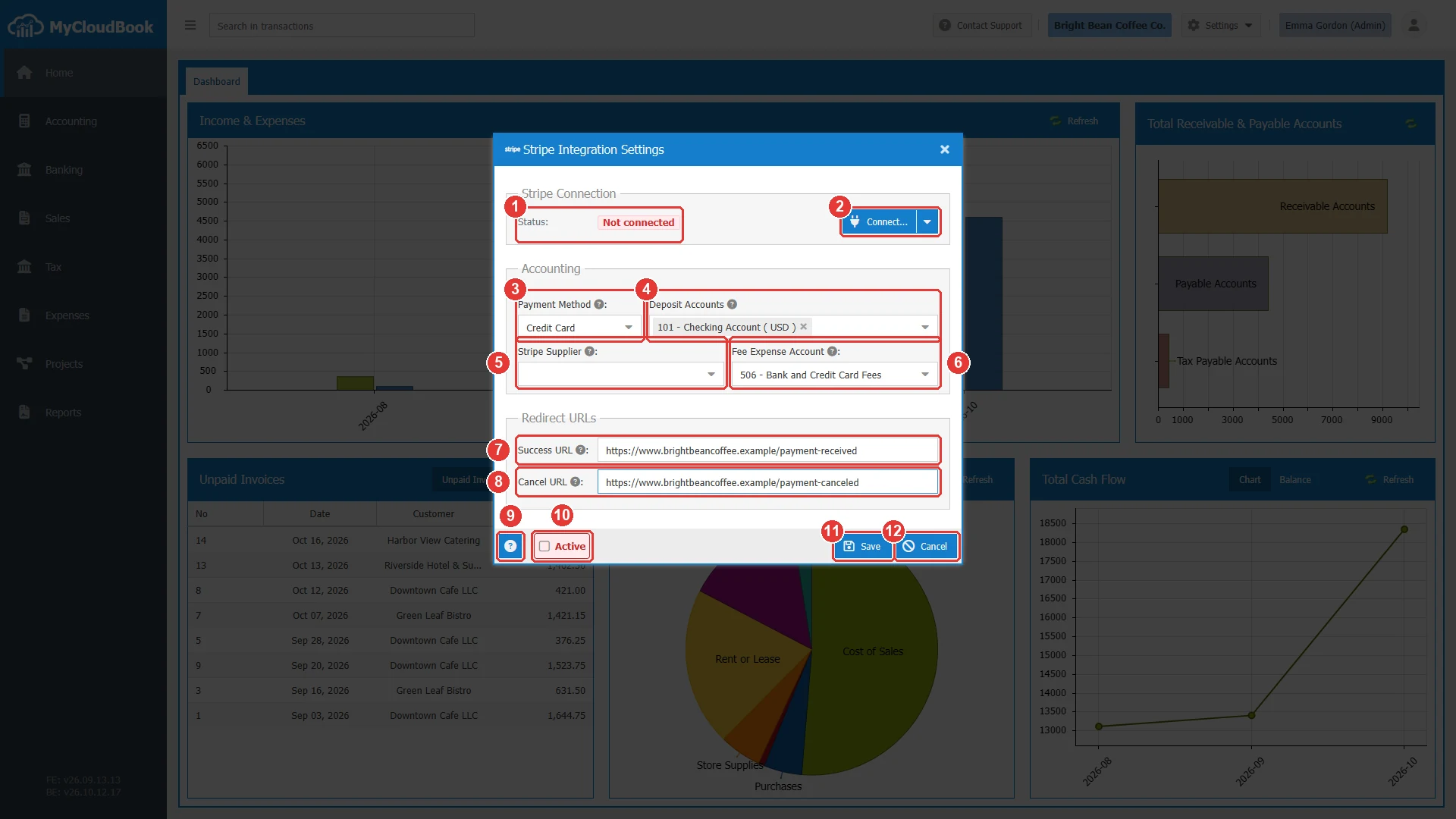
- 1Status. Not connected or Connected. A connected company also sees the masked secret key and the webhook.
- 2Connect.... Opens the connect window. A connected company sees Reconnect.... The arrow holds Remove Connection....
- 3Payment Method. The method of the recorded payments.
- 4Deposit Accounts. The accounts that receive the payments, one for each currency.
- 5Stripe Supplier. The supplier that represents Stripe. Empty in the example.
- 6Fee Expense Account. The expense account of the fees of Stripe.
- 7Success URL. The page that the customer sees after the payment.
- 8Cancel URL. The page that the customer sees when the payment is canceled.
- 9Help. Opens the help of the window.
- 10Active. Turns the payments on. It needs the connection and the four accounting fields.
- 11Save.
- 12Cancel.
Connecting the Stripe account
- In the Stripe dashboard, open Developers, then API keys, and create a secret key. Copy it at once: Stripe shows a live secret key only one time.
- In the Stripe Integration Settings window of MyCloudBook, click Connect....
- Paste the key into Secret Key. A secret key starts with sk_live_ or sk_test_. Do not use a publishable key (pk_) or a restricted key (rk_).
- Keep Create the webhook automatically (recommended) checked and click Connect.
MyCloudBook checks the key with Stripe, creates the webhook in the Stripe account, and saves the connection. The webhook is the address where Stripe reports every completed payment to MyCloudBook. The window then shows the status Connected, the secret key with most of its characters hidden, and the webhook mode Automatic. The full key is never shown again. A key that starts with sk_test_ connects the test mode of Stripe, where payments use the test cards of Stripe and no money moves.
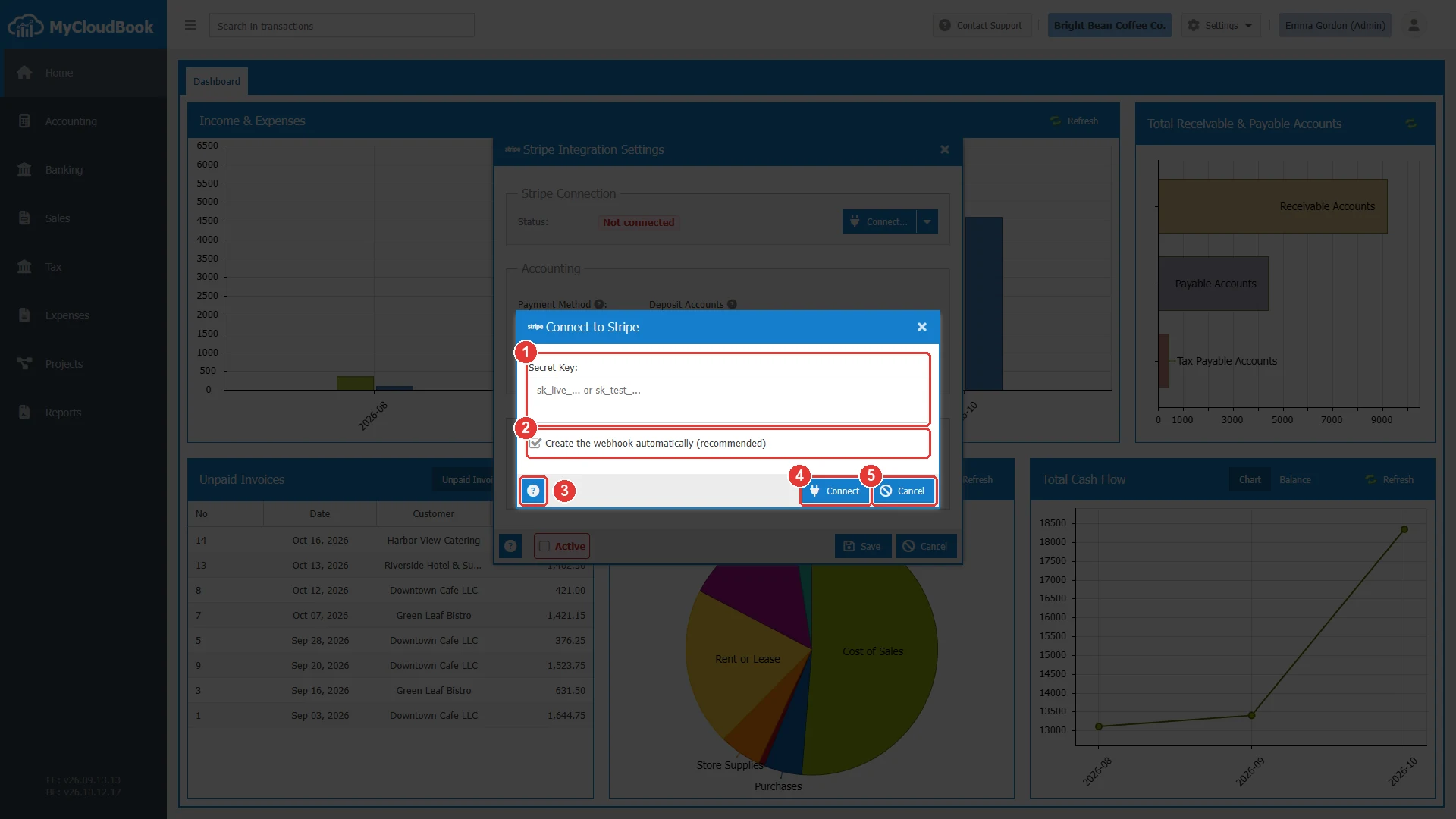
- 1Secret Key. Required.
- 2Create the webhook automatically (recommended).
- 3Help. Opens the steps of the connection.
- 4Connect. Checks the key and saves the connection.
- 5Cancel.
A manual webhook
Clear Create the webhook automatically (recommended) to manage the webhook yourself, for example with the command line tool of Stripe during development. The window then shows the Manual Webhook group.
- Copy the Webhook Listener URL with the copy button.
- In the Stripe dashboard, create a webhook endpoint with this address and the events checkout.session.completed, payment_intent.succeeded, and payment_intent.payment_failed.
- Paste the signing secret of the endpoint (it starts with whsec_) into Webhook Secret, and click Connect.
Leave the Webhook Secret empty to connect without a webhook. MyCloudBook then completes the payments with its background process. The menu of the copy button holds Generate New Listener Token, which creates a new listener address. Use the new address for the endpoint in Stripe, and connect again with its signing secret.
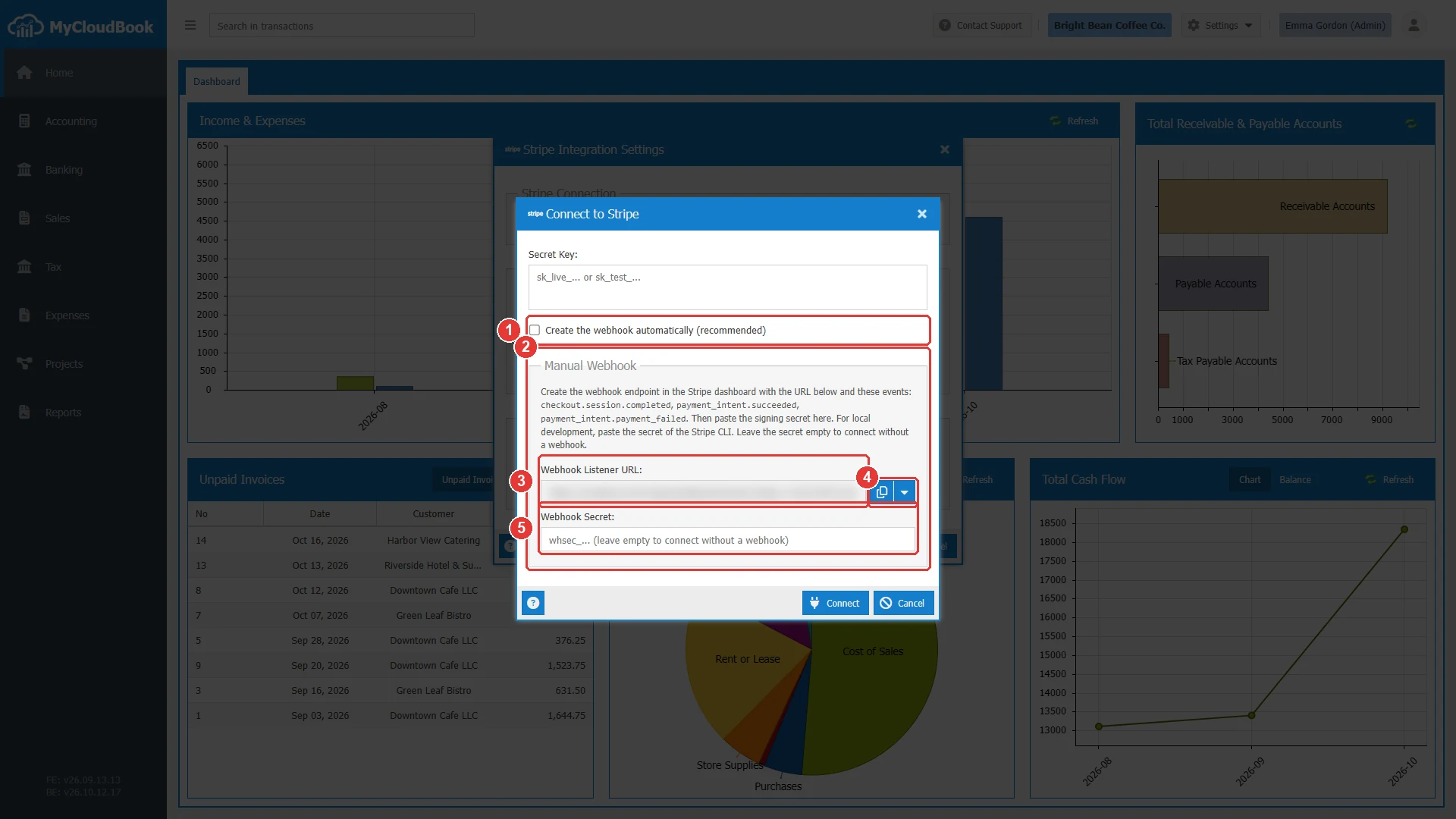
- 1Create the webhook automatically (recommended), cleared.
- 2Manual Webhook. The steps and the events of the endpoint.
- 3Webhook Listener URL. The address of the endpoint in Stripe. It is read-only.
- 4The copy button. Its menu holds Generate New Listener Token.
- 5Webhook Secret. The signing secret of the endpoint, or empty.
After five failed connections within ten minutes, MyCloudBook asks the user to wait. After twenty failed connections within one day, new attempts are blocked for 24 hours.
The accounting settings and the activation
The accounting fields tell MyCloudBook how to record each payment and each fee. Create the supplier for Stripe first in Suppliers, for example with the name Stripe.
| Field | Required | Purpose and rules |
|---|---|---|
| Payment Method | When active | The payment method of the receipt vouchers and receipts that MyCloudBook records. See Payment Methods. |
| Deposit Accounts | When active | Asset accounts that receive the payments, one account for each currency. A payment in a currency goes to the account of that currency. |
| Stripe Supplier | When active | The supplier of the fee expenses. Only active suppliers are listed. |
| Fee Expense Account | When active | An account of the type Expenses for the fees of Stripe, for example 506 - Bank and Credit Card Fees. |
| Success URL | Optional | The page after a successful payment. Empty means the payment status page of MyCloudBook. The address must not contain the characters ? and &. |
| Cancel URL | Optional | The page after a canceled payment. Empty means the cancel page of MyCloudBook. |
| Active | Optional | Turns the payments on. An active configuration needs the connection and the four accounting fields. An inactive configuration can be saved with some fields empty, also before the connection. |
Click Save to store the accounting settings and the Active status. The connection itself is saved by the connect window.
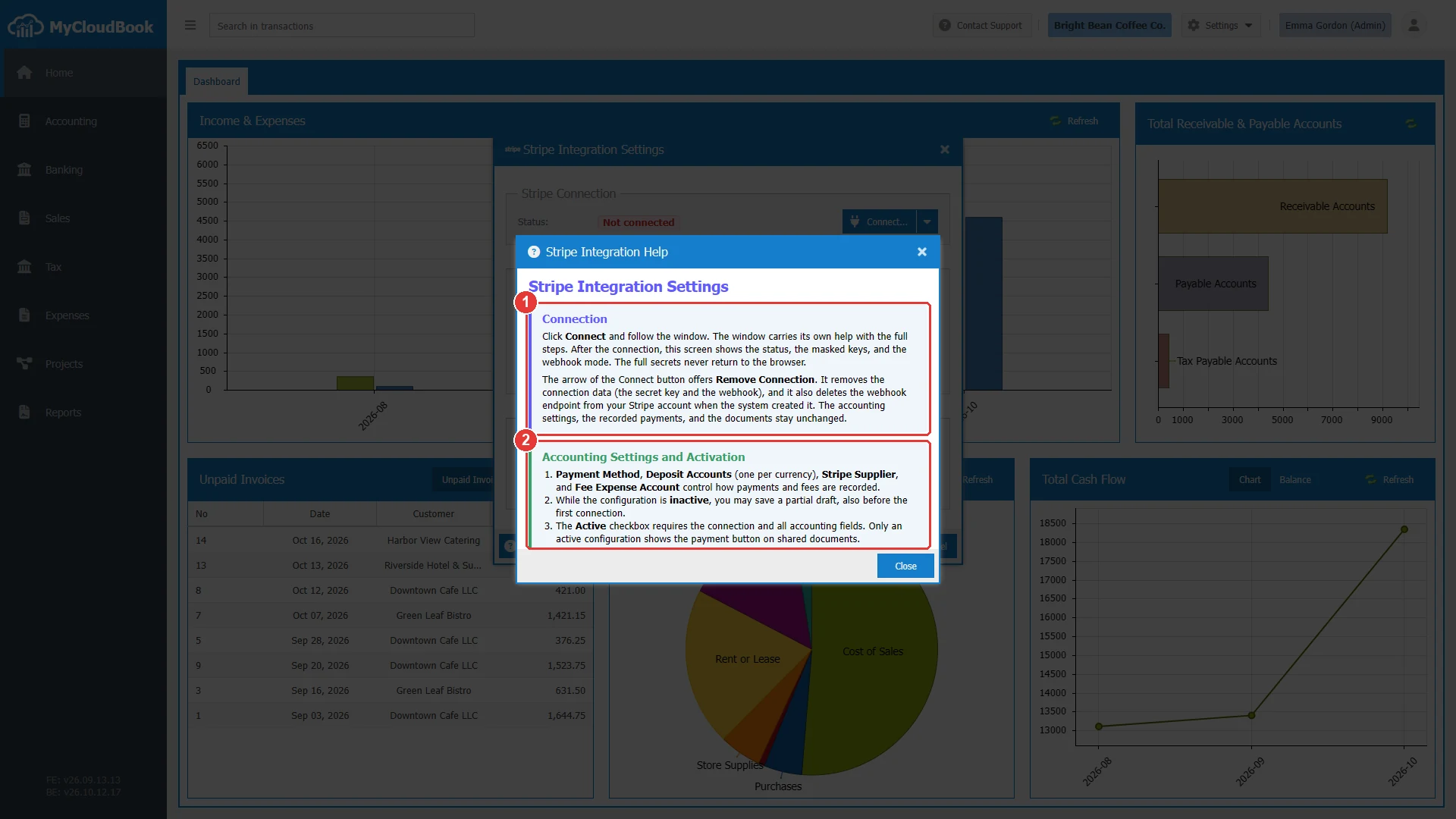
- 1The connection and its removal.
- 2The accounting settings and the activation.
Removing the connection
The arrow of Connect... holds Remove Connection.... It is enabled for a connected company.
- Click the arrow of the connect button, then Remove Connection....
- Read the question and click Yes.
MyCloudBook removes the secret key and the webhook, and it deletes the webhook endpoint from the Stripe account when MyCloudBook created it. The configuration becomes inactive, so the payment button disappears from the shared documents. The accounting settings, the recorded payments, and the documents stay.
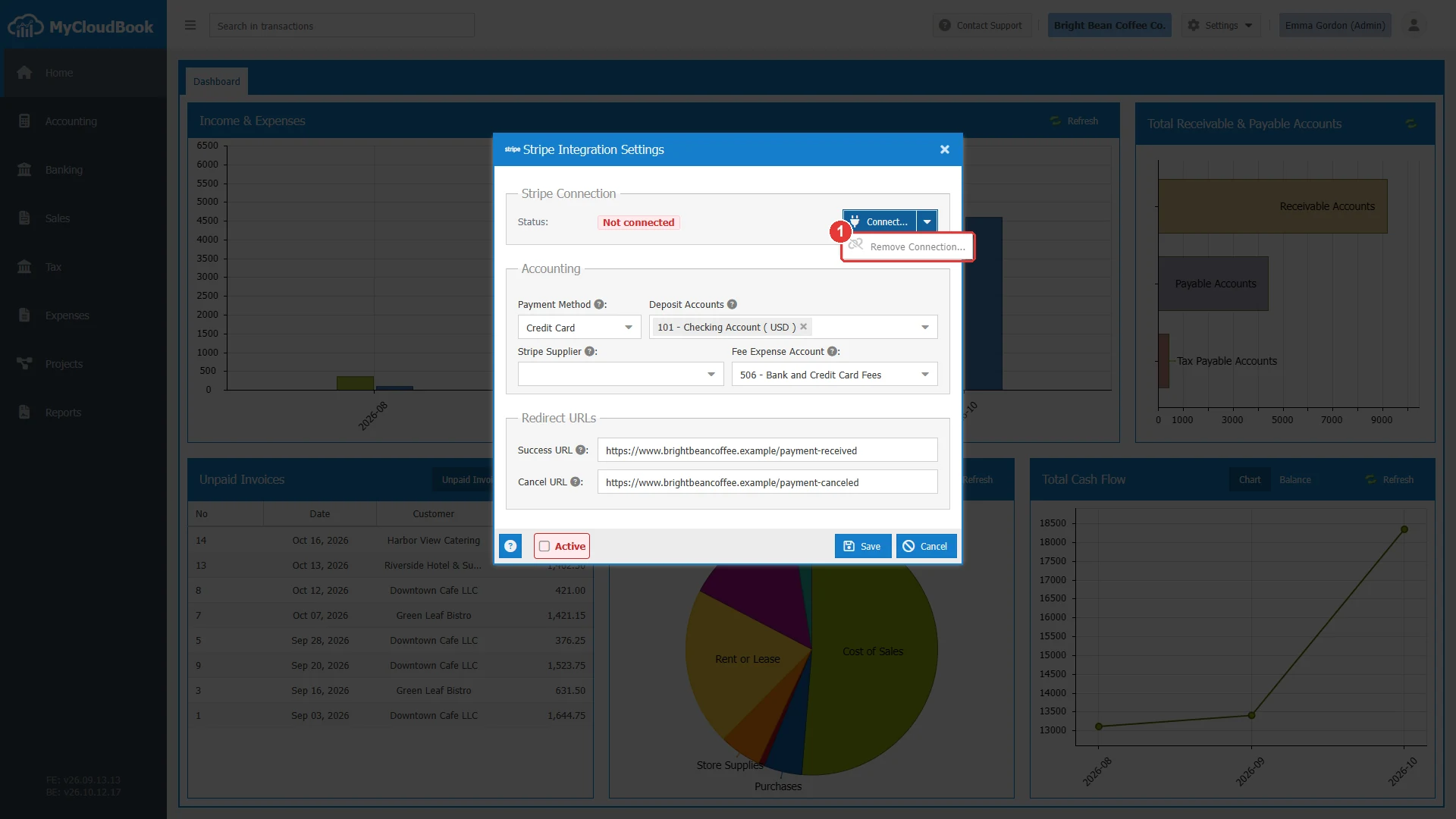
- 1Remove Connection.... Disabled while the company is not connected.
Messages and their meaning
Questions and answers
How can my customers pay an invoice online?
Connect the company to Stripe in Settings, Stripe Integration, fill in the accounting fields, check Active, and save. The shared link of an invoice with an amount due then shows the button Pay with Card.
Does MyCloudBook record the payment by itself?
Yes. A paid invoice gets a receipt voucher, and a paid sales order gets a sales receipt. The fee of Stripe is recorded as an expense for the Stripe supplier.
Why do I need one deposit account for each currency?
A payment goes to the deposit account of its currency. Each currency that the customers pay in needs its own deposit account.
Can I test the integration without real money?
Yes. Connect with a test key of Stripe, which starts with sk_test_. The payments then use the test cards of Stripe.
Is my secret key shown in MyCloudBook?
No. After the connection, the window shows the key with most of its characters hidden.