Transfers
This guide explains the Transfers screen of MyCloudBook: what a transfer is, the list of the transfers, every field of a transfer, the rules that the system applies, and how to change and delete a transfer.
Overview
A transfer moves money from one account of the company to one or more other accounts of the company. Typical transfers are:
- from the checking account to the petty cash, when cash is taken from the bank for the register;
- from the checking account to the savings account, or between two bank accounts;
- from the checking account to a credit card account, when the card balance is paid;
- from the checking account to a loan account, when an installment of the loan is paid.
MyCloudBook records a transfer as one journal entry of the type Transfer: the sending account is credited with the total, and each receiving account is debited with the amount of its line. The entry appears in the Journal and in the ledger of every account of the transfer.
A transfer moves money between accounts only. Money received from a customer is recorded with a receipt voucher, and money paid to a supplier with a bill payment.
How to open the screen
- In the left navigation, click Accounting.
- Click the Transfers tab, the third tab of the Accounting page.
The screen
The screen is a list with one row per transfer. The first figure shows the screen with one transfer and every part marked.
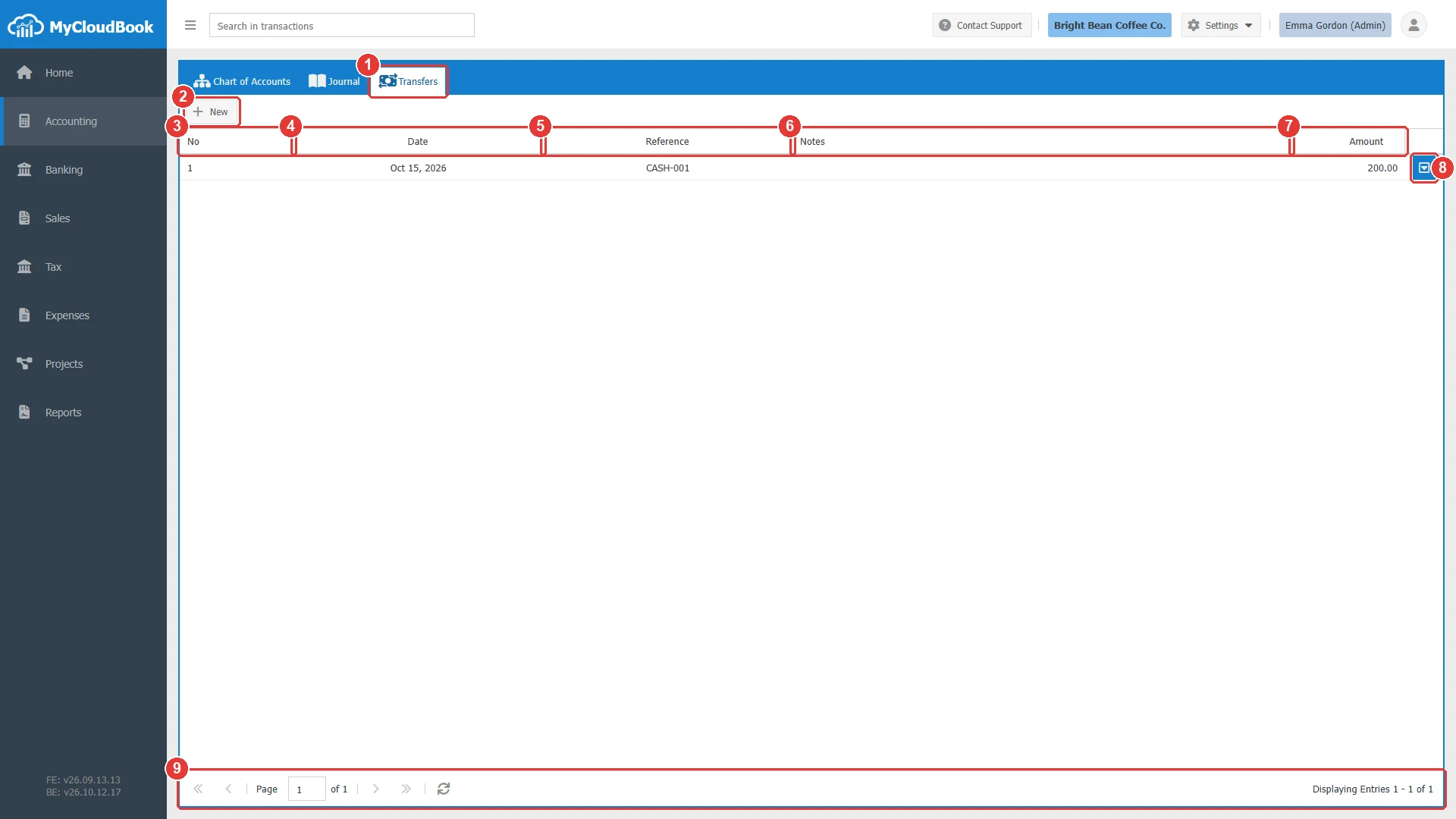
- 1Transfers tab.
- 2New. Opens a new transfer.
- 3No. The number of the transfer.
- 4Date. The date of the transfer.
- 5Reference. The reference typed in the transfer.
- 6Notes.
- 7Amount. The total of the transfer.
- 8The row actions button. It opens a menu with Edit and Delete.
- 9The paging toolbar. It shows the transfers that are displayed and moves between the pages of one hundred transfers.
In a multi-currency company, a Currency column shows the currency of each transfer. A double click on a row opens the transfer in a tab of the Accounting page, named Transfer #number.
Adding a transfer
- In the Transfers list, click New. A tab named New Transfer opens.
- Keep the Transfer No at 0, so MyCloudBook assigns the next number. Type a Ref if you want one, and check the Date.
- Select the account that sends the money in Transfer From.
- In the Transfer To lines, select the account that receives the money, type a description, and type the amount. Add one line per receiving account.
- Click Save to keep the tab open, or Save & Close to close it.
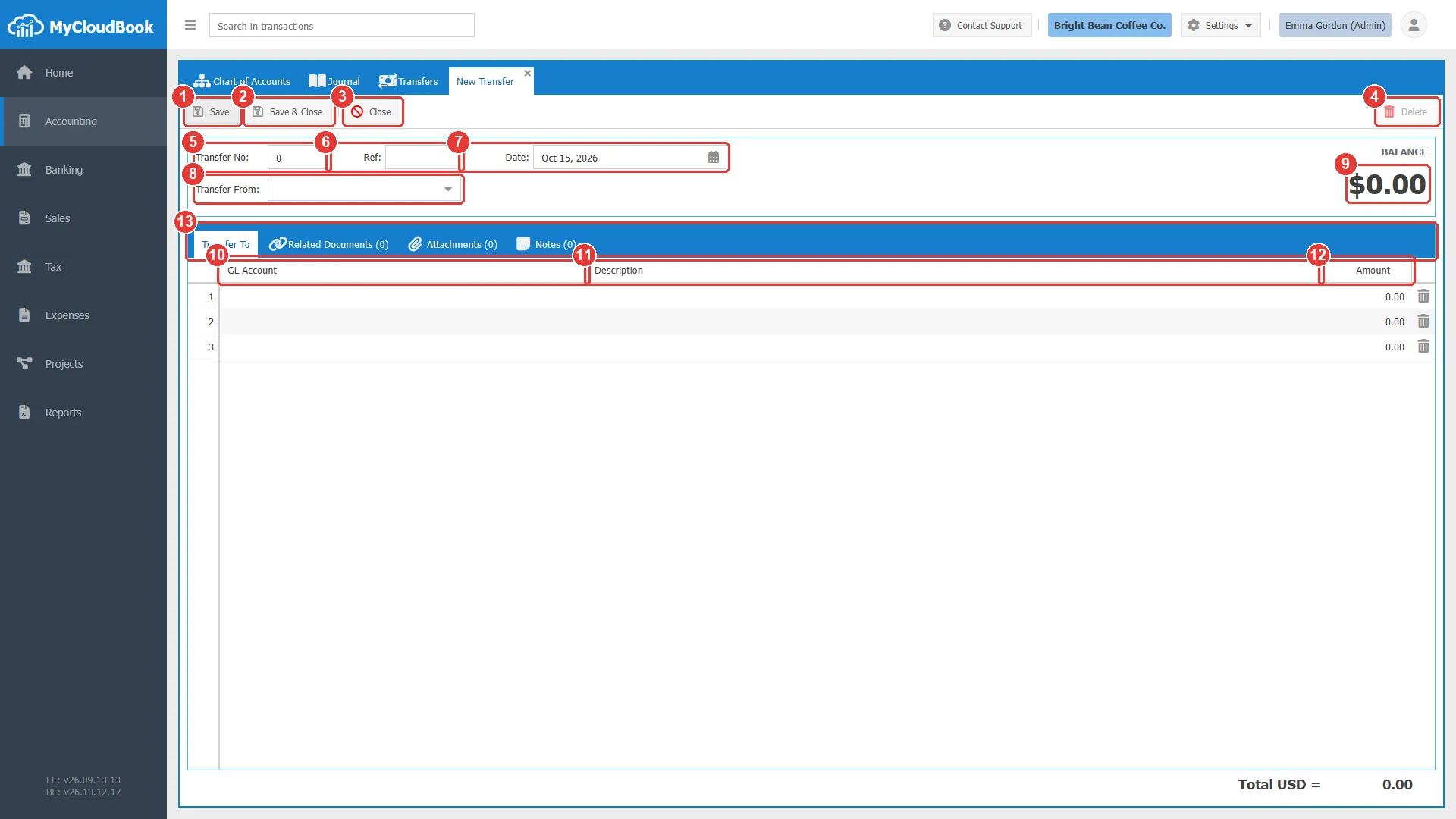
- 1Save. Checks the transfer and saves it. The tab stays open.
- 2Save & Close. Saves the transfer and closes the tab.
- 3Close. Closes the tab without saving.
- 4Delete. Available after the first save.
- 5Transfer No. 0 means the next free number.
- 6Ref. A free reference.
- 7Date. The date of the transfer.
- 8Transfer From. The account that sends the money.
- 9The total of the transfer, in large figures under the label BALANCE.
- 10GL Account. The account that receives the money, one per line.
- 11Description. The description of the line.
- 12Amount. The amount of the line.
- 13The tabs Transfer To, Related Documents, Attachments, and Notes.
The fields
| Field | Required | Purpose and rules |
|---|---|---|
| Transfer No | Required | The number of the transfer. Keep the value 0, and MyCloudBook assigns the next number when the transfer is saved. After the save, the number is shown and cannot be changed. |
| Ref | Optional | A free reference, for example the reference of the bank transfer. It is shown in the Reference column of the list. |
| Date | Required | The date of the transfer. The field starts with the date of today. The journal entry and the ledgers use this date. |
| Transfer From | Required | The account that sends the money. The list shows the ordinary accounts of the Assets, Liabilities, and Equity types, with their number, name, type, and balance. The system accounts, such as Accounts Receivable, Accounts Payable, and Opening Balance Equity, and the Income and Expenses accounts are not offered. A main account cannot be used. |
| Currency | Optional | The currency of the amounts. The field is shown only when multi-currency is enabled in Settings, Preferences, and it starts with the main currency. See Multi-currency transfers. |
| GL Account | Required | The account that receives the money of the line. The same accounts are offered as in Transfer From. The account must differ from the sending account. A line without an account is ignored when the transfer is saved, and the transfer needs at least one line with an account. |
| Description | Optional | The description of the line, up to 4000 characters. It is shown in the ledger of the receiving account. |
| Amount | Required | The amount that the line receives, in the currency of the transfer. A negative amount is not accepted. The total of the lines is shown under the label BALANCE at the top of the tab and under the lines. |
The tabs Related Documents, Attachments, and Notes become usable after the first save. They hold the documents linked to the transfer, the files attached to it, and the notes written about it.
Example: cash taken from the bank for the register
- Click New.
- Click the arrow of Transfer From and select 101 - Checking Account.
- In line 1, click the GL Account cell and select 103 - Petty Cash. Type the description Cash for the register and the amount 200.
- The total shows 200.00. Click Save.
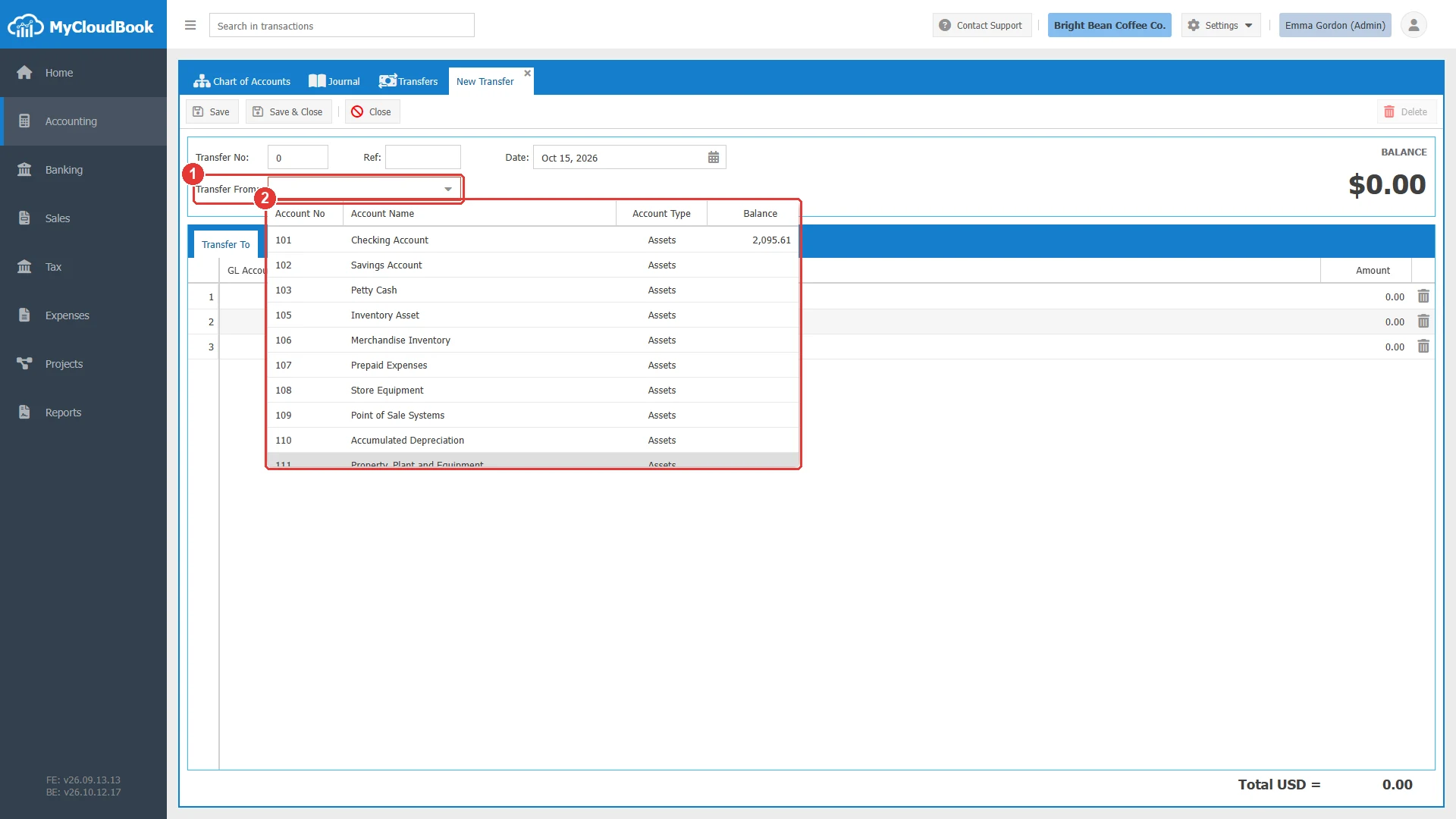
- 1Transfer From.
- 2The accounts that can send money, with their number, name, type, and balance. Typing a part of the number or of the name filters the list.
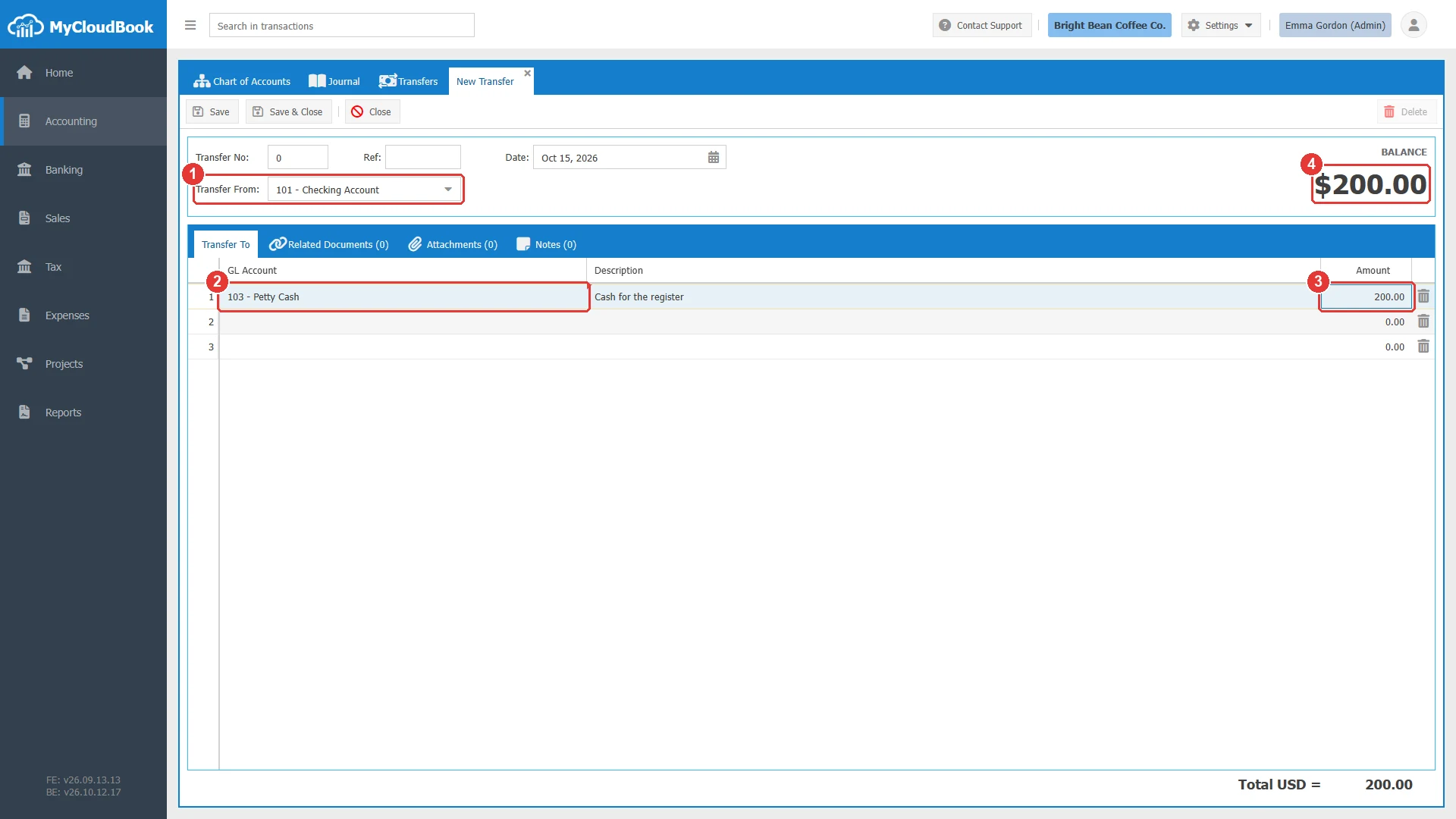
- 1The account that sends the money.
- 2The account that receives the money.
- 3The amount of the line.
- 4The total of the lines.
After the save, the tab is named Transfer #number, the Transfer No shows the number that MyCloudBook assigned, and the Delete button becomes available. The transfer appears in the Transfers list and in the Journal, and the balances of the Checking Account and of Petty Cash change at once.
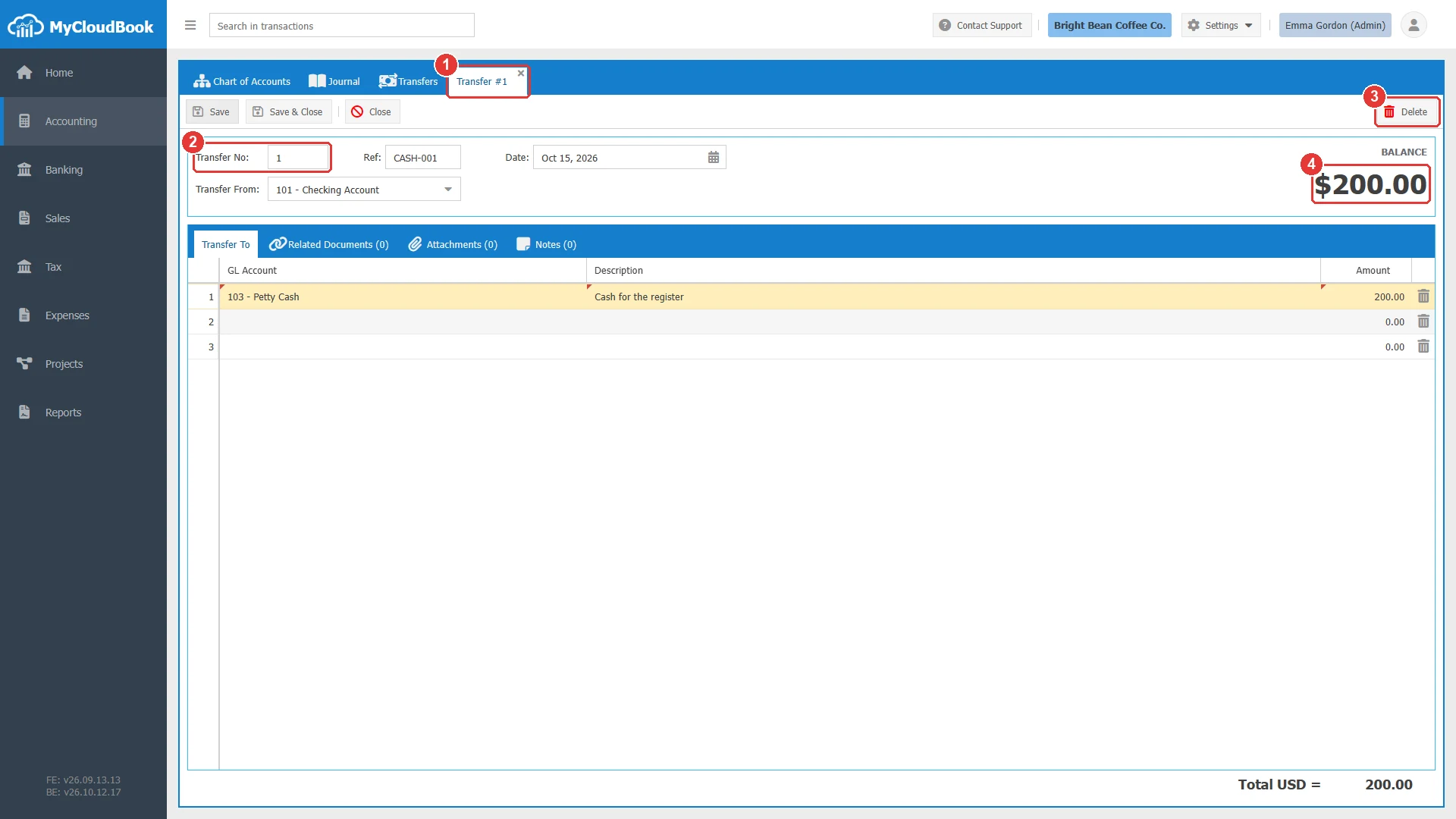
- 1The tab shows the number of the transfer.
- 2Transfer No, assigned by MyCloudBook.
- 3Delete is now available.
- 4The total of the transfer.
Several receiving accounts
A transfer can send money to several accounts at once. Add one line per receiving account with its amount. The total of the lines is the amount taken from the sending account. The example below takes 200.00 from the Checking Account: 150.00 for the register and 50.00 for the savings account.
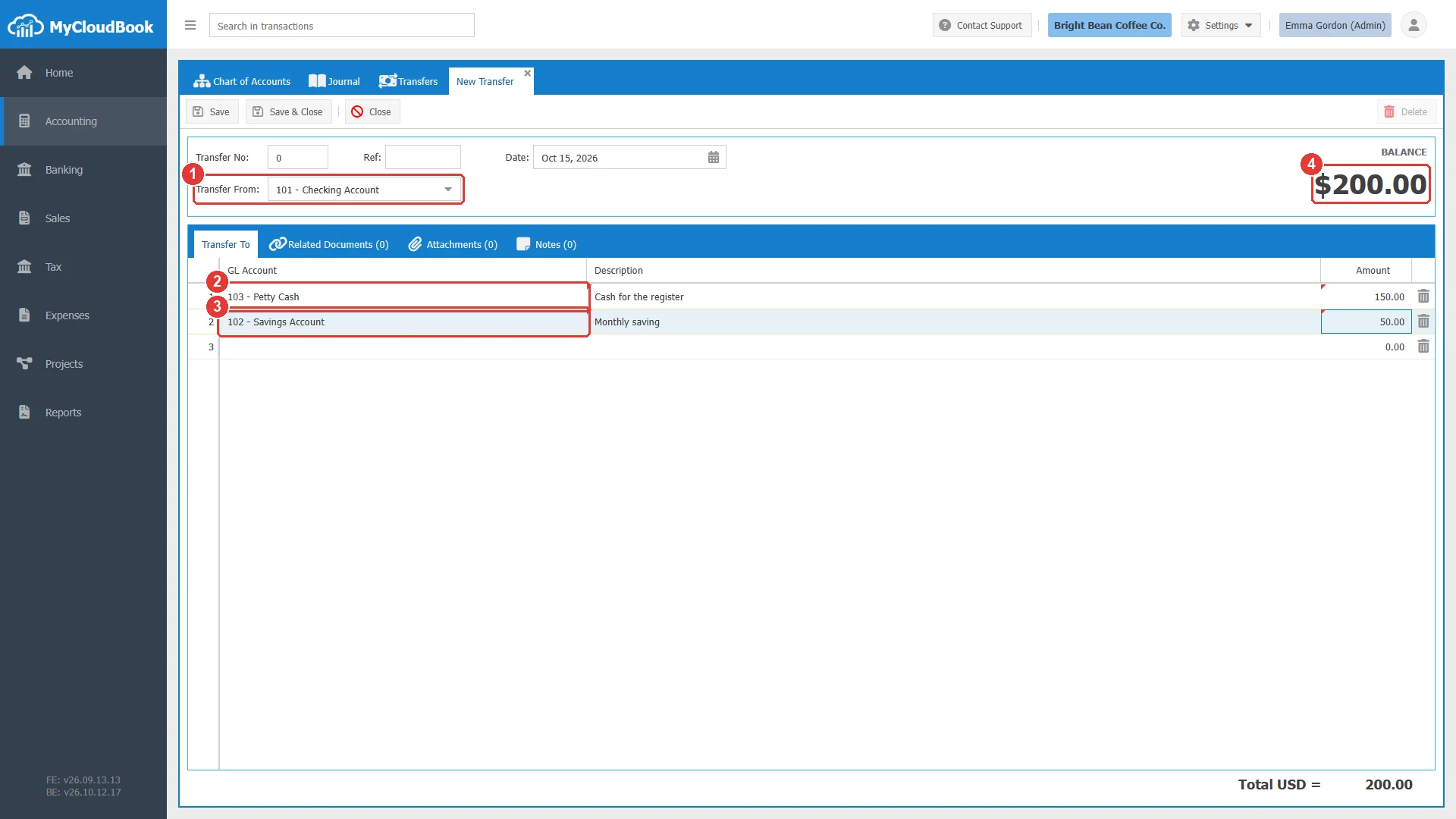
- 1The account that sends the money.
- 2The first receiving account and its amount.
- 3The second receiving account and its amount.
- 4The total of the two lines.
Changing a transfer
Double click the row of the transfer in the list, or click Edit in its row actions menu. The transfer opens in a tab named Transfer #number. Every field except the number can be changed: the date, the reference, the sending account, and the lines. Lines can be added and removed. Click Save, and MyCloudBook updates the journal entry of the transfer and the balances of the accounts.
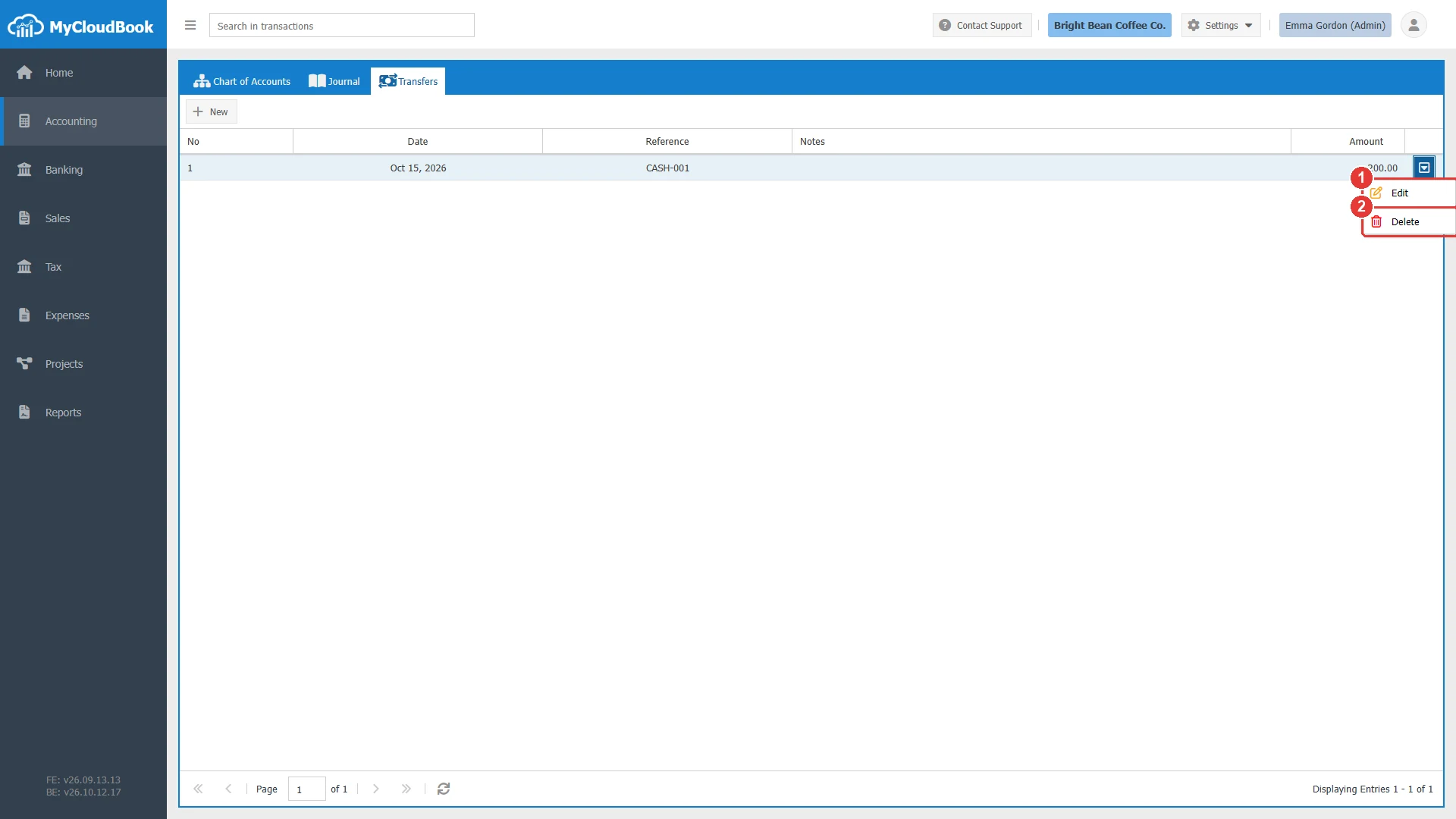
- 1Edit. Opens the transfer.
- 2Delete. Deletes the transfer after a confirmation.
When a post of the transfer is reconciled with a bank transaction in the Banking module, the post must keep its account and its amount. A change of either one is refused until the bank transaction is unreconciled.
Deleting a transfer
- In the list, click the row actions button of the transfer and then Delete. The Delete button of the open transfer does the same.
- A confirmation shows the number of the transfer. Click Yes to delete it, or No to keep it.
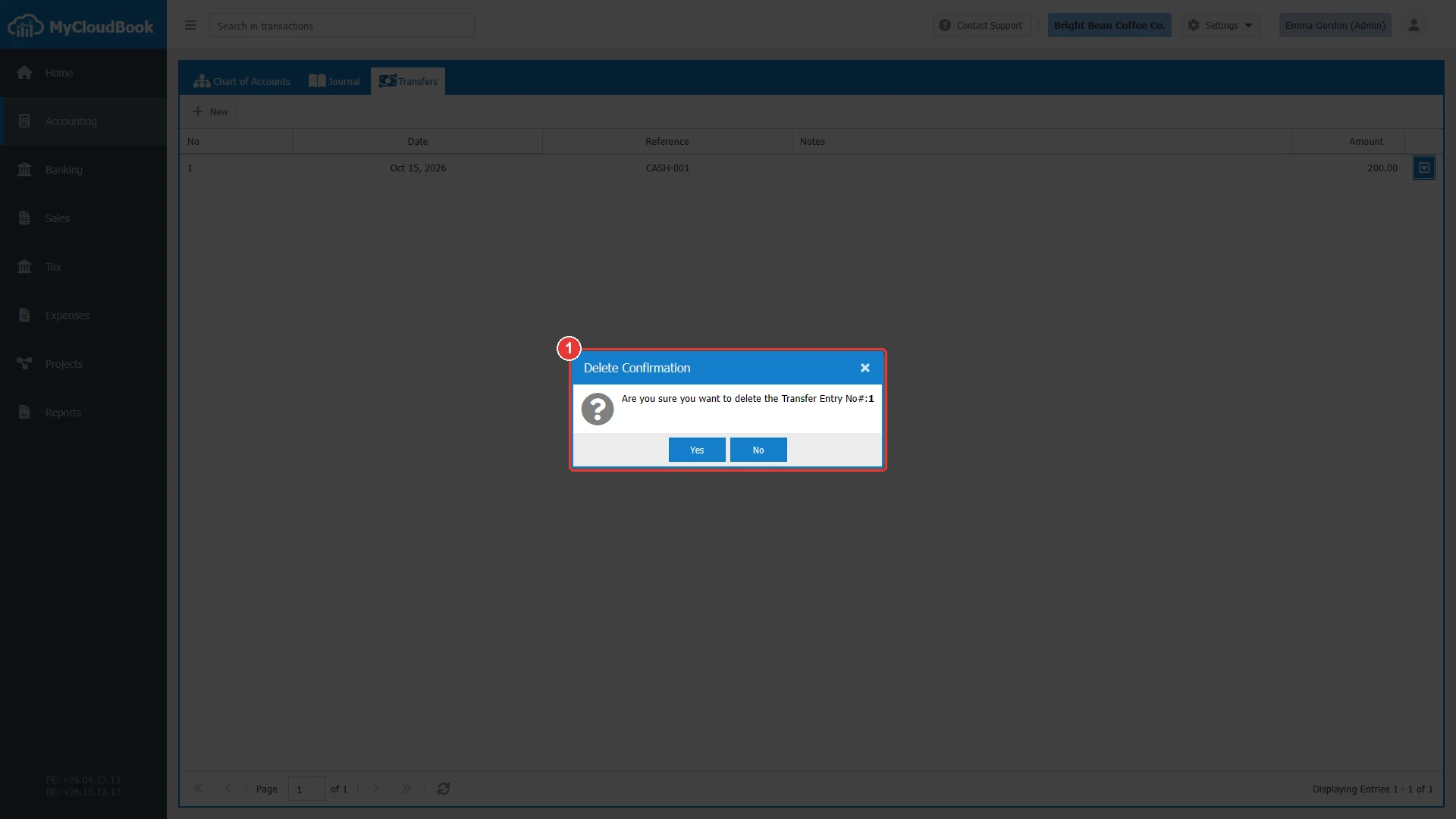
- 1The confirmation names the number of the transfer. Yes deletes it, and No keeps it.
The deletion removes the transfer and its journal entry, and the balances of the accounts change at once. A transfer whose post is reconciled with a bank transaction in the Banking module cannot be deleted. Unreconcile the bank transaction first.
Transfers and the bank statement
A transfer can also be created from the Banking module. In the reconcile screen of a bank account, select the bank transactions of a transfer and choose Create Transfer in the menu of the Reconcile button. A new transfer opens with the bank account, the date, the amount, the description, and the reference of the transactions already filled in. The save of that transfer also reconciles the transactions. A bank rule can also choose Transfer as the document that it creates for the bank transactions that match its conditions.
Multi-currency transfers
When multi-currency is enabled in Settings, Preferences, the transfer window shows the Currency field. The amounts of the lines are typed in that currency.
- When the currency is a foreign currency, a rate field appears next to it, and the rate can be changed for the transfer.
- Every account of the transfer must be in the main currency or in the currency of the transfer. An account in a third currency is refused.
- A second total under the lines shows the amount in the other currency.
- When the posts of the transfer do not balance exactly in the main currency because of the rate, MyCloudBook adds a post to the Exchange Gain or Loss account.
Messages and their meaning
The figure below shows the message of a transfer whose receiving account is the sending account.
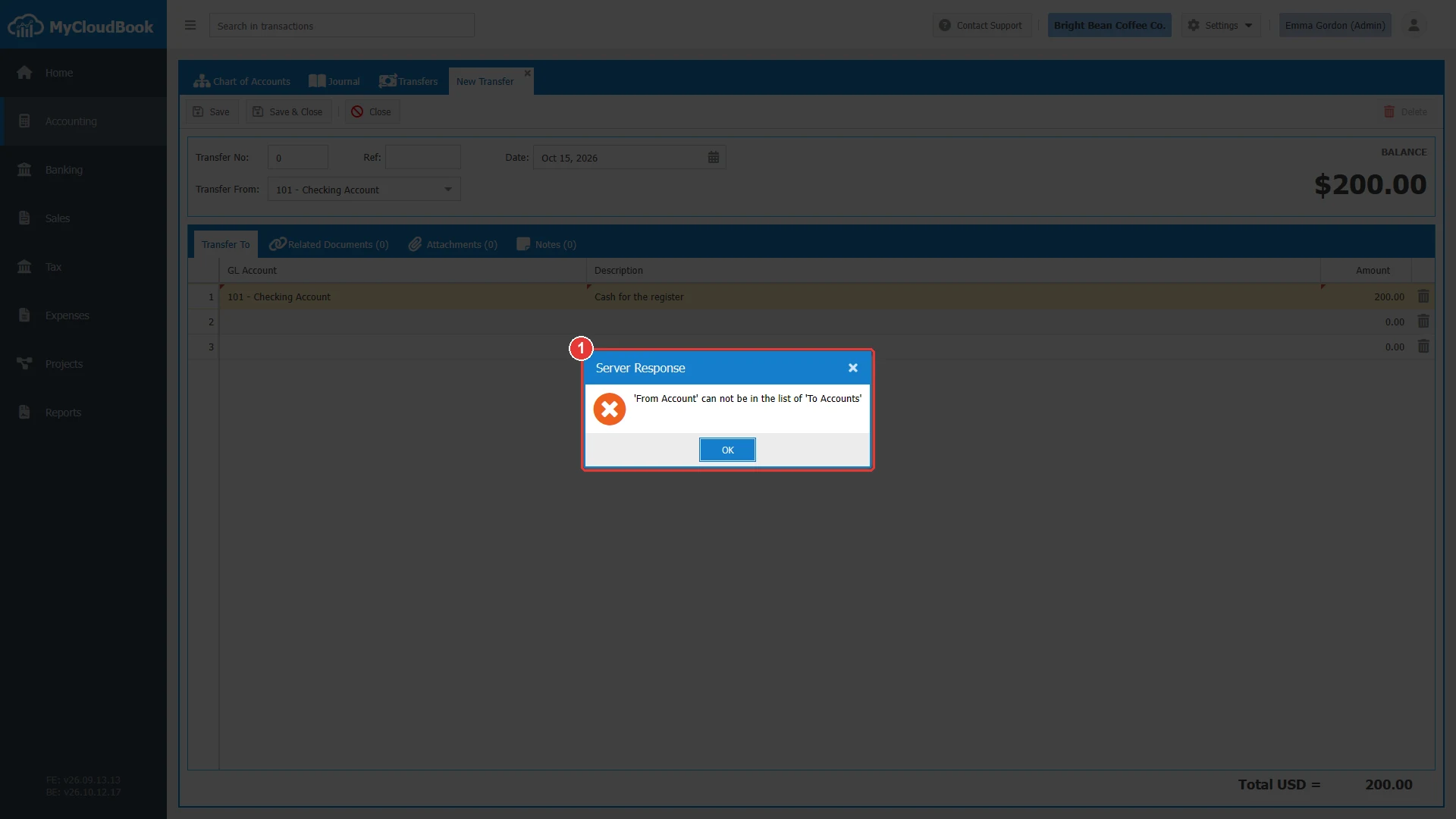
- 1The message from the server.
Questions and answers
What is a transfer in MyCloudBook?
A transfer moves money from one account to one or more accounts of the company, for example from the checking account to the petty cash, or from the checking account to a credit card account to pay the card. MyCloudBook creates one journal entry for it: the sending account is credited and each receiving account is debited.
Which accounts can be used in a transfer?
The ordinary accounts of the Assets, Liabilities, and Equity types, such as bank accounts, cash accounts, credit cards, and loans. The system accounts, such as Accounts Receivable, and the Income and Expenses accounts are not offered. A main account cannot be used. The receiving account must differ from the sending account.
How do I record a transfer between two bank accounts?
Open Accounting, Transfers, and click New. Select the sending account in Transfer From, add one line with the receiving account and the amount, check the date, and click Save.
Can a transfer have more than one receiving account?
Yes. Add one line per receiving account with its amount. The total of the lines is the amount taken from the sending account.
Can I transfer money to a customer or a supplier?
No. A transfer moves money between the accounts of the company only. Money received from a customer is recorded with a receipt voucher, and money paid to a supplier with a bill payment.
Where do I see the journal entry of a transfer?
In the Journal, with the type Transfer and the number of the transfer, and in the ledger of each account of the transfer.