Bank Profile
This guide explains the bank profile of MyCloudBook: what each figure means, how to read the ledger posts of a bank, and how to compare the books and the bank on one day.
Overview
The bank profile holds everything about one bank. It opens in its own tab, named after the bank. The left panel shows the bank and its figures. The inner tabs hold the work: Overview, Statements, Reconciliation Periods, Bank Transactions & Reconcile, Ledger Posts, and Summary.
This guide explains the left panel and the tabs Overview, Ledger Posts, and Summary. The other tabs have their own guides.
How to open the bank profile
- In the left navigation, click Banking.
- In the Banks tab, double click the bank, or click Open in its row menu.
The example shows Harbor Community Bank on Nov 06, 2026, with the November statement imported and not reconciled yet.
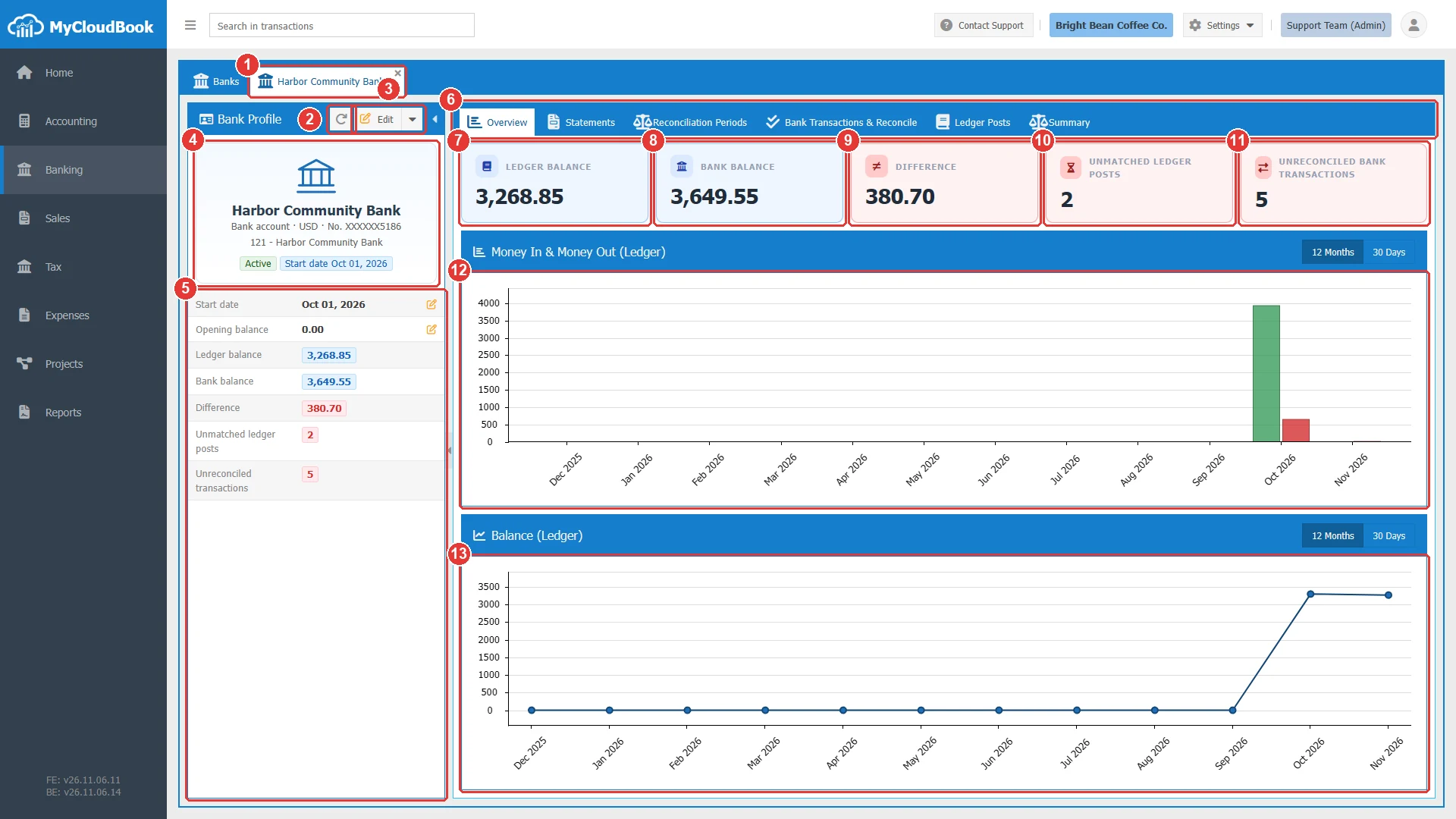
- 1The tab of the bank. The x closes it.
- 2The reload button. Loads the panel and the cards again.
- 3Edit. Opens the Edit Bank window. Its menu holds Delete.
- 4The bank: the type, the currency, the number, the account of the books, the status, and the start date.
- 5The figures. The pencils change the start date and the opening balance.
- 6The inner tabs of the profile.
- 7LEDGER BALANCE. The balance of the account in the books.
- 8BANK BALANCE. The opening balance plus the money in, less the money out, of the bank transactions.
- 9DIFFERENCE. The bank balance less the ledger balance. Green at zero, and red otherwise.
- 10UNMATCHED LEDGER POSTS. The journal posts without a bank transaction.
- 11UNRECONCILED BANK TRANSACTIONS. The bank transactions that wait for you.
- 12Money In & Money Out (Ledger). Green bars for the money in, and red bars for the money out. Choose 12 Months or 30 Days.
- 13Balance (Ledger). The balance of the account over time.
The figures
| Figure | What it means |
|---|---|
| Ledger balance | What the books say that the account holds. |
| Bank balance | What the bank transactions in MyCloudBook say that the account holds. Excluded transactions do not count. For a credit card, the money that is owed is a negative number. |
| Difference | Zero when the books and the bank hold the same money. A difference is normal while transactions wait to be reconciled. |
| Unmatched ledger posts | Entries in the books that the bank has not shown yet, for example a check that the supplier has not cashed. |
| Unreconciled transactions | Lines of the bank that are not matched with the books yet. |
In the example, the ledger balance is 3,268.85 and the bank balance is 3,649.55. The November lines of the bank are not reconciled yet, so the card shows 5 transactions, and two checks are still in the unmatched ledger posts.
The Ledger Posts tab
- In the left navigation, click Banking.
- In the Banks tab, double click the bank. The bank profile opens in its own tab, named after the bank.
- Click the inner tab Ledger Posts.
The tab lists the journal posts of the bank account, the newest first. It shows which posts are matched with the bank and which posts still wait. A bank with a start date shows the posts from that date.
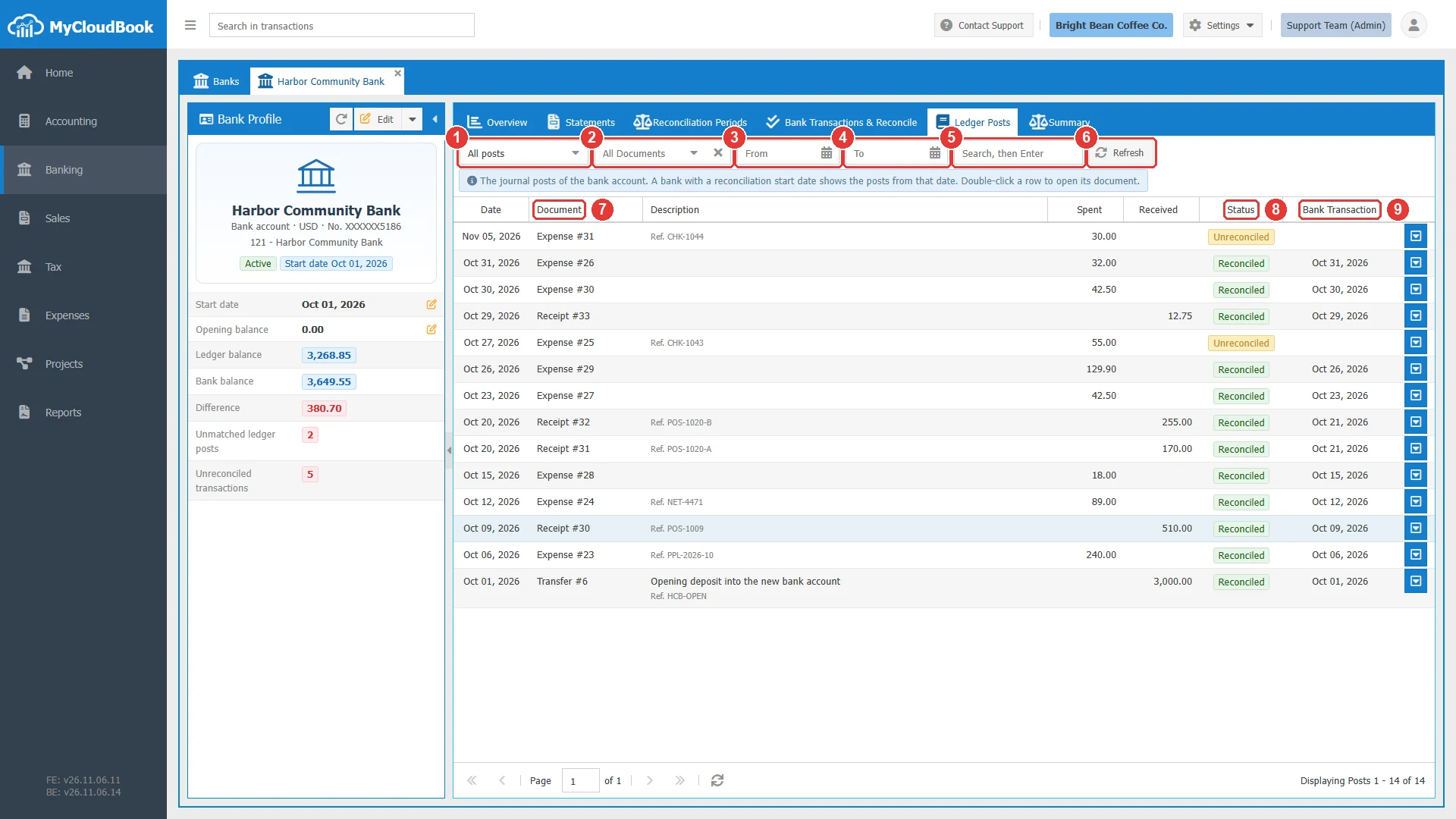
- 1All posts or Unreconciled only.
- 2The document type. The x shows all documents again.
- 3From. The first date.
- 4To. The last date.
- 5The search. Type a document number, or a part of the reference or the description, and press Enter.
- 6Refresh.
- 7Document. The type and the number. A double click on the row opens the document.
- 8Status. Reconciled or Unreconciled.
- 9Bank Transaction. The date of the matched bank transaction.
The row menu holds Unreconcile and Open Document. Unreconcile removes the link to the bank transaction. The document stays in the books.
The Summary tab
- In the left navigation, click Banking.
- In the Banks tab, double click the bank. The bank profile opens in its own tab, named after the bank.
- Click the inner tab Summary.
The tab compares the books and the bank on one day. Each side starts with its balance, and then it takes out the items that are not matched. What remains on the two sides should be equal.
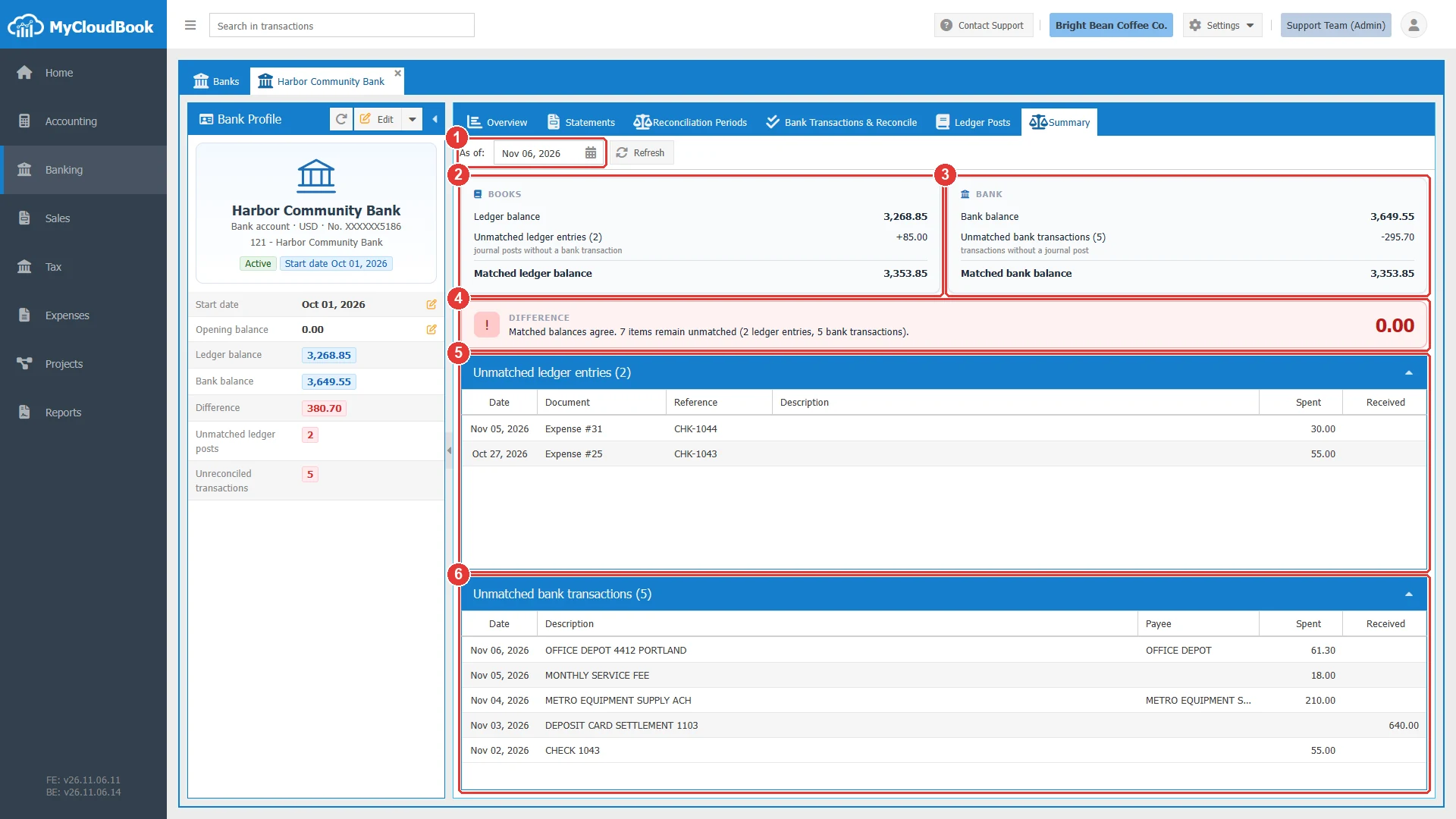
- 1As of. The day of the comparison. It starts with today.
- 2BOOKS. The ledger balance, the unmatched ledger entries, and the matched ledger balance.
- 3BANK. The bank balance, the unmatched bank transactions, and the matched bank balance.
- 4DIFFERENCE. The matched bank balance less the matched ledger balance, with a note.
- 5Unmatched ledger entries. The list of the entries. A click on the title hides the list.
- 6Unmatched bank transactions. The list of the transactions.
The band is green when the balances agree and nothing is left to match. It is red when items remain or when the balances differ. The note of the band tells you which case you have.
The DIFFERENCE of this tab differs from the one on the Overview tab. The Overview tab compares the full balances, so waiting items are part of its difference. The Summary tab takes these items out, so its difference shows a real gap between the books and the bank. In the example, the difference is 0.00 and seven items still wait.
Messages and their meaning
Questions and answers
Why does the bank balance differ from the ledger balance?
Usually some items wait: bank lines that are not reconciled yet, or entries that the bank has not shown yet. The Summary tab shows these items one by one.
What is an unmatched ledger post?
A journal post of the bank account without a bank transaction, for example a check that the supplier has not cashed.
Why are the two Difference figures not the same?
The Overview tab compares the full balances. The Summary tab takes out the waiting items, so its difference shows a real gap.
How do I remove a match?
Click Unreconcile in the row menu of the post. The document stays in the books, and the bank line is unreconciled again.
Where do I change the start date of a bank?
Click the pencil of the start date in the left panel, or click Edit. The Banks guide explains the rules.