Bank Statements
This guide explains how to import the statement of your bank into MyCloudBook, how to follow the file until it is read, and how to read its messages.
Overview
The Statements tab of a bank brings the statement of the bank into MyCloudBook. You upload the file, MyCloudBook reads its lines, and each line becomes a bank transaction with the status Unreconciled. A file belongs to the bank, and it can cover any period. The date of each transaction decides its reconciliation period.
You can also type a line by hand with Add Transaction. The Bank Transactions and Reconcile guide explains this window.
How to open the tab
- In the left navigation, click Banking.
- In the Banks tab, double click the bank. The bank profile opens in its own tab, named after the bank.
- Click the inner tab Statements.
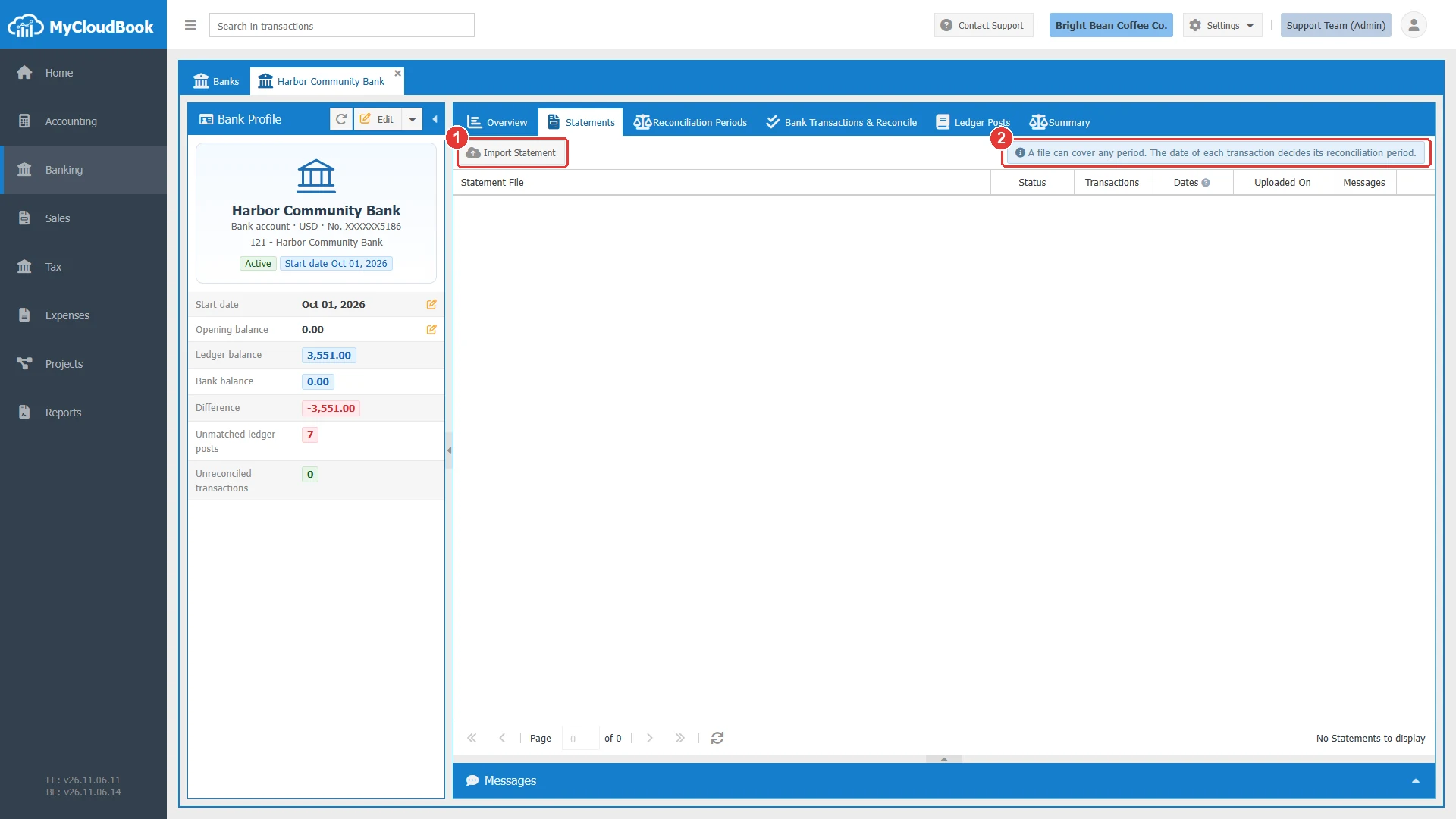
- 1Import Statement. Opens the panel of the upload.
- 2The information text of the tab.
Uploading a file
- Click Import Statement.
- Click Select a file, or drag the file into the box.
- Click Upload. The file appears in the list with the status Pending.
- Wait until the status is Completed. The list reloads by itself.
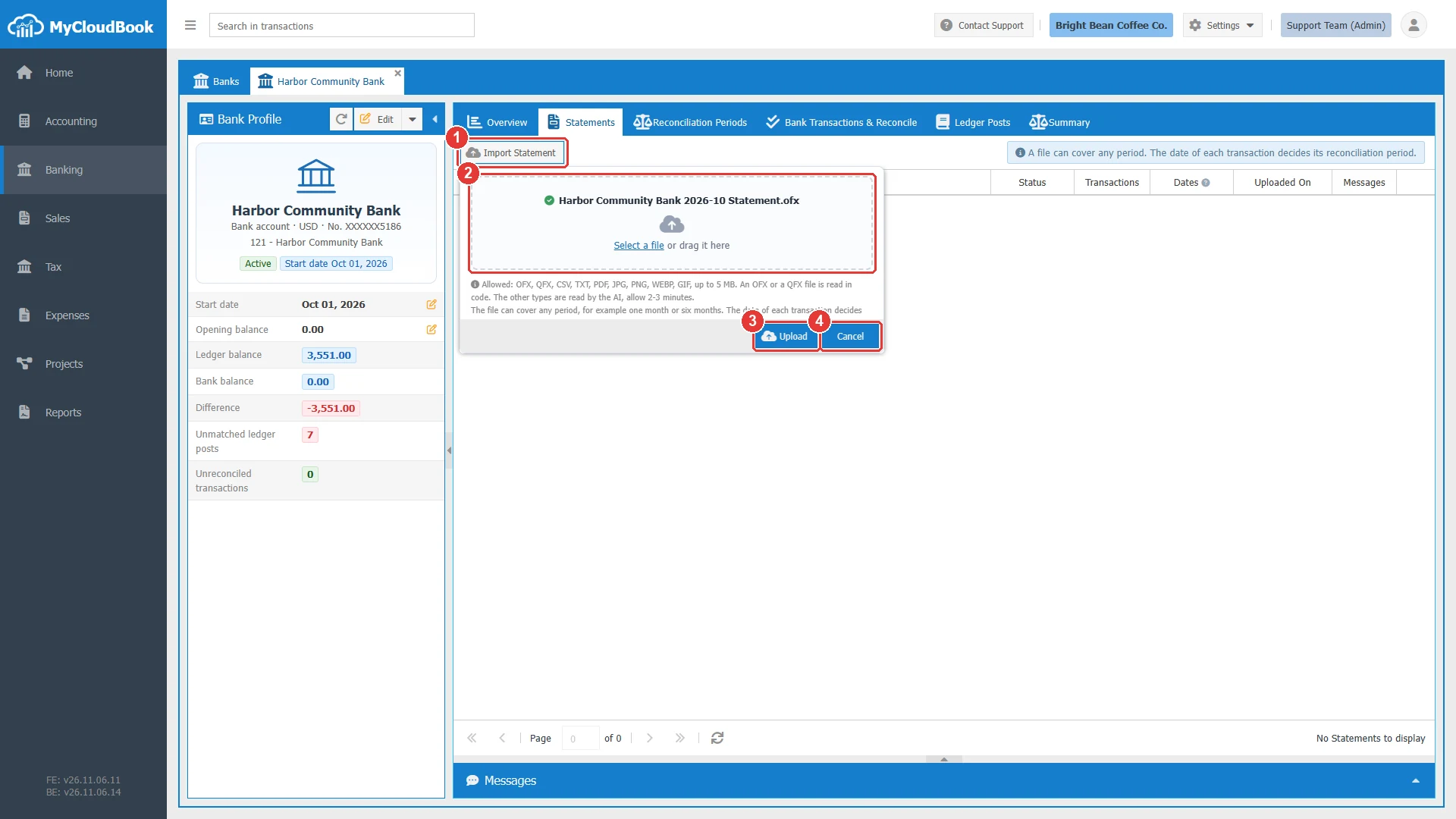
- 1Import Statement. A second click closes the panel.
- 2The file box. A check mark shows the chosen file.
- 3Upload.
- 4Cancel.
The rules of a file
| Rule | Details |
|---|---|
| File types | OFX, QFX, CSV, TXT, PDF, JPG, PNG, WEBP, and GIF, up to 5 MB. |
| Who reads the file | MyCloudBook reads OFX and QFX files. An AI service reads the other types. The screen says to allow 2 to 3 minutes. |
| One file at a time | Each upload takes one file. A file can cover one month or several months. |
| The same file again | A file that was uploaded for this bank is refused. Delete the first import to upload it again. |
| Active bank | The bank must be active. |
Your bank usually offers the statement as OFX, QFX, or CSV in its online banking. These files give the best result. A PDF or a clear picture of the statement also works.
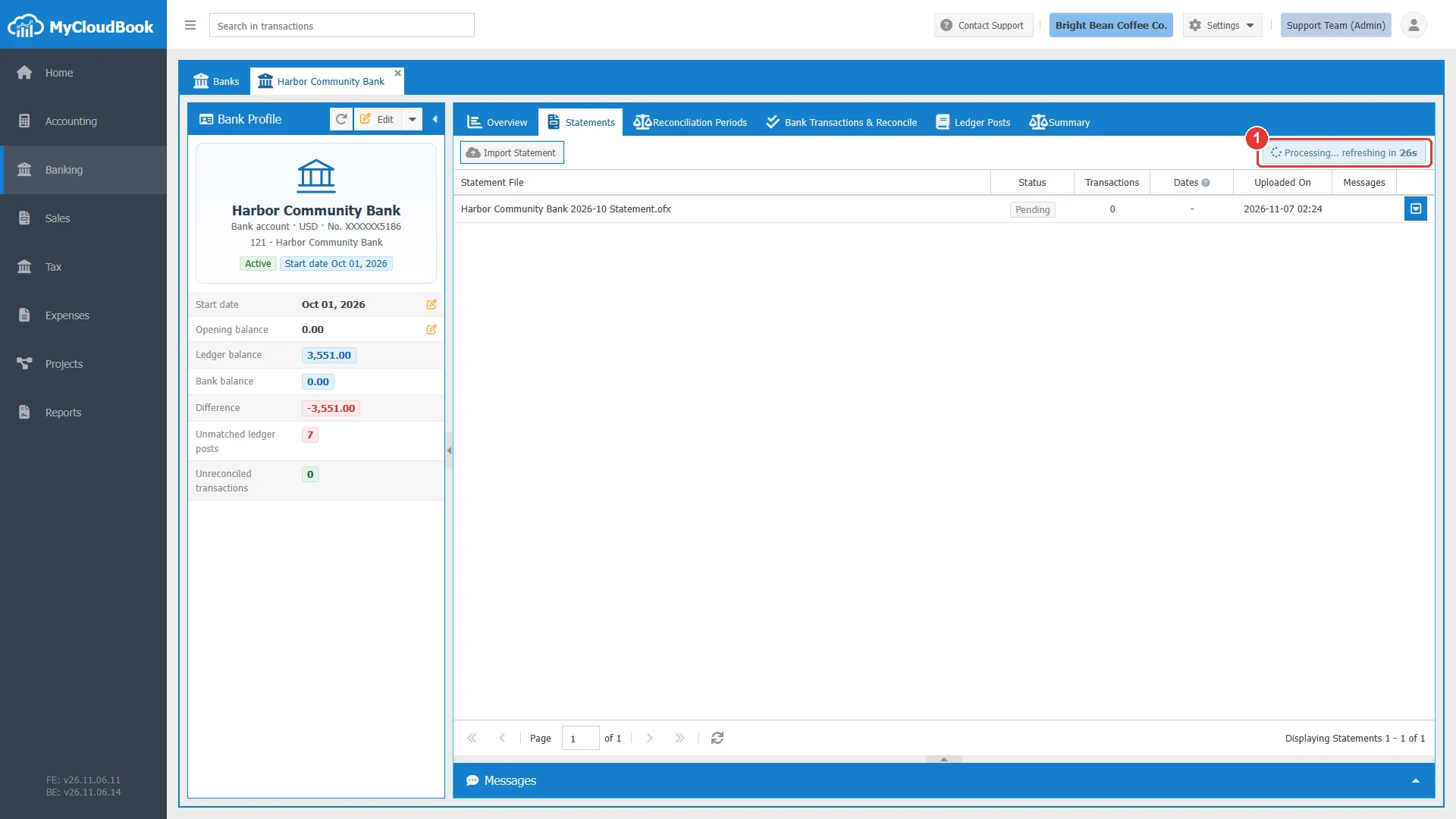
- 1The list reloads by itself while a file waits, and the counter shows the seconds.
The list of the files
When the status is Completed, the lines are in the Bank Transactions & Reconcile tab. Click a row to see its messages. In the example, the file gave 13 lines, and one line was already reconciled by a rule with auto apply.
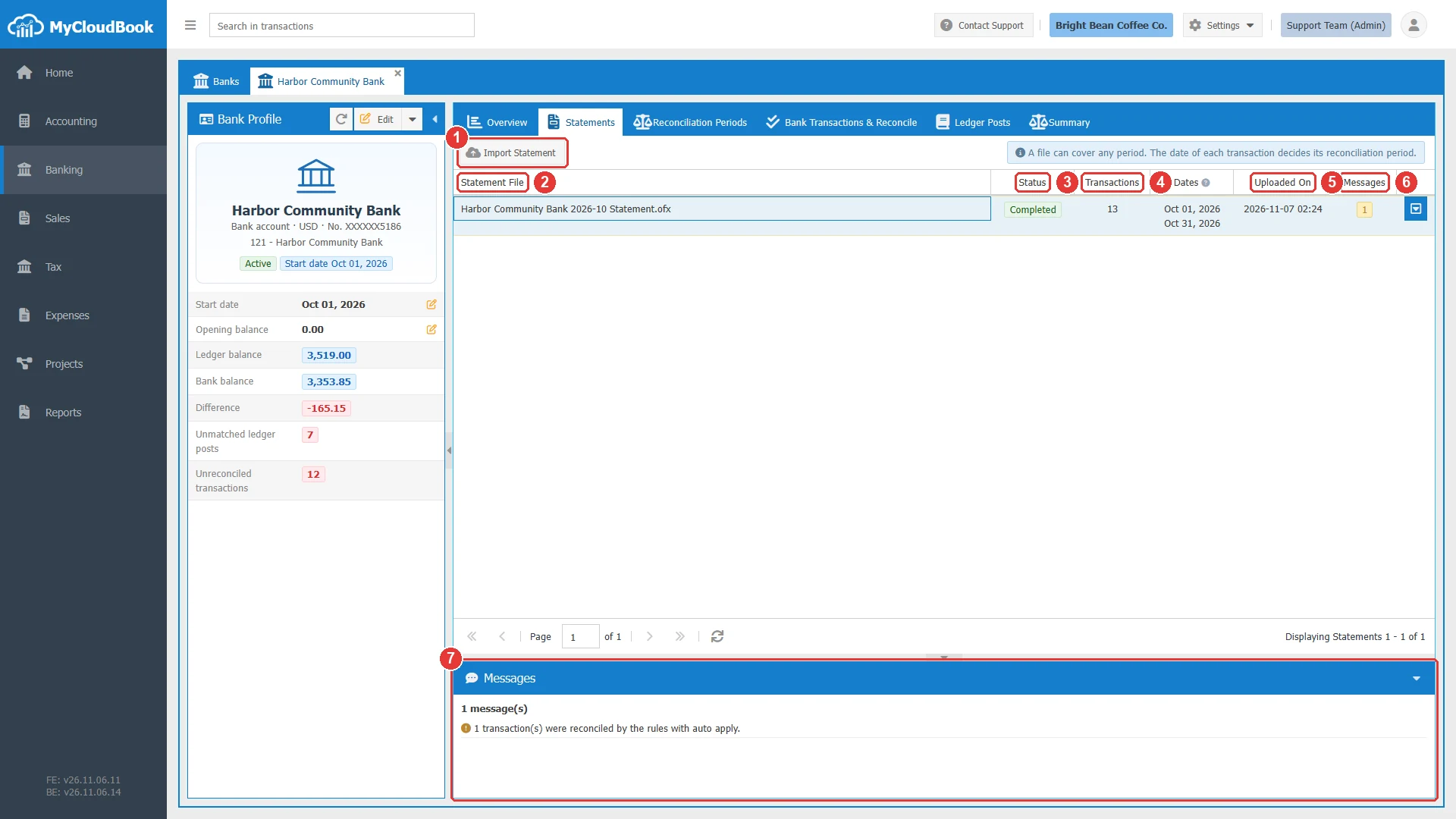
- 1Import Statement.
- 2Statement File. The name of the file.
- 3Status. See the table below.
- 4Transactions. The number of lines that the import added.
- 5Uploaded On. The date and the time of the upload.
- 6Messages. The number of messages of the file.
- 7The Messages panel. It shows the messages of the selected file.
| Status | Meaning |
|---|---|
| Pending | The file waits to be read. |
| Processing | MyCloudBook reads the file now. |
| Completed | The file was read, and its lines are in the bank transactions. |
| Failed | The file could not be read. The Messages panel gives the reason. Upload the file again, or upload another copy. |
| FileNotFound | The stored file is missing. Upload the file again. |
What the import does with the lines of a file:
- A line that the bank already has is skipped, so two files can overlap. A message gives the number.
- A line dated before the reconciliation start date is skipped, with a message.
- A line inside a completed reconciliation period is skipped, with a message.
- A line without a date or an amount is skipped, with a message.
- Rules with auto apply run on the new lines. The Bank Rules guide explains them.
The row menu
The row menu of a file holds two items.
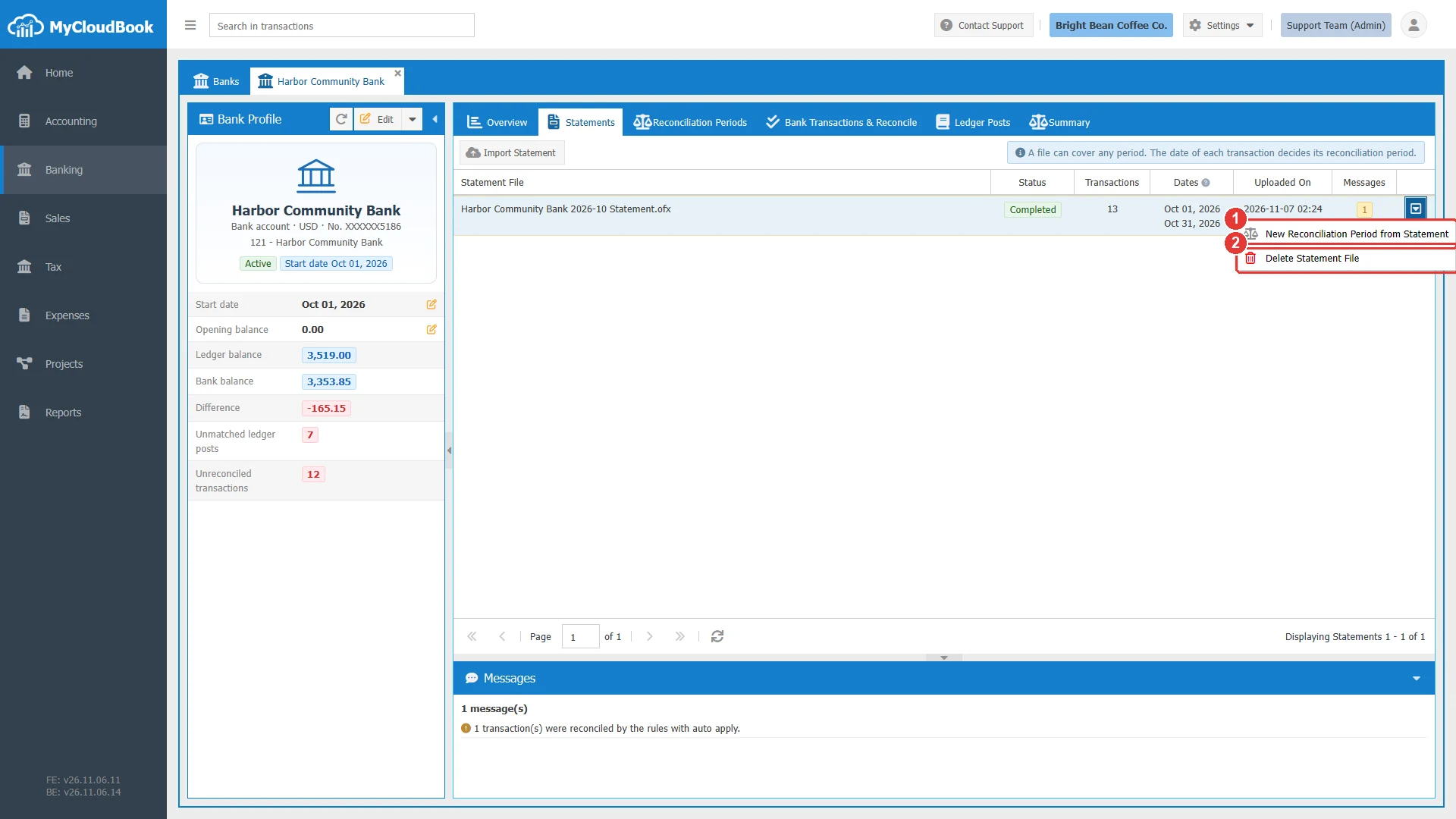
- 1New Reconciliation Period from Statement. Opens the period window with the date of the last line. Available for a completed file.
- 2Delete Statement File. Deletes the file and its transactions after a question.
A file can be deleted while none of its transactions is reconciled and none is inside a completed period. Unreconcile the transactions, or reopen the period, first.
Messages and their meaning
Questions and answers
Which statement files can I upload?
OFX, QFX, CSV, TXT, PDF, JPG, PNG, WEBP, and GIF files of up to 5 MB.
Which file type is the best?
An OFX or QFX file from the online banking of your bank. A CSV file, a PDF, or a clear picture also works.
Can a file cover several months?
Yes. The date of each transaction decides its reconciliation period.
What happens when two files overlap?
Lines that the bank already has are skipped, and a message gives the number.
How do I correct a wrong import?
Delete the statement file with its row menu, and upload the correct file.