Bank Rules
This guide explains bank rules in MyCloudBook: how to handle repeating bank lines automatically, how to write the conditions, and how to choose between Auto and Suggest.
Overview
A bank rule handles a line that comes back again and again, for example the monthly fee of the bank. The rule looks at the line, and it creates a new expense, receipt, or transfer for it. The new document is reconciled with the line, so you do not type it each month.
A rule works in one of two ways:
| Way | What happens |
|---|---|
| Suggest | A blue badge appears on the line. Nothing happens until you click Apply Rules and confirm. |
| Auto | The rule creates the document during the import of a statement file. The Messages panel of the file gives the number of lines. |
The Bank Rules tab
- In the left navigation, click Banking.
- In the Banks tab, click Bank Rules. The Bank Rules tab opens.
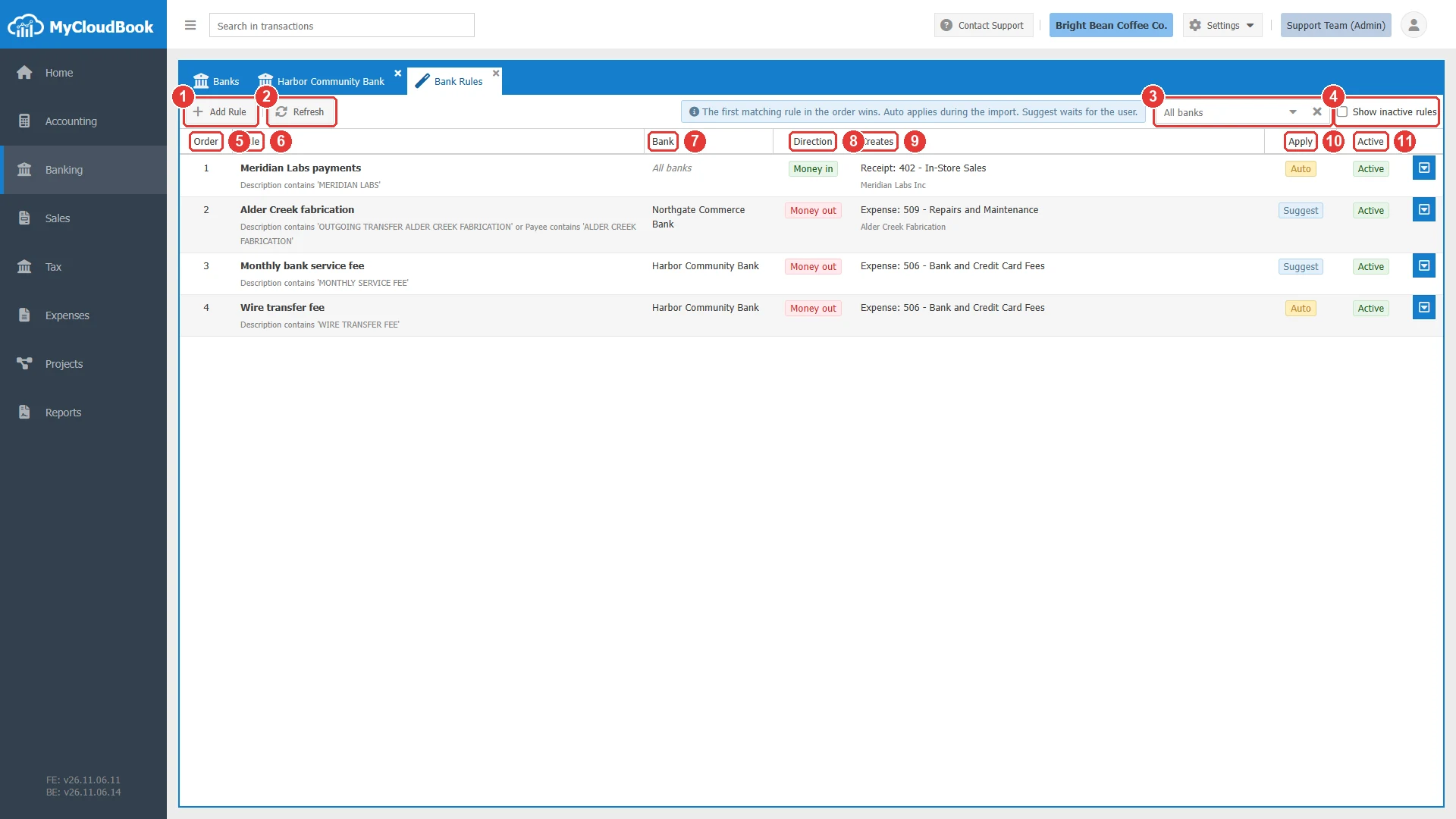
- 1Add Rule.
- 2Refresh.
- 3The bank filter. It shows the rules of one bank and the rules of all banks.
- 4Show inactive rules.
- 5Order. The rules run in this order.
- 6Rule. The name and the conditions.
- 7Bank. One bank, or All banks.
- 8Direction. Money in or Money out.
- 9Creates. The document and its account.
- 10Apply. Auto or Suggest.
- 11Active. The status of the rule.
A double click on a rule opens it. The row menu holds Edit and Delete. The first matching rule in the order is used for a line.
Adding a rule
- Click Add Rule. You can also click Create Rule… in the row menu of a bank line, so the window starts with the text of the line.
- Select Apply to, and type the Rule Name.
- Add the conditions.
- Select the document and its account.
- Click Save.
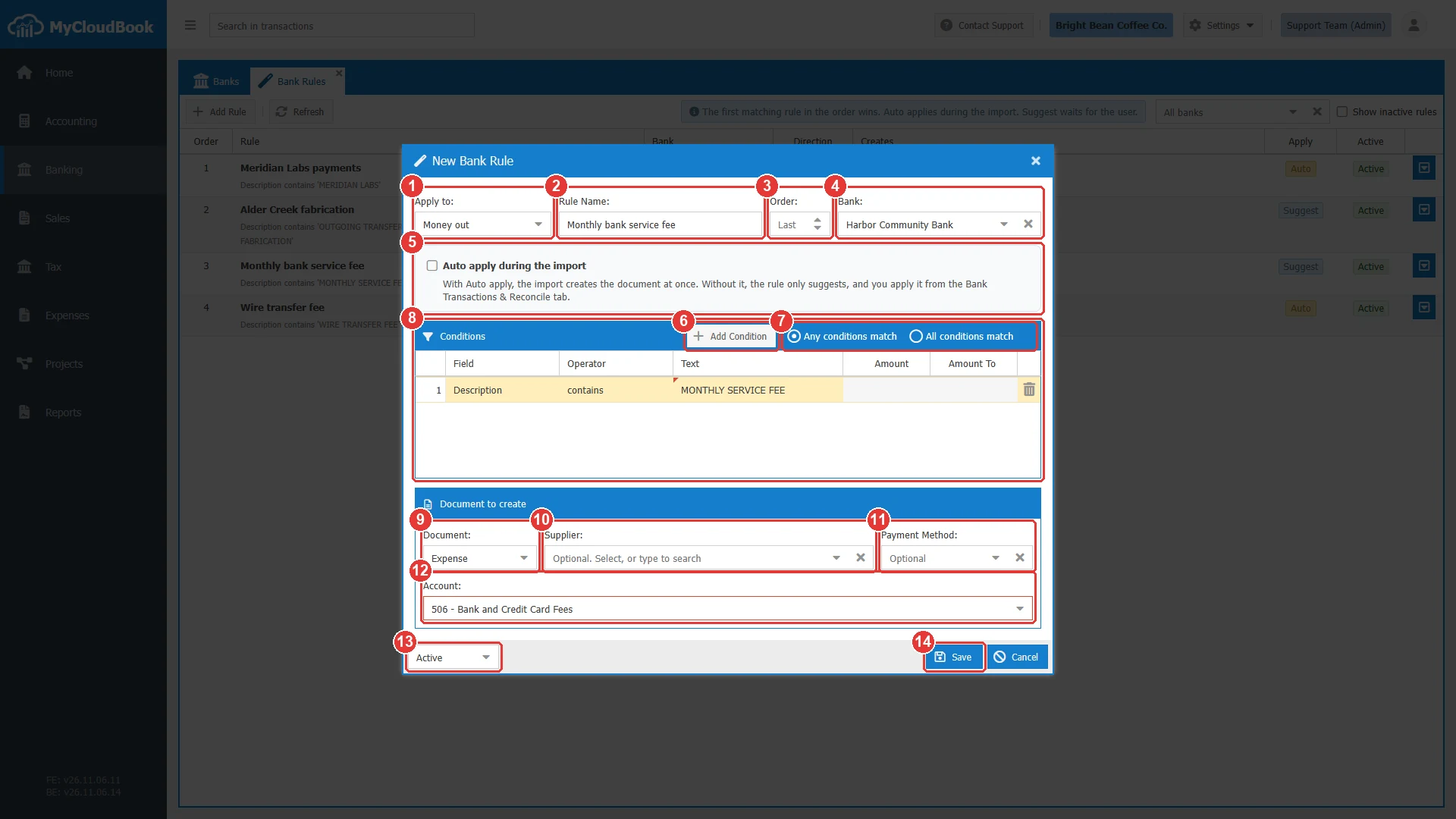
- 1Apply to. Money out or Money in.
- 2Rule Name.
- 3Order. Empty puts the rule at the end.
- 4Bank. Empty means all banks.
- 5Auto apply during the import. Without it, the rule only suggests.
- 6Add Condition.
- 7Any conditions match or All conditions match.
- 8Conditions. Click a cell to change it.
- 9Document. The document that the rule creates.
- 10Supplier, or Customer for a receipt. Optional.
- 11Payment Method. Optional.
- 12Account. The account of the document.
- 13The status: Active or Inactive.
- 14Save.
The fields
| Field | Required | Purpose and rules |
|---|---|---|
| Apply to | Required | Money out for a payment, a fee, or a withdrawal. Money in for a deposit, a refund, or a payment received. |
| Rule Name | Required | Up to 100 characters. It must be unique. |
| Order | Optional | A whole number of 1 or more. |
| Bank | Optional | One active bank, or empty for all banks. |
| Document | Required | Money out: Expense or Transfer. Money in: Receipt or Transfer. |
| Supplier or Customer | Optional | The contact of the document. Not used for a transfer. |
| Account | Required | The expense, income, or other account of the document. A transfer uses an asset or a liability account. |
| Tax | Optional | For a receipt only. |
The conditions
| Field | Operators |
|---|---|
| Description, Payee, Reference, Transaction type | contains, does not contain, is equal to, starts with, ends with. Capital and small letters count the same. |
| Amount | is equal to, is greater than, is less than, is between. The amount has no sign here. |
Use a short text that appears in every month, for example MONTHLY SERVICE FEE. Avoid dates and numbers that change. With two or more conditions, choose Any conditions match or All conditions match.
Start with Suggest. Check the suggestions for a month, and then turn on Auto apply.
What a rule creates
The document of a rule has one line with the amount of the bank line. Its date, reference, and description come from the bank line. After the rule runs, the line is reconciled, and a small text under its badge names the rule.
- A rule never changes an existing document. It always creates a new one.
- Unreconcile removes the link. The document stays in the books.
- When you delete a rule, its documents stay in the books.
- Auto apply works on the lines of an import. For other lines, use Apply Rules.
Messages and their meaning
Questions and answers
What is a bank rule?
A rule that creates a new expense, receipt, or transfer for a bank line that fits its conditions, and reconciles the line with it.
What is the difference between Auto and Suggest?
Suggest shows a badge and waits for you. Auto creates the document during the import of a statement.
In which order do the rules run?
In the order of the Order column. The first rule that fits a line is used.
What happens to the documents when I delete a rule?
They stay in the books.
How do I start a rule from a bank line?
Click Create Rule in the row menu of the line. Shorten the text of the condition, so it fits every month.