Bank Transactions and Reconcile
This guide explains the main screen of the bank reconciliation in MyCloudBook: how to read the suggestions, how to reconcile each line, and how to handle the lines that have no document.
Overview
The Bank Transactions & Reconcile tab is the main screen of the bank reconciliation. It lists the lines of the bank. To reconcile a line means to link it with the document of the books that records the same movement. When every line of a period is reconciled or excluded, the bank and the books agree, and the period can be completed.
Each unreconciled line can show a suggestion in the Match column, so most lines need only one click.
How to open the tab
- In the left navigation, click Banking.
- In the Banks tab, double click the bank. The bank profile opens in its own tab, named after the bank.
- Click the inner tab Bank Transactions & Reconcile.
The tab opens on the oldest reconciliation period that is in progress, and it shows the unreconciled lines, the oldest first. The example shows the October statement of Harbor Community Bank, with four kinds of suggestions.
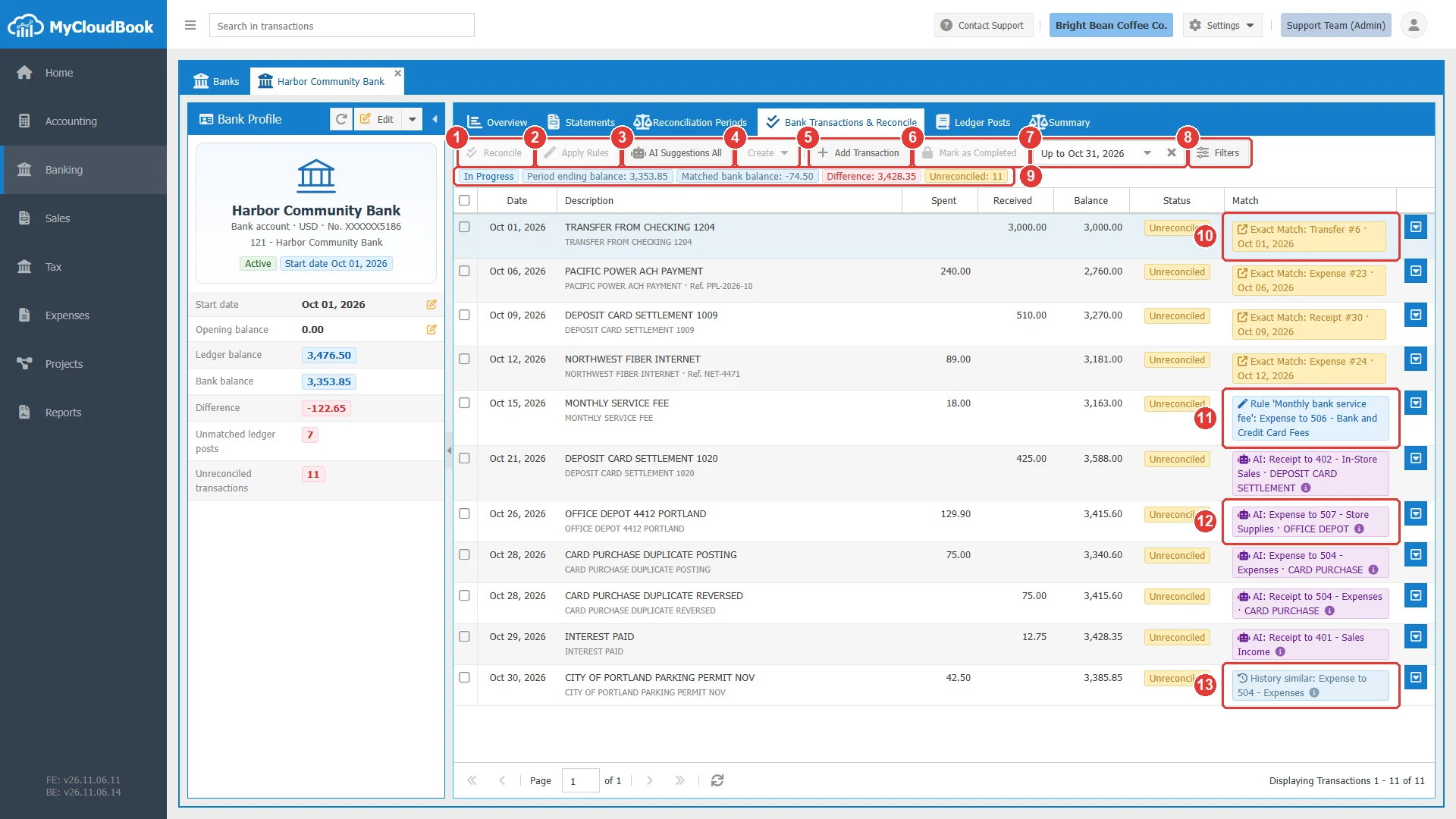
- 1Reconcile. Reconciles the selected lines with their exact matches.
- 2Apply Rules. Applies the rule suggestion of the selected lines.
- 3AI Suggestions All. Asks the AI for suggestions. With selected lines, the button is named AI Suggestions.
- 4Create. Holds Find and Reconcile… and the commands that create a document for the selected lines.
- 5Add Transaction. Adds a line by hand.
- 6Mark as Completed. Completes the period when it is ready.
- 7The reconciliation period. The x shows all periods.
- 8Filters. The dates, the status, and the search.
- 9The numbers of the period: the status, the ending balance, the matched bank balance, the difference, and the unreconciled lines.
- 10An exact match: a document of the books that fits this line. A click opens the document.
- 11A rule suggestion: a rule will create this document.
- 12An AI suggestion: the document, the account, and the payee that the AI proposes.
- 13A history similar suggestion: a past line like this one, reconciled with this kind of document.
The columns and the filters
| Column | Meaning |
|---|---|
| Date | The date of the line. |
| Description | The text of the bank. Under it, the payee and the reference. |
| Spent | The money that left the account. |
| Received | The money that entered the account. |
| Balance | The balance after the line. Excluded lines do not count. |
| Status | Unreconciled, Reconciled, or Excluded. |
| Match | The suggestion of the line, or the documents of a reconciled line. |
A line dated after the end of the shown period does not appear in the list. Click the x of the period to see all lines.
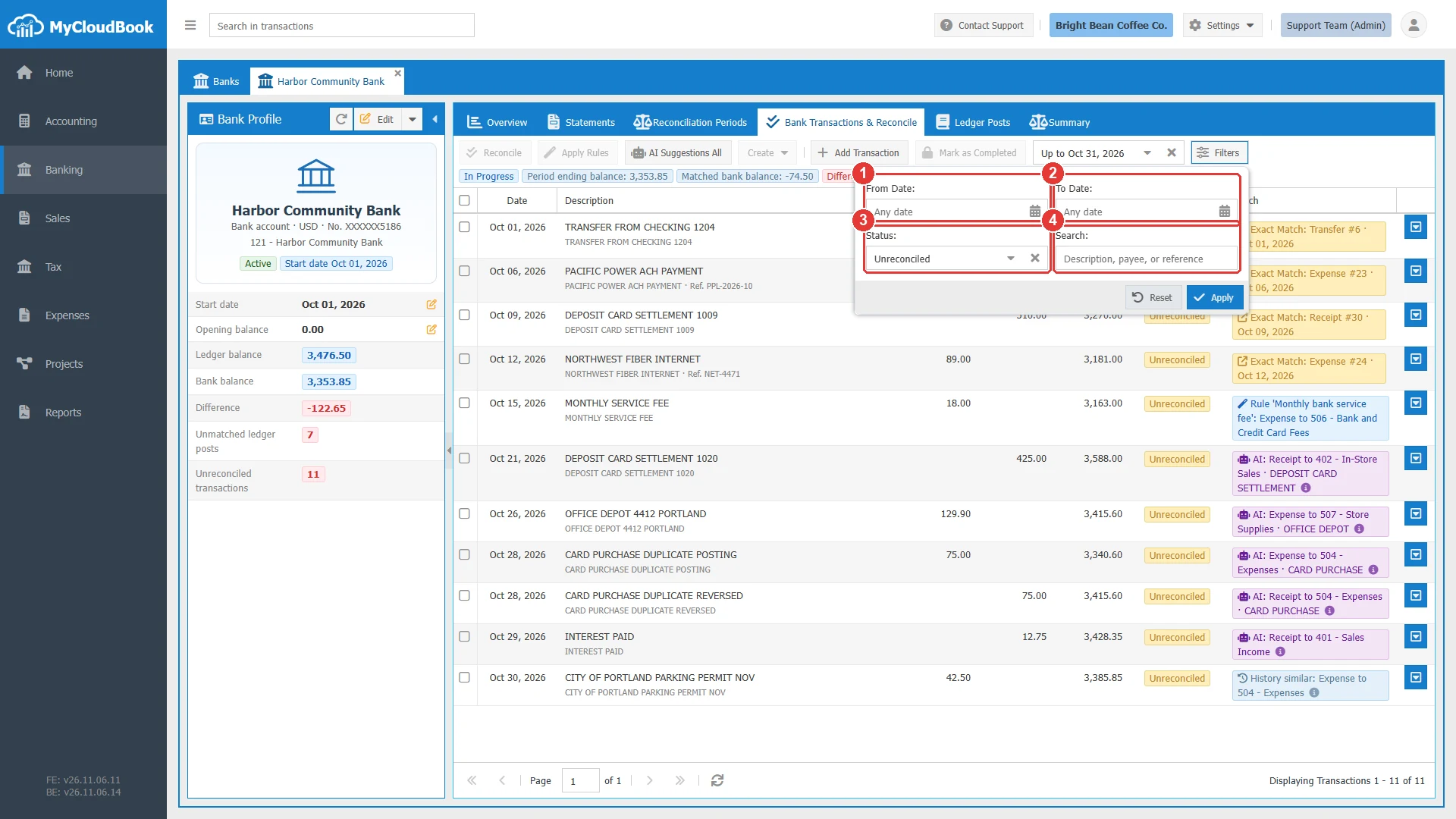
- 1From Date.
- 2To Date.
- 3Status. It starts with Unreconciled. The x shows every status.
- 4Search. A description, a payee, or a reference.
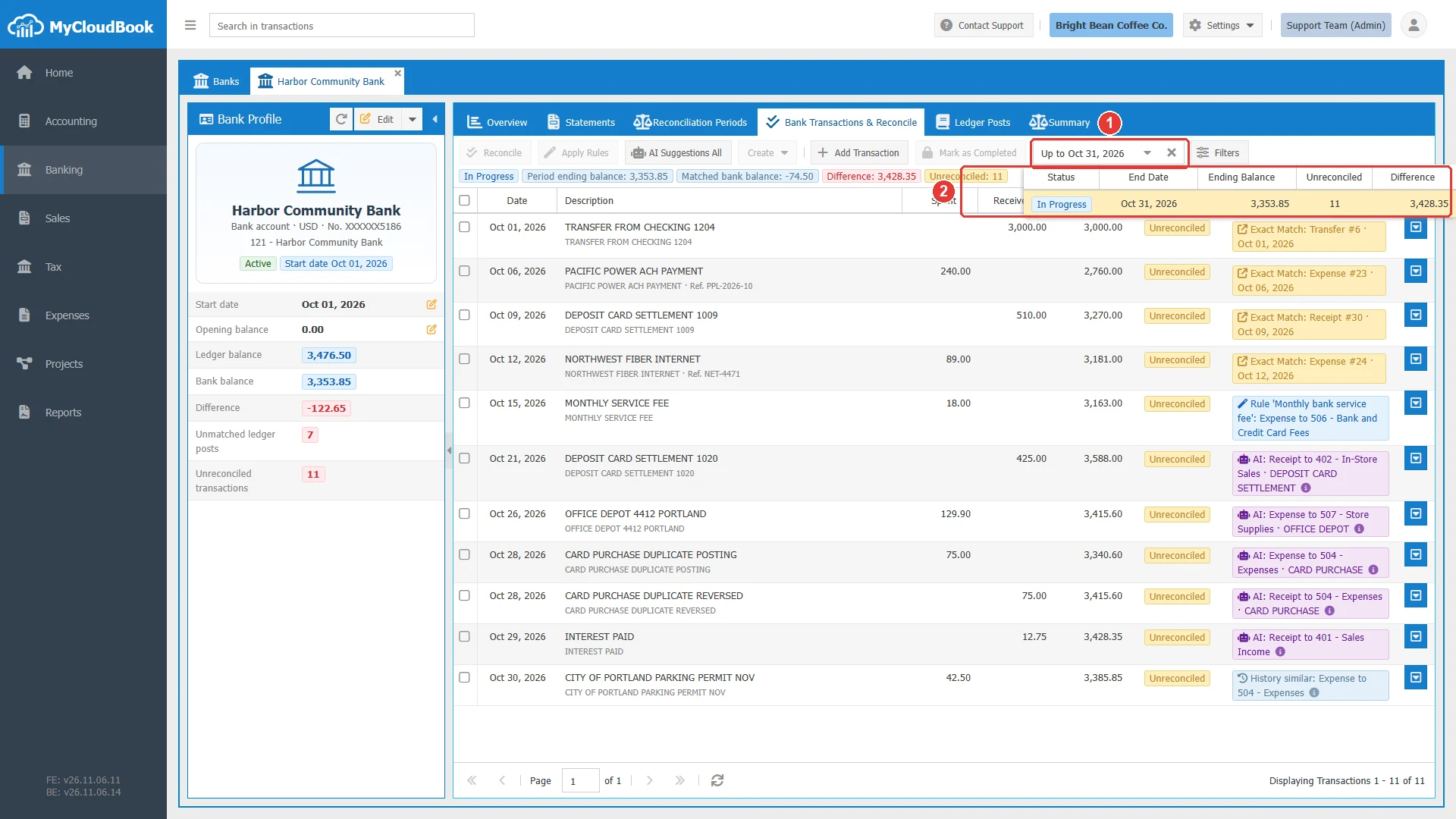
- 1The field of the period.
- 2The periods, with their numbers.
Reconciling exact matches
An Exact Match means that the document is already in the books.
- Click the badge to check the document, if you want.
- Select the check box of each line.
- Click Reconcile. The badge of the button counts the lines.
- For several lines, click Yes in the question.
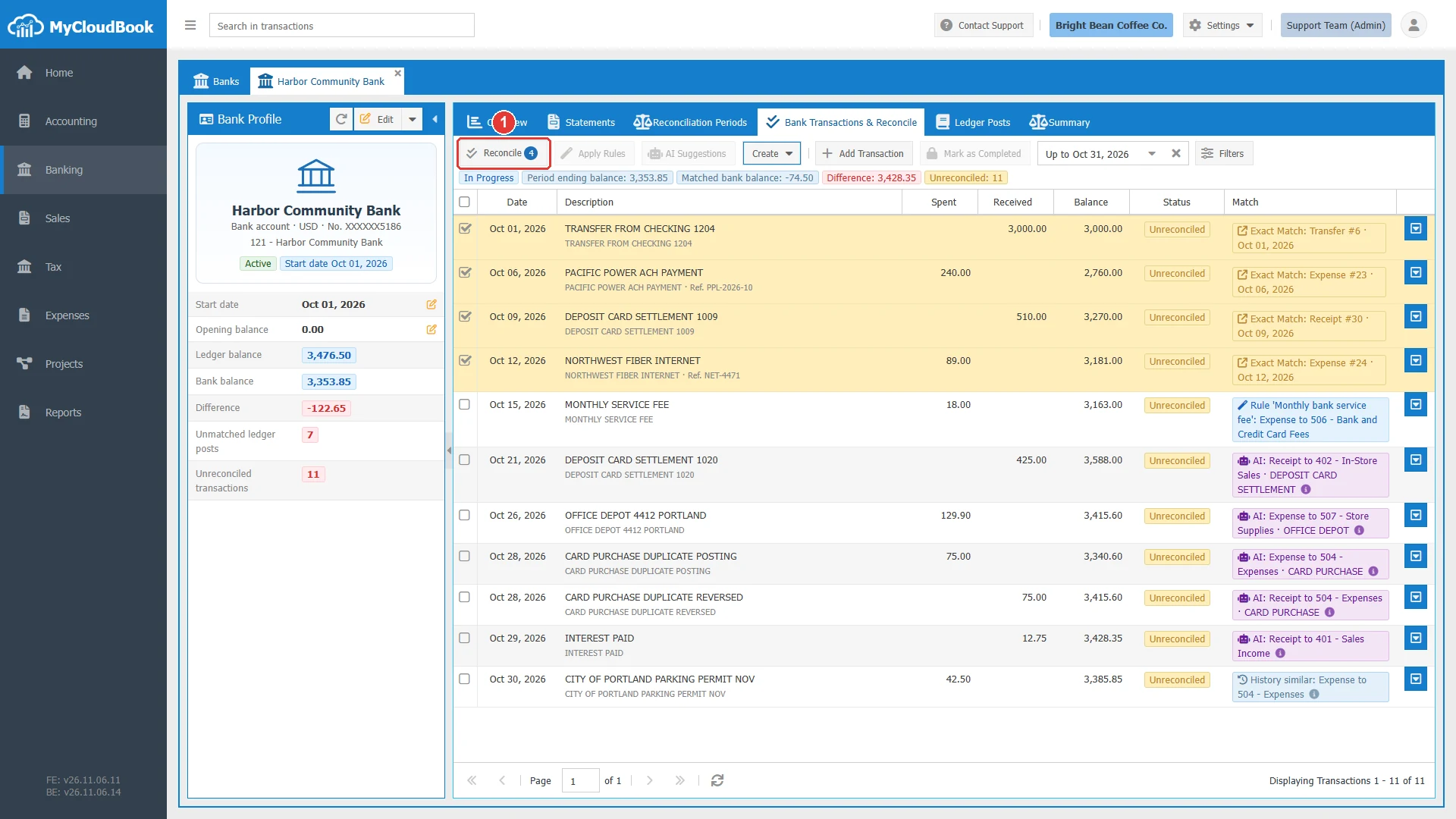
- 1Reconcile, with the count of the lines.
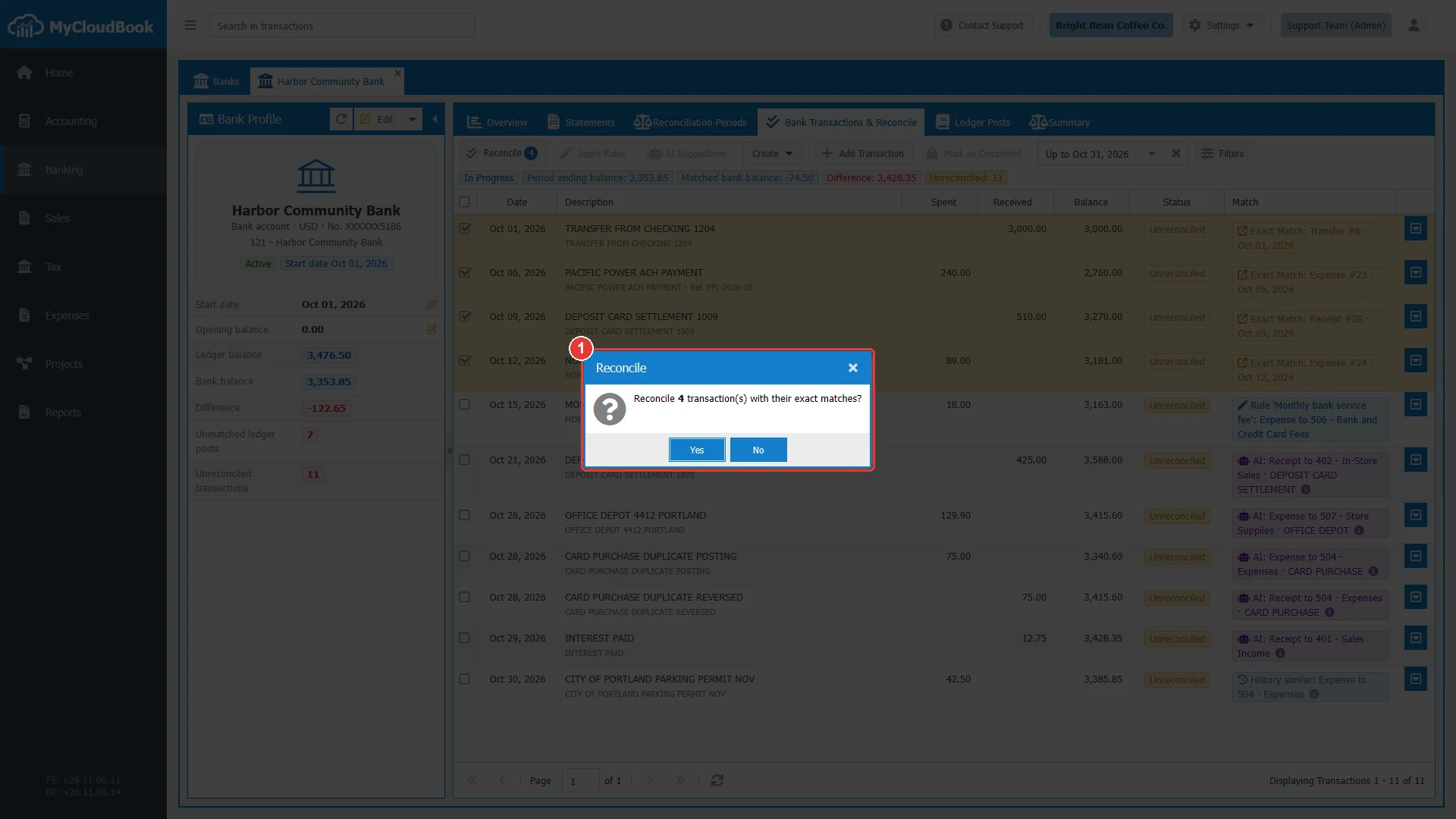
- 1The question.
The lines leave the list, because the Status filter shows the unreconciled lines. No new document is created. MyCloudBook saves only the link.
Applying rules
A blue badge shows a rule that fits the line. Select the line, click Apply Rules, and click Yes. The rule creates a new expense, receipt, or transfer, and it reconciles the line with this document.
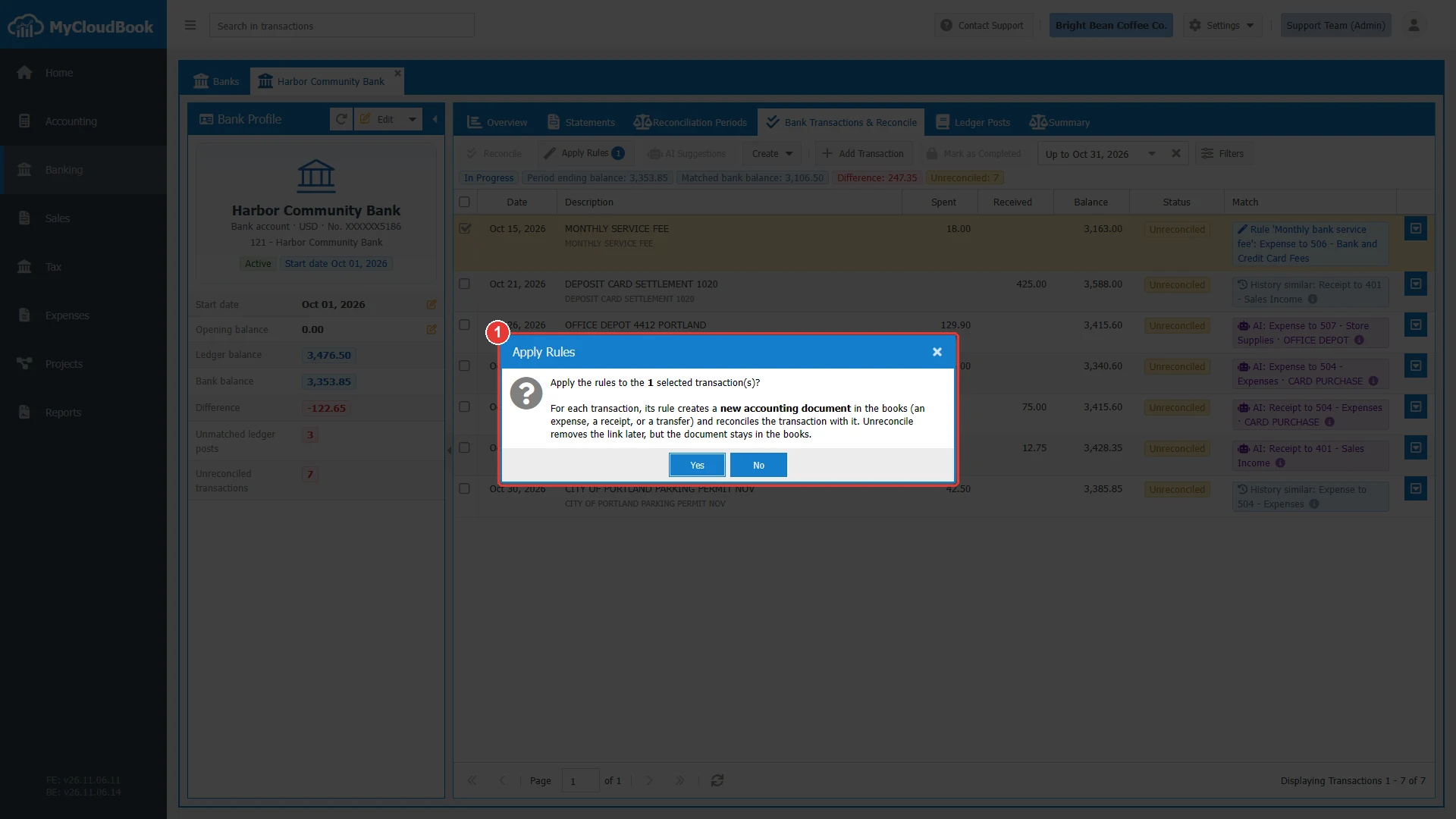
- 1The question. It reminds you that each rule creates a new document.
The Bank Rules guide explains how to write a rule.
Find and Reconcile
Use Find and Reconcile… when the document exists but the line shows no exact match. In the example, the bank deposited 425.00 on Oct 21 for two receipts of Oct 20.
- Open the row menu of the line, and click Find and Reconcile….
- Select the posts until the DIFFERENCE card is green and says the totals are equal.
- Click Reconcile.
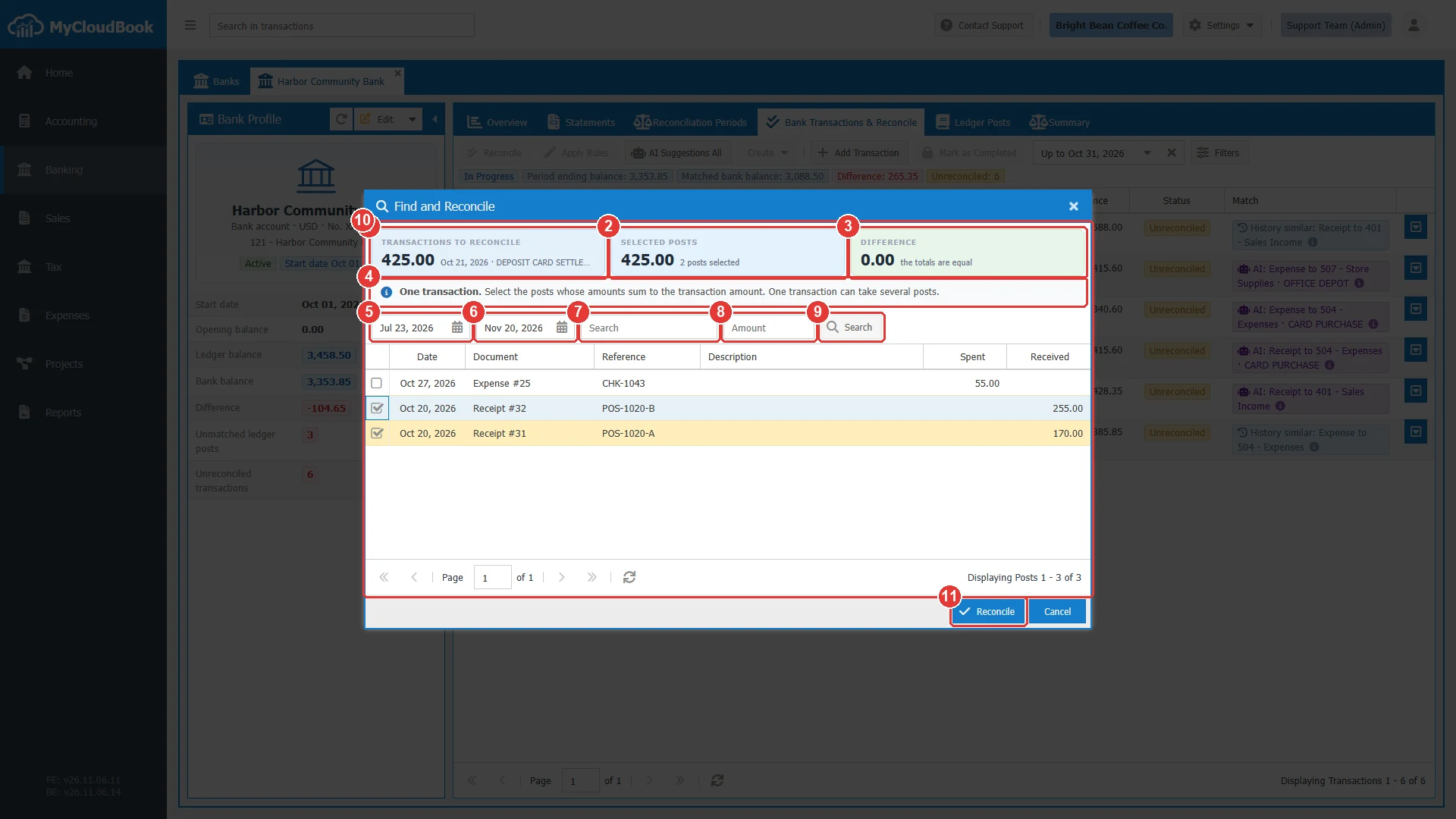
- 1TRANSACTIONS TO RECONCILE. The line and its amount.
- 2SELECTED POSTS. The total of the selected posts.
- 3DIFFERENCE. Green when the totals are equal.
- 4The text says how many posts you can select.
- 5From.
- 6To.
- 7Search. A document number, or a part of the reference or the description. Press Enter.
- 8Amount.
- 9The Search button.
- 10The unreconciled posts of the bank account. Select the check boxes.
- 11Reconcile. Available when the totals are equal.
- One line can take several posts, as in the example.
- Several lines can share one post. Select the lines, open the Create menu, and click Find and Reconcile….
Creating a document from a line
When the books have no document for a line, for example a bank fee, create the document from the line.
- Open the row menu of the line, and click the command, for example Create Expense.
- A new document opens with the date, the amount, the description, and the bank account.
- Select the account of the line, and complete the document.
- Click Save & Reconcile. MyCloudBook saves the document, reconciles the line, and returns to the tab.
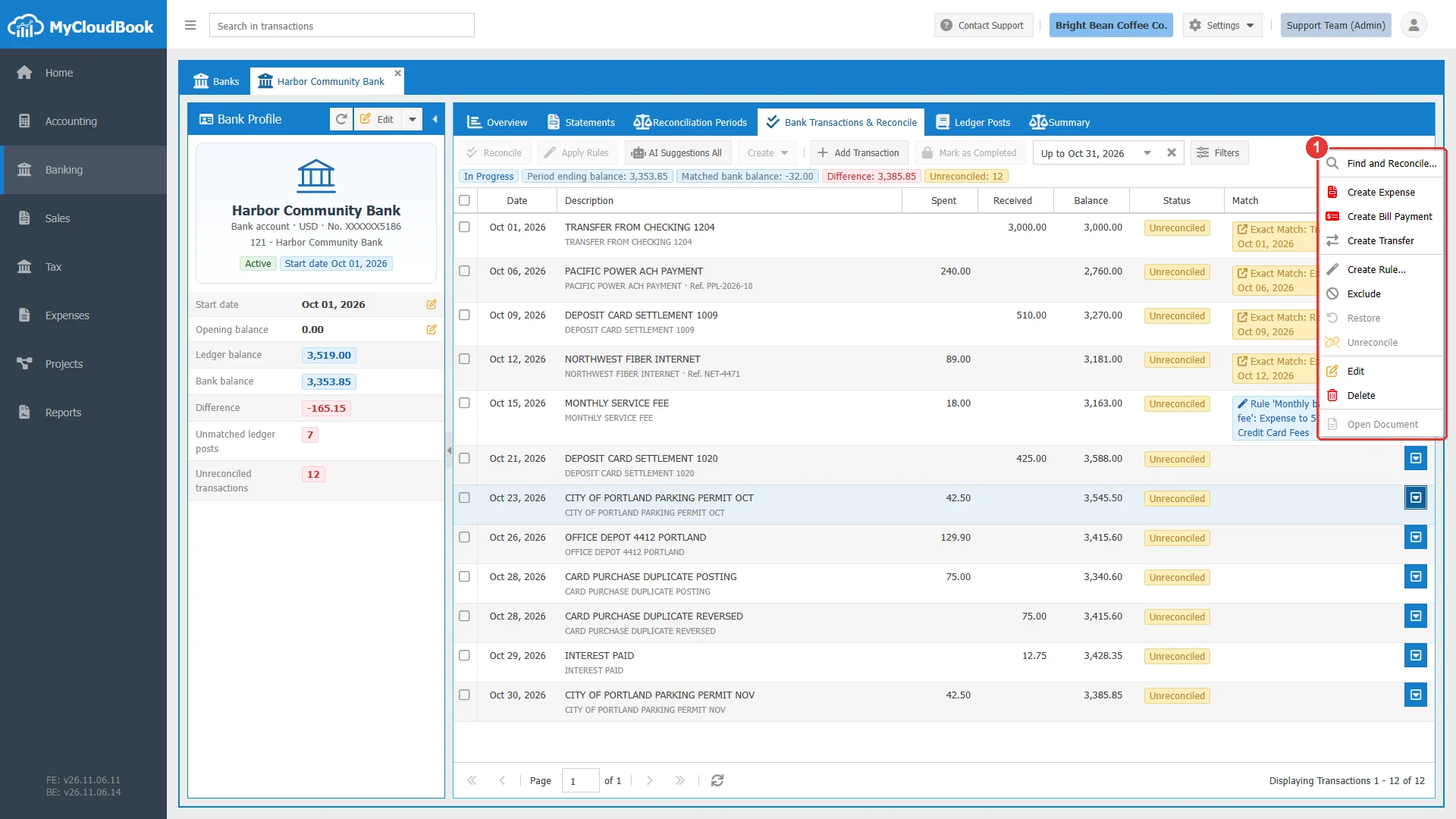
- 1The menu of the line. The items depend on the status of the line.
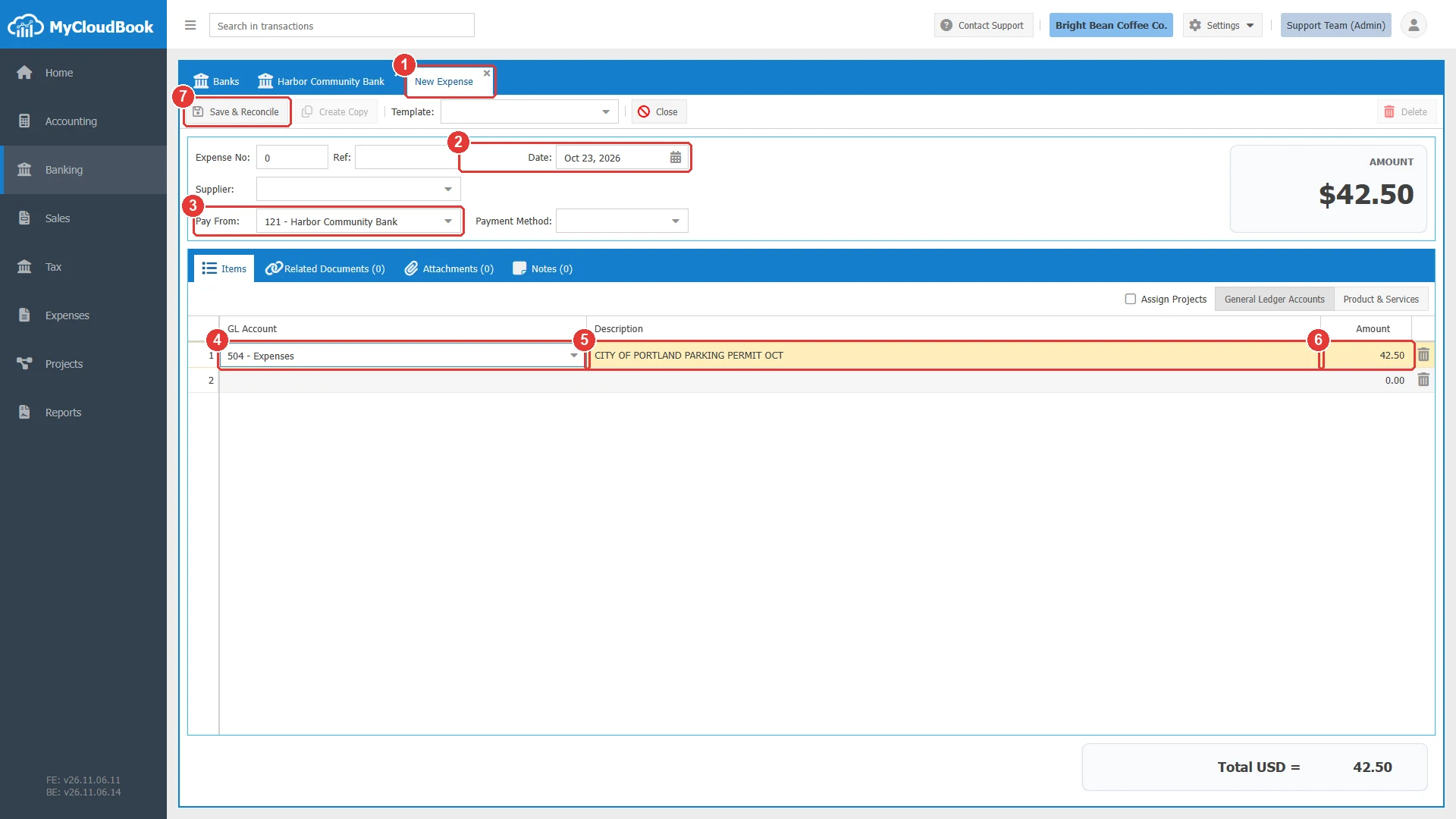
- 1The new document.
- 2Date. The date of the line.
- 3Pay From. The account of the bank.
- 4GL Account. Select the account of the expense.
- 5Description. The text of the bank. You can change it.
- 6Amount. The amount of the line.
- 7Save & Reconcile.
| Command | Use it for |
|---|---|
| Create Receipt | Money in from a sale. |
| Create Receipt Voucher | Money in that pays an open invoice. |
| Create Expense | Money out for a purchase that is not on a bill. |
| Create Bill Payment | Money out that pays an open bill. |
| Create Transfer | Money that moves to or from another account of the company. |
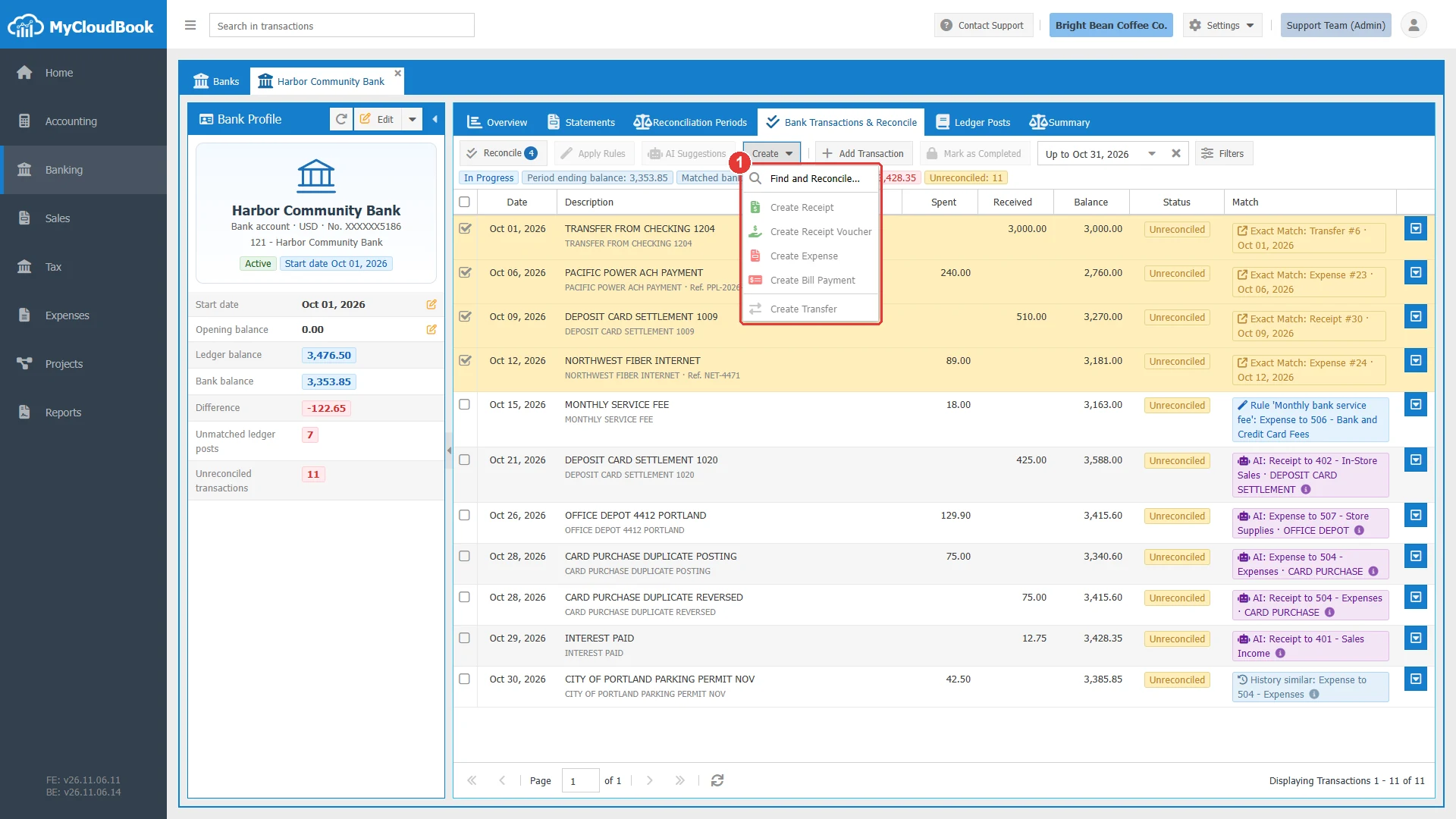
- 1The menu. It shows the commands that fit the selected lines.
A selection of several lines gives one document for their total.
AI suggestions
AI Suggestions All asks an AI service to suggest a document for the lines that have no suggestion yet. Select lines first to ask for these lines only. The AI never creates a document and never reconciles a line. You decide.
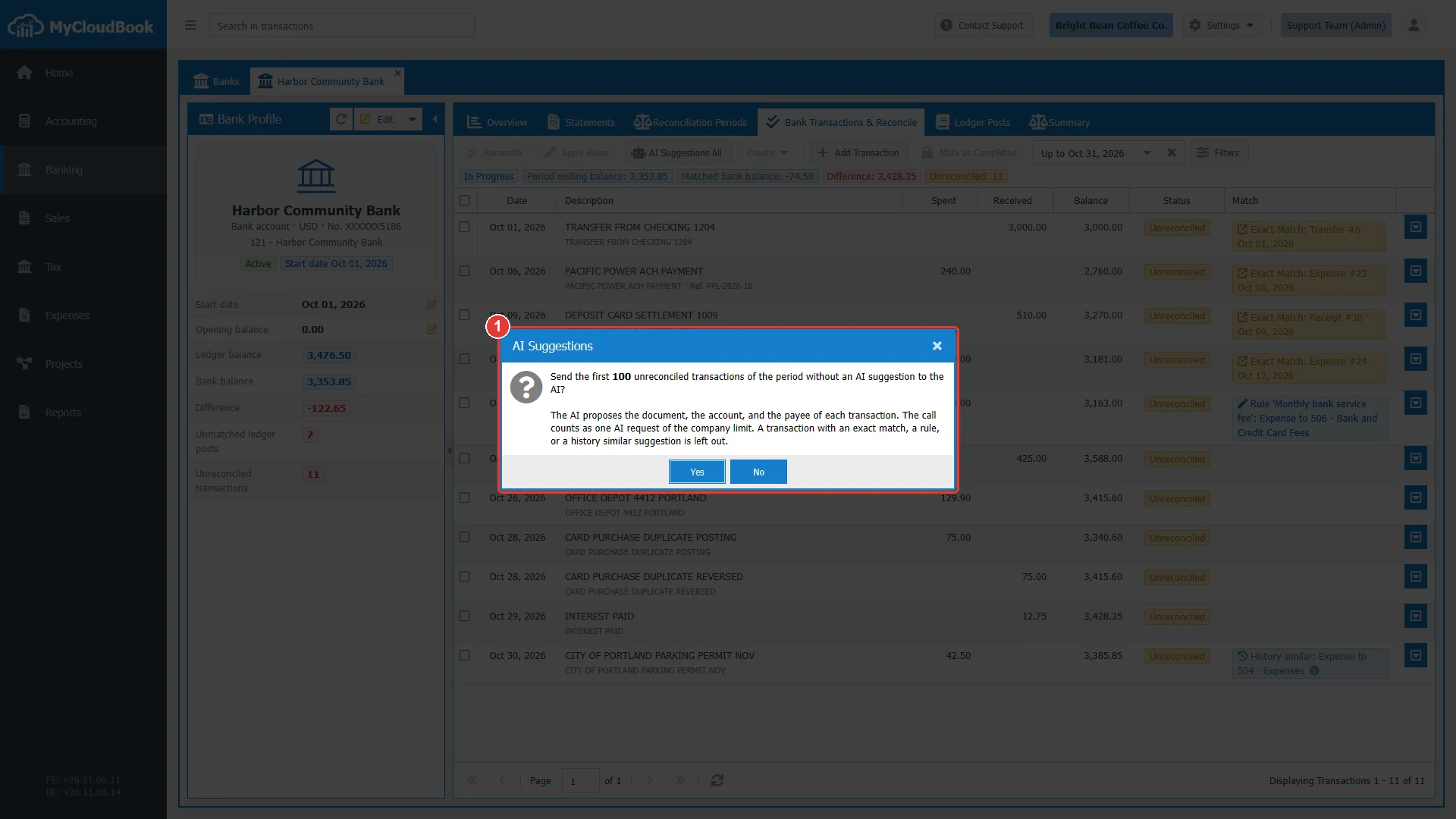
- 1The question. The call counts as one AI request of the company limit.
A purple badge shows the suggestion. Point at the badge to read the confidence and the reason.
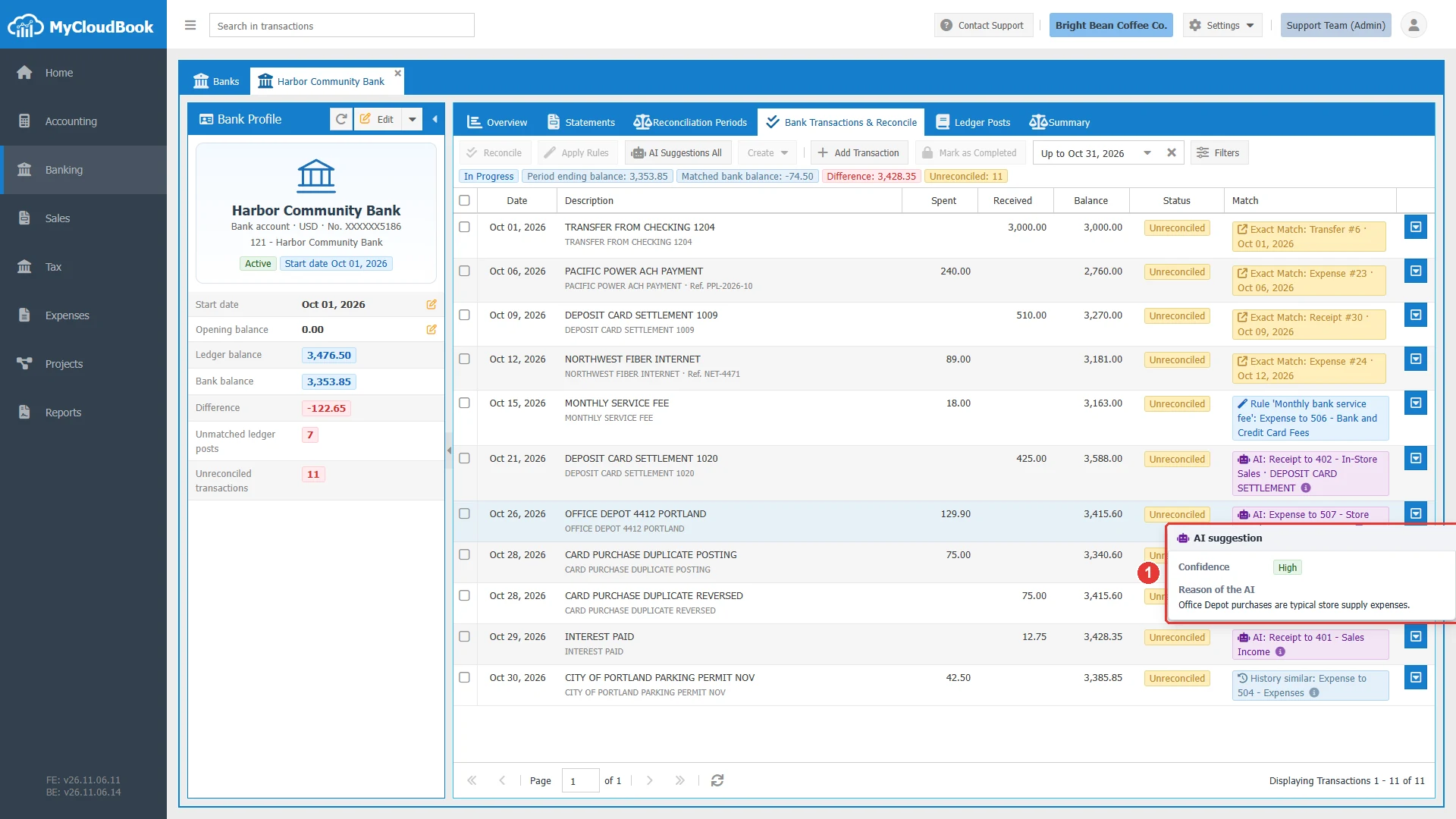
- 1The confidence and the reason.
A suggestion of the kind History similar comes from your own work: an earlier line like this one was reconciled with this kind of document. Point at the badge to see that line.
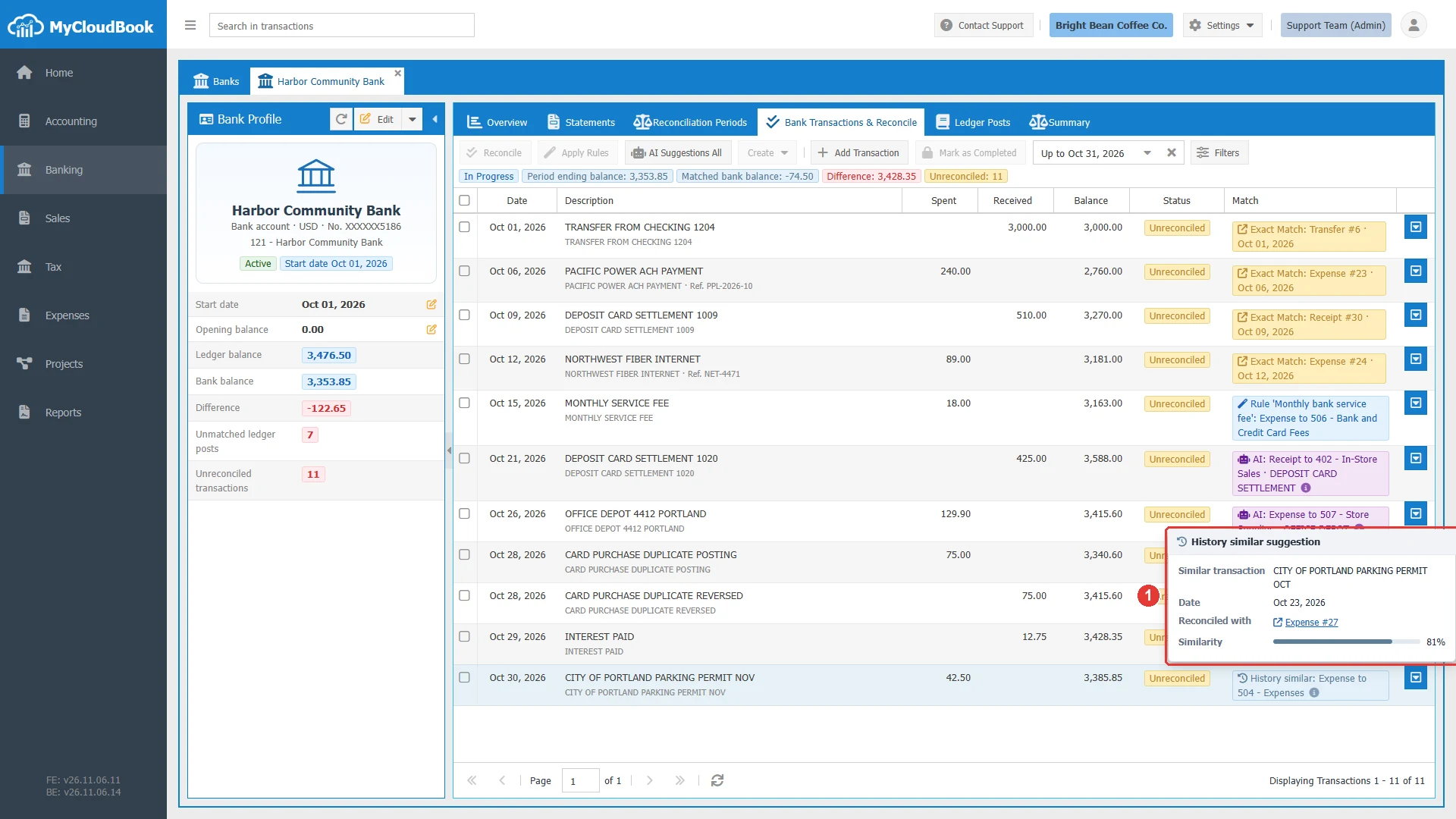
- 1The similar transaction and its document.
To use a suggestion, open the row menu and click the create command of the suggested document. The new document opens with the account and the contact of the suggestion. Check them, and click Save & Reconcile.
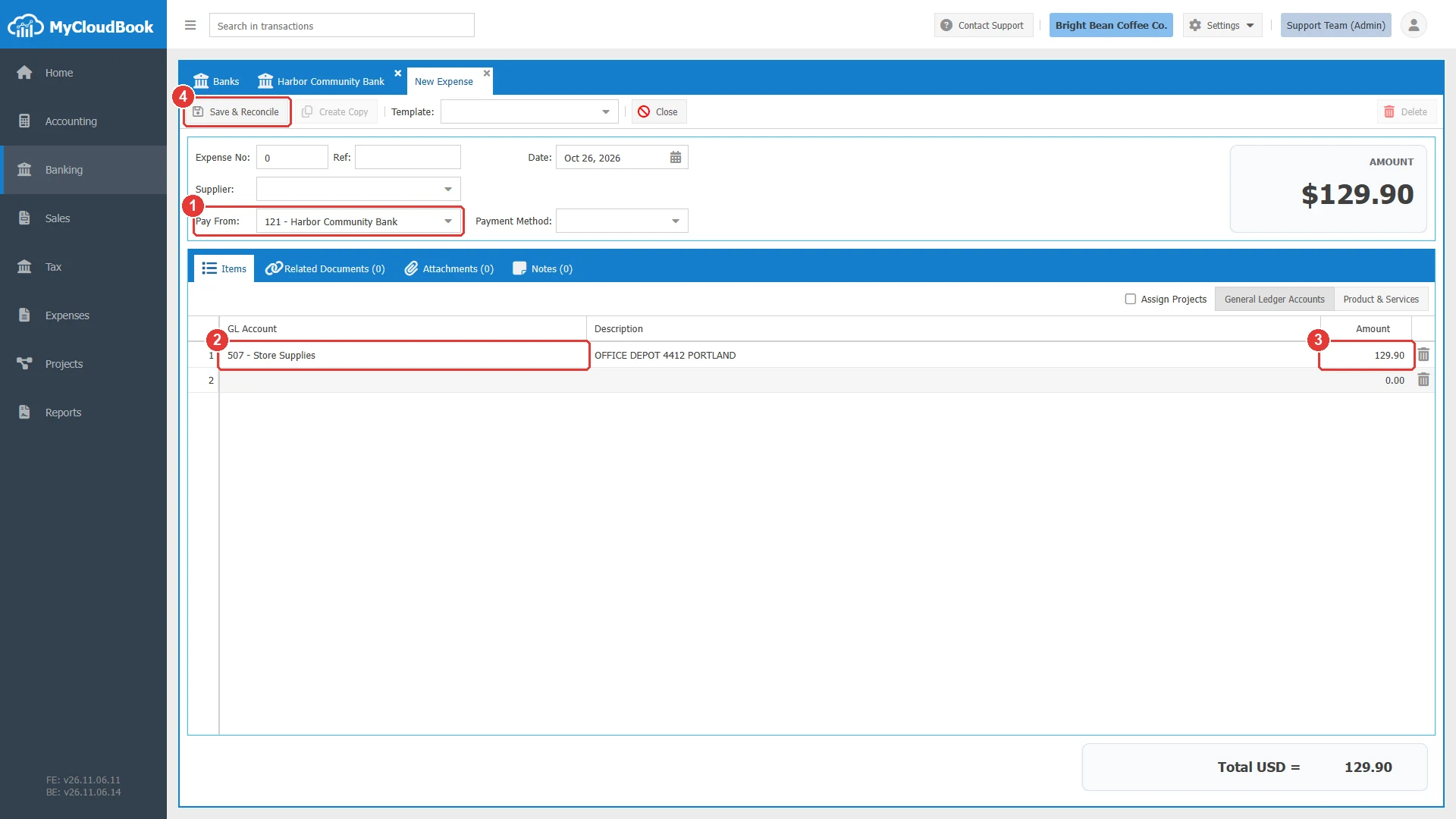
- 1Pay From.
- 2GL Account. It comes from the suggestion.
- 3Amount.
- 4Save & Reconcile.
Excluding and unreconciling a line
Exclude a line that is not a real movement, for example a posting that the bank reversed on the same day. An excluded line does not count in the balance. In the row menu, click Exclude. To bring it back, set the Status filter to Excluded and click Restore.
Unreconcile removes the link of a reconciled line. Set the Status filter to Reconciled, and click Unreconcile in the row menu. The document stays in the books.
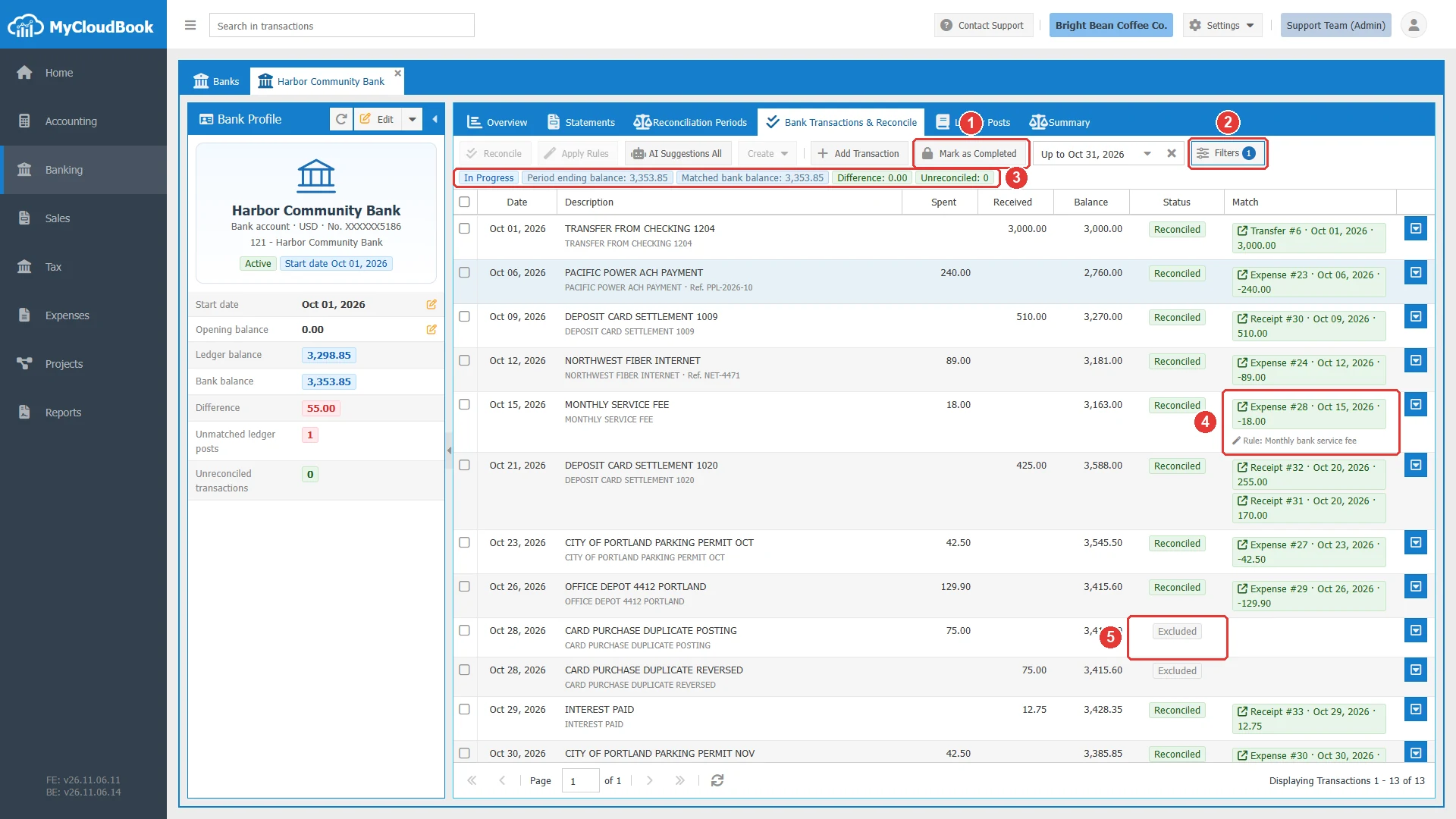
- 1Mark as Completed. Available now.
- 2Filters. The badge shows that a filter is changed.
- 3The numbers: the difference is 0.00, and no line is unreconciled.
- 4A line that a rule reconciled. The small text names the rule.
- 5An excluded line.
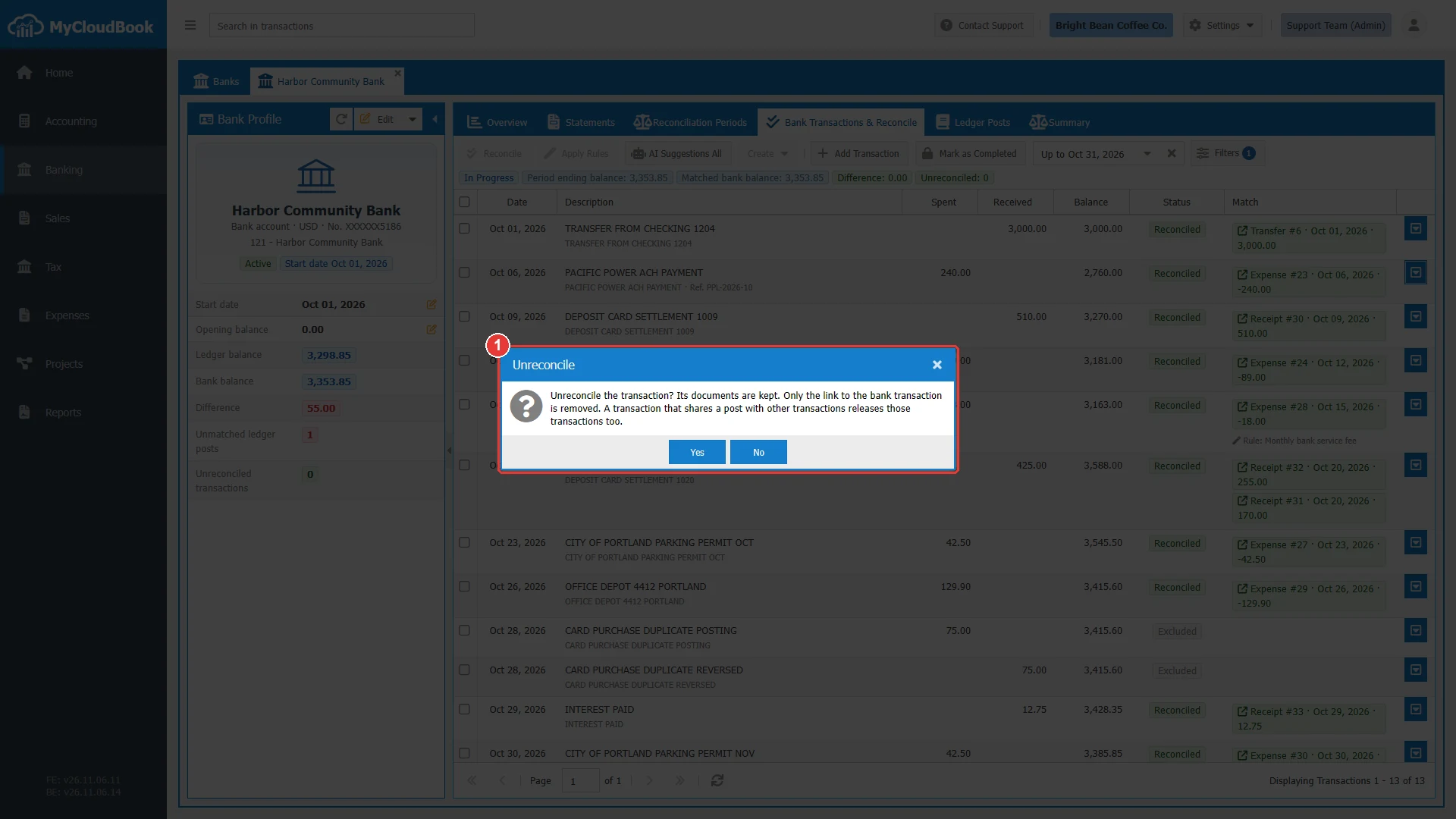
- 1The question.
Adding a line by hand
Add Transaction adds a line by hand, for example when a line is missing from the file. Edit and Delete in the row menu change a line that is not reconciled.
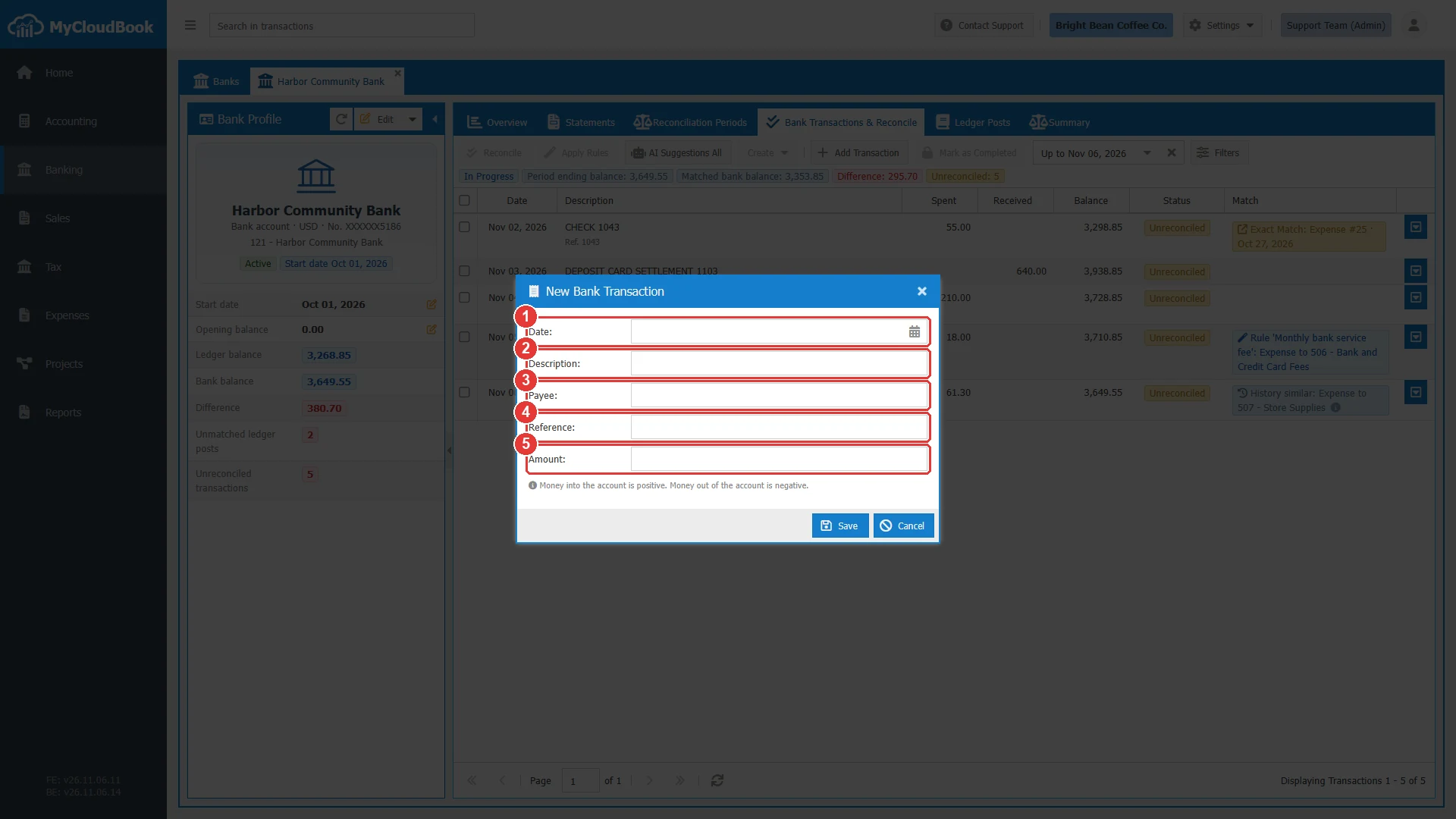
- 1Date.
- 2Description.
- 3Payee.
- 4Reference.
- 5Amount.
| Field | Required | Purpose and rules |
|---|---|---|
| Date | Required | After the end of the latest completed period, and not before the start date of the bank. |
| Description | Required | Up to 500 characters. |
| Payee | Optional | Up to 200 characters. |
| Reference | Optional | Up to 100 characters. |
| Amount | Required | Money into the account is positive. Money out of the account is negative. It cannot be zero. |
When the Difference is 0.00 and no line is unreconciled, click Mark as Completed. The Reconciliation Periods guide explains the next step.
Messages and their meaning
Questions and answers
What does it mean to reconcile a bank line?
You link the line with the document of the books that records the same movement. The line then has the status Reconciled.
What is an Exact Match?
A document of the books that fits the bank line. Select the line and click Reconcile. No new document is created.
How do I reconcile one deposit with several receipts?
Open Find and Reconcile from the row menu of the line, and select the posts until the totals are equal.
Does the AI change my books?
No. The AI only suggests. You open the document, check it, and click Save & Reconcile.
How do I undo a reconcile?
Set the Status filter to Reconciled, and click Unreconcile in the row menu. The document stays in the books.